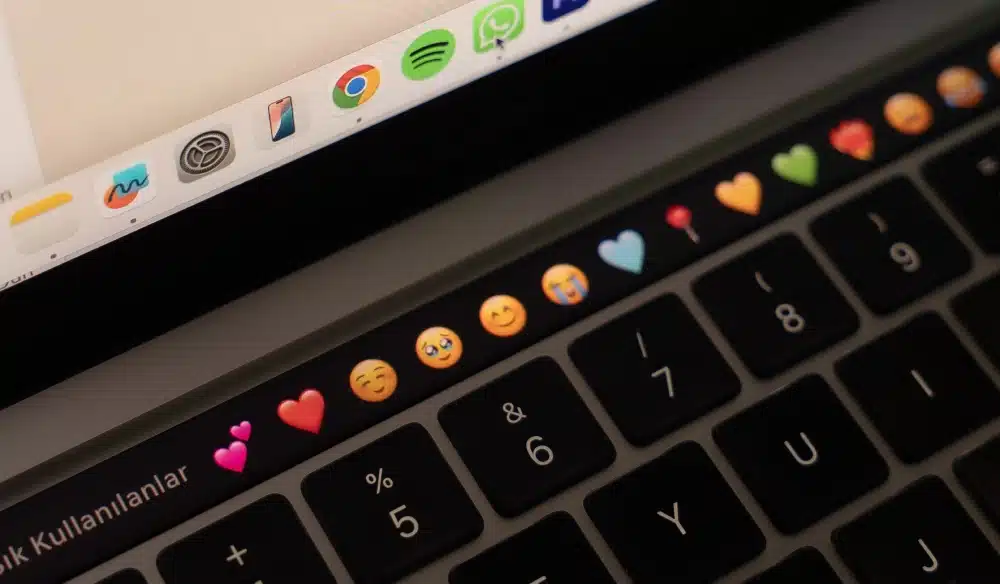
Finding the right Emoji Shortcut can save time when you are typing messages, documents, posts, or emails. Instead of searching for emojis with your mouse, you can open the emoji picker directly from your keyboard.
The most useful Emoji Keyboard Shortcut depends on your computer. On Mac, you can open the Character Viewer with Fn + E or the Globe key + E. On Windows, the fastest option is Windows key + Period (.).
These shortcuts work directly inside compatible text fields. So, how do you get emojis on a computer? Place your cursor where you want the emoji, use the appropriate keyboard command, search for the emoji, and select it.
This guide covers the most useful Emoji Key Shortcuts for Mac and Windows, including alternative methods, searches, symbols, and ways to make emoji entry faster.
Emoji Shortcut: How to Open the Emoji Keyboard
The first step is knowing which shortcut belongs to your operating system. Mac and Windows use different systems, but both make emoji entry accessible without leaving your current app.
Mac emoji shortcut
The standard Emoji Shortcut Mac users can use is:
Fn + E
On keyboards with a Globe key, you can also press:
Globe + E
Apple’s current macOS documentation identifies this command as a way to open the Character Viewer and access emoji, symbols, accented characters, and other special characters. You can also access it through the menu:
Edit > Emoji & Symbols
Once the Character Viewer opens, search for an emoji or browse the available categories.
Windows emoji shortcut
The fastest Windows Emoji Shortcut is:
Windows key + . (Period)
You can also use:
Windows key + ; (Semicolon)
Microsoft lists both commands for opening the Windows emoji panel. Once the panel appears, select an emoji or type a search term.
Emoji Keyboard Shortcut Mac: How Does It Work?
The Emoji Keyboard Shortcut Mac users need is built into macOS. You do not have to install another keyboard or application.
Open the Character Viewer
To use the Mac Emoji Keyboard:
- Open an app where you can type.
- Click inside the text field.
- Press Fn + E or Globe + E.
- Search for an emoji.
- Click the emoji you want.
The selected emoji is inserted at the cursor position. Apple also allows you to open the Character Viewer through Edit > Emoji & Symbols.
Search instead of browsing
You do not need to scroll through hundreds of emojis. Once the Character Viewer opens, type a description into its search field.
For example, you can search for:
- Heart
- Laughing face
- Fire
- Cat
- Rocket
- Thumbs up
- Celebration
The Character Viewer can then show matching characters. This makes the Emoji Keyboard Mac experience much faster when you already know what you want.
How to Get Emojis on Mac
If you are wondering How to Get Emojis on Mac, you already have the necessary tool. macOS includes the Character Viewer.
Use the keyboard
The fastest method is:
Fn + E
or:
Globe + E
Then choose an emoji. This method works without opening a separate website or copying characters from another application.
Use the menu
If you prefer using menus, choose:
Edit > Emoji & Symbols
The Character Viewer will appear. From there, you can browse categories, search for characters, and insert them into your document. Apple also lets you customize the Character Viewer and change how its categories are displayed.
Shortcut for Emojis: Mac Options Compared
There is more than one way to open emojis on a Mac.
| Method | Shortcut or Path | Best For |
| Character Viewer | Fn + E | Fast keyboard access |
| Globe key | Globe + E | MacBooks with Globe key |
| Menu | Edit > Emoji & Symbols | Mouse or trackpad users |
| Search | Search inside Character Viewer | Finding a specific emoji |
| Favorites | Character Viewer Favorites | Frequently used emojis |
The best Shortcut for Emojis is usually the keyboard command because it avoids interrupting your typing workflow.
Can you change the Mac emoji key?
macOS also lets you configure what happens when you press the Fn or Globe key. Apple provides a Keyboard setting where you can choose an action such as showing Emoji & Symbols. This can make the Emoji Shortcut Key even easier to remember.
Emoji Keyboard on Mac: Useful Features
The Emoji Keyboard on Mac is more than a simple emoji list. The Character Viewer also includes symbols and characters from other writing systems.
Change emoji variations
Some emojis have variations. For example, certain people-related emojis can have different skin tones. To see available variations, click and hold an emoji in the Character Viewer. You can then choose the version you want.
Add favorites
If you use certain emojis frequently, you can add them to Favorites. This reduces the time needed to search for them repeatedly. Apple provides a Favorites category in the expanded Character Viewer.
Adjust the Character Viewer
You can also expand the Character Viewer and customize which categories appear. This is useful if you frequently work with symbols, accented characters, or other special characters in addition to emojis.
Emoji Hotkey: The Fastest Windows Method
On Windows, the Emoji Hotkey is straightforward.
Press:
Windows + .
The emoji panel opens immediately.
Search for an emoji
Once the panel opens, you can type a word to find matching emojis.
For example, you might search for:
- Smile
- Heart
- Dog
- Party
- Fire
- Food
- Gaming
Microsoft says Windows lets you select an emoji with the mouse or continue typing to search through the available options.
Use the semicolon alternative
If you prefer another command, press:
Windows + ;
This opens the same emoji panel. That makes the Emoji Keyboard Shortcut easy to remember because both commands use the Windows key.
Windows Emoji Keyboard Shortcut: What Else Can It Do?
The Windows emoji panel is not limited to emojis. Microsoft also includes GIFs and Kaomoji in the panel.
Access symbols
The panel also provides access to symbols. You can open the emoji panel with:
Windows + .
Then select the Symbols section. This can be useful when you need characters that are not printed on your physical keyboard.
Use Kaomoji
Windows also includes Kaomoji. These are text-based expressions created with characters rather than traditional emoji graphics. For example, they can provide alternative ways to express reactions in messages and online conversations.
Emoji Shortcuts Keyboard: Quick Reference
If you want a simple list of the main commands, keep this table nearby.
| Platform | Emoji Shortcut | Alternative |
| Mac | Fn + E | Globe + E |
| Windows | Windows + . | Windows + ; |
| Mac | Edit > Emoji & Symbols | Character Viewer |
| Windows | Emoji panel | Search inside panel |
The most important Emoji Shortcut Keyboard commands are therefore easy to memorize.
Mac
Fn + E
Windows
Windows + .
Once these become muscle memory, inserting emojis becomes much faster.
Mac Emoji Shortcut: How to Find Emojis Faster
Knowing the Mac Emoji Shortcut is only the first step. The Character Viewer has several features that can speed up your workflow.
Use descriptive searches
Instead of browsing categories, search using a simple description.
Try words such as:
- Rocket
- Computer
- Phone
- Game
- Star
- Fire
- Check
- Warning
The search system can display matching emoji and symbols.
Keep favorites accessible
If you use the same emojis repeatedly, add them to Favorites. This is especially useful for people who regularly write social posts, messages, or customer communications. You can access frequently used characters without repeating the same search.
Keyboard Shortcut for Emojis: Why It Saves Time
Using a Keyboard Shortcut for Emojis is faster than opening an external emoji website and copying the character. The entire process happens inside your current application.
A faster workflow
Instead of:
- Open a browser.
- Search for an emoji.
- Copy it.
- Return to your document.
- Paste it.
You can simply:
- Place the cursor.
- Press the emoji shortcut.
- Search.
- Select the emoji.
That difference becomes significant when you use emojis frequently.
Useful for productivity
Emoji shortcuts can also help when working with documents. You can quickly add visual markers to notes, messages, task lists, or informal documents without leaving your current workflow.
Emoji Shortcut Key: Mac vs. Windows
The Emoji Shortcut Key differs between the two operating systems. Mac focuses on the Character Viewer. Windows uses a dedicated emoji panel.
Mac approach
Mac:
Fn + E
or:
Globe + E
Then search or browse.
Windows approach
Windows:
Windows + .
or:
Windows + ;
Then search or browse. Both systems provide direct keyboard access, but the interfaces are different.
Pro Tips for Using Emoji Shortcuts
Tip 1: Memorize one shortcut
You do not need to memorize every command.
On Mac, start with Fn + E.
On Windows, start with Windows + .
Tip 2: Search instead of scrolling
When you know the emoji you want, use the search field. This is much faster than browsing every category.
Tip 3: Save frequent emojis
Use Favorites on Mac when you repeatedly use the same characters.
Tip 4: Keep the cursor in the right place
The emoji will normally be inserted where your text cursor is active. Click the correct text field before opening the picker.
Tip 5: Use the Windows alternative
If Windows + . is inconvenient, remember that Windows + ; opens the emoji panel too.
Common Mistakes With Emoji Shortcuts
Mistake 1: Using Windows shortcuts on Mac
Windows + . will not open the Mac Character Viewer.
Use Fn + E or Globe + E instead.
Mistake 2: Looking for a physical emoji key
Most standard keyboards do not need a dedicated emoji key. The operating system provides the shortcut.
Mistake 3: Searching the web for every emoji
You can usually find emojis directly through the built-in picker. There is no need to repeatedly copy and paste from websites.
Mistake 4: Forgetting the semicolon shortcut
Windows users have two easy options:
Windows + .
and
Windows + ;
Mistake 5: Confusing Character Viewer with Keyboard Viewer
On Mac, the Keyboard Viewer shows the layout of your physical keyboard. The Character Viewer is the tool for emojis and special characters. Apple specifically directs users to the Character Viewer for emoji insertion.
ExitLag and Emoji Shortcuts on Gaming PCs
Emoji shortcuts are useful when chatting, posting, or communicating while using a computer, including during gaming-related conversations. For online gaming itself, however, keyboard shortcuts do not affect network latency.
If you play supported multiplayer games on Windows or use your Mac for compatible gaming experiences, ExitLag can focus on the connection side by optimizing network routing.
ExitLag can help reduce latency and connection instability when network routing is contributing to lag. This can make online gameplay feel more consistent.
The important distinction is simple: your Emoji Shortcut controls text input, while ExitLag focuses on the network path used by supported games. Together, they address completely different parts of the experience.
Got questions or want to connect with other players? Join the conversation at the ExitLag Forum!