

Aion 2 is one of the most anticipated MMORPGs set to release in 2025 for Korea and Taiwan. With its stunning graphics, expansive open world, intricate storyline, and dynamic combat system, Aion 2 promises to deliver a rich MMORPG experience. This guide is designed to help both newcomers and experienced players navigate the process of downloading, installing, and launching Aion 2 in the regions where it is available. We will also discuss how ExitLag can enhance connection stability and gameplay performance.

Availability and Regional Notes
It is important to note that Aion 2 currently only has confirmed release in Korea and Taiwan. The global release has not been officially announced but is expected in the second half of 2026. Players outside Korea and Taiwan will not have access in 2025 unless regional availability changes.
Where to Download Aion 2 (Korea/Taiwan Only)
Aion 2 is planned for both PC and mobile platforms in Korea and Taiwan. Depending on the region, the installation process may vary.
PC Version Download
- Official Regional Sites: Access the official NCSoft or regional Aion 2 website for Korea or Taiwan.
- Account Setup: Create or log in with a regional NCSoft account.
- Launcher Installation: Download and install the regional launcher provided by NCSoft.
- Game Download: Use the launcher to download Aion 2 files.
- Region-Specific Restrictions: The launcher and game may not be available outside the official regions, and pre-registration may be required.
Mobile Version Download
- Android Devices: Open the Google Play Store using an account registered in Korea or Taiwan.
- iOS Devices: Open the Apple App Store using an account registered in Korea or Taiwan.
- Additional Resources: The game may download additional in-game assets after initial installation.
Note: Always check official regional announcements to confirm availability. Access outside Korea or Taiwan may be restricted or limited to pre-registration.
How to Launch Aion 2 (Korea/Taiwan)
PC Launch Steps
- Open the regional launcher provided by NCSoft and log in with your account credentials.
- Locate Aion 2 and start the download/install process.
- Wait for any necessary patches or updates to complete.
- Launch the game and configure in-game settings.
- Select server and create your character.
Mobile Launch Steps
- After installing the game from the regional app store, open it using your Korea or Taiwan account.
- Allow the app to download additional resources if prompted.
- Log in or create a regional account.
- Select server, create character, and adjust mobile-specific settings.
Step-by-Step Installation Guide
For PC players in supported regions:
- Download the regional launcher provided by NCSoft from the official site.
- Run the installer and follow prompts, selecting your installation folder and agreeing to terms.
- Launch the regional launcher and log in.
- Locate Aion 2 and click Download/Install.
- Ensure sufficient disk space (the game may require tens of GBs).
- Apply any updates or patches.
- Launch the game and set up graphics, controls, and server selection.
Mobile installation is handled via the app store and regional availability may vary.
Optimizing Aion 2 Gameplay with ExitLag
For MMORPGs like Aion 2, stable connections and low latency are critical. ExitLag can help by:
- Reducing ping and latency.
- Preventing packet loss and jitter.
- Stabilizing connections during peak hours.
- Automatically optimizing routes using multipath technology.
How to use ExitLag in Aion 2
The process is extremely simple:
Step 1 – Access the official ExitLag website and download the application. There’s a free trial period for new users.
Step 2 – Install and open the program. Log in with your account.
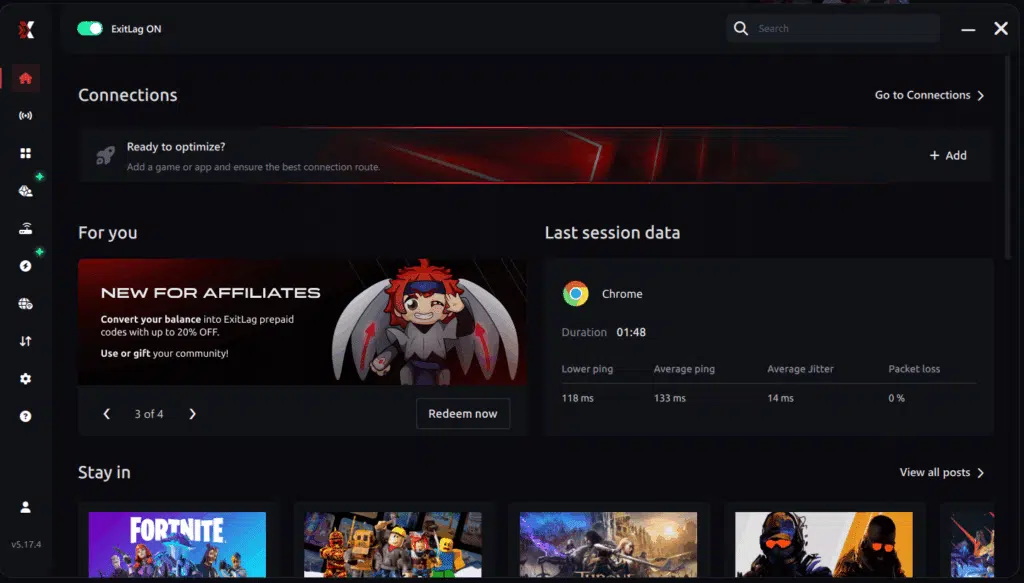
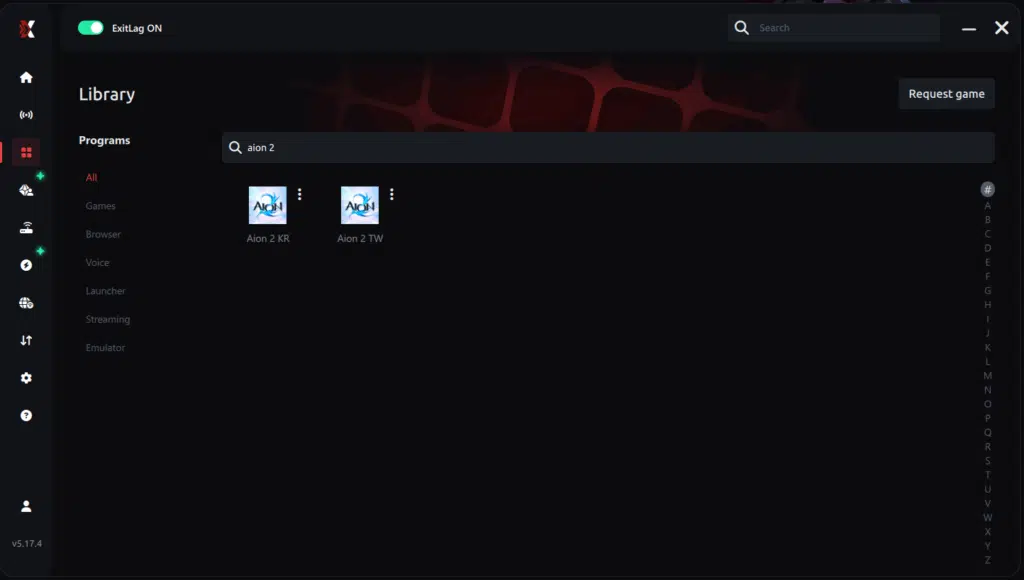
Step 3 – In the search bar, type “Aion 2” and select the game from the list.
Step 4 – Choose between automated or manual route
Based on the results, you can let ExitLag automatically select the best route or manually choose the server that showed the lowest latency for your connection.
AI-optimized automated route
Based on the results, you can let ExitLag automatically select the best route through AI-optimized . The system analyzes multiple connection paths in real-time and automatically identifies the most efficient route for your connection, ensuring the lowest possible latency without requiring manual choices.
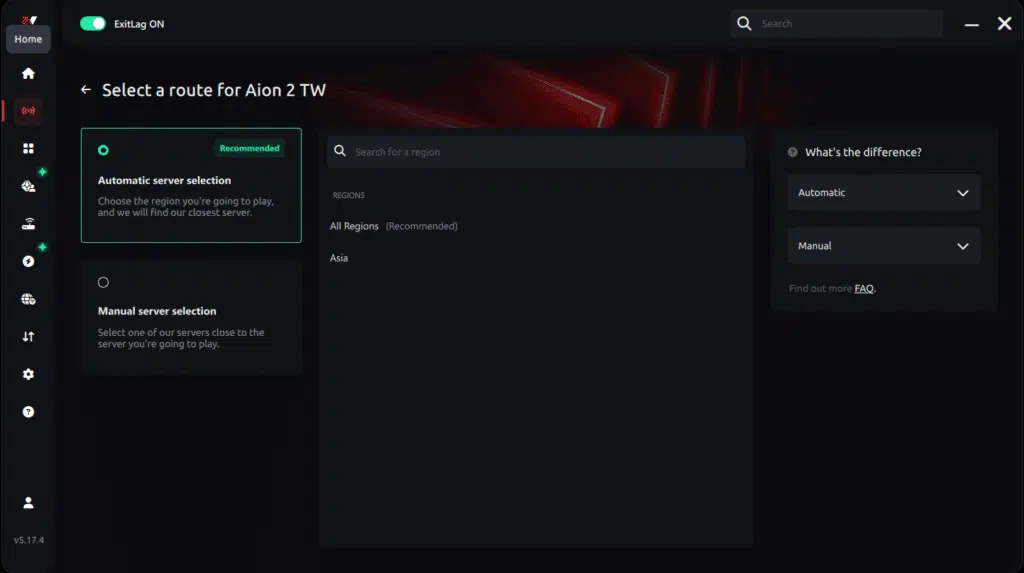
Manual route
If you prefer to have full control over your connection, you can manually choose the server based on the ping test results. Simply select the server that showed the lowest latency or the one that best meets your specific gaming needs, allowing complete customization of your experience.

Step 5 – Click “Apply routes” or the play button. ExitLag will begin optimizing your connection automatically.
AI-optimized automated route:

Manual route:

Step 6 – Wait a few seconds until optimization is complete. You’ll see ping indicators in the interface.
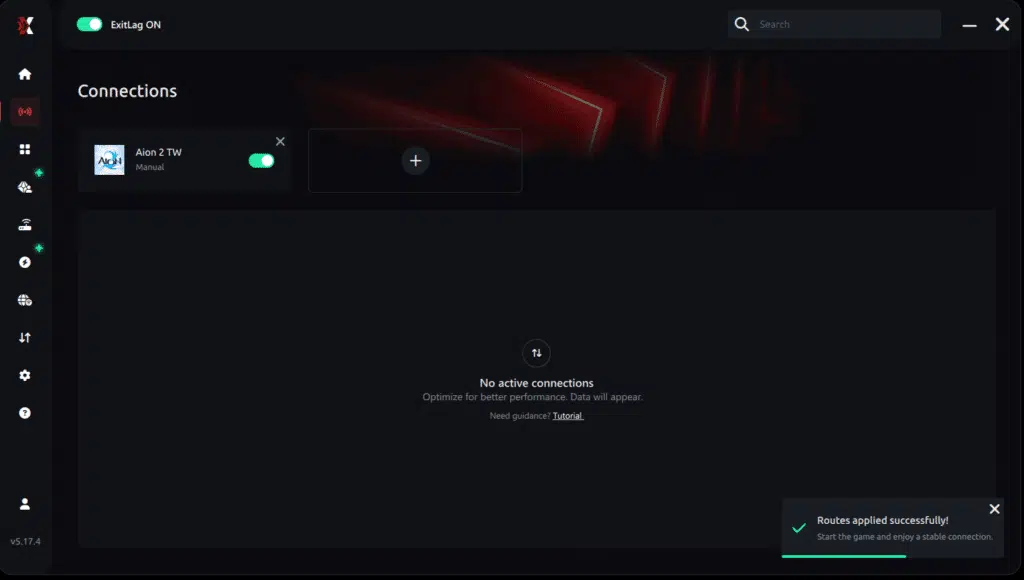
Step 7 – Launch Aion 2 normally. The optimization will already be active.
ExitLag runs in the background while you play, constantly adjusting routes to maintain the best possible performance.
How to use Ping for Games: step-by-step guide
Checking your connection quality before entering a match has never been easier. Here’s how to use Ping for Games in just a few steps:
1. Open the ExitLag software on your PC
Ensure the application is installed and open. The feature is integrated into the platform and available for free to all users.
2. Access the Network Analyzer tool
Locate the Network Analyzer in the software menu. This is where you’ll find Ping for Games along with other connection analysis features.
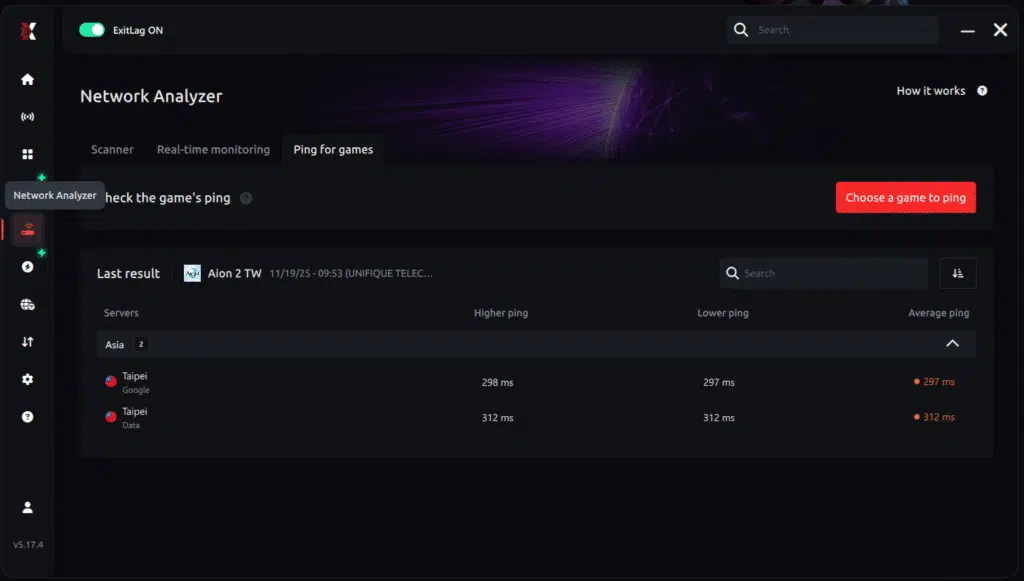
3. Select the game you want to test
Choose from the list the title you plan to play. The tool supports major online multiplayer games, including MOBAs, FPS, Battle Royales, MMORPGs, and more.
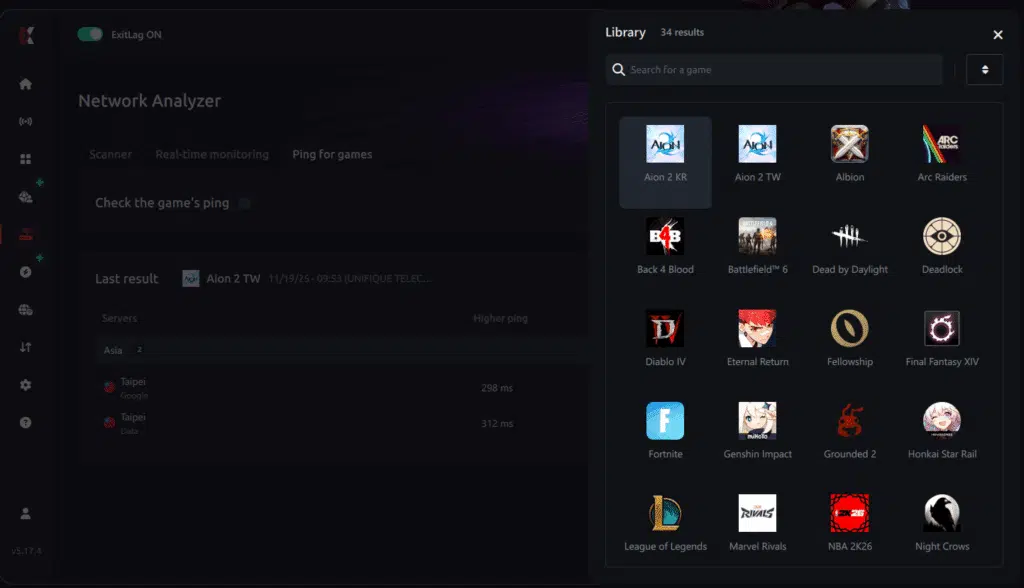
4. Choose the specific server
Now you select directly the server you want to test, instead of just a generic region. This ensures much more accurate results for your choice.
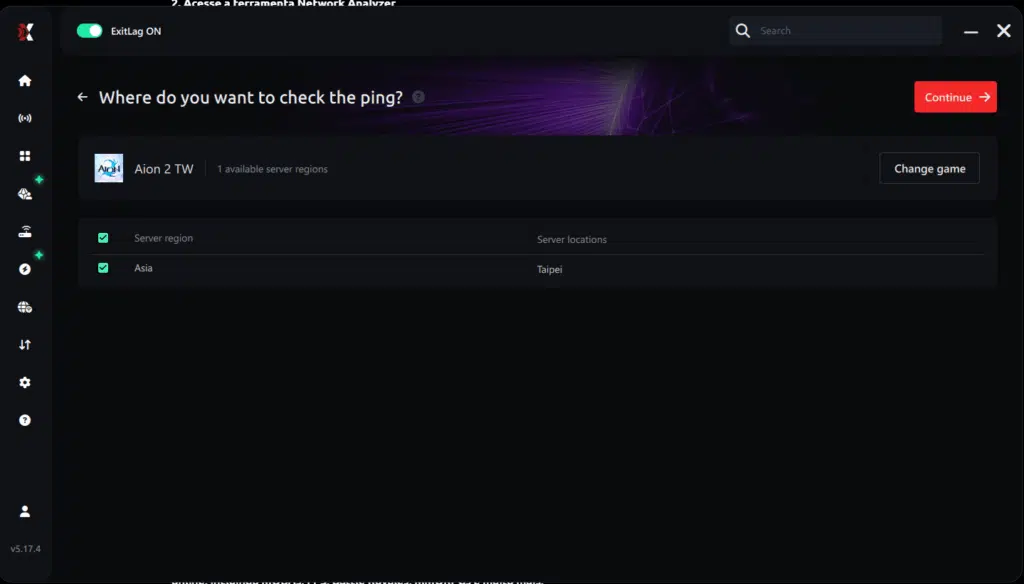
5. Start the ping test
With one click, the measurement is performed in real-time between your device and the chosen server, considering your current connection (cable or Wi-Fi).
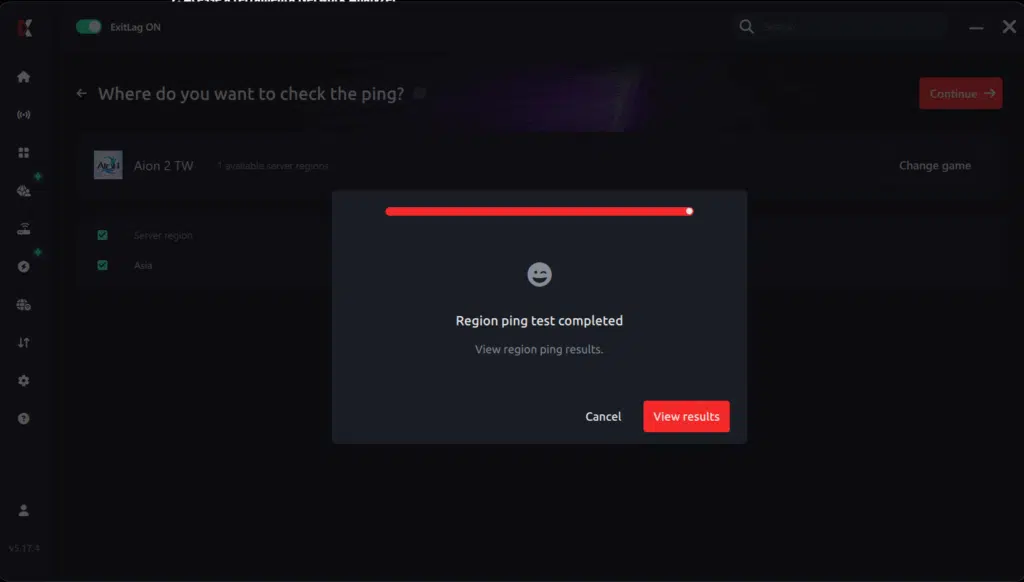
6. Analyze the results
Results appear in milliseconds (ms), automatically sorted from best to worst ping. You can also reorganize the view alphabetically, if you prefer.
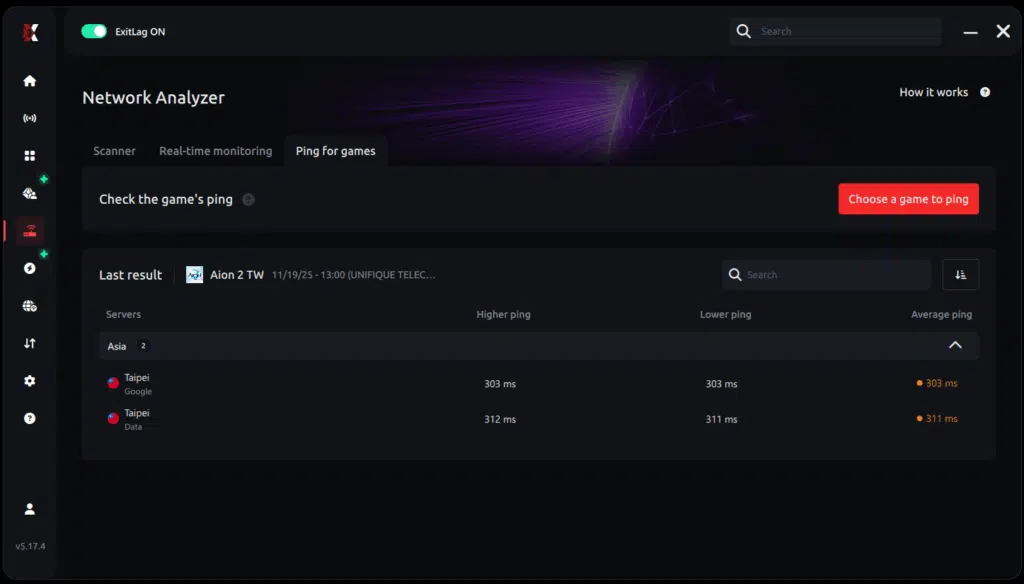
7. Choose the best server and play worry-free
With the information in hand, just select the server with the lowest latency and enter the match knowing your connection is optimized.
Additional Tips
- Check regional announcements for availability and pre-registration.
- Keep system drivers and regional launcher updated.
- Ensure sufficient storage and resources for PC and mobile devices.
- Join official communities for server, event, and patch updates.
By following this regional guide, players in Korea and Taiwan can enjoy Aion 2 fully, with ExitLag enhancing gameplay stability and responsiveness. Global players should monitor announcements for the official 2026 release.
Advanced Installation Tips
While the regional launcher provided by NCSoft handles most installation tasks, some advanced considerations can improve stability and reduce potential errors:
- Installation Directory: Use a drive with sufficient read/write speed; SSDs are highly recommended.
- Update Management: Enable automatic patching to ensure the game always runs the latest version.
- System Permissions: Run the launcher as an administrator on PC only if experiencing installation or update errors.
- Background Applications: Close unnecessary apps to free memory and CPU resources, reducing the risk of in-game lag.
Graphics and Performance Settings
Aion 2 offers highly detailed visuals that can impact performance. Optimizing settings is essential for competitive play and smooth gameplay:
Recommended Settings
- Resolution: Native monitor resolution for clarity; reduce only if experiencing FPS drops.
- Texture Quality: High for mid to high-end PCs; medium for lower-end devices. Adjust according to personal FPS preference and system performance.
- Shadow Effects: Medium to High depending on GPU performance.
- Anti-Aliasing: Adjust to balance clarity and FPS.
- V-Sync: Enable to reduce screen tearing, but disable if input lag is noticeable.
Mobile Settings
- Graphics Quality: Adjust to High or Medium depending on device capability and desired FPS.
- Battery Saver Mode: Recommended to avoid overheating during extended play.
- Network Mode: Always play on Wi-Fi for stability. Mobile data can work but may result in higher risk of connection instability.
Connection Optimization with ExitLag
Even with powerful hardware, MMORPG performance heavily depends on network stability. ExitLag enhances connectivity by:
- Reducing ping for smoother combat.
- Minimizing packet loss and jitter.
- Selecting the fastest routes between your location and game servers.
- Offering multi-path optimization and automatic route switching.
ExitLag Steps
- Ensure ExitLag is installed and updated.
- Select Aion 2 from the game list.
- Make sure to choose the correct server within the app (Korea or Taiwan) to avoid routing errors.
- Apply the recommended routes.
- Activate the connection optimization and launch Aion 2.
Advanced Gameplay Tips
- Server Selection: Choose servers with the lowest population but consider latency to your location, not just population.
- Guild and Party Play: Join local guilds for smoother PvE and PvP coordination.
- Resource Management: Monitor inventory and storage; the game can generate large amounts of loot.
- Combat Optimization: Use keybinds efficiently and consider hotkey layouts that minimize delay.
Troubleshooting Common Issues
- Login Errors: Ensure regional account and IP restrictions are met; check official announcements for server maintenance.
- Performance Drops: Lower graphics settings temporarily; close background processes.
- Connection Interruptions: Check ExitLag routing and switch servers if necessary.
- Installation Errors: Re-run the regional launcher with admin privileges only if experiencing errors and check disk space.
Conclusion
This guide equips players in Korea and Taiwan with strategies to optimize installation, graphics, gameplay, and network performance. Using these methods, combined with ExitLag’s connection optimization, will ensure a smooth, immersive, and competitive experience in Aion 2. Players outside these regions should monitor announcements for the global release expected in the second half of 2026.Mandatory Disclaimer: All game images and content belong to NCSoft. They are used for informational and educational purposes only and do not imply endorsement or affiliation with the rights holders.
Got questions or want to connect with other players? Join the conversation at the ExitLag Forum!




