

Founder’s Pack Early Access is live, and thousands of Daevas are flooding the new regional servers at once. Before you commit a character to a server, an Aion 2 Ping Test is the smartest move you can make.
Aerial combat, dodges, and Abyss PvP all depend on how fast your inputs reach NC’s servers. That is exactly why a reliable Aion 2 Ping Test tells you more about your future experience than any graphics setting ever will.
So, what is the best way to do it? The best Aion 2 Ping Test is ExitLag’s free Ping for Games feature for Windows: select Aion 2, choose the server region, and see your real-time latency in milliseconds, measured on your own connection.

Why an Aion 2 Ping Test Matters Before You Pick a Server
Server choice in Atreia is not a casual decision. Your faction, your Legion, and your market economy all live on that server, so moving later is costly.
Furthermore, the global launch spreads players across North America, South America, Europe, and Asia. Our complete Aion 2 servers guide breaks down each region, but only an Aion 2 Ping Test shows how your own connection handles them.
What Ping Actually Measures in Atreia
Ping is the round trip time between your PC and the game server, measured in milliseconds (ms). In other words, it is how long your skill press takes to travel out and come back confirmed.
Therefore, lower is always better. A low ping means lower latency and more responsive combat, while a high ping means slower communication with the server and, as a result, lag. Three connection factors shape how the game feels:
- Ping (latency): The round trip time. High values make skills and dodges fire late.
- Jitter: How much your ping varies from moment to moment. High jitter makes combat feel inconsistent even when the average looks fine.
- Packet loss: Data that never arrives. Even small amounts cause rubberbanding and skills that simply do not register.
Why Aion 2 Punishes High Latency
Aion 2 blends tab-targeting with fast action combat, and the server validates your skill chains in near real time. Consequently, every extra millisecond shows up in your rotation.
Notably, aerial fights in the Abyss magnify the problem. When your position updates arrive late, enemies see you where you were, not where you are.
How To Check Ping In Aion 2 With ExitLag Ping for Games
Most players only discover a bad connection in the middle of a dungeon or an Abyss fight. However, the smarter approach is to run an Aion 2 Ping Check before you even launch the game.
That is exactly what Ping for Games was built for. It is a free feature inside the ExitLag platform for Windows, and it is part of ExitLag’s Network Analyzer toolkit.
What Is Ping for Games?
Ping for Games measures your latency to a specific game and a specific server region, in real time, using your current internet connection (cable or Wi-Fi). In practice, it turns every Aion 2 Ping Test into a dedicated Aion 2 Ping Tester session that answers one question: how will my connection perform on this server right now?
Here is why it is the go-to Aion 2 Ping Checker for players who care about performance:
- Free and accessible: You can check your connection quality without paying anything.
- Game and region specific: You test the exact game and region you plan to play, not a random website.
- Based on your connection: Results reflect your real network, whether you use cable or Wi-Fi.
- Easy to use: The interface is simple for casual and competitive players, with no complex setup.
- Everything in one place: Existing ExitLag users get connection data and optimization settings side by side.
How to Use ExitLag in Aion 2
The process is very simple:
Step 1: Go to the official ExitLag website and download the app. New users can start with a free trial.

Step 2: Install and open the program. Log in to your account.
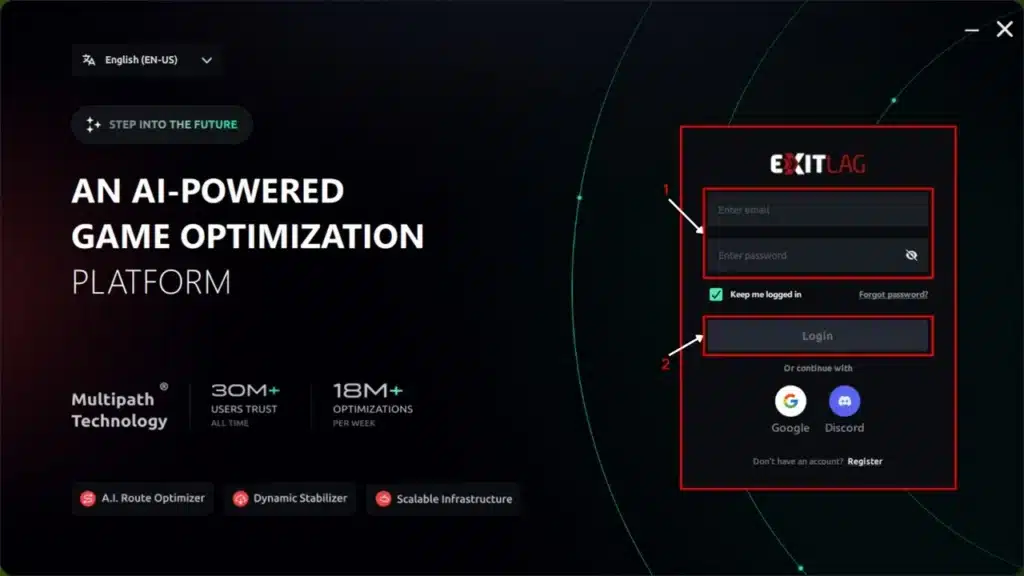
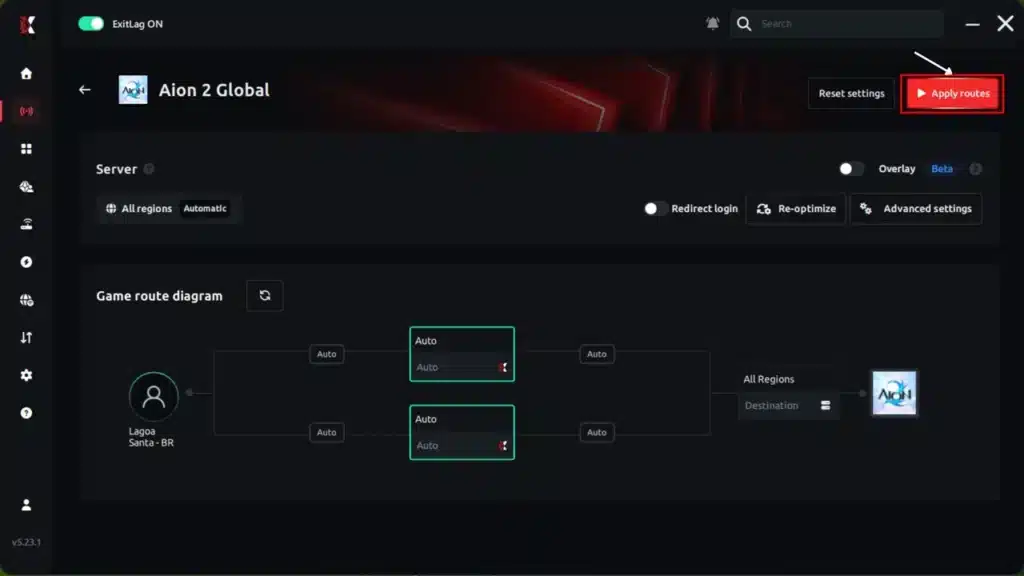
Step 3: In the search bar, type “Aion 2” and select the game.
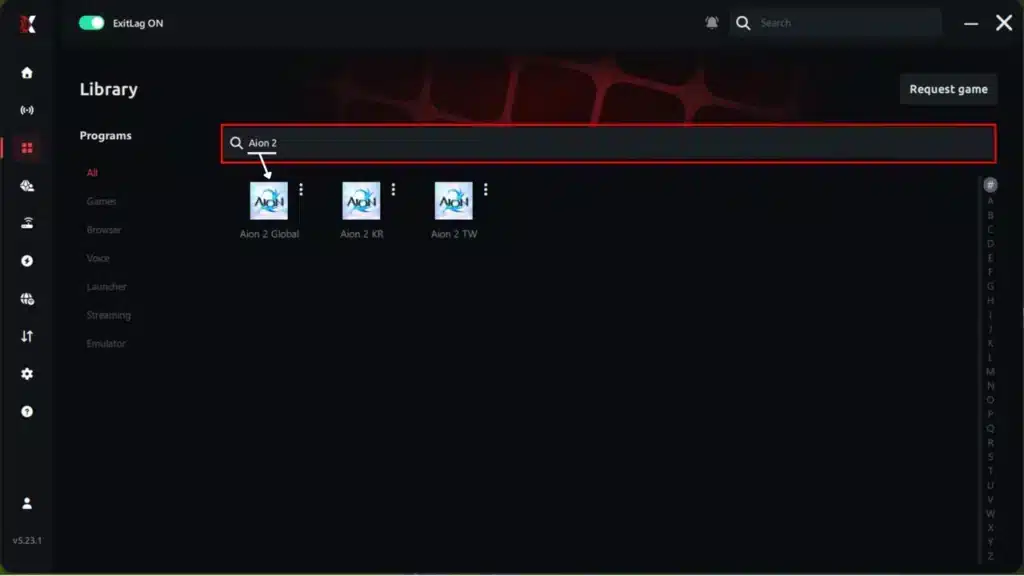
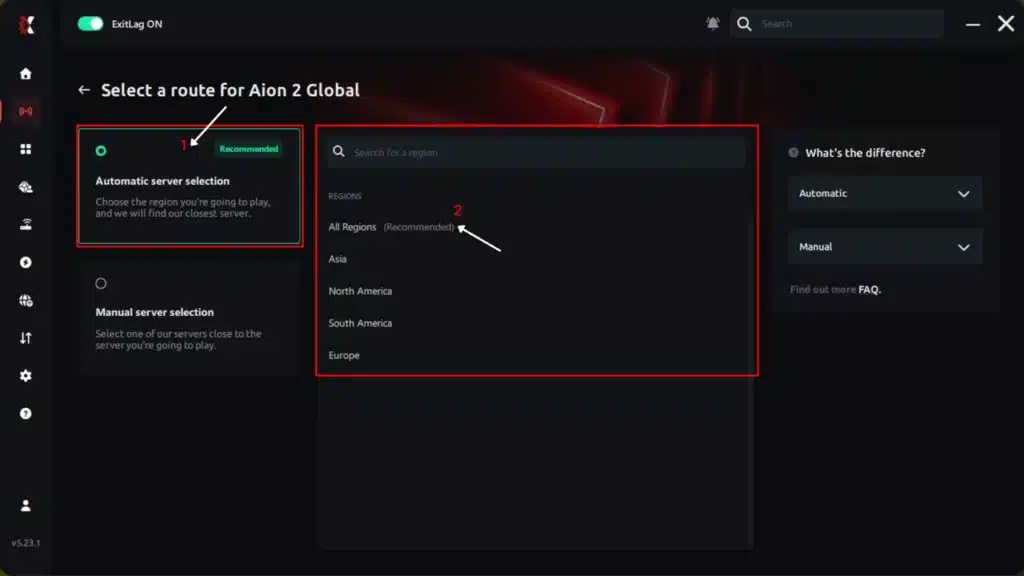
Step 4: Choose between an automatic or manual route.
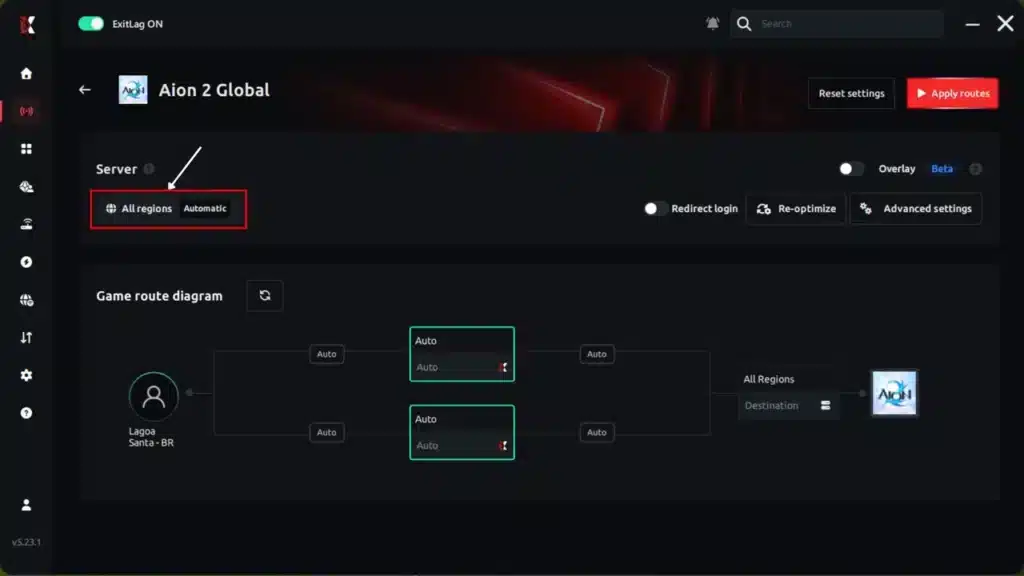
AI-optimized automated route:
The system analyzes multiple routes in real time and automatically selects the most efficient one.
Manual route:
If you prefer full control, manually select the server with the lowest latency.
Step 5: Click Apply routes or the play button. ExitLag will automatically start optimizing your connection.
Step 6: Wait a few seconds while the optimization is completed. You will see ping indicators in the interface.
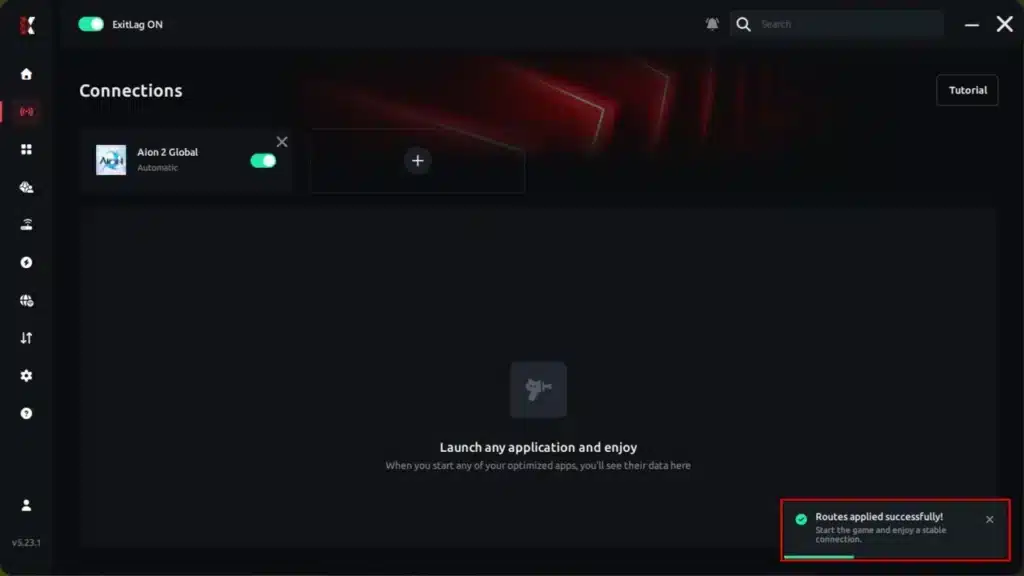
Step 7: Launch Aion 2 normally. The optimization will remain active in the background.
ExitLag automatically adjusts your connection while you play, helping maintain the best available routes.
Step by Step: How To Test Your Ping In Aion 2
Running your Aion 2 Ping Test takes less than a minute. Follow these steps:
- Download and install ExitLag: Get the Windows app and log into your account.
- Open the Network Analyzer: Inside the ExitLag app, go to the Network Analyzer tools.
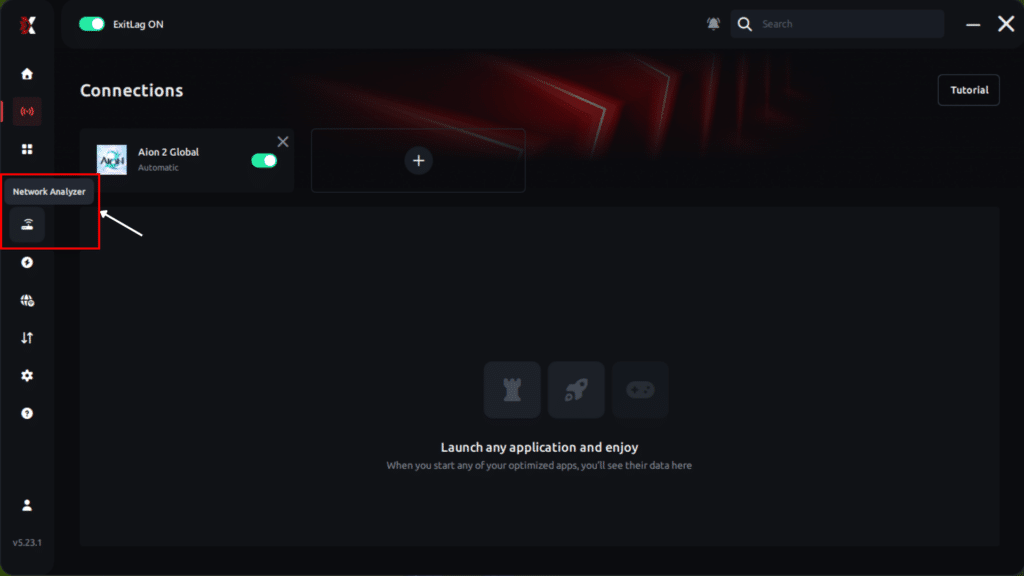
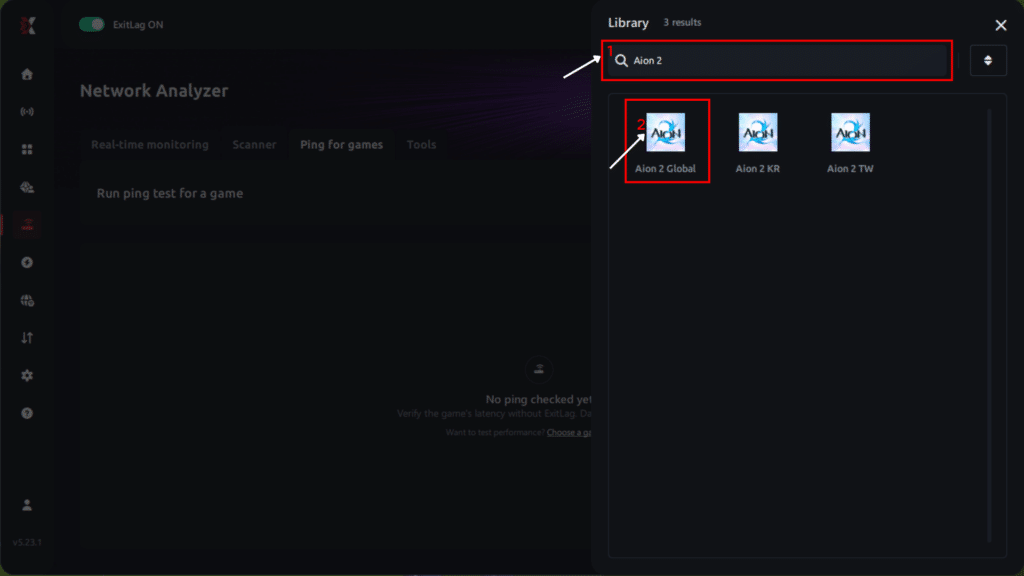
- Select Ping for Games: Open the Ping for Games feature.
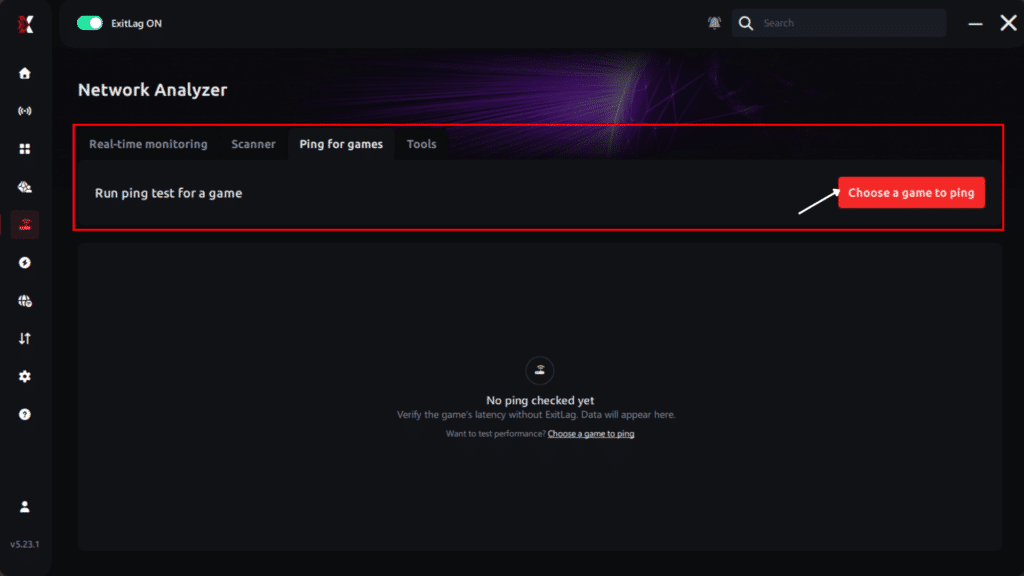
- Choose Aion 2: Search for Aion 2 in the game list and select it.
- Pick your server region: Choose the region you want to test, such as North America, South America, Europe, or Asia. Each server is tied to a region, so ping can change from one to another.
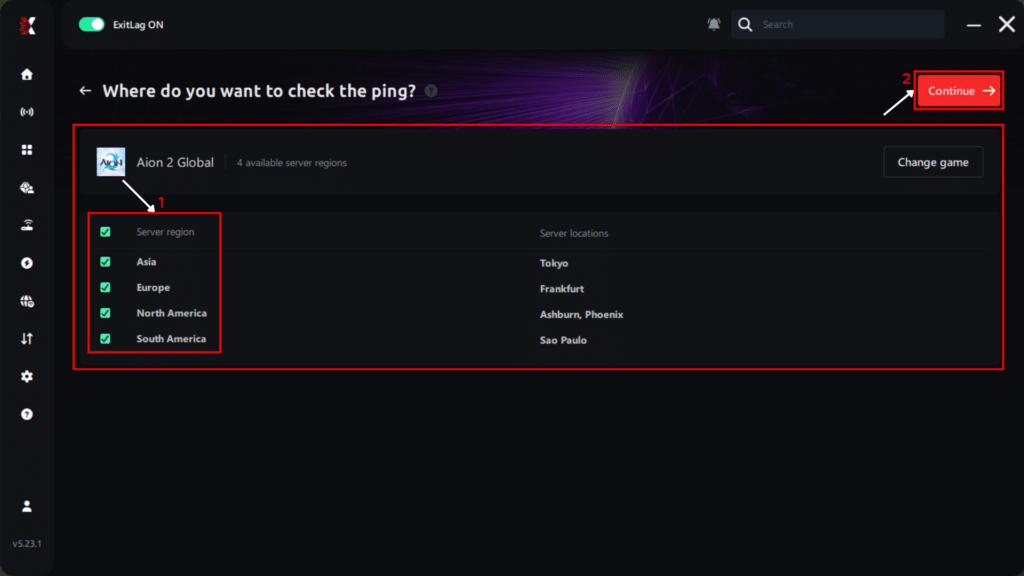
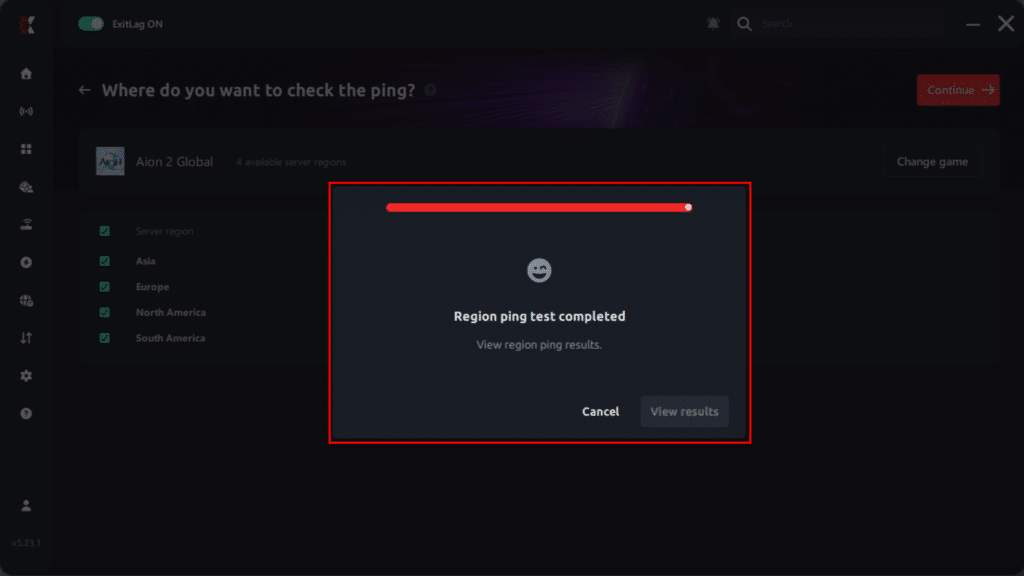
- Run the test: Ping for Games automatically measures the latency between your device and the selected server, in real time, over your active network.
- Read your result: The latency appears in milliseconds (ms). The lower the number, the better your connection to that server.
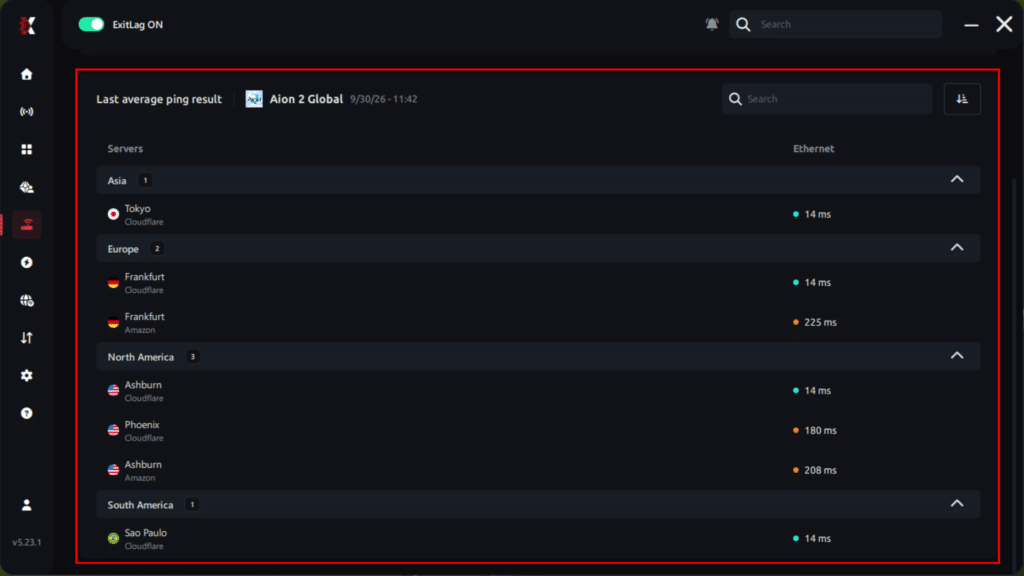
- Repeat for other regions: Test every region you are considering so you can compare before committing a character.


Important Details Before You Read Your Result
Before you make a decision, keep these details in mind, because they change how you interpret the numbers:
- Server names are ExitLag’s: The server names shown in the search belong to ExitLag’s network, not to NC’s official Aion 2 servers.
- Multi-Internet users: If you run two or more active connections with Multi-Internet, the test is based only on the primary network you defined.
- Raw connection baseline: The result reflects your current connection without ExitLag’s optimized routing. Therefore, it is an honest baseline of what your ISP delivers on its own.
How To See Latency In Aion 2 and Read Your Results
Getting a number is the easy part. On the other hand, knowing what that number means for your class, your content, and your server is what turns a quick Aion 2 Latency Test into a real decision tool.
What Is a Good Ping for Aion 2?
Ideally, your Aion 2 Ping Test result should stay below 80ms for smooth combat. Here is how each range tends to feel in real gameplay:
| Ping Range | Combat Feel | Abyss PvP Viability |
|---|---|---|
| Under 50ms | Instant response | Fully competitive |
| 50 to 80ms | Minimal, barely noticeable delay | Viable at all levels |
| 80 to 120ms | Slight delay in fast exchanges | Viable, some disadvantage |
| 120 to 150ms | Clear delay in skill chains | Playable, weaker in duels |
| 150 to 200ms | Unreliable dodges and aerial timing | Frustrating |
| Above 200ms | Rubberbanding and failed skills | Not competitive |
Why Does My Aion 2 Ping Check Change During the Day?
Connection quality changes with time of day and local conditions. For that reason, a result from the morning will not always match your evening session. These factors usually explain the difference:
- Peak-hour ISP congestion: Evening traffic crowds the same routes your game data uses.
- Launch-week server load: Early Access and the October 5 free-to-play launch bring heavy login traffic.
- Wi-Fi interference: Other devices and walls add unstable latency.
- Background downloads: Updates, cloud sync, and streaming compete for bandwidth.
Therefore, a single test is only a snapshot. For a real picture, repeat your Aion 2 Ping Test at the hours you actually play.
Why a Generic Ping Command Is Not Enough
Many players open Command Prompt and ping a public address. However, as Microsoft’s ping command reference explains, that command simply checks connectivity to whatever destination you type.
In other words, it says nothing about your route to an Aion 2 server region, so it cannot replace a real Aion 2 Ping Test. Here is how it compares:
| Feature | Generic Ping Command | ExitLag Ping for Games |
|---|---|---|
| Tests your Aion 2 server region | No | Yes |
| Game-specific result | No | Yes |
| Setup required | Typing commands and addresses | A few clicks |
| Helps you choose a server | No | Yes |
Aion 2 Ping Checker Strategy: Get More From Every Test
Running a test is only half the job. Indeed, the players who get the most out of an Aion 2 Ping Checker are the ones who test with a plan and act on the results.
Pro Tips: Aion 2 Ping Test
- Test every region, not just the closest one: Geography usually wins, but ISP routing can surprise you. Comparing all regions in Ping for Games reveals your true best choice.
- Test on the connection you will actually use: A Wi-Fi result tells you nothing about Ethernet, and vice versa. Match the test to your real setup so the data is reliable.
- Save your baseline before optimizing: Since Ping for Games measures your raw connection, note that number first. Then play with ExitLag active and feel the difference in your skill timing.
- Retest before raids and Abyss sessions: Ranked fights and big events are where one bad connection costs the most. A quick check before you log in avoids surprise disconnects.
- Watch consistency, not only the number: A steady 90ms feels better than a connection bouncing between 50ms and 200ms, because skill timing stays predictable.
Common Mistakes Aion 2 Players Make When Testing Ping
- Pinging a random website: Players see a low number to a public address and assume the game will feel the same. Fix: always test Aion 2 and your exact region with Ping for Games.
- Testing once and choosing a server forever: A single morning test ignores peak-hour congestion. Fix: run your Aion 2 Ping Test at least three times across different hours.
- Running a VPN during the test: A VPN adds its own detour and distorts every result. Fix: disable any VPN before testing and never run it alongside ExitLag.
- Blaming ping for FPS drops: Stutter during mass PvP is often a PC performance issue. Fix: if your ping result is healthy, read our guide on why Aion 2 input lag happens to find the real cause.
Turn Your Aion 2 Latency Test Into Lower Ping With ExitLag
Ping for Games shows you where you stand. Once your Aion 2 Ping Display in the tool shows high or unstable numbers, the next step is fixing the route your ISP chooses to NC’s servers.
From Ping Check to Optimized Route
ExitLag is not a VPN. Instead, it is a connection optimizer that analyzes multiple network paths in real time and selects the fastest, most stable route to the game’s servers. It supports 4,000+ games, runs 1,500+ servers in 190+ countries, and is trusted by 30M+ players.
For an MMORPG like Aion 2, stability during raids, world bosses, and Abyss fights matters as much as raw speed. These features target exactly that:
- Multipath Technology: Sends your packets through multiple routes at once, so one failing path does not drop your skill inputs.
- Real-time Optimization: Reroutes around peak-hour congestion automatically, keeping ping stable during long sessions.
- Multi-Internet: Uses up to 4 connections at once, so a drop on one keeps you in the dungeon.
- Traffic Shaper: Prioritizes Aion 2 traffic over background apps that would otherwise spike your latency.
For a full layer by layer approach, check our Aion 2 connection optimization guide. It covers local fixes and how ExitLag handles routing problems your ISP creates.
Ready to test and optimize in the same app? Grab the ExitLag Download, run your Aion 2 Ping Test with Ping for Games, and then enable optimization for your chosen region.
Is ExitLag Safe to Use With Aion 2?
Yes. ExitLag does not modify game files, does not inject code, and does not interact with anti-cheat systems. It works purely on the network route between your PC and the servers.
Just remember one rule: do not run ExitLag alongside a VPN. Stacking them reduces effectiveness and adds unnecessary latency.
Aion 2 Ping Test: Final Checklist Before Your Next Session
With Early Access running and the free-to-play wave arriving soon, a little preparation goes a long way. Our full Aion 2 launch schedule covers every date, so you can plan your tests around the busiest windows.
Quick Pre-Session Routine
- Close downloads, streaming apps, and cloud sync.
- Switch to a wired Ethernet connection if possible.
- Open ExitLag and run an Aion 2 Ping Test with Ping for Games for every region you are considering.
- Pick the region with the lowest and most stable result.
- Enable ExitLag optimization for that region and launch the game.
When to Retest Your Connection
Run a fresh Aion 2 Ping Test in these situations:
- After changing your router, ISP plan, or network adapter
- When the free-to-play launch brings a new wave of players
- Before major raids, sieges, or Abyss events
- Whenever combat suddenly feels delayed or inconsistent
In short, a smart Aion 2 Ping Test with ExitLag’s Ping for Games takes seconds and saves you from locking a character on a server that fights your connection every night. Test, pick your region, optimize, and enter Atreia with every skill landing exactly when you press it.
All game images used in this blog post belong to NCSoft. They are used for informational and educational purposes only and do not imply endorsement or affiliation with the rights holders.
Got questions or want to connect with other players? Join the conversation at the ExitLag Forum!




