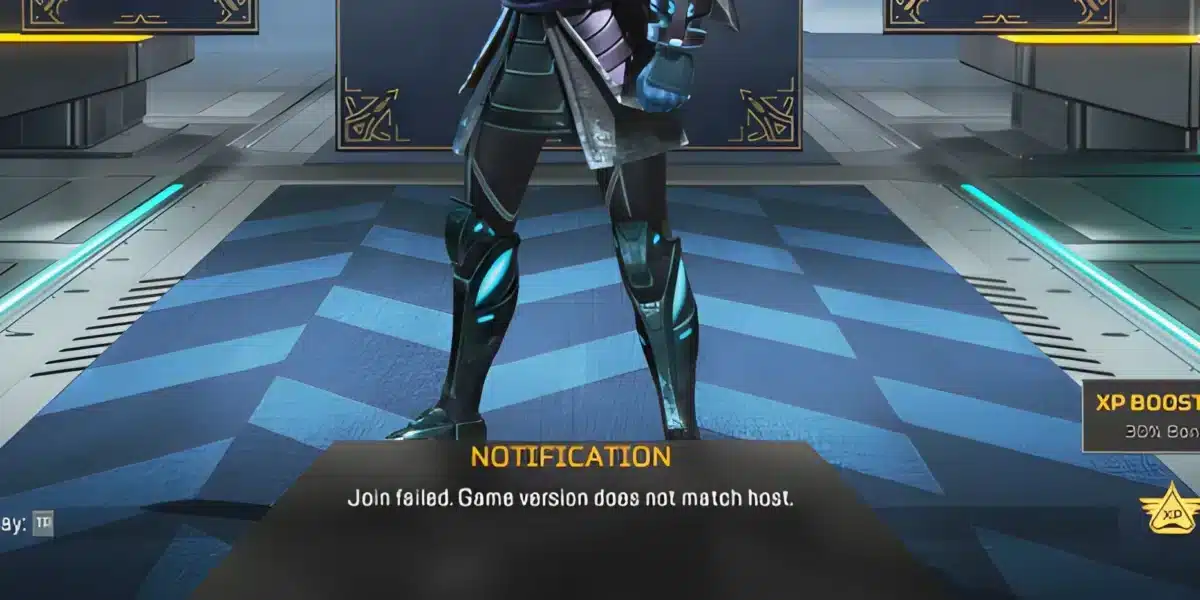
Apex Legends Error 0x8000002 can suddenly close the game before you reach the lobby or interrupt a session that was running normally. The message is especially confusing because it points toward gameplay integrity and external software, yet identifying the program or component responsible is not always straightforward.
If Apex Legends Error 0x8000002 keeps returning, avoid immediately uninstalling random applications or changing network settings. Recent player reports connect the message with Easy Anti-Cheat integrity detection, while EA’s official troubleshooting confirms that anti-cheat integrity problems can also involve corrupted files. That makes a methodical PC check more useful than searching for one universal fix. And before we continue, know that to know more about all the relevant content about gaming, you just have to check our blog.

What is Apex Legends Error 0x8000002?
Apex Legends Error 0x8000002 is an Easy Anti-Cheat integrity error reported by PC players when Apex detects an external tool or component that could interfere with gameplay integrity. Apex Legends is Respawn Entertainment’s free-to-play battle royale shooter published by Electronic Arts, and its PC version uses anti-cheat technology to protect matches from unauthorized software and manipulation. Recent EA Forum reports show the 0x8000002 message explicitly identifying an external tool as the reason Apex exits.
However, the code does not identify one specific application as the universal cause. Players have reported the error under different software configurations, including on relatively fresh PC installations. Therefore, seeing the message does not automatically mean that cheats or mods are installed.
EA’s official Apex error guide does not currently provide a dedicated entry for 0x8000002. It does, however, document anti-cheat integrity failures and explains that corrupted files can cause integrity problems. For that reason, troubleshooting should cover both software conflicts and the condition of Apex’s files before more disruptive changes are attempted.
Why Easy Anti-Cheat can block Apex Legends
An Apex Legends easy anti-cheat error can occur when the anti-cheat environment does not pass the integrity checks required for the game to run. In reports involving 0x8000002, the displayed warning mentions categories such as scripting software, virtual controllers, debuggers, and reverse-engineering tools.
That does not mean every application belonging to one of these broad categories will always trigger Apex Legends Error 0x8000002. Instead, the message gives players an area to investigate. Background utilities, drivers, or applications that interact with input devices or running processes deserve attention when the error started after installing or updating software.
EA also documents a separate anti-cheat integrity error that can result from corrupted files. Its official recommendation for that condition is to repair Apex Legends through the EA app. This provides a safer starting point than immediately removing system software.
What can trigger integrity error 0x8000002?
There is no official list confirming every program that triggers this specific code. Still, the wording of reported 0x8000002 messages gives players several areas worth checking before reinstalling Windows or making major system changes.
Focus your initial investigation on:
- Scripting or automation applications running in the background
- Virtual controller or input remapping software
- Debugging and development utilities
- Virtualization or virtual drive components
- Recently installed drivers or system utilities
- Corrupted or inconsistent Apex Legends files
- Easy Anti-Cheat components that are not functioning correctly
Importantly, treat these as diagnostic categories rather than confirmed causes. One EA Forum report from 2026 describes the error occurring after a Fortnite update, while another describes it on a fresh Apex installation with development and virtualization utilities present. These reports demonstrate the variety of circumstances, but they do not establish one universal trigger.
How to fix Apex Legends Error 0x8000002
The safest way to fix Apex Legends Error 0x8000002 is to begin with reversible troubleshooting. Restart the game and Windows, close unnecessary background applications, then verify the game installation before considering more aggressive changes.
EA’s current troubleshooting guide similarly recommends restarting Apex Legends and the system as an initial response to game errors. For documented anti-cheat integrity failures, EA specifically recommends repairing the game’s files.
Close conflicting background applications
Start by closing applications that are not required to run Windows or Apex Legends. Pay particular attention to software installed or updated shortly before Apex Legends Error 0x8000002 first appeared.
Then follow this order:
- Close Apex Legends and its launcher completely.
- Restart Windows to clear temporary processes.
- Avoid launching unnecessary background utilities.
- Start Steam or the EA app normally.
- Launch Apex Legends and check whether the error returns.
- If it persists, move to game-file verification.
Do not uninstall every utility on your computer at once. Testing applications gradually helps identify whether a specific background component is involved and makes it easier to reverse your changes.
Repair Apex Legends game files
Corrupted or inconsistent files are another area worth checking. EA officially recommends using the Repair option when Apex fails an anti-cheat runtime integrity check. In the EA app, find Apex Legends in your Library, open the Manage menu, and select Repair.
Steam players can use the platform’s file integrity verification feature instead. Once verification finishes, restart the PC before testing Apex again so the game and anti-cheat components receive a clean start.
If Apex Legends Error 0x8000002 still appears, repeatedly verifying the same files is unlikely to provide new information. The next troubleshooting stage should focus more closely on Easy Anti-Cheat itself, Windows software conflicts, and whether another component is preventing the integrity check from completing correctly.
These steps matter because fix Apex Legends error PC searches often mix anti-cheat failures with unrelated connection problems. Once Apex launches successfully, network stability, latency, packet loss, and routing can become relevant to multiplayer performance, but they should remain separate from troubleshooting an integrity detection such as 0x8000002.
Apex Legends easy anti-cheat error troubleshooting
An Apex Legends easy anti-cheat error requires a different approach from ordinary lag or server problems. If Apex Legends Error 0x8000002 remains after verifying the game files, the next step is to examine whether the anti-cheat environment can initialize and complete its integrity checks correctly.
EA confirms that anti-cheat integrity failures can be caused by corrupted files. Its current troubleshooting guidance recommends repairing Apex through the EA app, while other anti-cheat launch errors can also require checking the installation before moving to more invasive fixes.
Check Easy Anti-Cheat and its installation
Start by confirming that Apex Legends is fully updated and that its anti-cheat components were installed correctly. If you recently repaired the game, restart Windows before testing again so the launcher, Apex, and Easy Anti-Cheat start in a fresh session.
You should also close unnecessary applications during the test. If Apex Legends Error 0x8000002 disappears, reopen background programs gradually. This can help identify a software conflict without removing several applications at once.
When to repair Easy Anti-Cheat
Repair becomes more relevant when anti-cheat problems continue after a normal restart. EA specifically recommends repairing Apex game files when an anti-cheat runtime integrity check fails. For error 30005, which EA identifies as an anti-cheat launch failure, it also recommends repairing files through the EA app or Steam.
However, 0x8000002 is not currently listed as a dedicated code in EA’s official error guide. If the problem continues after these checks, EA recommends visiting its forums when an error code is not documented or the available troubleshooting does not resolve it.
Fix Apex Legends error PC: Windows and software checks
Players searching for fix Apex Legends error PC solutions should also inspect Windows and recently changed software. This is especially useful when the error started after installing a new utility, driver, controller application, or system update.
Avoid making several major changes simultaneously. Testing one variable at a time provides a clearer picture of what is affecting Apex Legends Error 0x8000002.
Update Windows and system components
Check Windows Update and install applicable system updates before testing Apex again. EA specifically recommends updating Windows for some Apex executable and installation-related problems, making an outdated system another area worth eliminating during broader PC troubleshooting.
After updating, restart the computer rather than launching Apex immediately. A reboot ensures pending system changes are applied before Easy Anti-Cheat performs another integrity check.
Check security software and background applications
Security software can interact with game executables, but permanently disabling antivirus protection is not a good troubleshooting strategy. In fact, EA explicitly advises against uninstalling antivirus software while troubleshooting certain Apex errors.
Instead, check whether your security application has blocked or quarantined Apex components. Then review recently installed background utilities and test the game with unnecessary applications closed.
The table below summarizes the safest starting point for common situations.
| Symptom | Area to investigate | First action |
| 0x8000002 appears at launch | Anti-cheat or software conflict | Restart and close unnecessary apps |
| Integrity check fails | Game files | Repair or verify Apex files |
| Anti-cheat cannot initialize | Anti-cheat installation | Repair files and restart |
| Error started after new software | Background applications | Test without unnecessary utilities |
| High ping after Apex launches | Network connection | Check latency and packet loss |
These steps are diagnostic rather than guaranteed causes. Most importantly, high ping and an integrity error require different solutions even if both affect the same gaming session.
Apex Legends Error 0x8000002 and network optimization
Network optimization becomes relevant after Apex Legends Error 0x8000002 itself has been separated from connection problems. The integrity message points toward anti-cheat or software conditions, while lag, packet loss, jitter, and unstable routes affect communication during online gameplay.
Therefore, a route optimizer should not replace Easy Anti-Cheat troubleshooting. It becomes useful when Apex launches successfully but the multiplayer connection remains unstable.
When connection optimization can help Apex Legends
Apex is a fast-paced online shooter, so inconsistent latency can quickly become noticeable during movement and gunfights. Jitter can create irregular response times, while packet loss may contribute to rubber-banding, delayed feedback, or synchronization problems.
ExitLag supports Apex Legends and focuses on optimizing the route between the player’s PC and game infrastructure. Its routing features can help when the connection path contributes to unstable ping, jitter, or packet loss.
For more network-specific troubleshooting, the ExitLag guide to reducing high ping and lag in Apex Legends explains how routing and connection stability can affect matches.
Can ExitLag fix integrity error 0x8000002?
No connection optimizer should be presented as a direct repair for an Apex Legends easy anti-cheat error. ExitLag cannot repair corrupted Easy Anti-Cheat components or remove a software conflict detected by the game’s integrity system.
Instead, ExitLag is relevant after the game launches and the remaining problem involves network performance. Apex Legends is currently included among the titles supported by ExitLag.
Frequently asked questions (FAQ)
Do route optimization tools or ping reducers help with Apex Legends?
They can help when routing contributes to high ping, jitter, packet loss, or an unstable connection. They cannot fix corrupted game files, unavailable servers, hardware limitations, or Easy Anti-Cheat integrity failures.
How much does ExitLag cost?
ExitLag pricing can vary according to plan, billing period, currency, region, and active promotions. Check the official ExitLag website for current pricing instead of relying on an older fixed amount.
Is ExitLag compatible with Apex Legends?
Yes. Apex Legends is currently listed among games supported by ExitLag. Players can also search the current supported-games library to confirm availability.
What does Apex Legends Error 0x8000002 mean?
Apex Legends Error 0x8000002 has been reported as an integrity error involving external software or components that could interfere with gameplay integrity. EA does not currently provide a dedicated 0x8000002 entry in its official Apex error-code guide.
Can verifying Apex Legends files fix error 0x8000002?
It can help if corrupted or inconsistent files contribute to the anti-cheat integrity problem. EA officially recommends repairing game files for documented anti-cheat integrity failures, although that does not guarantee a fix for every 0x8000002 case.

In conclusion
Start by treating 0x8000002 as an integrity problem rather than a normal connection error. Restart Windows, close unnecessary software, verify or repair Apex files, and investigate Easy Anti-Cheat before making major system changes.
Once Apex launches normally, connection optimization can help with separate problems involving ping, jitter, packet loss, or unstable routing. Keeping those issues separate is the safest way to diagnose and resolve Apex Legends Error 0x8000002. Use the free trial to explore all features!
Got questions or want to connect with other players? Join the conversation at the ExitLag Forum!