Battlefield 6 jitter destroys large-scale warfare matches instantly. Your ping fluctuates wildly between 20ms and 140ms without warning during intense 128-player battles.
Furthermore, unstable connections ruin vehicle controls completely. Tank movements become unpredictable during crucial conquest pushes. Meanwhile, enemy soldiers teleport across maps during competitive matches.
Additionally, these ping variations waste killstreaks constantly in supported games like Battlefield 6. Moreover, jitter makes high-level play impossible. Thus, connection stability separates elite squads from frustrated players.

What is jitter in Battlefield 6?
Understanding jitter requires distinguishing it from regular ping. Many players confuse these distinct network issues.
Jitter represents irregular variation in response time (latency) between your device and EA servers. Unlike steady ping measuring average delay, jitter quantifies connection inconsistency.
Think about driving as simple analogy. Maintaining steady 100 km/h feels comfortable and predictable. Conversely, constantly alternating between 50 km/h and 150 km/h creates chaos.
Similarly, ping oscillating between 25ms, 125ms, 55ms generates high jitter. Ideally, stable connection varies maximum 5-10ms between measurements. Therefore, this consistency enables reliable timing predictions for shots and movements.
How jitter affects your gameplay in Battlefield 6
Connection instability creates problems beyond simple stuttering. Moreover, understanding ExitLag Battlefield 6 optimization contextualizes these challenges.
Critical problems include:
- Inconsistent weapon firing: Shots register instantly sometimes, delay multiple frames other times
- Vehicle control desync: Tanks and jets execute commands unpredictably destroying tactical positioning
- Hit registration chaos: Headshots connect sometimes, miss completely despite accurate aim
- Teleporting enemies: Opponents suddenly appear at different positions making targeting impossible
- Revive timing failure: Medic actions activate late wasting critical squad revival opportunities
- Killstreak waste: Artillery and airstrikes land unpredictably due to timing variations
- Capture point inconsistency: Flag captures register with variable delays causing losses
Main causes of jitter in Battlefield 6
Multiple factors contribute to connection instability. Furthermore, each cause requires different approach for resolution.
Network congestion
Multiple devices consuming bandwidth simultaneously cause problems. Consequently, game data receives inconsistent router treatment constantly.
When family members stream videos, Battlefield 6 packets compete unpredictably. Thus, this competition generates random delays causing jitter.
Unstable routing
Internet data doesn’t travel straight lines to EA servers. Meanwhile, when routing paths change frequently, travel time varies dramatically. Therefore, this routing inconsistency manifests directly as jitter.
Wi-Fi instability
Wireless connections suffer inherent problems constantly. Furthermore, walls, microwaves, neighboring networks disrupt transmission quality. Subsequently, these fluctuations translate directly into connection jitter.
ISP infrastructure problems
Internet service providers deliver varying quality levels. Moreover, during peak hours, provider networks become severely congested. Consequently, identical requests receive wildly different response times.
Server distance
Greater geographical separation multiplies routing equipment exponentially. Additionally, playing on distant servers increases jitter risk significantly through Battlefield 6 Steam connections.
How to identify and measure jitter in Battlefield 6
Detecting connection problems requires systematic testing. Moreover, checking Battlefield 6 settings ensures proper configuration.
Extended ping test
Open command prompt (Windows) or terminal (Mac/Linux) first. Then, execute continuous ping test:
- ping -t ea.com (Windows)
- ping ea.com (Mac/Linux)
Stable connection shows minimal fluctuation (30ms, 32ms, 29ms). Conversely, high jitter displays wild variations (30ms, 135ms, 60ms).
In-game signs
Players often recognize patterns intuitively. Nevertheless, monitor these symptoms:
- Displayed ping fluctuates without stability
- Game feels inconsistent—sometimes responsive, sometimes sluggish
- Weapon firing executes with unpredictable delays
- Hit registration occurs inconsistently despite accurate aim
Jitter levels and gameplay impact
| Jitter Level | Ping Variation | Connection Quality | Gameplay Impact | Competitive Viability |
| Excellent | 0-10ms | Rock solid | Zero issues | Perfect for ranked |
| Good | 10-20ms | Very stable | Minor inconsistencies | All modes playable |
| Acceptable | 20-40ms | Somewhat unstable | Regular timing issues | Competitive problematic |
| Poor | 40-70ms | Unstable | Frequent problems | High-level unviable |
| Severe | 70-100ms | Very unstable | Constant disruption | Essentially unplayable |
| Unplayable | 100ms+ | Completely unstable | Total inconsistency | Impossible to compete |
Basic solutions to reduce jitter in Battlefield 6
Simple optimizations often resolve minor problems. Therefore, these fundamental steps address common causes effectively.
Prioritize your connection
Execute these essential improvements systematically:
- Use ethernet cable: Eliminate wireless instability through physical connection
- Close background applications: Terminate EA app downloads, streaming services consuming bandwidth
- Limit active devices: Reduce competing traffic from phones, tablets
- Disable automatic updates: Prevent Windows consuming bandwidth unexpectedly
- Update network drivers: Outdated drivers frequently cause inconsistencies
Configure QoS on router
Quality of Service settings prioritize gaming traffic. Furthermore, access router admin panel (typically 192.168.1.1) first. Thus, this prevents other applications disrupting stability during matches.
Check with your ISP
Contact internet provider reporting persistent instability. Moreover, document specific jitter measurements when experiencing Battlefield 6 connection issues.
ExitLag: the definitive solution to fix Battlefield 6 jitter
Professional stabilization requires specialized tools. Therefore, ExitLag provides comprehensive solution for competitive players.
What is ExitLag?
ExitLag constitutes the industry’s most sophisticated stabilization system available. Furthermore, utilizing proprietary advanced technology, it functions as intelligent stabilizer.
Generic network utilities merely mask symptoms superficially. Conversely, ExitLag fundamentally reconstructs data transmission pathways. Additionally, this specialized software eliminates variation at source.
How ExitLag eliminates jitter in Battlefield 6
The Multi-Internet methodology transforms connection fundamentally. Moreover, examining how it works reveals sophisticated engineering.
Five integrated systems collaborate eliminating jitter:
- Multiple simultaneous routes: Data transmits through several pathways concurrently. Therefore, redundancy ensures consistency.
- Intelligent packet selection: System chooses packets arriving fastest automatically. Thus, this selection eliminates jitter completely.
- Real-time route optimization: Software analyzes routes perpetually without interruption. Furthermore, consistency remains paramount throughout gameplay.
- Hop reduction: Minimizing routers decreases variation points significantly. Consequently, stability improves dramatically.
- Smart buffering: Manages packets delivering consistent flow reliably. Moreover, this works even when internet fluctuates.
Advantages of ExitLag for Battlefield 6 players
Complete ping stabilization represents primary transformative achievement. Additionally, reliable timing becomes possible consistently.
- Jitter elimination: Multi-route system guarantees variations minimize completely. Therefore, large-scale warfare becomes fluid and responsive.
- Improved timing reliability: Stable ping enables predicting when shots land accurately. Moreover, this predictability proves invaluable during firefights toward max level progression.
- Competitive advantage: Stability makes decisive difference in ranked matches. Universal server support: Functions perfectly with all EA Battlefield servers worldwide.
- Simple interface: No technical knowledge required whatsoever. Simply select game and activate optimization immediately.
Is ExitLag worth it for Battlefield 6?
Moreover, ExitLag becomes essential when you experience frequent instability, play distant servers, or participate in competitive ranked conquest matches consistently.
For dedicated Battlefield 6 competitors, investment returns value immediately. Therefore, explore current pricing optionsfor accessible tiers.
How to use ExitLag in Battlefield 6
The process is extremely simple:
Step 1 – Access the official ExitLag website and download the application. There’s a free trial period for new users.
Step 2 – Install and open the program. Log in with your account.
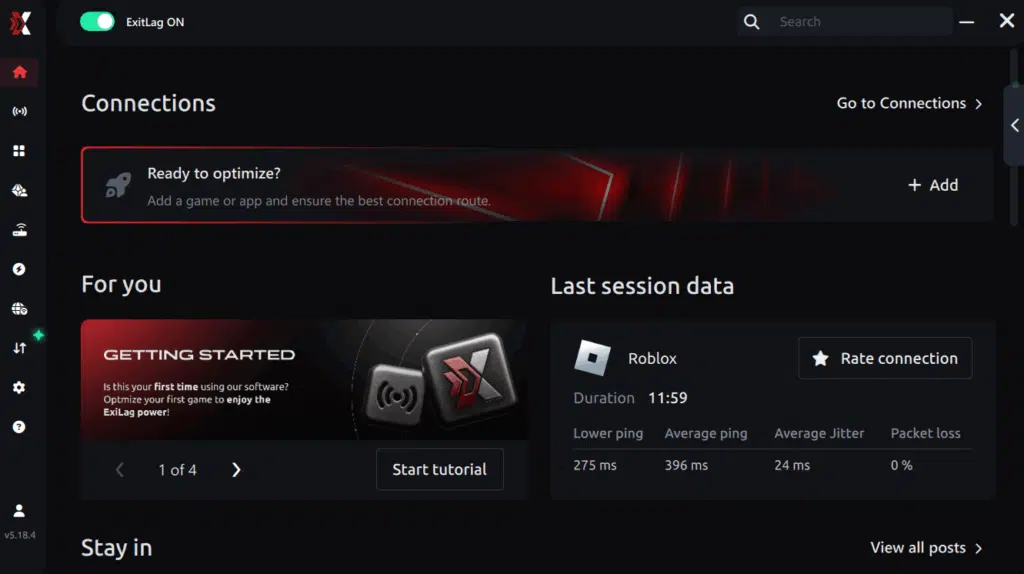
Step 3 – In the search bar, type “Battlefield 6” and select the game from the list.
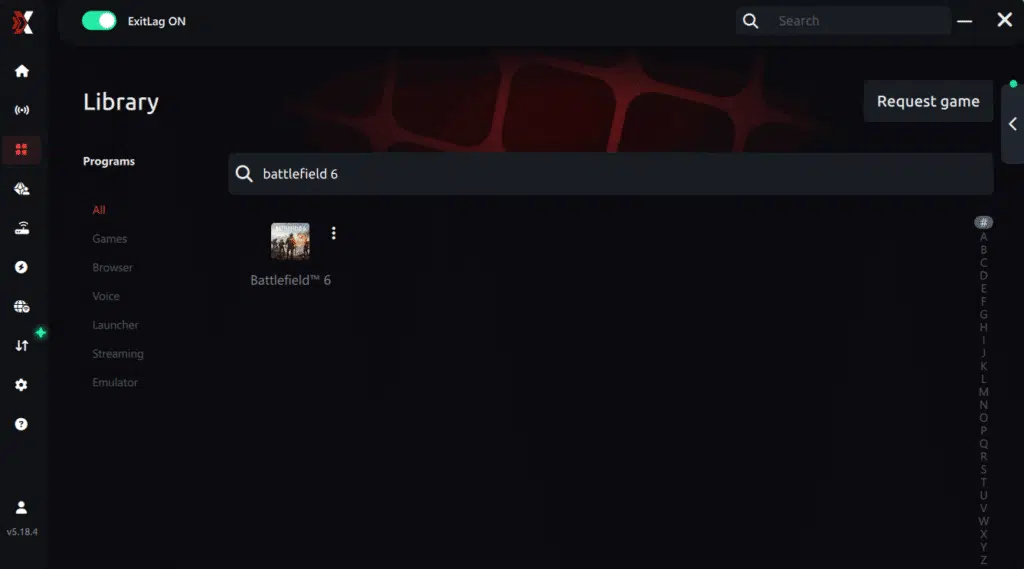
Step 4 – Choose between automated or manual route
Based on the results, you can let ExitLag automatically select the best route or manually choose the server that showed the lowest latency for your connection.
AI-optimized automated route
Based on the results, you can let ExitLag automatically select the best route through AI optimization. The system analyzes multiple connection paths in real time and automatically identifies the most efficient route for your connection, ensuring the lowest possible latency without requiring manual choices.
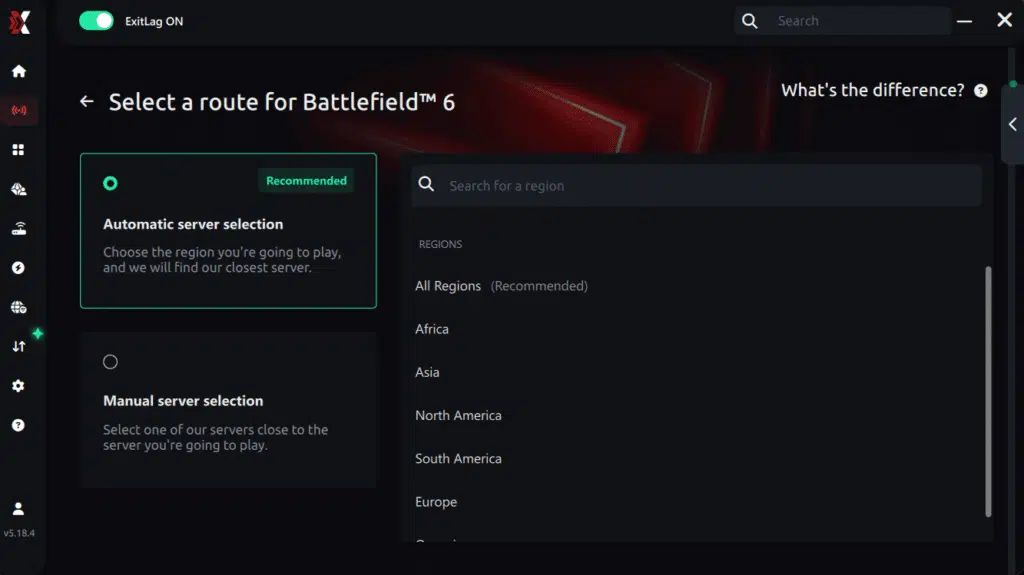
Manual route
If you prefer to have full control over your connection, you can manually choose the server based on the ping test results. Simply select the server that showed the lowest latency or the one that best meets your specific gaming needs, allowing complete customization of your experience.
Step 5 – Click “Apply routes” or the play button. ExitLag will begin optimizing your connection automatically.
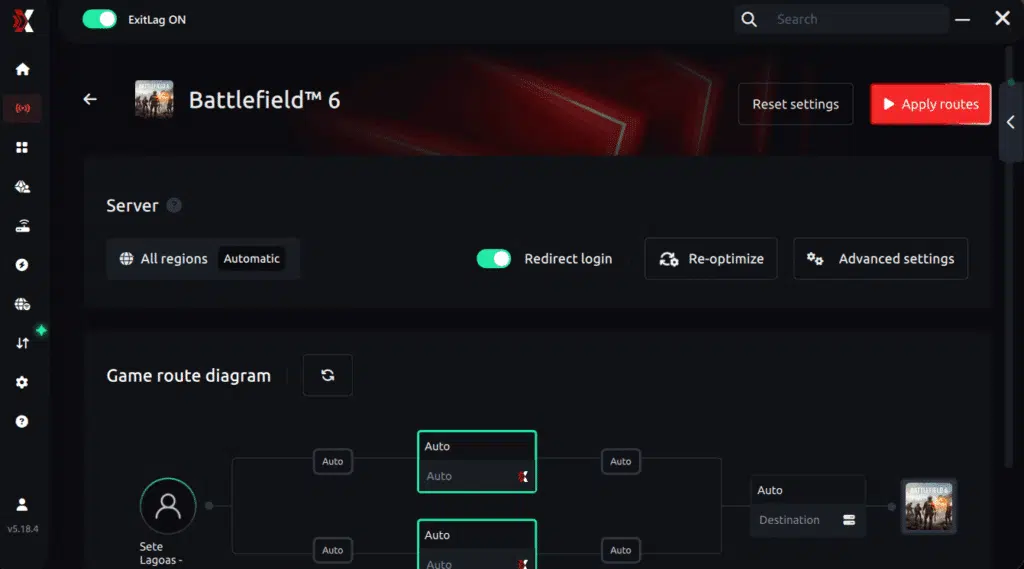
Step 6 – Wait a few seconds until optimization is complete. You’ll see ping indicators in the interface.
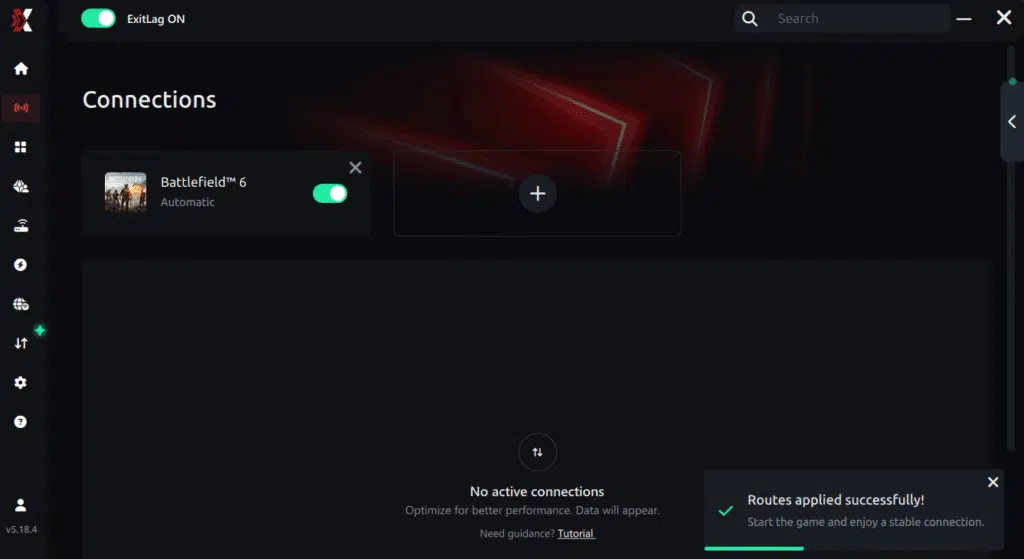
Step 7 – Launch Battlefield 6 normally. The optimization will already be active.
ExitLag runs in the background while you play, constantly adjusting routes to maintain the best possible performance.
How to use Ping for Games: step-by-step guide (Battlefield 6)
Checking your connection quality before entering a match has never been easier. Here’s how to use Ping for Games in just a few steps:
1. Open the ExitLag software on your PC
Ensure the application is installed and open. The feature is integrated into the platform and available for free to all users.
2. Access the Network Analyzer tool
Locate the Network Analyzer in the software menu. This is where you’ll find Ping for Games along with other connection analysis features.
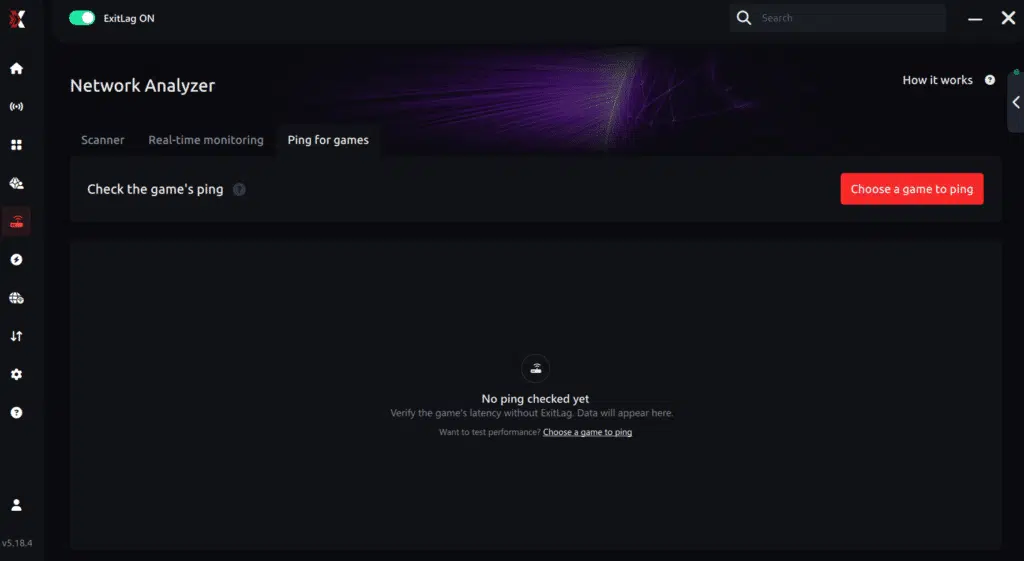
3. Select the game you want to test
Choose Battlefield 6 from the list. The tool supports major online multiplayer games, including FPS, Battle Royales, MOBAs, MMORPGs, and more.
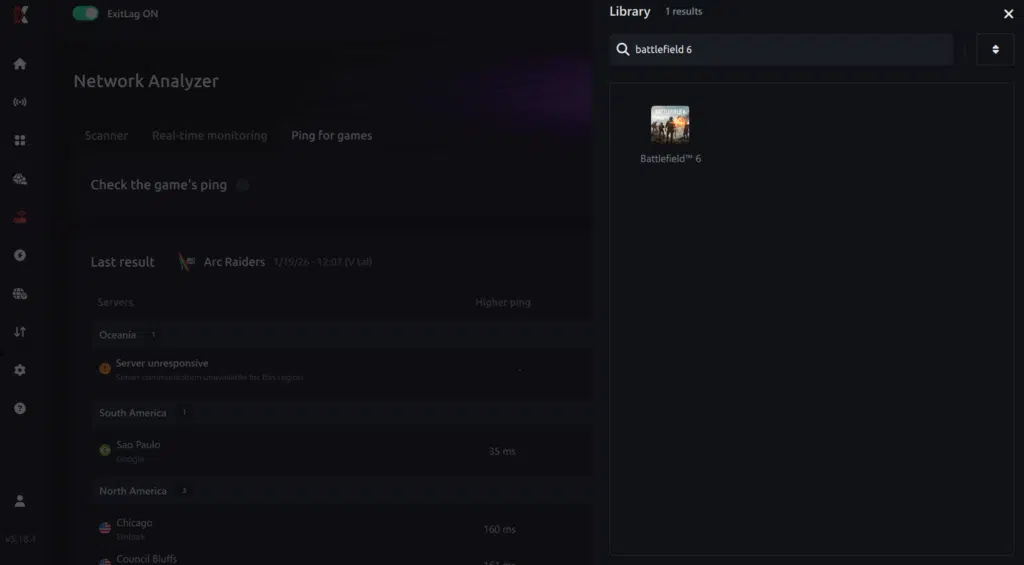
4. Choose the specific server
Select the exact Battlefield 6 server you want to test instead of a generic region. This ensures more accurate results for your match.
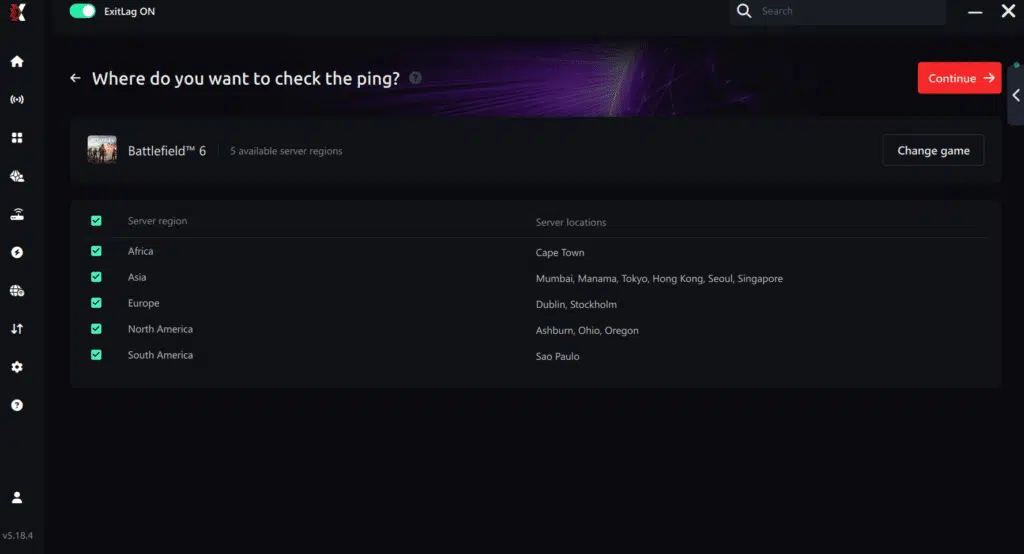
5. Start the ping test
With one click, the measurement is performed in real time between your device and the selected Battlefield 6 server, considering your current connection (cable or Wi-Fi).
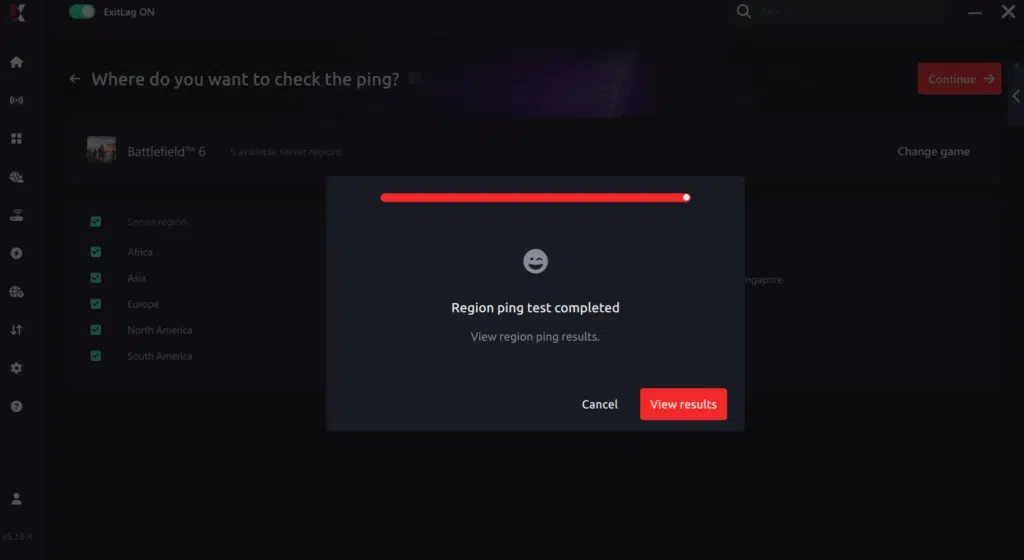
6. Analyze the results
Results appear in milliseconds (ms), automatically sorted from best to worst ping. You can also reorganize the view alphabetically if you prefer.
7. Choose the best server and play worry-free
With this information, simply select the server with the lowest latency and jump into Battlefield 6 knowing your connection is optimized.
Final thoughts: Play Battlefield 6 without lag forever
At the end of the day, Battlefield 6 lag should never decide your matches. You spend time mastering your aim, movement, and strategy your internet connection should never be the reason you lose.
With ExitLag, you finally take control of your network performance. The software finds the fastest routes, eliminates lag, and stabilizes your ping so that every shot and every action happens exactly when you want it to.
Try ExitLag for free right now and experience how smooth Battlefield 6 can be when your connection is fully optimized. Play with confidence, reach your full potential, and make lag a thing of the past.
FAQ: frequently asked questions about Battlefield 6 jitter
Even after applying technical fixes and stabilization tools, many practical questions still arise during real Battlefield 6 matches.
Below, we address the most common doubts about jitter, explaining how connection instability affects gameplay, performance consistency, and competitive reliability in large-scale battles.
What’s the difference between jitter, lag and packet loss?
Jitter measures ping variation indicating instability. Furthermore, lag represents delay from consistently high ping. Packet loss means data disappearance during transmission. Therefore, this combination results in terrible experience.
Why does my ping keep fluctuating in Battlefield 6?
Common causes include network congestion issues primarily. Moreover, Wi-Fi usage introduces inherent variability constantly. Additionally, server distance also influences stability considerably.
Is jitter worse than high ping?
Often yes, surprisingly counterintuitive. Furthermore, varying ping becomes unmanageable and unpredictable. Therefore, consistency matters more than raw speed often.
How can I tell if I have jitter?
Execute extended ping test in terminal first. Moreover, in-game, inconsistent response indicates jitter presence. Therefore, behavioral symptoms often prove more revealing than numbers.
Does Wi-Fi cause jitter?
Absolutely yes, inherently problematic. Furthermore, signal variations result in jitter directly. Therefore, ethernet provides superior stability universally.
Does ExitLag fix problems beyond jitter?
Yes, comprehensively addressing multiple issues! Furthermore, packet loss elimination happens simultaneously automatically.
Must I keep ExitLag open while playing?
Yes, absolutely required for optimization. Furthermore, closing terminates benefits immediately unfortunately.
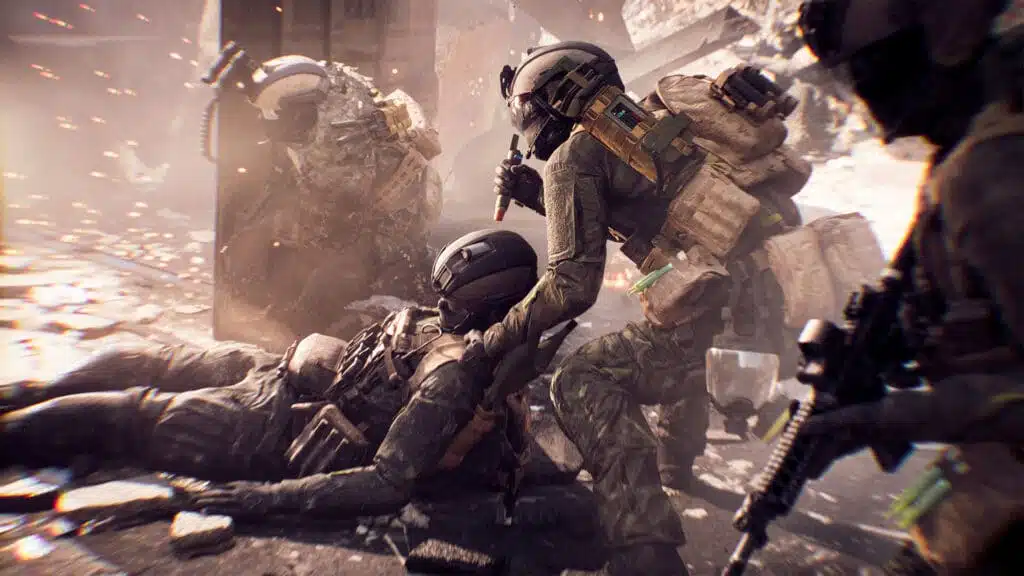
Can jitter cause rubberbanding in Battlefield 6?
Yes. Jitter is one of the primary causes of rubberbanding in Battlefield 6. When latency fluctuates rapidly, the game client and EA servers constantly lose synchronization on player position and movement timing.
As a result, the server repeatedly corrects these discrepancies by snapping characters backward or forward, producing the rubberbanding effect. Eliminating ping variation is essential to fully resolve this issue, even if your average ping appears low.
Conclusion: eliminate Battlefield 6 jitter permanently
Connection instability shouldn’t ruin large-scale warfare experiences ever. Furthermore, fun gaming sessions become technical nightmares unnecessarily.
ExitLag represents the definitive solution eliminating ping variations. Moreover, you deserve consistent, predictable, competitive quality always.
Don’t let unpredictable timing ruin tactical advantages anymore. Therefore, vehicle controls become completely reliable consistently.
Whether pursuing casual conquest or ranked glory, stability proves fundamental. Discover additional strategies through the ExitLag blog for enhancements.
Ready to eliminate Battlefield 6 jitter forever and dominate with perfect timing? Try ExitLag risk-free and experience tournament-grade stabilization immediately.
Got questions or want to connect with other players? Join the conversation at the ExitLag Forum!