If you typed “Can’t See My Ping TF2” into a search bar because your screen shows nothing useful during a match, you are not alone. Plenty of players jump into Team Fortress 2 expecting a visible number and find an empty corner instead. The good news is that fixing this takes less than a minute once you know which console command actually works.
The Can’t See My Ping TF2 issue almost always comes down to one thing: the console commands that control ping visibility are off by default. Team Fortress 2 does not show your connection stats automatically, so you have to turn them on manually through the developer console or the options menu.
To fix Can’t See My Ping TF2, open the developer console and type net_graph 1, then press Enter. This instantly displays your ping, framerate, and packet loss in the bottom right corner of your screen. If you prefer a simpler view, cl_showfps 2 also shows ping alongside your frame rate in the top left.
Team Fortress 2 has been around for a long time, and its interface still relies on old-school console commands rather than modern in-game menus. Consequently, many newer players never discover these settings unless they specifically look them up. This guide walks through every method available today.
Can’t See My Ping TF2: Enabling the Developer Console First
Before any ping command works, you need access to the developer console. Without it, none of the fixes below will function, since TF2 hides this feature by default.
How Do You Turn On The Console In TF2?
Open the game and head to Options, then Advanced Options at the bottom of the menu. From there, check the box labeled “Enable developer console.”
Once enabled, the console opens with the tilde key, usually located under the Escape key on most keyboards. If that key does not work, check your keybind settings under the Keyboard tab.
- Launch Team Fortress 2 and go to the main menu
- Click Options, then select Advanced
- Enable “Enable developer console (~)”
- Press the tilde key in a match to open it
What If The Tilde Key Does Nothing?
Some keyboard layouts place the console key elsewhere. If that happens, go to Options, Keyboard, Advanced, and manually rebind the console toggle to a key that works for you.
Alternatively, you can bind a custom key directly through the console once it opens once. For example, typing bind p toggleconsole lets the P key open and close it afterward.
Can’t See My Ping TF2: The Net_Graph Command Explained
Net_graph is the most detailed and reliable way to solve Can’t See My Ping TF2 because it shows far more than just a single number. It gives a full breakdown of your connection quality in real time.
How Does Net_Graph Work In TF2?
Typing net_graph 1 through net_graph 4 in the console displays increasing levels of detail, including ping, packet loss, choke, and interpolation data. Higher numbers add more graphs and text on screen.
Here is what each level generally adds:
- net_graph 1: Basic frame timing graph only
- net_graph 2: Adds latency and network graph info
- net_graph 3: Adds additional bandwidth details
- net_graph 4: Full detailed breakdown, most commonly used by competitive players
Once enabled, you can also reposition the display. Typing net_graphpos 1 moves it to the right edge, net_graphpos 0 moves it to the left, and net_graphpos 2 centers it on screen.
Common Net_Graph Commands Table
| Command | Effect | Best For |
|---|---|---|
| net_graph 1 | Basic graph, shows ping | Quick reference |
| net_graph 3 | Detailed stats, packet loss | Diagnosing lag |
| net_graph 4 | Full network breakdown | Competitive players |
| net_graph 0 | Disables the display | Clean screen |
| net_graphpos 1 | Moves graph to right edge | Custom HUD layouts |
Can’t See My Ping TF2: Using Cl_Showfps Instead
If a full graph feels like overkill, cl_showfps offers a lighter alternative. It is faster to read at a glance and takes up less screen space.
What Does Cl_Showfps Actually Show?
Setting cl_showfps 1 displays only your current frame rate in the top left corner. Setting cl_showfps 2 adds your ping and server tick data right next to the frame counter.
This makes cl_showfps 2 the quickest fix for players who just want a simple number without extra graphs cluttering their view. It is especially popular among casual players.
- cl_showfps 0: Turns the display off completely
- cl_showfps 1: Shows FPS only
- cl_showfps 2: Shows FPS, ping, and server variables together
Should You Use Net_Graph Or Cl_Showfps?
It depends on how much detail you want. Net_graph gives a deeper diagnostic view with packet loss and interpolation data, while cl_showfps stays minimal and readable.
Many experienced players actually run both at once, positioning them in different corners of the screen for a complete picture without any single element overwhelming their view.

Fixing Ping Display On The Scoreboard
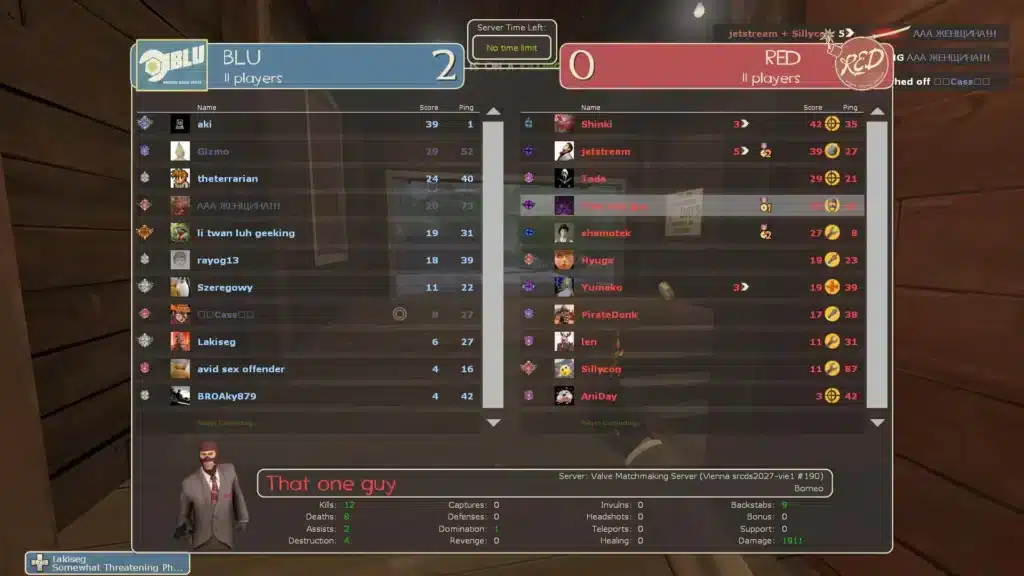
Sometimes the issue is not the HUD itself but the scoreboard, which by default shows ping as colored connection bars instead of numbers. This confuses players who expect an exact figure.
How Do You Show Numeric Ping On The Scoreboard?
Type tf_scoreboard_ping_as_text 1 into the console and press Enter. This immediately switches the scoreboard from bars to precise millisecond numbers for every player in the match.
You can also toggle this setting without the console. Go to Options, Advanced, and find “Display ping values as text on the scoreboard” under HUD options.
- Hold Tab during a match to open the scoreboard
- Check whether ping shows as bars or numbers
- If bars appear, run tf_scoreboard_ping_as_text 1
- Numbers will now show instead of connection strength icons
Making Your Ping Display Permanent
Typing commands every single match gets old fast. Fortunately, Team Fortress 2 lets you save these settings so they load automatically every time you launch the game.
Using Launch Options
Right click Team Fortress 2 in your Steam library, select Properties, and add launch options such as +net_graph 1 or +cl_showfps 2. These load the moment the game starts.
This method works well if you only want one or two settings applied consistently, without creating extra files.
Using An Autoexec Config File
For more permanent and flexible setups, create a file named autoexec.cfg inside your tf/cfg folder. Add your preferred commands there, one per line, such as net_graph 3 and tf_scoreboard_ping_as_text 1.
The game reads this file automatically on launch, so you never have to type commands manually again. This is the method most long-term players rely on.
Why Ping Numbers Still Look High Even After Fixing The Display
Getting the number to appear is only half the battle. If that number is consistently high, the display was never really the problem, your actual connection is.
- Server distance: playing on servers far from your region inflates ping regardless of your setup
- Wi-Fi instead of Ethernet: wireless connections introduce extra latency and instability
- Background downloads: torrents, updates, and streaming apps eat into your available bandwidth
- Router congestion: outdated or overloaded routers struggle under multiple connected devices
For most players, a comfortable ping in Team Fortress 2 sits somewhere between 30 and 60 milliseconds. Anything creeping past 100 milliseconds typically starts to affect hit registration and timing.
Pro Tips: Reading And Managing Your TF2 Ping
- Watch the orange bars in net_graph: Orange spikes above the white line indicate packet loss or extrapolation, which matters more than the raw ping number alone.
- Adjust cl_interp_ratio based on ping: Lower values work best under 60 ping, while higher values help smooth out inconsistent connections above that.
- Reposition net_graph away from your crosshair: Use net_graphpos to move the display so it never blocks your view during fights.
- Recheck ping after every server switch: Ping can vary significantly between servers even within the same region, so always confirm before committing to a match.
Can’t See My Ping TF2: Fixing It For Good
At this point, the Can’t See My Ping TF2 problem should be fully solved through either net_graph, cl_showfps, or the scoreboard text setting. Each method takes seconds to enable and can be saved permanently.
However, seeing your ping number is only useful if that number stays low and stable. That is where your actual network path into the game server starts to matter far more than any console command.
Is It Normal For Ping To Fluctuate Mid-Match?
Yes, slight fluctuation is completely normal, especially during high-action moments with lots of players and projectiles on screen. Consistent spikes of 50 milliseconds or more, however, usually point to a real connection issue rather than normal variance.
Common Mistakes TF2 Players Make With Ping Settings
- Typing commands without enabling the console first: Nothing happens because the console was never activated. Fix: enable it through Options, Advanced before trying any command.
- Confusing FPS drops with ping issues: Low frame rate and high ping are different problems with different causes. Fix: check net_graph separately for FPS and ping values before assuming which one is the culprit.
- Ignoring packet loss while chasing a lower ping number: A low ping with heavy packet loss still feels laggy in combat. Fix: watch for orange bars in net_graph, not just the numeric ping value.

How ExitLag Helps Keep TF2 Ping Low And Stable
Once you can actually see your ping, the next step is making sure that number stays consistent throughout every match. This is where ExitLag comes in as a real connection tool, not a display fix.
ExitLag is not a VPN. It is a game connection optimizer that scans multiple network paths in real time and automatically routes your traffic through the fastest, most stable option available to reach TF2 servers.
For a fast-paced shooter like Team Fortress 2, even small routing inefficiencies show up as inconsistent hit registration and awkward peeker’s advantage against opponents. ExitLag‘s real-time optimization targets exactly this kind of instability.
- Multipath Technology: Sends your data through several routes at once, so if one path degrades, others keep your connection steady.
- Real-time Optimization: Actively reduces delay and packet loss, which helps rockets, sentries, and hitscan weapons feel more responsive.
- AI-powered routing: Automatically selects the best available route with a single click, with manual options for advanced users who want full control.
ExitLag supports thousands of titles across PC and mobile, with servers spread across 190+ countries, and it does not modify game files or interact with anti-cheat systems in any way. It is safe to run alongside Team Fortress 2 without any conflicts.
If your Can’t See My Ping TF2 issue is now fixed but the numbers themselves are still frustrating, grab the ExitLag Download and see whether a more stable route changes how your matches feel.
Pro Tips: Getting The Most Out Of Your Ping Display
- Bind a toggle key for net_graph: Typing bind n “net_graph 3” lets you flip the display on and off instantly during a match without opening the console each time.
- Use net_graph 4 when troubleshooting: The extra detail helps you tell apart a local hardware issue from an actual server-side connection problem.
- Save your setup in autoexec.cfg: This avoids retyping commands every session and keeps your preferred layout consistent across updates.
- Cross-check ping with the scoreboard: If net_graph and the scoreboard show wildly different numbers, restart the game since one of the readings is likely stale.
All game images used in this blog post belong to Valve Corporation. They are used for informational and educational purposes only and do not imply endorsement or affiliation with the rights holders.
Got questions or want to connect with other players? Join the conversation at the ExitLag Forum!