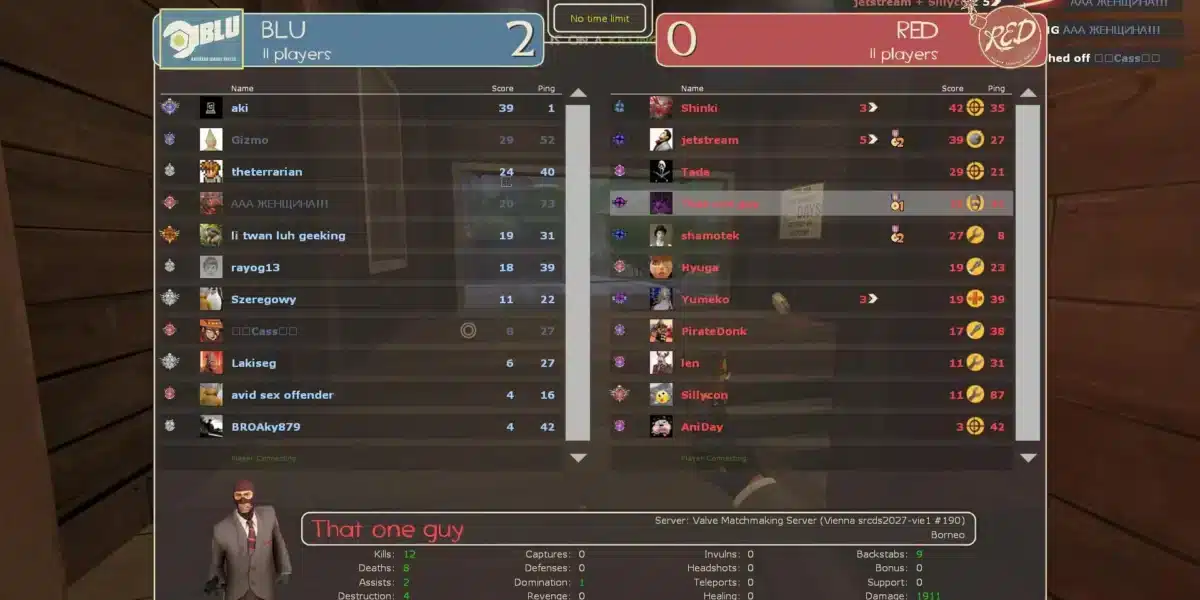
Few things kill a good push on 2Fort faster than a hard freeze mid fight. One second you’re spamming rockets, the next your screen is stuck while the audio loops on repeat.
If your Tf2 Game Randomly Freezes during matches, you’re not alone. Team Fortress 2 is an old engine running on modern hardware, and that mix creates some very specific problems.
The short answer: most freezes come from driver crashes, corrupted cache files, background overload, or unstable network conditions during a match. Tf2 Game Randomly Freezes situations are almost always fixable once you isolate whether the cause is local (your PC) or external (your connection or the server). This guide walks through both paths step by step.
As someone who has spent a lot of hours in Team Fortress 2 and troubleshooting Source engine titles in general, I want to be direct: there is no single fix that works for everyone. That’s exactly why this article covers every angle, from graphics drivers to launch options to network stability.

Why Does Tf2 Game Randomly Freezes Happen In The First Place?
Team Fortress 2 runs on the Source engine, a codebase that has been patched and extended for a long time. It’s stable overall, but it was never designed for today’s multi-core CPUs and modern GPU driver stacks.
That mismatch is the root of most freezing complaints. The engine can choke on certain driver versions, overloaded VPK caches, or sudden spikes in server-side load during busy matches.
Here are the most common triggers reported by players and confirmed across troubleshooting threads:
- Outdated or mismatched graphics drivers: Source engine titles are sensitive to driver regressions, especially on Nvidia cards after certain updates.
- Corrupted or bloated local cache: Custom content, old cosmetics, and cache files can pile up and cause micro-freezes when the engine tries to load them.
- Background application overload: Discord overlays, browsers, and recording software compete for CPU and RAM, causing the game to hang.
- Preload settings misconfiguration: Sound and texture preload commands can either fix or cause freeze-and-loop bugs, depending on your hardware.
- Network instability during a match: Packet loss or route congestion between you and the server can present as a freeze, even though it’s actually a connection stall.
Is It A Hardware Problem Or A Software Problem?
This is the first fork in the road. A hardware-related freeze usually comes with a hard crash to desktop, a driver reset notification, or your whole PC becoming unresponsive.
A software-related freeze, on the other hand, tends to happen inside the game only. Your mouse might still move, sound may loop, but the screen is frozen.
Quick checklist to identify which one you’re dealing with:
- Check if the freeze happens only in Team Fortress 2 or in other games too.
- Open Task Manager after a freeze (if possible) and check if TF2 is still responding.
- Look in Windows Event Viewer for driver timeout or “TDR” (Timeout Detection and Recovery) entries.
- Note if the freeze happens right after joining a server or randomly mid match.
- Check if sound loops during the freeze (this points to a preload or audio driver issue).
Fixing Tf2 Game Randomly Freezes On The Local Side
Local fixes address anything happening on your own PC, which covers the majority of freeze reports. Start here before touching network settings.
The first move should always be a clean verification of your installation. Corrupted files are one of the most common and easiest to rule out causes.
Verify Game Files And Clear The Cache
Steam’s built-in verification tool checks every file against the original and re-downloads anything that doesn’t match. It takes a few minutes and fixes a surprising number of freeze cases.
Steps to run it properly:
- Open your Steam Library and right click on Team Fortress 2.
- Select Properties, then go to Installed Files.
- Click Verify Integrity of Game Files and wait for the scan to finish.
- Delete or rename any custom content in your tf/custom folder to rule out mod conflicts.
- Restart Steam completely before launching the game again.
If the freeze started after installing a new HUD, crosshair pack, or sound mod, this step alone often solves it.
Update Drivers And Adjust Launch Options
Graphics driver issues are the single most reported cause of random freezing in Source engine games. Updating to the latest stable driver (not always the newest “game ready” beta) usually helps.
Launch options can also stabilize the engine by forcing safer defaults. Add these through Steam’s game Properties menu under Launch Options:
| Launch Option | What It Does | When To Use It |
|---|---|---|
| -autoconfig | Resets video and performance settings to safe defaults | After a freeze started post update |
| -novid | Skips intro videos, reduces startup load | Always safe to use |
| -threads 4 | Improves multi-core CPU usage | On quad core+ systems |
| sv_forcepreload 1 in autoexec | Preloads sounds/textures to avoid loop freezes | If freezes come with looping audio |
| -windowed -noborder | Runs borderless windowed mode | If freezes happen on alt-tab |
Test one change at a time. Stacking every option at once makes it hard to know which one actually fixed things.
What Should You Do About Background Apps?
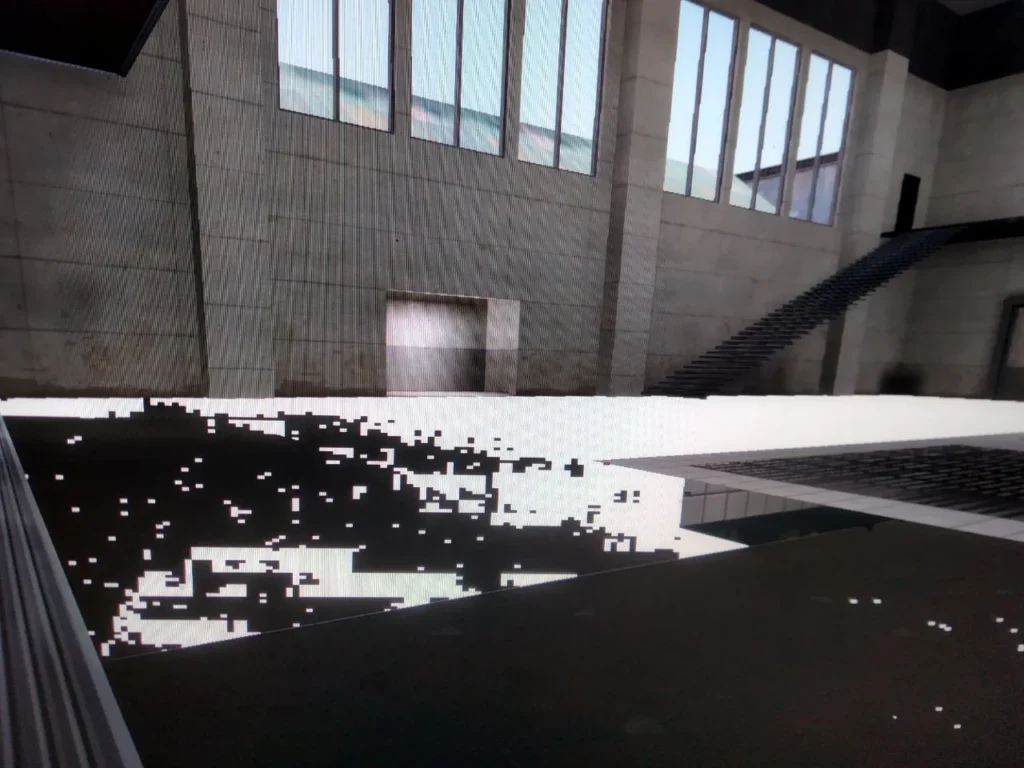
Background software is an underrated cause of freezing, especially overlays that hook directly into the rendering pipeline. Discord, GeForce Experience, and recording tools are the usual suspects.
Close everything non essential before launching a match, and disable in-game overlays one at a time. This is especially useful if freezes happen consistently after 20 to 30 minutes of play, which points to a resource leak from a background process.
- Disable the Steam overlay temporarily to see if it changes anything.
- Close Discord’s overlay or run Discord in browser instead of the desktop app during testing.
- Turn off GPU recording software (ShadowPlay, ReLive) while diagnosing the issue.
- Check Task Manager for any process spiking CPU usage right before a freeze.
Is Tf2 Game Randomly Freezes Actually A Connection Issue?
Not every freeze is local. When your screen locks up specifically during combat, right after a respawn, or only on certain servers, the cause is often network related rather than a driver or file problem.
Source engine games interpolate player positions between server updates. When packets are lost or delayed, the client can appear to freeze for a fraction of a second while it waits for fresh data.
Signs that point to a network cause instead of a local one:
- The freeze only happens on specific servers, never in offline or local practice modes.
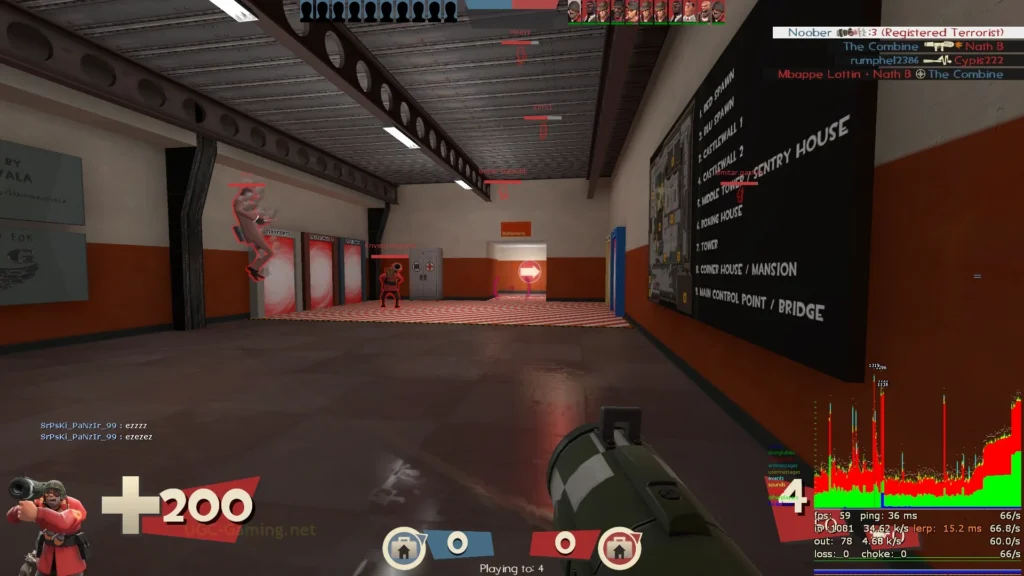
- Enabling net_graph 1 in the console shows spikes in choke or loss right before the freeze.
- Other players in the same match report lag at the same time (a shared server issue).
- Your connection uses Wi-Fi, or shares bandwidth with downloads, streaming, or other devices.
How Do You Check Your Connection During A Match?
Team Fortress 2 has a built in diagnostic tool that most players never open. Typing net_graph 1 into the console overlays real time ping, choke, and packet loss numbers directly on screen.
If you see loss numbers climbing right as the game locks up, that’s your answer. The freeze isn’t the game engine failing, it’s your connection struggling to keep the session in sync.
A simple routine to test this properly:
- Enable the developer console in Options if it isn’t active yet.
- Type net_graph 1 and press enter during a match.
- Watch the loss and choke values during normal play versus during a freeze.
- If loss spikes align with freezes, treat it as a connection problem, not a client bug.
Pro Tips For Preventing Freezes Long Term
- Keep drivers on a stable branch: Avoid jumping to every beta driver release. Stick to WHQL certified versions unless a specific fix is needed, since beta drivers are the most common cause of new freeze reports after an update.
- Rebuild your cache periodically: Every few months, clear shader cache and verify files even without a specific problem. This prevents small corruption issues from accumulating into a freeze.
- Use a wired connection when possible: Wi-Fi introduces variable latency that can present as freezing during fights. Ethernet removes that variable entirely.
- Cap your frame rate: Extremely high uncapped frame rates can overload some Source engine systems. Capping around your monitor’s refresh rate reduces strain and unpredictable stutters.
- Monitor temperatures during long sessions: Thermal throttling on an aging GPU or CPU can mimic a software freeze. A quick check with a monitoring tool rules this out fast.
Common Mistakes Players Make When Troubleshooting
- Changing multiple settings at once: This makes it impossible to know what actually fixed the freeze. Fix: change one launch option or setting at a time, then test for at least one full match before moving on.
- Ignoring Windows Event Viewer: Many players jump straight to reinstalling the game without checking for driver timeout logs. Fix: check Event Viewer under Windows Logs > System for TDR or display driver errors right after a freeze happens.
- Assuming every freeze is a hardware failure: Panic-buying new hardware rarely fixes a software or network related freeze. Fix: rule out drivers, cache corruption, and connection stability first, since these cover the majority of reported cases.
- Skipping the reinstall as a last resort: Some players avoid reinstalling because it feels drastic, but a clean install resolves deep corruption that verification alone can miss. Fix: back up your custom configs, uninstall completely, then reinstall for a truly fresh state.
Stabilizing Your Connection With ExitLag
If your testing points to network instability rather than a local driver or cache issue, this is where ExitLag becomes relevant. ExitLag is not a VPN, it’s a game connection optimizer.
It works by scanning multiple real time routes between your PC and the Team Fortress 2 server, then picking the fastest and most stable one available. It does not encrypt your traffic, mask your IP, or affect any application outside supported games.
For an online multiplayer title like Team Fortress 2, connection stability during a match matters just as much as raw ping. A route with fewer hops and less congestion means fewer moments where the client has to wait for delayed data, which is exactly the kind of stall that can look like a freeze.
Key features worth knowing:
- Real-time Optimization: Continuously reduces delay and packet loss by adjusting your route on the fly during a live match.
- Multipath Technology: Sends data through multiple simultaneous paths, so if one route degrades, the connection stays smooth through failover.
- Multi-Internet: Combines up to 4 simultaneous connections with instant failover, useful if your primary connection is unreliable.
- Traffic Shaper: Prioritizes game traffic over other background activity competing for bandwidth.
- PC Boost: Cleans up RAM and reduces background process load, which directly helps with the local, non network causes of freezing covered earlier.
ExitLag currently supports over 4,000 titles across PC and Mobile, with more than 1,500 servers spread across 190+ countries, and is trusted by over 30 million users processing 18 million optimizations every week. It’s safe to use alongside Team Fortress 2 since it does not modify game files, inject code, or interact with anti-cheat systems in any way.
One important note: avoid running ExitLag alongside a VPN, since the two can interfere with each other and reduce effectiveness. If you want to test whether route optimization solves your freezing issue, you can grab the ExitLag Download and try it during your next match.
Final Thoughts On Fixing Freezes For Good
Diagnosing why your Tf2 Game Randomly Freezes takes a bit of patience, but the process is straightforward once you separate local causes from network causes. Start with drivers and cache, move to launch options, then test your connection stability.
Most players find their answer within the first two or three steps in this guide. Between driver hygiene, a clean cache, sensible launch options, and a stable route to the server, freezing during matches becomes a rare exception instead of a regular frustration.
All game images used in this blog post belong to Valve Corporation. They are used for informational and educational purposes only and do not imply endorsement or affiliation with the rights holders.
Got questions or want to connect with other players? Join the conversation at the ExitLag Forum!