A Cartography Table Minecraft is a powerful tool that plays a crucial role in exploration, map-making, and navigation. Whether you're embarking on an adventure to explore distant biomes or you just want to create a detailed record of your surroundings, this tool is invaluable. The Cartography Table allows you to craft, expand, clone, and lock maps – all essential functions for any player who wants to understand their environment better and organize their explorations effectively.
Maps in Minecraft are essential for navigation, but without proper management tools, they can become disorganized or lose their relevance over time. That’s where the Minecraft Cartography Table comes in, making it easy to modify and work with maps. This guide will walk you through everything you need to know about crafting and using the Cartography Table, along with its various features that will significantly improve your gameplay.
For players interested in enhancing other aspects of their game, such as competitive play, you may also want to explore top Minecraft PvP servers that benefit from strategic mapping.
What is a cartography table?
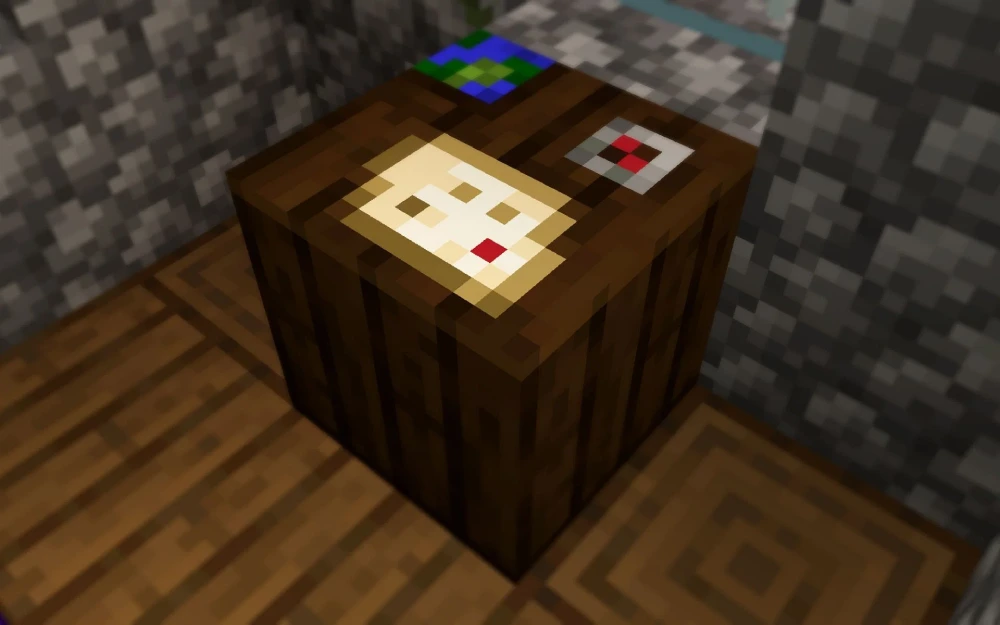
A Cartography Table in Minecraft is a workstation that allows you to craft and manipulate maps in ways that improve navigation and organization within the game. Introduced in the "Village and Pillage" update (1.14), this table has become a fundamental part of exploration mechanics. It offers several functionalities that enhance the utility of maps, such as expanding their coverage, cloning them, and locking them to preserve map data.
Purpose and Importance of the Cartography Table
Unlike many other crafting stations in Minecraft, the cartography table serves a very specific purpose: enhancing your ability to explore and organize the world around you. For players who enjoy long-distance exploration, or even those who just want a more organized and systematic approach to charting their progress, the Minecraft Cartography Table is indispensable.
Key Features and Benefits
Whether you’re mapping your base, tracking biomes, or creating a network of landmarks, the cartography table simplifies and strengthens how you interact with maps. Its user-friendly interface and dedicated functionality make it ideal for both casual and hardcore players who value world-building and discovery.
How to Make a Cartography Table in Minecraft (Recipe)
Crafting a Cartography Table Minecraft is easy and requires only a few common materials, making it accessible early in the game. The table itself can be crafted using basic ingredients you can gather early in your Minecraft journey. Here’s how you can make your own Cartography Table:
Materials Needed:
- 2 Pieces of Paper
- 4 Wooden Planks
Crafting Recipe:
- Open your crafting menu and arrange the materials in the following pattern:
- Place the 2 pieces of paper in the top row of the crafting grid.
- Fill the remaining spaces with 4 wooden planks – two on the left and two on the right.
- Place the 2 pieces of paper in the top row of the crafting grid.
Once you have placed the ingredients in the correct pattern, the Cartography Table Minecraft will appear in the result box. Drag it to your inventory, and you’re ready to use it.
Cartography Table Minecraft Recipe:
| Paper | Paper | - |
| Wood Plank | Wood Plank | - |
| Wood Plank | Wood Plank | - |
How to Use the Cartography Table in Minecraft
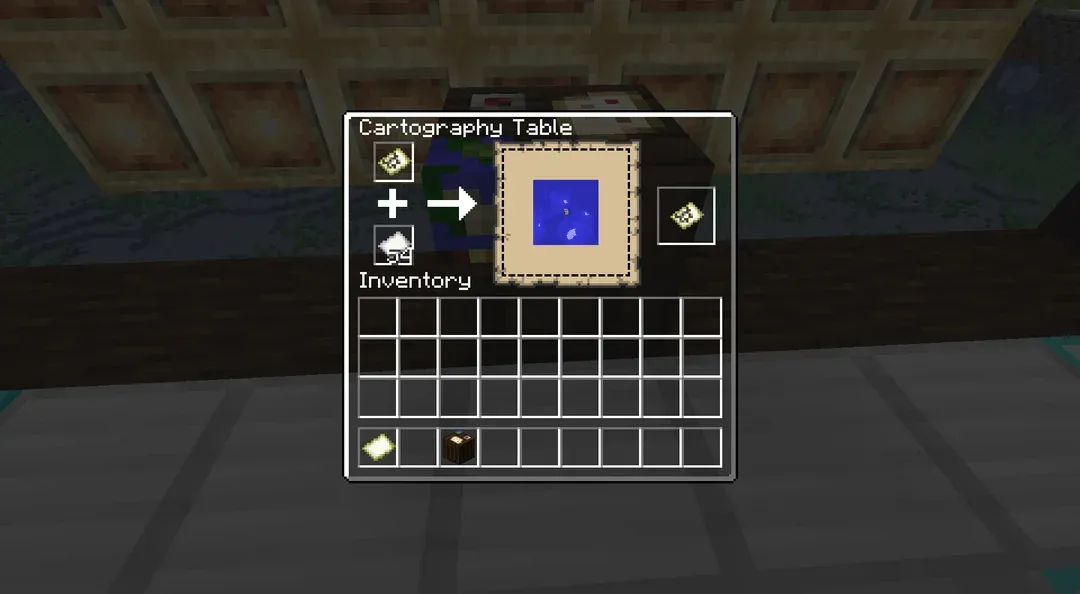
Once you’ve crafted the Cartography Table Minecraft, it’s time to explore its functions. This table is specifically designed to handle maps, and it offers several key features that are valuable to players looking to expand their exploration and map management.
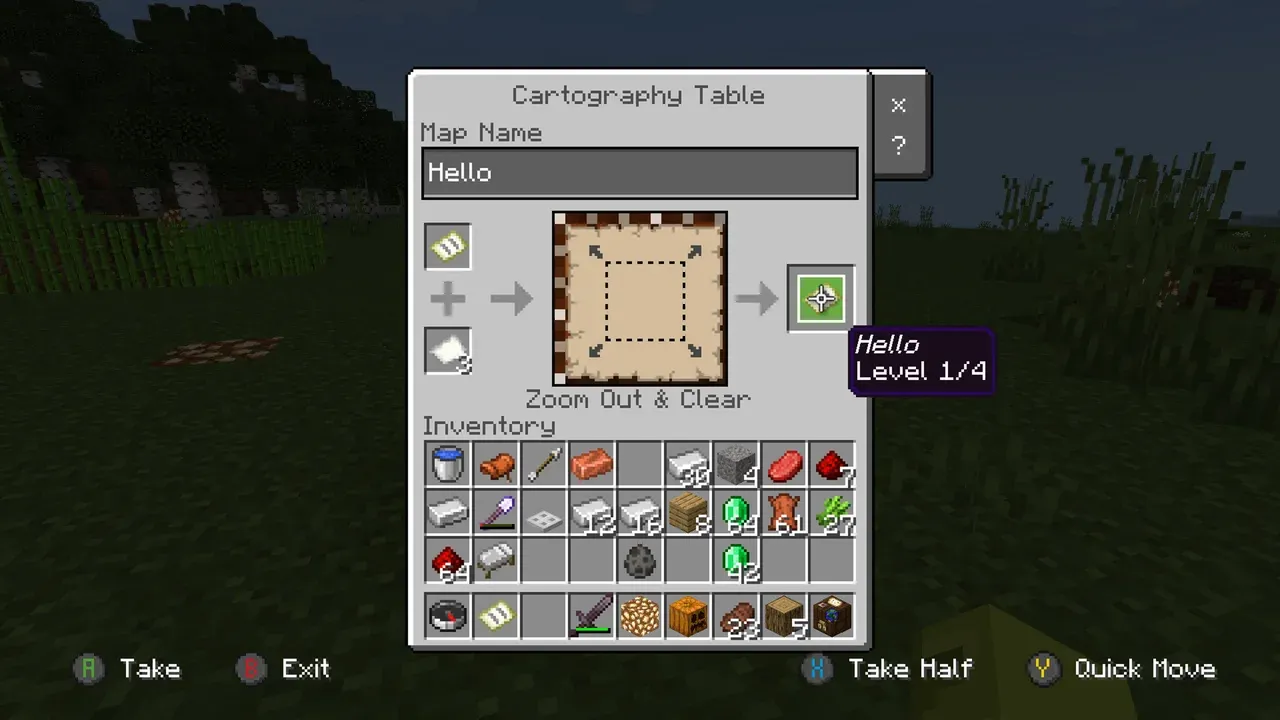
1. Expanding Maps
One of the most useful features of the Cartography Table Minecraft is the ability to expand your maps. By expanding a map, you can zoom out and reveal more of the surrounding area. This is perfect for players who want to explore vast areas and need a larger map to keep track of their surroundings.
Here’s how to expand a map using the Cartography Table:
- Open the Cartography Table interface.
- Place the map you wish to expand in the first slot.
- Add 1 piece of paper in the second slot.
When you finish this process, the map will zoom out, revealing more of the terrain. This is especially helpful when you’re exploring uncharted territories and want to get a better view of your surroundings.
Tip: You can expand a map multiple times. Each time you add a piece of paper, the map will zoom out further, covering even more of your world. However, be aware that the more you expand the map, the less detailed the terrain will appear, as it needs to cover a larger area.
If you’re also building complex bases or structures, pairing maps with this Minecraft house tutorial can help you better visualize and plan your creations.
2. Cloning Maps
The Cartography Table is also ideal for cloning maps. Cloning allows you to create an exact copy of a map, which can be incredibly useful for multiplayer gameplay. Whether you want to share your map with others or keep backups, cloning is a great way to keep your exploration data intact while allowing others to view the same areas.
Here’s how you can clone a map in Minecraft:
- Place the original map in the first slot of the Cartography Table.
- Place a blank map (crafted with 8 pieces of paper and 1 compass) in the second slot.
The result will be a copy of the original map. This allows you to have multiple copies of the same map, which is perfect for distributing to friends, teammates, or just for keeping one as a backup in case you lose the original.
Tip: Cloning maps is essential in multiplayer servers where you need to share your maps with others, or in situations where you want to keep a detailed record of a particular region.
3. Locking Maps
Locking a map is another important feature of the Minecraft Cartography Table. When you lock a map, it becomes static, meaning it will no longer update with new terrain as you explore more areas. This is useful when you want to preserve the current state of your map, especially when you want to mark important locations like villages, structures, or points of interest.
Here’s how you can lock a map:
- Place the map you wish to lock in the first slot.
- Add a glass pane in the second slot.
Once the process is complete, your map will be locked, and it will not update as you explore new terrain. Locked maps are useful for preserving key areas that you want to revisit or share with others without worrying about them changing over time.
Tip: You can lock multiple maps to create detailed collections of static, unchanging maps for important locations around your world.
Additional Tips for Using the Cartography Table
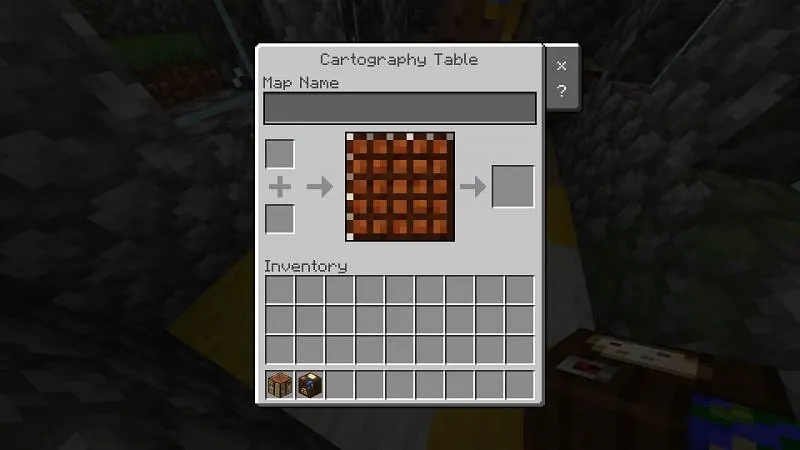
In addition to the primary functions of expanding, cloning, and locking maps, here are some additional tips that can help you make the most of your Cartography Table Minecraft:
Label Your Maps
If you’re working with multiple maps, it’s a good idea to label them in your inventory to avoid confusion. You can do this by using name tags or organizing your maps in a logical order (e.g., “Map of the Desert Biome” or “Map of the Nether”).
Use Maps for Landmarks
Create maps of key landmarks such as villages, strongholds, or temples. You can then use these maps to easily find these locations again in the future.
Create Large-Scale Maps
If you’re working on large building projects, such as a city or a theme park, create large-scale maps that display the full area of your project. This way, you can monitor progress and make adjustments as necessary.
Combine Maps for Global Coverage
If you’re exploring a huge world, you can combine multiple maps to create a larger, more comprehensive map that shows your entire journey. By combining expanded maps, you’ll be able to create a map that displays the full scope of your exploration.
For even more utility, you can pair your map exploration with functional systems like Minecraft fish and breeding to track ecological zones and farm routes.
Frequently Asked Questions (FAQ)
How do I use a Cartography Table in Minecraft?
To use the Cartography Table Minecraft, you can expand maps by adding paper, clone maps by using blank maps, and lock maps by adding glass panes. Each feature helps you organize and manage your maps effectively.
How do I make a Cartography Table in Minecraft?
To craft a Cartography Table, you’ll need 2 pieces of paper and 4 wooden planks. Arrange them in the crafting grid to create the table.
What does a Cartography Table do in Minecraft?
A Cartography Table Minecraft allows you to expand, clone, and lock maps. These features are essential for organizing your exploration and ensuring your maps remain accurate and relevant.
How do I zoom out a map with a Cartography Table?
To zoom out a map, place the map and a piece of paper in the Cartography Table. This will expand the map to cover a larger area.
What is a cartography table in Minecraft?
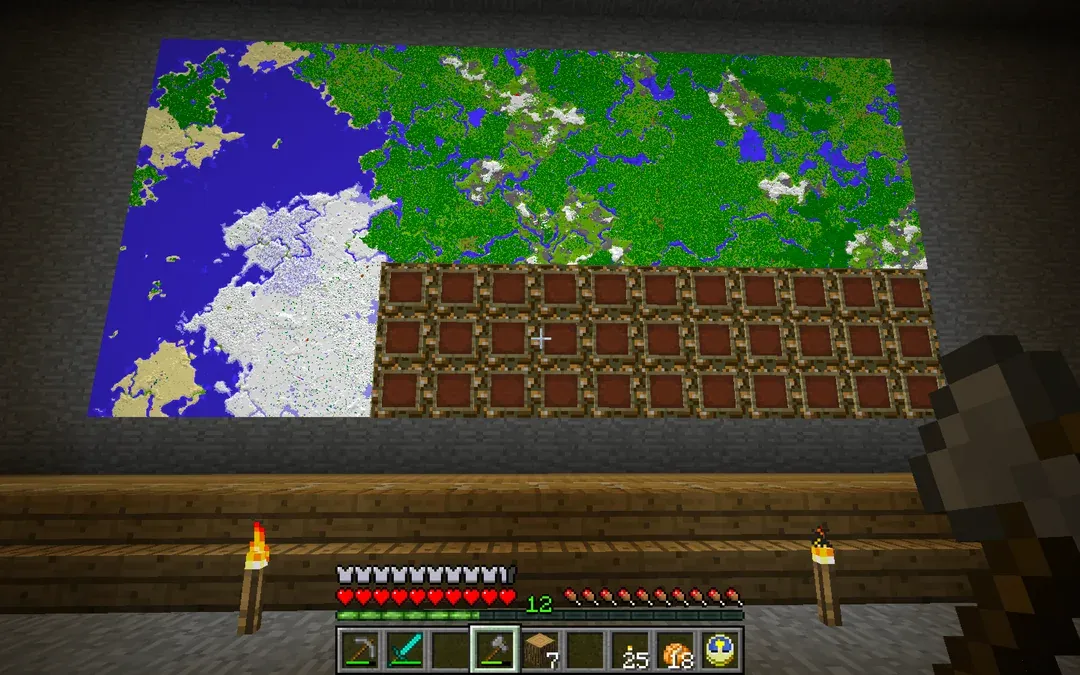
A cartography table in Minecraft is a utility block used primarily for map-related functions. It allows players to expand maps, lock them to prevent changes, and clone maps for sharing. This block is essential for explorers and builders who want to create detailed map walls or navigate large survival worlds.
You can find cartography tables naturally spawning in villages, particularly in cartographer houses. They also serve as the job site block for the Cartographer Villager, enabling trade options like maps to woodland mansions and ocean monuments.
Key uses of the cartography table:
- Zoom out a map by combining it with a piece of paper.
- Clone a map by combining it with an empty map.
- Lock a map to prevent changes by using a glass pane.
The cartography table is easy to craft, requiring just 2 paper and 4 wooden planks. Whether you’re navigating or decorating, it’s a valuable tool in your survival toolkit.
For an in-depth breakdown from official sources, see the Minecraft Wiki on Cartography Tables and Minecraft.net’s Block of the Week article.
The Minecraft Cartography Table is an essential tool for anyone who enjoys exploring the vast world of Minecraft. With the ability to expand, clone, and lock maps, this table provides all the tools you need to stay organized and keep track of your adventures. Whether you're exploring a new biome, sharing your discoveries with friends, or preserving your favorite locations, the cartography table has you covered.
Start crafting your Cartography Table Minecraft today, and take your exploration game to the next level. Whether you're a seasoned player or just starting, mastering the use of maps in Minecraft is a crucial skill that will enhance your overall experience in the game.
Want more tips and tricks to enhance your Minecraft adventure? Whether you're learning about new crafting tables or discovering hidden gameplay secrets, we’ve got you covered. Happy exploring, and don’t forget to share your adventures with fellow players!