If you want to give your iPhone a fresh look, changing your app icons is a great place to start. You can adjust their appearance, create custom images, and organize your Home Screen around your personal style.
So, How Do I Change Icons on iPhone? You have two main options. Use Apple’s built-in Home Screen customization tools to change icon styles, or create individual icons with the Shortcuts app.
The right method depends on what you want to change. Built-in settings are quick and apply a consistent look. Shortcuts gives you more creative freedom, including the ability to use your own pictures.
How Do I Change Icons on iPhone With Built-In Settings?
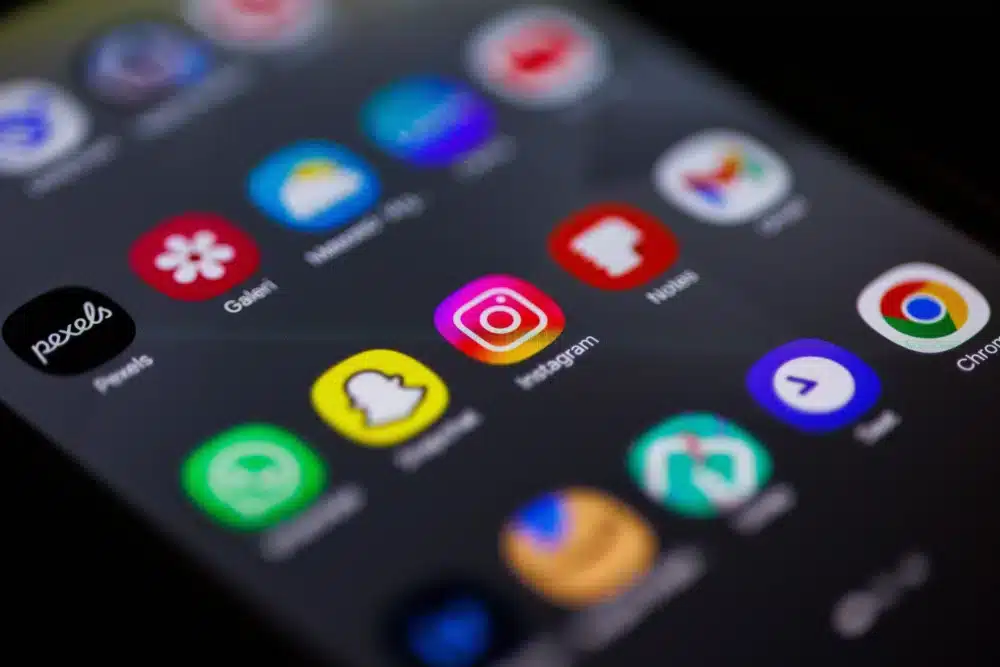
Apple provides Home Screen customization options that let you change how app icons and widgets look. You can choose different appearances, apply a tint, and adjust icon size. This is the simplest way to change the overall style of your iPhone.
Open the Home Screen Customization Menu
Follow these steps:
- Go to your iPhone Home Screen.
- Touch and hold an empty area until the icons begin to jiggle.
- Tap Edit at the top of the screen.
- Choose Customize.
- Select the appearance you want.
- Tap outside the customization panel to finish.
The available controls depend on your iOS version. Current iOS customization includes options such as Light, Dark, Clear, and Tinted.
What Do the Built-In Icon Styles Do?
Each option changes the Home Screen in a different way.
- Light: Keeps icons in a light appearance.
- Dark: Gives supported icons a darker appearance.
- Clear: Creates a translucent, glass-like look.
- Tinted: Applies a color treatment to icons and widgets.
- Auto: Lets supported appearances change according to the system’s light or dark appearance.
The exact options can vary with your software version and device. These controls are useful when you want your apps to feel coordinated without creating a separate shortcut for each one.
How to Change App Icons on iPhone With Custom Colors
If you want a coordinated Home Screen, start with icon tinting. This option changes the visual style of supported icons and widgets together. It is useful when you want your icons to complement your wallpaper.
Choose a Tint Color
To apply a tint:
- Touch and hold an empty area on the Home Screen.
- Tap Edit.
- Select Customize.
- Choose Tinted.
- Adjust the color and saturation controls.
- Tap outside the panel to apply the appearance.
Apple’s current Home Screen customization also supports using an eyedropper to select a color from your wallpaper. This can help create a more consistent look without downloading an icon pack.
Match Icons to Your Wallpaper
A coordinated color palette can make your Home Screen feel more organized.
For example, you could choose:
- Blue tones for a blue or ocean wallpaper
- Green tones for nature photography
- Warm colors for sunset images
- Neutral tones for a minimalist background
Try a few options before settling on one. A tint that looks good on one wallpaper may be less effective with another.
How to Change App Icon on iPhone With a Custom Picture
If you want a different picture for a specific app, use the Shortcuts app. This method creates a shortcut that opens the app you choose. You can then add that shortcut to the Home Screen with a custom image. Apple documents that a shortcut added to the Home Screen can use a photo from your photo library as its icon.
Prepare Your Custom Icon Image
Before creating the shortcut, choose an image. You can use a photo, a graphic you designed, or an icon image saved to your iPhone. For a clean result, choose an image that is easy to recognize when displayed as a small square.
Consider these ideas:
- A simple symbol for productivity apps
- A landscape photo for travel apps
- A colorful illustration for entertainment apps
- A matching icon set for your favorite apps
- A personal photo for an app you use frequently
Avoid images with tiny details. They may become difficult to recognize at Home Screen size.
Create the Shortcut
Follow these steps to create an icon for an app:
- Open the Shortcuts app.
- Tap the + button to create a shortcut.
- Choose Add Action.
- Search for Open App.
- Select the Open App action.
- Tap the app name in the action.
- Choose the app you want to open.
- Open the shortcut’s options.
- Choose Add to Home Screen.
- Tap the icon preview to select a photo or symbol.
- Enter the name you want to display.
- Tap Add.
The custom shortcut will appear on your Home Screen. Tapping it opens the app you selected. The Shortcuts app also lets you customize a shortcut’s own color and symbol.
How to Change the App Icon on iPhone Without Removing the Original App
Creating a custom shortcut does not automatically replace the original app icon. Instead, it adds another Home Screen item that opens the same app. This means you may see both the original icon and your custom shortcut.
Hide the Original Icon From the Home Screen
If you want to keep only the custom icon visible, you can remove the original app icon from the Home Screen.
- Find the original app.
- Touch and hold its icon.
- Choose Remove App.
- Select Remove from Home Screen, if offered.
This removes the icon from the Home Screen, not the app itself. You can still find the installed app in the App Library. Be careful to select the Home Screen removal option rather than deleting the app.
Keep Your Home Screen Organized
Custom icons can make your Home Screen look more personal. However, too many shortcuts can make it harder to find apps.
To keep things manageable:
- Customize only the apps you use most.
- Keep important apps in familiar positions.
- Use short, recognizable labels.
- Group related apps on the same page.
- Keep a simple layout for frequently used apps.
A consistent layout can be more useful than changing every icon.
How to Change Your App Icons on iPhone With Icon Packs
Icon packs offer another way to create a coordinated look. They usually provide a collection of images designed to match a particular style. Some focus on minimal shapes, while others use colorful illustrations or themed artwork.
What Is an iPhone Icon Pack?
An icon pack is a set of images you can use when creating custom Home Screen shortcuts. The pack itself does not necessarily replace the icons inside your installed apps. Depending on how it is provided, you may need to use Shortcuts to create Home Screen links with the included artwork.
Before downloading an icon pack, check:
- Whether it includes the apps you use
- Whether the images are suitable for your iPhone display
- Whether it requires a separate app or subscription
- Whether setup instructions are provided
- Whether the icons match your wallpaper and widgets
Use reputable sources and review any permissions requested by a companion app.
Build a Consistent Theme
A theme looks more cohesive when the icons share a common visual style. For example, you might choose monochrome icons, pastel illustrations, or a consistent set of symbols.
You can also combine custom icons with Apple’s built-in tinting options. However, the final appearance depends on how the images and system customization interact.
Ways to Change iPhone App Icons
| Method | What You Can Customize | Applies To | Best For |
| Built-in appearance settings | Light, Dark, Clear, and Tinted styles | Home Screen icons and widgets | Quick overall changes |
| Icon size settings | Larger or standard icon appearance | Home Screen layout | Minimalist layouts |
| Shortcuts | Individual icon image, symbol, and label | Selected apps | Custom pictures |
| Icon packs | Coordinated artwork for multiple apps | Apps you set up | Matching themes |
| Wallpaper and tint combination | Overall color coordination | Home Screen appearance | A unified design |
The built-in options are the fastest way to change the general appearance. Shortcuts offers more control when you want a specific picture for an individual app.
How to Change the Icon of an App on iPhone and Adjust Icon Size
Icon size can make a noticeable difference to your Home Screen. Apple’s customization menu includes a larger icon option. When larger icons are selected, app names disappear.
Make Icons Larger
To try larger icons:
- Touch and hold an empty area on the Home Screen.
- Tap Edit.
- Choose Customize.
- Select the larger icon option.
This can create a cleaner appearance, especially if you prefer a less crowded Home Screen. However, removing labels may make some apps harder to identify. Use familiar positions or recognizable icons to help you navigate.
Return to the Standard Icon Appearance
If you want to undo your changes, open the same customization menu. Choose the default appearance or standard icon size where available. Your Home Screen will return to its usual style.
Pro Tips for Customizing iPhone App Icons
A few simple habits can make customization easier and more practical.
Pro Tip 1: Start With Your Most-Used Apps
You do not need to customize every app at once. Start with the apps you open most often. This lets you test your theme before spending time creating more icons.
Pro Tip 2: Choose Images That Read Clearly
Icons appear small on the Home Screen. Use strong shapes, simple illustrations, and clear contrast. Avoid text-heavy images that become difficult to read.
Pro Tip 3: Save Your Icon Images in One Album
Create a dedicated album in Photos for your custom icon images. This makes it easier to find the right artwork when creating shortcuts or updating your theme.
Pro Tip 4: Keep Important Apps Easy to Find
A beautiful Home Screen should still be practical.Keep frequently used apps in familiar places, especially if you rely on them throughout the day.
Pro Tip 5: Test the Theme Before Rebuilding Everything
Try the built-in tint and appearance options first. If you like the general look, you can then create custom icons for apps that need a more personal image.
Common Mistakes When Changing iPhone App Icons
Customizing icons is simple, but some mistakes can make the process frustrating.
Mistake 1: Expecting a Custom Shortcut to Replace the App
Shortcuts creates a Home Screen shortcut that opens the app. It does not automatically change the installed app’s original icon. Fix: Remove the original icon from the Home Screen if you want to display only the custom shortcut. Choose the option to remove it from the Home Screen, not delete the app.
Mistake 2: Using Images That Are Too Detailed
Detailed photos and complicated artwork can become hard to recognize when reduced to icon size. Fix: Choose a simple image with a clear subject. Preview it before adding it to the Home Screen.
Mistake 3: Looking for Custom Photos in the Built-In Tint Menu
The built-in customization menu changes icon appearance and color. It is not the same as assigning a unique photo to an individual app. Fix: Use Shortcuts when you want a specific picture for a particular app.
Mistake 4: Changing Every Icon Before Testing the Layout
Creating custom shortcuts for many apps can take time. Fix: Start with a few important apps, test the layout, and expand only if you like the result.
ExitLag and iPhone Gaming Performance
Customizing your iPhone icons changes the appearance of your Home Screen. It does not directly improve gaming performance or reduce network latency.
If you play supported online games on your iPhone, ExitLag is designed to optimize network routing. It may help reduce connection-related lag and improve connection stability when routing is contributing to the problem. You can find ExitLag for iPhone through its official iOS App Store listing.
Final Thoughts on How Do I Change Icons on iPhone?
If you are wondering How Do I Change Icons on iPhone, start with the built-in Home Screen customization menu. You can choose different icon appearances, apply a tint, and adjust icon size. These options are convenient when you want to change the look of your entire Home Screen.
For individual pictures, use Shortcuts to create custom icons that open your chosen apps. Remember that these shortcuts do not automatically replace the original app icons.
Whether you prefer a minimalist layout, colorful icons, or a coordinated theme, start with a few changes and build from there. The most useful Home Screen is one that looks the way you want while keeping your favorite apps easy to find.
All images used in this blog belong to Apple. They are used for informational purposes only and do not imply endorsement or affiliation with the rights holder.