Nothing kills a squad session faster than a laggy voice call or a choppy screen share. If your video freezes, your audio cuts out, or your teammates hear you like a broken robot, you already know the frustration.
Discord Stream Lag is one of the most common complaints among gamers, streamers, and casual friend groups alike. The good news is that most causes are fixable in minutes with the right settings.
This guide walks through every practical fix, from Discord’s own Voice and Video menu to router settings, bandwidth management, and hardware acceleration. Furthermore, you will learn how routing issues, not just your local setup, can be behind persistent Discord Stream Lag.
If you want the short answer: Discord Stream Lag usually comes from a mix of low upload bandwidth, misconfigured hardware acceleration, or an unstable route to Discord’s voice servers. Lowering your stream resolution, disabling problematic settings, and stabilizing your connection resolves the issue in most cases. The rest of this guide breaks down exactly how to do that step by step.
What Causes Discord Stream Lag?
Before jumping into fixes, it helps to understand what is actually happening behind the scenes. Discord relies on real-time data transmission, which means any hiccup in your upload speed, CPU load, or network route shows up instantly as stutter or freezing.
Bandwidth and Upload Speed Problems
Streaming sends data out from your computer, so your upload speed matters far more than your download speed. Most home connections are asymmetric, meaning you get plenty of download bandwidth but very little upload capacity.
- 720p at 30 FPS typically needs around 3 Mbps of stable upload speed
- 1080p at 60 FPS with Stream Quality Boost can require up to 6 Mbps
- A stable 10 to 20 Mbps upload connection often performs better than a fast connection with frequent spikes
Hardware and System Resource Issues
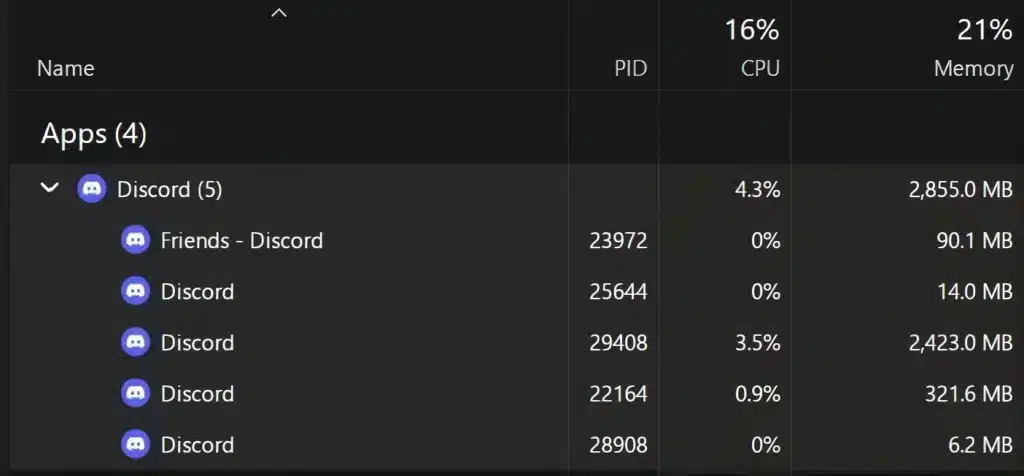
Your CPU and GPU also play a huge role in discord streaming lag. When Discord encodes video for a screen share, it competes with your game for the same hardware resources.
- Background apps like cloud sync tools, browsers with many tabs, or other communication software eat into available bandwidth and CPU
- Multiple overlays running at once, such as Discord, Steam, and GeForce Experience, each consume extra performance
- Outdated graphics drivers can cause instability during hardware-accelerated encoding
How Do You Fix Discord Screen Sharing Lag?
Screen sharing is usually the most demanding activity on Discord because it combines video encoding with real-time audio. As a result, it exposes weaknesses in bandwidth or hardware faster than a normal voice call.
Adjust Your Discord Voice and Video Settings
Discord gives you direct control over resolution, frame rate, and codec behavior. Consequently, tweaking these settings is usually the fastest fix for discord screen sharing lag.
- Open User Settings and click Voice & Video under App Settings
- Lower your stream resolution to 720p if you are currently on 1080p
- Reduce frame rate to 30 FPS instead of 60 FPS during heavy gaming sessions
- Toggle the OpenH264 Video Codec setting between hardware and software to test which performs better on your system
- Turn off Enable Quality of Service High Packet Priority, since many home routers misread this flag and deprioritize Discord traffic instead
Manage Hardware Acceleration Correctly
Hardware acceleration can help or hurt depending on your setup. Therefore, it deserves its own testing pass rather than a blanket on or off decision.
- Turn Hardware Acceleration on if you have a dedicated GPU with updated drivers and want smoother encoding
- Turn it off if you are running an older or integrated graphics card, or if you see black screens during screen share
- Disable Hardware-Accelerated GPU Scheduling in your Windows display settings if screen sharing conflicts with your active game
- Restart Discord completely after changing this setting, since it does not always apply live
Discord Settings To Reduce Lag During Voice Calls
Not every lag issue comes from streaming video. Plain voice calls and even discord message lag can happen when your connection to Discord’s servers is unstable.
The table below compares common settings and their real impact on performance.
| Setting | Effect on Lag | Recommended Action |
|---|---|---|
| Voice Region | Wrong region adds unnecessary distance to servers | Switch region, then switch back to auto-refresh |
| QoS High Packet Priority | Often misread by home routers, causing spikes | Disable unless your router explicitly supports QoS tagging |
| Hardware Acceleration | Can smooth or worsen encoding depending on GPU | Test both settings and keep whichever is stable |
| Stream Resolution | Higher resolution demands more upload bandwidth | Lower to 720p30 on unstable connections |
| Background Apps | Compete for CPU and bandwidth | Close unused apps before calls or streams |
Why Does Discord Streaming Cause Game Lag?
This is one of the most searched questions among gamers, and it makes sense why. When you are mid match and your screen share stutters, your actual gameplay often drops frames too.
Discord streaming causing game lag happens because video encoding and your game are fighting for the same CPU cycles and upload bandwidth at the same time. If your CPU usage is already above 90 percent during normal play, adding a live stream on top pushes it over the edge.
- Lower in-game graphics settings slightly while screen sharing to free up GPU headroom
- Cap your stream frame rate below your game’s target FPS
- Close any recording software running alongside Discord, since double encoding doubles the load
Is Wi-Fi Or Ethernet Better For Discord Stream Lag?
This question comes up constantly, and the answer is almost always Ethernet. Wi-Fi introduces extra latency, packet loss, and interference from neighboring networks that a wired connection simply does not have.
- Ethernet provides a consistent, low latency path directly to your router
- Wi-Fi signal strength fluctuates with distance, walls, and interference from other devices
- If Ethernet is not possible, use the 5GHz band instead of 2.4GHz for less congestion
Pro Tips: Reducing Discord Stream Lag
- Test your real upload speed first: Run a speed test before blaming Discord. If your upload sits below 3 Mbps, no setting change will fully fix stream stutter.
- Restart your router periodically: Overheating or overloaded routers introduce bufferbloat, which delays your voice and video packets without any obvious warning signs.
- Keep drivers updated: Outdated GPU drivers are a frequent cause of hardware acceleration failures during screen share.
- Stream at 30 FPS unless you truly need 60: A stable 30 FPS stream looks better to viewers than a 60 FPS stream that constantly drops frames.
- Isolate the problem with a solo test: Screen share to an empty voice channel by yourself to check if lag is local or related to your viewers’ connections.
Common Mistakes Discord Users Make
- Maxing out resolution and bitrate immediately: Many users jump straight to 1080p60 with Stream Quality Boost without testing their actual bandwidth. Fix: start at 720p30 and increase only if performance stays smooth.
- Ignoring background bandwidth hogs: Cloud backups, game downloads, and video streaming apps running in the background silently eat upload capacity. Fix: pause downloads and close bandwidth heavy apps before important calls.
- Leaving QoS enabled by default: Many assume Quality of Service always helps, but most consumer routers misinterpret the packet priority flag. Fix: disable it in Discord’s Voice & Video settings and monitor for improvement.
- Blaming Discord instead of the route: Sometimes the app is fine but the path between your ISP and Discord’s servers is congested. Fix: use a routing tool that can find a more stable path in real time.
Fixing Discord Stream Lag With ExitLag
Once you have covered Discord’s own settings, the next piece of the puzzle is the route your data actually takes to reach Discord’s servers. This is where ExitLag comes in as a real difference maker.
ExitLag is not a VPN. It is a connection optimizer that analyzes multiple network paths in real time and automatically picks the fastest, most stable route available, without encrypting your traffic or touching apps outside supported titles.
For anyone dealing with how to fix Discord stream lag, the Traffic Shaper feature is especially useful. It prioritizes your game and communication traffic while limiting bandwidth consumption from background apps that would otherwise choke your upload speed during a call.
ExitLag also uses Multipath Technology, sending packets through multiple routes at once so that if one path degrades, others keep your connection stable. Combined with Multi-Internet support for up to four simultaneous connections, it is built for exactly the kind of instability that causes stream freezes and audio dropouts.
With support for over 4,000 titles, 1,500-plus servers across more than 190 countries, and a community of over 30 million users processing 18 million optimizations weekly, ExitLag has become a trusted tool for gamers who refuse to let a shaky connection ruin their sessions. You can grab the ExitLag Download to start testing a more stable route today, and mobile players can also install it through ExitLag for Android or ExitLag for iOS depending on their platform.
Whether you stream to friends casually or run scheduled sessions for a community, pairing solid Discord settings with a smarter routing tool gives you the best shot at eliminating discord streaming lag for good.
All images used in this blog post are for informational and educational purposes only and do not imply endorsement or affiliation with Discord Inc.
Got questions or want to connect with other players? Join the conversation at the ExitLag Forum!