You log into Ultimate Team, ready to open your rewards, and the pack is simply not there. Few things sting more than paying for something and seeing an empty screen, especially at the start of a new season.
The good news is that EA FC Missing Content is usually fixable, and in most cases you can solve it yourself in a few minutes. This guide shows where to look first, how the official tools work, and what to do when nothing shows up.
In short, check My Packs, your Club, the Store and your Transfer Targets first, then restart the game and wait for the official delay to pass. If the item is still gone after that, use the EA Missing Content Tool or contact EA support with your account details ready.
Why Does EA FC Missing Content Happen?
Missing items feel like a bug, but the cause is often simpler. Before you panic, it helps to know the usual suspects.
What Are the Most Common Causes?
Most cases fall into a handful of buckets:
- Delayed delivery: Rewards and purchases can take time to land in your account after you complete an objective or buy something.
- Wrong place: Items sometimes sit in the Store, Transfer Targets, Won Items or My Packs instead of your Club.
- Platform or edition limits: Some rewards only work on certain consoles or editions.
- Quick Sell or SBC mistakes: An item can be sold or submitted by accident.
- Connection drops: A disconnect during a purchase or a Draft can interrupt the grant.
Is It a Bug or Your Account?
Sometimes it is a genuine server hiccup, and the issue fixes itself. Other times, the reward has simple rules you missed, such as a campaign that ended or a task that only counts after activation.
Because of this, always rule out the easy explanations before you send a ticket. It saves you days of waiting.
How To Find EA FC Missing Content Yourself
EA lists a clear checklist for missing items and packs, and it works for most players. Follow it in order so you do not skip anything.
Step By Step Checklist For Items And Packs
- Restart Ultimate Team completely.
- Check your Club inventory and the Store for unclaimed items.
- Open Transfer Targets, Won Items and Expired Items for market purchases.
- Look inside My Packs in the Ultimate Team Store.
- Restart your console or PC, then relaunch the game.
- Check the official EA SPORTS FC Direct Communication channels for known issues.
EA also explains the full process on its official page for missing EA SPORTS FC items and packs, which is worth bookmarking.
How Long Should You Wait?
Patience matters here. According to EA, a Player Item stuck after a Transfer Market purchase should be corrected automatically within 72 hours. Missing rewards can take up to 24 hours to appear.
| Missing Content Type | What EA Suggests | Typical Wait
|
|---|---|---|
| Transfer Market player | Check Transfer Targets, then wait | Up to 72 hours |
| Objective or season rewards | Restart mode, check Store | Up to 24 hours |
| Quick Sold player | Use Quick Sell Recovery | Instant, limited uses |
| SBC submitted item | Cannot be restored | Not possible |
| Purchased Points | Verify the purchase, then use the tool | Varies |
How Does The EA Missing Content Tool Work?
When the basic checks fail, the official tool is your next move. Players often call it the Missing Content Tool EA FC page, and it lives on the EA Help site.
What Can The Tool Check?
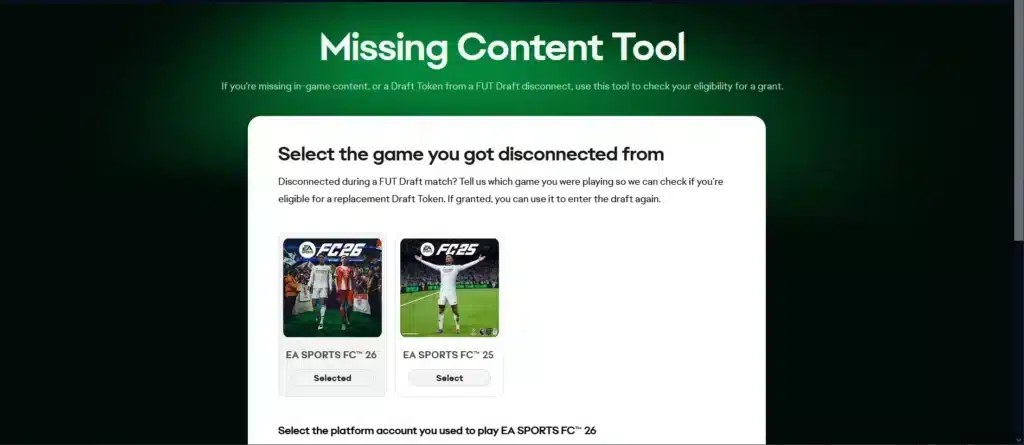
The Missing Content Tool on EA Help is built for cases like missing in-game content, missing Points, or a Draft Token lost after a FUT Draft disconnect. It checks your eligibility for a grant or a replacement.
In other words, it is not a magic button for every problem. It reviews your situation and tells you whether you qualify.
Here is what to expect from the tool:
- It starts from the EA Help website, so you need to sign in with your EA account.
- It focuses on specific problems, such as Points and Draft Tokens.
- It tells you if you are eligible before anything is granted.
- It does not bring back Quick Sold or SBC-submitted items.
How To Use The Missing Content Tool FC 27 Players Need
The Missing Content Tool FC 27 process is straightforward once you have your details together. Follow these steps:
- Open the EA Help Missing Content Tool page and sign in to your EA account.
- Select your game and platform.
- Review your recent purchases or the affected mode.
- Submit the request and note the time you sent it.
- Wait for the result and check your game again after a restart.
EA’s own guide for purchased Points mentions that this flow is meant for Xbox Series X|S and PlayStation 5 players, so check which platform your problem belongs to. Always confirm your platform purchase went through first.
What About Missing Pre-Order And Edition Rewards?
Launch season brings the loudest complaints. Many players report missing pre-order bonuses or locked Ultimate Edition content in community threads, particularly when a key was redeemed on a different storefront.
Those reports come from players, not from EA, so treat them as a warning rather than a rule.
Why Are Pre-Order Rewards Late?
Most of the time the reward needs your account to be linked correctly, and the game to be fully available. Some players in the community report that access and bonuses arrived only after the official launch.
Meanwhile, you can prepare by checking:
- Your edition matches what you bought.
- The EA account is linked to your platform account.
- The game is fully installed and updated.
- You launched the game at least once on the right platform.
Do Season Pass Rewards Work On Every Console?
Not always. EA notes that Season Pass rewards only work on current-generation platforms, which include PS5, Xbox Series X|S, PC and Nintendo Switch 2. Check your platform before you assume something is broken.
Tokens are another trap, because they are campaign specific and expire when the campaign ends. Clubs rewards also only grant through your favorite club.
Pro Tips: Getting Missing Content Back Faster
- Screenshot everything: Capture your Club, the Store and the error message right away. Clear proof makes support replies faster and avoids back and forth.
- Write down the timestamp: EA asks for the time and timezone of the loss. A precise time helps agents trace the exact action.
- Use Quick Sell Recovery quickly: EA lists up to five recoveries per 31 days, so do not waste them on test sells.
- Never submit an uncertain item to an SBC: Submitted items cannot be restored, so double check before you confirm.
- Check the official channels first: If a known issue exists, EA often posts it, which saves you a ticket.

What Should You Send To EA Support?
If the 24 or 72 hour windows pass and nothing changes, it is time to contact EA. A complete message gets a faster answer.
What Details Do Agents Ask For?
Gather these before you open a ticket:
- A clear description of the missing content
- The game mode affected
- Your EA account email
- Your platform ID and account type
- The timestamp and timezone of the loss
Common Mistakes EA FC Missing Content Players Make
- Contacting support too early: Many items arrive within the official delay. Fix: wait 24 or 72 hours, depending on the type, then submit your request.
- Skipping the simple checks: Players forget My Packs or Transfer Targets. Fix: go through the full checklist before anything else.
- Giving vague details: Tickets without times or IDs stall. Fix: include the platform ID, email and exact timing of the loss.
- Expecting the tool to fix everything: It covers specific problems. Fix: match your issue to what the tool actually supports.
- Ignoring connection problems: A drop during a purchase or Draft can cause the loss. Fix: keep your connection steady before spending.
Can A Bad Connection Cause Missing Content?
It can, at least indirectly. If you disconnect during a Draft or while a purchase is being processed, the grant may never complete. That is how players end up using the tool for a lost Draft Token.
A stable route to the game servers lowers that risk. If you also deal with disconnects, our guide on fixing EA connection errors walks through the checks.
How Do Ping And Packet Loss Play A Part?
High latency and packet loss make your actions arrive late or not at all. For a closer look, read how to fix high ping in EA Sports FC 26 and apply the same ideas to the newest game.
Stutter that looks like lag is another story. If the game also hangs on connection screens, this guide on the EA App stuck on connecting shows how to tell the two apart.
Quick Comparison Of Connection Habits
| Habit | Risk For Missing Content | Better Choice
|
|---|---|---|
| Wi-Fi in a crowded home | Higher chance of drops | Wired cable |
| Downloads during a Draft | Spikes and timeouts | Pause other apps |
| Default ISP route | Unstable path to servers | Route optimization |
How Can ExitLag Help Protect Your Ultimate Team Sessions?
ExitLag is not a VPN. It is a game connection optimizer that analyzes multiple network paths in real time and picks the fastest, most stable route between you and the game servers. It does not encrypt traffic or mask your IP.
For Ultimate Team, that matters because a dropped Draft or a failed purchase is exactly what you want to avoid. ExitLag supports 4,000+ titles for PC and Mobile, with 1,500+ servers in 190+ countries.
Which Features Matter Most For FC Players?
- Multipath Technology: Sends packets through several routes at once, so if one path fails, the others keep your connection alive.
- Real-time Optimization: Reduces delay and packet loss, so your commands reach the server faster.
- Multi-Internet: Supports up to 4 connections, so another one takes over if yours drops.
- Traffic Shaper: Prioritizes game traffic over other apps on your network.
How Do You Start With ExitLag?
- Install ExitLag and sign in.
- Search for EA Sports FC in the game list.
- Pick your region and let the AI select the best route.
- Launch the game and play your Draft or Rivals matches.
Do not use ExitLag together with a VPN, because that reduces its effectiveness. It also does not touch game files or interact with anti-cheat systems.
Ready to protect your next session? Grab ExitLag Download for PC, or use ExitLag for Android and ExitLag for iOS if you play FC on mobile.
Final Thoughts On EA FC Missing Content
Dealing with EA FC Missing Content feels stressful, but a calm routine solves most cases. Check the obvious places, respect the waiting windows, and use the official tool when the problem fits.
What Is The Best Order To Follow?
Remember the sequence: look in My Packs and your Club, restart the game, wait 24 to 72 hours, use the tool, and then contact support with full details.
What Should You Remember Next Time?
Keep your connection stable before big purchases and Drafts, and keep screenshots of anything important. With these habits, your next season starts without missing rewards.
All game images used in this blog post belong to Electronic Arts Inc. (EA). They are used for informational and educational purposes only and do not imply endorsement or affiliation with the rights holders.
Got questions or want to connect with other players? Join the conversation at the ExitLag Forum!