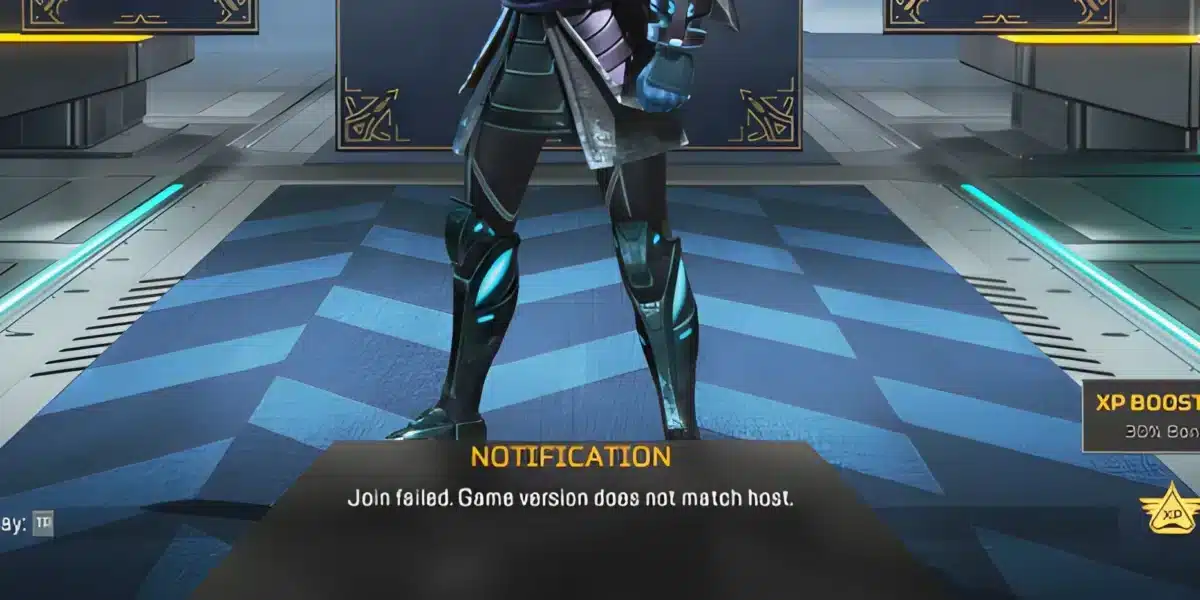
Learning how to fix lag in Apex Legends is essential if you want to compete at your best. As one of the fastest-paced battle royale games available, Apex Legends rewards quick reactions, accurate aim, and smooth movement. Even minor lag can disrupt firefights, delay abilities, and make it harder to keep up with opponents.
Many players searching for how to fix lag in Apex Legends assume that upgrading their internet plan will solve the problem. While a faster connection can help in some situations, lag is often caused by several factors working together. High ping, packet loss, unstable routing, outdated drivers, hardware limitations, and server congestion can all contribute to performance issues.
So, why does Apex Legends lag? The game relies on constant communication between your PC or console and EA’s servers. If data packets are delayed or lost during transmission, your actions may take longer to register. Likewise, if your hardware struggles to maintain stable frame rates, gameplay may appear choppy even if your internet connection is working properly.
Fortunately, most lag problems can be reduced by optimizing both your network and your system. Simple changes such as updating drivers, using a wired connection, or adjusting graphics settings often lead to noticeable improvements.
Whether you’re climbing the Ranked ladder or dropping into casual matches with friends, understanding the causes of apex legends lag will help you enjoy smoother gameplay and more consistent performance.
How to Fix Lag in Apex Legends
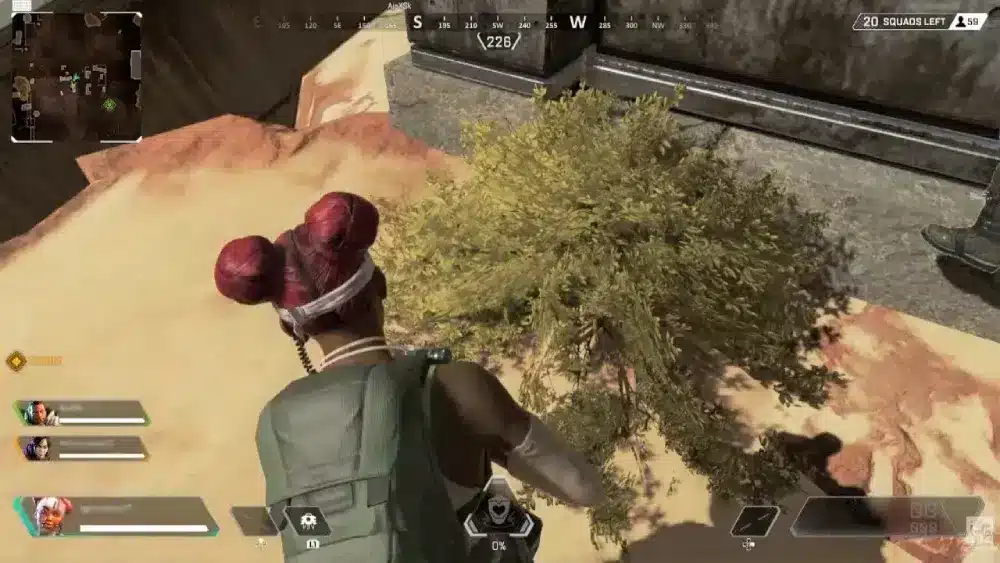
Before changing settings, identify the type of lag you’re experiencing. Different problems require different solutions, and understanding the cause prevents unnecessary troubleshooting.
Identify the Type of Lag
Not every performance issue is caused by your internet connection.
Common types include:
- High ping
- Packet loss
- FPS drops
- Stuttering
- Input delay
For example, low frame rates usually point to hardware limitations, while teleporting players and delayed hit registration typically indicate network issues.
Monitoring your FPS and network statistics during gameplay can help determine which category the problem falls into.
Check the Server Status
Sometimes the issue isn’t on your end.
EA periodically performs server maintenance or experiences temporary outages that can affect matchmaking and gameplay.
If multiple players report similar problems, checking the official Apex Legends or EA Help channels can confirm whether server issues are responsible.
Waiting for server stability to return is often the only solution in these situations.
Restart Your Network
Network equipment can occasionally develop temporary routing or connectivity problems.
Restart the following devices:
- Modem
- Router
- Network switches (if applicable)
Allow them to fully reboot before launching Apex Legends again.
This simple step often resolves intermittent connection issues.
Use a Wired Connection
Ethernet provides a more stable connection than Wi-Fi.
Benefits include:
- Lower latency
- Reduced packet loss
- Greater stability
- Less wireless interference
- More consistent ping
Whenever possible, connect your gaming device directly to your router using an Ethernet cable.
Common Causes of Apex Legends Lag
Understanding why apex legends lag occurs makes it much easier to eliminate.
High Ping
Ping measures the time required for data to travel between your device and the game server.
Higher ping results in:
- Delayed movement
- Slower hit registration
- Ability activation delays
- Reduced responsiveness
Lower ping generally provides a smoother competitive experience.
Packet Loss
Packet loss occurs when data fails to reach its destination.
This often causes:
- Rubberbanding
- Teleporting players
- Missing hit markers
- Delayed interactions
- Match desynchronization
Unlike consistently high ping, packet loss creates unpredictable gameplay interruptions.
Server Congestion
During major updates, new seasons, or peak hours, servers may become overloaded.
Heavy server load can temporarily increase latency or create instability even for players with excellent internet connections.
These issues usually resolve once server demand decreases.
Hardware Limitations
Apex Legends can be demanding, especially on older systems.
Potential hardware bottlenecks include:
- CPU limitations
- GPU overload
- Insufficient RAM
- Slow storage devices
- Thermal throttling
Performance issues caused by hardware are often mistaken for network lag.
Optimize Apex Legends Settings
Reducing unnecessary graphical load can significantly improve gameplay consistency.
Best Graphics Settings
Competitive players typically prioritize high frame rates over maximum visual quality.
Consider lowering:
- Shadow quality
- Volumetric lighting
- Ambient occlusion
- Anti-aliasing
- Effects detail
Maintaining stable FPS often produces a smoother experience than enabling every graphical enhancement.
Optimize Windows
Background applications consume valuable system resources.
Before launching Apex Legends:
- Close unnecessary browser tabs.
- Pause cloud synchronization.
- Stop large downloads.
- Disable unneeded startup applications.
- Restart your computer regularly.
These steps free CPU, memory, and network resources for the game.
Update Graphics Drivers
NVIDIA, AMD, and Intel frequently release driver updates optimized for newly updated games.
Installing the latest stable graphics driver can improve:
- Frame stability
- Compatibility
- Rendering performance
- Overall responsiveness
Keeping drivers current is one of the easiest ways to avoid unexpected performance issues.
Best Network Settings for Apex Legends
Your network configuration plays an important role in reducing latency.
Optimize Your Router
Many modern routers include gaming-oriented features.
Useful options include:
- Quality of Service (QoS)
- Gaming mode
- Device prioritization
- Automatic channel optimization
These settings help ensure Apex Legends receives priority over less time-sensitive network traffic.
Choose the Closest Server
Physical distance affects latency.
Whenever possible, connect to the nearest available Apex Legends data center.
Shorter routes generally provide:
- Lower ping
- Faster responses
- Better hit registration
- Improved match stability
Playing on nearby servers offers the best competitive experience.
Close Background Network Applications
Applications running in the background may consume bandwidth without you realizing it.
Examples include:
- Video streaming services
- Software updates
- File synchronization
- Cloud backups
- Large downloads
Closing these programs reduces network congestion and helps stabilize your connection.
How ExitLag Improves Apex Legends
If you’re looking for how to fix lag in Apex Legends, optimizing your network route is just as important as improving your hardware. Even with a fast internet connection, inefficient routing between your device and EA’s servers can increase latency, packet loss, and connection instability.
ExitLag addresses this issue using Multipath Connection, which analyzes multiple routes simultaneously and selects the most efficient path in real time. Combined with Real-Time Optimization, Traffic Shaper, and Multi-Internet technologies, ExitLag helps stabilize your connection, reduce packet loss, and minimize sudden latency spikes.
For Apex Legends players, this means smoother movement, more reliable hit registration, fewer interruptions during firefights, and a more consistent competitive experience throughout every match.
Advanced Solutions for Apex Legends Lag
If you’ve already applied the basic optimizations but still experience Apex Legends lag, there are several advanced techniques that can further improve performance. These adjustments target both your PC and your network, helping eliminate unexpected lag spikes during intense firefights.
Change Your DNS Server
While DNS settings won’t directly lower your ping, they can improve connection reliability when communicating with online services.
Popular public DNS providers include:
- Google Public DNS
- Cloudflare DNS
- Quad9
A stable DNS configuration can reduce connection issues during game startup and server selection, although it won’t solve packet loss or routing problems on its own.
Optimize Windows Power Settings
Power-saving features may limit CPU and network performance, especially on laptops.
For the best gaming experience:
- Select the High Performance or Ultimate Performance power plan.
- Disable battery-saving mode while gaming.
- Keep your device plugged into a power source.
- Ensure Windows isn’t throttling background performance.
These settings help maintain consistent frame rates throughout longer gaming sessions.
Verify Game Files
Corrupted game files can lead to crashes, stuttering, or inconsistent performance.
To verify Apex Legends on Steam:
- Open your Steam Library.
- Right-click Apex Legends.
- Select Properties.
- Open Installed Files.
- Click Verify integrity of game files.
If you’re playing through the EA app, use the built-in Repair option to scan and replace damaged files.
Monitor Hardware Temperatures
Overheating is one of the most common causes of performance drops.
Monitor your:
- CPU temperature
- GPU temperature
- Fan speeds
- Clock speeds
If your hardware reaches unsafe temperatures, it may reduce performance automatically, causing stuttering that feels similar to network lag.
Cleaning your PC, improving airflow, or replacing thermal paste can make a noticeable difference.
How to Prevent Apex Legends Lag
Preventing Apex Legends lag is easier than troubleshooting it during a match. Consistent maintenance and smart network habits help keep performance stable over time.
Maintain a Stable Internet Connection
Network stability is more important than maximum download speed.
For the best experience:
- Use Ethernet whenever possible.
- Restart your router regularly.
- Avoid heavy downloads while gaming.
- Limit the number of active devices on your network.
- Upgrade outdated networking equipment if necessary.
A stable connection reduces both latency fluctuations and packet loss.
Keep Drivers Updated
Manufacturers regularly release updates that improve compatibility and performance.
Keep the following up to date:
- Graphics drivers
- Network adapter drivers
- Motherboard chipset drivers
- Windows updates
Current drivers help prevent unexpected compatibility issues after game updates.
Monitor Packet Loss
Even with low ping, packet loss can make Apex Legends feel unresponsive.
Watch for signs such as:
- Rubberbanding
- Delayed hit registration
- Players teleporting
- Sudden movement corrections
If packet loss occurs frequently, your network may require further optimization.
Minimize Wi-Fi Interference
If Ethernet isn’t an option, improve your wireless connection by:
- Connecting to a 5 GHz Wi-Fi network.
- Moving closer to the router.
- Avoiding physical obstacles.
- Reducing interference from nearby devices.
- Selecting a less congested wireless channel.
A stronger Wi-Fi signal helps maintain more stable gameplay.
Common Mistakes That Increase Apex Legends Lag

Some performance issues are caused by avoidable mistakes.
Running Background Downloads
Large downloads compete with Apex Legends for bandwidth.
Pause activities such as:
- Game updates
- Cloud backups
- Video streaming
- File synchronization
Reducing network traffic gives Apex Legends higher priority.
Ignoring Hardware Temperatures
Many players focus only on internet speed while overlooking overheating.
Thermal throttling may cause:
- FPS drops
- Stuttering
- Input delay
- Reduced responsiveness
Monitoring temperatures should be part of every troubleshooting routine.
Using Overly Demanding Graphics Settings
Maxing out every graphical option doesn’t necessarily improve the experience.
Competitive players generally prioritize:
- Stable FPS
- Consistent frame times
- Lower input latency
Reducing visual settings often results in smoother gameplay.
Playing on Distant Servers
Choosing a server located far from your physical location increases latency.
Whenever possible, select the nearest Apex Legends data center to reduce ping and improve responsiveness.
Common Problems and Solutions
| Problem | Possible Cause | Recommended Solution |
| High ping | Distant server or poor routing | Select the nearest server and optimize routing |
| Packet loss | Unstable network | Use Ethernet and reduce network congestion |
| FPS drops | Hardware limitations | Lower graphics settings and monitor temperatures |
| Stuttering | Background applications | Close unnecessary programs before launching the game |
| Lag spikes | Network instability | Restart networking equipment and optimize your connection |
Signs the Issue Is Caused by Your Network
Your internet connection is likely responsible if you experience:
- Rubberbanding.
- Delayed hit registration.
- Players teleporting.
- Packet loss warnings.
- Ping spikes.
- Stable FPS but inconsistent gameplay.
These symptoms usually indicate networking issues rather than hardware limitations.
Signs the Issue Is Caused by Your PC
Your hardware is likely the problem if you notice:
- Low FPS.
- High CPU or GPU usage.
- Overheating.
- Stuttering without increased ping.
- Performance improving after lowering graphics settings.
Monitoring system performance alongside network statistics helps identify the true source of lag.
Apex Legends Troubleshooting Checklist
Follow these steps to resolve how to fix lag in Apex Legends efficiently:
- Check the Apex Legends server status.
- Restart your modem and router.
- Switch from Wi-Fi to Ethernet.
- Close unnecessary background applications.
- Update graphics and network drivers.
- Verify your game files.
- Lower demanding graphics settings.
- Monitor CPU and GPU temperatures.
- Select the closest available server.
- Optimize your network routing with ExitLag.
Working through these steps one at a time makes it easier to identify the exact cause of your lag.
Frequently Asked Questions
Lag can be caused by several factors, including high ping, packet loss, server congestion, outdated drivers, overheating, or hardware limitations. Identifying whether the issue is network-related or system-related is the first step toward resolving it.
If you’re searching for how to fix lag in Apex Legends, start by using a wired connection, updating your drivers, verifying your game files, lowering graphics settings if necessary, closing background applications, and selecting the nearest game server.
Yes. Ethernet connections are generally more stable than Wi-Fi, offering lower latency, fewer interruptions, and reduced packet loss during online matches.
Absolutely. Packet loss interrupts communication with the game server, leading to rubberbanding, delayed hit registration, inconsistent movement, and sudden lag spikes.
Yes. ExitLag helps improve Apex Legends by optimizing network routing with Multipath Connection, Real-Time Optimization, Traffic Shaper, and Multi-Internet technologies. These features reduce packet loss, stabilize your connection, and minimize latency fluctuations, creating a smoother online experience.
Final Thoughts
Understanding how to fix lag in Apex Legends involves more than simply upgrading your internet speed. Stable networking, optimized hardware, updated drivers, and the right in-game settings all work together to create a responsive and enjoyable experience.
Most players can significantly reduce Apex Legends lag by using a wired connection, maintaining their PC, monitoring system temperatures, and eliminating unnecessary background activity. These improvements not only reduce latency but also provide more consistent frame rates and smoother gameplay.
For players looking to maximize connection stability, ExitLag offers an additional advantage by intelligently optimizing network routes in real time. Its advanced routing technologies help reduce packet loss, minimize latency spikes, and improve overall responsiveness, allowing you to focus on surviving every fight and climbing the Ranked ladder.
Disclaimer: All game images used in this blog belong to Electronic Arts Inc. and Respawn Entertainment. They are used for informational and educational purposes only and do not imply endorsement or affiliation with the rights holders.
Got questions or want to connect with other players? Join the conversation at the ExitLag Forum!