

Staring at an endless loading screen while your competitive match starts without you is one of the most frustrating experiences in gaming. Teamfight Tactics requires a clean connection and stable client environment to transition smoothly into the carousel. Therefore, encountering a sudden freeze right at ninety-percent completion can ruin your entire session.
When your client gets stuck on the loading page, the issue usually stems from corrupted files, outdated assets, or server handshake failures. Understanding how to diagnose these bottlenecks helps you bypass lengthy timeouts and get back into the game before your health drops.
If you want to prevent sudden disconnects and protect your competitive standing, you must master a structured troubleshooting approach. Let us break down the exact causes, file repairs, and network optimization strategies so you can load into every match instantly.
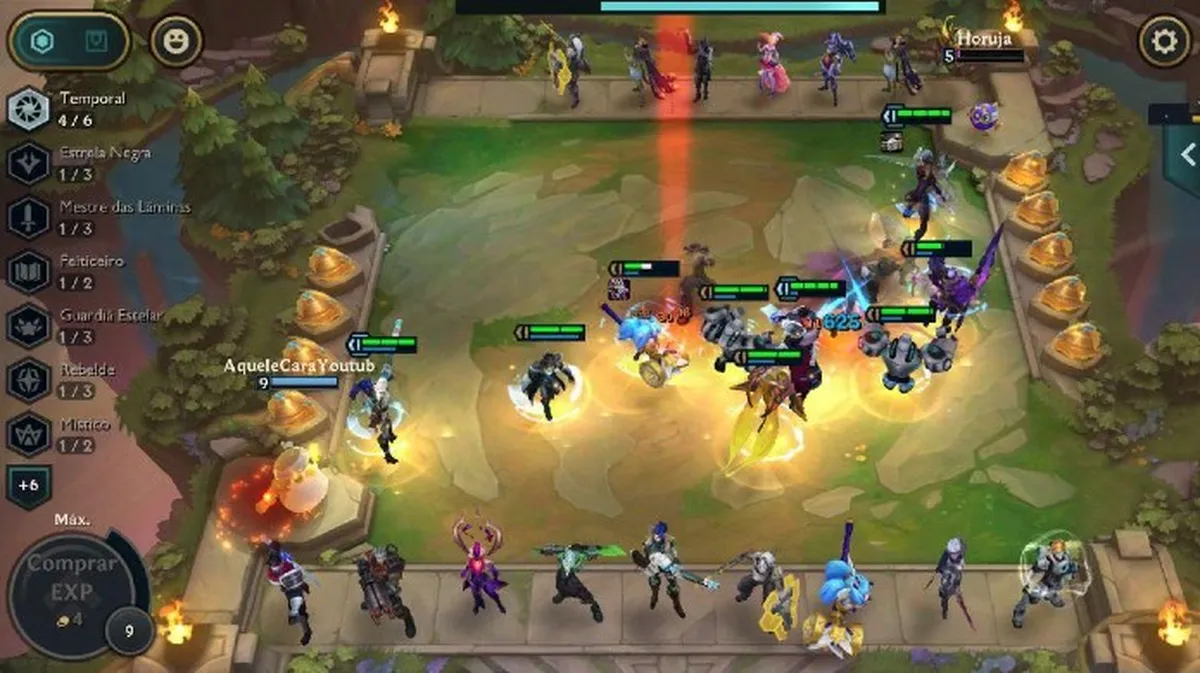
Why Teamfight Tactics Freezes At The Loading Screen
Diagnosing why your client refuses to transition past the loading screen requires looking at both local software conflicts and server communication. Most freezes happen when the game fails to establish a stable handshake with regional data centers.
When the server fails to respond or your local files encounter permission blocks, the loading sequence hangs indefinitely. Consequently, identifying whether the problem originates on your machine or within Riot infrastructure saves valuable time.
- Server outages and emergency maintenance windows often cause matches to stall during initial authentication.
- Corrupted asset caches from recent patches prevent the client from rendering match data correctly.
- Overprotective firewall rules and background overlay software frequently block necessary outbound game traffic.
Checking Server Status And Regional Outages
Before modifying any local settings, you should always verify whether the core infrastructure is experiencing widespread downtime. If other players in your community report identical issues, no amount of client troubleshooting will solve the freeze.
- Check official status pages for your specific server region to confirm active maintenance windows.
- Monitor official social channels for emergency patch announcements and unexpected network degradation alerts.
- Avoid switching regions blindly, as cross-region account handoffs can introduce additional authentication errors.
Network Stability And Packet Delivery Failures
Even when servers are fully operational, your local connection might struggle to deliver the data packets required for a clean match load. High jitter or minor packet loss can stall your progress right at the final percentage of the loading bar.
- Switch from a wireless connection to a wired Ethernet cable to eliminate radio interference.
- Restart your home modem and router to clear out stale IP leases and reset local routing tables.
- Temporarily disable active VPN software, as routing through external proxy servers often triggers loading timeouts.
| Loading Symptom | Primary Root Cause | Recommended Immediate Fix |
| Freeze at 90 to 100 percent | Packet loss or routing spike | Restart router and optimize connection |
| Fails only on patch days | Outdated local game files | Run full client repair utility |
| Infinite loop with no error | Background overlay conflict | Disable Discord and GPU overlays |
How To Repair Files And Reset Your Client Environment
Corrupted installation files are among the most common culprits behind persistent loading freezes. Fortunately, the Riot Client features built-in diagnostic tools designed to scan and replace damaged data automatically.
Running a full repair clears out broken dependencies and restores standard client functionality without requiring a complete reinstallation. Furthermore, resetting your temporary application cache keeps your system running efficiently.
- Open the Riot Client on your desktop and navigate to your account settings menu.
- Locate the game settings for Teamfight Tactics and select the option to run a full repair.
- Wait for the verification scan to finish replacing corrupted files before launching a new match.
Step-By-Step Client And Network Reset Guide
Following a structured cleanup routine ensures you eliminate minor background glitches before jumping back into competitive queues. Executing these commands in order resolves most stubborn loading loops.
- Close the game completely and ensure no lingering background processes remain running via Task Manager.
- Open Windows Command Prompt as an administrator and execute the command ipconfig /flushdns.
- Restart your computer to clear temporary system memory and release locked socket files.
- Launch the Riot Client using administrator permissions to bypass local user access restrictions.
Clearing Background Interference And Overlays
Third-party software running concurrently with your game can hook into the rendering engine and crash the loading sequence. Disabling unnecessary background utilities gives the game unhindered access to your hardware resources.
- Turn off hardware monitoring tools, custom RGB controllers, and recording software overlays.
- Disable the Discord in-game overlay and the NVIDIA GeForce Experience overlay before entering a match.
- Close resource-heavy browser tabs that consume valuable RAM and slow down asset loading times.
Pro Tips: Fixing TFT Loading Freezes
- Run the client as administrator: Granting elevated permissions once prevents security suites from blocking essential file read and write operations during match initialization.
- Keep your solid-state drive clean: Low storage space on your main drive slows down asset streaming, causing the loading screen to hang indefinitely.
- Switch to borderless windowed mode: Running the game in borderless mode allows you to alt-tab and close frozen processes instantly without rebooting your entire PC.
- Monitor patch notes and maintenance schedules: Checking official update timelines ensures you never queue up right before emergency server maintenance shuts down active nodes.
Common Mistakes TFT Players Make
- Spamming the reconnect button during server spikes: Forcibly clicking reconnect repeatedly during high traffic only floods the authentication server and lengthens your penalty timeout. Fix: Wait a minute for the server handshake to stabilize before attempting to rejoin.
- Ignoring basic firewall exception rules: Allowing the main launcher through security software while blocking sub-executables causes loading failures. Fix: Add explicit outbound exceptions for all Riot related network processes.
- Playing on unstable wireless setups during peak hours: Relying on crowded home Wi-Fi introduces micro-jitter that breaks data handshakes during match loading. Fix: Connect your gaming machine directly using an Ethernet cable for maximum stability.
Stabilize Your Connection And Eliminate Lag With ExitLag
Online strategy games require uninterrupted data exchanges between your client and regional data centers. When your internet service provider routes your traffic through congested commercial nodes, you suffer from delayed handshakes and frustrating loading screen freezes. ExitLag is a game connection optimizer that analyzes multiple network paths in real time and selects the absolute fastest route for your gaming traffic.
Using advanced Multipath Technology, ExitLag transmits your game data packets simultaneously across several independent routes. If one intermediate network node experiences sudden lag spikes or packet loss, the remaining paths maintain your connection instantly without dropping your session. Furthermore, the built-in Traffic Shaper prioritizes your gaming data over background applications, ensuring your client commands register the exact millisecond you execute them.
- Real-Time Route Optimization: Automatically connects you through the lowest-ping pathway available globally.
- Multi-Internet Support: Combines up to four separate internet connections for ultimate reliability during crucial matches.
- PC Boost Features: Cleans system memory and minimizes background distractions to stabilize your frame rates.
Safe to use with thousands of PC titles, ExitLag operates entirely without modifying game files or triggering server anti-cheat systems. Enjoy seamless tactical matches today by getting theExitLag Download for your gaming rig.
All game images used in this blog post belong to Riot Games. They are used for informational and educational purposes only and do not imply endorsement or affiliation with the rights holders.



