If you’re starting from zero and want to master how to play Fortnite, this hub walks you through setup, controls, and core modes so you can land, loot, and win — fast. You’ll get a five-minute quick start, practical sensitivity tips, and clear mode choices tailored to your platform.
Quick Start — Be Match-Ready in 5 Minutes

Below, you’ll find how to play quickly. See!
Create/Sign In to an Epic Account + Install (PC/Console/Mobile)
You need an Epic account to sync progress across devices; moreover, it’s required for purchases, parental controls, and cross-play.
On PC, install the Epic Games Launcher, search “Fortnite,” and click Install; on PlayStation/Xbox/Switch, open the store app and download.
On Android, use the Epic Games app; meanwhile, iPhone/iPad/Mac players can use cloud (e.g., Xbox Cloud Gaming via Safari).
Steps:
- Go to Epic Games and create/sign in.
- Link your console accounts (PSN/Xbox/Nintendo) under “Connections”; consequently, cosmetics and progress travel with you.
- Download, launch, and complete the first-run settings wizard.
Set Two-Factor Authentication; however, if you skip this, you can’t gift items and your account security is weaker. Therefore, turn on 2FA in Account > Password & Security before you start.
Enable Cross-Play/Privacy + Jump Into Your First Match
Cross-play lets friends on different platforms squad up; moreover, it shortens matchmaking times. In Settings > Account & Privacy, enable Cross-Platform Play; by contrast, toggle “Public/Private” parties depending on whether you want open lobbies or invite-only.
Now choose a queue:
- Battle Royale (Build): classic Fortnite with materials and edits.
- Zero Build: no building, stronger utility and positioning.
Press Play and follow the tutorial prompts; consequently, you’ll learn map pinging, healing, and basic inventory cycling in a live match.
Pro tip: if your first games feel sweaty, turn on “Fill With Bots” in some starter playlists; therefore, you can learn routes while practicing aim and movement calmly.
Controls & Sensitivity
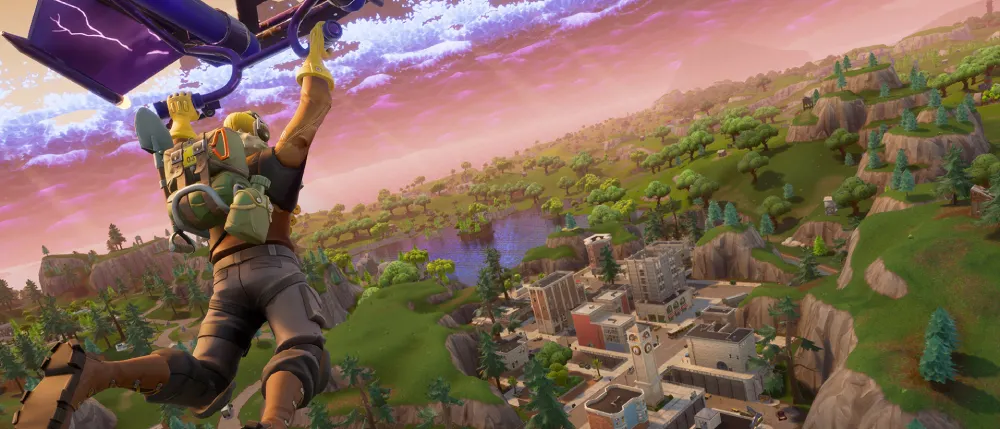
See below more details about controls and sensitivity:
Keyboard/Mouse Essentials (PC & Cloud on Desktop)
Start simple; moreover, consistency matters more than fancy binds. Use default WASD, Left Shift (Sprint), Space (Jump), and Mouse Wheel for weapon cycling; meanwhile, bind building to Q/E/F to reduce finger travel.
Sensitivity:
- Set mouse DPI 800–1200; set in-game XY sensitivity between 6–9; consequently, you get stable tracking without overshooting.
- Turn on Toggle Sprint if your keyboard lacks extra buttons; however, keep Hold to Edit for precision.
- In Video: Fullscreen, a frame-cap just under your average FPS, V-Sync off; therefore, input latency drops.
Test edits in a Creative aim/edit map for 5 minutes; beyond that, increase sensitivity only when your flicks are consistently short.
Controller & Touch Basics (PS/Xbox/Switch/Mobile)
On controllers, use Builder Pro; moreover, set Edit on Release on if you’re new. Deadzones around 0.10–0.12 help remove drift; by contrast, lower than 0.08 may cause jitter.
Aim assist:
- Linear suits aggressive players who track close-range targets; Exponential feels steadier for long-range beams. Therefore, pick based on your preferred fights.
Touch controls (mobile): - Enable the customizable HUD; moreover, enlarge Fire, Jump, and Crouch; meanwhile, move Build to the dominant thumb zone.
- Lower camera sensitivity 10–15% to reduce motion blur during sprays; consequently, your tracking improves immediately.
Game Modes Explained — Choose the Right Start
Below, you can check the game modes explained so you can choose your way to play. See:
Battle Royale vs Zero Build — Which One Should You Learn First?
Battle Royale (Build) rewards mechanical mastery: gathering materials, turtling, and editing for angles. It’s deeper long-term; however, it has a higher learning curve.
Zero Build removes construction; therefore, positioning, utility (cover, grenades, mobility), and map knowledge dominate.
Moreover, new players often score earlier wins here; by contrast, returning veterans may prefer Build for ceilingless skill expression.
Pick Zero Build to focus on aim/rotations; consequently, add Build once your loot path and shots are reliable.
Creative/UEFN & Save the World — Train and Progress
Creative/UEFN gives instant practice: aim courses, box fights, and realistic 1v1s; moreover, you can test sensitivities without risking your KD. Search map codes in the Discover tab; meanwhile, favorite a warm-up set and run it daily for 5–10 minutes.
Save the World (PvE) offers missions, schematics, and skill trees; therefore, it’s great for learning weapons and resource flow at your pace. By contrast, it doesn’t affect BR MMR, so it’s a stress-free way to grind mechanics, crosshairs, and recoil control.
Internal reads to continue:
- Battle Royale vs Zero Build fundamentals
- Creative warm-up codes and sensitivity tuning
- Reduce ping and packet loss with optimized routing
How to Play Fortnite by Platform
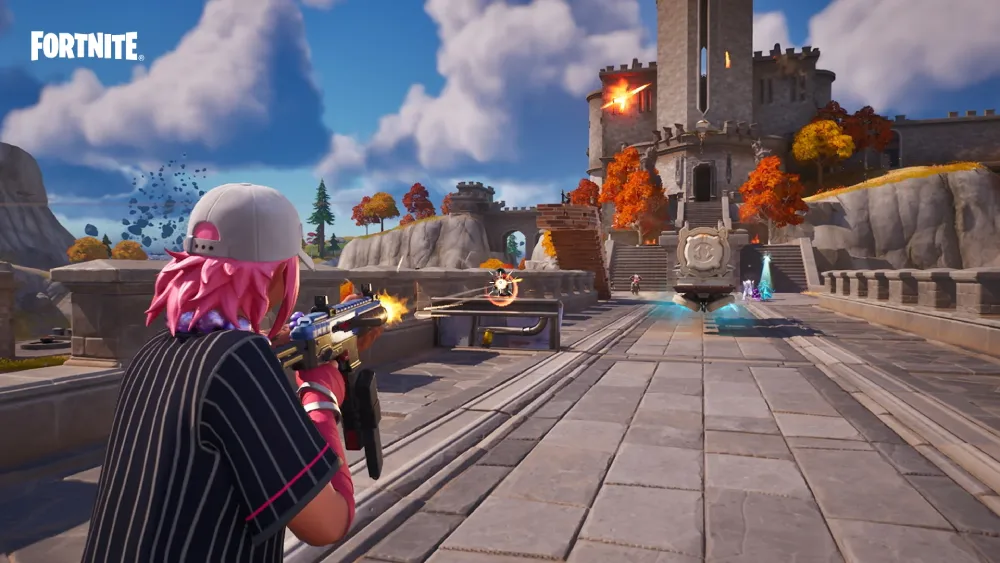
Understanding how to play Fortnite depends on your device — performance, controls, and even available features vary across platforms. Below you’ll find short, practical guides for each system, ensuring smoother starts and fewer setup errors.
How to Play Fortnite on Nintendo Switch
Playing Fortnite on Nintendo Switch offers portability with cross-play functionality, making it ideal for quick sessions.
First, download the game directly from the Nintendo eShop using your Epic account for progress sync. Moreover, confirm your console firmware is updated to avoid login errors.
- Performance: 30 FPS capped; therefore, prioritize steady Wi-Fi or Ethernet adapter for stability.
- Controls: Joy-Cons work, but a Pro Controller offers tighter aim. Beyond that, gyro aiming helps fine-tune shots, especially for Zero Build.
- Storage: Keep at least 10 GB free, as updates are frequent.
- Battery tip: Lower brightness and disable vibration to extend handheld sessions.
How to Play Fortnite on PlayStation (PS5/PS4)
On PlayStation, how to play Fortnite feels smoother due to higher frame rates and strong aim assist. Install via the PlayStation Store and sign into your Epic account to enable cross-progression.
Performance differences:
- PS5 supports up to 120 FPS in Performance Mode; PS4 averages 60 FPS.
- Use DualSense adaptive triggers — they adjust resistance for different weapon types, adding tactile precision.
- Enable “Display FPS” in Settings > Game UI to track consistency.
Moreover, PlayStation supports split-screen, allowing two players locally. Connect two controllers, log into separate Epic accounts, and select Duos or Squads. By contrast, this feature isn’t available on Switch or PC.
Finally, link your PSN and Epic profiles early; otherwise, purchases won’t transfer to other platforms.
Xbox, PC, and Cloud — Full Power Options
Each of these platforms provides unique strengths. Whether you’re gaming on Xbox, desktop, or streaming via cloud, you’ll get smoother gameplay by balancing settings, connection, and control layout carefully.
How to Play Fortnite on Xbox (Series X|S / One)
Fortnite on Xbox runs at 120 FPS on Series X|S and remains one of the most stable console experiences. Download the game free from the Microsoft Store, link your Epic account, and ensure “Performance Mode” is active under Video settings.
- Cross-play: automatically enabled with PC, PlayStation, and Switch users.
- Voice chat: requires Xbox privacy settings set to “Everybody” for full cross-platform comms.
- Storage: updates can exceed 30 GB; therefore, use external SSDs for faster loads.
How to Play Fortnite on PC and Cloud (Windows, macOS, Chromebook)
If you prefer flexibility and graphics tuning, learning how to play Fortnite on PC gives you ultimate control. Download via the Epic Games Launcher on Windows or through GeForce NOW/Xbox Cloud for macOS and Chromebook.
For PC:
- Use Fullscreen Exclusive mode; moreover, cap FPS slightly below average for consistent frametimes.
- Update GPU drivers frequently — outdated ones cause stutters and shader rebuild delays.
- Limit background apps; consequently, latency and packet loss reduce noticeably.
For Cloud (GeForce NOW / Xbox Cloud):
- Open browser → sign into your service → link Epic → start Fortnite.
- Use wired or 5 GHz Wi-Fi; by contrast, 2.4 GHz networks cause severe lag spikes.
- Pair a Bluetooth or wired controller for minimal input delay.
Split-Screen, Duo, and Friends — Team Up Smarter

Fortnite thrives on cooperation; consequently, knowing how to squad up multiplies your fun and survival odds. Let’s break down local and online co-op options.
How to Enable Split-Screen
Split-screen allows two players to share a single console for Duo or Squad matches — available only on PlayStation and Xbox.
Steps:
- Connect two controllers and log both accounts into Fortnite.
- From the main lobby, Player 2 presses the “Join” button shown on-screen.
- Select a Duo or Squad playlist; consequently, both profiles ready up simultaneously.
- The second view automatically appears once the match starts.
Lobby, Party, and Voice Chat Setup
Beyond local play, cross-platform squads make how to play Fortnite even more dynamic. To invite friends, open the Social tab (bottom left on PC / console equivalent) and click “Add Epic Friend”. Moreover, linked accounts allow voice chat across all platforms.
- Enable Voice Chat under Settings > Audio > Input Device.
- Adjust party privacy to Public, Friends, or Invite-Only.
- On Switch and mobile, use headset mics or native voice apps like Discord if preferred.
Consequently, a well-configured lobby means less downtime and faster queueing. Beyond that, you can form persistent groups for tournaments or Creative sessions using Party Channels.
Beginner Tips That Actually Make a Difference
Starting strong means mastering the essentials. These quick, actionable steps will refine your gameplay habits and make how to play Fortnite feel smoother, faster, and more strategic.
Learn Smart Habits Early
Success in Fortnite depends on awareness and adaptability. Therefore, instead of memorizing random strategies, focus on the following fundamentals that build consistency across matches:
- Drop wisely: land slightly away from the battle bus path to loot calmly before engaging.
- Rotate smart: use mobility items like launch pads, ziplines, or vehicles to reposition mid-fight.
- Use audio: wear good headphones — directional sound reveals footsteps, gliders, and gunfire.
- Build when needed: even in Zero Build, use natural cover; however, in Build mode, learn quick walls, ramps, and boxes.
- Stay mobile: constant movement reduces snipe risk and keeps your rhythm sharp.
Moreover, practice building and editing daily in Creative warm-up maps; consequently, your reflexes and muscle memory will improve over time. By contrast, ignoring this step leaves you vulnerable in high-pressure fights.
Performance, Graphics, and Connection Stability
Even the best strategy fails if your connection lags or your FPS drops. Optimizing these settings ensures you can fully enjoy how to play Fortnite across every platform.
Graphics optimization:
- Set Window Mode to Fullscreen and cap FPS slightly below your monitor’s refresh rate.
- Disable Motion Blur; meanwhile, keep View Distance on Far for visibility.
- Lower Shadows and Post Processing to free GPU resources.
Network optimization:
- Use Ethernet instead of Wi-Fi whenever possible; consequently, ping and packet loss decrease drastically.
- Restart your router weekly to clear congestion.
- Ensure your NAT type is “Open” for easier matchmaking.
Beyond that, tools like ExitLag can improve route consistency when connecting to distant servers. It doesn’t “guarantee ping reduction”, but it can reroute traffic through optimized multi-path channels, stabilizing latency and preventing spikes during firefights.
Troubleshooting Common Fortnite Issues
Even experienced players occasionally face problems — from login errors to input lag. Let’s fix the most frequent ones so you can keep playing instead of debugging.
Servers Not Responding or Login Errors
When servers are unavailable, check this website first; moreover, see the X (Twitter) for live maintenance updates. If your issue persists while others are online:
- Restart your router and device.
- Clear cache on console (or %localappdata%\FortniteGame\Saved on PC).
- Disable VPNs or overlays conflicting with Epic’s authentication.
Beyond that, if you’re on school or public Wi-Fi, restricted ports may block Fortnite; therefore, switch to a personal hotspot or home network to reconnect.
FPS Drops, Stutters, or Input Lag
Frame issues usually stem from overloaded background apps or driver conflicts. Try the following:
- Close browsers, launchers, and recorders before opening Fortnite.
- Update GPU drivers (NVIDIA/AMD/Intel).
- Verify game files via Epic Launcher > Settings > Manage Fortnite > Verify.
- Enable “Performance Mode” under Rendering for massive FPS boosts on low-end PCs.
Meanwhile, controller delay can stem from Bluetooth interference; consequently, use wired mode during competitive sessions. Beyond that, lowering resolution scaling slightly can add stability without major visual loss.
If your frames are stable but the game still feels inconsistent, route instability might be the culprit — that’s where ExitLag’s packet prioritization can help smooth interactions in fights or building duels.
FAQs — Everything You Need to Know About How to Play Fortnite
If you’re new to the game or just trying to refine your setup, these frequently asked questions will help you understand every key aspect of how to play Fortnite across devices, modes, and skill levels. Each answer below is concise, practical, and ready to get you playing faster and smarter.
To start playing Fortnite, download it for free from the Epic Games Store or your console’s marketplace. Create or sign in to your Epic Games account, complete the in-game tutorial, and choose between Battle Royale or Zero Build mode. Moreover, link your Epic account across all devices to save progress and unlock content seamlessly.
You can enjoy Fortnite on iPhone through Xbox Cloud Gaming using the Safari browser. Visit xbox.com/play, log in with your Microsoft and Epic accounts, and launch the game directly in your browser. Beyond that, add the shortcut to your home screen and connect a Bluetooth controller for better precision and response time.
Many players use Chromebooks to access Fortnite, even in restricted environments like schools. If your network blocks gaming services, switch to personal Wi-Fi or a mobile hotspot.
On supported Chromebooks, play through GeForce NOW or Xbox Cloud Gaming by logging into your Epic account. Consequently, pairing a controller improves control and reduces input delay.
Split-screen mode allows two players to share one display while playing together. It is available on PlayStation and Xbox consoles. Connect two controllers, sign in with both Epic accounts, and select Duos or Squads. Therefore, you and your teammate will see the game on the same screen, making coordination essential for success.
The recommended minimum age to play Fortnite is 13 years old, depending on regional laws and parental guidance. Parents can manage playtime, communication, and spending through Epic Games’ Parental Controls or their console’s family settings to ensure a safe experience.
For PC, download Fortnite using the Epic Games Launcher, adjust graphics settings to match your system, and activate Performance Mode for higher FPS. Meanwhile, Mac users can play smoothly via GeForce NOW or Xbox Cloud Gaming, ensuring low latency and consistent gameplay without installation.
You can play Fortnite without downloading using cloud platforms such as GeForce NOW, Xbox Cloud Gaming, or Amazon Luna. Visit their official websites, sign in with your Epic account, and launch the game directly in your browser. Consequently, this method saves storage space and works across most modern devices.
Competitive play in Fortnite starts in the Compete tab. To enter tournaments or ranked modes, enable two-factor authentication (2FA) and reach at least level 15. Beyond that, players can warm up by fighting bots in casual matches, which helps practice aim and rotations. Therefore, mastering these fundamentals prepares you for higher-ranked lobbies and official competitions.
Master the Island and Conquer Lag
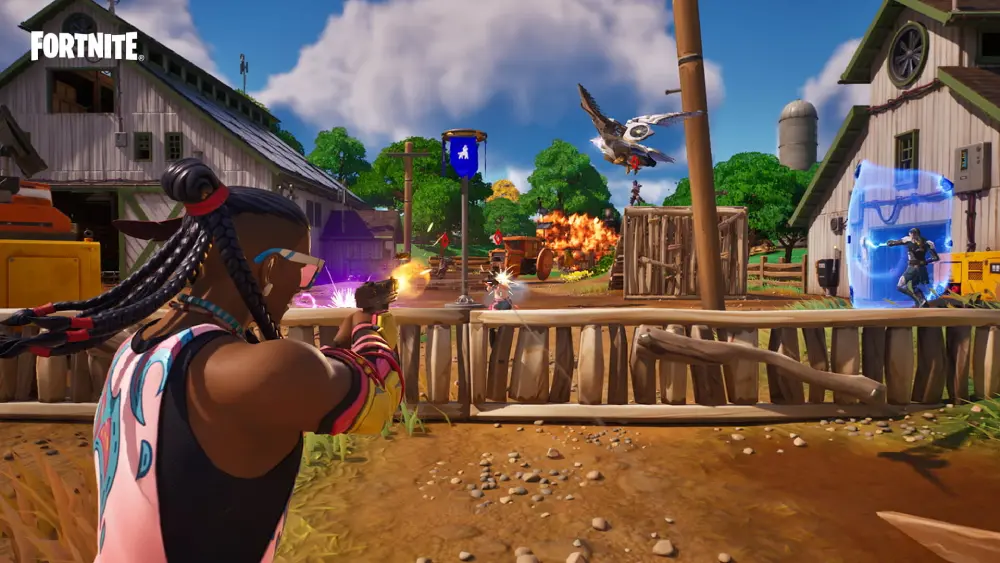
Learning how to play Fortnite isn’t just about shooting faster — it’s about understanding systems, optimizing hardware, and maintaining stability. From installation to advanced tips, this guide gives you every step to progress efficiently on any platform.
Moreover, each improvement compounds: better sensitivity leads to steadier fights; smarter rotation leads to more top finishes; and stable connections make every build battle smoother. Consequently, players who take the time to refine these details enjoy more consistent victories.
Beyond that, ExitLag adds the final edge — optimizing routes, reducing jitter, and maintaining connection stability during high-pressure moments. So whether you’re building in Battle Royale, racing in LEGO mode, or performing at Fortnite Festival, keep your setup sharp and your ping steady.
Dominate every match, play smarter, and elevate your experience — that’s the true power of mastering how to play Fortnite.
Got questions or want to connect with other players? Join the conversation at the ExitLag Forum!