

Playing Fortnite with packet loss is one of the most frustrating experiences a player can face, especially when trying to fix packet loss Fortnite without knowing its real cause. Matches become unpredictable as your character teleports, builds fail to place and shots simply don’t register. Therefore, it’s important to understand how packet loss affects real-time gameplay and why players often experience issues even with fast internet.
However, packet loss isn’t just a delay, it happens when your device sends crucial data to Fortnite’s servers, but part of that information never reaches its destination. Like this, the game loses track of your actions, causing inconsistencies such as edits not registering or walls appearing seconds late. These problems become magnified during intense matches, when Fortnite lag can lead to unexpected eliminations or costly mistakes in ranked modes.
Finally, understanding packet loss and how it disrupts your connection allows you to take meaningful steps toward resolving it. When you identify the root cause and apply proper optimization, you can eliminate most Fortnite connection issues and achieve smoother, more stable gameplay.

What is packet loss in Fortnite
Packet loss occurs when data packets sent from your device fail to reach Fortnite’s servers during transmission. This happens due to unstable routing, overloaded networks or failures along the path between you and the server. When packet loss occurs, the server receives incomplete or outdated information, leading to delays, rubberbanding and inaccurate movements.
In Fortnite, packet loss is especially damaging because the game relies heavily on quick actions and precise timing. Every building piece, edit, or shot requires smooth communication between you and the server. When packets are lost, the game receives inaccurate data, causing your character to behave erratically, abilities to fail and interactions to break.
A simple analogy: imagine sending a message to a friend, but only half the sentence arrives. The meaning becomes distorted. That’s exactly what happens when Fortnite receives incomplete packets — your actions become unreliable.
How packet loss affects Fortnite gameplay
Packet loss generates a range of problems that directly impact competitive performance, including:
- Rubberbanding, where your character snaps backward
- Delayed commands, such as slow edits or builds
- Hit registration failure, where bullets don’t count
- Teleporting enemies during fights
- Sudden disconnections mid-match
- Ghost structures, where builds appear late
- Erratic movement even with stable FPS
These symptoms make Fortnite nearly unplayable in high-pressure zones.
Main causes of packet loss in Fortnite
Inefficient routing
Fortnite packets travel across multiple nodes. If a node is unstable or congested, packets are dropped, resulting in inconsistent actions.
Unstable connection
Issues with your ISP, router or modem lead to fluctuations that cause packet loss. Therefore, even high-speed plans can produce poor stability.
Distance from servers
The farther you are from the game servers, the more opportunities for packet loss along the way. Like this, players outside primary regions suffer more.
Network congestion
Multiple devices consuming bandwidth or peak hours heavily affect packet quality. Streaming, downloads and Wi-Fi interference increase packet loss.
Hardware issues
Faulty Ethernet cables, damaged network cards or overheating routers often contribute to packet loss.
How to identify packet loss in Fortnite
You can detect packet loss inside Fortnite by enabling the network stats overlay, which displays packet loss percentages in real time. Watch for spikes or red indicators during fights.
You can also perform ping and packet tests using your operating system’s terminal. If packets are lost during the test, you’ll notice timeouts or inconsistencies. However, even if ping appears low, packet loss can still occur this is why players sometimes feel lag despite good ping numbers.
Look out for signs such as rubberbanding, failed edits, skipped shots or inconsistent movement. These behaviors indicate your connection is struggling to deliver packets reliably, a clear signal of Fortnite connection issues caused by packet loss.
Packet loss severity table
| Packet Loss | Impact on Gameplay | Severity |
| 0% | Perfect performance | Low |
| 1–2% | Slight inconsistencies | Medium |
| 3–5% | Noticeable lag and delay | High |
| 5%+ | Severe rubberbanding and failure | Critical |
Basic solutions to reduce packet loss
Optimize your local connection
- Use a wired Ethernet connection
- Close background downloads and apps
- Update network drivers
- Enable QoS to prioritize game traffic
- Test alternative Ethernet cables
- Restart router and modem
Contact your isp
If packet loss persists despite local fixes, your provider may be using unstable routing. Contact them to request line tests or route adjustments. However, ISP solutions are temporary and rarely optimized for real-time gameplay.
Exitlag: the definitive fix for Fortnite packet loss
What is Exitlag?
Exitlag is specialized software developed exclusively for optimizing internet connections in online games. It corrects packet loss by optimizing packet routing, using advanced technology that ensures data follows the fastest and most stable path.
How Exitlag reduces packet loss
Exitlag uses Multi-Internet routing to ensure consistent data delivery. It dynamically analyzes routes and switches to the best one automatically.
Exitlag’s optimization includes:
- Real-time analysis
- Multiple simultaneous routes
- Automatic rerouting during instability
- Hop optimization
- Continuous connection stabilization
Advantages for fortnite players
- Complete elimination of packet loss through stable routing
- Lower ping and latency for faster reactions
- Highly stable gameplay, even during combat
- Protection against unstable nodes and connection drops
- Simple and intuitive setup
- Support for different server regions
These improvements create a tangible competitive advantage.
Is Exitlag worth it for Fortnite?
Exitlag is ideal for players who frequently face instability, long-distance servers or competitive modes where reliability matters. It pays for itself by preventing unfair eliminations and lost matches.
How to configure exitlag for Fortnite
- Download and install Exitlag
- Open the software and select Fortnite
- Enable multi-route optimization
- Use automatic tuning for best results
- Launch the game
- Monitor connection stats
- Adjust routes if necessary
- Keep the software updated
Faq
Is packet loss the same as lag?
No. Lag typically refers to high ping, while packet loss means lost data during transmission. It’s possible to have low ping and still experience severe packet loss.
Why do I have packet loss only in Fortnite?
Each game uses different servers and routes. Fortnite may rely on nodes where your connection experiences instability.
Can packet loss cause bans?
Packet loss does not cause bans, but extreme instability may trigger disconnects or unusual movement.
How much packet loss is acceptable for Fortnite?
Ideally 0%. Up to 1% may be playable casually, but competitive modes require perfect consistency.
Can my hardware cause packet loss?
Yes. Damaged Ethernet cables, faulty routers or failing network adapters all contribute to instability.
Does ExitLag work on private Fortnite servers?
Yes, as long as server configuration allows routing optimization.
Do I need ExitLag every time I play?
You only need it active while gaming, but using it consistently ensures stability.
How to use ExitLag in Fortnite
The process is extremely simple:
Step 1 – Access the official ExitLag website and download the application. There’s a free trial period for new users.
Step 2 – Install and open the program. Log in with your account.
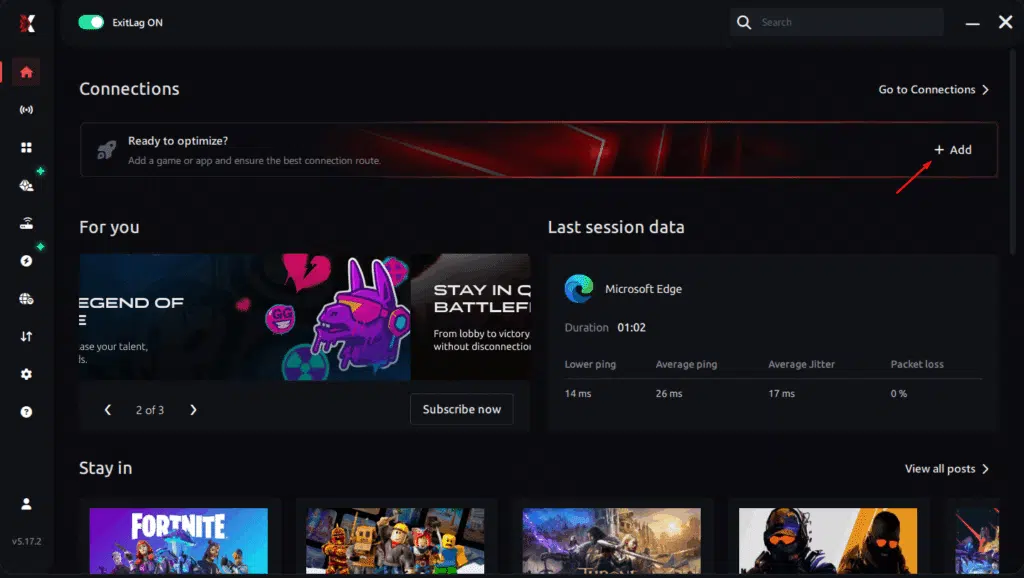
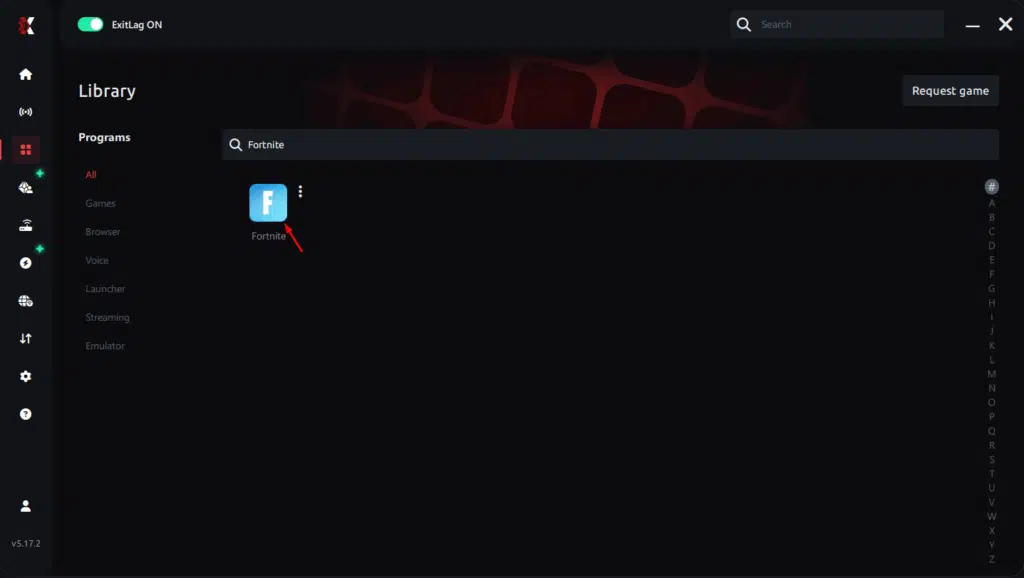
Step 3 – In the search bar, type “Fortnite” and select the game from the list.
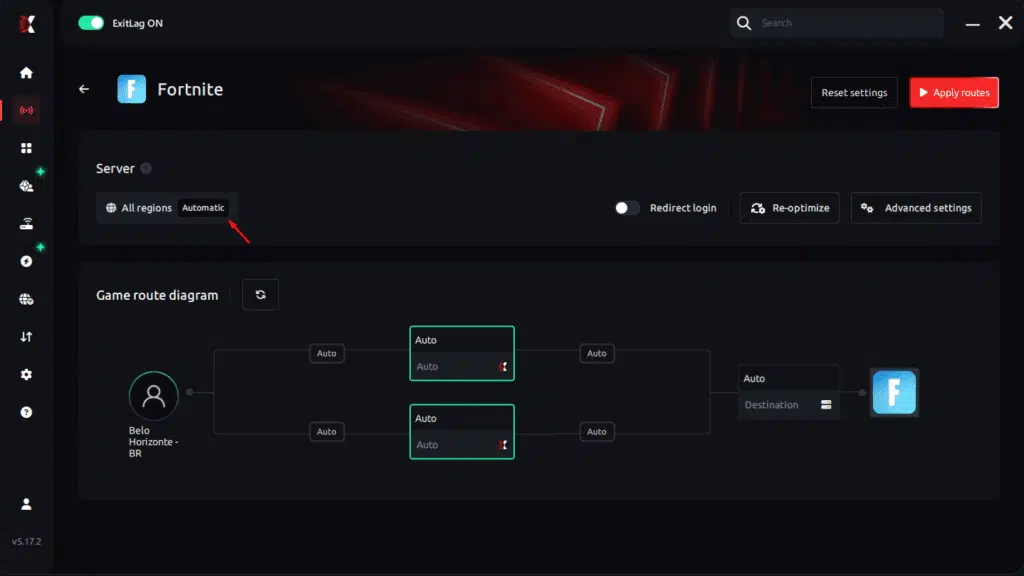
Step 4 – Choose between automated or manual route
Based on the results, you can let ExitLag automatically select the best route or manually choose the server that showed the lowest latency for your connection.
AI-optimized automated route
Based on the results, you can let ExitLag automatically select the best route through AI optimization. The system analyzes multiple connection paths in real time and automatically identifies the most efficient route for your connection, ensuring the lowest possible latency without requiring manual choices.
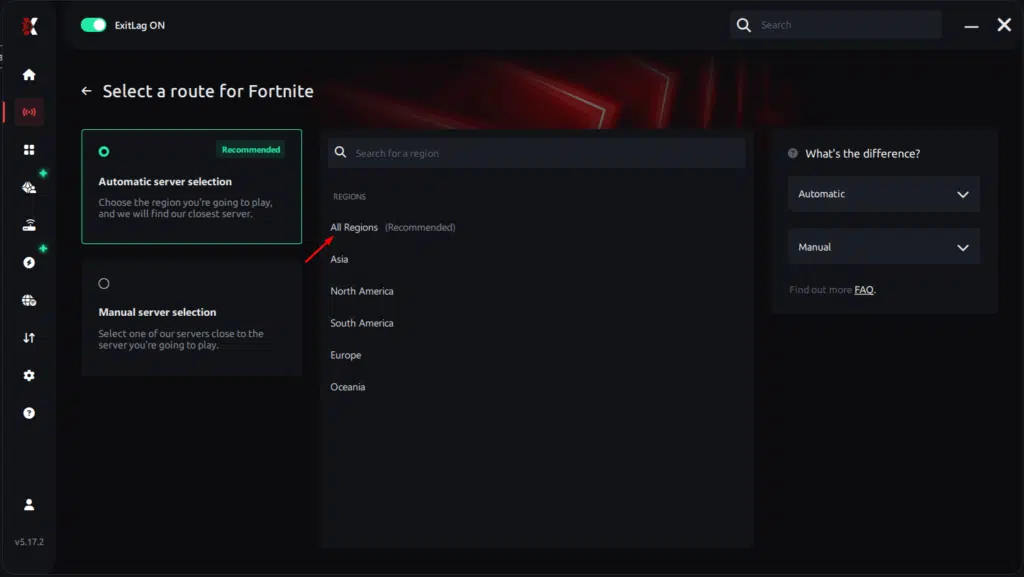
Manual route
If you prefer to have full control over your connection, you can manually choose the server based on the ping test results. Simply select the server that showed the lowest latency or the one that best meets your specific gaming needs, allowing complete customization of your experience.
Step 5 – Click “Apply routes” or the play button. ExitLag will begin optimizing your connection automatically.
Step 6 – Wait a few seconds until optimization is complete. You’ll see ping indicators in the interface.
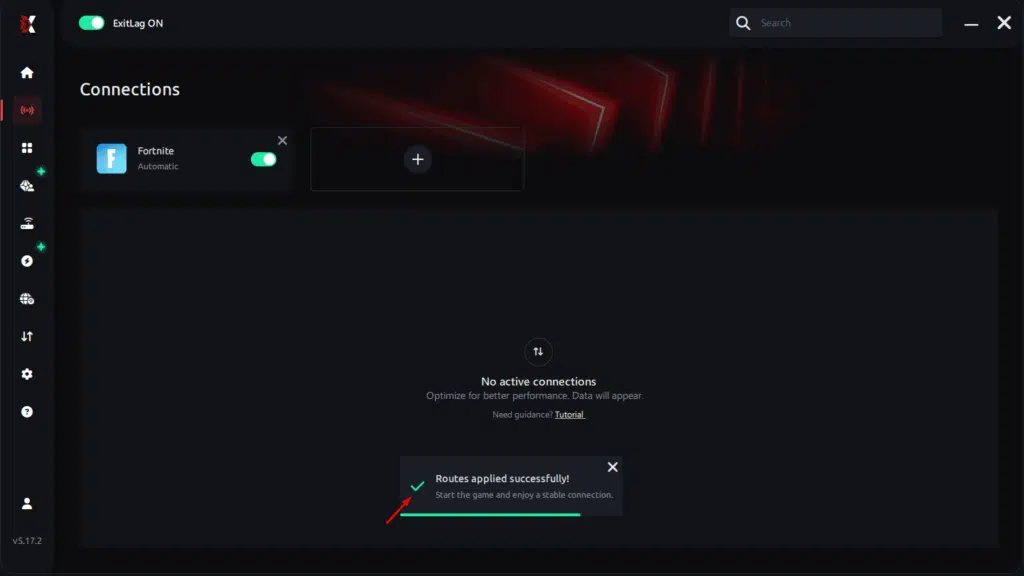
Step 7 – Launch Fortnite normally. The optimization will already be active.
ExitLag runs in the background while you play, constantly adjusting routes to maintain the best possible performance.
How to use Ping for Games: step-by-step guide (Fortnite)
Checking your connection quality before entering a match has never been easier. Here’s how to use Ping for Games in just a few steps:
1. Open the ExitLag software on your PC
Ensure the application is installed and open. The feature is integrated into the platform and available for free to all users.
2. Access the Network Analyzer tool
Locate the Network Analyzer in the software menu. This is where you’ll find Ping for Games along with other connection analysis features.
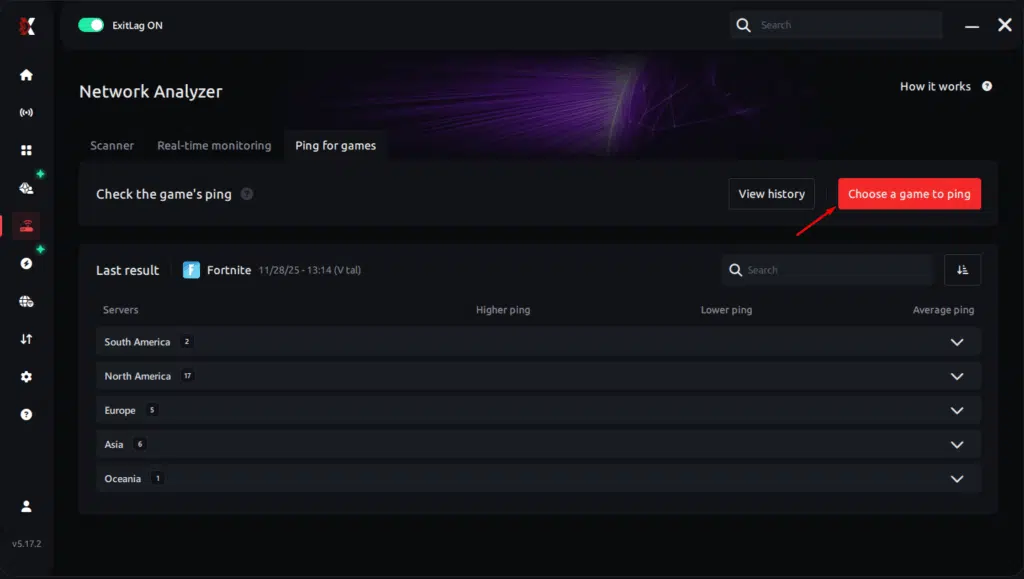
3. Select the game you want to test
Choose Fortnite from the list. The tool supports major online multiplayer games, including FPS, Battle Royales, MOBAs, MMORPGs, and more.
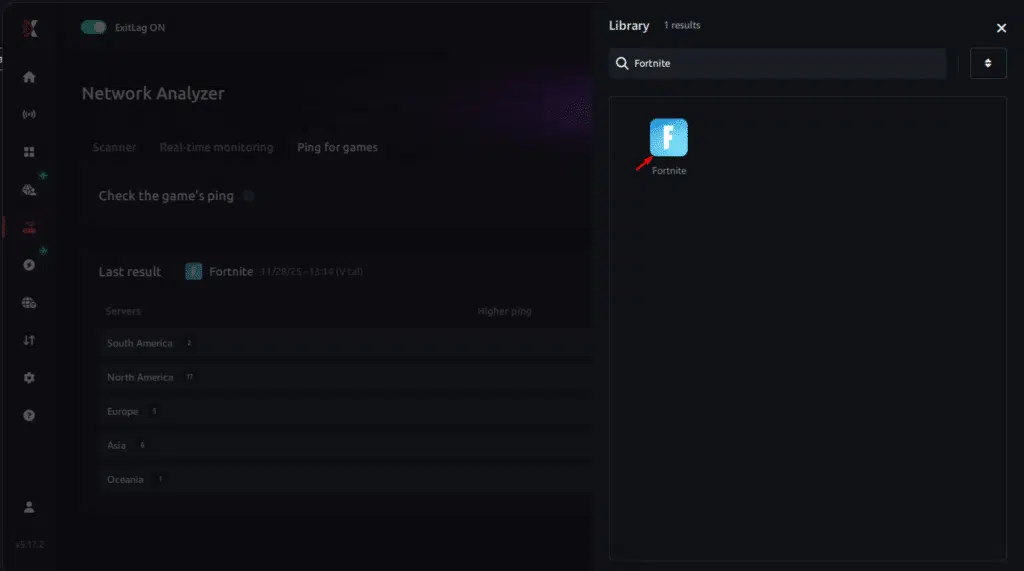
4. Choose the specific server
Select the exact Fortnite server you want to test instead of a generic region. This ensures more accurate results for your match.
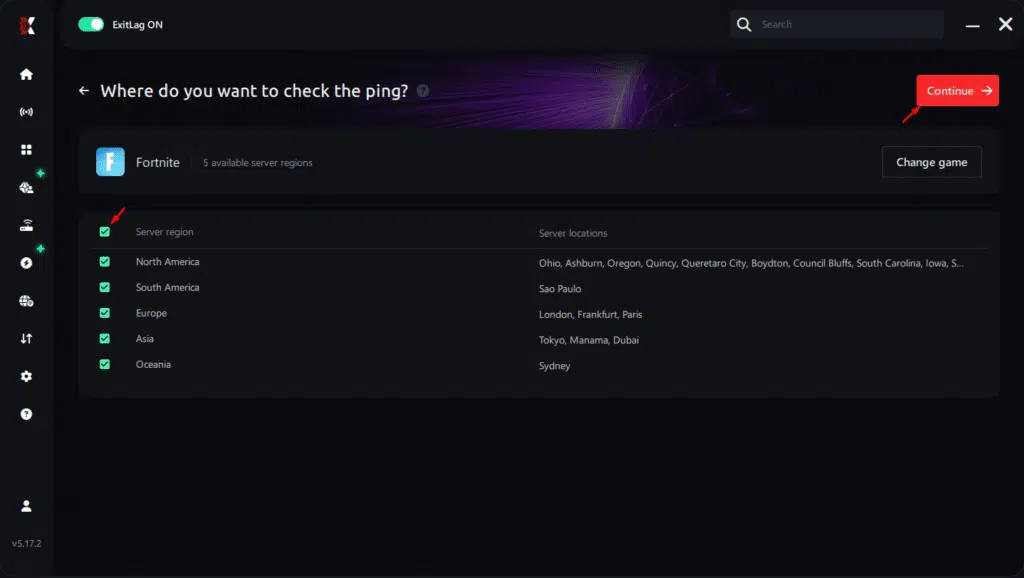
5. Start the ping test
With one click, the measurement is performed in real time between your device and the selected Fortnite server, considering your current connection (cable or Wi-Fi).
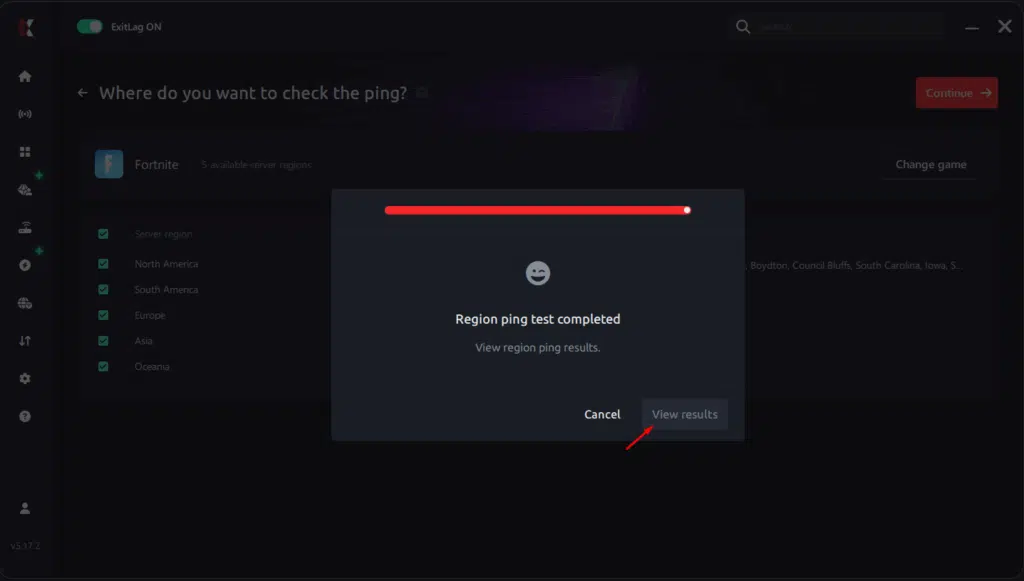
6. Analyze the results
Results appear in milliseconds (ms), automatically sorted from best to worst ping. You can also reorganize the view alphabetically if you prefer.
7. Choose the best server and play worry-free
With this information, simply select the server with the lowest latency and jump into Fortnite knowing your connection is optimized.
Eliminate packet loss and play Fortnite without interruptions
Packet loss doesn’t have to ruin your Fortnite experience. Understanding the problem allows you to take the right steps, stabilize your connection and regain control over your gameplay. However, the most consistent and effective way to eliminate packet loss is through professional route optimization, ensuring your packets reach Fortnite’s servers reliably every time.
Finally, Exitlag provides the definitive fix for packet loss by eliminating unstable pathways, reducing latency and guaranteeing smoother matches. It’s the key to improving your mechanics, winning more fights and enjoying Fortnite without interruptions.
Got questions or want to connect with other players? Join the conversation at the ExitLag Forum!


