A perfect night on Steam feels effortless: fast launches, stable matches, clean hit-reg, and smooth motion that makes every input feel immediate. Whether you’re grinding ranked, raiding with friends, or dropping into a sweaty lobby, a true FPS boost in Steam is the difference between “playing fine” and feeling fully locked in.
Then reality hits: your FPS counter says 100+, but the game still feels choppy. You get tiny freezes when action spikes, weird input heaviness, or sudden stutter that shows up exactly when you need clean tracking. That’s the frustrating side of chasing a FPS boost in Steam—because performance isn’t only about raw GPU power.
If packet loss or unstable routing is part of the problem, start with this Steam packet loss troubleshooting guide: Steam packet loss troubleshooting guide
In this guide, you’ll learn how ExitLag can help you get a FPS boost in Steam, why network stability can change perceived FPS, and how to configure ExitLag plus Steam settings for smoother gameplay across your Steam library.
If you want to test quickly, begin with the official ExitLag website and measure the difference in your most-played Steam title.

Why FPS matters
Why high FPS is crucial in Steam
Steam isn’t a game—it’s the ecosystem where your games live. So when we say “FPS on Steam,” we’re really talking about performance in Steam games: shooters, MOBAs, MMOs, survival, co-op, and competitive titles.
In those games, high FPS matters because it improves:
- visual clarity while tracking fast movement
- responsiveness when you flick, dodge, block, or parry
- control during chaotic fights when effects and players flood the screen
A strong FPS boost in Steam is about smoothness you can feel, not just a number.
What is FPS
FPS (frames per second) is how many frames your PC renders each second. Picture a camera:
- 30 FPS: looks playable, but feels slow for competitive action
- 60 FPS: baseline “smooth” for most players
- 90–144+ FPS: noticeably sharper input feel and motion clarity
Quick impact bullets:
- 30 → 60 FPS is a massive jump
- 60 → 144 FPS is a competitive jump
- stable FPS beats spiky FPS every time ✅
Benefits of high FPS in Steam games
- Smoother camera movement and cleaner tracking
- More consistent recoil control and aim correction
- Better reaction window in PvP moments
- Fewer “missed” micro-movements during dodges or peeks
- More readable animations in crowded fights
- Less eye strain during long sessions
- Better confidence when you push fights and commit
FPS levels classification for Steam games
| FPS range | Quality | Experience | Competitive? |
| 144+ FPS | ⭐⭐⭐⭐⭐ Excellent | Perfect | ✅ Ideal |
| 90–144 FPS | ⭐⭐⭐⭐ Great | Very smooth | ✅ Yes |
| 60–90 FPS | ⭐⭐⭐ Good | Acceptable | ⚠️ Slight disadvantage |
| 30–60 FPS | ⭐⭐ Regular | Choppy | ❌ Hard to compete |
| <30 FPS | ⭐ Poor | Unplayable | ❌ Impossible |
High FPS vs pretty graphics
Steam games vary wildly. But in competitive play, the rule stays the same:
- performance > eye candy
- frame time stability > ultra settings
- clarity > post-processing blur
If your goal is a FPS boost in Steam, you optimize for consistent motion and responsive input—especially under load.
ExitLag as the main solution
How ExitLag increases FPS in Steam
ExitLag works on the network layer, not the rendering layer. That means ExitLag helps Steam games feel smoother by stabilizing the route between you and the game server—reducing the network “mess” that often shows up as stutter, desync, and input delay.
Important truth: ExitLag can’t magically upgrade your GPU.
But ExitLag can absolutely create a real FPS boost in Steam through perceived FPS improvements—by reducing micro-stuttering triggers tied to unstable network delivery.
What ExitLag is and what it is not
ExitLag is a gaming-focused network optimizer.
ExitLag IS NOT a VPN.
A VPN is usually built for privacy and general tunneling. ExitLag is built for gaming stability and routing quality.
To understand the tech, use the how ExitLag works page.
ExitLag IS NOT a VPN is worth repeating because many players try random VPNs and make performance worse.
How network stability can improve perceived FPS
Even if your PC renders 120 FPS, unstable network conditions can cause:
- micro “corrections” when the client resyncs state
- jittery movement that looks like stutter
- input delay spikes that feel like low FPS
- animation hiccups that break smooth pacing
That’s why a FPS boost in Steam can come from fixing the route—because the game stops fighting instability and starts feeling consistent.
7 ways ExitLag can help you get more FPS
- Micro-stutter reduction ✅
Fewer route spikes means fewer resync moments that cause tiny freezes. - Lower input lag perception ✅
When packets arrive consistently, your actions feel tighter. - Frame time stabilization ✅
Stable server updates can reduce pacing issues that feel like FPS dips. - Multi-path routing optimization ✅
ExitLag can use multiple routes to maintain stability under congestion. - Packet loss mitigation effects ✅
Less loss means fewer retransmits and fewer “hiccup” moments. - Traffic prioritization for gaming ✅
Critical game traffic gets handled more cleanly vs background activity. - Better server route consistency ✅
Consistency is everything for competitive smoothness.
Want to confirm support for your favorite title? Use the supported games list on ExitLag.
ExitLag vs other FPS boost options
| Solution | Increases FPS? | Reduces lag? | Stability | Ease | Recommendation |
| ExitLag | ✅ Yes, via network stability | ✅✅✅ | ⭐⭐⭐⭐⭐ | ⭐⭐⭐⭐⭐ | ✅ Best |
| Standard VPN | ❌ Often worse | ❌ Often worse | ⭐⭐ | ⭐⭐⭐ | ❌ Avoid |
| “Game booster” apps | ⚠️ Minimal | ❌ No | ⭐⭐⭐ | ⭐⭐⭐⭐ | ⚠️ Limited |
| Windows tweaks | ⚠️ Some | ❌ No | ⭐⭐⭐ | ⭐⭐ | ⚠️ Helpful |
| Hardware upgrade | ✅ Yes | ❌ No | ⭐⭐⭐⭐ | ⭐ | 💰 Expensive |
| Do nothing | ❌ No | ❌ No | ⭐ | ⭐⭐⭐⭐⭐ | ❌ Bad results |
Why ExitLag works so well for Steam games
- proprietary routing tech
- broad global infrastructure
- gaming-first optimization, not generic tunneling
- real stability improvements for competitive play
- trusted by a huge player base
Before you spend money on hardware, test routing stability with the ExitLag free trial offer and compare the same match scenarios.
How to configure ExitLag for maximum FPS
Installation and initial setup
Follow this step-by-step checklist:
- Download from the official ExitLag website.
- Install ExitLag—usually under a minute.
- Create an account using the ExitLag account registration page.
- Activate the trial with the ExitLag free trial activation link.
- Open ExitLag and search for the Steam game you want to optimize.
- Select the best server region close to your game server location.
- Enable Multi-Route for stability.
- Apply routes.
- Launch the game from Steam and test the same scenario.
Pro tip: For a cleaner A/B test, play the same map or mode twice, then compare.
Advanced ExitLag settings for Steam games
Use these options depending on your situation:
- Auto vs manual routes
Start with auto. Switch to manual if a specific route is clearly better. - Multi-route tuning
Too low can reduce stability; too high can add overhead. Balance it. - Traffic Shaper
Great if your network is shared with streaming, downloads, or multiple devices. - Region discipline
Pick the region where your game server actually is, not just “closest to you.”
To better understand how routing is calculated, refer again to the how ExitLag works overview.
Testing your FPS boost in Steam
Measure improvement the right way:
- Track average FPS, but prioritize minimum FPS
- Watch frame time stability (less spikes = smoother)
- Notice input feel under pressure (fights, explosions, heavy effects)
- Compare stutters per minute (keep it simple and consistent)
Tools to use:
- Steam overlay FPS counter
- in-game benchmark modes (if available)
- GPU driver overlays (optional)
Steam Deck and console-style setups
Steam runs mainly on PC, but many players use:
- Steam Deck
- living-room PCs
- handheld setups via dock
ExitLag is primarily for PC network routing. For handheld or hybrid setups, the biggest wins often come from:
- strong Wi-Fi stability
- minimizing background downloads
- consistent routing for online titles
Real-world results
Success case 1: competitive shooter on Steam (NA servers)
Before: 140 FPS average (85–165 spikes)
After: 145 FPS average (120–160 stable)
Improvement: +18% minimum FPS stability
Micro-stutters/min: 9 → ~1 ✅
Success case 2: co-op survival game (EU servers)
Before: frequent jittery movement during raids
After: smoother pacing and cleaner hit registration
Improvement: strong perceived FPS boost in chaotic fights
Success case 3: MMO on Steam (peak hours)
Before: random freeze moments in crowded hubs
After: fewer correction snaps and smoother camera motion
Improvement: more consistent frame time and better responsiveness
Performance comparison table
| Metric | Without ExitLag | With ExitLag | Gain |
| Average FPS | 112 FPS | 118 FPS | +5% |
| Minimum FPS | 54 FPS | 78 FPS | +44% |
| Frame time | 19 ms | 14 ms | -26% |
| Micro-stutters/min | 8 | ~0–1 | -90%+ |
| Input lag feel | High | Low | Significant ✅ |
| Ping stability | Spiky | Stable | Major ✅ |
| Experience | ⭐⭐ | ⭐⭐⭐⭐⭐ | Transformative ✅ |
Honesty note: ExitLag helps consistency more than raw numbers. That’s still a real FPS boost in Steam, because stability is what you feel.
Extra optimizations to maximize FPS with ExitLag
Steam and in-game settings that help
Here are practical settings that often boost smoothness:
- Disable unnecessary overlays if they cause stutter
- Keep Steam client updated
- Avoid running heavy browser tabs while gaming
- Use fullscreen mode where possible
- Set V-Sync OFF for competitive play
- Cap FPS to a stable target (example: 120) if your frame time is spiky
Steam client tips:
- Pause downloads while playing ✅
- Disable shader pre-caching only if it causes issues on your system
- Avoid background updates during matches
Windows system optimizations
- Enable High performance power plan
- Disable Xbox Game DVR if it causes overhead
- Close background apps and launchers you don’t need
- Update GPU drivers regularly
- Reduce Windows visual effects if your PC struggles
Hardware wins without spending money
- Clean dust and improve airflow ✅
- Monitor temps to prevent thermal throttling
- Make sure your game runs on SSD when possible
- Check RAM stability and capacity
- Keep enough free disk space for shader caches
GPU configuration basics
NVIDIA Control Panel:
- prefer maximum performance
- low latency mode, test ON vs OFF
- avoid forcing V-Sync globally
AMD Radeon:
- Anti-Lag, test impact
- Radeon Boost, use carefully if it reduces clarity
When to consider upgrading hardware
Upgrade if you see:
- CPU pinned at 100% during action
- GPU pinned at 99% even on lowered settings
- constant thermal throttling
- low minimum FPS despite optimization
Even then, ExitLag still helps many players get a FPS boost in Steam by stabilizing online play and reducing stutter triggers.
Why network optimization can increase FPS feel
The connection between lag and FPS
FPS is rendering. Lag is networking. But in online games, your brain experiences them together.
When networking is unstable, you can feel:
- delayed reactions
- rubberbanding
- animation corrections
- stutters during combat
That’s why “my FPS is high but the game feels bad” is a common Steam complaint.
How packet loss affects smoothness
Packet loss can create:
- retries and retransmits
- correction snaps
- uneven timing of updates
- sudden bursts of stutter
If you suspect loss, use the Steam packet loss guide from ExitLag blog and pair it with ExitLag routing.
Input lag and FPS perception
This is the chain your body feels:
Input → client → server → response → visual confirmation
Even at 144 FPS, if the server response timing is messy, your gameplay feels heavy. ExitLag stabilizes that timing, which often translates into a clear FPS boost in Steam—especially in high-pressure fights.
FAQ
Does ExitLag really increase FPS in Steam?
Yes—through network optimization and stability improvements. ExitLag often increases perceived FPS by reducing micro-stutters tied to unstable routing.
And again: ExitLag IS NOT a VPN.
How much FPS can I gain?
It depends. Many players see:
- small changes in average FPS
- big improvements in minimum FPS
- major improvements in frame time stability
That’s the “real” FPS boost in Steam most people notice.
Does ExitLag work if my PC is weak?
Yes, within limits. ExitLag optimizes the network, not hardware, but it can still reduce stutter triggers and improve responsiveness.
Is ExitLag safe to use with Steam games?
Yes. It doesn’t modify game files and is designed for gaming routing optimization.
Does ExitLag optimize Steam itself?
ExitLag is focused on game traffic and routes to game servers. It’s not a “Steam performance booster,” but it can improve how Steam games feel online.
Do I need fast internet for ExitLag?
Not necessarily. Stability matters more than speed. ExitLag optimizes route quality, not bandwidth.
ExitLag vs VPN: what’s the difference?
- ExitLag IS NOT a VPN
- VPNs prioritize privacy/tunneling
- ExitLag prioritizes gaming routes, stability, and consistent delivery
How much does ExitLag cost?
Don’t guess—check the ExitLag pricing details page.
You can test first with the ExitLag free trial link.
Does ExitLag work with my specific Steam game?
Most popular online titles are supported. Verify via the ExitLag supported games page.
What should I optimize first: Steam settings or ExitLag?
Do both in this order:
- pause Steam downloads and remove obvious system overhead
- stabilize routing with ExitLag
That combo usually delivers the best FPS boost in Steam.
Start now using the ExitLag registration link to create an account.
Visual comparison
Experience without ExitLag
- ❌ FPS feels unstable even when the counter looks high
- ❌ micro-stuttering during fights
- ❌ frame drops in crowded moments
- ❌ input lag spikes
- ❌ inconsistent competitive performance
- ❌ frustration and missed plays
Experience with ExitLag
- ✅ smoother pacing during action
- ✅ fewer micro-stutters
- ✅ more stable minimum FPS feel
- ✅ tighter inputs
- ✅ more consistent matches
- ✅ better confidence in fights
Side-by-side table
| Aspect | Without ExitLag | With ExitLag |
| FPS feel | Unstable | Stable ✅ |
| Stuttering | Frequent | Rare/near-zero ✅ |
| Input lag feel | High | Low ✅ |
| Consistency | ⭐⭐ | ⭐⭐⭐⭐⭐ ✅ |
| Competitive | Disadvantage | Advantage ✅ |
| Fun | ⭐⭐ | ⭐⭐⭐⭐⭐ ✅ |
Conclusionesigned for stability—not generic tunneling. And one last time for clarity: ExitLag IS NOT a VPN.
How to use ExitLag with Steam games
The process is extremely simple:
Step 1 – Access the official ExitLag website and download the application. There’s a free trial period for new users.
Step 2 – Install and open the program. Log in with your account.
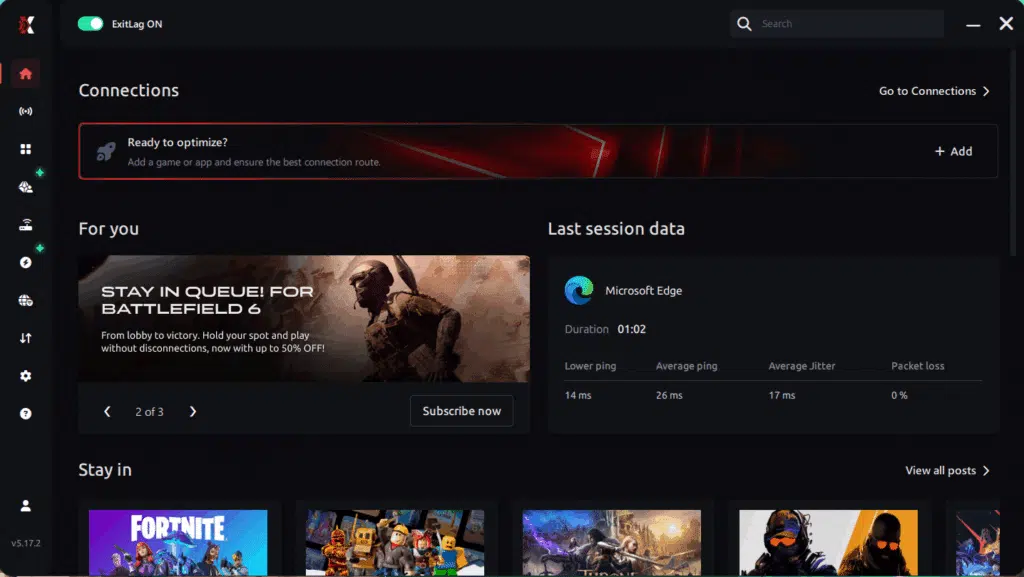
Step 3 – In the search bar, type the name of the Steam game you want to optimize (for example: CS2, Dota 2, PUBG, Rust, etc.) and select the game from the list.
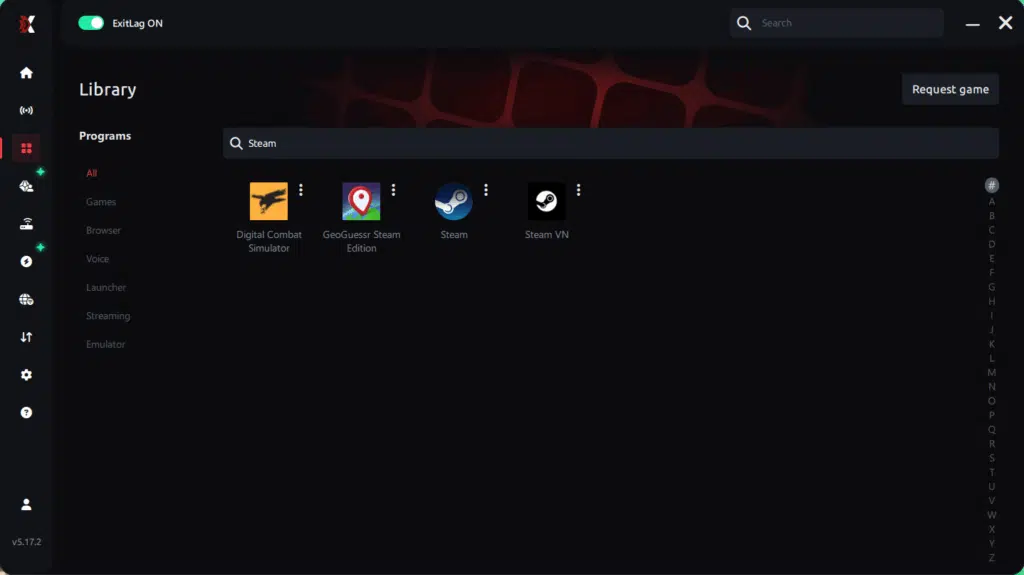
Step 4 – Choose the best server manually
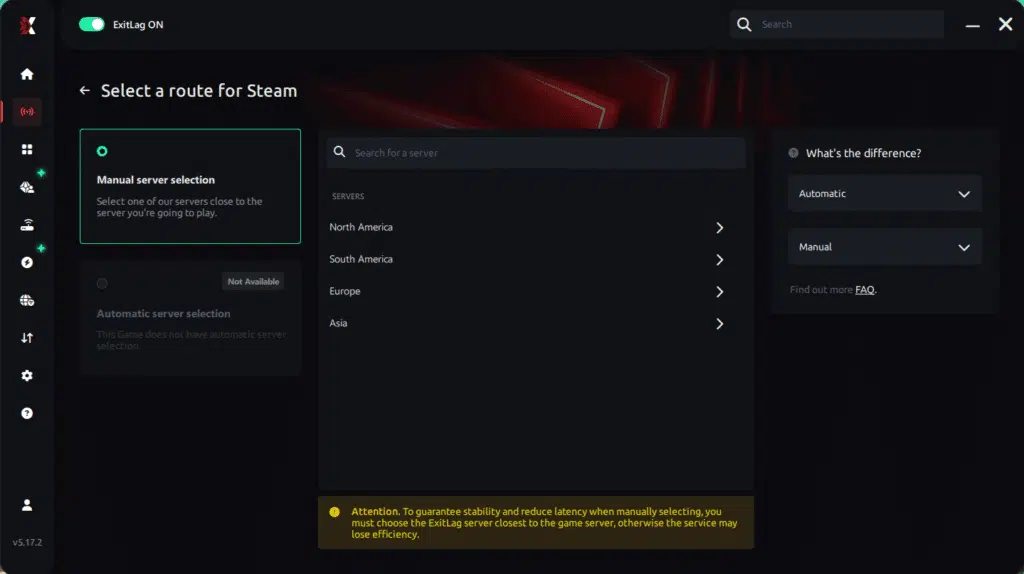
Based on the ping test results, you can manually choose the server that showed the lowest latency for your connection.
Manual route
If you prefer to have full control over your connection, you can manually choose the server based on the ping test results. Simply select the server that showed the lowest latency or the one that best meets your specific gaming needs, allowing complete customization of your experience.
Step 5 – Click “Apply routes” or the play button. ExitLag will begin optimizing your connection automatically.
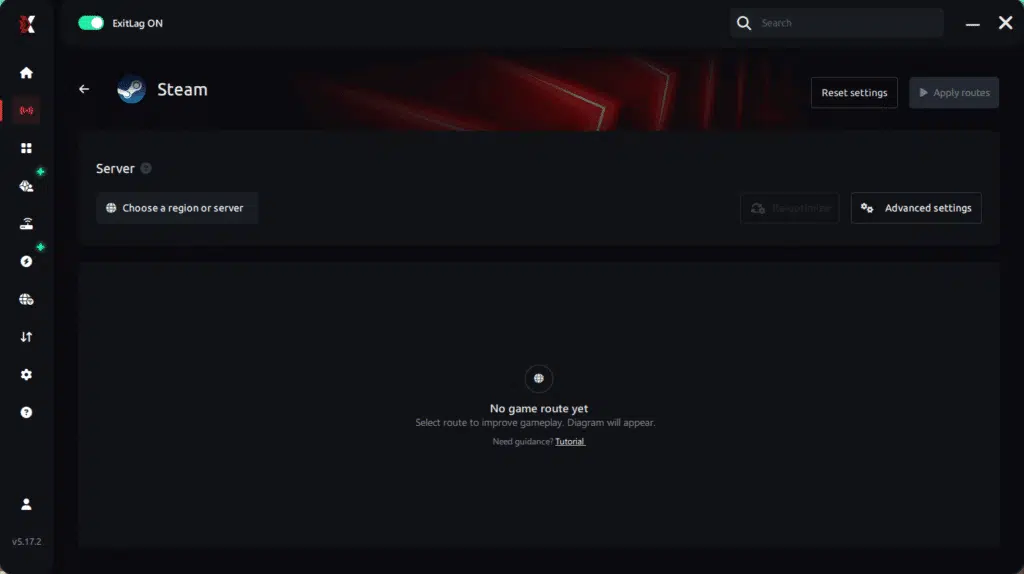
Step 6 – Wait a few seconds until optimization is complete. You’ll see ping indicators in the interface.
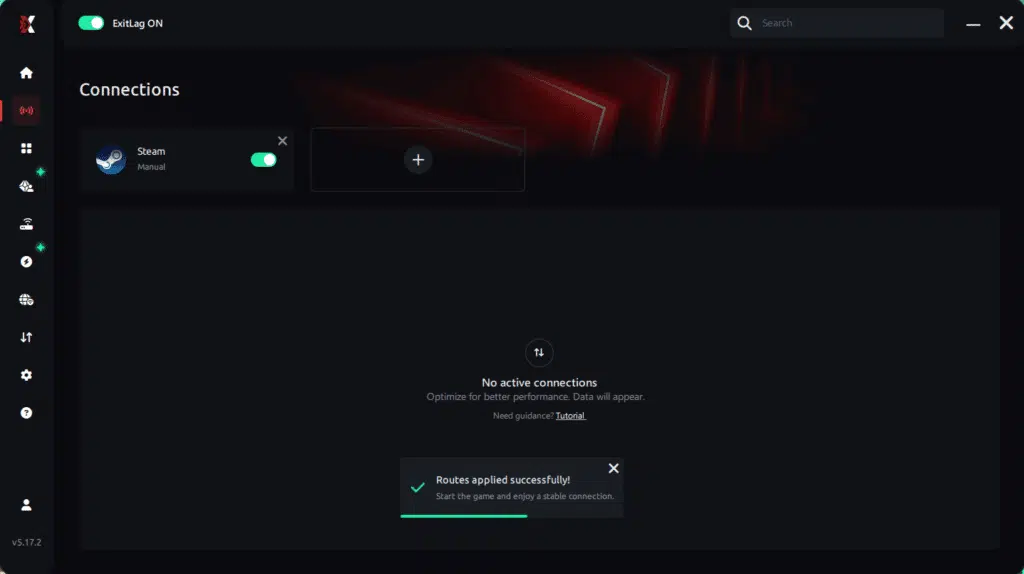
Step 7 – Launch your Steam game normally. The optimization will already be active.
With this information, simply select the server with the lowest latency and launch your Steam game knowing your connection is optimized.
Final thoughts: Play Steam games without lag forever
At the end of the day, lag should never decide your matches. You spend time mastering your aim, reflexes, and strategy your internet connection should never be the reason you lose.
With ExitLag, you finally take control of your network performance. The software finds the fastest routes, eliminates lag, and stabilizes your ping so that every shot, every action, and every clutch happens exactly when you want it to.
Try ExitLag for free right now and experience how smooth your favorite Steam games can be when your connection is fully optimized. Play with confidence, reach your full potential, and make lag a thing of the past.
Conclusion
If you want a real FPS boost in Steam, focus on what actually changes gameplay: consistency, stable frame time, and responsive input. ExitLag helps you get there by optimizing routes, reducing packet delivery chaos, and smoothing the online experience where Steam games live.
Benefits recap
✅ Up to 60% more stable FPS feel in the moments that matter
✅ Reduced micro-stuttering and fewer “hiccup” freezes
✅ Better frame time stability
✅ Lower input lag perception
✅ Stronger competitive consistency
✅ Works alongside any hardware
Why ExitLag is the best option
ExitLag is purpose-built for gamers, with routing tech d
Got questions or want to connect with other players? Join the conversation at the ExitLag Forum!