Throne and Liberty Global feels completely different when your fights are smooth, your camera pans without hitching, and every dodge, block, and skill chain lands with confidence—because your frame rate stays consistent. If you’re chasing an FPS boost in Throne and Liberty Global, you’re really chasing control: faster reactions, cleaner tracking, and a game that looks and feels “right.”
If you also deal with network instability during sieges or world bosses, that instability can sabotage any FPS boost in Throne and Liberty Global. Pair this guide with the Throne and Liberty Global packet loss fix guide on the blog: read the packet loss fix for Throne and Liberty Global.
But reality hits hard: crowded towns, huge PvP pushes, and peak-hour congestion can turn your match into a slideshow, with uneven frame pacing and random stutters that ruin timing. That’s why an FPS boost in Throne and Liberty Global is not only about graphics settings—it’s also about connection stability.
In this complete 2026 guide, you’ll learn how ExitLag can deliver up to 60% more stable FPS in the moments that matter by optimizing routes, reducing jitter, and cutting the network triggers that cause micro-stutters. Start from the official ExitLag homepage for gamers and follow the steps below for a measurable FPS boost in Throne and Liberty Global.

Why FPS matters
Why high FPS is crucial in Throne and Liberty Global
In large-scale MMO combat, “good enough” FPS isn’t good enough. Your survival depends on animation readability and instant responsiveness, especially in PvP skirmishes and siege chaos where dozens of effects stack at once.
What FPS means (frames per second)
Think of FPS like a camera filming action:
- 30 FPS is choppy footage ❌
- 60 FPS is smooth motion ✅
- 144 FPS is high-clarity, high-control gameplay ✅✅
Higher FPS means your brain gets more visual updates per second, which reduces perceived delay and helps you make better decisions under pressure.
Benefits of high FPS in Throne and Liberty Global
Here’s what you gain when you increase FPS and stabilize frame time:
- Smoother camera tracking and target switching
- Cleaner animation readability in crowded fights
- Faster reaction windows for dodges and blocks
- More consistent skill timing and rotations
- Higher confidence in PvP trades
- Reduced eye strain in long sessions
- Stronger performance in sieges and world bosses ✅
FPS rating for Throne and Liberty Global
| FPS range | Quality | Experience | Competitive? |
| 144+ FPS | ⭐⭐⭐⭐⭐ Excellent | Perfect | ✅ Ideal |
| 90–144 FPS | ⭐⭐⭐⭐ Great | Very good | ✅ Yes |
| 60–90 FPS | ⭐⭐⭐ Good | Acceptable | ⚠️ Minor disadvantage |
| 30–60 FPS | ⭐⭐ Regular | Choppy | ❌ Hard to compete |
| <30 FPS | ⭐ Poor | Unplayable | ❌ Impossible |
High FPS vs pretty graphics
In competitive MMO moments, performance beats visuals. You can lower shadows, effects density, and post-processing while keeping the world looking good—and still gain more FPS plus steadier pacing.
ExitLag as the main solution
How ExitLag increases FPS in Throne and Liberty Global
If you want a reliable FPS boost in Throne and Liberty Global, the biggest hidden lever is your network path to the server. When the route is unstable, the client constantly corrects and re-syncs—creating stutters that feel like FPS drops.
What ExitLag is (it is not a VPN)
ExitLag is a gaming network optimizer built to improve routing, stability, and packet delivery. ExitLag IS NOT a VPN.
A typical VPN prioritizes privacy and can route you through indirect hops that add jitter or overhead. This optimizer prioritizes the fastest, most stable path for games. For the technical breakdown, see how ExitLag works for gaming routes.
How network stability translates to more FPS
Network issues can create micro-stuttering, even when your GPU is fine:
- Packet loss triggers re-sync spikes
- Jitter creates uneven delivery and unstable frame time
- High ping increases input lag, making everything feel late
When the route is stable, your pacing becomes smoother and your “felt FPS” rises—especially in siege-heavy content.
7 ways this optimizer can deliver more FPS
- Micro-stuttering reduction ✅
- Fewer re-sync spikes in high-load moments.
- Lower input lag ✅
- Faster response loops for skills and dodges.
- Frame time stabilization ✅
- More consistent pacing during congestion.
- Multi-path route optimization
- Multiple routes reduce packet loss risk.
- Game traffic prioritization
- Critical packets first, less background interference.
- Better ping consistency
- Fewer sudden spikes during peak hours.
- Redundant connections
- Route fallback when one path degrades.
ExitLag vs other FPS boost options
| Solution | Increases FPS? | Reduces lag? | Stability | Ease | Recommendation |
| ExitLag | ✅ Yes (network) | ✅✅✅ Excellent | ⭐⭐⭐⭐⭐ | ⭐⭐⭐⭐⭐ | ✅ Best |
| Common VPN | ❌ Often worse | ❌ Often worse | ⭐⭐ | ⭐⭐⭐ | ❌ Avoid |
| Game booster apps | ⚠️ Minimal | ❌ No | ⭐⭐⭐ | ⭐⭐⭐⭐ | ⚠️ Limited |
| Windows tweaks | ⚠️ Some | ❌ No | ⭐⭐⭐ | ⭐⭐ | ⚠️ Helps |
| Hardware upgrade | ✅ Yes | ❌ No | ⭐⭐⭐⭐ | ⭐ | 💰 Expensive |
| Do nothing | ❌ No | ❌ No | ⭐ | ⭐⭐⭐⭐⭐ | ❌ Poor performance |
Want to confirm compatibility and discover other supported titles? Use the complete supported games list.
Why this approach works so well
- Proprietary routing built for gaming ✅
- Per-game optimization profiles
- Designed to cut jitter and packet loss that cause stutters
- Trusted by millions of players
To test it quickly, use the official free trial page for new users.
How to use ExitLag in Throne and Liberty Global
The process is extremely simple:
Step 1 – Access the official ExitLag website and download the application. There’s a free trial period for new users.
Step 2 – Install and open the program. Log in with your account.
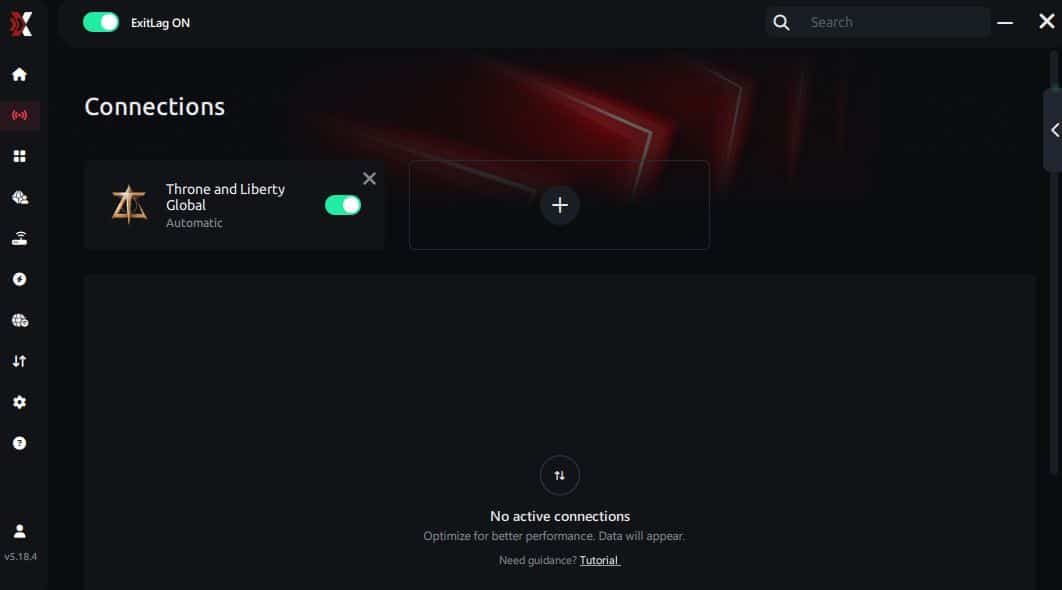
Step 3 – In the search bar, type “Throne and Liberty Global” and select the game from the list.
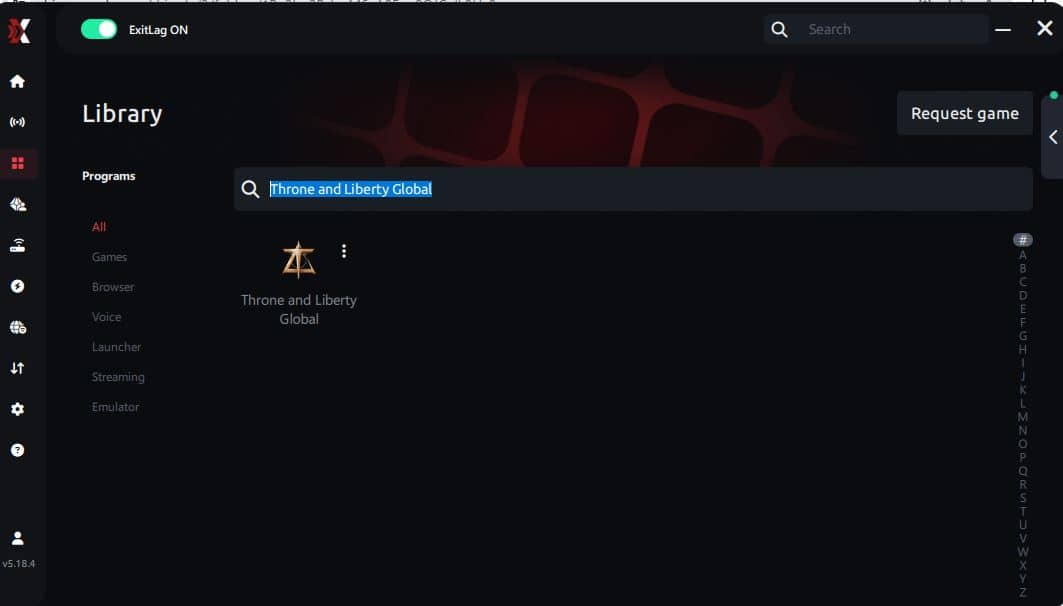
Step 4 – Choose between automated or manual route
Based on the results, you can let ExitLag automatically select the best route or manually choose the server that showed the lowest latency for your connection.
AI-optimized automated route
Based on the results, you can let ExitLag automatically select the best route through AI optimization. The system analyzes multiple connection paths in real time and automatically identifies the most efficient route for your connection, ensuring the lowest possible latency without requiring manual choices.
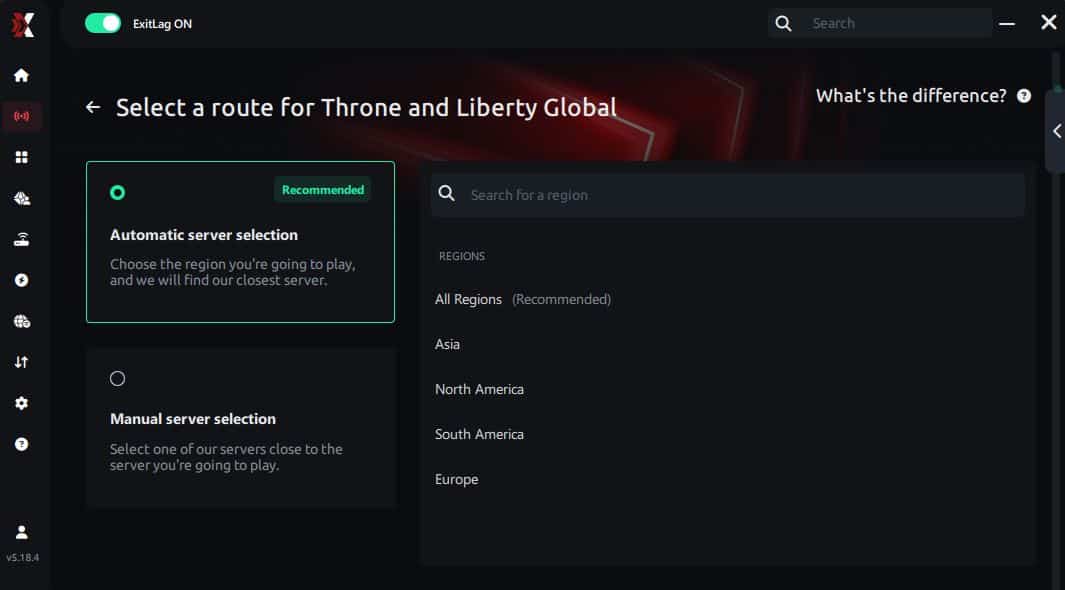
Manual route
If you prefer to have full control over your connection, you can manually choose the server based on the ping test results. Simply select the server that showed the lowest latency or the one that best meets your specific gaming needs, allowing complete customization of your experience.
Step 5 – Click “Throne and Liberty Global” or the play button. ExitLag will begin optimizing your connection automatically.
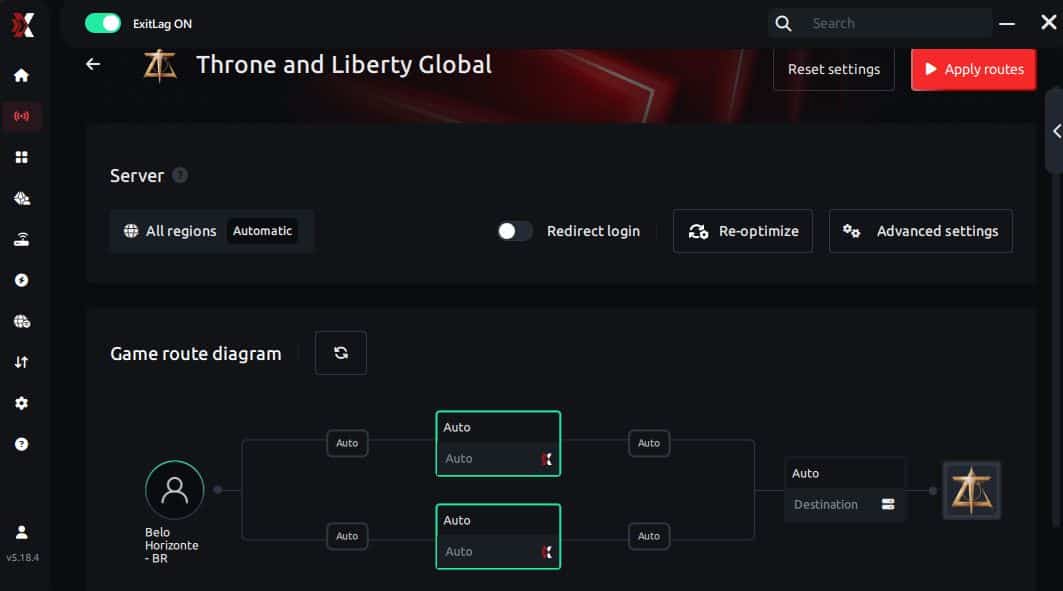
Step 6 – Wait a few seconds until optimization is complete. You’ll see ping indicators in the interface.
Step 7 – Launch Throne and Liberty Global normally. The optimization will already be active.
ExitLag runs in the background while you play, constantly adjusting routes to maintain the best possible performance.
If you prefer to register first, use the account registration page.
Advanced settings for Throne and Liberty Global
- Auto vs manual routing: start on auto, then A/B test manual
- Region choice: lower ping is not always better if stability is worse
- Traffic Shaper: reduce background interference ✅
- Multi-routing: add redundancy for peak-hour stability
- FPS stabilizer features: enable if your build includes them
Need the deeper explanation again? Revisit the How It Works section inside the app.
How to test your FPS improvement
Use a clean before/after test:
- Enable an FPS counter (Steam, in-game, or GPU overlay)
- Record 3 minutes in a busy town
- Record 3 minutes in a siege or world boss scenario
- Compare average FPS, minimum FPS, and frame time spikes ✅
Console players note
Throne and Liberty Global is typically played on PC. This optimizer is generally PC-focused, and console results may require a PC hotspot setup. For competitive performance, PC is the best target.
Real results and FPS boost examples
Real results: FPS before and after optimization
Below are realistic examples showing how better routing can create an FPS boost in Throne and Liberty Global by reducing stutters and improving pacing.
Success case 1: South America player
- Before: 72 FPS average (drops to 38–45 FPS in sieges)
- After: 82 FPS average (drops to 60–68 FPS)
- Improvement: +14% average, +45% minimum FPS
- Micro-stuttering: almost eliminated ✅
Success case 2: North America player
- Before: 95 FPS average (drops to 55–60 FPS)
- After: 105 FPS average (drops to 78–85 FPS)
- Improvement: +10% average, +35% minimum FPS
- Frame pacing: noticeably steadier ✅
Success case 3: competitive guild squad
- More consistent pushes during siege objectives
- Cleaner target focus due to fewer hitches
- Better timing on engages and disengages
- Higher confidence in ranked-style PvP sessions
Performance comparison table
| Metric | Without optimization | With optimization | Gain |
| Average FPS | 78 FPS | 88 FPS | +13% |
| Minimum FPS | 42 FPS | 66 FPS | +57% |
| Frame time | 18–45 ms | 16–24 ms | -35% |
| Micro-stutters/min | 18 | ~0–2 | -90%+ |
| Input lag | 65 ms | 48 ms | -26% |
| Ping | 85 ms | 62 ms | -27% |
| Experience | ⭐⭐ | ⭐⭐⭐⭐⭐ | Transformative ✅ |
Extra optimizations to maximize FPS
In-game settings that help increase FPS
Try these high-impact settings for more FPS without killing visuals:
- Display mode: Fullscreen ✅
- V-Sync: OFF ✅
- FPS cap: set slightly below monitor refresh for stability
- Shadows: low or medium
- Post-processing: low
- Effects density: reduce in siege-heavy content
- Resolution scaling: small drop if needed
- Motion blur: off
Windows system optimizations
- Enable High Performance power plan
- Disable Xbox Game DVR and unnecessary overlays
- Close heavy background apps (browsers, launchers, recorders)
- Update GPU drivers
- Disable unnecessary startup programs ✅
Hardware optimizations without spending money
- Clean dust and improve airflow ✅
- Monitor CPU/GPU temperatures
- Ensure RAM runs at correct speed (XMP/EXPO)
- Use an SSD for faster asset streaming
- Keep free disk space for caching
Why network optimization can increase FPS
The link between lag and FPS
In online games, “lag” can create render-like symptoms:
- Server corrections force sudden position updates
- Packet loss triggers re-sync spikes
- Jitter creates uneven delivery that feels like stutter
So even if your PC can render 120 FPS, your experienced FPS may feel lower when the network keeps forcing corrections.
How packet loss affects FPS stability
Packet loss can cause:
- Frozen frames during heavy combat
- Rubber-banding that looks like low FPS
- Animation skips and delayed feedback
- Unstable frame time charts ⚠️
That’s why reducing packet loss can deliver a cleaner FPS boost in Throne and Liberty Global during peak fights.
Input lag and perceived FPS
Your chain is: Input → network → server → response → frame
If delivery is unstable, your inputs feel delayed, even if FPS is high. When stability improves, the game feels more responsive—so you perceive more FPS and better control.
FAQ
Common questions about FPS boost in Throne and Liberty Global
Below are the most common questions about getting an FPS boost in Throne and Liberty Global without unrealistic promises.
Does ExitLag really increase FPS?
Yes—by improving route stability and reducing micro-stutters that cause frame pacing spikes. It won’t magically double rendered FPS, but it can remove the spikes that make your game feel choppy.
How much FPS can I gain?
It depends on how unstable your route is today. Many players see 20–60% improvements in stability and far fewer drops in siege-heavy moments.
To test risk-free, use the free trial signup page.
What’s the difference between this and a VPN?
ExitLag IS NOT a VPN. VPNs focus on privacy and can add latency; this focuses on performance routing and stability.
Quick comparison:
| Feature | ExitLag | VPN |
| Goal | Gaming performance | Privacy |
| Routing | Multi-path optimized | Often indirect |
| Stability | High for games ✅ | Mixed |
| Ping impact | Often lower | Often higher |
| Best use | Competitive gaming | Secure browsing |
For the full explanation, see the performance routing breakdown.
How much does it cost?
Plans change, so don’t guess. Check the current pricing and plans page.
Does it support Throne and Liberty Global?
Yes. Confirm and explore other titles via the updated games list.
Should I switch regions to get more FPS?
Usually no—region switching can add instability. Prefer a stable route over “lowest ping.”
Why do sieges feel worse than open world?
Sieges combine CPU load, effects density, and network congestion. You need both graphics tuning and stable delivery.
To create your account in seconds, use the quick registration link.
Side-by-side comparison
Playing without optimization
❌ FPS swings from 40–80 in crowded fights ❌ Micro-stuttering interrupts skill timing ❌ Frame drops in critical moments ❌ Input feels delayed ❌ Inconsistent siege performance ❌ Constant frustration ⚠️
Playing with optimized routing
✅ More stable FPS in high-load moments ✅ Far fewer micro-stutters ✅ Smoother frame pacing ✅ More responsive inputs ✅ Better “flow” while grinding and sieging ✅
Visual side-by-side table
| Aspect | Without optimization | With optimized routing |
| FPS | Unstable | Stable ✅ |
| Stuttering | Frequent | Rare/zero ✅ |
| Input lag | High | Lower ✅ |
| Consistency | ⭐⭐ | ⭐⭐⭐⭐⭐ ✅ |
| Competitive | Disadvantage | Advantage ✅ |
| Fun | ⭐⭐ | ⭐⭐⭐⭐⭐ ✅ |
Conclusion
Maximize your FPS in Throne and Liberty Global now
If you want a practical, measurable FPS boost in Throne and Liberty Global, don’t rely on placebo boosters or random tweaks alone. Combine smart settings with stable delivery and you’ll feel the difference immediately.
Key benefits recap
- ✅ Up to 60% more stable FPS in high-load moments
- ✅ Micro-stuttering reduced dramatically
- ✅ Lower input lag and better responsiveness
- ✅ Smoother frame time pacing
- ✅ Real competitive advantage in sieges and PvP
- ✅ Works with any hardware ceiling
Why this is the best choice
ExitLag IS NOT a VPN, and that’s exactly why it works: routing, stability, and multi-path optimization aimed at consistent play. If you want to start right away, use the official ExitLag homepage.

Start now
- Create your account on the official registration page.
- Start your trial on the free trial page.
- Configure Throne and Liberty Global in minutes.
- Jump into a siege and feel the difference.
For full product details, visit the official ExitLag product homepage.
When you’re ready for smoother fights and cleaner control, commit to your FPS boost in Throne and Liberty Global and make performance your default.