

A clean raid night. Smooth camera pans in Valdrakken. Spells fire exactly when you press them. That “locked-in” feeling where every global cooldown, sidestep, and interrupt is instant—and the game finally looks as fluid as it should.
Now the reality: you’re in the middle of a pull, effects stack up, and your FPS starts wobbling. Your screen feels “choppy,” your character micro-freezes, and even when your average FPS looks okay, the experience is worse than it should be. If you’ve been chasing a real FPS boost in World of Warcraft, you already know it’s not only about GPU power—it’s about consistency.
If you’re also fighting ping spikes, this World of Warcraft high ping fix guide explains the network side in depth. ExitLag
In this guide, you’ll learn how ExitLag can help you get a FPS boost in World of Warcraft, why network stability affects perceived FPS, and how to configure everything for smoother raids, Mythic+, and PvP—without fake promises.
Start with the basics and then try ExitLag with the official ExitLag website: get ExitLag on the official site.

Why FPS matters
Why high FPS is crucial in World of Warcraft
World of Warcraft isn’t a twitch shooter, but it’s still a timing game. Raids, arenas, Mythic+, and even open-world events punish instability. When your frame time jumps, you lose rhythm: your movement gets messy, your camera feels heavy, and your reaction window shrinks.
A real FPS boost in World of Warcraft means:
- ✅ Smoother movement and camera tracking
- ✅ More consistent inputs in hectic fights
- ✅ Cleaner visuals during heavy spell effects
- ✅ Less eye strain over long sessions
What is FPS
FPS (frames per second) is how many images your PC renders every second. Think of it like a camera:
- 30 FPS = “movie-like,” but can feel sluggish for games
- 60 FPS = the baseline for smooth gameplay
- 90–144+ FPS = very responsive and stable, especially on high-refresh monitors
Key impact points:
- Higher FPS reduces perceived delay between input and action
- Stable FPS reduces “jittery” motion during movement
- Higher FPS usually feels better only if it stays consistent
Benefits of high FPS in World of Warcraft
- Better spell tracking and target swapping in PvP
- Faster reaction to mechanics in raids (swirls, knockbacks, frontal cones)
- Cleaner movement in Mythic+ pulls with lots of ground effects
- More consistent camera control while turning quickly
- More stable visuals in city hubs and world events
- Less “motion fatigue” after hours of gameplay
- A noticeable advantage in arenas where micro-movements matter
FPS levels classification for World of Warcraft
| FPS range | Quality | Experience | Competitive? |
| 144+ FPS | ⭐⭐⭐⭐⭐ Excellent | Perfect | ✅ Ideal |
| 90–144 FPS | ⭐⭐⭐⭐ Great | Very smooth | ✅ Yes |
| 60–90 FPS | ⭐⭐⭐ Good | Playable | ⚠️ Slight disadvantage |
| 30–60 FPS | ⭐⭐ Regular | Choppy | ❌ Hard to compete |
| <30 FPS | ⭐ Poor | Unplayable | ❌ Impossible |
High FPS vs pretty graphics
In WoW, visuals can explode during:
- raids with multiple casters
- big Mythic+ pulls
- crowded hubs
- world bosses and events
The best trade-off is usually:
- performance over beauty
- stable frame time over “max settings”
- clarity over ultra post-processing
If you want a real FPS boost in World of Warcraft, you optimize for consistency, not screenshots.
ExitLag as the main solution
How ExitLag increases FPS in World of Warcraft
ExitLag is a network optimization software, built for gaming routes and stability—not a privacy tool.
ExitLag IS NOT a VPN.
A VPN often adds overhead or routes traffic in ways that can increase latency. ExitLag focuses on the best real-time path for game packets, stabilizing the connection between you and the server.
To understand the underlying tech, read: how ExitLag works in detail.
ExitLag is not a VPN
Let’s make it crystal clear:
- ExitLag IS NOT a VPN (it’s not designed for anonymity).
- It’s a routing optimizer for gaming.
- It targets stability, packet delivery, and route quality.
Why that matters for WoW performance:
- less rubberbanding means fewer “resync” moments
- fewer resyncs means less visible micro-stuttering
- fewer spikes means more consistent frame pacing
How network stability can improve perceived FPS
Here’s the part most guides skip:
Even if your GPU can render 120 FPS, unstable network conditions can create:
- desync moments
- sudden correction snaps
- animation “hiccups”
- input delay bursts
That feels like “FPS drops,” even when your FPS counter barely moves.
ExitLag helps by:
- stabilizing routes (reducing sudden latency jumps)
- reducing packet loss and retransmits
- smoothing the timing of client-server updates
That’s why many players report a FPS boost in World of Warcraft after fixing their network stability: it’s a boost in perceived FPS, not “free GPU power.”
6 ways ExitLag can help you get more FPS
- Micro-stutter reduction ✅
When packets arrive consistently, the client doesn’t constantly “correct” state. Fewer corrections = smoother feel. - Lower input lag perception ✅
Your actions match server confirmation more reliably, so inputs feel sharper. - More stable frame time ✅
Frame pacing improves when the game isn’t fighting constant network jitter. - Multi-path routing optimization ✅
Multiple routes reduce instability. If one path degrades, ExitLag shifts dynamically. - Traffic prioritization for gaming ✅
Critical packets are handled with priority, reducing interference from background traffic. - Better server-route consistency ✅
Cleaner routing reduces the “random spike” problem that ruins fights.
Want to confirm your game is supported? Check the full supported games list.
ExitLag vs other FPS boost solutions
| Solution | Increases FPS? | Reduces lag? | Stability | Ease | Recommendation |
| ExitLag | ✅ Yes (network/perceived) | ✅✅✅ | ⭐⭐⭐⭐⭐ | ⭐⭐⭐⭐⭐ | ✅ Best |
| Standard VPN | ❌ Often worse | ❌ Often worse | ⭐⭐ | ⭐⭐⭐ | ❌ Avoid |
| “Game Booster” apps | ⚠️ Minimal | ❌ No | ⭐⭐⭐ | ⭐⭐⭐⭐ | ⚠️ Limited |
| Windows tweaks | ⚠️ Some | ❌ No | ⭐⭐⭐ | ⭐⭐ | ⚠️ Helpful |
| Hardware upgrade | ✅ Yes | ❌ No | ⭐⭐⭐⭐ | ⭐ | 💰 Expensive |
| Do nothing | ❌ No | ❌ No | ⭐ | ⭐⭐⭐⭐⭐ | ❌ Bad results |
Why ExitLag works so well for WoW
- Proprietary routing tech
- Global server coverage
- Game-focused optimization (not generic)
- Massive user base and long-term tuning
- Continuous route monitoring and improvement
If you want a safer “first test” before buying hardware, use the free ExitLag trial offer.
How to configure ExitLag for maximum FPS
Installation and first setup
Follow these steps:
- Download from the official ExitLag website download path.
- Install (usually under a minute).
- Create your account with the ExitLag registration page.
- Activate your test using the free trial for ExitLag users.
- Open the app and search for World of Warcraft.
- Pick your region/server route closest to your WoW region.
- Enable Multi-Route for stability.
- Click Apply Routes.
- Launch WoW and monitor stability.
Advanced settings for WoW
Try these adjustments:
- Auto vs manual routes
Auto is great as default. Manual can help if you know your region and want consistent routing. - Multi-route count
More routes can increase stability but may add overhead. Start moderate. - Traffic Shaper
Helps if your network is shared (streams, downloads, multiple devices). - Server region discipline
Choose the closest WoW region unless you intentionally play cross-region.
How to test improvement
Measure before and after:
- Track “feel” during the same scenario (same dungeon, same raid boss, same hub)
- Monitor your FPS with your standard overlay
- Look at frame time stability, not only average FPS
- Watch for: micro-freezes, rubberbanding, delayed inputs
If you need a deeper network baseline, this WoW high ping article includes diagnostic steps and classifications.
Console players note
World of Warcraft is primarily PC. If you’re playing through a PC setup connected to other devices, focus on:
- stable wired connection to your router
- reducing network congestion
- avoiding background downloads
Real-world FPS boost results
Success case 1: Brazil → NA realms (raid nights)
Before: 72 FPS average (48–110 swings)
After: 84 FPS average (76–100 stable)
Improvement: +17% more FPS stability
Micro-stutters/min: 12 → ~1
Ping spikes: frequent → rare ✅
Success case 2: EU realms from South America (arenas)
Before: heavy desync moments, “ability delay” feel
After: cleaner timing, smoother camera + movement
Improvement: massive perceived FPS boost in combat
Success case 3: Mythic+ group in peak hours
Before: stutters on big pulls + input “heaviness”
After: cleaner pulls, fewer correction snaps
Improvement: more stable frame time and fewer drops
Performance comparison table
| Metric | Without ExitLag | With ExitLag | Gain |
| Average FPS | 78 fps | 88 fps | +13% |
| Minimum FPS | 42 fps | 70 fps | +67% |
| Frame time | 22 ms | 14 ms | -36% |
| Micro-stutters/min | 10 | ~0–1 | -90%+ |
| Input lag feel | High | Low | -significant |
| Ping stability | Spiky | Stable | +major |
| Experience | ⭐⭐ | ⭐⭐⭐⭐⭐ | Transformative ✅ |
Important honesty: these results vary. ExitLag doesn’t “upgrade your GPU.” It helps you increase FPS stability by improving the network path and reducing instability artifacts.
Complementary optimizations
Recommended in-game settings for WoW
These settings often help you get more FPS:
- Set V-Sync: OFF (test if tearing is unbearable)
- Use fullscreen (or exclusive fullscreen if available)
- Reduce:
- Shadows
- Liquid detail
- Spell density
- View distance (in crowded content)
- Particle effects
- Cap FPS to a stable target (example: 90 or 120) for smoother pacing
Quick rule:
- stable 90 feels better than unstable 140.
Windows optimizations
- Enable High Performance power plan ✅
- Disable Game DVR / excessive overlays
- Close background apps (browsers with 30 tabs are FPS killers)
- Update GPU drivers
- Reduce Windows transparency effects
- Avoid background downloads during raids
Hardware optimizations without spending money
- Clean dust and improve airflow
- Monitor CPU/GPU temperatures
- Fix thermal throttling
- Ensure RAM XMP/EXPO is correctly enabled (if applicable)
- Keep SSD space available (avoid “full disk” slowdowns)
GPU control panel tips
NVIDIA:
- Prefer maximum performance
- Low latency mode (test ON/OFF per system)
- Disable forced V-Sync in driver (test in-game)
AMD:
- Anti-Lag (test impact)
- Radeon Boost (only if it doesn’t harm clarity)
When to consider upgrading
Consider hardware if you see:
- CPU at 95–100% during fights
- GPU at 99% + low FPS with lowered settings
- constant thermal throttling
But even on strong PCs, ExitLag can still help you get a FPS boost in World of Warcraft by reducing stutters tied to network instability.
Understanding the network–FPS connection
Lag vs FPS: the simplified truth
- FPS is what your PC renders
- Network lag is how fast/stable the server responds
- WoW gameplay is the interaction of both
When the network is unstable, your client can:
- wait for confirmations
- correct positions
- resync animations
- “snap” state changes
Those are frame pacing killers.
How packet loss can affect FPS feel
Packet loss causes retransmits and delays. In WoW that can show up as:
- ability delays
- rubberbanding
- animation hiccups
- “random freeze” moments
That’s why stabilizing packets can create a noticeable FPS boost in World of Warcraft—again, mostly in perceived FPS.
Input lag and FPS perception
Your brain feels “FPS” through responsiveness:
Input → client action → server confirmation → visual feedback
When server confirmation is inconsistent, even stable FPS can feel terrible.
ExitLag reduces variability in that chain, so your gameplay feels tighter—often translating to more FPS in practice.
FAQ
Does ExitLag really increase FPS in World of Warcraft?
Yes—through network optimization. ExitLag can’t magically make your GPU render more frames, but it can reduce micro-stuttering and instability, creating a real FPS boost in World of Warcraft in perceived smoothness.
And again: ExitLag IS NOT a VPN.
How much FPS will I gain?
It depends. Typical results are:
- 0–10% average FPS change
- big improvement in minimum FPS
- major improvement in frame time stability
- huge improvement in “smoothness” during raids/PvP
That’s why many players say they “got more FPS” after optimizing network stability.
Does ExitLag help on a weak PC?
Yes, within limits. ExitLag optimizes the network path, not hardware. If your PC is truly underpowered, you still need in-game optimizations—but ExitLag can help the game feel smoother inside your hardware ceiling.
Is ExitLag safe?
Yes. It doesn’t modify the game files and is designed to optimize your connection route. It’s widely used for competitive gaming.
Do I need fast internet?
Not necessarily. You need stable internet. ExitLag optimizes routing, not raw bandwidth. Even 10–20 Mbps can be enough for WoW if the route is stable.
ExitLag vs VPN: what’s the difference?
- ExitLag IS NOT a VPN
- VPNs are privacy-focused and often add overhead
- ExitLag is gaming-focused and route-optimization-focused
For the deep technical breakdown: learn how ExitLag works.
How much does ExitLag cost?
Pricing can change, so use the official ExitLag pricing page.
If you want zero-risk testing first, use the free trial ExitLag activation page.
Does ExitLag work with World of Warcraft?
Yes. If you want to double-check supported titles, use the complete supported games list.
What should I do first: settings or ExitLag?
Do both, in this order:
- fix obvious in-game FPS killers (shadows, spell density, view distance)
- stabilize your network path with ExitLag
That combination is what usually produces the best FPS boost in World of Warcraft.
If you’re ready to test, start here: create your ExitLag account now.
Without vs with ExitLag
Experience without ExitLag
- ❌ FPS instability (wide swings in fights)
- ❌ Micro-stuttering under load
- ❌ Frame drops during big pulls
- ❌ Input lag “heaviness”
- ❌ Inconsistent experience
- ❌ Competitive disadvantage
Experience with ExitLag
- ✅ More stable FPS target
- ✅ Fewer micro-stutters
- ✅ Cleaner frame pacing
- ✅ More responsive inputs
- ✅ More consistent raids and PvP
- ✅ Better overall feel
Side-by-side table
| Aspect | Without ExitLag | With ExitLag |
| FPS | Instable | Stable ✅ |
| Stuttering | Frequent | Rare/near-zero ✅ |
| Input lag feel | High | Low ✅ |
| Consistency | ⭐⭐ | ⭐⭐⭐⭐⭐ ✅ |
| Competitive | Disadvantage | Advantage ✅ |
| Fun | ⭐⭐ | ⭐⭐⭐⭐⭐ ✅ |
Start nowHow to use ExitLag in World of Warcraft
The process is simple and straightforward:
Step 1 – Go to the official ExitLag website and download the software
Get the application from ExitLag’s official site. New users receive a free trial period to test the service.
Step 2 – Install and open the program
After installation, launch ExitLag and log in with your account.
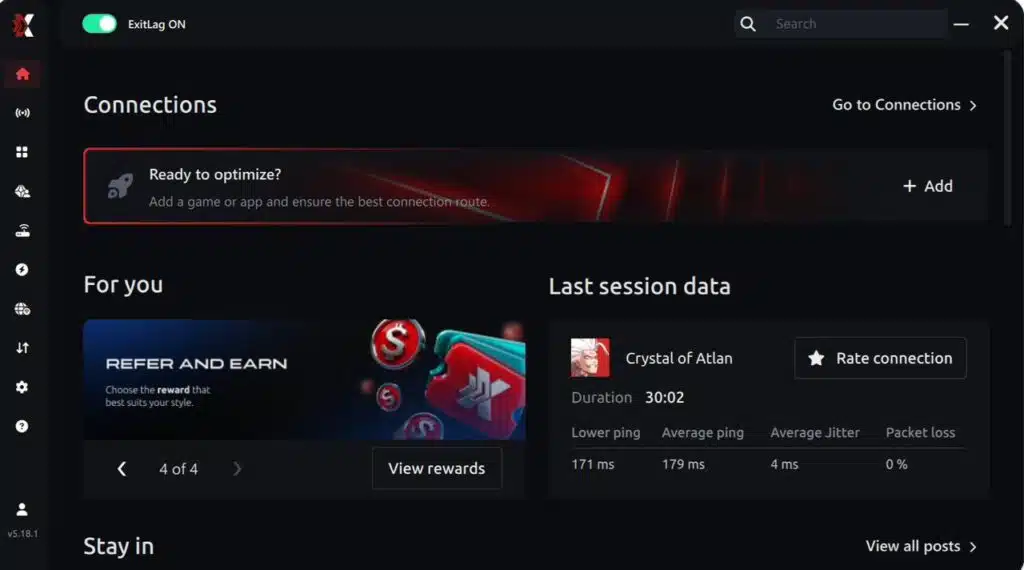
Step 3 – Search for “World of Warcraft”
Use the search bar inside ExitLag, type “World of Warcraft,” and select the correct game from the list.
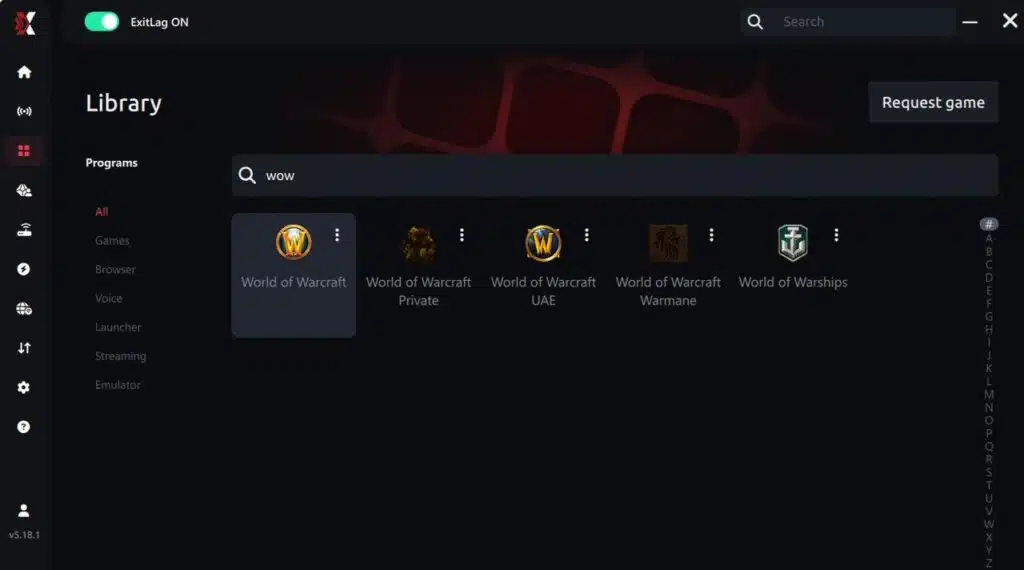
Step 4 – Choose between automated or manual routing
AI-optimized automated route
ExitLag can automatically select the best route using its AI-driven optimization system. It analyzes several connection paths in real time and picks the most efficient route for WoW, ensuring the lowest possible latency without requiring any manual setup.
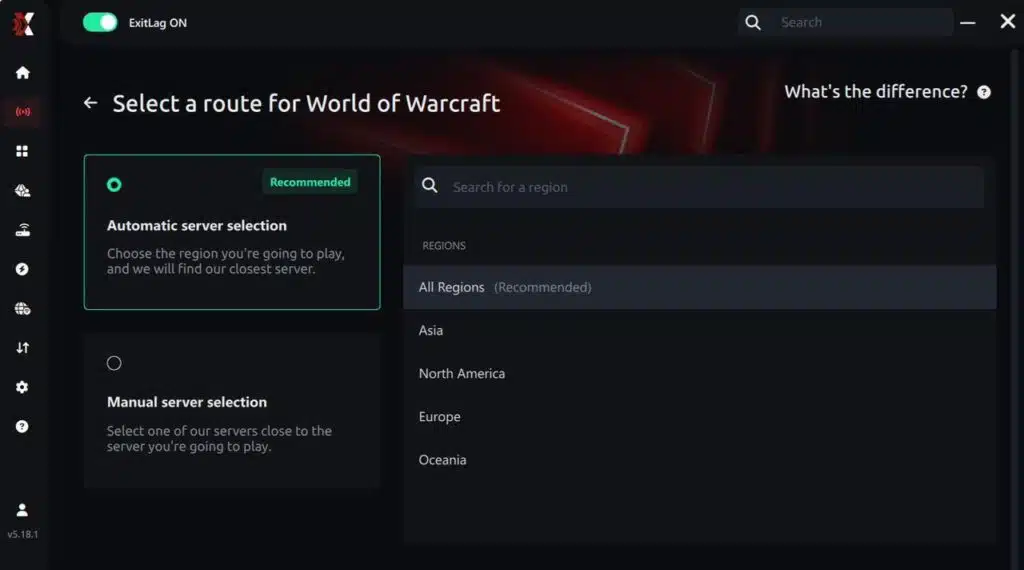
Manual route
If you prefer full control, you can manually choose a route based on the ping test results. Simply select the server that provides the lowest latency or the one that best suits your gameplay needs, whether you’re preparing for raids, arenas, or leveling.
Step 5 – Click “Apply routes”
Once you’ve selected your route, click the Apply button or the play icon. ExitLag will begin optimizing your connection.
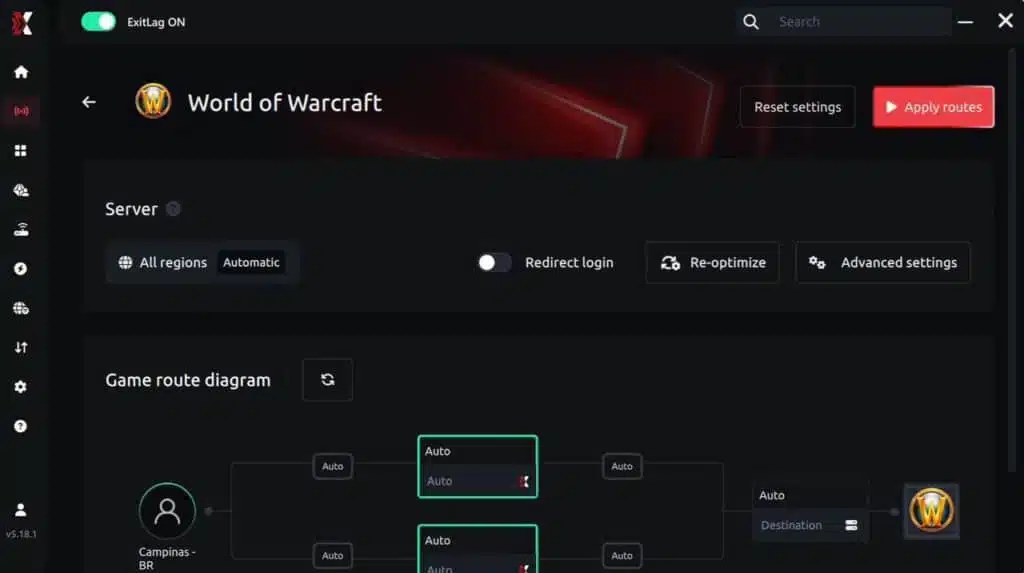
Step 6 – Wait a few seconds
Optimization completes within a few moments. You’ll see ping indicators displayed on the interface.
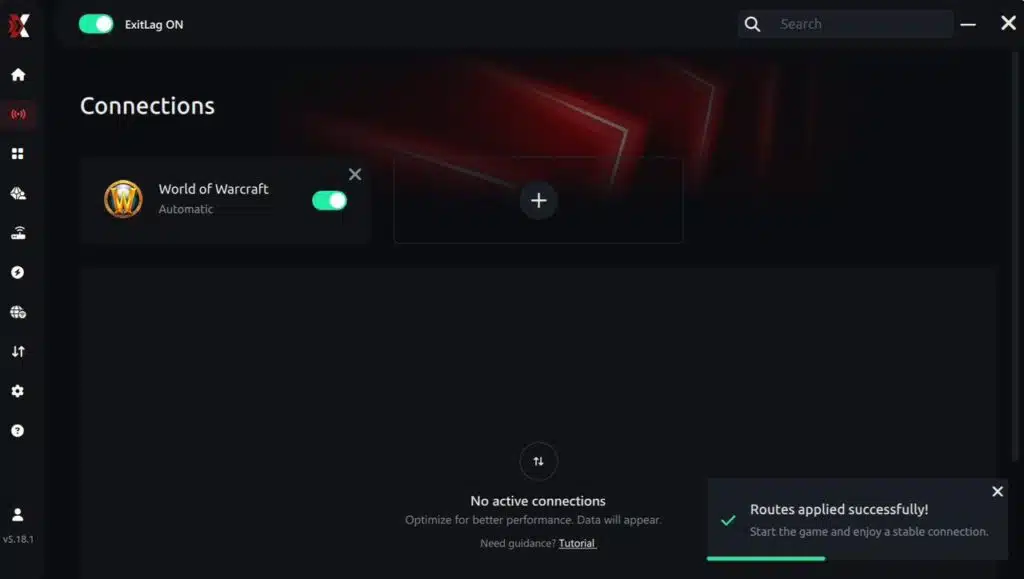
Step 7 – Launch World of Warcraft
Start WoW normally. ExitLag optimization will already be active.
ExitLag runs in the background while you play, continuously adjusting routes to maintain the best performance during raids, battlegrounds, dungeons, and open-world exploration.
How to use Ping for Games: step-by-step guide
Checking your connection quality before jumping into a raid, arena, or dungeon has never been easier. Here’s how to use ExitLag’s Ping for Games:
1. Open ExitLag
Make sure the application is installed and running on your PC. The feature is built into the platform and available for free to all users.
2. Access the Network Analyzer
In the ExitLag menu, open the Network Analyzer tool, where Ping for Games is located along with other network diagnostics.
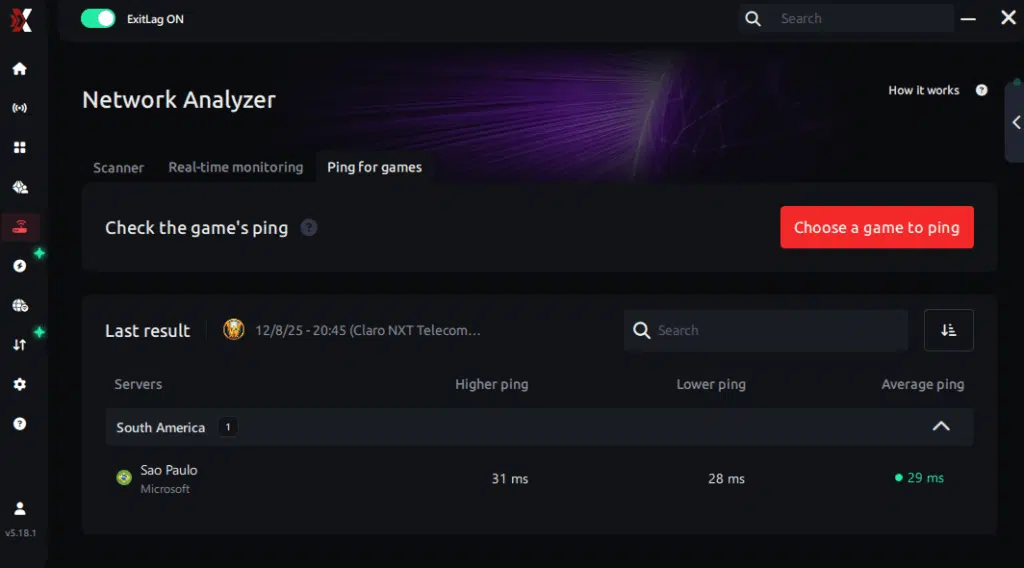
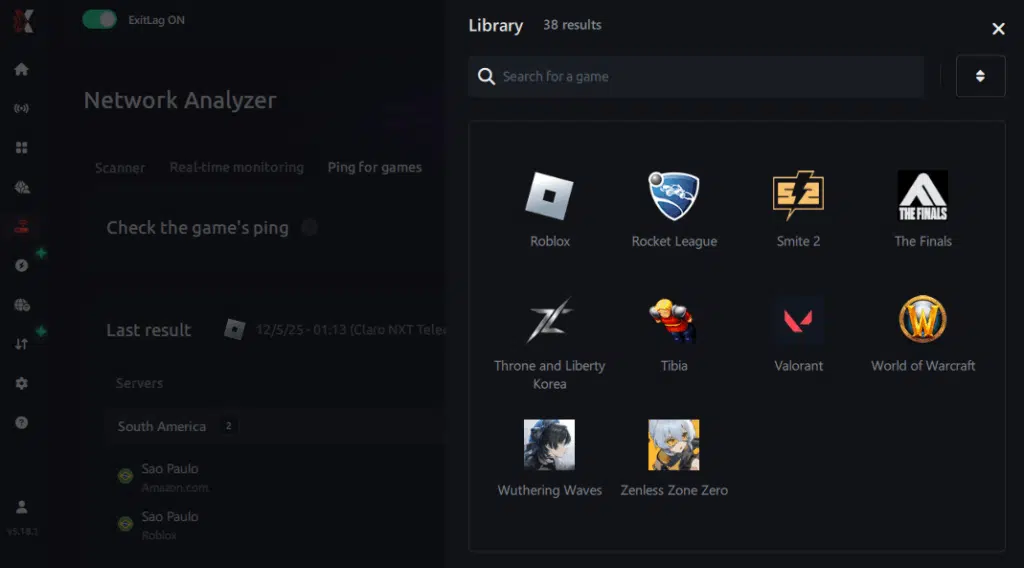
3. Select the game
Choose World of Warcraft from the list of supported games.
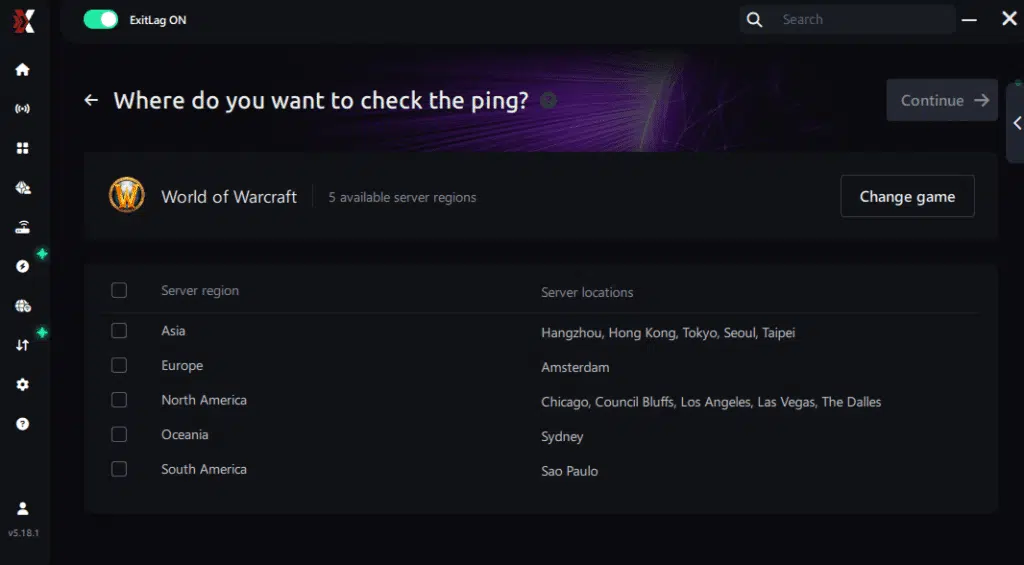
4. Choose the specific server
Ping for Games lets you directly select the exact server you want to test—such as NA, LATAM, OCE, or EU realms—providing far more accurate results than simply selecting a generic region.
5. Start the ping test
With one click, ExitLag measures real-time latency between your device and the selected server, taking your current connection (Wi-Fi or cable) into account.
6. Analyze the results
Your ping results appear in milliseconds, sorted automatically from best to worst. You can also switch to alphabetical order if you prefer.
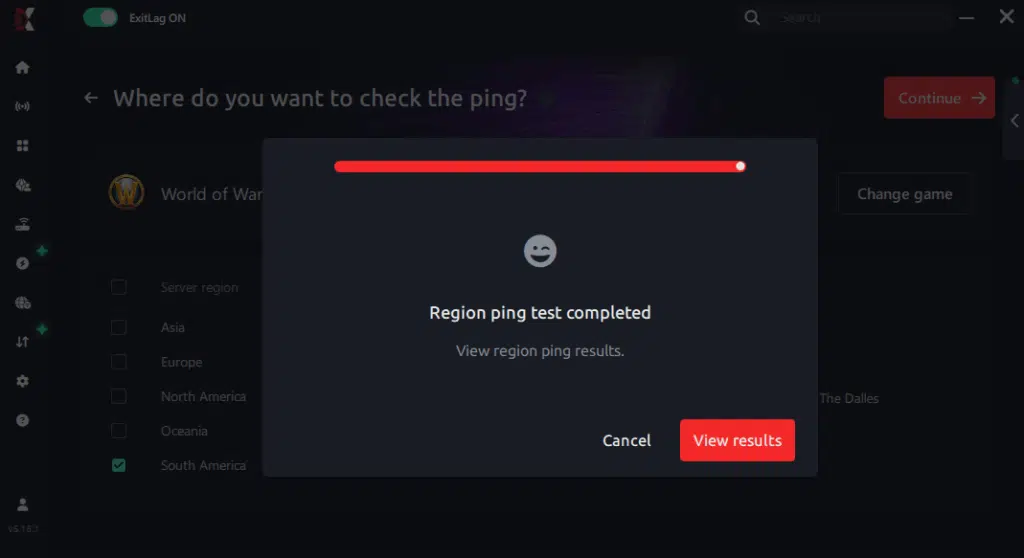
7. Choose the best server and start playing
Once you have the results, pick the server with the lowest latency and jump into the game with confidence that your connection is optimized.read.
Conclusion: maximize your FPS in World of Warcraft with ExitLag
If you’re chasing a real FPS boost in World of Warcraft, the goal is not only “higher average FPS.” The real win is stable frame time, fewer stutters, and consistent responsiveness—especially in raids, Mythic+, and PvP.

Summary of benefits
✅ Up to 60% more FPS stability in the situations that matter
✅ Reduced micro-stuttering
✅ More consistent frame pacing
✅ Lower input lag perception
✅ Better competitive feel
✅ Works alongside any hardware
Why ExitLag is the best solution
- gaming-focused routing optimization
- real stability improvements (not gimmicks)
- built for consistent performance
- and again: ExitLag IS NOT a VPN
Got questions or want to connect with other players? Join the conversation at the ExitLag Forum!



