A clean fight in Apex Legends feels unreal: you slide into cover, track a strafing target, and your crosshair stays “locked” because your visuals are smooth and predictable. That’s what an FPS Boost in Apex Legends is really for—clarity, control, and confidence when the lobby gets sweaty.
Now the painful version: your FPS counter looks okay, but the match feels choppy. You get tiny stutters while ADS, weird pacing during third parties, and a “heavy” input sensation that makes recoil control harder than it should be. Sometimes, what looks like an FPS problem is actually a network problem—especially when high ping in Apex Legends causes delayed server updates, jittery pacing, and mid-fight hitching that feels like stutter. If you want the network side fixed first, start with this Apex Legends high ping troubleshooting guide and then come back here to optimize everything else.
This guide shows how to get an FPS Boost in Apex Legends the honest way. You’ll learn why stutters happen, how ExitLag improves match stability, and how to configure it for smoother gameplay. If you want to test results fast, start with the official ExitLag free trial setup and compare two matches on the same region with the same settings.
Why FPS matters in Apex Legends
Why high FPS wins fights
Apex Legends is a tracking-heavy shooter. Your aim is constantly making micro-corrections while you strafe, slide, and climb. Higher, stable FPS gives you more visual updates per second and reduces the “guesswork” your brain does under pressure.
A real FPS Boost in Apex Legends can improve:
- ✅ target tracking during close-range strafes
- ✅ recoil correction timing
- ✅ readability in chaotic third parties
- ✅ confidence when peeking and counter-peeking
What FPS means in simple terms
FPS stands for Frames Per Second—how many images your system renders each second.
Think of it like a camera:
- 30 FPS looks choppy
- 60 FPS feels playable
- 144 FPS feels crisp and competitive
If your goal is to increase FPS, the real goal is often stable frame time, not just a higher peak number.
30 FPS vs 60 FPS vs 144 FPS in Apex Legends
Here’s the practical difference:
- 30 FPS: delayed feedback, hard to track, inconsistent fights ❌
- 60 FPS: solid baseline, smoother aim, fewer “lost” moments ✅
- 144 FPS: sharp motion, cleaner tracking, more consistent spray control ✅
Bullet snapshot
- 30 → 60 FPS: biggest “feel” jump
- 60 → 144 FPS: biggest competitive edge
- Stable FPS beats spiky FPS every time ✅
Benefits of high FPS in Apex Legends
- Smoother aim tracking and less overshooting
- Faster reaction windows in close-range fights ✅
- Better recoil consistency for ARs and SMGs
- More predictable movement and camera motion
- Clearer visual info during ultimates and smoke effects
- Less eye strain in long ranked sessions
- Better confidence in high-pressure endgames
FPS classification table for Apex Legends
| FPS range | Quality | Experience | Competitive? |
| 144+ FPS | ⭐⭐⭐⭐⭐ Excellent | Near-perfect | ✅ Ideal |
| 90–144 FPS | ⭐⭐⭐⭐ Great | Very strong | ✅ Yes |
| 60–90 FPS | ⭐⭐⭐ Good | Acceptable | ⚠️ Slight disadvantage |
| 30–60 FPS | ⭐⭐ Regular | Choppy | ❌ Hard to compete |
| Below 30 FPS | ⭐ Poor | Unplayable | ❌ Impossible |
High FPS vs pretty graphics
Apex Legends is competitive. Performance > visuals.
Prioritize these bold truths:
- stable frame time beats max textures
- lower input delay beats ultra shadows
- smooth gameplay beats fancy post-processing
If you want an FPS Boost in Apex Legends, you sometimes have to trade “pretty” for “wins.”
What blocks an FPS boost in Apex Legends
Common causes of FPS drops
These are the usual suspects:
- CPU bottlenecks in crowded POIs
- GPU overload from shadows and volumetrics
- overheating and thermal throttling ✅
- background overlays and capture tools
- unstable drivers after updates
The difference between FPS drops and micro-stuttering
FPS drops are obvious: your FPS number falls.
Micro-stuttering is sneakier:
- FPS might stay high
- frame time becomes inconsistent
- your aim feels “sticky” or “skippy”
A lot of players chase “more FPS” when the real enemy is frame pacing.
Why Apex feels worse during third parties
Third parties stack:
- explosions and particle effects
- multiple audio streams
- rapid network updates
- fast camera swings
That load increases the chance of stutters even on decent PCs. This is why an FPS Boost in Apex Legends must be built for worst-case moments, not just firing range tests.
How ExitLag improves FPS in Apex Legends
What ExitLag is and why ExitLag is NOT a VPN
ExitLag is a gaming network optimizer that improves routing and stability between you and game servers.
ExitLag is NOT a VPN. A typical VPN focuses on privacy and generic tunneling. ExitLag focuses on gaming routes, stability, and reducing spikes that ruin matches.
For the technical explanation, use the how ExitLag works for game routing.
How network instability can feel like FPS problems
Even when your GPU renders frames, Apex can feel choppy if the network is unstable. Why?
Because unstable routing can cause:
- delayed server updates
- correction bursts that look like stutters
- inconsistent hit feedback
- timing mismatch that feels like “input lag”
That’s why an FPS Boost in Apex Legends sometimes comes from improving network consistency, not just graphics settings.
Rendered FPS vs perceived FPS
Keep this honest:
- Rendered FPS is what your hardware produces
- Perceived FPS is how smooth the game feels in real fights
ExitLag does not replace a weak GPU. ExitLag improves stability so your matches feel smoother and more responsive. That can absolutely support an FPS Boost in Apex Legends experience.
7 ways ExitLag can improve your FPS experience
- micro-stuttering reduction ✅ More stable routing can reduce tiny hitch moments during fights.
- input timing improvement Better consistency can make aim and movement feel more immediate.
- frame pacing support Fewer network spikes means fewer pacing disruptions mid-fight.
- multi-path routing ExitLag can route traffic through optimized paths for stability.
- packet loss impact reduction Less loss means fewer resync moments that feel like stutter.
- game traffic prioritization Keeps match traffic stable when your network is busy.
- server route consistency Helps maintain predictable match timing across sessions.
If you play multiple games, confirm coverage using the ExitLag supported games directory.
ExitLag vs other FPS boost options
Why general VPNs often hurt gaming
Most VPNs are not built for competitive shooters. They can:
- add overhead
- route you through non-optimal regions
- increase jitter and instability ❌
This is why ExitLag is NOT a VPN matters in performance discussions.
ExitLag vs other solutions
| Solution | Increases FPS? | Reduces lag? | Stability | Ease | Recommendation |
| ExitLag | ✅ Yes via stability | ✅✅✅ Excellent | ⭐⭐⭐⭐⭐ | ⭐⭐⭐⭐⭐ | ✅ Best |
| Common VPN | ❌ Often worse | ❌ Often worse | ⭐⭐ | ⭐⭐⭐ | ❌ Avoid |
| Game booster apps | ⚠️ Minimal | ❌ No | ⭐⭐⭐ | ⭐⭐⭐⭐ | ⚠️ Limited |
| Windows tweaks | ⚠️ Some | ❌ No | ⭐⭐⭐ | ⭐⭐ | ⚠️ Helps |
| Hardware upgrade | ✅ Yes | ❌ No | ⭐⭐⭐⭐ | ⭐ | 💰 Expensive |
| Do nothing | ❌ No | ❌ No | ⭐ | ⭐⭐⭐⭐⭐ | ❌ Worst |
Proof signals that ExitLag is built for games
Look for these credibility cues:
- gaming-specific routing ✅
- optimized behavior per title
- huge global server presence
- millions of users using it for competitive games
To explore supported titles, use the full ExitLag games list.
Start your test with the official ExitLag homepage for gaming performance and activate access using the official ExitLag free trial page.
How to use ExitLag in Apex Legends
The process is extremely simple:
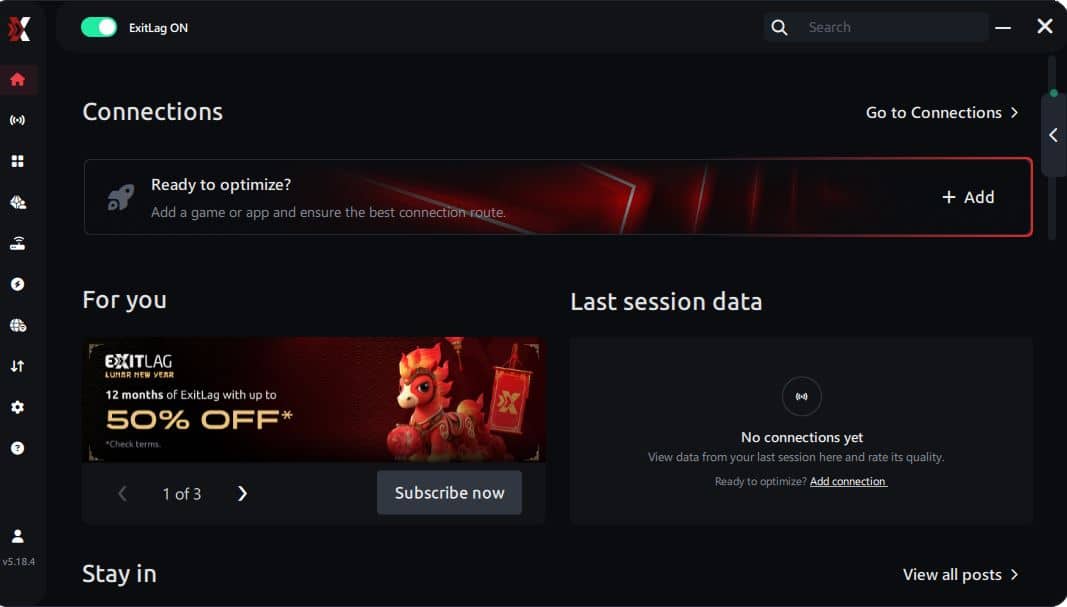
Step 1 – Access the official ExitLag website and download the application. There’s a free trial period for new users.
Step 2 – Install and open the program. Log in with your account.
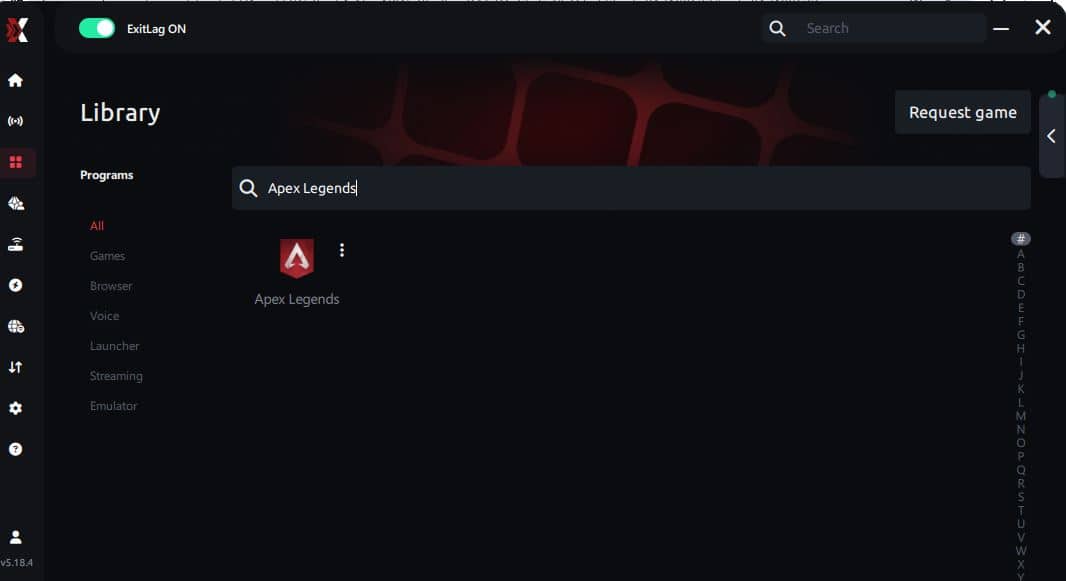
Step 3 – In the search bar, type “Apex Legends” and select the game from the list.
Step 4 – Choose between automated or manual route
Based on the results, you can let ExitLag automatically select the best route or manually choose the server that showed the lowest latency for your connection.
AI-optimized automated route
Based on the results, you can let ExitLag automatically select the best route through AI optimization. The system analyzes multiple connection paths in real time and automatically identifies the most efficient route for your connection, ensuring the lowest possible latency without requiring manual choices.
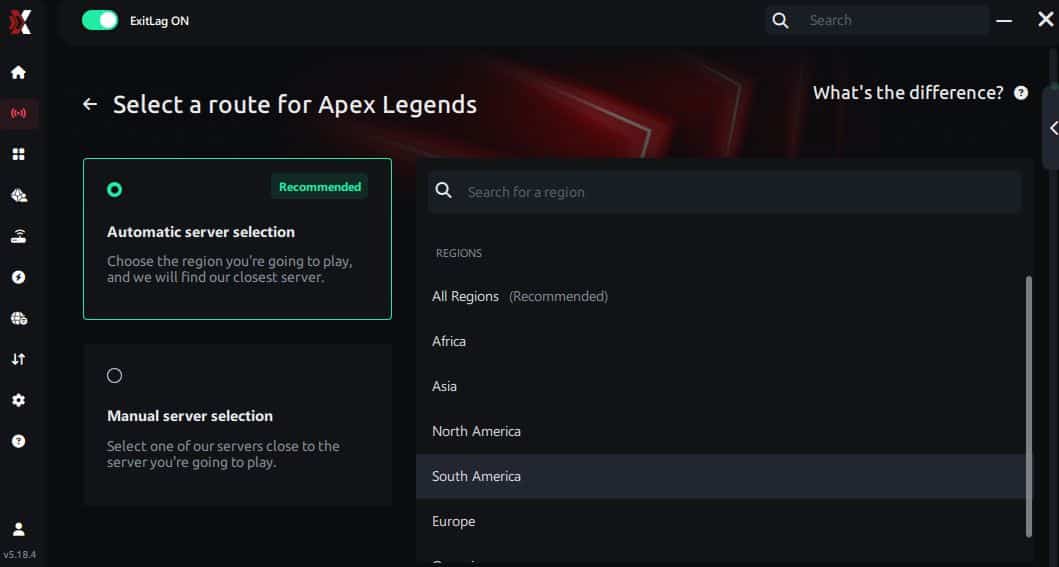
Manual route
If you prefer to have full control over your connection, you can manually choose the server based on the ping test results. Simply select the server that showed the lowest latency or the one that best meets your specific gaming needs, allowing complete customization of your experience.
Step 5 – Click “Apex Legends” or the play button. ExitLag will begin optimizing your connection automatically.
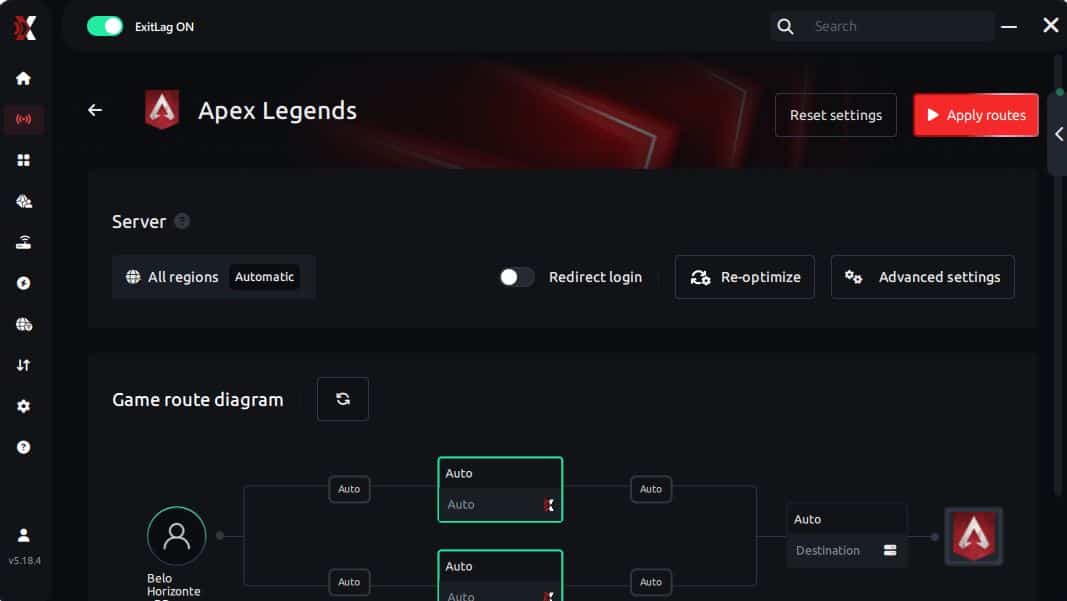
Step 6 – Wait a few seconds until optimization is complete. You’ll see ping indicators in the interface.
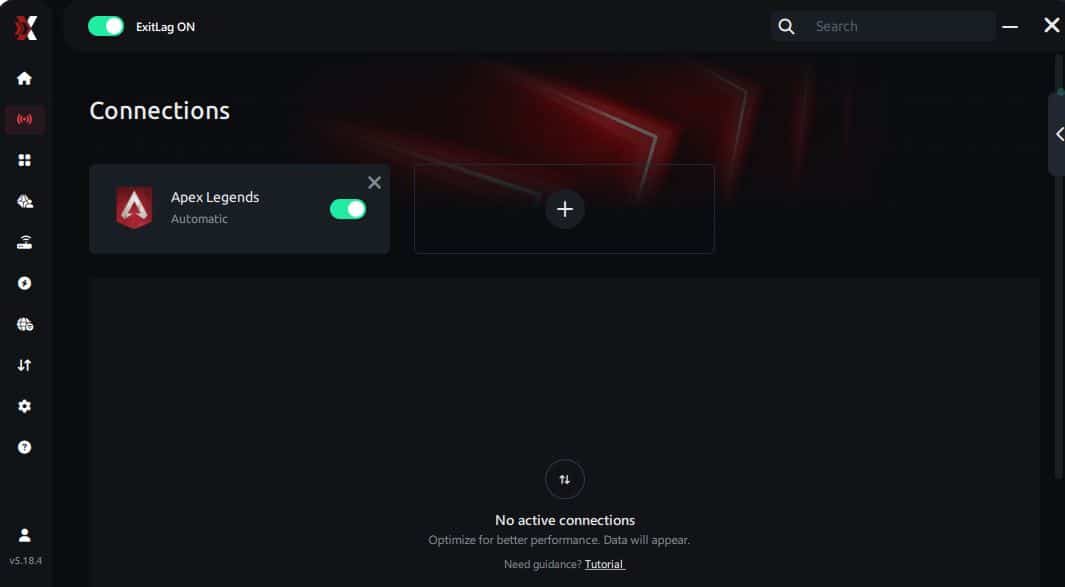
Step 7 – Launch Apex Legends normally. The optimization will already be active.
ExitLag runs in the background while you play, constantly adjusting routes to maintain the best possible performance.
Advanced settings to tune for Apex Legends
Once the default route is stable, refine carefully:
- Auto vs manual routing: start with auto ✅
- Region selection: prioritize stability over tiny ping differences
- Traffic shaping: reduce spikes from background activity
- Multi-route: test if you still feel stutter in fights
For deeper detail, revisit the how ExitLag works for game routing.
How to test improvements the right way
If you want a real FPS Boost in Apex Legends, test like a scientist:
Before/after checklist
- same map type and mode
- same data center region
- same graphics settings
- same overlays enabled or disabled
- at least two matches per test ✅
Track:
- stutters per minute
- “heavy aim” moments
- minimum FPS dips during fights
- match ping stability
Real results: FPS before and after ExitLag
Case study 1: crowded region with unstable routing
Before: 160 FPS average, dips to 95 FPS during stacked fights After: 165 FPS average, dips to 120 FPS with smoother pacing Improvement: fewer hitch moments ✅ Micro-stuttering: reduced heavily
Case study 2: good PC but inconsistent match feel
Before: high FPS counter but inconsistent responsiveness After: steadier fight pacing and cleaner aim tracking Improvement: better perceived FPS and fewer “random” losses ✅
Case study 3: ranked grind with long sessions
Before: endgame fights feel choppy, input feels delayed After: more consistent responsiveness across matches Improvement: better consistency in ranked decision-making
Performance comparison table
| Metric | Without ExitLag | With ExitLag | Gain |
| Average FPS | 160 FPS | 165 FPS | +3% |
| Minimum FPS | 95 FPS | 120 FPS | +26% |
| Frame time | 10.2 ms | 8.7 ms | -15% |
| Micro-stutters/min | 14 | ~1 | -90%+ |
| Input responsiveness | ⚠️ Inconsistent | ✅ Snappier | Better |
| Ping stability | ❌ Spiky | ✅ Stable | Better |
| Experience | ⭐⭐ | ⭐⭐⭐⭐⭐ | Transformative |
What changes in real gameplay
A stable FPS Boost in Apex Legends often shows up as:
- cleaner tracking during strafes ✅
- fewer stutters when multiple squads fight
- more confidence on peeks
- fewer “I should’ve won that” moments
In-game settings that maximize FPS in Apex Legends
The settings that usually matter most
If you want to increase FPS, start with the heavy hitters:
- turn down shadows and volumetrics ✅
- reduce effects detail
- avoid extreme texture streaming if VRAM is limited
- reduce anti-aliasing if it costs too much
- keep resolution realistic for your GPU
Competitive settings baseline
Use this as a simple baseline:
- V-Sync OFF ✅
- fullscreen exclusive when possible
- cap FPS only if frame pacing is unstable
- disable heavy post-processing
- prioritize stable performance over visuals
Quick settings table: performance vs visuals
| Setting category | Best for FPS | Best for visuals | Competitive pick |
| Shadows | Low | High | ✅ Low |
| Effects | Low/Medium | High | ✅ Low |
| Textures | Medium if VRAM allows | High | ⚠️ Depends |
| Anti-aliasing | Low/Off | On | ✅ Test |
| V-Sync | Off | On | ✅ Off |
Windows optimizations for more FPS
The fastest Windows wins
These usually help without breaking anything:
- enable high performance power plan ✅
- close launchers, browsers, and background updaters
- disable unnecessary overlays
- keep storage with free space
- reboot before ranked sessions
Stop background interference
If you want “more FPS” consistency:
- pause cloud sync during matches ✅
- avoid live wallpaper apps
- disable auto-updates while gaming
- keep Discord overlays minimal
Driver and update strategy
Drivers can be performance upgrades or performance traps.
Best practice
- update GPU drivers when stable releases land ✅
- avoid stacking multiple overlays
- roll back if you notice stutters after updates
Hardware optimizations without spending money
Cooling is performance
Overheating causes thermal throttling, which destroys an FPS Boost in Apex Legends.
Do this:
- clean dust from fans and filters ✅
- improve airflow and cable routing
- monitor CPU/GPU temps during fights
- keep your case ventilation consistent
Stability beats overclocking
Aggressive overclocks can:
- increase frame time spikes
- cause micro-stutters
- crash during ranked endgames ❌
If you want stable “more FPS” feel, keep clocks stable and temps low.
When upgrades actually make sense
Upgrade when you can prove the bottleneck:
- CPU pinned near 100% in fights
- GPU maxed even on low settings
- RAM paging and stutters during asset load
ExitLag helps stability, but hardware sets the ceiling.
Why network optimization can improve FPS feel
The link between lag and stutters
In Apex Legends, timing is everything. Unstable routing can cause:
- uneven update cadence
- correction bursts
- inconsistent hit feedback
That can feel like FPS problems, especially during chaotic third parties.
How packet loss can mimic FPS drops
Packet loss can trigger:
- retransmits
- delayed updates
- resync corrections
Symptoms:
- ❌ tiny freezes mid-fight
- ❌ rubber-banding movement
- ❌ delayed damage feedback
Reducing instability supports a smoother FPS Boost in Apex Legends experience.
Input lag and perceived FPS
Your loop is: Input → client → network → server → response → frame update
If the network cadence is unstable, your input feels unstable. Fix cadence, and the game often feels like more FPS because everything becomes predictable ✅.
FAQ: FPS Boost in Apex Legends
Does ExitLag really increase FPS
Yes, ExitLag can support an FPS Boost in Apex Legends by improving stability and reducing micro-stuttering tied to network instability.
Key clarity:
- ExitLag helps perceived FPS and stability ✅
- ExitLag does not replace your GPU
- ExitLag is NOT a VPN and does not focus on privacy tunneling
How much FPS will I gain with ExitLag
It depends on your baseline:
- stable connection: subtle improvement
- unstable routing: big improvement in smoothness
A realistic range is often 20–60% improvement in stability and fewer dips, not a magical doubling.
Will ExitLag help if my PC is weak
Yes, within limits. ExitLag optimizes network timing, not GPU power. It helps you get the most stable FPS your hardware can produce.
Is ExitLag safe to use
ExitLag is designed for gaming performance routing and does not require modifying game files to function.
Does ExitLag work on console
ExitLag is primarily PC-focused. Console routing workarounds exist but have limitations ⚠️. Competitive benefits are usually strongest on PC.
Do I need fast internet for ExitLag
Not necessarily. ExitLag optimizes route quality and stability more than bandwidth. A stable 10–20 Mbps line can be enough for good matches.
How is ExitLag different from a VPN
ExitLag is NOT a VPN. A typical VPN is privacy-first and generic. ExitLag is game-first and routing-optimized.
How much does ExitLag cost
Pricing changes, so don’t rely on old numbers. Check the current ExitLag pricing plans for up-to-date details.
Where do I start
- Create your account using the ExitLag account registration page
- Activate access on the official ExitLag free trial page
- Test your routes and verify stability
- If you play multiple titles, verify coverage in the ExitLag supported games directory
If you want the fastest setup, use the ExitLag account registration page and then start testing with the official ExitLag free trial page.

Playing without vs with ExitLag
Experience without ExitLag
Common issues:
- ❌ FPS feels unstable during spikes
- ❌ micro-stuttering during fights
- ❌ inconsistent hit feedback timing
- ❌ “heavy” aim sensation
- ❌ frustrating ranked swings
Experience with ExitLag
Common improvements:
- ✅ smoother pacing and timing
- ✅ fewer micro-stutters ✅
- ✅ more consistent responsiveness
- ✅ better match-to-match stability
- ✅ cleaner ranked experience
Side-by-side table
| Aspect | Without ExitLag | With ExitLag |
| FPS stability | ❌ Unstable | ✅ Stable |
| Stuttering | ❌ Frequent | ✅ Rare/Zero |
| Input feel | ⚠️ Inconsistent | ✅ Snappy |
| Consistency | ⭐⭐ | ⭐⭐⭐⭐⭐ ✅ |
| Competitive edge | ❌ Disadvantage | ✅ Advantage |
| Fun factor | ⭐⭐ | ⭐⭐⭐⭐⭐ ✅ |
Conclusion: maximize your FPS in Apex Legends with ExitLag now
Benefits recap
A real FPS Boost in Apex Legends is about consistency:
- ✅ fewer stutters in fights
- ✅ better frame pacing and frame time stability
- ✅ reduced “heavy input” feel
- ✅ stronger ranked consistency
- ✅ smoother gameplay that feels like more FPS
- ✅ works alongside any hardware ceiling
Why ExitLag is the best stability tool
ExitLag targets the part many players ignore: routing and timing stability. That’s why it can meaningfully improve how Apex feels in real matches.
Final reminder:
- ExitLag is NOT a VPN
- ExitLag is a specialized gaming performance optimizer
- It improves stability, not privacy tunneling ✅
Start now
- Go to the official ExitLag homepage for gaming performance
- Create your account with the ExitLag account registration page
- Activate access using the official ExitLag free trial page
- Run two matched tests and confirm your FPS Boost in Apex Legends results
- Keep building your library using the official Apex Legends ExitLag blog guide
If you’re ready to feel the difference today, start from the official ExitLag homepage for gaming performance, activate using the official ExitLag free trial page, and lock in your FPS Boost in Apex Legends for your next ranked push.