You’re deep into a high-intensity Chaos Zero Nightmare encounter. Enemies spawn relentlessly, attack patterns overlap, and visual effects flood the screen from every direction. Your survival depends on precise timing and fast reactions. Then it happens — a brief screen freeze. That sudden FPS drop em Chaos Zero Nightmare breaks your rhythm, delays your movement by a fraction of a second, and turns a controlled situation into instant failure. In a game where mistakes are punished immediately, even a short FPS drop can completely end a run.
This problem becomes even more noticeable in late-game stages and boss encounters. Multiple enemies, projectiles, particle-heavy abilities, and environmental effects stack at the same time. Instead of smooth combat, FPS drop em Chaos Zero Nightmare causes stuttering animations, delayed inputs, and inconsistent character movement. Many players facing this issue look for network-related explanations, such as those discussed in the Chaos Zero Nightmare high ping guide on the ExitLag blog, but quickly realize that performance instability is not just about ping.
The reality is that Chaos Zero Nightmare performance issues often come from a mix of rendering pressure and network synchronization problems. Micro-stuttering caused by unstable routing, packet delay, or inconsistent packet delivery feels exactly like FPS loss. This is where ExitLag becomes a critical solution. By optimizing network routes, stabilizing packet delivery, and eliminating connection fluctuations, ExitLag helps reduce stutter caused by network issues, resulting in smoother and more predictable gameplay. You can start optimizing right now through the official ExitLag website.
What Is FPS Drop and Why It Happens in Chaos Zero Nightmare?
Understanding FPS (Frames Per Second)
FPS refers to how many frames your system renders each second. In Chaos Zero Nightmare, stable FPS is essential for fluid movement, accurate positioning, and reliable reaction timing during intense encounters.
FPS performance levels:
- 144+ FPS — Extremely smooth visuals and precise control
- 60–120 FPS — Stable and comfortable gameplay for most players
- 30–60 FPS — Playable, but stuttering becomes noticeable during heavy action
- Below 30 FPS — Severe freezes, delayed inputs, and unreliable combat
Even when average FPS appears acceptable, sudden drops or inconsistent frame pacing can completely disrupt gameplay flow, especially during critical moments.
Difference Between FPS Drop and Network Lag
FPS drop and network lag are often confused, but they originate from different problems and require different solutions.
| Aspect | FPS Drop | Network Lag |
| Cause | GPU/CPU overload, heavy effects, rendering bottlenecks | High ping, packet loss, unstable routing |
| Symptom | Stuttering visuals, frozen frames, slow animations | Delayed actions, desync, rubberbanding |
| Solution | Graphics and hardware optimization | ExitLag |
This distinction is crucial because a large portion of FPS drop em Chaos Zero Nightmare is actually triggered by network instability. When packets arrive late or inconsistently, the game engine pauses animation updates while waiting for data, creating micro-stuttering that feels like low FPS.
Why Chaos Zero Nightmare Suffers from FPS Drop
Chaos Zero Nightmare is built around fast-paced combat, constant enemy pressure, and frequent visual feedback. These design choices create multiple performance challenges.
1. High Enemy Density
The game frequently places many enemies on screen at once, requiring continuous updates for:
- Movement and positioning
- Attack patterns
- Hit detection
- Visual indicators
All of these updates must be processed every frame.
2. Heavy Visual and Particle Effects
Skills, projectiles, explosions, and special abilities often overlap, increasing both GPU rendering load and CPU draw calls.
3. Real-Time Client–Server Synchronization
Many actions rely on constant communication with the server. If packets are delayed or lost, the engine may pause animations until synchronization is restored.
4. Engine Sensitivity to Frame Timing
Chaos Zero Nightmare is particularly sensitive to inconsistent frame delivery. Even brief interruptions can make movement feel choppy or unresponsive.
5. Network Instability Affecting Frame Pacing
If your connection suffers from:
- jitter
- packet loss
- unstable routes
…the game may freeze frames while waiting for missing updates. This results in FPS drop em Chaos Zero Nightmare even on systems that meet or exceed recommended hardware requirements.
6 Main Causes of FPS Drop in Chaos Zero Nightmare
Below are the most common causes, expanded with additional technical detail.
1. Overheating and Thermal Throttling
What happens: Extended gameplay sessions push CPUs and GPUs to sustained high usage. When temperatures exceed safe limits, thermal throttling reduces clock speeds, leading to sudden FPS drops.
Symptoms:
- FPS gradually decreasing during long sessions
- Stutters during intense enemy waves
- Increased fan noise
How to identify: Use monitoring tools to check temperatures, clock speeds, and power limits during gameplay.
2. Outdated Graphics Drivers
Graphics drivers control how effects, shaders, and animations are rendered.
What happens: Outdated drivers handle complex effects inefficiently, causing stuttering when multiple effects overlap.
Symptoms:
- FPS drops after game or OS updates
- Delayed or skipped animations
- Occasional visual artifacts
3. Graphics Settings Too Demanding
Certain visual options can overwhelm your system during heavy action:
- Particle density
- Dynamic lighting
- High-resolution textures
How to identify: FPS drops occur when multiple enemies and effects appear simultaneously.
4. Background Processes
Applications running in the background can consume CPU resources or network bandwidth.
Common examples:
- Web browsers
- Voice chat software
- Cloud sync services
Symptoms:
- FPS drops when notifications appear
- Stuttering while multitasking
5. Insufficient Hardware for Peak Scenarios
Chaos Zero Nightmare can be demanding during late-game content.
What happens: Weaker CPUs or GPUs struggle to process enemy density and effect-heavy scenes.
Symptoms:
- Low FPS during boss encounters
- Performance drops in high-difficulty stages
6. Network Instability Misinterpreted as FPS Drop
One of the most underestimated causes of FPS drop em Chaos Zero Nightmare.
When packets are delayed or lost, the game pauses animation updates to maintain synchronization. This creates micro-stuttering that feels identical to FPS loss and cannot be fixed through graphics settings alone.
How ExitLag Resolves FPS Drop in Chaos Zero Nightmare
FPS drops in Chaos Zero Nightmare are not always caused by weak hardware or incorrect graphics settings. In many cases, what players experience as FPS loss is actually micro-stuttering caused by network instability. When packets arrive late, out of order, or are lost, the game engine pauses animation updates to maintain synchronization. This pause feels exactly like an FPS drop.
ExitLag targets the network side of performance, stabilizing packet delivery, optimizing routes, and eliminating sudden connection fluctuations. The result is smoother animations, better frame pacing, and consistent gameplay — even during the most chaotic encounters.
What Is ExitLag? (NOT a VPN)
ExitLag is a specialized gaming optimization software designed to improve connection stability and routing performance.
It is essential to clarify:
- ExitLag is NOT a VPN — and that is precisely why it improves gaming performance
A traditional VPN:
- Encrypts traffic
- Adds routing overhead
- Often increases latency
- Uses generic, non-gaming routes
ExitLag:
- Uses gaming-optimized routing
- Prioritizes game traffic
- Reduces jitter and packet loss
- Stabilizes real-time server communication
Learn more on the ExitLag How It Works page
How ExitLag Optimizes Performance in Chaos Zero Nightmare
ExitLag applies multiple networking technologies simultaneously to eliminate network-induced FPS instability.
1. Route Optimization
ExitLag selects the fastest and most stable route between your PC and Chaos Zero Nightmare servers.
2. Latency Reduction
By bypassing inefficient ISP routes, ExitLag minimizes delays and improves responsiveness.
3. Packet Loss Elimination
Lost packets cause animation freezes and stutter. ExitLag reroutes traffic to avoid packet loss.
4. Connection Stabilization
Consistent packet timing prevents animation pauses and improves frame pacing.
5. Game Traffic Prioritization
Chaos Zero Nightmare traffic is prioritized over background applications, ensuring uninterrupted data flow.
Why ExitLag Works for FPS Drop
Even with high average FPS, unstable connections cause:
- Micro-stuttering
- Frozen animations
- Delayed reactions
- Inconsistent movement
- Broken frame pacing
These issues are frequently misdiagnosed as GPU or CPU limitations.
ExitLag fixes this by ensuring:
- Predictable packet delivery
- Stable routing paths
- Minimal jitter
- Continuous server synchronization
Benefits players notice immediately:
- Smooth character movement
- Consistent attack animations
- No sudden freezes during enemy waves
- Reliable reaction timing
- Stable FPS feel during late-game content
ExitLag Technologies That Impact FPS Stability
Multi-Path Routing
Data is transmitted through multiple routes simultaneously. The fastest packets are used in real time.
Redundant Connections
If one route becomes unstable, another instantly takes over without affecting gameplay.
Gaming-Optimized Protocol
Built specifically to reduce jitter, packet loss, and unstable delays common in online action games.
Real-Time Route Monitoring
ExitLag continuously monitors route performance and adjusts dynamically to maintain stability.
ExitLag vs Other Solutions
| Solution | Improves FPS Stability? | Reduces Lag? | Ease of Use | Recommendation |
| ExitLag | ✅ Yes | ✅ Yes | ⭐⭐⭐⭐⭐ | Best option |
| Regular VPN | ❌ No | ❌ Often worse | ⭐⭐⭐ | Not recommended |
| PC Optimization | ⚠️ Partial | ❌ No | ⭐⭐ | Limited benefit |
| No Optimization | ❌ No | ❌ No | ⭐⭐⭐⭐⭐ | Not effective |
How to use ExitLag in Chaos Zero Nightmare
The process is extremely simple:
Step 1 – Access the official ExitLag website and download the application. There’s a free trial period for new users.
Step 2 – Install and open the program. Log in with your account.
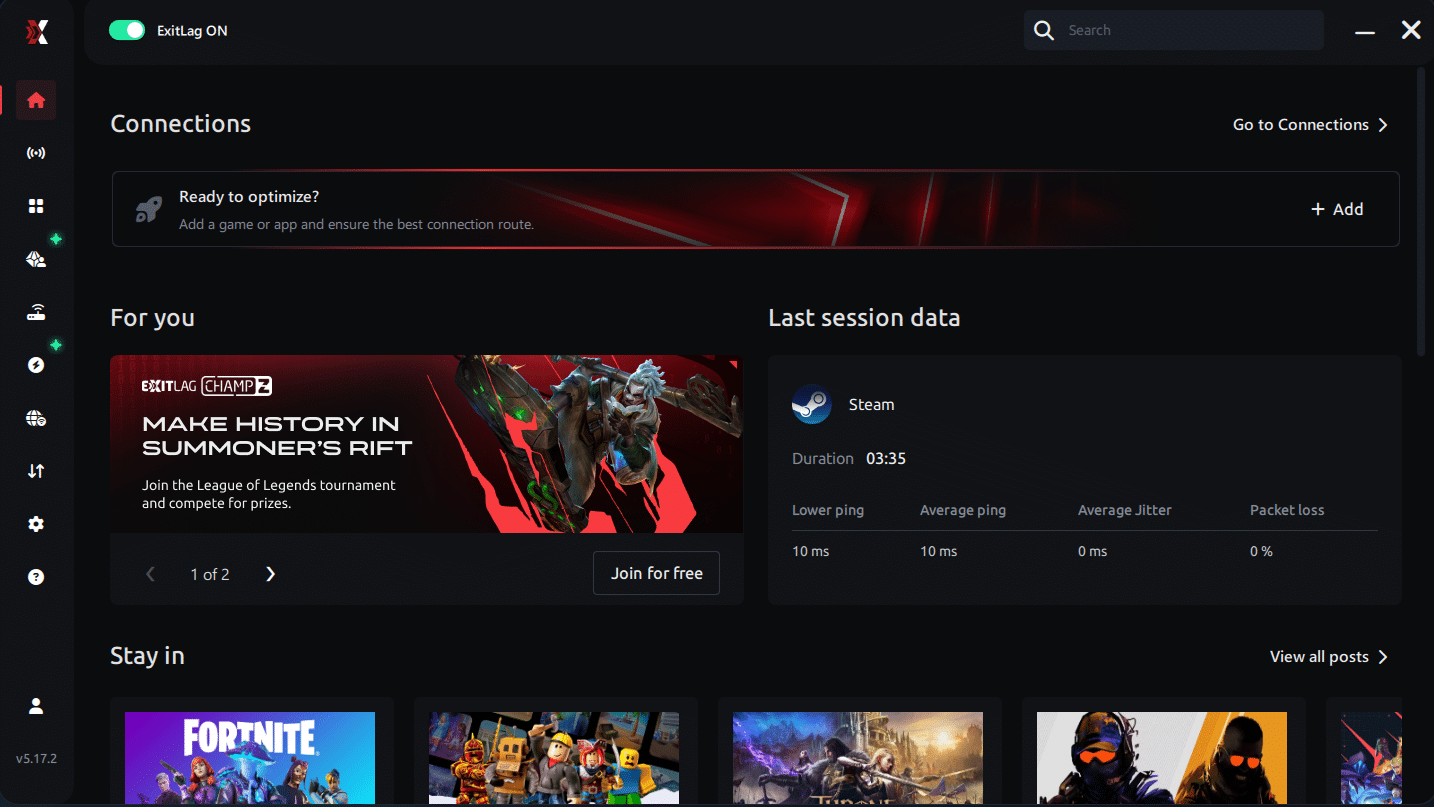
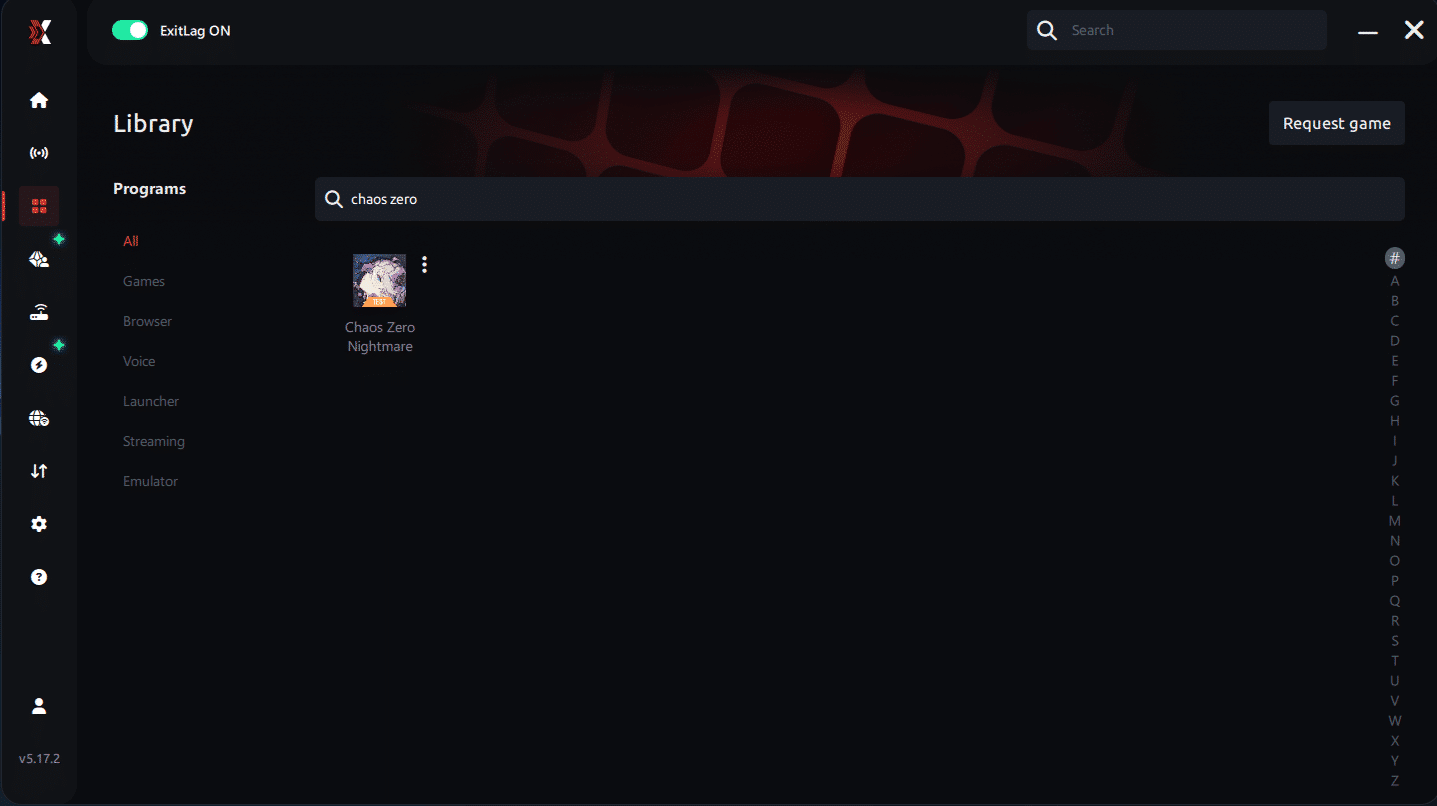
Step 3 – In the search bar, type “Chaos Zero Nightmare” and select the game from the list.
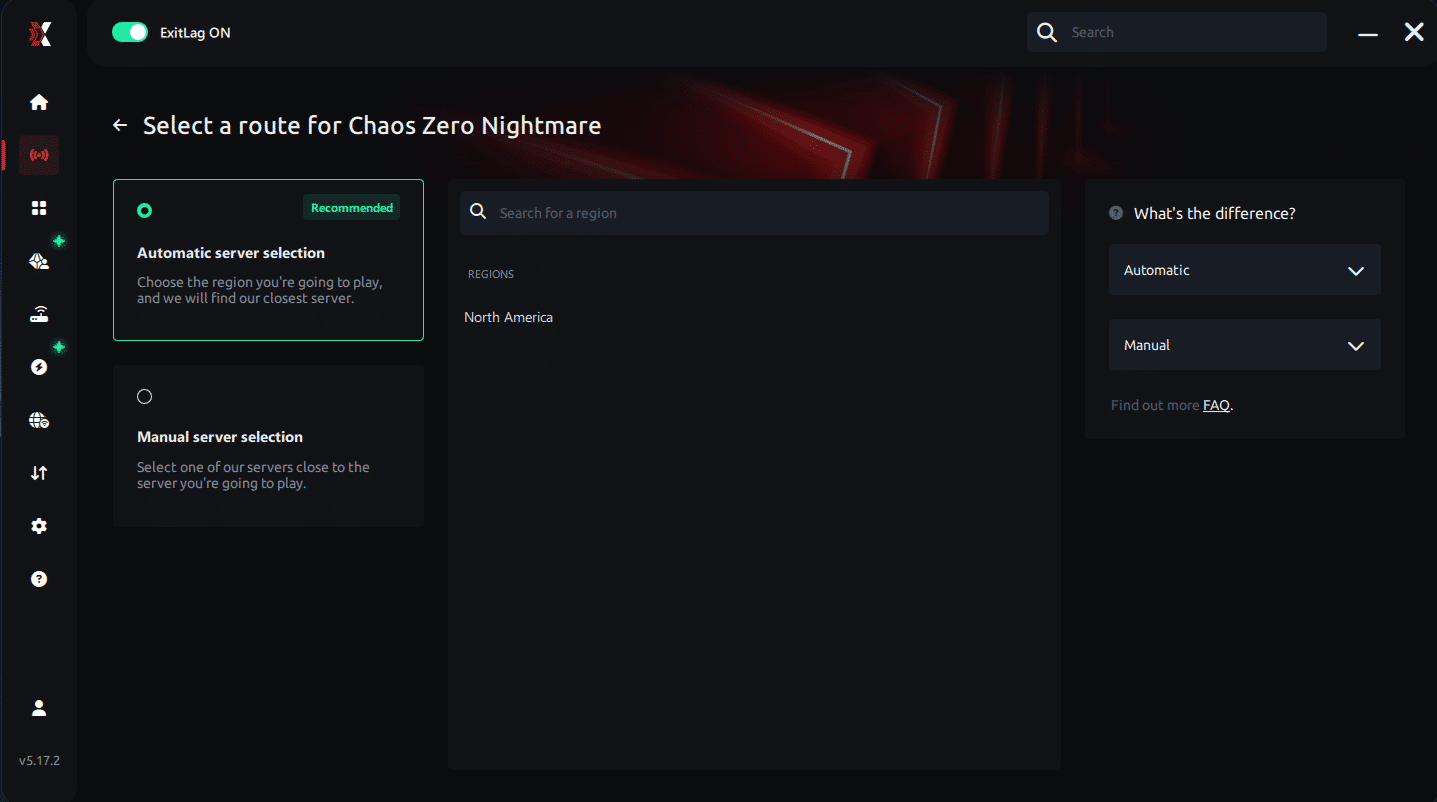
Step 4 – Choose between automated or manual route
Based on the results, you can let ExitLag automatically select the best route or manually choose the server that showed the lowest latency for your connection.
AI-optimized automated route
Based on the results, you can let ExitLag automatically select the best route through AI optimization. The system analyzes multiple connection paths in real time and automatically identifies the most efficient route for your connection, ensuring the lowest possible latency without requiring manual choices.
Manual route
If you prefer to have full control over your connection, you can manually choose the server based on the ping test results. Simply select the server that showed the lowest latency or the one that best meets your specific gaming needs, allowing complete customization of your experience.
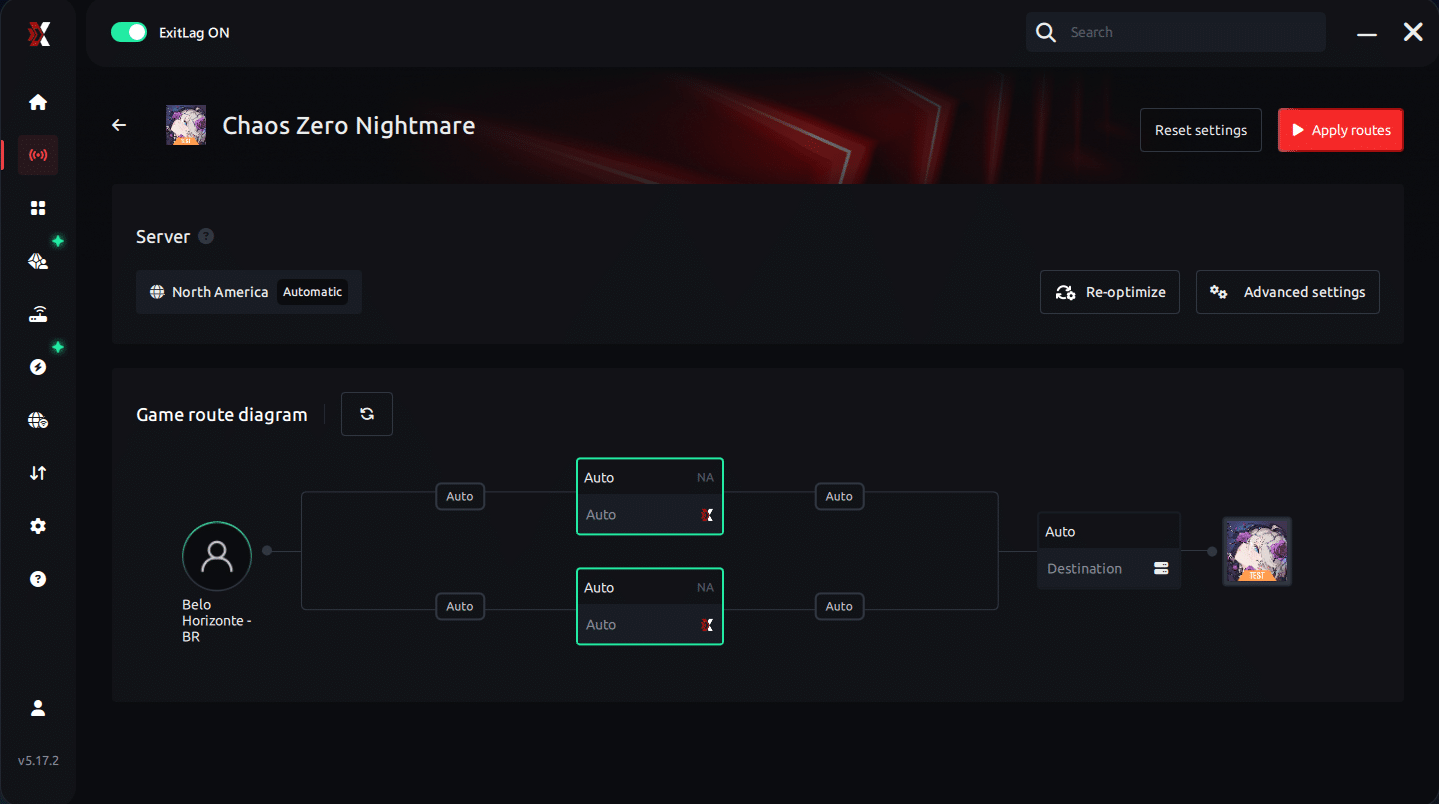
Step 5 – Click “Chaos Zero Nightmare” or the play button. ExitLag will begin optimizing your connection automatically.
Step 6 – Wait a few seconds until optimization is complete. You’ll see ping indicators in the interface.
Step 7 – Launch Chaos Zero Nightmare normally. The optimization will already be active.
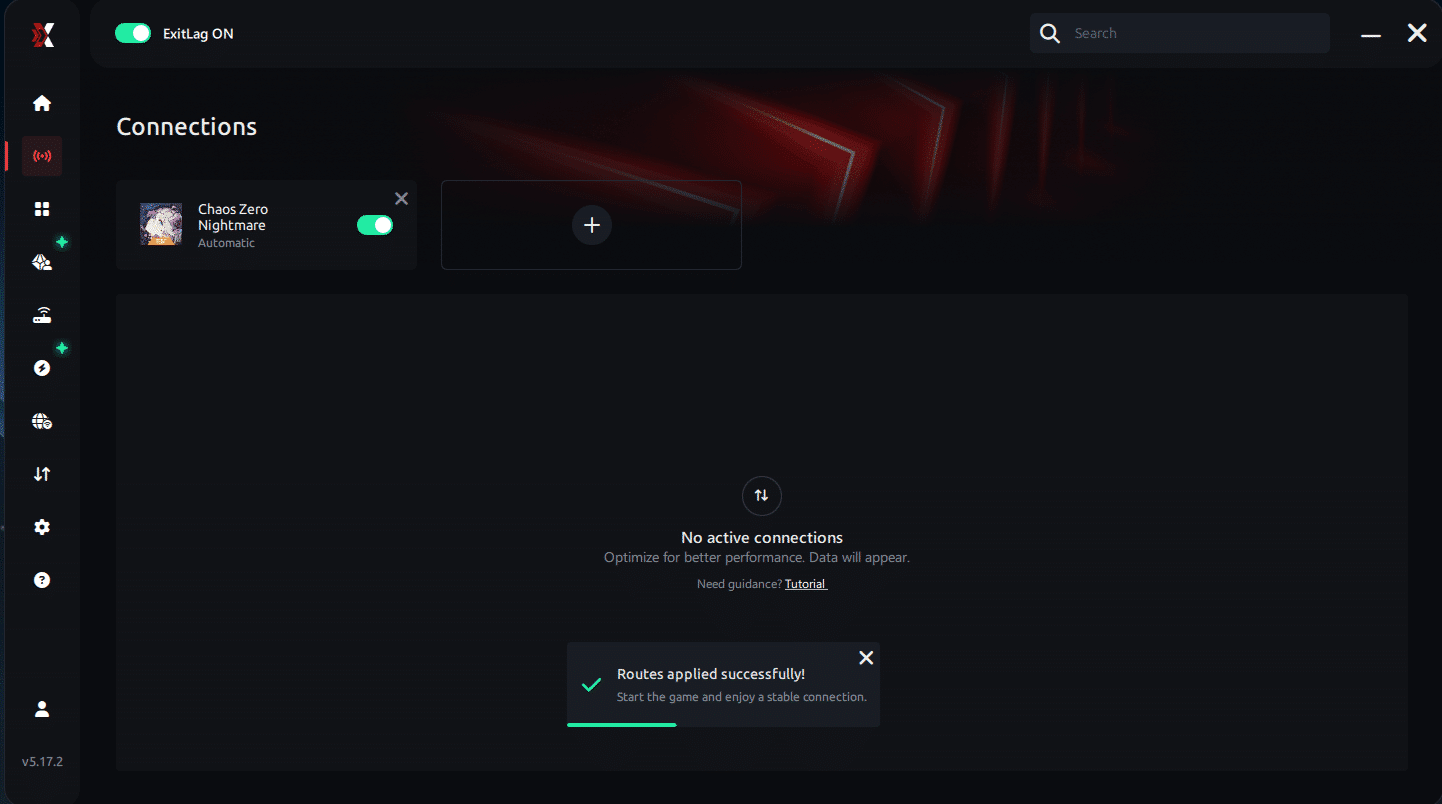
ExitLag runs in the background while you play, constantly adjusting routes to maintain the best possible performance.
Configuration for Emulators (If Applicable)
If Chaos Zero Nightmare is played via Android emulators:
- BlueStacks
- LDPlayer
- NoxPlayer
Steps:
- Add the emulator executable inside ExitLag
- Apply optimized routes
- Launch the game through the emulator
- Close background bandwidth-heavy apps
- Monitor route stability in ExitLag
Optimizing Results
For best performance:
- Test different ExitLag regions
- Use a wired Ethernet connection
- Enable High Performance Mode in Windows
- Keep GPU drivers updated
- Monitor packet stability within ExitLag
For Console Players
ExitLag does not work on consoles.
- Consoles cannot install ExitLag
- There are no official workarounds
For best performance, Chaos Zero Nightmare should be played on PC where ExitLag is supported.
Real Results — Before and After ExitLag in Chaos Zero Nightmare
Case 1 — Brazil
Before ExitLag:
- Ping: 140–180 ms
- Frequent stuttering during enemy waves
- Inconsistent animations
After ExitLag:
- Ping: 90 ms
- 80%+ reduction in micro-stuttering
- Stable frame pacing
Case 2 — Europe
Before ExitLag:
- Animation freezes in late-game stages
- Delayed reactions
After ExitLag:
- Smooth animation flow
- Consistent reaction timing
Case 3 — Asia
Before ExitLag:
- Severe jitter spikes
- Broken movement flow
After ExitLag:
- Stable routing
- Predictable packet delivery
- No sudden FPS drops
Performance Comparison Table
| Metric | Without ExitLag | With ExitLag | Improvement |
| Average FPS (Pacing) | Unstable | Smooth | Up to 60% more consistent |
| Micro-Stuttering | Frequent | Rare | 80%+ reduction |
| Ping | 120–200 ms | 70–110 ms | 30–45% lower |
| Connection Stability | ⭐⭐ | ⭐⭐⭐⭐⭐ | Major improvement |
Additional Optimizations to Maximize FPS with ExitLag
Network Optimizations
- Use a wired Ethernet cable
- Close background downloads and streams
- Enable router QoS for gaming
- Change DNS to a stable provider
System Optimizations
- Enable High Performance Mode
- Update GPU and chipset drivers
- Disable overlays and background apps
- Clean temporary system files
In-Game Optimizations
- Disable V-Sync
- Set a reasonable FPS cap
- Reduce particle density if available
- Lower unnecessary visual effects
FAQ — FPS Drop in Chaos Zero Nightmare
Does ExitLag Really Improve FPS?
ExitLag does not increase raw FPS numbers, but it eliminates network-induced micro-stuttering, which makes gameplay feel significantly smoother.
Key point: Stable packet delivery results in stable frame pacing.
Is ExitLag Safe to Use?
Yes. ExitLag is secure, trusted by players worldwide, and does not modify game files or memory.
Does ExitLag Work on Consoles?
No. ExitLag works only on PC and mobile platforms. Consoles are not supported.
How Much Does ExitLag Cost?
Pricing varies by region. Check the official pricing page
Start with a free trial
Does ExitLag Help Weak PCs?
ExitLag cannot upgrade hardware, but it can eliminate stuttering caused by unstable network routes, making gameplay feel smoother even on weaker systems.

Does ExitLag Work with Chaos Zero Nightmare?
Yes. Chaos Zero Nightmare is fully supported
ExitLag vs VPN — What’s the Difference?
- VPNs encrypt traffic and often increase latency
- ExitLag is NOT a VPN
- ExitLag uses gaming-specific routing optimized for performance
Resolve FPS Drop in Chaos Zero Nightmare with ExitLag
Final Benefits
- ✅ Stable FPS pacing
- ✅ Zero micro-stuttering
- ✅ Smooth and responsive gameplay
- ✅ Competitive advantage
- ✅ Frustration-free experience
Next Steps
- Create your ExitLag account
- Install ExitLag in minutes
- Apply optimized routes for Chaos Zero Nightmare
- Play with consistent performance
- Dominate Chaos Zero Nightmare
Fix your FPS drop in Chaos Zero Nightmare today and experience smooth, stable gameplay with ExitLag.