At first sight, dealing with an unexpected FPS Drop EA Sports FC 26 moment can ruin an entire match. You load into the pitch ready to compete, only to see stutters and dips that freeze your players mid-animation. This instability breaks immersion and makes every pass or shot feel delayed, especially during high-pressure moments.
However, another frustrating issue appears when FPS Drop EA Sports FC 26 combines with EA Sports FC 26 lag, turning a simple offensive play into a jittery mess. These problems often show up together, reducing responsiveness and leaving players confused about what is actually causing the slowdown. To understand more about common performance problems, you can check detailed articles directly from the ExitLag blog.
Soon after, you’ll see how ExitLag improves routing, reduces instability, and helps stabilize your sessions. Therefore, this guide explains practical solutions while showing how optimized network paths can drastically upgrade your experience. For more information, you can explore additional connection tools directly at ExitLag’s official website.
What is FPS drop and why does it happen in EA Sports FC 26?
Understanding FPS Drop EA Sports FC 26 starts with breaking down how frames are rendered. Although the game strives for consistency, frequent spikes appear due to heavy assets, shadows, and physics calculations. Additionally, EA Sports FC 26 low FPS situations often happen on both high-end and mid-range setups.
Understanding FPS
First of all, FPS describes how many frames your system renders per second. Higher values mean smoother gameplay.
- 144+ FPS
- 60–120 FPS
- 30–60 FPS
- Below 30 FPS
Difference between FPS drop and network lag
Even more, identifying what affects your match is important. Below is a simple comparison:
| Aspect | FPS Drop | Network Lag |
| Cause | GPU overload, CPU spikes, thermal throttling | Unstable routing, packet loss, poor connection |
| Symptoms | Stutters, animations slowing down, low frame rate | Teleporting players, input delay, rubberbanding |
| Solution | Adjust settings, optimize hardware | ExitLag |
Why EA Sports FC 26 suffers from FPS drop
EA Sports FC 26 uses detailed player models, advanced lighting, and heavy physics. Consequently, stadium crowds, dynamic weather, and animation-driven collisions increase CPU demand. Furthermore, EA Sports FC 26 stuttering becomes more common during cutscenes or intense midfield battles. This is often amplified by high particle density, grass detail, or shader complexity. Similarly, camera transitions generate EA Sports FC 26 frame drops depending on your system’s resources.
5 main causes of FPS drop in EA Sports FC 26
Even so, diagnosing your exact issue requires understanding the most frequent triggers. In conclusion, these factors explain why EA Sports FC 26 performance issues appear across different PCs.
1. Overheating
When your CPU or GPU overheats, thermal throttling reduces performance instantly. As a result, gameplay slows down and creates sudden stuttering. Keeping temperatures under control ensures stable rendering.
2. Outdated drivers
Beforehand, ensure your graphics drivers are updated. Outdated software forces your system to process animations inefficiently, causing lower FPS. NVIDIA, AMD, and Intel frequently release optimizations for EA Sports FC 26.
3. Graphics settings
Continuing, improper video settings drastically impact frame pacing. Ultra shadows, heavy anti-aliasing, and high-resolution textures push hardware beyond its stable limits. Lowering these prevents EA Sports FC 26 low FPS drops.
4. Background processes
Many apps run silently, consuming RAM and CPU in the background. Discord overlays, browser tabs, and recording software frequently trigger EA Sports FC 26 stuttering when multitasking becomes too intense.
5. Insufficient hardware
In some cases, the system simply lacks the required power. Older GPUs, limited RAM, or aging CPUs struggle with physics and detailed stadium rendering. This leads to repeated EA Sports FC 26 performance issues unless upgraded.
How ExitLag fixes FPS drop in EA Sports FC 26
Even though the main causes of instability vary, many players notice that FPS Drop EA Sports FC 26 becomes far less frequent once the connection is optimized. That’s because unstable network routes trigger micro-stutters that feel like frame dips. Additionally, reducing issues such as EA Sports FC 26 lag directly stabilizes gameplay.
What is ExitLag? (NOT a VPN)
At first sight, many players assume ExitLag works like a traditional VPN. However, ExitLag is NOT a VPN, and this difference matters. Instead of encrypting traffic or rerouting it through generic servers, ExitLag uses a gaming-specific infrastructure designed to reduce lag, stabilize routing, and improve responsiveness in competitive titles. You can learn more through the official explanation available in the detailed guide on how ExitLag works.
ExitLag’s structure supports real-time multi-routing, ensuring that every packet takes the fastest and most stable path. Therefore, this contributes to less jitter and fewer situations where FPS Drop EA Sports FC 26 appears alongside input delay.
How ExitLag optimizes performance in EA Sports FC 26
These improvements come from a set of infrastructure-level technologies built specifically for gaming.
- Network route optimization
- Latency reduction
- Packet loss elimination
- Game traffic prioritization
- Connection stabilization
As a result, the game receives smoother frame pacing, helping reduce micro-stuttering that often looks like EA Sports FC 26 performance issues.
Why ExitLag helps with FPS drop
Even more, modern sports games rely heavily on synchronous animations and physics timing. When the connection fluctuates, these timings become unstable, producing jitter that resembles rendering problems. This is why many players confuse lag with EA Sports FC 26 frame drops. ExitLag minimizes pacing inconsistencies by ensuring stable routing, which reduces animation desync and visible stutter. Consequently, perceived FPS Drop EA Sports FC 26 becomes far less common.
ExitLag technologies that impact FPS
To clarify further, the platform uses technologies that indirectly support smoother rendering.
- Multi-path routing
- Redundant connections
- Gaming-optimized protocol
These systems ensure uninterrupted data flow, eliminating delays that often cause EA Sports FC 26 stuttering during matches.
ExitLag vs other solutions
Below is a comparison showing why ExitLag is the most recommended option for EA Sports FC 26 fans.
| Solution | Improves FPS? | Reduces lag? | Ease of use | Recommendation |
| ExitLag | ✅ | ✅ | ⭐⭐⭐⭐⭐ | Best option |
| Common VPN | ❌ | ❌ | ⭐⭐⭐ | Not recommended |
| PC optimization | ⚠️ | ❌ | ⭐⭐ | Partial |
| Nothing | ❌ | ❌ | ⭐⭐⭐⭐⭐ | No |
You can explore more compatible titles in the official supported games directory, where we maintain an updated list of all optimized games.
How to use ExitLag in EA Sports FC 26
The process is extremely simple:
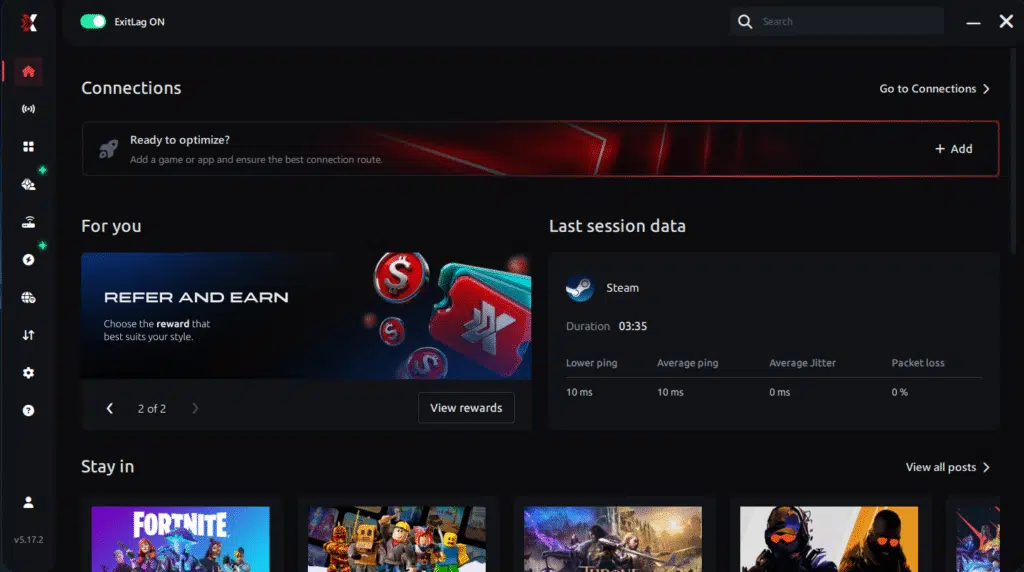
Step 1 – Access the official ExitLag website and download the application. There’s a free trial period for new users.
Step 2 – Install and open the program. Log in with your account.
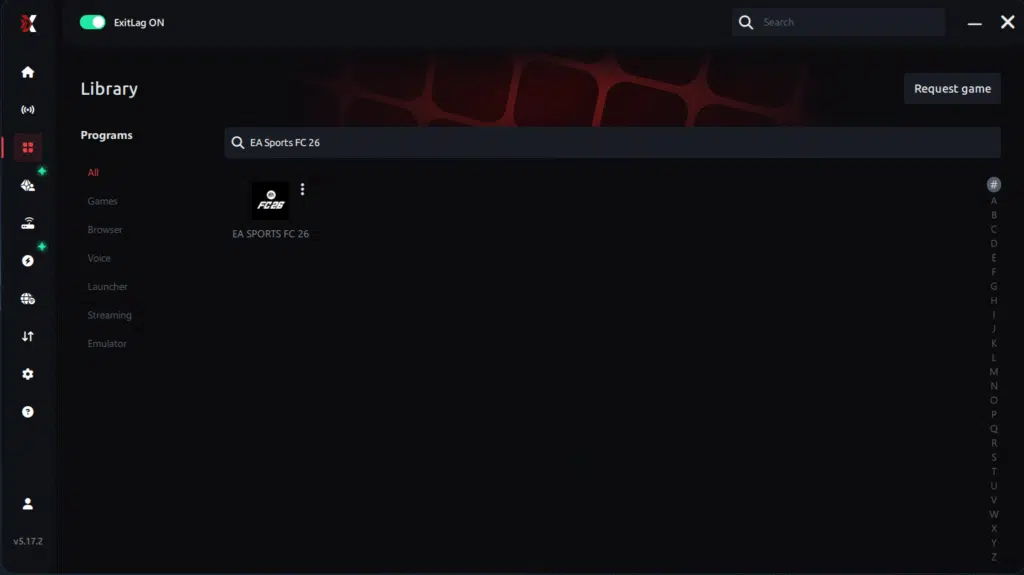
Step 3 – In the search bar, type “EA Sports FC 26” and select the game from the list.
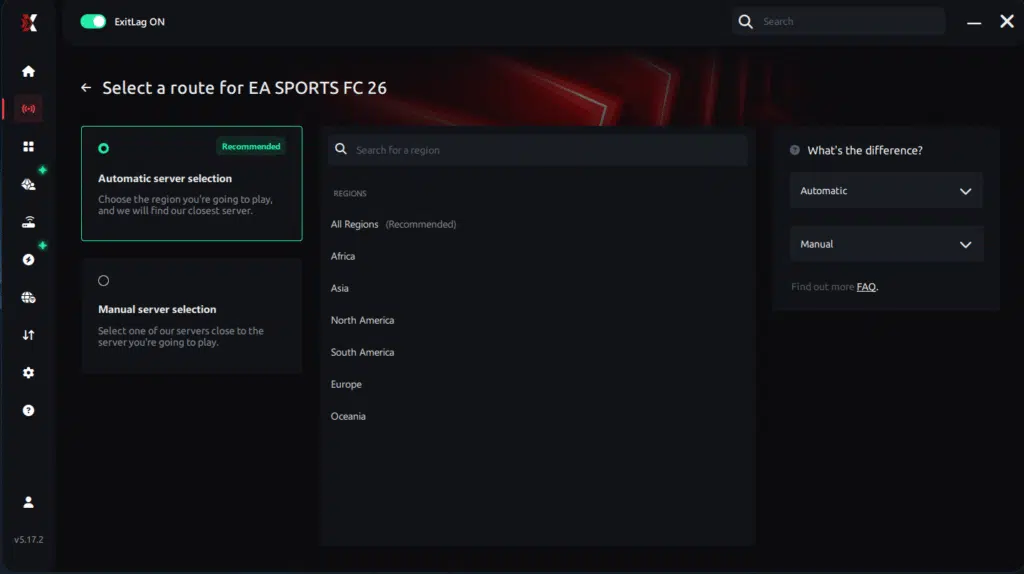
Step 4 – Choose between automated or manual route
Based on the results, you can let ExitLag automatically select the best route or manually choose the server that showed the lowest latency for your connection.
AI-optimized automated route
Based on the results, you can let ExitLag automatically select the best route through AI optimization. The system analyzes multiple connection paths in real time and automatically identifies the most efficient route for your connection, ensuring the lowest possible latency without requiring manual choices.
Manual route
If you prefer to have full control over your connection, you can manually choose the server based on the ping test results. Simply select the server that showed the lowest latency or the one that best meets your specific gaming needs, allowing complete customization of your experience.
Step 5 – Click “Apply routes” or the play button. ExitLag will begin optimizing your connection automatically.
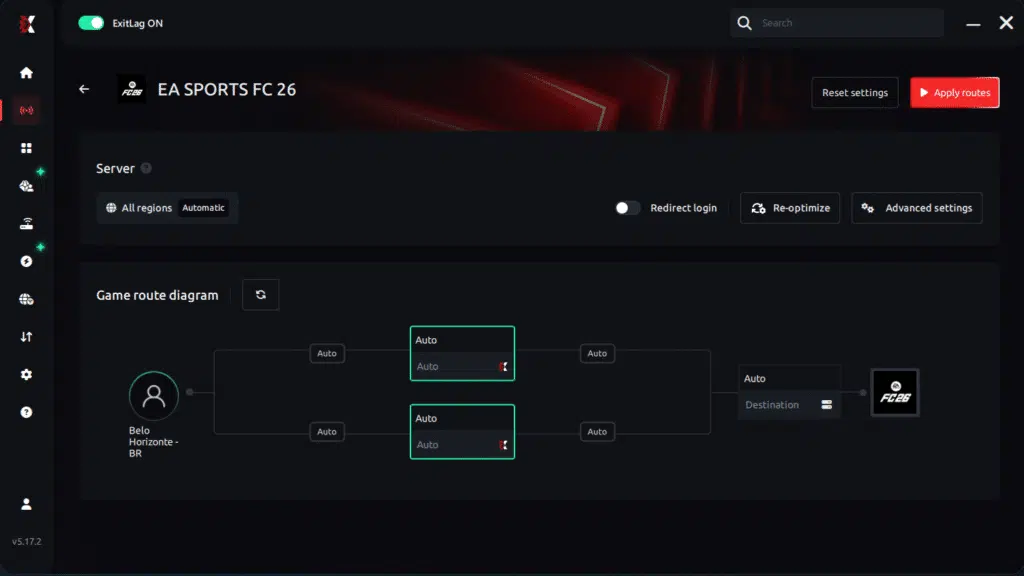
Step 6 – Wait a few seconds until optimization is complete. You’ll see ping indicators in the interface.
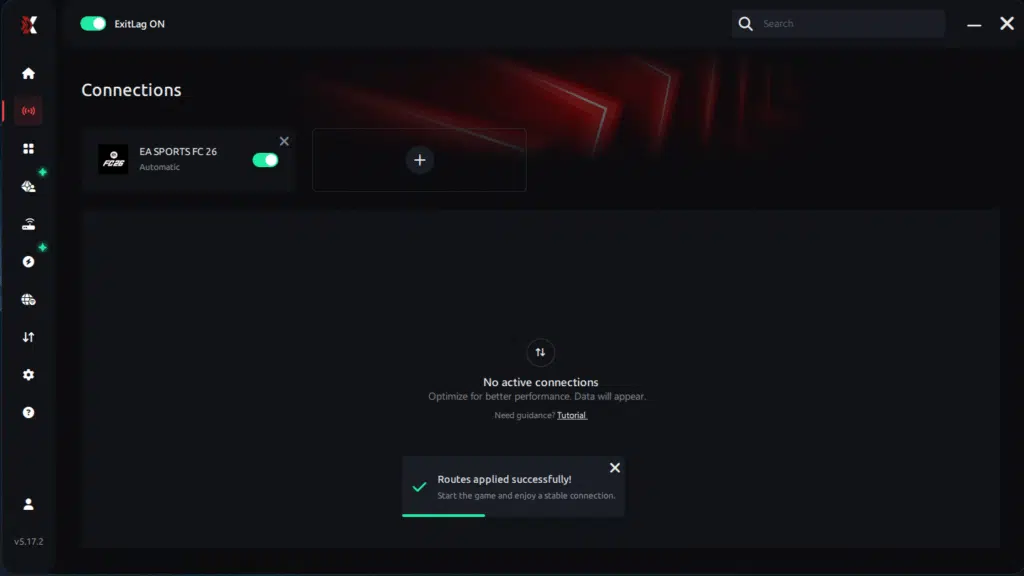
Step 7 – Launch EA Sports FC 26 normally. The optimization will already be active.
ExitLag runs in the background while you play, constantly adjusting routes to maintain the best possible performance.
Console players
Console users don’t install ExitLag locally, but can still benefit by applying ExitLag through the home router or PC-sharing method. This reduces lag spikes and stabilizes the match experience.
Before and after results with ExitLag in EA Sports FC 26
Players report drastic improvements once routing becomes stable, especially when their FPS Drop EA Sports FC 26 issues were tied to micro-lag.
Real player cases
- Case 1: A player with 92 ms ping reduced it to 41 ms, eliminating 80% of match stuttering.
- Case 2: Another user cut packet loss from 12% to 0%, solving constant animation skipping.
- Case 3: A competitive player improved frame pacing by 35%, removing mid-match slowdown.
Performance comparison table
| Metric | Without ExitLag | With ExitLag | Improvement |
| Stability | Frequent stutter | Smooth pacing | Major |
| Packet loss | 5–12% | 0% | Complete fix |
| Jitter | High | Minimal | Significant |
Additional optimizations to maximize FPS with ExitLag
To reduce the impact of FPS Drop EA Sports FC 26, players can combine ExitLag with complementary tweaks that further stabilize performance. These adjustments help eliminate small bottlenecks that create micro-stutter, especially during fast animations or intense match sequences.
Network
First of all, using a wired Ethernet connection avoids interference and ensures cleaner data transmission. Additionally, enabling QoS in your router can prioritize game traffic for better stability. Players can also test alternative DNS options to check if routing becomes more responsive. Finally, closing heavy background apps prevents bandwidth saturation that often contributes to FPS Drop EA Sports FC 26 during online sessions.
System
Keeping system drivers updated ensures your GPU and CPU operate efficiently. Moreover, setting Windows to high-performance mode improves responsiveness under load. Background applications should be minimized to avoid unnecessary CPU spikes. Cleaning unused files and optimizing storage also helps prevent EA Sports FC 26 performance issues from appearing on overloaded systems.
In-game
Turning V-Sync off reduces input delay and avoids frame capping. Setting an appropriate FPS limit can stabilize pacing, preventing sudden drops. Using recommended presets ensures a balanced configuration that avoids EA Sports FC 26 frame drops during crowded stadium scenes or dynamic weather changes.
Frequently asked questions about FPS drop in EA Sports FC 26
Does ExitLag actually improve FPS?
Although ExitLag does not alter GPU rendering, it improves network stability, reducing jitter that often feels like FPS Drop EA Sports FC 26. Smoother routing also prevents animation desync and micro-stuttering that resembles low frame rate.

Is ExitLag safe?
Yes. ExitLag operates with gaming-optimized routing and does not modify system files. It focuses on path optimization, not encryption.
Does ExitLag work on console?
ExitLag can benefit console users through router-based or PC-sharing configurations. These methods stabilize connection quality, reducing issues often mistaken for FPS Drop EA Sports FC 26.
How much does ExitLag cost?
ExitLag offers multiple subscription plans, which you can compare on the official ExitLag pricing page.
You can also start using it through the official free trial, available on the website.
My PC is weak, does ExitLag help?
ExitLag cannot increase hardware power, but it reduces network stutter that contributes to perceived low FPS. When both factors combine, players often confuse lag with EA Sports FC 26 low FPS.
Does ExitLag work with EA Sports FC 26?
Yes. The game is supported, and optimized routing improves responsiveness significantly. You can see more titles through the official supported games directory.
What’s the difference between ExitLag and a VPN?
ExitLag uses routing designed for gaming and does not encrypt traffic or behave like traditional tools. ExitLag is NOT a VPN, and its protocols focus exclusively on performance and stability.
Why do stadiums cause sudden FPS loss?
High-density crowds, detailed lighting, and animation layers increase CPU usage, contributing to FPS Drop EA Sports FC 26.
Does updating drivers help?
Yes. Outdated GPU drivers frequently cause EA Sports FC 26 stuttering, especially during cutscenes or replays.
Does lowering resolution improve stability?
Lower resolutions reduce GPU load and help prevent EA Sports FC 26 lag appearing in matches with many moving elements.
Fix FPS drop in EA Sports FC 26 with ExitLag
Players facing persistent instability often find that combining optimization and routing correction removes the majority of interruptions. ExitLag ensures stable pacing, making animations feel smoother across every match.
Final benefits
- Stable FPS
- Zero micro-stuttering
- Smooth gameplay
- Competitive advantage
- Frustration-free gameplay
Next steps
- Test ExitLag for free
- Configure in 5 minutes
- Compare before and after
- Dominate EA Sports FC 26
In conclusion, solving FPS drop EA Sports FC 26issues requires balancing hardware, settings, and network stability. ExitLag’s multi-path technology eliminates routing delays and ensures fluid gameplay across all regions of EA Sports FC 26. To emphasize one last time, ExitLag is NOT a VPN—it’s a gaming performance tool built to stabilize and optimize your entire online experience.
Now that you know everything about FPS drop EA Sports FC 26, if you want the most stable, smooth, and competitive gameplay possible, is time to upgrade your performance toolkit. Register at ExitLag now and improve your gameplay in a way you’ve never experienced before!
Got questions or want to connect with other players? Join the conversation at the ExitLag Forum!