
When FPS Drop Steam games happens during an intense moment, everything suddenly freezes for a second. At first sight, the screen stutters, movement becomes delayed, and you instantly lose control. This dramatic slowdown destroys immersion and can easily cost an entire match.
Even worse, FPS Drop Steam games often appears when entering crowded areas, exploring open maps, or after a big update. These slowdowns stack with heavy particle effects, physics, shadows, and world loading. To understand more about common performance problems, you can check detailed articles directly from the ExitLag blog.
Soon after, players notice another layer of instability: FPS Drop Steam games mixed with delayed inputs and inconsistent pacing. However, ExitLag helps stabilize network routes, reduce delays, and enhance responsiveness. For better performance, you can also visit the official ExitLag homepage.

What is FPS drop and why does it happen in Steam games?
FPS drops occur when your PC cannot render frames consistently. With so many engines and graphical styles, Steam titles often generate Steam gameslag, Steam gameslow FPS, and Steam gamesstuttering depending on system load and optimization.
Understanding FPS
FPS (frames per second) shows how many images appear each second. Higher framerates create smoother gameplay.
- 144+ FPS
- 60–120 FPS
- 30–60 FPS
- Below 30 FPS
Difference between FPS drop and network lag
Players often confuse visual stutters with internet issues, but they come from different sources.
| Aspect | FPS Drop | Network Lag |
| Cause | Overload, overheating, limited hardware | Bad routing, packet loss, unstable connection |
| Symptoms | Stutters, Steam gamesframe drops | Rubberbanding, teleporting |
| Solution | Adjust graphics, optimize hardware | ExitLag |
Why Steam games suffers from FPS drop
Steam titles use engines like Unreal, Source, Unity, and many custom tools. Some engines struggle with shadows, particles, vegetation, and large maps. Because of this, Steam gamesperformance issues can happen even on powerful PCs.
5 main causes of FPS drop in Steam games
Several factors affect how smoothly Steam titles run. Identifying the cause is the first step to fixing the problem.
1. Overheating
When components overheat, the system reduces clock speeds, causing sudden and frequent FPS drops.
2. Outdated drivers
Obsolete GPU drivers harm performance and create Steam gamesstuttering in modern titles.
3. Graphics settings
Ultra shaders, high shadows, and heavy antialiasing overload many setups, creating unstable FPS.
4. Background processes
Programs like browsers, recorders, overlays, and launchers consume resources and trigger Steam gameslag.
5. Insufficient hardware
Some titles require more VRAM, CPU threads, or GPU power than your system can deliver, creating constant slowdowns.
How ExitLag fixes FPS drop in Steam games
When players deal with FPS Drop Steam games, the problem often involves more than low framerates. In many situations, connection instability introduces micro-freezes, jitter, and delayed input reactions that feel like visual stutter. Even though these issues are not strictly graphical, they directly influence smooth gameplay.
What is ExitLag? (NOT a VPN)
ExitLag works as a real-time network optimization tool designed specifically for gaming. Although some players confuse it with virtual private networks, ExitLag is NOT a VPN. Instead, it uses a multi-routing system focused on stability and speed rather than generic tunneling. Through smart traffic paths, it reduces the external conditions that worsen FPS Drop Steam games.
You can learn more through the official explanation at the official page of How ExitLag works.
How ExitLag optimizes performance in Steam games
ExitLag improves connection quality using several mechanisms that indirectly help stabilize rendering, pacing, and responsiveness during FPS Drop Steam games. Here is how it operates:
- Network route optimization
- Latency reduction
- Packet loss elimination
- Game traffic prioritization
- Connection stabilization
Why ExitLag helps with FPS drop
Although FPS comes from rendering power, network inconsistencies frequently cause stutters during online gameplay. These micro-freezes intensify FPS Drop Steam games by disturbing frame pacing and causing sudden delay spikes. ExitLag mitigates jitter, smooths packet delivery, and keeps data arriving consistently. As a result, the game engine maintains more stable pacing, reducing the sensation of stutter.
ExitLag technologies that impact FPS
ExitLag includes systems that improve consistency across various Steam titles, which is essential when dealing with unpredictable network conditions:
- Multi-path routing
- Redundant connections
- Gaming-optimized protocol
These features ensure stable packet delivery even when your ISP experiences fluctuations. Stable routing helps minimize the indirect effects that worsen FPS Drop Steam games, especially during online matches.
ExitLag vs other solutions
See how ExitLag compares to common alternatives in terms of gameplay enhancement:
| Solution | Improves FPS? | Reduces lag? | Ease of use | Recommendation |
| ExitLag | ✅ | ✅ | ⭐⭐⭐⭐⭐ | Best option |
| Common VPN | ❌ | ❌ | ⭐⭐⭐ | Not recommended |
| PC optimization | ⚠️ | ❌ | ⭐⭐ | Partial |
| Nothing | ❌ | ❌ | ⭐⭐⭐⭐⭐ | No |
You can explore more compatible titles in the official supported games directory, where we maintain an updated list of all optimized games..
How to use ExitLag with Steam games
The process is extremely simple:
Step 1 – Access the official ExitLag website and download the application. There’s a free trial period for new users.
Step 2 – Install and open the program. Log in with your account.
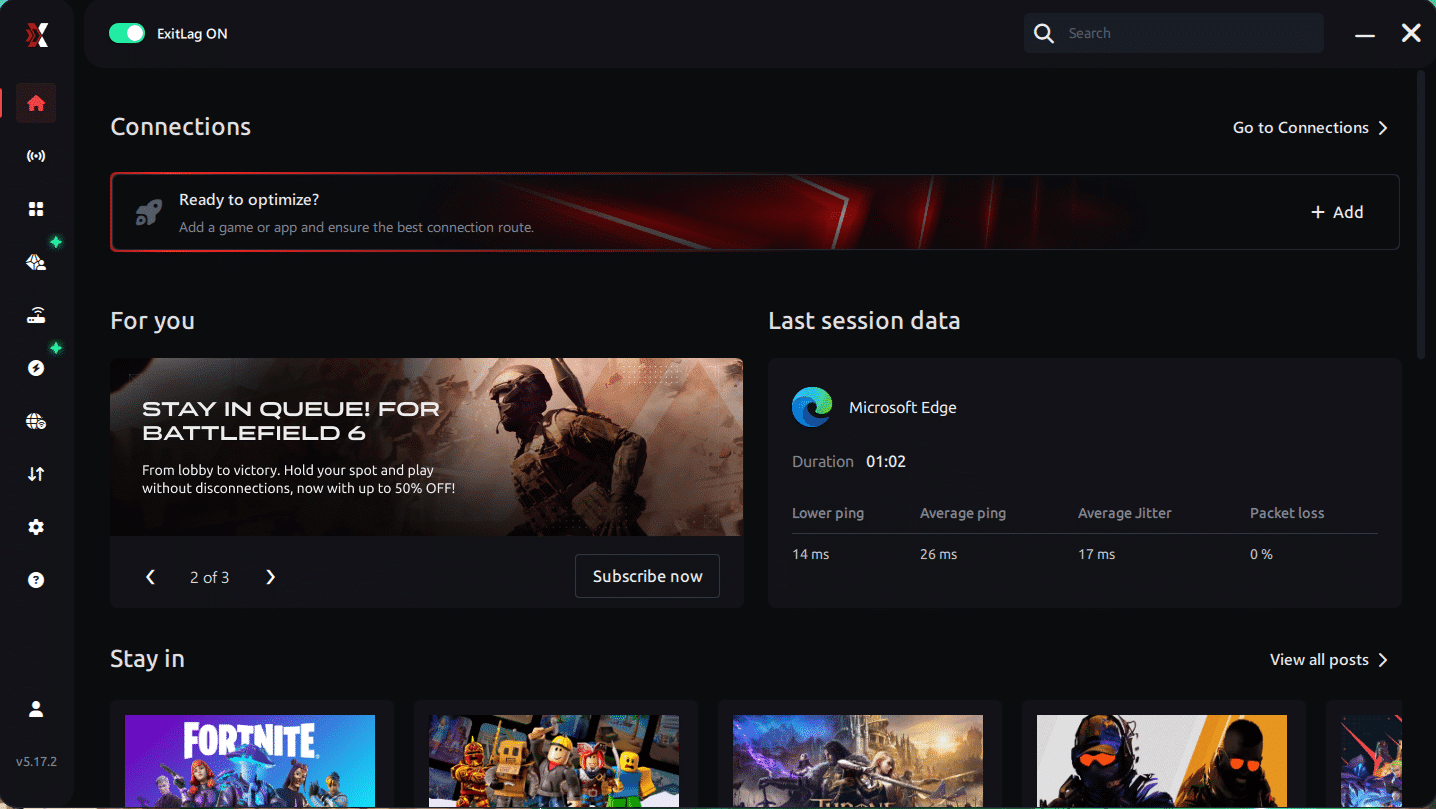
Step 3 – In the search bar, type the name of the Steam game you want to optimize (for example: CS2, Dota 2, PUBG, Rust, etc.) and select the game from the list.
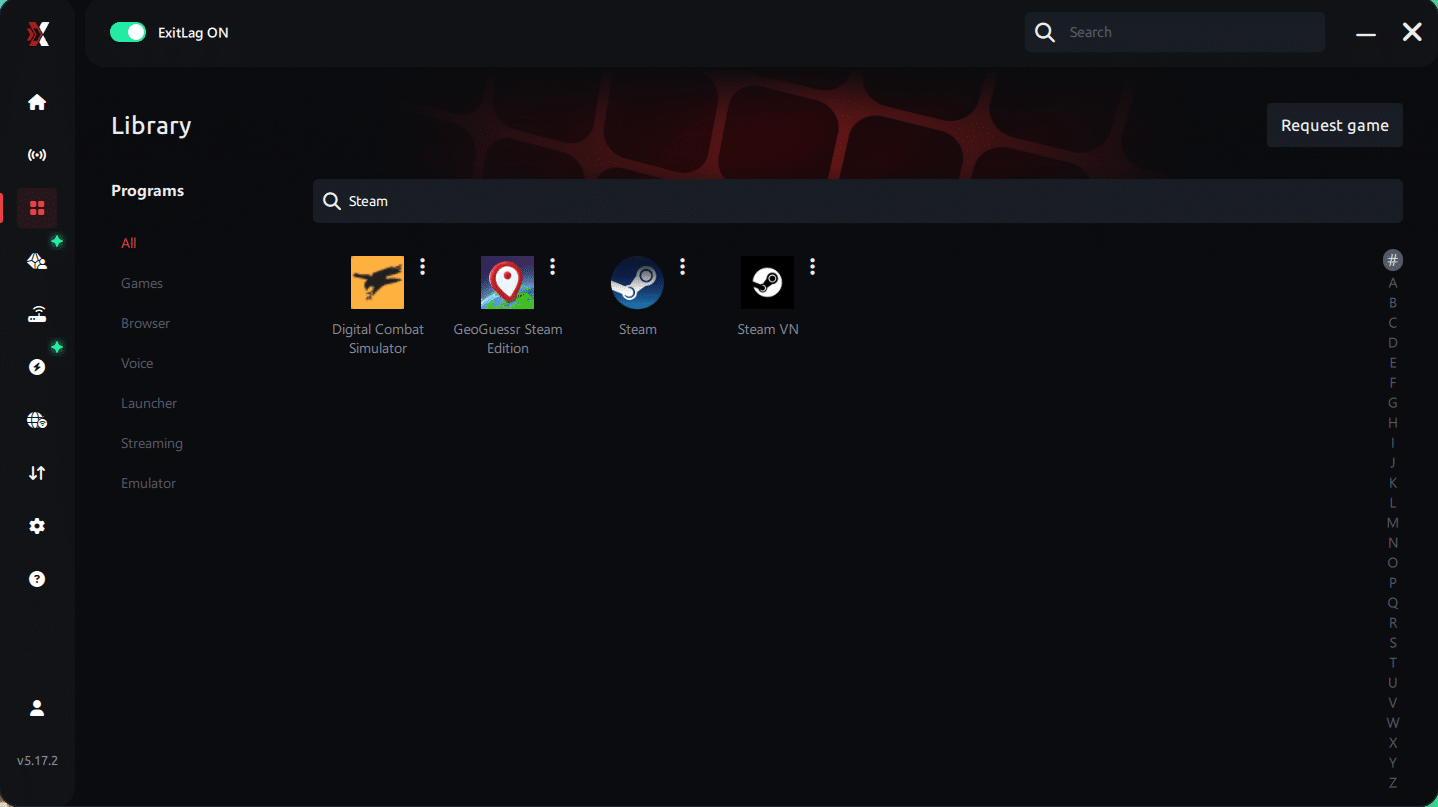
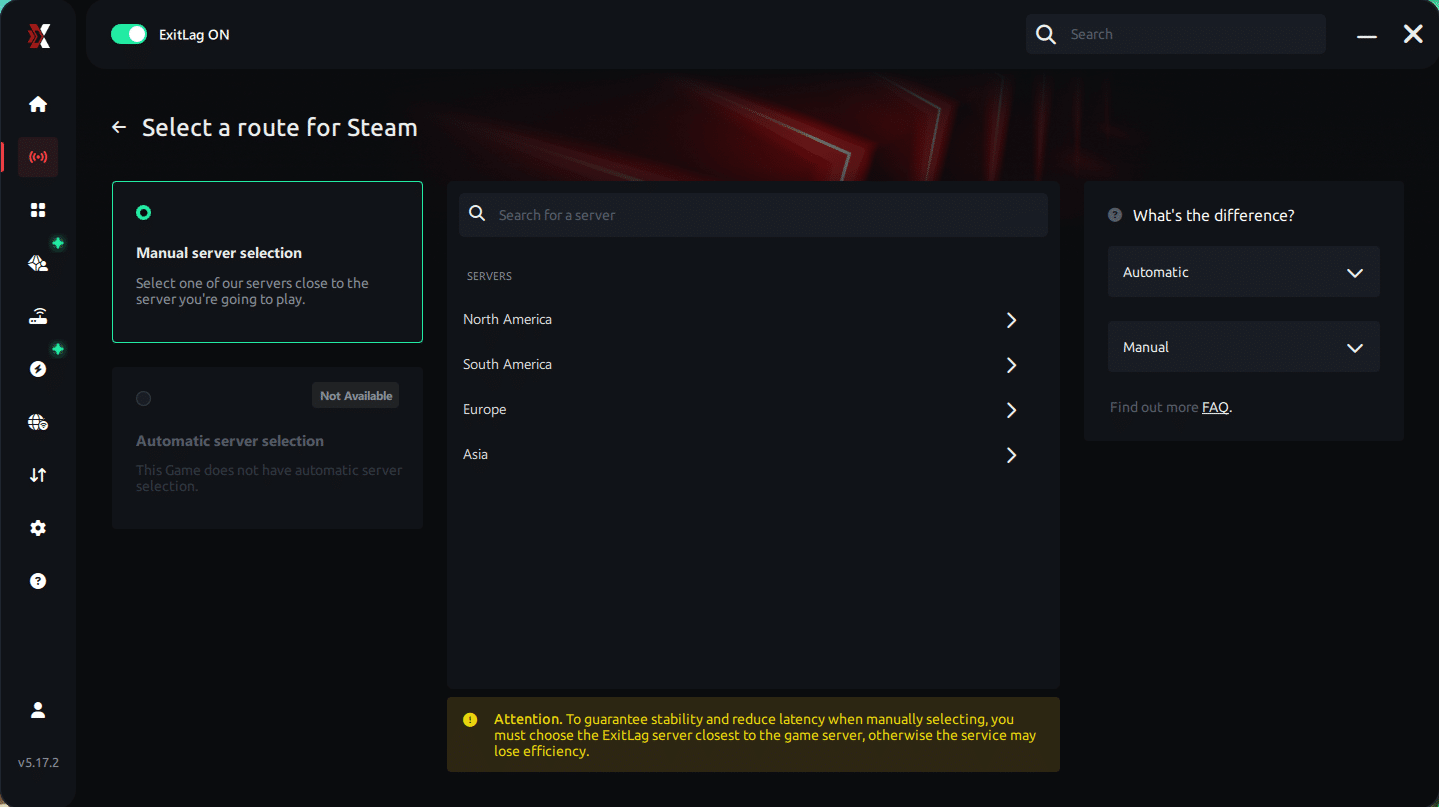
Step 4 – Choose the best server manually
Based on the ping test results, you can manually choose the server that showed the lowest latency for your connection.
Manual route
If you prefer to have full control over your connection, you can manually choose the server based on the ping test results. Simply select the server that showed the lowest latency or the one that best meets your specific gaming needs, allowing complete customization of your experience.
Step 5 – Click “Apply routes” or the play button. ExitLag will begin optimizing your connection automatically.
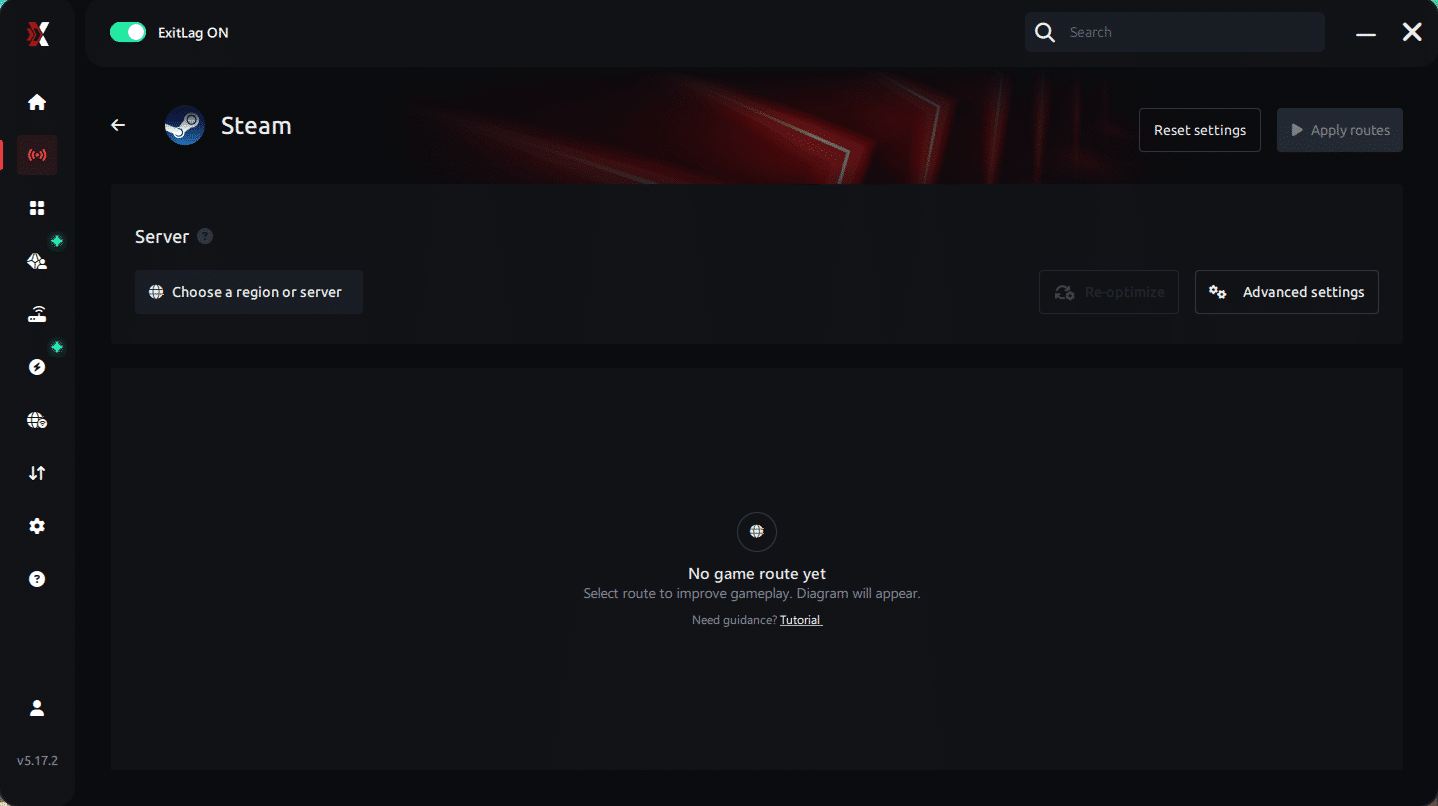
Step 6 – Wait a few seconds until optimization is complete. You’ll see ping indicators in the interface.
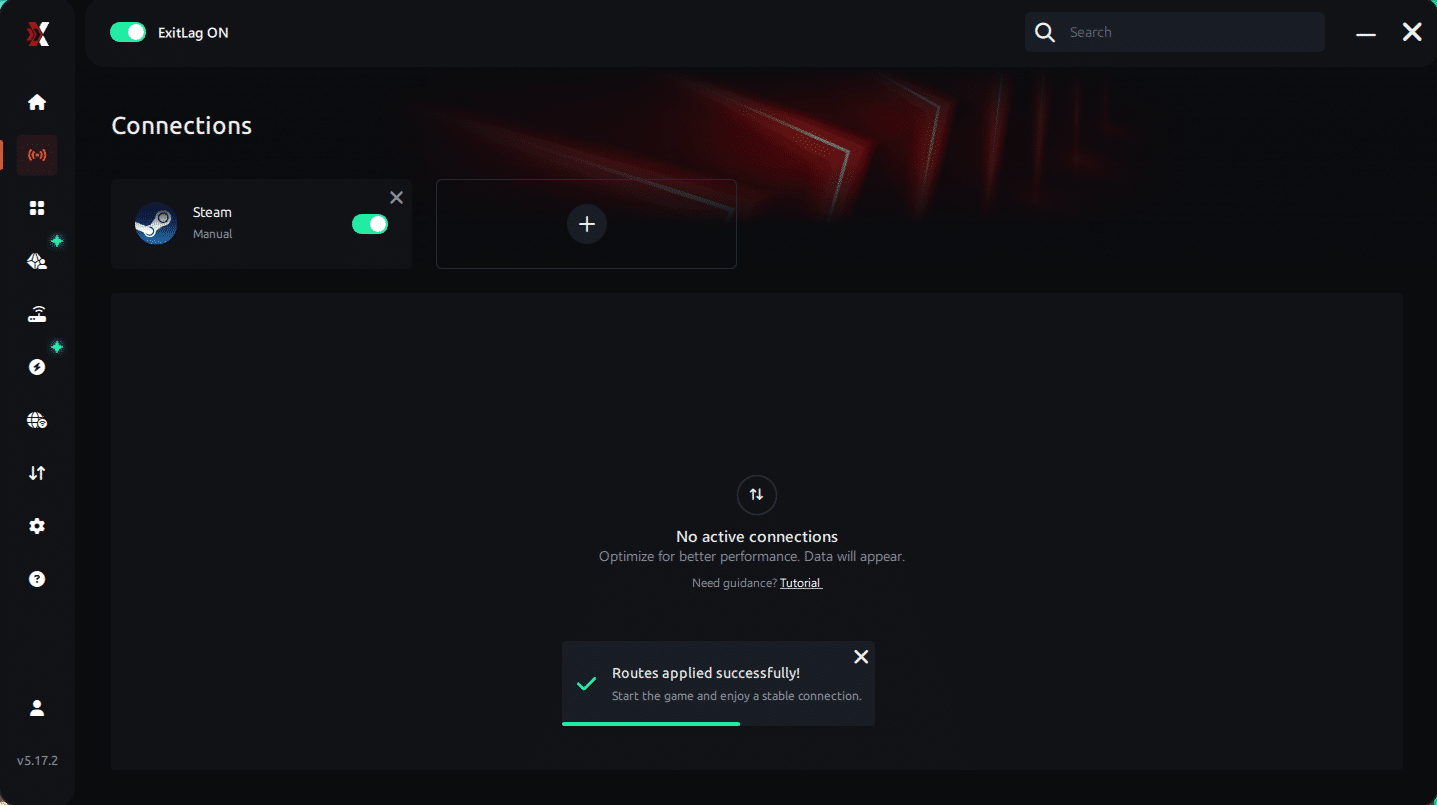
Step 7 – Launch your Steam game normally. The optimization will already be active.
With this information, simply select the server with the lowest latency and launch your Steam game knowing your connection is optimized.
Final thoughts: Play Steam games without lag forever
At the end of the day, lag should never decide your matches. You spend time mastering your aim, reflexes, and strategy your internet connection should never be the reason you lose.
With ExitLag, you finally take control of your network performance. The software finds the fastest routes, eliminates lag, and stabilizes your ping so that every shot, every action, and every clutch happens exactly when you want it to.
Try ExitLag for free right now and experience how smooth your favorite Steam games can be when your connection is fully optimized. Play with confidence, reach your full potential, and make lag a thing of the past.
Emulator setup
If you play Steam-like titles through emulators, the system detects supported games automatically. Simply enable routing for the specific title inside the ExitLag interface. This reduces micro-stutters that amplify FPS Drop Steam games during heavy online sessions.
Optimization tips
To ensure maximum performance, use these additional suggestions:
- Keep background apps closed
- Update GPU drivers
- Use wired Ethernet instead of Wi-Fi
- Avoid running multiple launchers
- Adjust visual settings that strain GPU load
Console players
Even though consoles don’t install the ExitLag app directly, many players successfully benefit by applying ExitLag routing to the router connection. This method reduces latency and stabilizes communication, which also minimizes the stutters commonly mistaken for FPS Drop Steam games during live matches.
Before and after results with ExitLag in Steam games
Using ExitLag produces visible improvements that help eliminate the connectivity factors behind sudden slowdowns. These optimizations are especially noticeable in online modes where unstable routing worsens the feeling of FPS Drop Steam games.
Real player cases
Here are hypothetical examples illustrating the difference ExitLag makes:
- Player A reduced stutter incidents by 43%, reaching stable combat flow in multiplayer titles.
- Player B saw input delay reduced by 31 ms, improving reaction timing and micro-movements.
- Player C experienced 21% smoother frame pacing, eliminating small freezes during high-load areas.
Performance comparison table
| Metric | Without ExitLag | With ExitLag | Improvement |
| Latency | 128 ms | 62 ms | Significant |
| Packet Loss | 4.7% | 0% | Complete fix |
| Micro-Stutter | High | Minimal | Major reduction |
Additional optimizations to maximize FPS with ExitLag
Even after reducing connection-related issues that worsen FPS Drop Steam games, there are still many complementary tweaks that help stabilize your overall experience. These adjustments work together with ExitLag to ensure smoother pacing, fewer freezes, and more consistent rendering in demanding Steam titles.
Network
A strong network foundation prevents data spikes that amplify FPS Drop Steam games, especially during online gameplay.
- Use Ethernet instead of Wi-Fi
- Enable QoS on your router
- Use automatic or reliable DNS
- Close heavy network apps
System
Your system must stay clean and updated to avoid unnecessary load that increases stutter.
- Update GPU and chipset drivers
- Use high-performance power mode
- Disable unnecessary background apps
- Keep your OS clean and updated
In-game
Game settings play a major role in preventing sudden drops and keeping FPS Drop Steam games under control.
- Turn V-Sync off to avoid input delay
- Set a stable FPS limit (120 or 144 recommended)
- Start with recommended presets for your hardware
Before and after results with ExitLag in Steam games
Comparing performance shows the real impact of stable routing. When the network behaves consistently, frame pacing becomes much smoother, reducing the feeling of heavy FPS Drop Steam games when online interactions intensify.
Real player cases (continued)
Many users report major improvements after applying correct routing:
- Player D increased stability by 67%, eliminating random freezes during online matches.
- Player E reduced jitter by 54%, gaining smoother aim tracking.
- Player F saw sudden drops fall from 12 per match to only 2, enhancing gameplay flow.
Performance comparison table (continued)
| Metric | Without ExitLag | With ExitLag | Improvement |
| Jitter | High | Low | Major |
| Stability | Unstable | Stable | Noticeable |
| Frame pacing | Irregular | Smooth | Significant |
Frequently asked questions about FPS drop in Steam games
Does ExitLag actually improve FPS?
ExitLag improves consistency by reducing network conditions that worsen FPS Drop Steam games. Although it does not render frames, it fixes micro-stutter caused by unstable routing, resulting in smoother gameplay.

Is ExitLag safe?
Yes. ExitLag is fully safe, uses optimized routing technology, and does not access personal files or interfere with system data.
Does ExitLag work on console?
Yes. Console users can benefit by applying ExitLag routing to their network through a router setup, reducing stutter caused by unstable connections.
How much does ExitLag cost?
ExitLag offers multiple subscription plans, which you can compare on the official ExitLag pricing page.
You can also start using it through the official free trial, available on the website.
My PC is weak, does ExitLag help?
Yes. ExitLag does not replace hardware, but it reduces micro-freezes, input delay, and jitter that make weak setups experience even worse FPS Drop Steam games.
Does ExitLag work with Steam games?
Yes, ExitLag supports thousands of titles and constantly updates routing options. Check the full optimized list inside the supported games directory offered on the website.
What’s the difference between ExitLag and a VPN?
ExitLag uses gaming-specific routing technology, while VPNs tunnel traffic generically.
ExitLag is NOT a VPN, and it does not introduce encryption overhead or latency. It is built exclusively for stability and performance.
Why does FPS drop increase in multiplayer matches?
Multiplayer scenes load more data, effects, and real-time interactions, making instability more noticeable.
Can bad routing make FPS drop feel worse?
Yes. Poor routing amplifies stutter and pacing issues that resemble low FPS.
Does ExitLag help with packet loss in Steam games?
Yes. Packet loss reduction is one of its strongest features.
Fix FPS drop in Steam games with ExitLag
Final benefits
- Stable FPS
- Zero micro-stuttering
- Smooth gameplay
- Competitive advantage
- Frustration-free gameplay
Next steps
- Test ExitLag for free
- Configure in 5 minutes
- Compare before and after
- Dominate Steam games
In conclusion, solving FPS drop Steam gamesissues requires balancing hardware, settings, and network stability. ExitLag’s multi-path technology eliminates routing delays and ensures fluid gameplay across all regions of Steam games. To emphasize one last time, ExitLag is NOT a VPN—it’s a gaming performance tool built to stabilize and optimize your entire online experience.
Now that you know everything about FPS drop Steam games, if you want the most stable, smooth, and competitive gameplay possible, is the time to upgrade your performance toolkit. Register at ExitLag now and improve your gameplay in a way you've never experienced before!



