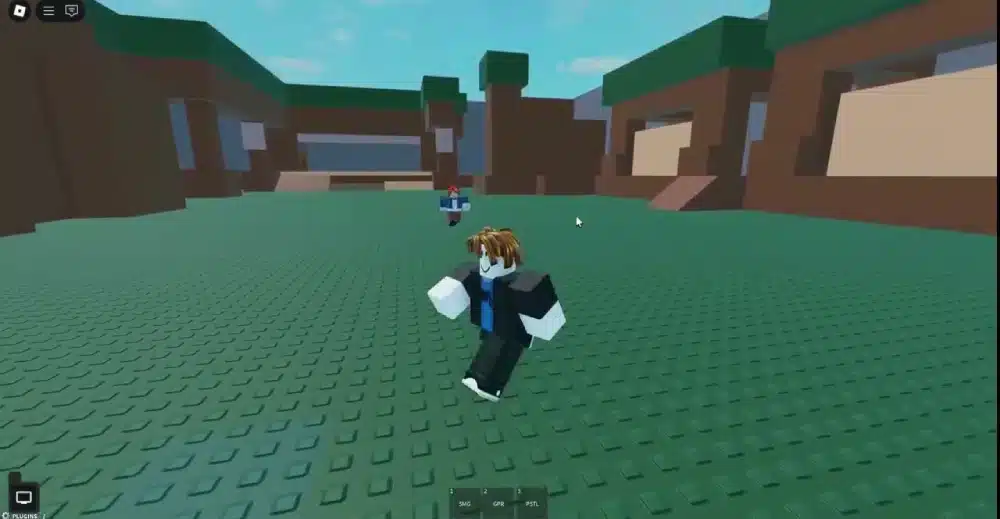
Hide Model Roblox is a common search among Roblox developers who want to organize their projects, simplify their workspace, or temporarily hide objects while building games. Whether you’re creating a large open world or a small interactive experience, knowing how to manage model visibility makes development faster and more efficient.
For both beginners and experienced creators, Hide Model Roblox techniques improve workflow inside Roblox Studio. Developers often hide objects to focus on specific areas, reduce visual clutter, or test individual systems without distractions.
If you’re wondering How to Hide Models in Roblox Studio, How Do People Hide There Models in Roblox, or researching topics like Hide Model Search Roblox Studio Glitch, this guide explains the official tools and best practices for managing model visibility.

Hide Model Roblox: What Does It Mean?
Hiding a model does not necessarily remove it from your project. Instead, developers temporarily make objects invisible in the editor or during gameplay depending on their goals. Different methods achieve different results. Some affect only the editor, while others affect the actual game experience.
Why Developers Hide Models
There are many practical reasons to hide models.
Common examples include:
- Building complex environments
- Testing game mechanics
- Organizing large projects
- Improving workspace visibility
- Editing specific assets
- Debugging systems
Managing visibility helps developers stay focused while working.
Editor Visibility vs Gameplay Visibility
Understanding the difference is important. Editor visibility affects what developers see while building. Gameplay visibility affects what players see after the game is published. Knowing which method to use prevents unexpected results.
How to Hide Models in Roblox Studio
Roblox Studio offers several ways to manage models. The best option depends on what you’re trying to accomplish.
Developers commonly use:
- Explorer window
- Workspace organization
- Transparency properties
- Parent changes
- Group organization
- Selection tools
Each approach serves a different purpose.
Using the Explorer
The Explorer window allows developers to locate every object in the game hierarchy. Organizing models into folders makes them much easier to manage.
Benefits include:
- Faster navigation
- Cleaner projects
- Easier collaboration
- Better asset management
- Simpler debugging
- Improved productivity
Well-organized projects become increasingly valuable as games grow larger.
Working With Groups
Grouping related objects simplifies editing.
Examples include:
- Buildings
- Trees
- Furniture
- Terrain decorations
- Vehicles
- NPCs
Instead of selecting dozens of individual parts, developers can manage entire collections at once.
Methods for Managing Model Visibility
Several techniques are commonly used inside Roblox Studio. Each has different advantages.
| Method | Best Use |
| Transparency | Temporarily invisible objects during gameplay |
| Explorer Organization | Better project management |
| Folder Structure | Large game organization |
| Grouped Models | Easier editing |
| Parent Management | Temporary removal from Workspace |
| Selection Tools | Faster editing workflow |
Choosing the appropriate method depends on the specific development task.
Using Transparency
Changing an object’s Transparency property affects how it appears during gameplay. Higher transparency values make objects less visible.
Developers frequently use transparency for:
- Hidden platforms
- Invisible triggers
- Interactive zones
- Visual effects
- Temporary objects
Transparency does not remove the object from the project.
Moving Models Between Services
Some developers temporarily move models outside Workspace while editing.
This approach can help:
- Reduce visual clutter
- Test individual systems
- Organize unused assets
- Store future content
Objects moved outside Workspace generally do not appear during gameplay until they are returned.
How Do People Hide There Models in Roblox?
Many new developers ask How Do People Hide There Models in Roblox after watching advanced creators build large experiences. Professional developers usually rely on organization rather than secret techniques.
Common workflow strategies include:
- Creating folders
- Naming assets clearly
- Separating environments
- Using grouped models
- Building modular assets
- Keeping backup versions
Good organization often makes projects much easier to maintain than simply hiding objects.
Organize Before You Hide
A clean project structure saves time later.
Helpful practices include:
- Group related models together.
- Use descriptive names.
- Separate gameplay systems.
- Archive unused assets.
- Keep folders organized.
These habits improve collaboration and simplify future updates.
Benefits of Proper Model Organization
Large Roblox projects may contain thousands of objects. Without organization, editing quickly becomes difficult. Well-managed projects offer several advantages.
Developers can:
- Find assets faster.
- Debug more efficiently.
- Reduce editing mistakes.
- Improve collaboration.
- Scale projects more easily.
- Maintain cleaner workspaces.
These benefits become increasingly important as experiences grow in size and complexity.
Start With Official Roblox Studio Tools
Developers searching for Hide Model Roblox often assume there is a hidden feature or shortcut for managing visibility. In reality, Roblox Studio already provides powerful organizational tools through the Explorer, folders, grouped models, and object properties.
Whether you’re learning How to Hide Models in Roblox Studio or simply improving your development workflow, mastering these official tools will make building, testing, and maintaining Roblox experiences significantly easier.
How Do People Hide There Models in Roblox?
Many developers searching How Do People Hide There Models in Roblox are actually looking for better ways to organize complex projects. Experienced creators rarely rely on tricks. Instead, they use Roblox Studio’s built-in organization and visibility tools. Large games can contain thousands of objects. Keeping everything organized makes development significantly easier.
Professional developers often use:
- Folder structures
- Grouped models
- Naming conventions
- Workspace organization
- Asset separation
- Collection management
These practices make projects easier to navigate and maintain.
Organize Your Workspace
Keeping similar assets together improves productivity.
Examples include:
- Buildings
- Terrain
- Decorations
- NPCs
- Interactive objects
- Visual effects
A clean hierarchy helps you find assets quickly during development.
Use Consistent Naming
Clear names reduce confusion. Instead of generic names, organize assets logically.
Examples include:
- VillageHouse01
- ForestTree05
- MainBridge
- ShopNPC
- SpawnPoint
- RiverRockLarge
Consistent naming becomes increasingly valuable as projects expand.
How to Hide Bone in Roblox Studio Models
Another common question is How to Hide Bone in Roblox Studio Models. Bones are primarily used in skinned meshes and animations. Developers often notice bone visualization while editing characters or animated models.
Understanding Bones
Bones are invisible animation structures that control mesh deformation.
They are commonly used for:
- Character animation
- Facial animation
- Creature movement
- Tail animation
- Wings
- Custom rigs
Bones themselves do not normally appear during gameplay.
Managing Bone Visibility
When editing animated models, developers can adjust viewport visualization settings to reduce editor clutter.
Depending on the tools currently enabled inside Roblox Studio, you may be able to:
- Disable animation editing overlays
- Exit rig editing modes
- Change viewport visualization settings
- Deselect the animated model
- Switch editing tools
These options affect the editor only and do not change how players see the game.
How to Hide Green Dots on Character Models in Roblox
A frequent question from character creators is How to Hide Green Dots on Character Models in Roblox. These green dots usually represent editor visualization elements associated with rigs, attachments, or animation tools. They are intended to help developers during creation.
Why Green Dots Appear
Depending on your workflow, green indicators may represent:
- Attachments
- Bone visualization
- Rig editing points
- Animation handles
- Joint helpers
They exist only to assist development.
Reducing Visual Clutter
If these indicators become distracting, try:
- Leaving animation editing mode
- Deselecting the current rig
- Disabling helper visualizations when available
- Changing editor display settings
- Switching to another editing tool
These adjustments improve workspace visibility without affecting gameplay.
Understanding Visibility Methods
There are several ways to make objects less distracting during development. Each method serves a different purpose.
| Method | Purpose |
| Transparency | Makes parts invisible during gameplay |
| Explorer Organization | Improves navigation |
| Folder Structure | Groups related assets |
| Parent Changes | Temporarily removes models from Workspace |
| Group Selection | Easier editing |
| Viewport Options | Reduces editor visualizations |
Choosing the right approach depends on what you’re trying to accomplish.
Transparency vs Removing Objects
Some beginners confuse transparency with hiding. The difference is important.
Transparency:
- Keeps objects in Workspace
- May still allow collisions
- Can be scripted
- Useful for gameplay mechanics
Removing from Workspace:
- Temporarily removes the object from the active scene
- Helps reduce workspace clutter
- Useful during development
- Simplifies editing
Understanding both techniques improves project management.
Hide Model Search Roblox Studio Glitch
Some developers search for the Hide Model Search Roblox Studio Glitch after noticing that models seem to disappear from search results or become difficult to locate inside the Explorer. In most situations, this behavior is not caused by an actual hidden feature.
Instead, it is commonly related to:
- Incorrect search filters
- Renamed models
- Nested folders
- Collapsed Explorer hierarchy
- Accidental parenting changes
- Plugin interactions
Carefully reviewing your project hierarchy usually resolves the issue.
Troubleshooting Missing Models
If you cannot locate a model, try the following checklist.
- Check the Explorer hierarchy.
- Expand every parent folder.
- Verify the model name.
- Confirm it still exists in Workspace.
- Disable unnecessary plugins temporarily.
- Search using partial names.
These simple steps solve many common visibility problems.
Building Better Roblox Studio Projects
Efficient project organization is just as important as writing good scripts. Developers who maintain clean project structures spend less time searching for assets and more time creating new features.
Whether you’re researching How Do People Hide There Models in Roblox, learning How to Hide Bone in Roblox Studio Models, trying to Hide Green Dots on Character Models in Roblox, or investigating the Hide Model Search Roblox Studio Glitch, mastering Roblox Studio’s built-in organization tools will make development faster, cleaner, and more enjoyable.
Understanding the Hide Model Search Roblox Studio Glitch
Many developers search for the Hide Model Search Roblox Studio Glitch after noticing that a model no longer appears in the Explorer search results or seems to disappear while working on a project.
In most situations, this is not an actual Roblox Studio bug. Instead, it is usually caused by project organization, search filters, or changes to the model hierarchy. Learning how the Explorer works can save a significant amount of troubleshooting time.
Common Causes
Models may appear to be missing because of:
- Nested folders
- Renamed assets
- Collapsed Explorer trees
- Incorrect search terms
- Moved parent objects
- Plugin interactions
Checking these areas first often solves the problem quickly.
How to Troubleshoot Missing Models
If you cannot locate a model, follow these steps:
- Clear the Explorer search bar.
- Expand every folder in the hierarchy.
- Search using part of the model’s name.
- Confirm the model still exists in Workspace.
- Disable recently installed plugins if necessary.
Following a consistent troubleshooting process helps identify the cause without unnecessary changes.

Managing Large Roblox Studio Projects
As Roblox experiences become larger, organization becomes just as important as scripting. Projects with hundreds or thousands of assets can become difficult to navigate without a structured workflow.
Experienced developers usually organize assets by category.
Common folders include:
- Buildings
- Characters
- Environment
- UI
- Animations
- Audio
Keeping related assets together makes development much faster.
Use Collections and Naming Standards
Consistent naming improves collaboration.
Helpful naming examples include:
- VillageHouse01
- ForestTree03
- EnemySpawner01
- MainBridge
- ShopInterior
- SpawnLocation
Good naming conventions reduce confusion during development.
Archive Unused Assets
Not every asset needs to remain active in Workspace.
Many developers keep unused content in separate storage folders while testing new features.
Benefits include:
- Cleaner workspace
- Faster navigation
- Easier debugging
- Better project organization
This approach helps maintain an efficient development environment.
Improve Roblox Development With ExitLag
Creating and testing Roblox experiences often requires a stable internet connection, especially when collaborating with team members or testing multiplayer mechanics.
Connection problems such as high latency, packet loss, and unstable routing can affect playtesting sessions, making it harder to evaluate gameplay accurately.
ExitLag is designed specifically for gamers and helps optimize network traffic by selecting more efficient routes between your device and supported game servers.
Pro Tips
Mastering Hide Model Roblox techniques is about organization rather than hiding objects permanently. These habits will help you build cleaner and more efficient Roblox Studio projects.
Keep Your Explorer Organized
Well-organized projects are much easier to manage.
Best practices include:
- Group similar assets together.
- Use descriptive names.
- Separate systems into folders.
- Archive unused models.
- Keep Workspace clean.
- Remove duplicate assets.
Good organization saves time throughout development.
Use Visibility Methods Correctly
Different tools serve different purposes.
Remember to choose the right approach:
- Transparency for gameplay effects.
- Folder organization for navigation.
- Parent changes for temporary storage.
- Grouped models for easier editing.
- Viewport settings for editor visualizations.
- Explorer filters for finding assets quickly.
Using the correct method prevents unnecessary confusion.
Common Mistakes
Mistake 1: Making Parts Transparent Instead of Organizing Them
Some developers set every object to full transparency when they simply want a cleaner workspace. Correction: Use folders, grouped models, or temporary parenting instead of relying only on transparency.
Mistake 2: Ignoring Project Structure
Large projects become difficult to manage without organization. Correction: Build a consistent folder hierarchy from the beginning of development.
Mistake 3: Assuming Every Missing Model Is a Bug
Developers sometimes believe Roblox Studio deleted a model. Correction: Check the Explorer hierarchy, search filters, and parent objects before assuming a glitch has occurred.
Frequently Asked Questions
What Does Hide Model Roblox Mean?
It generally refers to temporarily hiding or organizing models inside Roblox Studio to make development easier without permanently deleting assets.
How Do People Hide There Models in Roblox?
Most developers use official Roblox Studio features such as folders, grouped models, Explorer organization, transparency settings, or temporary parenting to manage visibility.
How to Hide Bone in Roblox Studio Models?
Bones are editor visualization tools used for animation. Their visibility can often be reduced by leaving animation editing mode or adjusting available viewport visualization settings.
How to Hide Green Dots on Character Models in Roblox?
Green dots usually represent rigging or attachment visualization. They can often be hidden by exiting editing modes, changing visualization settings, or deselecting the rig.
What Is the Hide Model Search Roblox Studio Glitch?
In many cases, this refers to models that appear missing because of search filters, folder hierarchy, renamed assets, or project organization rather than an actual Roblox Studio bug.
Does Hiding a Model Improve Game Performance?
Not necessarily. Editor visibility mainly affects your workflow. Improving game performance typically requires optimization techniques such as reducing unnecessary parts, optimizing scripts, managing assets efficiently, and using appropriate level-of-detail strategies.
Hide Model Roblox is less about secret tools and more about learning how to use Roblox Studio efficiently. By understanding How to Hide Models in Roblox Studio, organizing assets properly, managing bones and editor visualizations, and recognizing situations like the Hide Model Search Roblox Studio Glitch, developers can create cleaner workflows and build larger projects with greater confidence.
Strong organization habits, consistent naming conventions, and effective use of Roblox Studio’s built-in tools will make every stage of development easier, whether you’re creating your first game or maintaining a large-scale multiplayer experience.
Got questions or want to connect with other players? Join the conversation at the ExitLag Forum!