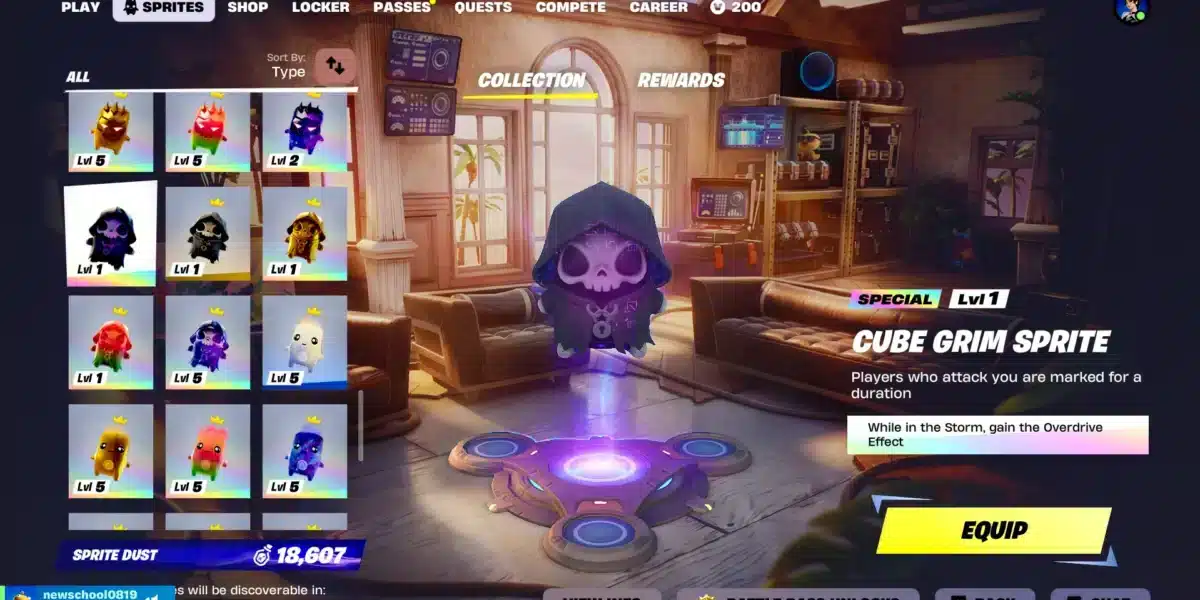
Figuring out how to play Fortnite Mobile properly involves more than just downloading the app and tapping around the screen. The controls, settings, and pacing are genuinely different from PC or console.
This guide walks through everything from your first install to your first Victory Royale attempt, so you are not stumbling through the basics mid-match.
To answer the core question directly: learning how to play Fortnite Mobile starts with installing the official app, customizing your touch or controller layout, and practicing in Zero Build or the training range before jumping into full matches. Once your settings feel natural, the mechanics translate closely to what you already know from other platforms.

How To Play Fortnite Mobile: Getting Installed and Set Up
Before anything else, you need the app running properly on your device. Fortunately, this step has become much simpler than it used to be.
Downloading the App Correctly
Android players can install Fortnite through the Google Play Store or the Epic Games Store app directly. iOS players can find it on the Apple App Store in most regions, with the Epic Games Store as an alternative in the EU and Japan.
- Open your device’s app store.
- Search for the official Fortnite app by Epic Games.
- Tap install and wait for the download to finish.
- Launch the app and sign in with your Epic Games account.
- Complete the initial tutorial if this is your first time playing.
First-Time Setup Checklist
Getting your account and settings configured properly from the start saves headaches later. As a result, take a few minutes before your first real match.
- Link your Epic account: Connect it to Apple Game Center or Google Play Games for smoother syncing.
- Adjust graphics settings: Match the preset to your device’s performance tier.
- Set your HUD layout: Position buttons where your thumbs naturally rest.
- Enable auto-updates: Avoid missing new content by keeping the app current.
How To Play Fortnite Mobile: Mastering the Controls
This is where most new mobile players struggle the most. Touchscreen controls demand a different kind of muscle memory than a controller or mouse and keyboard.
Touch Controls vs Controller Input
You can play using the default touchscreen layout or connect a Bluetooth controller for a more traditional feel. Many players eventually transition to a controller as their skill level increases.
| Control Method | Best For | Learning Curve |
|---|---|---|
| Touch controls | Casual play, portability | Moderate |
| Bluetooth controller | Competitive play, precision | Steeper initially, pays off long-term |
| Hybrid (touch + controller) | Flexible players | Varies |
How Do You Build Efficiently on Touch Controls?
Building on a touchscreen relies heavily on customizable quick-build buttons placed around your dominant thumb. Therefore, spending time adjusting button size and position early on makes a significant difference.
Many players prefer enabling “Auto Open Doors” and adjusting edit reset time to make building feel less clunky. Additionally, turning on Builder Pro mode if you switch to a controller speeds up piece selection considerably.
What Are the Best Beginner Settings for Fortnite Mobile?
New players often make the mistake of leaving every setting at default. However, a few quick adjustments can meaningfully improve your first few sessions.
- Lower your graphics preset to Medium or Performance Mode for smoother frame rates.
- Increase button transparency slightly for better visibility during builds.
- Turn on Auto-Run to reduce constant thumb movement while exploring.
- Adjust look sensitivity to a moderate level, then fine-tune after a few matches.
- Enable aim assist if you are using touch controls, since it helps compensate for smaller targeting precision.
Should Beginners Start With Zero Build?
Zero Build mode removes construction entirely, focusing purely on combat and positioning. Consequently, it is an excellent way to learn movement and gunplay without the added complexity of building mechanics.
Once you feel comfortable with basic combat, transitioning into standard Battle Royale mode with building becomes much less overwhelming.
How To Play Fortnite Mobile With Friends on Other Platforms
One of the biggest advantages of mobile today is full crossplay support. As a result, your friends on console or PC can squad up with you without any extra setup.
- Crossplay is enabled by default: No settings changes needed to play with PC, PlayStation, Xbox, or Switch friends.
- Cross-progression works automatically: Your Battle Pass and cosmetics carry across every platform you log into.
- Party matchmaking is unified: Invite friends directly through your Epic Games friends list regardless of their device.
- Voice chat works cross-platform: Coordinate with your squad no matter what device they are using.
Pro Tips: Playing Fortnite Mobile Better
- Use headphones during matches: Footstep and gunfire audio cues are critical for positioning, and phone speakers muffle these details significantly.
- Practice editing in Creative mode: Repetition in a low-pressure environment builds the muscle memory needed for real fights.
- Adjust deadzone settings if using a controller: Lower deadzones improve responsiveness but can cause stick drift on older controllers.
- Play in landscape mode with your phone propped up: A stand frees your hands and reduces fatigue during longer sessions.
Common Mistakes New Fortnite Mobile Players Make
- Never adjusting default sensitivity: Default settings rarely fit any individual playstyle well. Fix: Spend time in the practice range tuning look speed and ADS sensitivity before ranked play.
- Ignoring device overheating: Extended sessions on maxed-out graphics settings can throttle performance mid-match. Fix: Lower your graphics preset and take short breaks during long play sessions.
- Skipping Zero Build practice: Jumping straight into building-heavy matches overwhelms most beginners. Fix: Spend your first few sessions in Zero Build to build core combat skills first.
Why Does My Connection Affect How I Play Fortnite Mobile?
Even with perfect controls and settings, an unstable connection can undo all your practice. Mobile networks, especially cellular data, are more prone to sudden spikes and drops than wired connections.
This is where ExitLag genuinely helps. It is a connection optimizer, not a VPN, that analyzes multiple paths to game servers in real time and automatically routes you through the fastest, most stable option.
For players learning how to play Fortnite Mobile competitively, a stable connection means your inputs register consistently, which matters enormously during builds and close-range fights. ExitLag supports over 4,000 titles across PC and Mobile, backed by more than 1,500 servers in 190+ countries.
It never modifies game files or touches anti-cheat systems, making it fully safe alongside Fortnite. Download it here: Android or iOS.
How To Play Fortnite Mobile in Different Game Modes
Learning the basics covers Battle Royale, but Fortnite includes several other modes that mobile players often overlook. Exploring these can make you a more well-rounded player overall.
Exploring Zero Build, Creative, and LEGO Fortnite
Each mode offers a different way to practice specific skills without the full pressure of a ranked Battle Royale match. Therefore, rotating between them keeps practice sessions varied and effective.
| Mode | Best For Learning | Building Required |
|---|---|---|
| Zero Build | Combat and positioning | No |
| Creative | Editing and building drills | Optional |
| Battle Royale | Full skill combination | Yes |
| LEGO Fortnite | Casual exploration and crafting | No |
How Do You Transition From Casual to Competitive Play?
Moving into more competitive matches works best gradually rather than all at once. Consequently, spending dedicated time in each mode before jumping into ranked play builds a stronger foundation.
How To Play Fortnite Mobile Efficiently With Limited Time
Not every player has hours to spend per session, and mobile is often chosen specifically for quick, efficient play. As a result, knowing how to make the most of shorter sessions matters.
- Use quick-play modes: Shorter game modes let you get meaningful practice in without a full-length match commitment.
- Warm up briefly first: Even five minutes in the practice range improves your reaction time for the match ahead.
- Set a clear session goal: Decide whether you are practicing building, aiming, or just relaxing before you start.
- Track your own progress: Reviewing match replays occasionally helps identify recurring mistakes worth fixing.
Pro Tips: Making Short Sessions Count
- Prioritize Zero Build for pure mechanical practice when time is limited.
- Save building drills for sessions when you can dedicate at least fifteen focused minutes.
- Avoid switching settings mid-session, since inconsistency slows down skill development.

How To Play Fortnite Mobile: Wrapping Up
Learning how to play Fortnite Mobile well comes down to three things: getting your controls dialed in, practicing deliberately in low-pressure modes, and keeping your connection stable. None of these require expensive gear, just consistent adjustments.
Once those pieces click into place, mobile becomes a genuinely competitive way to enjoy Fortnite, not just a backup option when you are away from your main setup.
All game images used in this blog post belong to Epic Games. They are used for informational and educational purposes only and do not imply endorsement or affiliation with the rights holders.
Got questions or want to connect with other players? Join the conversation at the ExitLag Forum!