
If you're wondering how to save in GTA 6, the process is straightforward: pause the game, open the Game tab, select Save Game, and choose a save slot. Manual saving is available during free roam, outside situations where the game temporarily disables it.
The question has become more pressing following reports of players losing some of their story progress in the first days after launch. Those reports alone do not establish that Rockstar Games has confirmed a widespread bug.
Below, we'll explain how to save in GTA 6 on PS5 and Xbox Series X|S, how autosave works, and what to check before attempting to recover an earlier save.
How to save in GTA 6 manually on PS5 and Xbox Series X|S
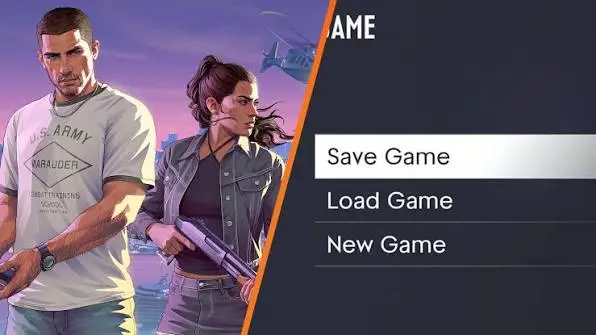
The steps are almost identical on both consoles. The main difference is the button that opens the pause menu: Options on PS5 or Menu on Xbox Series X|S.
- Launch GTA 6 and enter free roam, with no mission or combat encounter underway.
- Press Options on PS5 or Menu on Xbox Series X|S to open the pause menu.
- Navigate to the Game tab.
- Select Save Game to view your available save slots.
- Choose a slot and confirm your save. If the slot already contains a file, make sure you want to overwrite it.
This is the method described by PowerPyx, PC Gamer, and Shacknews. Manual saving lets you keep separate checkpoints from different stages of the story instead of relying entirely on automatically saved progress.
Consider keeping multiple save files around major story moments. If you later want to revisit a decision or replay an earlier section, you'll have another save to load.
GTA 6 autosave vs. manual saves: what's the difference?
Learning how to save in GTA 6 also means understanding the difference between manual saves, autosave, and loading an older file. GTA 6 features autosave, but that doesn't mean every action you take is recorded immediately.
| Feature | What it does | What to watch out for |
| Save Game | Manually records your progress in a selected slot | Avoid overwriting a save you want to keep |
| Autosave | Records progress automatically at certain points | Don't assume every activity triggers a save |
| Load Game | Opens an existing save file | Double-check which file you're loading |
| PS5 cloud backup | Lets PlayStation Plus subscribers sync and download saved data | Check the backup before replacing local data |
When does GTA 6 autosave your progress?
According to initial testing reported by VGC, the game can autosave after main story missions and some side activities. However, the outlet did not establish a fixed saving schedule covering every situation.
Completing an activity or exploring a new area therefore doesn't guarantee that your most recent progress has been saved. If you're about to end a session, creating a manual save when the option is available is the safer choice.
How to load a previous GTA 6 save
To return to an earlier point, open the pause menu, go to Game, and select Load Game. Review the available files and choose the save you want to resume from.
Important: PowerPyx warns that loading an older manual save may overwrite the existing autosave. Before doing so, check whether there's recent progress you still want to preserve. Loading an older save is not the same as recovering a deleted or corrupted file.
GTA 6 not saving: why is Save Game unavailable?
A disabled Save Game option doesn't automatically mean GTA 6 is broken. If you're trying to figure out how to save in GTA 6 when the option is grayed out, first check whether you're in a situation that normally prevents manual saving.
Missions and combat can block manual saves
According to PowerPyx and Shacknews, Save Game may be disabled during missions. Saving can also be restricted while your character is in combat. VGC also mentions pursuits as situations where manual saving may be unavailable.
These are normal restrictions described by the outlets, not necessarily signs of a technical problem.
What to do if the save option is grayed out
First, finish the current mission or leave the combat or pursuit behind. Once you're back in free roam, open Game > Save Game again.
If saving remains unavailable outside those situations, note when and where it happens and check Rockstar's official support channels. Avoid overwriting older files until you understand what's causing the issue.
Lost progress in GTA 6: can you recover a save?
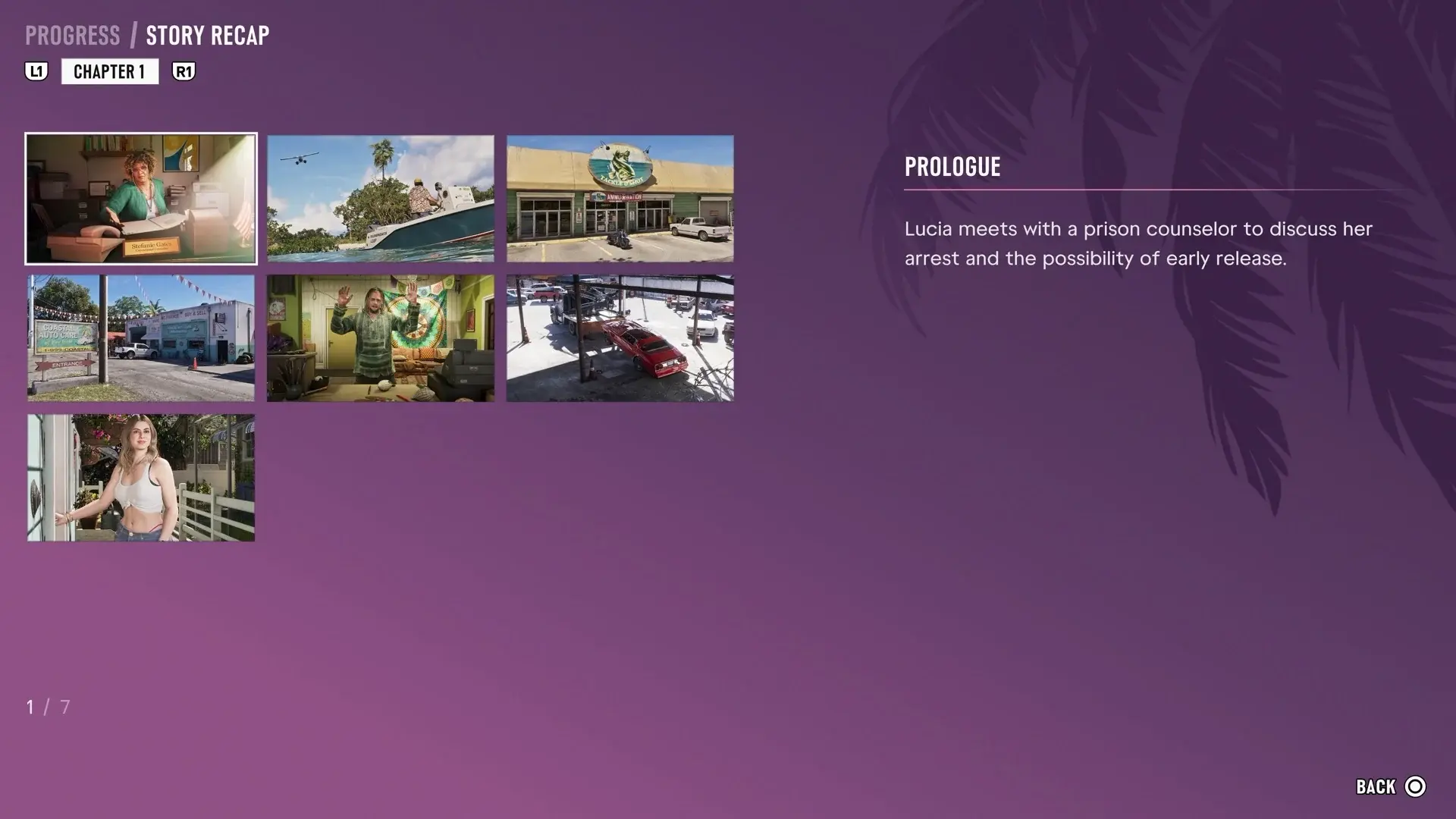
Reports of missing progress after launch have drawn attention to the limits of autosave. Still, each case needs to be assessed separately. Having an older save available to load is very different from trying to restore data that has been deleted or corrupted.
Check your existing saves before starting over
Open Game > Load Game and review the files listed there. If an earlier manual save is still available, you may be able to resume the story from that point. Any progress made after that save might need to be replayed.
Avoid starting a new playthrough or overwriting saves through trial and error. Doing so could limit your remaining recovery options. There's also no guarantee that a corrupted file can be restored through the in-game menu.
Check cloud saves and official support options
On PS5, PlayStation Plus subscribers can check saved data under Settings > Saved Data and Game/App Settings > Saved Data (PS5). Cloud storage provides options for syncing and downloading saves. Compare the available copies before downloading one that could replace your local progress.
On Xbox Series X|S, use Microsoft's official support resources to investigate saved-data and sync issues. Don't delete local saves in an attempt to force a recovery unless you understand the possible consequences.
If no usable save is available, contact Rockstar Games Support and the official PlayStation or Xbox support service. Include your platform, what happened, when it occurred, and any steps you've already tried. Support may help you investigate, but recovery is not guaranteed.
How to avoid losing progress in GTA 6
Building a habit of saving manually can reduce the risk of having to replay long stretches of the campaign. These precautions are especially useful before major decisions or when you're ready to stop playing:
- Save manually after important missions once the game allows it again.
- Rotate between separate save slots so you keep at least one file from before a major story development.
- Check the available progress before selecting Load Game to avoid loading the wrong file.
- Don't rely entirely on autosave, especially after activities you wouldn't want to repeat.
- Review your console's storage options without deleting or replacing files that might still be useful.
Knowing how to save in GTA 6 is one of the best preventive steps you can take, though it can't eliminate every possible data-loss scenario. If a problem persists, document what happened and consult official support before trying anything that might overwrite your save files.