Traveling across the massive worlds of Minecraft can take a lot of time. Mountains, oceans, hostile mobs, and complicated terrain can slow down exploration and make meeting friends difficult in multiplayer worlds. Because of that, many players search about how to teleport in Minecraft.
Learning how to teleport in Minecraft is one of the most powerful skills you can develop. Teleportation allows you to instantly travel to coordinates, other players, structures, and even specific dimensions depending on the command you use.
What is how to teleport in Minecraft?
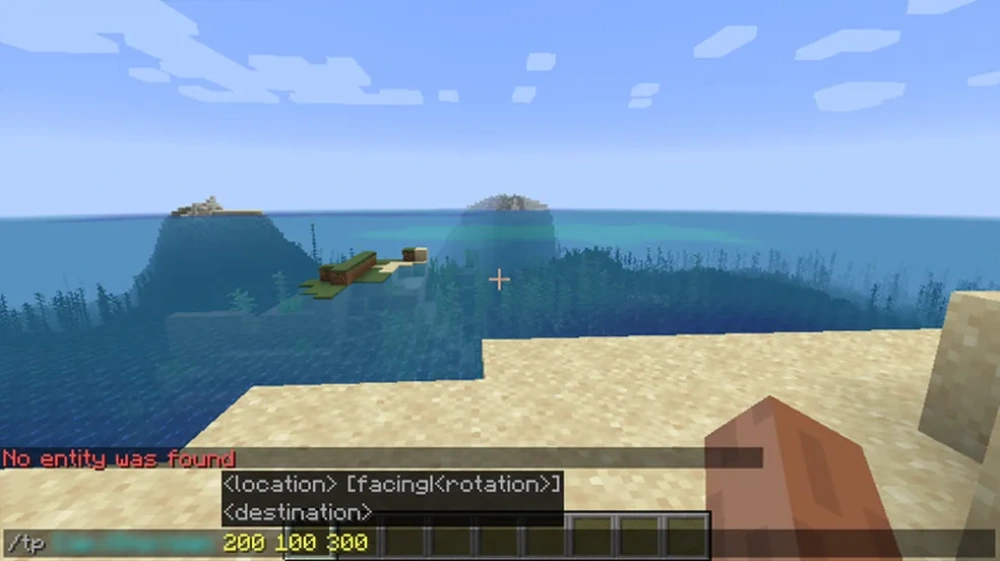
In simple terms, how to teleport in Minecraft refers to using in‑game commands—especially the teleport command—to instantly move a player, entity, or group of players to another location in the world without walking there.
Understanding how teleportation works can transform how you explore, build, and coordinate with friends. Once you master these commands, traveling across thousands of blocks becomes effortless.
How to Teleport in Minecraft Using Commands
Minecraft includes a built‑in command system that allows players to control many aspects of the game world. One of the most popular commands is the teleport command, often referred to simply as the TP command.
When players search for how to teleport in Minecraft, they are usually referring to this command. It can move you, other players, or entities anywhere in the world instantly.
Basic Teleport Command Structure
The most common command structure looks like this:
/tp
This command moves a target entity to a set of coordinates. Coordinates represent positions in the game world using three axes:
- X – East and West direction
- Y – Height level
- Z – North and South direction
For example:
/tp Alex 150 70 -300
This command teleports the player Alex to the coordinates listed.
Teleporting Between Players
Another common situation when learning how do you teleport in Minecraft is teleporting to another player.
The syntax looks like this:
/tp
Example:
/tp Steve Alex
This command teleports Steve to Alex’s current position.
In multiplayer worlds, this is the fastest way to regroup with friends.
Teleporting Yourself
If you want to teleport yourself without specifying a player name, you can simply type coordinates:
/tp 200 70 200
The command automatically moves the command sender to that location.
Teleport in Minecraft Command Examples
Understanding the teleport command becomes easier when you see real examples. Below are some of the most useful situations where players rely on teleportation.
| Teleport Type | Command Example | What It Does |
| Player to Player | /tp Steve Alex | Teleports Steve to Alex |
| Player to Coordinates | /tp Alex 120 70 -400 | Moves Alex to exact coordinates |
| Teleport Yourself | /tp 300 64 250 | Sends you to the location |
| All Players | /tp @a 0 100 0 | Moves all players to spawn |
| Teleport Nearest Player | /tp @p 200 80 -150 | Moves nearest player |
These commands represent the foundation for mastering teleport in Minecraft command usage.
Using Selectors for Multiple Players
Selectors allow commands to target groups of players or entities.
Common selectors include:
- @p – nearest player
- @a – all players
- @r – random player
- @e – all entities
Example command:
/tp @a 0 80 0
This teleports all players to a central point.
Teleporting Entities
Teleportation is not limited to players.
You can move mobs or other entities with commands such as:
/tp @e[type=zombie] @p
This moves all zombies to the nearest player.
These advanced uses are why many players researching command for teleport in Minecraft eventually begin experimenting with selectors.
How to Teleport to Coordinates in Minecraft
One of the most practical teleport uses is traveling to coordinates. Coordinates are used to mark exact locations in the game world.
Players who ask how to teleport to coordinates in Minecraft are usually trying to reach a base, biome, or structure they discovered earlier.
Finding Your Current Coordinates
Before teleporting, you need to know your coordinates.
In Java Edition
Press F3 to open the debug screen.
Your coordinates appear as XYZ values.
In Bedrock Edition
Enable “Show Coordinates” in world settings.
Once coordinates are visible, you can use them in teleport commands.
Teleporting to Specific Coordinates
The command format is simple:
/tp
Example:
/tp PlayerName 500 70 -120
This moves the player to those coordinates instantly.
When experimenting with how do you teleport to coordinates in Minecraft, many players forget to adjust the Y value. Choosing a safe Y level like 70 helps avoid spawning inside terrain.
Relative Coordinates
Minecraft also supports relative coordinates using the tilde symbol (~).
Examples:
/tp ~10 ~ ~
This teleports you ten blocks forward on the X axis while keeping the same height and Z position.
Relative coordinates are useful for builders and map creators.
How to Teleport People in Minecraft Multiplayer
Multiplayer servers introduce even more teleport possibilities. Coordinating players across large worlds becomes easy when teleport commands are available.
Players frequently search for how to teleport people in Minecraft when managing servers or playing with friends.
Teleporting One Player to Another
Use the following command:
/tp PlayerA PlayerB
Example:
/tp Alex Steve
Alex will instantly appear at Steve’s location.
Teleporting Someone to You
Another common question is how to teleport someone to you in Minecraft and how to teleport to someone in Minecraft.
The command looks like this:
/tp FriendName YourName
Example:
/tp Steve Alex
Steve will teleport to Alex.
This command is extremely useful during cooperative builds or survival adventures.
Teleporting Multiple Players
Administrators often teleport multiple players simultaneously.
Example:
/tp @a 0 80 0
This command teleports every player on the server to the same location.
Administrators use commands like this during events or minigames.
Version Differences: Java vs Bedrock
Although teleport commands work across most versions of Minecraft, there are some important differences between Java and Bedrock editions.
Understanding these differences helps players avoid command errors when learning how to teleport in Minecraft.
Java Edition Teleport Features
Java Edition offers the most flexible command system.
Important characteristics include:
- Full command syntax support
- Advanced command chaining
- Complex selectors
- Cross‑dimension teleportation using execute
Java Edition is often preferred by advanced players who frequently use command for teleporting in Minecraft for automation.
Bedrock Edition Teleport Features
Bedrock Edition also supports teleportation but with a few restrictions.
Features include:
- Simplified command syntax
- Limited command chaining
- Compatible with Realms multiplayer
- Slightly fewer selector options
Even with those limitations, the basic commands used for how to teleport players in Minecraft still function correctly.
Enabling Cheats for Teleport Commands
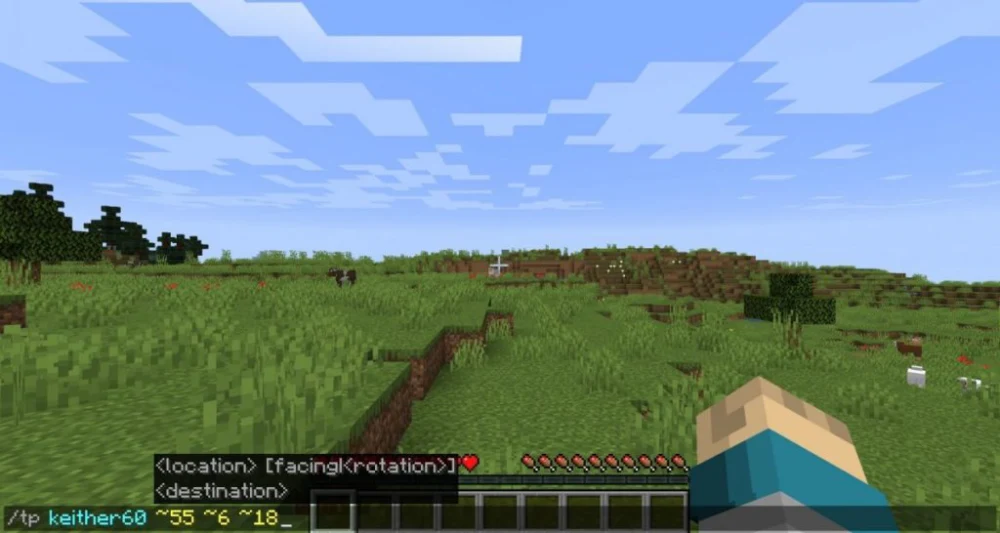
Teleport commands only work when cheats are enabled or when players have administrative permissions.
Many players researching how do you teleport in Minecraft discover that their commands fail because cheats are disabled.
Enabling Cheats in Java Edition
There are two ways to activate cheats.
When creating a world:
Turn “Allow Cheats” ON.
In an existing world:
- Pause the game
- Select “Open to LAN”
- Enable cheats
This allows command usage temporarily.
Enabling Cheats in Bedrock Edition
Follow these steps:
- Open world settings
- Find “Activate Cheats”
- Toggle the option on
After that, teleport commands will work.
Keep in mind that enabling cheats disables achievements in that world.
Teleporting to Villages and Biomes
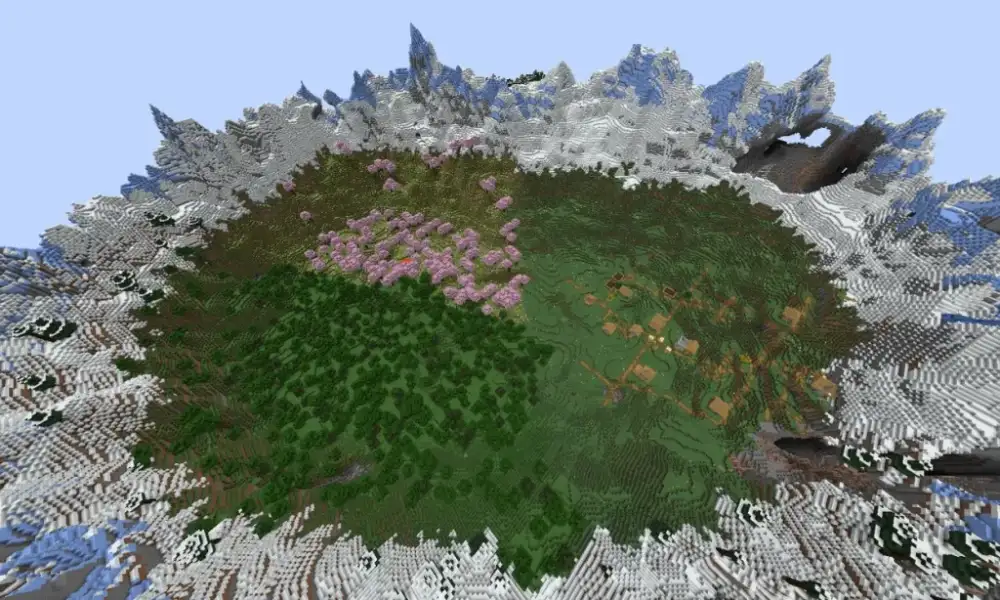
Beyond simple coordinates, players also want to know how to teleport to a village in Minecraft or travel to specific environments.
Teleport commands combined with the locate command make this possible.
Locating Structures
First, use the locate command:
/locate structure village
The game returns the nearest village coordinates.
Then teleport there:
/tp @p 450 75 -900
This instantly sends you to the location.
Teleporting to a Biome
Another advanced command helps players searching for how to teleport to a biome in Minecraft.
The process works like this:
/locate biome desert
Then use the coordinates provided with the teleport command.
Biome teleporting is extremely helpful when searching for rare resources.
Examples include:
- Mushroom fields
- Badlands
- Bamboo jungles
- Ice spikes
Explorers often rely on these commands to save hours of travel time.
Advanced Teleport Techniques
Once you understand the basics of how to teleport in Minecraft, you can begin exploring more advanced techniques used by map creators and server administrators.
Command Blocks
Command blocks automate teleportation.
They are commonly used in adventure maps.
Steps to use them:
- Obtain a command block
- Place it in the world
- Insert a teleport command
- Activate with redstone
Example command:
/tp @p 0 80 0
Players who step on a pressure plate connected to the block will teleport automatically.
Teleporting Between Dimensions
Java Edition supports dimension teleportation.
Example command:
/execute in the_nether run tp @p 0 70 0
This moves the player to coordinates inside the Nether.
Advanced command combinations allow creative map mechanics.
Teleport Safety Tips
Teleporting can sometimes cause problems if used incorrectly.
Follow these guidelines:
- Always teleport above ground level
- Avoid teleporting into caves
- Check coordinates before executing commands
- Use safe Y levels such as 70–100
These tips reduce the risk of suffocation or falling into lava.
Common Teleport Errors and Fixes
Even experienced players occasionally encounter problems while using teleport commands.
Understanding common issues helps players master how to teleport in Minecraft more efficiently.
Command Syntax Mistakes
The most frequent error is incorrect syntax.
Example of incorrect syntax:
tp Steve Alex
Correct version:
/tp Steve Alex
The slash at the beginning is required.
Missing Permissions
Multiplayer servers often restrict command usage.
If you attempt a command without permission, it will fail.
Solutions include:
- Request operator privileges
- Ask server administrators for permission
- Use singleplayer with cheats enabled
Unsafe Coordinates
Teleporting underground can trap the player.
To avoid this:
- Use safe height levels
- Check terrain first
- Teleport above ground
Version Syntax Differences
Commands sometimes behave differently across versions.
If a command fails, verify that it matches your game edition.
Players searching for how do you teleport in Minecraft often encounter these version differences.
Why Teleportation Improves Gameplay
Teleportation significantly changes how players experience Minecraft worlds.
Instead of spending hours traveling across large landscapes, teleportation allows players to focus on exploration, building, and multiplayer collaboration.
Benefits include:
- Faster exploration
- Easy multiplayer coordination
- Efficient building workflows
- Simplified server management
Large survival worlds especially benefit from teleport commands.
For example, administrators running public servers frequently rely on how to teleport players in Minecraft commands to manage events, guide new players, or solve problems quickly.
Mastering teleportation gives you full control over movement in Minecraft.
How to Teleport in Minecraft Like a Pro
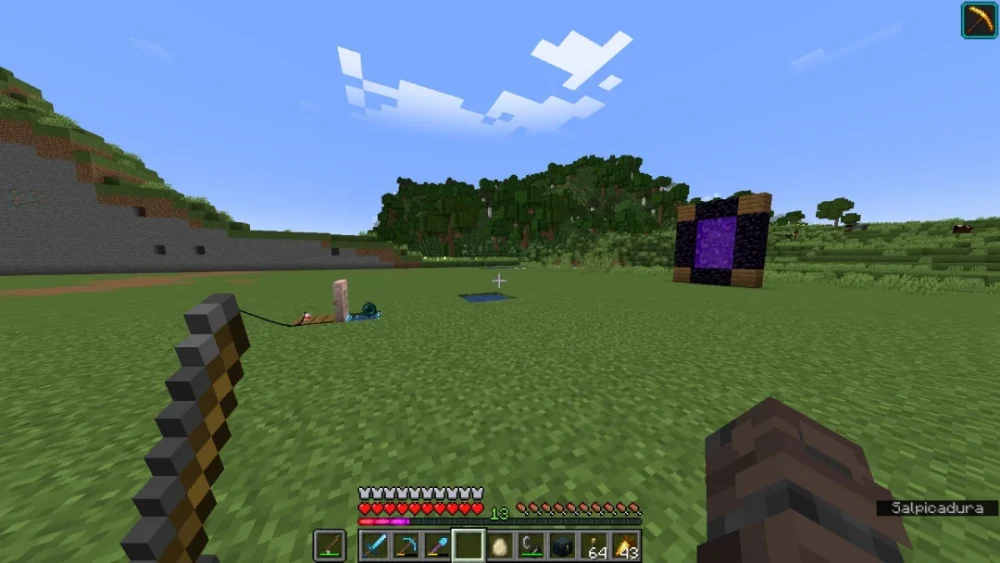
By now, you should understand the core mechanics behind how to teleport in Minecraft. From basic coordinate teleportation to advanced command automation, these tools provide incredible flexibility for both casual players and server administrators.
Teleport commands allow instant travel across massive distances, help players regroup quickly in multiplayer worlds, and simplify exploration of rare biomes and structures.
Once you practice these commands regularly, teleportation becomes second nature. Whether you are teleporting to friends, coordinates, villages, or entire biomes, mastering the teleport system opens up entirely new possibilities for gameplay.
Conclusion About How to Teleport in Minecraft
Now you know how to teleport in Minecraft. Teleportation becomes even more useful when playing online. Multiplayer servers often involve large distances between players, bases, and important structures. A stable connection also helps ensure teleport commands execute smoothly, which is why many players rely on network optimization tools such as ExitLag to reduce lag during gameplay sessions.
FAQ
To teleport in Minecraft, open the command console and use the teleport command. The simplest version is:
/tp
This can teleport a player to another player or to coordinates.
Use the coordinate format:
/tp
Example:
/tp PlayerName 150 70 -300
This instantly moves the player to that location.
Use this command:
/tp PlayerName YourName
This teleports the selected player directly to you.
First locate the village using:
/locate structure village
Then teleport to the coordinates provided.
Minecraft does not include a setting to enable only teleport commands. However, server administrators can use permission plugins to allow specific commands such as teleportation while restricting others.
Got questions or want to connect with other players? Join the conversation at the ExitLag Forum!