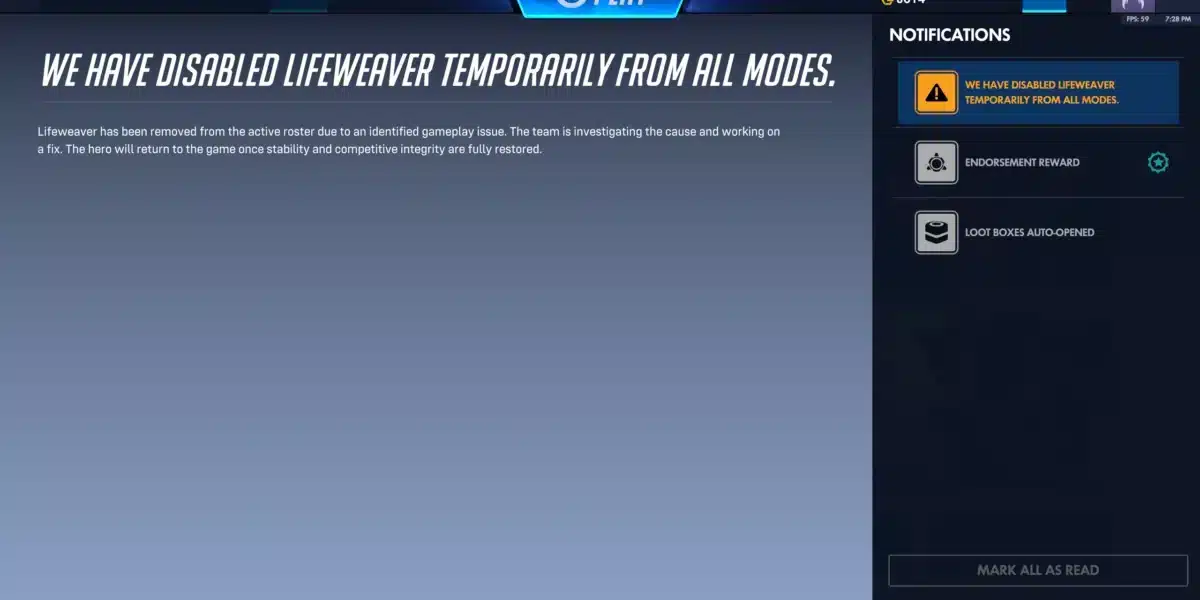
You queue into Overwatch 2, lock your main, and right as the competitive match starts your ping begins fluctuating all over the place. One fight feels smooth, the next your shots don’t register, abilities trigger late, and the whole match is pure instability. That’s jitter: an unpredictable connection problem that can be even worse than high ping, because you never know when your commands will actually register on the server.
To see which other games you can optimize and support with connection tools, you can explore the full list of supported titles at the full list of supported titles.

What is jitter in Overwatch 2?
In online games like Overwatch 2, jitter is the irregular variation in your network latency over time. Instead of having a stable, predictable ping, your response time keeps changing from moment to moment. That means the timing between your PC and the game servers is inconsistent, even if the average ping looks “okay”.
Imagine your ping jumping from 40 ms to 110 ms, then dropping to 70 ms, then spiking to 150 ms. That constant variation is high jitter, and it causes visible instability in every fight. Shots feel off, abilities “stutter”, and your positioning never matches what the server thinks.
Ideally, your ping should only move within a 5–10 ms window. When your latency swings much more than that, Overwatch 2 starts to feel unpredictable. In simple terms: ping measures how long data takes to travel; jitter measures how stable that travel time is.
How jitter affects your gameplay in Overwatch 2
Overwatch 2 is extremely timing-sensitive, so jitter hits hard. Here’s how it shows up in your matches:
- Inconsistent ability timing: Sometimes your skill fires instantly, other times it feels delayed, breaking your combos and ult setups.
- Unreliable dodges and movement: You try to strafe or peek corners, but jitter makes your hero rubberband or move a beat too late.
- Broken combos and ult synergies: Coordinated plays (nano boosts, wombo combos, dive engages) fall apart because each player’s delay is different.
- Sudden, confusing deaths: Enemies seem to “teleport” or snap to new positions, and you die before you can react properly.
- Frustration in PvP and ranked: In ranked and high-SR lobbies, jitter means you lose duels and fights even when your mechanics are on point.
- Wasted cooldowns and ultimates: You press an ability at the right time, but because of jitter it goes off late and loses impact.
- Inconsistent hit registration: Hitscan shots and projectiles sometimes register perfectly, sometimes feel like they vanish in thin air.
- Aim and tracking that feel “off”: Even with good crosshair placement, your flicks and tracking feel wrong because your connection timing keeps shifting.
Main causes of jitter in Overwatch 2
Network congestion
If multiple devices are streaming, downloading, or gaming at the same time, your router constantly juggles traffic. Game packets lose priority to heavy downloads or video streams, causing variable delay instead of a steady response time. This shared bandwidth problem is one of the most common sources of jitter.
Unstable routing
Your ISP decides how your data travels from your home to the Overwatch 2 servers. If those routes pass through overloaded or unstable nodes, or if they change dynamically, your packet travel time becomes inconsistent. Even if you have good base ping, this unstable routing can create heavy jitter.
Unstable Wi-Fi
Wi-Fi suffers interference from walls, distance, and other wireless devices. These micro-drops in signal quality don’t always show up in speed tests, but they introduce small, random delays. In a fast FPS like Overwatch 2, those tiny unpredictable delays translate directly into jitter and inconsistent gameplay.
ISP issues
Some providers have overloaded links, poor peering with Blizzard’s infrastructure, or outdated hardware. During peak hours, this can turn a previously stable connection into a jittery mess, creating constant Overwatch 2 ping variation and Overwatch 2 unstable connection problems, even if your plan is fast on paper.
Distance from servers
If you’re connecting to a region far from where you live (for example, flexing between NA, EU, or other regions), your packets must cross more routers (hops). Each hop introduces potential delay and variation, so the farther the servers are, the easier it is for jitter to appear.
Game-specific factors
Overwatch 2 is an FPS with tight netcode and frequent positional updates. Large teamfights, crowded lobbies, or playing during global events can expose weak routing and Wi-Fi issues even more, making jitter especially visible in intense moments.
How to identify and measure jitter in Overwatch 2
Extended ping test
A single ping or quick speed test won’t reveal jitter. What you need is an extended ping test, where you continuously send pings over time and observe how they behave. If the numbers cluster around a stable value, your connection is consistent. If the numbers bounce significantly—40 ms, 120 ms, 80 ms, 150 ms—your latency is unstable and you are dealing with jitter.
This helps distinguish between a constant high ping and a ping that looks fine on average but keeps changing, which is exactly what makes Overwatch 2 feel inconsistent.
In-game signs
Inside Overwatch 2, jitter usually looks and feels like this:
- The ping shown in the options/network graph constantly jumps instead of staying near one value.
- You feel that the game is inconsistent: some fights are perfectly smooth, others feel completely off.
- Certain moments (for example, out of combat) are playable, but mid-fight or in competitive matches you get sudden, intense lag.
- You experience intermittent rubberbanding when you strafe, peek, or use movement abilities.
- Skills and commands have variable delay—sometimes snappy, sometimes sluggish—with no change on your end.
- Your experience feels unstable even when the interface reports “low” ping.
If several of these symptoms occur frequently, jitter is almost certainly a major part of the problem.
Jitter levels in Overwatch 2
Use this reference table to understand how jitter levels affect Overwatch 2 gameplay quality:
| Jitter level | Ping variation | Gameplay impact in Overwatch 2 |
| 0–5 ms | Very low | Extremely stable; ideal for all roles and SR |
| 5–10 ms | Low | Smooth and reliable for most players |
| 10–20 ms | Moderate | Noticeable in high-rank and competitive play |
| 20–40 ms | High | Clear instability; inconsistent duels and fights |
| 40+ ms | Severe | Very unstable; ranked becomes frustrating or unplayable |
If your jitter consistently exceeds 20 ms, you will clearly feel its impact in ranked matches and high-pressure situations.
Basic solutions to reduce jitter in Overwatch 2
Prioritize your connection
- Use ethernet cable
Replace Wi-Fi with a wired connection whenever possible. This instantly removes most wireless interference and is one of the best ways to reduce Overwatch 2 jitter. - Close background applications
Shut down downloads, video streams, cloud sync tools, and other bandwidth-heavy apps. These processes add random delay and create Overwatch 2 unstable connection issues. - Limit devices on the network
Ask others on your connection to pause heavy use (4K streaming, large downloads) while you’re in important games. Fewer active devices means less jitter. - Disable automatic updates
Schedule system and launcher updates for off-hours. Surprise updates mid-match can cause huge ping spikes and jitter. - Update network drivers
Keep your network adapter drivers updated. Outdated or buggy drivers can introduce hidden latency and inconsistent response time. - Use game-specific network settings
In Overwatch 2, disable unnecessary overlays and ensure you’re not using extra software that constantly polls external servers while playing.
Configure QoS on router
Quality of Service (QoS) allows your router to treat Overwatch 2 traffic as high priority. When QoS is properly configured, your game packets are processed before less important traffic, like background downloads. This doesn’t boost your maximum speed, but it helps keep your response time stable and reduces jitter when your network is under load.
Check with your ISP
If your jitter is still high after optimizing your setup, contact your ISP. Explain that your ping is fluctuating heavily when playing Overwatch 2 and ask them to check your line for noise, overloaded segments, or routing issues. Sometimes changing your line profile, updating your modem, or adjusting routes can significantly improve stability.
ExitLag: the definitive solution to eliminate jitter in Overwatch 2
Basic fixes help, but they don’t give you control over how your data travels across the internet. That’s where ExitLag becomes essential.
What is ExitLag?
ExitLag is a specialized software built exclusively for connection optimization in online games on PC and mobile (it does not support consoles). Created by gamers, it works as an intelligent stabilizer for your game traffic, constantly analyzing and selecting the best routes between your device and the Overwatch 2 servers.
You can dive deeper into its underlying connection technology at its underlying connection technology.
Instead of leaving your connection to default ISP routing—which is usually not optimized for gaming—ExitLag ensures your data travels through paths designed for low latency, minimal variation, and maximum stability.
How ExitLag eliminates jitter in Overwatch 2
ExitLag uses Multi-Internet technology and advanced routing logic to address Overwatch 2 ping variation and jitter at the network level.
For a detailed explanation of this Multi-Internet system and routing logic, you can check how ExitLag works at how ExitLag works.
Here’s what it does in practice:
- Multiple simultaneous routes
ExitLag sends your packets through several optimized routes at the same time. If one route experiences congestion or instability, the others keep your connection steady. - Intelligent packet selection
The software automatically prioritizes packets that arrive faster and discards the slower ones. This smooths out timing differences and eliminates jitter spikes. - Real-time route optimization
ExitLag constantly monitors available paths and switches dynamically to the best performing ones, keeping your ping and response time stable during long Overwatch 2 sessions. - Hop reduction
By avoiding unnecessary or overloaded routers, ExitLag reduces the number of hops between you and the Overwatch 2 servers. Fewer hops mean fewer points where latency and variation can occur. - Smart buffering and flow control
ExitLag organizes packet flow so the game receives a constant, even stream of data, reducing micro-stutters and making your gameplay feel much more responsive.
Advantages of ExitLag for Overwatch 2 players
Complete ping stabilization
Even if your ping can’t be reduced to ultra-low levels due to distance, ExitLag makes it stable. A consistent response time is critical for aim duels and ability timing in an FPS.
Jitter elimination
By optimizing routing and packet handling, ExitLag significantly reduces or nearly eliminates Overwatch 2 jitter, turning chaotic spikes into predictable, smooth gameplay.
Improved timing and ability usage
With a stable connection, your flicks, tracking, and ability combos trigger exactly when you press the keys, instead of drifting because of unseen latency changes.
Competitive advantage in ranked play
In high-SR lobbies and tournaments, stable latency is as important as good mechanics. ExitLag gives you the network consistency you need so fights are decided by skill, not random delays.
Works on any region or server
Whether you play on your local region or duo with friends in another, ExitLag can optimize your route to each region’s servers, helping you maintain a consistent experience.
Simple, gamer-friendly interface
ExitLag is built to be easy: you select Overwatch 2, apply the routes, and it does the complex routing work in the background while you focus on winning games.
Is it worth using ExitLag in Overwatch 2?
ExitLag is especially valuable if you:
- Frequently experience jitter and Overwatch 2 unstable connection issues
- Play on servers outside your physical region or often change regions
- Compete seriously in ranked or organized tournaments where timing is critical
- Notice your connection getting worse during peak hours or big events
- Depend on Wi-Fi or have an ISP with inconsistent routing to Blizzard’s network
- Have already lost crucial fights, pushes, or full holds because of unpredictable lag spikes
- Want your mechanics and decision-making to matter more than your routing
To see the current plans and find the best option for you, you can check the pricing page.
How to use ExitLag in Overwatch 2
The process is extremely simple:
Step 1 – Access the official ExitLag website and download the application. There’s a free trial period for new users.
Step 2 – Install and open the program. Log in with your account.
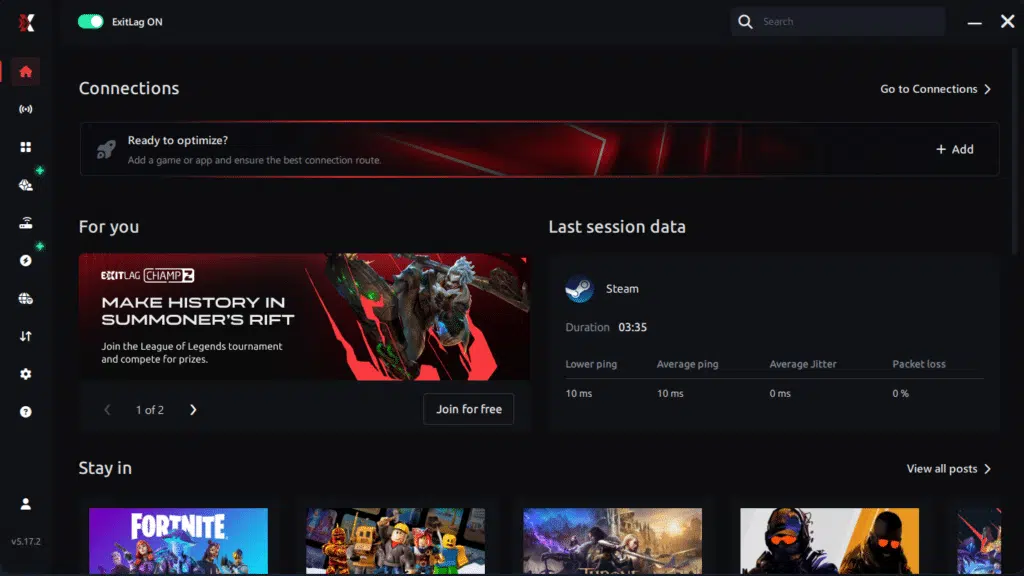
Step 3 – In the search bar, type “Overwatch 2” and select the game from the list.
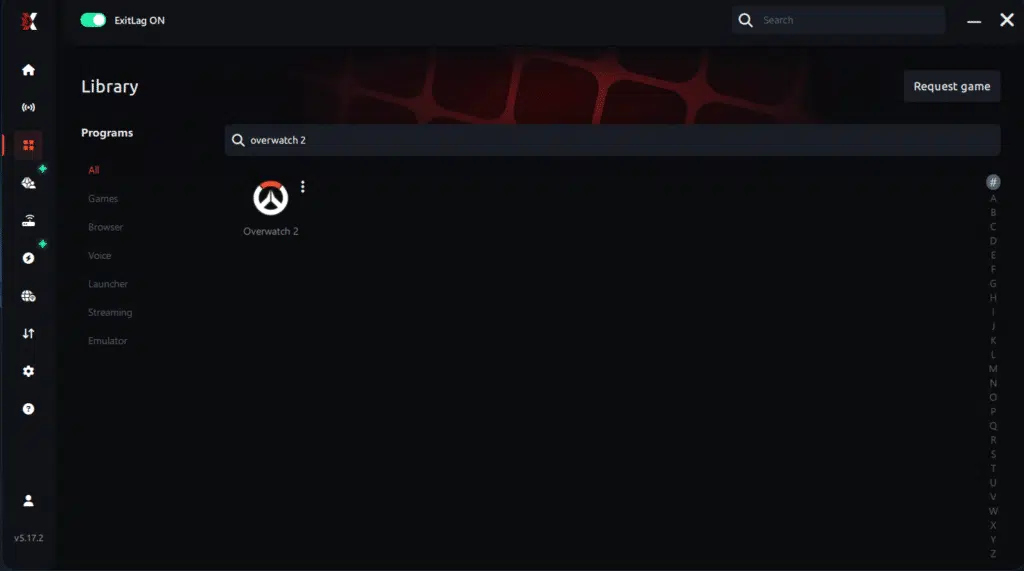
Step 4 – Choose between automated or manual route

Based on the results, you can let ExitLag automatically select the best route or manually choose the server that showed the lowest latency for your connection.
AI-optimized automated route
Based on the results, you can let ExitLag automatically select the best route through AI optimization. The system analyzes multiple connection paths in real time and automatically identifies the most efficient route for your connection, ensuring the lowest possible latency without requiring manual choices.
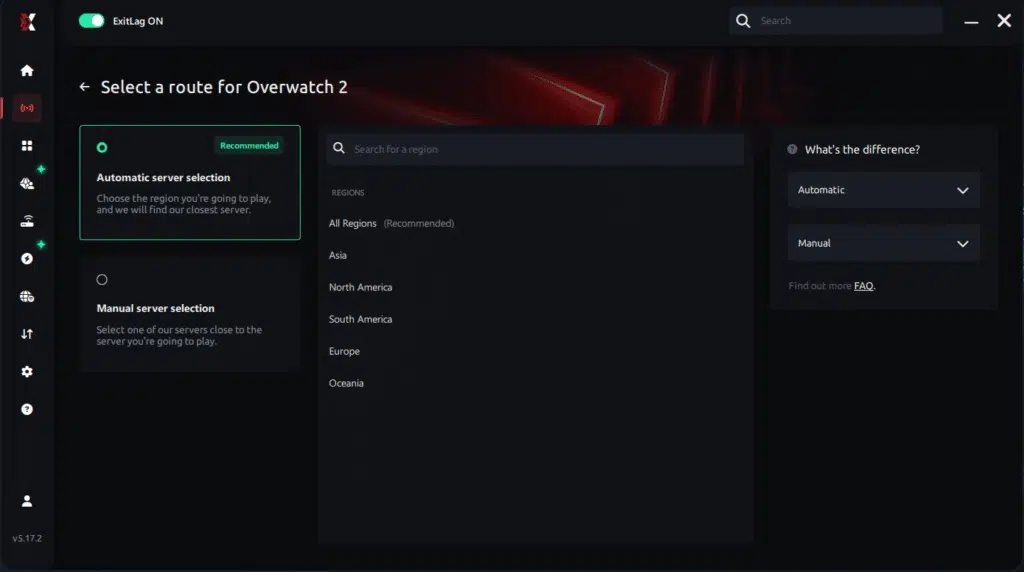
Manual route
If you prefer to have full control over your connection, you can manually choose the server based on the ping test results. Simply select the server that showed the lowest latency or the one that best meets your specific gaming needs, allowing complete customization of your experience.
Step 5 – Click “Overwatch 2” or the play button. ExitLag will begin optimizing your connection automatically.

Step 6 – Wait a few seconds until optimization is complete. You’ll see ping indicators in the interface.
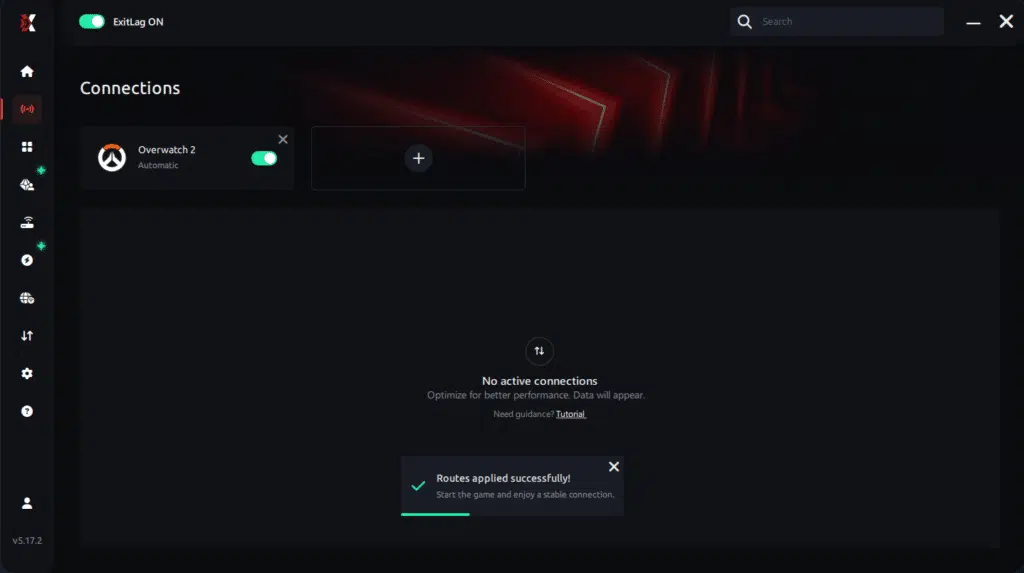
Step 7 – Launch Overwatch 2 normally. The optimization will already be active.
ExitLag runs in the background while you play, constantly adjusting routes to maintain the best possible performance.
In short:
- Create your ExitLag account
- Download ExitLag
- Choose your game and apply the routes
- Enjoy the best experience with ExitLag ON!
FAQ: frequently asked questions about jitter in Overwatch 2
What is the difference between jitter, lag, and packet loss in Overwatch 2?
Jitter is the variation of your ping over time—how unstable your delay is. Lag is the visible delay between your input and the game’s response, usually tied to high latency. Packet loss occurs when some packets never reach the servers or fail to return. You can have low ping but high jitter or packet loss, and Overwatch 2 will still feel awful to play.
Why does my ping keep fluctuating in Overwatch 2?
The most common reasons are network congestion on your home network, unstable routing from your ISP, Wi-Fi interference, multiple devices using bandwidth simultaneously, and distance to the game servers. Any of these factors—or several together—can lead to Overwatch 2 ping variation and jitter.
Is jitter worse than high ping in Overwatch 2?
In many situations, yes. A stable 100 ms ping can be playable if you adapt to the constant delay. But a ping that jumps between 30 ms and 150 ms is extremely hard to predict. Your shots, abilities, and movement will register differently each time, making high-level competitive play very frustrating.
How do I know if I have jitter in Overwatch 2?
Run a prolonged ping test outside the game and see whether the values stay tight or jump around. In Overwatch 2, watch for inconsistent timing: sometimes your abilities feel crisp, other times delayed; you see rubberbanding, or enemies seem to teleport. If the experience feels inconsistent even with decent average ping, jitter is likely present.
Does Wi-Fi cause jitter when playing Overwatch 2?
Yes. Wi-Fi is more vulnerable to interference, obstacles, and signal variation than wired connections. Even if your speed tests look good, those micro-issues can cause unstable latency and jitter. For serious Overwatch 2 play, an ethernet cable is strongly recommended whenever possible.
Does ExitLag help with problems other than jitter in Overwatch 2?
Yes. ExitLag not only stabilizes Overwatch 2 jitter but can also help reduce overall ping, minimize packet loss, and improve route stability to Blizzard’s servers. It’s focused on full connection optimization for online gaming on PC and mobile.
Do I need to keep ExitLag open while I play Overwatch 2?
Yes. ExitLag needs to run during the entire session to keep optimizing your routes in real time. You can minimize it, but if you close it, your connection reverts to default ISP routing and the benefits disappear.
Is Overwatch 2 more sensitive to jitter than other games?
Because Overwatch 2 is a fast-paced FPS where reaction time and precision aiming are crucial, it is especially sensitive to jitter. Even moderate jitter can ruin hit registration, break combos, and make your aim and tracking feel unreliable in ranked matches.

Conclusion
Jitter can turn Overwatch 2 from a smooth, competitive hero shooter into a source of constant frustration. Instead of outplaying your opponents with pure mechanics and teamwork, you end up fighting random delays, broken timing, and deaths that don’t match what you see on your screen. But you don’t have to accept that as “normal online play”.
By combining smart local tweaks with a dedicated routing solution like ExitLag, you can eliminate ping variation, stabilize your response time, and finally experience Overwatch 2 as it was meant to be played: responsive, fluid, and truly competitive. Investing in a stable connection protects your time, your SR, and your enjoyment.
For more guides and in-depth content on connection and performance, you can explore the official ExitLag blog.
Stop letting jitter decide your duels, teamfights, and climbs through the ranks. Take control of your connection, test ExitLag with Overwatch 2, and feel the difference in your very next game. Start your free trial today and experience a truly stable route to the servers:
Start your free trial today
Got questions or want to connect with other players? Join the conversation at the ExitLag Forum!