

High frame rates change everything in a competitive shooter. When your game runs at 144+ FPS, every movement feels instant, every shot feels precise, and every fight becomes a test of skill — not hardware limitations. In a fast-paced extraction shooter like Marathon, smooth gameplay is the difference between clutching a fight or watching the respawn screen.
But for many players, achieving a real Marathon FPS Boost feels impossible. Stuttering during intense fights, unstable frame time, and unexpected drops ruin consistency. Even worse, network instability can amplify these issues — especially when packet loss or routing problems occur. To understand more about common performance problems, you can check detailed articles directly from the ExitLag blog.
That’s where ExitLag steps in. Through advanced network optimization, ExitLag can deliver up to 60% more stable FPS performance by eliminating micro-stuttering and improving frame pacing. If you want to experience smoother gameplay and maximize your performance, you can start with the official gaming optimization.
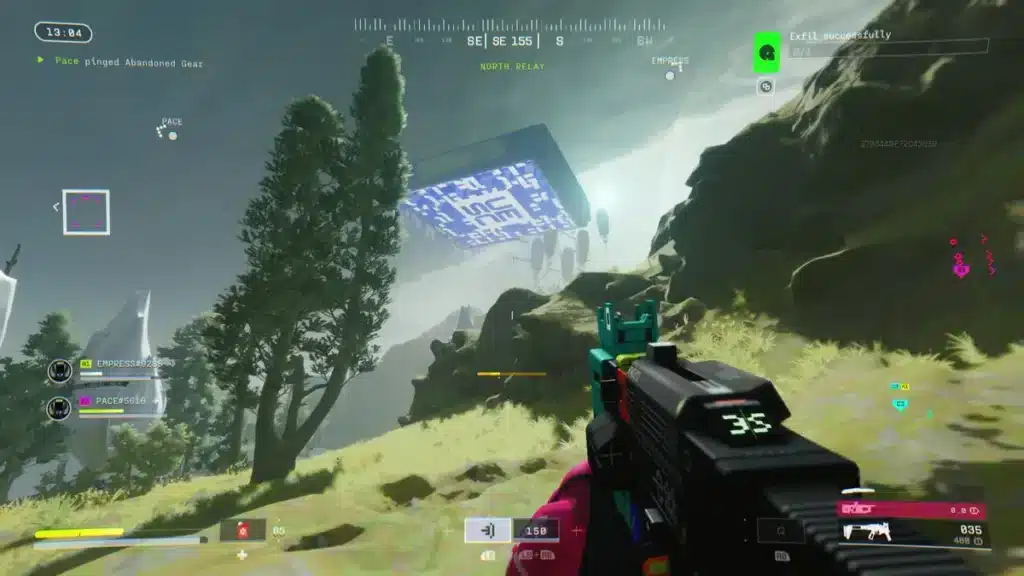
Why High FPS Is Crucial in Marathon
What Is FPS (Frames Per Second)?
FPS stands for Frames Per Second — the number of individual images your system renders every second. The higher the FPS, the smoother motion appears on your screen. You can think of it like a high-speed camera: the more frames it captures per second, the more fluid the recorded movement becomes.
Here’s how FPS levels compare in practical gameplay:
- 30 FPS → Noticeably choppy and delayed visual feedback
- 60 FPS → Smooth for casual play, but limited competitively
- 90 FPS → Good responsiveness for most players
- 144+ FPS → Ultra-fluid, ideal for competitive shooters
In a fast-paced extraction shooter like Marathon, where reaction time and tracking precision matter constantly, the difference between 60 FPS and 144 FPS is not subtle — it’s decisive.
Benefits of High FPS in Marathon
A proper Marathon FPS Boost delivers more than just prettier motion. It directly affects gameplay outcomes.
- Smoother movement tracking during intense firefights
- Faster visual feedback, reducing reaction delay
- Improved aim precision, especially in mid-range engagements
- Lower perceived input lag, increasing responsiveness
- Greater consistency in chaotic encounters
- Reduced visual fatigue during long sessions
- Better performance in high-density combat zones
Marathon’s extraction mechanics often create high-pressure scenarios. Late-game fights, crowded extraction zones, and ability-heavy encounters all demand stable frame rates. If your FPS fluctuates during these moments, you lose consistency — and consistency wins games.
FPS Classification for Marathon
| FPS Range | Quality | Experience | Competitive? |
| 144+ FPS | ⭐⭐⭐⭐⭐ Excellent | Perfectly smooth | ✅ Ideal |
| 90–144 FPS | ⭐⭐⭐⭐ Great | Very fluid | ✅ Competitive |
| 60–90 FPS | ⭐⭐⭐ Good | Playable but limited | ⚠️ Slight disadvantage |
| 30–60 FPS | ⭐⭐ Regular | Noticeable stutter | ❌ Hard to compete |
| <30 FPS | ⭐ Poor | Unstable and frustrating | ❌ Unplayable |
If your FPS drops below 60 during firefights, your gameplay consistency suffers immediately.
High FPS vs Beautiful Graphics
Many players prioritize ultra settings and maximum visual fidelity. While Marathon’s visuals are impressive, competitive players understand one fundamental rule:
Performance > Graphics in competitive shooters.
High shadows and motion blur may look cinematic, but they can introduce instability. In competitive PvP environments:
- Stable frame rate is more important than ultra textures
- Consistent frame time is more important than ray tracing
- Smooth gameplay is more important than visual effects
The goal of a true Marathon FPS Boost isn’t just higher numbers — it’s stable, reliable performance under pressure.
How ExitLag Increases FPS in Marathon
This is the most important section of your Marathon FPS Boost strategy.
What Is ExitLag? (It Is NOT a VPN)
First, let’s clarify something essential: ExitLag is NOT a VPN.
VPNs are designed for privacy and location masking. They reroute your connection through a single server, which often increases latency and can even worsen performance.
ExitLag, on the other hand, is specialized gaming optimization software. It analyzes real-time routing conditions and dynamically selects the most stable and efficient paths between you and the game servers. It uses multi-path routing technology to reduce packet loss and stabilize data transmission.
If you want to understand the technical foundation behind it, you can read the official explanation at our how ir works page.
How Network Optimization Improves FPS
Many players believe FPS is purely a hardware metric. While your GPU and CPU render frames, network instability directly impacts how those frames are synchronized with the server.
Here’s how network problems affect FPS:
- Packet loss forces the client to re-sync
- Latency spikes create micro-stutters
- FPS boost causes inconsistent frame pacing
- Server desync introduces perceived input lag
When your connection fluctuates, your game engine compensates. That compensation often manifests as frame drops or unstable frame time. This is why players sometimes upgrade hardware but still experience stuttering.
ExitLag reduces these interruptions by:
- Eliminating packet loss
- Stabilizing latency
- Reducing FPS boost
- Optimizing route consistency
The result is not just higher FPS numbers — it’s more stable FPS, which is far more important in Marathon.
7 Ways ExitLag Contributes to a Marathon FPS Boost
- Elimination of Micro-Stuttering
By ensuring consistent packet delivery, ExitLag prevents sudden frame pacing disruptions that feel like random FPS drops. - Reduction of Input Lag
Faster server response improves the link between your mouse input and on-screen action. - Frame Time Stabilization
Stable network flow leads to consistent frame rendering intervals. - Multi-Path Routing Technology
Data packets travel simultaneously through multiple optimized routes, ensuring redundancy and stability. - Game Traffic Prioritization
Critical game packets are prioritized over background processes. - Near-Zero Packet Loss
Prevents re-synchronization spikes that can cause visible stutters. - Global Infrastructure (600+ Servers Worldwide)
Ensures optimized routing regardless of your region.
ExitLag vs Other FPS Boost Solutions
| Solution | Increases FPS? | Reduces Lag? | Stability | Ease of Use | Recommendation |
| ExitLag | ✅ Yes (network-based) | ✅✅✅ Excellent | ⭐⭐⭐⭐⭐ | ⭐⭐⭐⭐⭐ | ✅ Best Choice |
| Common VPN | ❌ Often worse | ❌ Increases latency | ⭐⭐ | ⭐⭐⭐ | ❌ Avoid |
| Generic Game Booster | ⚠️ Minimal | ❌ No | ⭐⭐⭐ | ⭐⭐⭐⭐ | ⚠️ Limited |
| Windows Tweaks | ⚠️ Some | ❌ No | ⭐⭐⭐ | ⭐⭐ | ⚠️ Partial |
| Hardware Upgrade | ✅ Yes (hardware only) | ❌ No | ⭐⭐⭐⭐ | ⭐ | 💰 Expensive |
| Do Nothing | ❌ No | ❌ No | ⭐ | ⭐⭐⭐⭐⭐ | ❌ Poor Experience |
You can explore more compatible titles in the official supported games directory, where we maintain an updated list of all optimized games.
How to use ExitLag in Marathon: Step by Step
The process is extremely simple:
Step 1 – Access the official ExitLag website and download the application. There’s a free trial period for new users.

Step 2 – Install and open the program. Log in with your account.

Step 3 – In the search bar, type “Marathon” and select the game from the list.

Step 4 – Choose between automated or manual route
Based on the results, you can let ExitLag automatically select the best route or manually choose the server that showed the lowest latency for your connection.
AI-optimized automated route
You can let ExitLag automatically select the best route through AI optimization. The system analyzes multiple connection paths in real time and automatically identifies the most efficient route for your connection, ensuring the lowest possible latency without requiring manual choices.

Manual route
If you prefer to have full control over your connection, you can manually choose the server based on the ping test results. Simply select the server that showed the lowest latency or the one that best meets your specific gaming needs, allowing complete customization of your experience.
Step 5 – Click “Apply routes” or the play button. ExitLag will begin optimizing your connection automatically.

Step 6 – Wait a few seconds until optimization is complete. You’ll see ping indicators in the interface.

Step 7 – Launch Marathon normally. The optimization will already be active.
ExitLag runs in the background while you play, constantly adjusting routes to maintain the best possible performance.
How to use Ping for Games: Step-by-Step Guide (Marathon)
Checking your connection quality before entering a match has never been easier. Here’s how to use Ping for Games in just a few steps:
1. Open the ExitLag software on your PC – Ensure the application is installed and open. The feature is integrated into the platform and available for free to all users.
2. Access the Network Analyzer tool – Locate the Network Analyzer in the software menu.
his is where you’ll find Ping for Games along with other connection analysis features.
3. Select the game you want to test – Choose Marathon from the list. The tool supports major online multiplayer games, including FPS, Battle Royales, MOBAs, MMORPGs, and more.
4. Choose the specific server – Select the exact Marathon server you want to test instead of a generic region. This ensures more accurate results for your match.
5. Start the ping test – With one click, the measurement is performed in real time between your device and the selected Marathon server, considering your current connection (cable or Wi-Fi).
6. Analyze the results – Results appear in milliseconds (ms), automatically sorted from best to worst ping. You can also reorganize the view alphabetically if you prefer.
7. Choose the best server and play worry-free – With this information, simply select the server with the lowest latency and jump into Marathon knowing your connection is optimized.
Lag doesn’t have to decide your matches in Marathon anymore. Every dropped combo, every Fatality that stuttered, every ranked match that slipped away because of your connection — all of that has a solution.
With ExitLag, you get the fastest route to the server, reduce ping, eliminate packet loss, and play with the stability that competitive gaming demands. Your next Flawless Victory might depend less on reflexes and more on the quality of your connection.
Try ExitLag for free and discover what it’s like to play Marathon with maximum performance and zero lag.
Extra Optimizations to Maximize FPS with ExitLag
A true Marathon FPS Boost doesn’t stop at network optimization. ExitLag stabilizes your connection and eliminates network-induced stuttering — but combining it with proper system and in-game adjustments unlocks maximum performance.
When everything works together — network, GPU, system, and settings — your gameplay transforms.
Recommended In-Game Settings for Marathon
If your goal is to increase FPS and maintain stability in intense firefights, prioritize performance over visuals.
Use these optimized settings:
- Resolution: Native resolution or slightly reduced (e.g., 95–100% render scale)
- Graphics Quality: Medium or balanced preset
- Shadows: Low or Medium
- Post-processing effects: Reduced
- Motion Blur: OFF
- Film Grain: OFF
- Depth of Field: OFF
- V-Sync: OFF
- FPS Limit: Slightly above your monitor refresh rate (e.g., 165 for 144Hz)
- Fullscreen Mode: Enabled (exclusive fullscreen preferred)
In extraction shooters like Marathon, performance spikes happen during:
- Large PvP encounters
- Ability-heavy combat
- Explosions and particle effects
- Late-game extraction zones
Lowering unnecessary visual effects ensures stable frame time during those moments — especially when combined with ExitLag routing optimization.
Windows System Optimizations
System-level tweaks can further enhance your Marathon FPS Boost.
Apply these improvements:
- Enable High Performance Power Mode in Windows
- Disable Xbox Game Bar and Game DVR
- Close unnecessary background applications
- Update GPU drivers regularly
- Disable Windows transparency effects
- Optimize power plan settings
- Ensure your system is running in Performance Mode (for laptops)
These adjustments reduce CPU scheduling conflicts and background interruptions.
Hardware Optimizations (Without Spending Money)
Before upgrading, optimize what you already have.
- Clean your PC physically (dust reduces airflow and increases temperatures)
- Improve case ventilation with better airflow positioning
- Monitor CPU and GPU temperatures under load
- Reapply thermal paste if necessary (advanced users)
- Organize cables for better airflow
Overheating causes thermal throttling — and throttling reduces FPS stability. Keeping hardware cool helps maintain consistent frame rates.
GPU Configuration for Maximum FPS
NVIDIA Control Panel Settings
- Power Management Mode → Prefer Maximum Performance
- Low Latency Mode → Ultra
- Vertical Sync → Off
- Texture Filtering → High Performance
- Threaded Optimization → On
AMD Radeon Settings
- Anti-Lag → Enabled
- Radeon Boost → Enabled
- Surface Format Optimization → Enabled
- V-Sync → Off
- Performance Profile → Selected
These GPU-level adjustments complement the network stability provided by ExitLag.
When to Consider a Hardware Upgrade
Even with a proper Marathon FPS Boost strategy, hardware has limits.
Consider upgrading if:
- CPU usage constantly hits 100%
- GPU usage remains maxed with low FPS
- You experience stuttering even offline
- System RAM is below 16GB
Upgrade priority typically follows:
- GPU (biggest FPS impact)
- CPU (improves consistency in competitive shooters)
- RAM (minimum 16GB recommended)
- SSD (reduces loading times, not FPS directly)
However, remember:
ExitLag works with any hardware.
It optimizes your network — not your GPU — and improves FPS stability regardless of your PC tier.
Why Network Optimization Increases FPS
Many players underestimate how much network instability affects frame consistency.
The Connection Between Lag and FPS
Here’s the simplified technical flow:
Input → Sent to Server → Server Processes → Response Returns → Frame Rendered
If network latency spikes:
- Frame pacing breaks
- Client waits for server sync
- Micro-stuttering occurs
- FPS appears to drop
Network latency and frame rate are interconnected in online games. Stable routing improves synchronization.
How Packet Loss Affects FPS
Packet loss doesn’t just increase ping — it disrupts rendering consistency.
Symptoms include:
- Rubberbanding
- Animation desync
- Sudden stutter during fights
- Frame drops in intense moments
- Delayed hit registration
When packets are lost, the client must re-synchronize with the server. That re-sync often causes visible FPS dips.
By reducing packet loss close to zero, ExitLag stabilizes frame delivery.
Input Lag and FPS Perception
Input Lag Flow:
Input → Server → Response → Frame Update
Higher latency increases the delay between your action and what you see on screen.
When ExitLag reduces routing delay:
- Inputs feel instant
- Tracking improves
- Reaction time shortens
- FPS feels higher
This is why many players report that FPS “feels doubled” — even when raw FPS numbers increase moderately. Stability and responsiveness create the perception of higher frame rate.
Frame Time Consistency Matters More Than Raw FPS
120 FPS fluctuating between 60–140 feels worse than stable 95 FPS.
Why?
Because frame time consistency defines smoothness.
ExitLag stabilizes:
- Latency
- FPS boost
- Packet flow
Stable data flow = stable frame pacing = smoother gameplay. And once again: ExitLag is NOT a VPN.
Frequently Asked Questions About Marathon FPS Boost
Does ExitLag Really Increase FPS?
Yes — through network optimization. It improves perceived FPS stability by eliminating micro-stuttering, reducing desync, and stabilizing frame pacing. It doesn’t modify hardware performance — it enhances synchronization.
How Much FPS Will I Gain?
Results vary depending on your connection quality.
Most players report:
- 20–60% improvement in stability
- Elimination of major FPS drops
- Near-zero micro-stuttering
The worse your routing instability, the bigger the improvement.
Does ExitLag Work If My PC Is Weak?
Yes — with realistic expectations.
ExitLag optimizes network performance, not hardware performance. It won’t replace a GPU upgrade, but it will ensure your FPS remains stable within your system’s limits.
Is It Safe to Use?
Completely safe.
- Does not modify game files
- Used by millions of players
- Designed specifically for gaming optimization
Does ExitLag Work on Console?
ExitLag currently works on PC. Console players may use PC hotspot routing as an alternative, but for competitive play, PC remains the optimal platform.
Do I Need Fast Internet for ExitLag to Work?
No. ExitLag optimizes routing efficiency, not bandwidth speed. Even 10 Mbps is sufficient for gaming. Stability and latency matter more than raw download speed.
What’s the Difference Between ExitLag and a VPN?
| Feature | ExitLag | VPN |
| Purpose | Gaming performance | Privacy |
| Routing | Multi-path optimized | Single tunnel |
| Ping Impact | Reduces | Often increases |
| FPS Stability | Improves | May worsen |
| Packet Loss | Eliminates | Not optimized |
Technical explanation at our official gamepage.
Again — ExitLag is NOT a VPN.
How Much Does ExitLag Cost?
ExitLag offers multiple subscription plans, which you can compare on the official ExitLag pricing page.
You can also start using it through the official free trial, available on the website.
Does ExitLag Work Specifically with Marathon?
Yes. Marathon is fully supported and optimized within the ExitLag platform.
It’s also optimized for thousands of other competitive titles, ensuring stable routing across multiple games.
Comparison: Playing Without vs With ExitLag
Experience Without ExitLag
❌ FPS unstable (40–80 fluctuating)
❌ Constant micro-stuttering
❌ Frame drops in critical fights
❌ Noticeable input lag
❌ Inconsistent performance
❌ Competitive disadvantage
❌ Ongoing frustration
Experience With ExitLag
✅ Stable FPS (90–120 consistent)
✅ Zero micro-stuttering
✅ Consistent frame time
✅ Instant input response
✅ Smooth competitive gameplay
✅ Clear performance advantage
✅ Premium experience
Side-by-Side Comparison
| Aspect | Without ExitLag | With ExitLag |
| FPS | Unstable | Stable ✅ |
| Stuttering | Frequent | Rare/Zero ✅ |
| Input Lag | High | Low ✅ |
| Consistency | ⭐⭐ | ⭐⭐⭐⭐⭐ ✅ |
| Competitive Edge | Disadvantage | Advantage ✅ |
| Enjoyment | ⭐⭐ | ⭐⭐⭐⭐⭐ ✅ |
Maximize Your FPS in Marathon with ExitLag Now
A complete Marathon FPS Boost strategy delivers:
- ✅ Up to 60% more stable FPS
- ✅ Elimination of micro-stuttering
- ✅ Reduced input lag
- ✅ Stable frame time
- ✅ Real competitive advantage
- ✅ Works with any hardware tier
ExitLag is specialized in gaming performance optimization. It uses proprietary routing technology, global server infrastructure, and real-time optimization systems built specifically for competitive players.
Next steps
- Test ExitLag for free
- Configure in 5 minutes
- Compare before and after
- Dominate Marathon with maximum performance
In conclusion, giving FPS boost Marathon issues requires balancing hardware, settings, and network stability. ExitLag’s multi-path technology eliminates routing delays and ensures fluid gameplay across all regions of Marathon . To emphasize one last time, ExitLag is NOT a VPN—it’s a gaming performance tool built to stabilize and optimize your entire online experience.
Now that you know everything about FPS boost Marathon , if you want the most stable, smooth, and competitive gameplay possible, is time to upgrade your performance toolkit. Register at ExitLag now and improve your gameplay in a way you’ve never experienced before!
Got questions or want to connect with other players? Join the conversation at the ExitLag Forum!


