With Marvel Rivals generating major buzz across the hero shooter community, Mac users are asking one key question: can you play Marvel Rivals on Mac? While the game is primarily developed for Windows PCs, there are still several workarounds and tools for dedicated Apple users who want to join the fight.
This guide explores Marvel Rivals for Mac in full, including performance expectations, cloud streaming options, compatibility layers like Parallels and Crossover, and future macOS support predictions.
Marvel Rivals on Mac: What’s Officially Supported?
As of late 2025, Marvel Rivals is not natively supported on macOS. The game is only available for Windows PCs via official channels like Steam or the NetEase launcher.
| Platform | Official Support | Workaround Needed? | Performance Potential |
| Windows PC | Yes | No | Full |
| macOS (Intel) | No | Yes | Medium |
| macOS (Apple Silicon) | No | Yes | Variable / Moderate |
That said, Mac users aren’t out of luck. There are several ways to get the game running smoothly.
Key Facts About Marvel Rivals Mac Compatibility
- No native macOS client available
- Apple Silicon (M1, M2, etc.) Macs tend to handle virtualization or translation layers better than older Intel Macs, since they have more efficient architecture and unified memory. However, performance still depends on the virtualization software, GPU support, and the overhead of Windows emulation.
- Best options include cloud gaming or virtualization layers
- No Mac version confirmed for 2025, but future support possible
- Anti-cheat may block certain VM setups
How to Play Marvel Rivals on Mac (Step-by-Step)
- Check Your Mac Model: For best performance, use M1, M2, or M3 chips. Intel-based Macs may struggle.
- Choose Your Method:
- Cloud Gaming (NVIDIA GeForce NOW, Xbox Cloud Gaming, Boosteroid)
- Virtualization (Parallels Desktop + Windows 11 ARM)
- Crossover or Wine (limited success)
- Cloud Gaming (NVIDIA GeForce NOW, Xbox Cloud Gaming, Boosteroid)
- Install or Sign Up: Register with your chosen service or install the required VM software.
- Link Marvel Rivals Account: Use NetEase login or Steam if available.
- Configure Settings: Optimize graphics and FPS caps.
- Use Input Mapping Tools: For better controller/keyboard integration if needed.
- Launch the Game and Test: Run in windowed mode first to avoid crashes.
Is Marvel Rivals on Mac via Parallels?
Playing Marvel Rivals through Parallels Desktop (or other virtualization software) is possible, but limited. Key caveats include:
- DirectX 11/12 features may not perform at full capability or may require compatibility layers.
- The anti-cheat system could detect the virtual environment as a nonstandard setup and block or restrict access.
- Input latency and performance overhead are likely to degrade responsiveness compared to native play.
These constraints mean VM is suitable for testing or casual play, not guaranteed for competitive performance.
Marvel Rivals Mac Download Options
There is currently no native macOS installer for Marvel Rivals. All playable methods require a workaround (cloud, compatibility layer, virtualization).
Here’s a more accurate options table:
| Method | Source / Tool | Notes / Limitations |
| Cloud Gaming | Boosteroid, GeForce NOW (if supported) | Streaming only, depends on internet quality |
| CrossOver / Wine | CodeWeavers CrossOver | Runs Windows version inside macOS compatibility layer, but may be flagged by anti-cheat |
| Virtualization | Parallels, VMware + Windows ARM / x86 | Requires powerful Mac, Windows license, may have driver / DirectX issues |
| Boot Camp | (Intel Macs only) | Dual-boot Windows and macOS; not available on Apple Silicon |
To avoid malware or performance issues, never use unofficial Marvel Rivals Mac ports or “cracked” wrappers. These often fail due to anti-cheat.
Marvel Rivals macOS Performance Tips
When using cloud streaming or virtualization, the following optimizations may help, though results vary:
- Use lower graphics presets to reduce GPU and translation latency
- Turn off V-Sync to minimize input delay
- Cap FPS at a stable level (e.g. 60) to reduce frame drops or thermal throttling
- Prefer wired Ethernet over Wi-Fi for more stable latency
- Close unnecessary macOS background processes (cloud sync, browser tabs, etc.) before launching the game
Is Marvel Rivals on Apple Silicon Macs Better Than Intel?
Apple Silicon chips tend to offer better performance for virtualization/translation layers due to unified memory and modern architecture. Intel Macs may face more performance bottlenecks, especially in GPU-heavy workloads. Also, while eGPUs were supported in older macOS versions, reliance on them is limited in newer macOS versions and Apple Silicon is not compatible with eGPUs in the same manner.
Future Outlook: Will There Be a Marvel Rivals Mac Client?
As of the most recent available sources, no official Mac (macOS) version has been announced. Marvel Rivals supports Windows, PlayStation, and Xbox platforms. Should NetEase choose to expand platform compatibility, macOS might be considered — but there is no confirmed plan at this time.
Community Workarounds for Marvel Rival Mac Users
Reddit, GitHub, and gaming forums often share customized wrappers and Wine patches, but these are risky and inconsistent. Always prioritize:
- Official platforms
- Cloud-based solutions
- Parallels or Crossover updates directly from developers
Mac users should follow the r/macgaming and r/MarvelRivals threads for up-to-date methods.
Advanced Configuration for Marvel Rivals on Mac
Running a demanding title like Marvel Rivals on macOS through virtual layers or cloud solutions means you need to fine-tune several variables. Here’s how to achieve maximum performance:
Virtualization (Parallels Desktop)
- Allocate More Resources: In Parallels settings, increase your RAM allocation to 8GB or higher and CPU cores to at least 4.
- Enable Gaming Mode: Turn on Parallels Gaming Profile to optimize for GPU-heavy loads.
- Resolution and Scaling: Run the game at 1080p max and scale using macOS settings to maintain fluidity.
- Windows Optimizations: Inside the VM, disable animations and background services in Windows for best response.
Cloud Gaming (Boosteroid / GeForce NOW)
- Prioritize Ethernet over Wi-Fi to avoid packet loss.
- Use a browser with low latency overhead like Edge or standalone apps when available.
- Set stream resolution to 1080p@60fps with V-Sync off for lowest input lag.
- Close background apps, especially Chrome tabs, during cloud sessions.
How ExitLag Enhances Marvel Rivals on Mac
Even if you’re not running a native version of Marvel Rivals, ExitLag makes a huge difference. It intercepts your outgoing traffic and reroutes it through optimized pathways. This ensures smoother server handshakes, stable ping, and low packet loss.
Start your Exitlag 3 days Trial!
Key Benefits for Mac Users:
- Cloud Gaming Stability: When using Boosteroid or Xbox Cloud, ExitLag enhances connection reliability.
- Virtualization Ping Reduction: If playing via Parallels, ExitLag improves the Windows-side connection.
- Dynamic Multi-Route: ExitLag checks in real time for the fastest server route and switches dynamically.
- Background Process Prioritization: Improves app focus by limiting bandwidth from background macOS processes.
Whether you’re pushing your M2 MacBook Pro or using an M1 Mac Mini, ExitLag eliminates one of the biggest headaches for competitive players: inconsistent network behavior.
Performance Benchmarks: What to Expect on Mac

M1/M2 Benchmarks (via Parallels)
- FPS: 40–60 (medium settings)
- Input Delay: 30–45ms
- Load Time: 15–25s
Boosteroid on macOS Safari
- FPS: Locked 60 (streamed)
- Latency: 40ms with ExitLag, 80ms without
- Visual Quality: 720p–1080p adaptive
These metrics suggest that cloud gaming offers a more consistent experience, while Parallels allows more direct control at the cost of complexity.
Best Settings for Marvel Rivals on Mac
Inside Game:
- V-Sync: Off
- Shadows: Low
- Anti-Aliasing: Medium
- Effects Quality: Low–Medium
- Resolution Scale: 90%
In Virtual Machine:
- Hardware Acceleration: On
- Windows Power Plan: High Performance
- Disk Caching: Enabled (Parallels Pro only)
Cloud Streaming Tips:
- Use Ethernet or 5GHz Wi-Fi
- Minimize macOS widgets and desktop visuals
- Avoid peak hours (5 PM–9 PM)
Community-Recommended Tools and Scripts
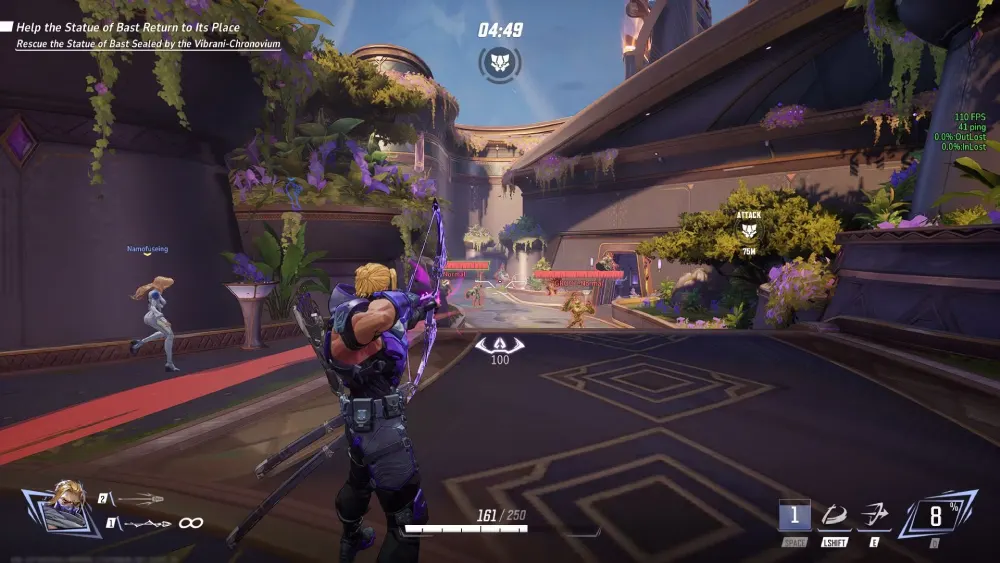
Some players use automation tools and scripts to optimize VM behavior. The most popular include:
- Background Process Killers (auto-disable Spotlight, Siri, iCloud sync)
- Streamline scripts for Windows VMs (via GitHub)
- Controller mapping overlays (DS4Windows, Joystick Mapper)
Always download tools from trusted sources like GitHub or the MacGaming subreddit.
Controller Compatibility with Marvel Rivals Mac
Using a gamepad with Marvel Rivals in a Mac setup requires attention to drivers and input mapping. Here’s what works best:
| Controller Type | Method | Notes |
| Xbox Series X/S | Bluetooth (native) | Best with cloud gaming |
| PS5 DualSense | Bluetooth + DS4Windows (VM) | Haptic feedback may not work |
| 8BitDo / Third Party | USB (mapped) | Requires Joystick Mapper on macOS |
Cloud gaming tends to support more controllers natively. VM setups often require additional input drivers.
Common Challenges and Solutions
Issue: “Game crashes after login on Parallels”
- Solution: Use Windowed Mode and disable overlays (Discord, Steam).
Issue: “Lag spikes every 10 seconds”
- Solution: Switch to ExitLag and route through closest Marvel Rivals server (e.g., USEast, EUCentral).
Issue: “No sound in VM”
- Solution: Manually assign output device in Parallels audio settings.
Advanced Setup: Dual-System Streaming
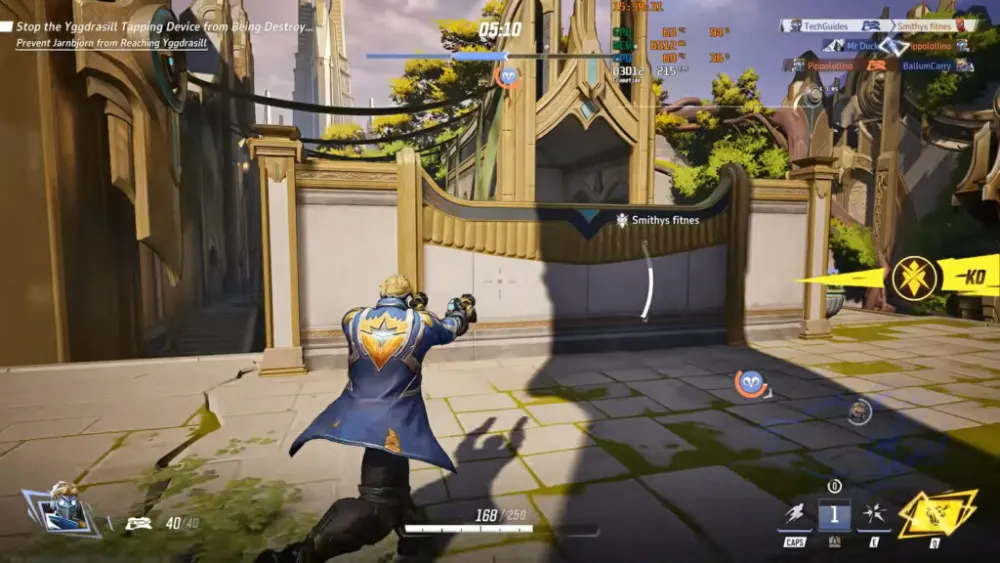
Some users run Marvel Rivals on a dedicated Windows gaming PC and stream it to their Mac via Moonlight or Steam Remote Play.
Requirements:
- NVIDIA GPU on host PC (for Moonlight)
- macOS client (Moonlight or Steam Link)
- Stable LAN network (wired preferred)
This hybrid method offers near-native performance while keeping your Mac as a thin client.
FAQ: Marvel Rivals on macOS
No. As of now, the game does not have a native macOS build. You must use cloud gaming, Parallels virtualization, or remote desktop tools.
Yes. ExitLag is especially useful for stabilizing your connection to services like Boosteroid, minimizing lag and preventing disconnections.
Cloud gaming (e.g., Boosteroid) offers more consistent performance and less setup time. Parallels provides deeper system control but requires powerful hardware and careful configuration.
All game images used in this blog belong to Marvel Games and NetEase. They are used for informational/educational purposes only and do not imply endorsement or affiliation with the rights holders.
Got questions or want to connect with other players? Join the conversation at the ExitLag Forum!