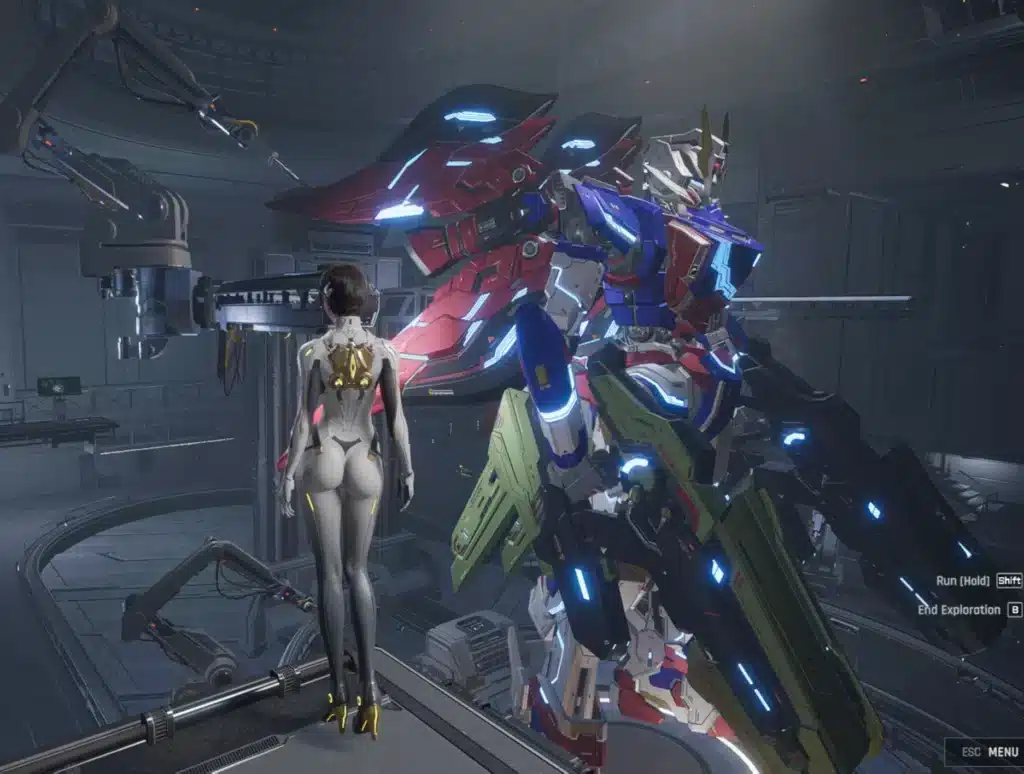
Few things ruin a Mecha Break match faster than your Striker freezing mid-dash while an enemy mech unloads on you. Mecha Break Lag Spikes are one of the most reported issues since the game launched, and they are not just in your head.
Pilots across every region have flagged sudden ping jumps to 999, rubber-banding during boss fights, and disconnects in ranked queues. Furthermore, these spikes tend to strike at the worst possible moment: mid-duel, mid-extraction, or right as a Falcon lines up a shot.
So what actually causes Mecha Break Lag Spikes, and what can you do about it tonight? The short answer is that most spikes come from unstable routing between your ISP and the game’s regional servers, not from your PC hardware. Fixing the route, not just your settings, is what actually stops the freezing.
This guide breaks down the real causes, the settings that help, and the routing fixes that make the biggest difference. We will also cover common mistakes pilots make when trying to troubleshoot on their own.
Why Mecha Break Lag Spikes Happen During Matches
Mecha Break runs on regional servers covering North America, Latin America, Europe, the Middle East, Africa, and Asia-Pacific. When your connection has to hop through multiple networks to reach the closest one, every extra hop adds risk of packet loss.
Consequently, a single unstable hop between your internet provider and the game’s data center can cause your ping to spike from 30ms to over 900ms in seconds. Players have reported this happening in ranked matches, PvE training, and even simple lobby screens.
Server-Side Routing Issues
Many pilots have noticed that connections sometimes get routed through unexpected regions, for example Asia traffic bouncing through European nodes before reaching its actual server. This kind of misrouting is largely invisible to the average player.
- Traffic can take an inefficient path even when a closer server exists
- ISPs often prioritize their own routing logic over the shortest path
- Peak hours increase congestion on shared network backbones
- Regional server clusters can become overloaded during big content drops
Local Network and Hardware Factors
Not every spike is the server’s fault. Your home network setup plays a real role too, and it is the part you can control most directly.
- Wi-Fi interference from other devices competing for bandwidth
- Background downloads or cloud backups eating your upload speed
- Outdated network drivers causing micro-stutters
- A router that has not been rebooted in weeks building up congestion
What Is the Direct Fix for Mecha Break Lag Spikes?
The most reliable fix combines two things: optimizing your local settings to remove client-side stutter, and improving the actual network route your data takes to reach Mecha Break servers. Neither alone solves everything.
Mecha Break Lag Spikes are frequently a routing problem, which means a tool that finds a more stable path can help far more than lowering your graphics settings alone. Both pieces matter, but routing tends to have the bigger impact on ping spikes specifically.
Is It Your PC or the Server?
A quick way to tell is to watch your in-game ping counter during a spike. If your frame rate stays smooth but ping jumps to 999 and stays there, that points to a network issue rather than a hardware bottleneck.
On the other hand, if your FPS also drops sharply at the same moment, your system may be struggling with graphics load. Both problems can happen together, so it helps to isolate them one at a time.
Best Settings To Reduce Stutter In Mecha Break
Before touching your network, make sure your client-side settings are not adding extra frame time variance on top of any connection issues. These changes are quick and reversible.
| Setting | Recommended Value | Why It Helps |
|---|---|---|
| V-Sync | Off | Removes input delay and reduces stutter spikes |
| Frame Rate Cap | 3 FPS below monitor refresh | Prevents frame time inconsistency |
| Graphics API | DX12 (modern GPU) / DX11 (4GB VRAM or less) | Matches API to your hardware for stability |
| Volumetric Fog | Off or Low | Cuts GPU load during large team fights |
| Depth of Field | Off | Reduces GPU strain and improves target tracking |
| Upscaling | DLSS/FSR Quality Mode | Boosts FPS without a major visual hit |
Step-by-Step Settings Optimization
- Open the in-game Graphics menu and switch Display Mode to Fullscreen
- Turn off V-Sync and set a manual frame rate cap 3 FPS under your refresh rate
- Disable Volumetric Fog, Screen Space Reflections, Depth of Field, and Motion Blur
- Select DLSS or FSR in Quality Mode if your GPU supports it
- Enable Hardware-accelerated GPU Scheduling in Windows Graphics Settings
- Switch your Windows power plan to High Performance
- Restart the game so all changes fully apply
Common Mistakes Pilots Make Tuning Settings
- Maxing out shadows and reflections: These effects add heavy frame time cost with little competitive benefit. Fix: keep shadows on Low or Medium during ranked play.
- Ignoring background apps: Discord overlays, browsers, and launchers all compete for CPU and bandwidth. Fix: close anything not needed while playing.
- Never updating GPU drivers: Old drivers are a common source of unexplained stutter in newer titles. Fix: check for driver updates monthly, especially after big game patches.
How Do You Stabilize Your Connection For Ranked Matches?
Stabilizing your connection starts with identifying whether the spike is happening on your local network or further down the route to the server. From there, a dedicated routing tool can reduce the number of unstable hops your traffic takes.
Router and ISP-Level Fixes
- Use a wired Ethernet connection instead of Wi-Fi whenever possible
- Reboot your router before long play sessions to clear congestion
- Pause cloud backups, game downloads, and streaming on other devices
- Contact your ISP if spikes happen at the same time every day, which often points to peak-hour congestion
Advanced Routing Adjustments
Beyond your home setup, the path your data takes across the internet backbone matters just as much. Ping Spikes in Mecha Break are frequently tied to inefficient routing decisions made outside your control by default network paths.
- Multipath routing sends your data through several routes at once, so if one fails another keeps the connection alive
- Real-time route selection picks the fastest available path instead of your ISP’s default
- Reducing hop count directly lowers the chance of packet loss along the way
Pro Tips: Reducing Mecha Break Lag Spikes
- Test at different times of day: If spikes cluster around evening hours, it is likely network congestion rather than a client issue.
- Check your ping before queueing: A quick ping test avoids starting a ranked match on an already unstable connection.
- Keep firmware updated: Router manufacturers regularly patch stability bugs that cause random disconnects.
- Avoid public Wi-Fi for ranked play: Shared networks introduce unpredictable Latency Spikes that are nearly impossible to fix on your end.

Why ExitLag Helps With Mecha Break Lag Spikes
After testing settings and router tweaks, the next logical step is fixing the actual route your traffic takes to reach Mecha Break’s servers. This is exactly where ExitLag makes a real difference for pilots dealing with High Ping issues.
ExitLag is not a VPN. It is a game connection optimizer that scans multiple network paths in real time and automatically picks the fastest, most stable route between your PC and the game server.
It supports over 4,000 titles across PC and mobile, with more than 1,500 servers spread across 190-plus countries, and it is trusted by over 30 million players worldwide. Because Mecha Break’s spikes are so often routing-related, this is a direct match for the problem.
- Multipath Technology: Routes your packets through multiple paths at once, so a single failing hop does not kill your connection mid-fight.
- Real-time Optimization: Continuously monitors latency and packet loss to keep your route as stable as possible throughout a match.
- Traffic Shaper: Prioritizes Mecha Break’s traffic over background apps so nothing else steals your bandwidth during a duel.
- PC Boost: Frees up RAM and trims background processes for smoother frame pacing alongside your network fix.
ExitLag does not modify game files, inject code, or interact with anti-cheat systems, so it is safe to run alongside Mecha Break without risk to your account. If you want to see whether routing is behind your spikes, you can grab the ExitLag Download and test it during your next few matches.
Final Thoughts On Fixing Mecha Break Lag Spikes
Solving Mecha Break Lag Spikes usually takes a combination of clean client settings and a smarter network route. Neither one alone tends to fully solve the problem for most pilots.
Start with the settings changes above, then rule out your local network with a wired connection and a router reboot. If spikes persist after that, the issue is almost certainly happening further along your route to the server.
That is the point where a dedicated optimizer becomes worth testing, since Mecha Break Lag Spikes so often trace back to inefficient paths rather than your hardware. Small changes, tested one at a time, will get you back to consistent, fair fights.
All game images used in this blog post belong to Amazing Seasun Games. They are used for informational and educational purposes only and do not imply endorsement or affiliation with the rights holders.
Got questions or want to connect with other players? Join the conversation at the ExitLag Forum!