Rematch Lag has become one of the most discussed problems since Sloclap’s fast paced football game landed on PC and console. Matches feel incredible when the connection holds steady, but one bad frame can turn a clean save into a conceded goal. If you have felt that gap between what you did and what the server registered, you are not imagining it.
Rematch Lag is not just about high ping numbers on a menu screen. It shows up as rubber-banding tackles, phantom goals, and goalkeepers who dive perfectly yet still watch the ball cross the line. Sloclap has acknowledged the issue publicly and shipped multiple patches targeting these exact scenarios.
In short, Rematch Lag happens because the game relies on tight server validation for every touch, tackle, and save, and even small network hiccups break that chain. Ping, packet loss, and route instability all feed into the same problem. Fixing your connection quality directly reduces how often desync ruins a play.
This guide goes beyond the basics. We will cover why Rematch is so sensitive to latency, how the netcode actually processes real-time ball physics, and what you can do today to play with fewer frustrating rollbacks.

Understanding Rematch Lag: Why Desync Hits Goalkeepers Hardest
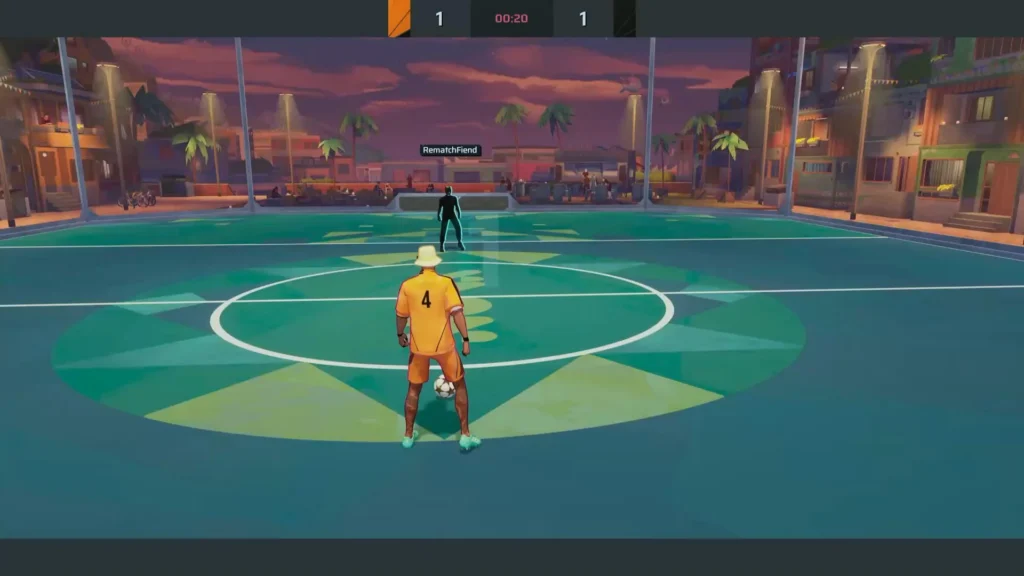
Rematch runs on a physics-driven engine where every kick, header, and dive depends on precise timing between your device and Sloclap’s servers. Unlike a shooter where a missed bullet is a minor loss, a missed save in Rematch decides the match. That is why the goalkeeper role feels the harshest edge of Rematch Lag.
Community discussions are full of clips showing a goalkeeper catching the ball cleanly, only for the animation to roll back and the goal to count anyway. This happens because the client predicts an outcome locally while the server later disagrees, and the server’s version always wins.
What Causes Rematch Lag On PC And Console?
Several factors stack together to create Rematch Lag, and rarely is it just one issue. Understanding the full list helps you target the real cause instead of guessing.
- High or unstable ping between your device and the selected server region
- Packet loss caused by congested home networks or outdated routers
- Server-side tick rate limitations during high-traffic hours
- Crossplay matches pairing players across very different regional latencies
- Background applications competing for bandwidth during a match
How Rematch Netcode Handles Ball Physics And Player Timing
Rematch’s netcode has to synchronize a live ball with physics-based momentum, spin, and collision across every connected player. Consequently, even a small delay in one player’s connection can throw off the shared simulation for everyone in the lobby.
Sloclap has rolled out patches addressing tackles that failed to register and goalkeeper dives that were rolled back after appearing successful. These fixes reduced some of the worst desync moments, though players still report occasional issues, especially during peak hours.
What Causes Rematch Desync And Rematch Ping Spikes?
Desync and ping spikes are related but not identical problems. Rematch Desync happens when your local game state and the server’s authoritative state disagree, while ping spikes are simply delays in data traveling back and forth.
Both issues compound each other. A ping spike during a tackle animation is far more likely to trigger a visible desync moment than the same spike during a slow buildup phase.
Rematch Servers, Regions, And Preferred Location Settings
Rematch offers regional server coverage across areas like Europe, North America, South America, Asia, and Australia. By default, the game auto-selects a region based on quality of service metrics, but you can manually lock a preferred location in the gameplay options menu.
Choosing the closest physical server almost always improves your baseline connection. Here is a quick way to check yours:
- Open the in-game System menu and go to Options
- Select the Gameplay tab and find Preferred Server Location
- Choose the region closest to your physical location
- Confirm the change and restart your current session if needed
- Run a few matches to compare stability before and after
Crossplay And Its Effect On Rematch Lag Between Platforms
Rematch supports full crossplay across PC, PlayStation, and Xbox, though progression stays tied to each platform separately. As a result, you might get matched with players on a completely different region than the one you selected.
This mixed pool is convenient for finding matches quickly, but it also means average round-trip time across the lobby can rise. Therefore, some competitive players prefer manually restricting their preferred server rather than relying on auto-selection.
Best Settings To Reduce Rematch Netcode Issues
Rematch Netcode improvements arrive gradually through patches, but your local setup still plays a huge role in how smooth a match feels. Small adjustments on your end often matter more than people expect.
The table below breaks down common Rematch Lag symptoms, their likely cause, and the fastest fix available today.
| Symptom | Likely Cause | Quick Fix |
|---|---|---|
| Goalkeeper save rolls back into a goal | Server-side desync during high ping | Lower ping, switch to wired connection |
| Tackles not registering | Packet loss or unstable route | Check router, reduce background traffic |
| Sudden rubber-banding mid match | Route congestion or ISP throttling | Use a route optimizer, avoid peak hours |
| Long matchmaking with high ping matches | Auto-region selecting distant servers | Set Preferred Server Location manually |
In-Game Network Settings Worth Checking
Before touching your router, review what Rematch itself allows you to control. These settings are easy to miss inside the options menu.
- Preferred Server Location under Gameplay options
- Any available low latency or performance mode toggle
- Crossplay filters if you want to limit distant regional matchmaking
- Graphics settings that indirectly free up CPU cycles for networking tasks
Router, Wi-Fi, And Background App Adjustments
Your home network setup can undo even the best in-game settings if it is not optimized. A wired connection almost always beats Wi-Fi for consistency during fast-paced matches.
- Connect via Ethernet instead of Wi-Fi whenever possible
- Restart your router before long play sessions to clear congestion
- Close bandwidth-heavy apps like streaming services or large downloads
- Update network drivers and router firmware regularly
- Enable Quality of Service settings to prioritize gaming traffic
Rematch Lag Fixes: Pro Tips And Common Mistakes To Avoid
Fixing Rematch Lag is rarely about one magic setting. It is a combination of smart choices before and during a session, along with avoiding a few habits that quietly make things worse.
Pro Tips: Reducing Rematch Lag
- Test different times of day: Server load varies throughout the day, and matches played during off-peak hours often show noticeably less desync because fewer players are hitting the same servers at once.
- Lock your preferred region manually: Auto-selection prioritizes match speed over latency quality, so manually setting your closest server usually gives a more stable connection than letting the game choose.
- Prioritize a wired connection for ranked play: Wi-Fi introduces variable latency even on a strong signal, and that variability is exactly what triggers desync during fast physics interactions like saves and tackles.
- Watch your packet loss, not just your ping number: A low ping with high packet loss still feels terrible in Rematch, because dropped packets force the client to guess at positions until the server corrects it.
- Use a real-time route optimizer during peak hours: When your ISP’s default path to Sloclap’s servers gets congested, an optimized route can bypass the worst hops instead of forcing you to wait it out.
Common Mistakes Rematch Players Make
- Blaming only the server without checking their own network: Many players assume every desync is Sloclap’s fault, but local packet loss or Wi-Fi instability causes a large share of these moments. Fix: run a basic connection test before assuming server-side issues.
- Ignoring the Preferred Server Location setting: Leaving region selection on automatic often pairs you with farther servers than necessary. Fix: manually set your closest region and monitor if match quality improves.
- Playing ranked matches during known peak congestion hours: Server load climbs during evenings and weekends, increasing the odds of a rollback during a critical save. Fix: shift practice or ranked sessions to quieter hours when possible.
- Stacking bandwidth-heavy apps in the background: Streaming, downloading, or cloud backups running during a match steal bandwidth exactly when you need it most. Fix: close these apps before queuing up.
Is ExitLag Safe To Use For Stopping Rematch Lag?
This is one of the most common questions from players trying every fix before touching their route. The short answer is yes, and understanding why helps explain how it actually works.
ExitLag is not a VPN. It is a real-time connection optimizer that analyzes multiple network paths and automatically routes your traffic through the fastest, most stable option available at that moment.
Why Real-Time Optimization Matters For Rematch Lag
Rematch depends on tight timing for saves, tackles, and ball physics, which makes it especially sensitive to inconsistent routing. ExitLag’s Real-time Optimization constantly reduces delay and packet loss, which translates into commands that register closer to when you actually pressed them.
On top of that, Multipath Technology sends your data through several routes at once. If one path degrades mid-match, the others keep your connection stable instead of letting a single bad hop ruin your save attempt.
ExitLag currently supports over 4,000 games, with more than 1,500 servers spread across 190plus countries, and it is trusted by over 30 million users who run more than 18 million optimizations every week. That scale matters because it means the routing data behind your connection is constantly refined.
Is ExitLag Safe To Use With Rematch?
Yes. ExitLag does not modify game files, does not inject code, and does not interfere with anti-cheat systems in any supported title. It simply optimizes the path your data already takes.
One important note: avoid running ExitLag alongside a separate VPN, since stacking the two can actually reduce routing efficiency instead of improving it. If your goal is fewer rollbacks and cleaner saves, grabbing the ExitLag Download is a practical first step before your next ranked session.
Stop Rematch Lag For Good With ExitLag
Ultimately, Rematch Lag is a mix of Sloclap’s ongoing netcode work and the quality of the route between your device and their servers. You cannot control the first part, but you have real influence over the second.
Between setting your preferred region, tightening your home network, and letting a real-time optimizer handle route selection, most players notice a meaningful drop in desync moments. Rematch is a skill-based, real-time game where every frame counts, so treating your connection as part of your training is not overkill.
If phantom rollbacks and missed saves are costing you matches, it is worth testing an optimized route before your next session. Rematch Lag will likely never disappear completely given how physics-heavy the game is, but you can absolutely reduce how often it decides the outcome.
All game images used in this blog post belong to Sloclap. They are used for informational and educational purposes only and do not imply endorsement or affiliation with the rights holders.
Got questions or want to connect with other players? Join the conversation at the ExitLag Forum!