A minecraft skin maker gives you the tools to design a character that looks different from the default Minecraft options. You can change everything from hair and clothing to facial details, colors, accessories, and themes before taking your new appearance into a world or multiplayer server.
Using a minecraft skin maker is also one of the easiest ways to create a character that feels personal. Instead of choosing only Steve, Alex, or another ready-made appearance, you can work with individual pixels and create an original design from scratch.
So, what does a minecraft skin maker do? It lets you edit the flat texture that Minecraft wraps around your character model, usually while showing a 3D preview of the finished result. Once the design is complete, you can export the skin and import it into a compatible edition of Minecraft.
Minecraft describes a skin as a pixel-based image wrapped around the player’s character. Custom skins only change your appearance, so wearing a different design does not make your character stronger or change normal gameplay mechanics.
However, there are important differences between Java and Bedrock Edition. There are also two main player model shapes to consider before you begin designing.
Understanding those differences first can save you from creating a great skin that does not display correctly.
Minecraft Skin Maker: What Is It and How Does It Work?
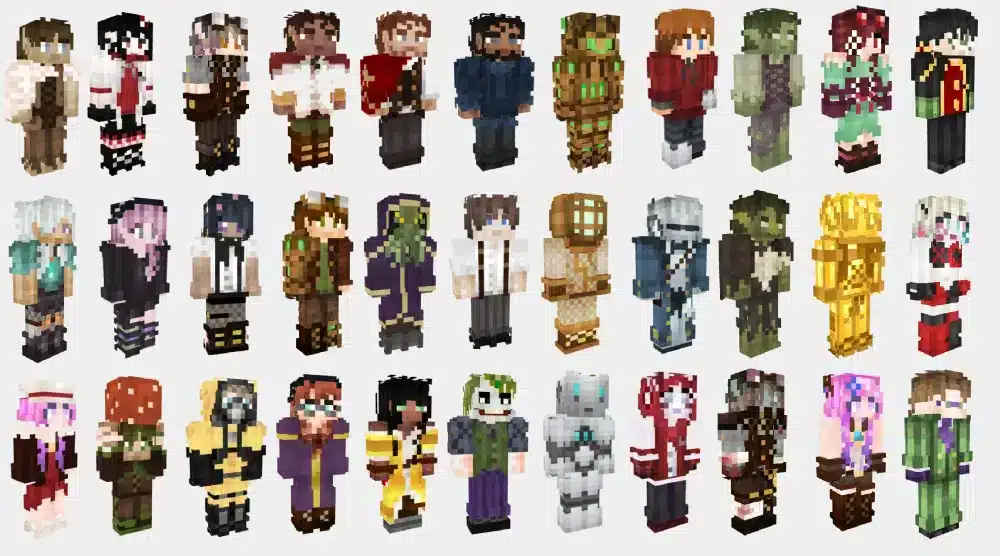
A minecraft skin maker is essentially a specialized pixel editor built around the Minecraft player model.
Some editors display the flat texture, while others let you paint directly onto a three-dimensional character. Minecraft’s official creator documentation confirms that custom skins can be painted down to individual pixels using graphics editors or appropriate third-party tools.
Minecraft skins explained
Think of a Minecraft skin as wrapping paper for your character.
The image starts flat. Different portions of that image correspond to the head, torso, arms, and legs.
Minecraft then wraps those sections around the character model.
That is why an exported skin PNG can look confusing when you open it as a normal image. You are looking at multiple surfaces arranged flat rather than a picture of a completed character.
A good minecraft skins maker simplifies this process by displaying the texture on a 3D model while you edit.
This allows you to rotate the character and immediately see how the pixels connect.
Classic vs. Slim Minecraft models
Before you make minecraft skin designs, choose the correct player model.
Minecraft officially distinguishes between Classic/Wide and Slim models. The familiar Steve-style Classic model has four-pixel-wide arms, while the Alex-style Slim model uses three-pixel-wide arms.
That one-pixel difference matters.
If you create a texture for one model and import it using the wrong setting, details around the arms and shoulders may not appear as intended.
| Model | Arm Width | Familiar Example | Best Choice |
| Classic/Wide | 4 pixels | Steve | Broader arm design |
| Slim | 3 pixels | Alex | Narrower arm design |
Neither model is better.
Choose the shape that fits your design and remember which option you selected when importing the finished skin.
How to Make a Minecraft Skin From Scratch
Learning how to make a minecraft skin can look complicated when you first see an unwrapped texture.
Fortunately, the process becomes much easier when you work one body section at a time.
Start with a blank skin template
Open your preferred skin maker for minecraft and choose either a blank Classic or Slim template.
Beginners should use an editor with a live 3D preview whenever possible. That way, you can see exactly where every painted pixel appears on the character.
Start with the largest elements.
Choose a basic skin tone or character color, then decide what clothing your character will wear.
You can break the design into:
- Head and face.
- Hair or headwear.
- Torso.
- Left and right arms.
- Left and right legs.
- Shoes or boots.
- Outer-layer details.
Do not worry about advanced shading immediately.
First, make sure the basic character looks correct from every angle.
Paint your Minecraft character
Once the base colors are finished, start adding details.
The face usually needs only a few carefully placed pixels. Minecraft’s blocky art style means recognizable designs often rely on strong shapes rather than extremely complicated details.
Next, work on clothing.
A shirt, hoodie, armor-inspired outfit, jacket, suit, or fantasy costume can all be created through simple pixel patterns.
Then add depth.
Use slightly lighter and darker versions of your main colors to create highlights and shadows. Small changes can make sleeves, hair, shoes, and jackets easier to distinguish.
Minecraft’s official creator guide notes that skins can be customized at the individual-pixel level, which gives you considerable control despite the deliberately blocky visual style.
Skin Maker Minecraft: Step-by-Step Custom Skin Guide
The easiest way to approach skin maker minecraft tools is to follow the same workflow every time.
This prevents you from spending an hour on small details before discovering that the overall design does not work.
Choose Classic or Slim first
Use this process when creating a new character:
- Choose Classic/Wide or Slim.
- Open a blank template or an existing editable skin.
- Fill in your main character colors.
- Design the face and hair.
- Create the torso and clothing.
- Design both arms and legs.
- Add shadows and highlights.
- Add outer-layer details.
- Rotate the 3D preview and inspect every side.
- Export the completed skin as a PNG.
- Import the file into Minecraft using the correct model.
Keep the original exported file somewhere safe.
That makes it much easier to edit your character later instead of rebuilding everything.
Use the outer layer for extra detail
A skin create for minecraft project can look much more detailed when you use the additional texture layer effectively.
The outer layer can create visual separation between different parts of an outfit.
For example, you can use it for:
- Jacket details.
- Hair layers.
- Hat-like elements.
- Sleeve details.
- Shoes.
- Costume accents.
- Armor-inspired features.
However, avoid covering everything with unnecessary outer-layer pixels.
A clean base texture combined with a few carefully selected overlays is usually easier to read.
Minecraft Skins Maker Design Tips for Better Skins
Technical knowledge helps, but good minecraft skins maker results also depend on design.
Minecraft characters are relatively small on screen. Therefore, details need to remain visible from normal gameplay distances.
Use contrast and simple pixel shading
Start with a limited palette.
If a hoodie uses five almost identical dark colors, most of those differences may disappear during gameplay. Instead, use enough contrast to make the main shapes recognizable.
Try dividing colors into three roles:
- Base color.
- Shadow color.
- Highlight color.
You do not need three shades everywhere.
Use them where they help communicate depth, such as underneath hair, around clothing edges, or along sleeves.
Also consider how the skin looks against different Minecraft environments.
A completely dark character may look interesting in the editor but become difficult to read inside caves or at night.
Check every side of the model
This is one of the most important steps when you make a minecraft skin.
Rotate the character.
Look underneath the arms, behind the torso, at the sides of the head, and behind both legs.
Minecraft’s own customization guide notes that learning how the flat texture folds around the model can produce unexpected results while you are getting familiar with skin creation.
Common mistakes include:
- Leaving the back unfinished.
- Coloring only the front of the arms.
- Reversing asymmetrical details.
- Forgetting the sides of the head.
- Using the wrong arm model.
- Leaving unintended transparent pixels.
- Creating different colors on matching clothing pieces.
Do a final 360-degree check before exporting.
How Do You Make Your Own Skin on Minecraft Java Edition?
For players asking how do you make your own skin on minecraft, Java Edition offers a straightforward custom-skin workflow.
Create or download the texture first. Then import the finished PNG through Minecraft Launcher.
Export your custom PNG
Once you are satisfied with your character, export the skin from your editor as a PNG.
Do not convert the file into JPG.
The skin needs to retain its proper texture layout so Minecraft can correctly map each section onto your character.
If your editor offers multiple export options, choose the standard Minecraft-compatible skin texture.
Also remember whether you designed it for Classic/Wide or Slim.
Upload the skin through Minecraft Launcher
Minecraft’s official instructions describe the Java Edition process through the Launcher. Open Minecraft: Java Edition, select the Skins tab, choose New Skin, and import the flat PNG file. You can then select the appropriate Classic/Wide or Slim model before saving and using it.
The basic path is:
Minecraft Launcher → Minecraft: Java Edition → Skins → New Skin → Browse → Select PNG → Choose Model → Save & Use
Your character should then use the selected appearance in-game.
This makes Java Edition particularly convenient for players who regularly create, download, and switch custom designs.
Skin Create for Minecraft Bedrock Edition
Bedrock handles character customization differently.
Instead of relying exclusively on external skin textures, Bedrock also provides the Dressing Room and Character Creator.
Use the Dressing Room and Character Creator
From the Bedrock start screen, select Dressing Room and then Create Character.
Minecraft provides two major choices: Character and Classic Skin. The Character option lets you build an appearance item by item, including features such as hairstyles, eye colors, clothing, and other visual elements.
Bedrock supports five character slots, making it easy to keep several appearances available.
The Character Creator is different from a traditional skin maker for minecraft.
Instead of painting every pixel yourself, you combine available customization components.
This is convenient if you want a personalized appearance without manually editing a texture.
Custom skins and platform limitations
Bedrock custom-skin support depends on your platform.
Minecraft’s support information states that custom skins can still be imported on many Bedrock-based platforms. Its Character Creator FAQ specifically documents custom-skin importing on Windows and mobile while stating that custom skin importing is not planned for consoles.
That distinction matters.
A custom PNG that works on PC should not automatically be assumed to work through the same import process on Xbox, PlayStation, or Nintendo Switch.
Console players can instead use available Dressing Room, Character Creator, and Marketplace options.
Free Downloadable Skins for Minecraft
You do not have to create every character from zero.
Free downloadable skins for minecraft can be useful when you want a new appearance immediately or need inspiration for your own design.
Where free Minecraft skins come from
Minecraft’s official guide confirms that the community creates downloadable skins and that Minecraft Marketplace also contains free skins alongside paid options.
The Marketplace is particularly relevant for Bedrock Edition. Mojang describes it as a library of community-creator content that includes skin packs and Character Creator items.
When using third-party community downloads, be selective.
A Minecraft skin should normally be an image file rather than an executable program. Avoid suspicious downloads that ask you to install unrelated software just to obtain a character texture.
Downloading vs. making your own skin
There is no single best method.
Your choice depends on how much customization you want.
| Method | Customization | Difficulty | Best For |
| Default skin | Low | Very easy | Starting immediately |
| Downloaded skin | Low to medium | Easy | Quickly changing appearance |
| Minecraft skin editor | Very high | Medium | Original pixel designs |
| Bedrock Character Creator | High | Easy | Bedrock customization |
| Marketplace skin pack | Varies | Easy | Ready-made themed designs |
If originality matters most, use a minecraft skin maker.
If convenience matters more, a ready-made skin or Character Creator design may be faster.
Minecraft Skin for Guys: Design Ideas
Players searching for a minecraft skin for guys have countless themes available.
There is no need to restrict yourself to one style. Minecraft skins are cosmetic, so your character can represent your real appearance, an original persona, or something completely fictional.
Popular custom skin concepts
Some useful starting ideas include:
- Modern hoodie and sneakers.
- Medieval knight.
- Fantasy adventurer.
- Cyberpunk character.
- Survival explorer.
- Formal suit.
- Sci-fi soldier.
- Steampunk inventor.
- Pirate.
- Wizard.
- Ninja-inspired outfit.
- Casual streetwear.
You can also combine themes.
For example, a medieval character could use modern colors, while a survival skin could include fantasy-inspired clothing.
How to personalize an existing idea
Originality often comes from small changes rather than creating an entirely new concept.
Change the hairstyle.
Add a recognizable jacket pattern. Choose a different shoe color. Create an emblem for the back of the shirt or use asymmetrical sleeves.
Minecraft describes skins as a way to show personality, culture, interests, and achievements, while also helping players identify each other on shared servers.
That makes personalization particularly useful in multiplayer.
Your character becomes easier for friends to recognize while still reflecting the style you want.
Common Minecraft Skin Maker Mistakes
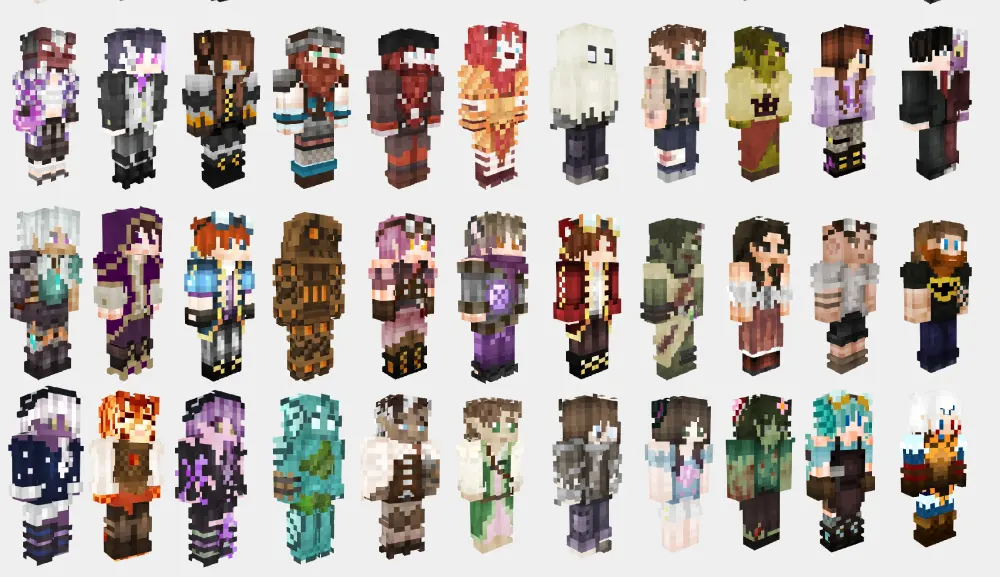
A minecraft skin maker is simple once you understand texture mapping, but several small mistakes can make an otherwise strong design look strange in-game.
Most are easy to prevent before exporting.
Choosing the wrong model
Always remember Classic versus Slim.
Classic uses four-pixel-wide arms, while Slim uses three-pixel-wide arms. Minecraft specifically warns creators to choose the arm thickness they prefer when making a custom skin.
If something looks wrong around your character’s arms after importing a skin, check this setting first.
You may not need to redesign the entire character.
You may simply have selected the wrong model.
Forgetting to preview the skin
Never judge a skin only by its flat texture.
The PNG is designed to wrap around a 3D model, so two pixels positioned far apart in the image can appear directly beside each other once the texture is applied.
Use a 3D preview whenever possible.
Check the character from the front, back, left, right, above, and below.
Then save a backup of the finished PNG before making additional edits.
Minecraft Skins and Online Multiplayer With ExitLag
One reason to make a minecraft skin is to create an identity that other players recognize.
That becomes especially useful on multiplayer servers, SMP worlds, and other shared experiences. Minecraft itself notes that custom appearances can help players identify one another on a shared server.
Showing your custom skin on multiplayer servers
Once your skin is correctly equipped, you can use it while playing compatible multiplayer experiences.
Remember that skins are cosmetic.
They do not provide extra armor, damage, speed, visibility bonuses, or other gameplay advantages. Minecraft’s Character Creator documentation similarly confirms that its appearance items are purely visual.
Your skin is about identity rather than performance.
Network performance is a separate matter.
How ExitLag supports Minecraft multiplayer
For Minecraft players on PC, ExitLag focuses on optimizing the connection used during online gaming rather than changing your character or skin.
ExitLag’s Real-Time Optimization evaluates network routes while you play, while Multipath Connection can use multiple simultaneous routes to improve connection stability. Traffic Shaper can also help prioritize game traffic when your connection is handling other activity.
That can be useful when playing Minecraft multiplayer on distant or connection-sensitive servers where unstable routing, latency variation, or packet loss may disrupt gameplay.
So, your skin maker minecraft tool handles how your character looks, while ExitLag focuses on helping optimize the network connection behind your online session.
FAQ
A minecraft skin maker gives players much more control than simply selecting a default character.
Whether you want to create an original design, modify an existing idea, or download something ready to use, the most important steps are choosing the correct model and importing the finished skin through a supported method.
To learn how to make a minecraft skin, start with a Minecraft-compatible skin editor or graphics editor.
Choose Classic or Slim, edit the character texture, preview every side of the model, export the completed PNG, and then import it into the appropriate Minecraft edition.
Yes.
Minecraft’s official materials confirm that skins can be created using external editing tools, while the Marketplace includes free as well as paid skin options.
You therefore do not necessarily need to purchase a skin to change your appearance.
The main difference is arm width.
Classic/Wide uses four-pixel-wide arms, while Slim uses three-pixel-wide arms.
Choose the model that matches the skin you created or downloaded.
For Java Edition, open Minecraft Launcher, choose Minecraft: Java Edition, select Skins, click New Skin, choose your model, browse for the PNG, and save the new appearance.
Bedrock uses its Dressing Room and Character Creator systems, with custom imports available on supported platforms.
If you are wondering how do you make your own skin on minecraft, you have two main approaches.
Create a pixel-based skin with an editor and import it on a supported platform, or use Bedrock’s Character Creator to build a customized appearance from available components.
Bedrock includes the Dressing Room.
Select Create Character and choose between the Character and Classic Skin options. Character Creator lets you customize features and clothing, while supported Bedrock platforms can also work with imported custom skins.
Minecraft’s Character Creator FAQ states that importing custom skins is not supported on consoles and that there are no plans listed there to introduce that feature.
Console players can still use the available Bedrock customization and Marketplace systems.
Minecraft Marketplace includes free and paid skin content, while community creators also produce downloadable skins.
When downloading from outside official Minecraft services, use reputable sources and avoid files or installers that do not make sense for a simple skin download.
Yes, provided you have an editable skin file and permission to use the design as intended.
Import the texture into a compatible editor, make your changes, preview the updated character, and export a new PNG.
This can be easier than beginning with an entirely blank template.
No.
Skins change your appearance rather than normal gameplay abilities. Minecraft’s official Character Creator FAQ similarly states that Character Creator items are purely visual.
A skin will not give you more health, damage, armor, or movement speed.
Skins are designed to represent your appearance in Minecraft, including shared multiplayer experiences. Minecraft specifically highlights skins as a way of identifying players on shared servers.
However, what appears can depend on the edition, platform, server settings, and the way the skin was equipped.
Creating a character becomes much easier once you understand how a minecraft skin maker maps pixels onto Classic and Slim models. Whether you want skins for minecraft, free downloadable skins for minecraft, a custom minecraft skin for guys, or simply want to learn how do you make skins on minecraft, start with a compatible editor, preview every side, export the correct PNG, and use the appropriate Java or Bedrock import method. With a minecraft skin maker, your next multiplayer character can look exactly the way you designed it.
All game images used in this blog belong to Mojang Studios. They are used for informational/educational purposes only and do not imply endorsement or affiliation with the rights holders.
Got questions or want to connect with other players? Join the conversation at the ExitLag Forum!