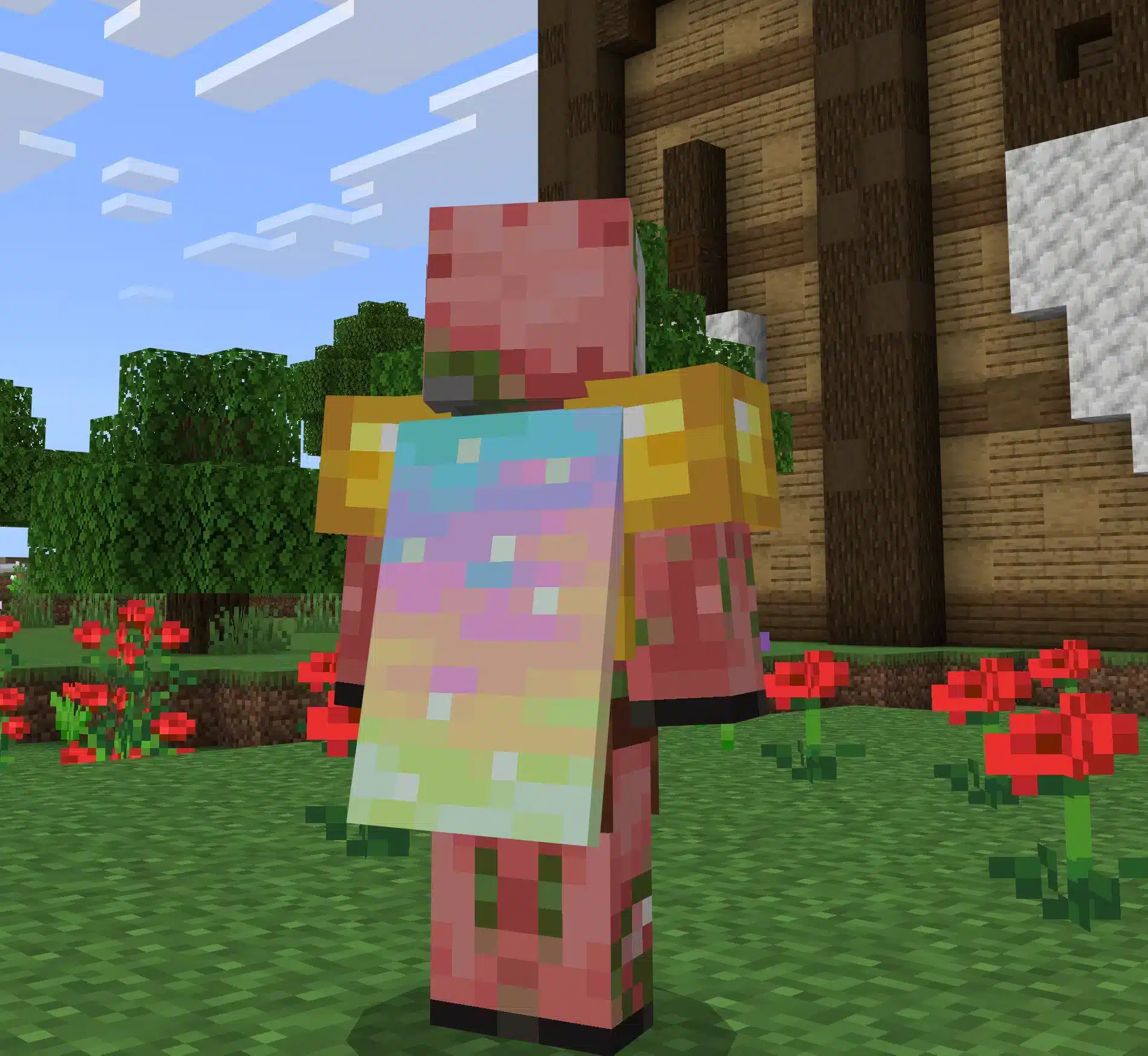
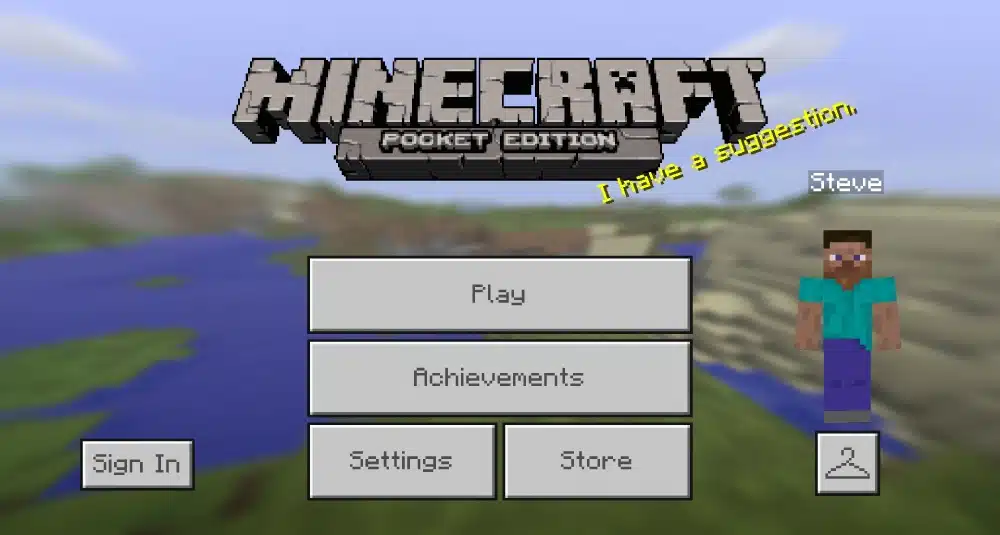
Minecraft is all about creativity, and one of the easiest ways to personalize your experience is playing Minecraft with skins that match your style. Whether you want a heroic look, a funny design, or a fully original avatar, changing your appearance is a simple upgrade that makes your game feel more personal.
Skins are pure customization, but the moment you jump into servers, the session quality matters a lot more than people expect. If you’re getting stutters, delayed interactions, or random pauses while playing online, fix the performance layer first so you can actually enjoy the look you chose. Start with this guide on how to fix Minecraft lag the right way
If you want to enjoy Minecraft with skins in the best way, the process is easier than it looks. You can choose from pre-made options, use custom skins, browse skin packs, or build your own look with a skin editor. This guide covers Java Edition, Bedrock Edition, mobile, PC, and console basics so you can get started without confusion.
If you ever need to sanity-check versions, accounts, or platform rules before troubleshooting a skin issue, go straight to the official hub. It’s the easiest way to avoid outdated advice from random forums when something changes. Keep the official Minecraft site as your reference point for version and account basics.
Many players start exploring Minecraft with skins because they want their character to stand out in single-player worlds, multiplayer servers, or roleplay communities. From a quick Minecraft skins download to advanced edits for unique character skins, this guide will walk you through every step clearly.
What is Minecraft with skins?
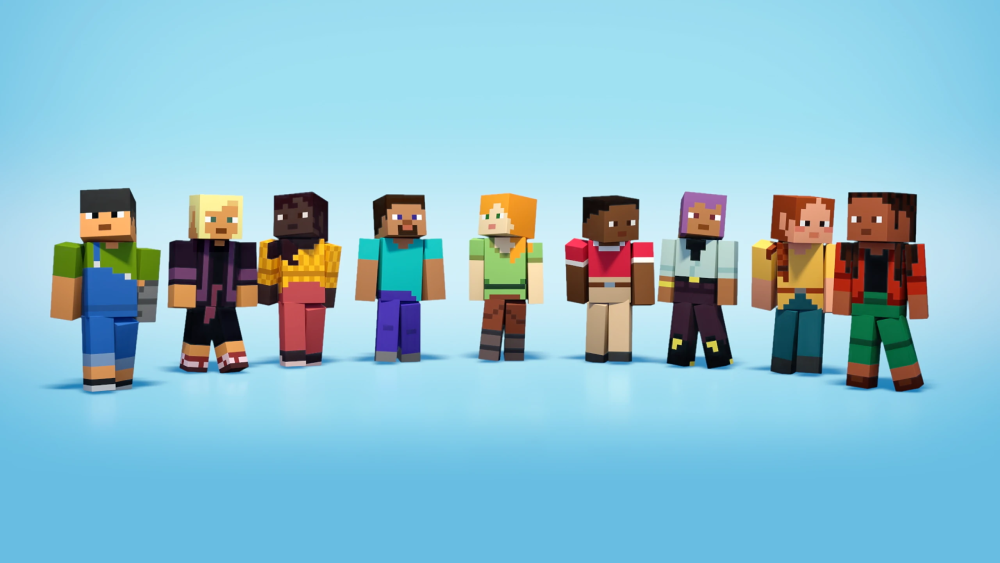
Minecraft with skins refers to using customized character appearances instead of the default player look. A skin is a texture file that wraps around your in-game character model, changing how your avatar looks without changing gameplay mechanics.
In simple terms, skins are cosmetic. They do not give gameplay advantages, but they do make your identity in-game feel unique.
What are Minecraft skins?
Minecraft skins are image-based textures (commonly 64×64 pixels for standard skins) that define the visual appearance of your character. They can include:
- Clothing
- Hair
- Facial features
- Armor-like designs
- Fantasy themes
- Pop culture references
This is why Minecraft with skins is so popular: the visual possibilities are nearly endless.
If you’re looking for inspiration beyond “random cool designs,” it helps to learn what kinds of visuals players actually build around—tools, outfits, themed sets, and recognizable silhouettes. That makes it easier to pick a skin style that matches your world and the way you play. This overview of useful Minecraft items and themes is a good reference point while you decide.
Why players use custom skins
Players use custom skins for many reasons:
- Personal expression
- Roleplay servers
- Themed worlds
- Group events
- Seasonal looks (Halloween, holidays, etc.)
- Matching friends or teams
You can also switch character skins whenever you want, which makes experimentation easy and fun.
How do you get Minecraft skins?
There are three main ways to start using Minecraft with skins:
- Download a ready-made skin
- Buy or install skin packs
- Create your own skin from scratch
Each option works well depending on how much customization you want.
Where can you find a Minecraft skins download?
A Minecraft skins download is usually the fastest option for beginners. Community websites host thousands of skins in different styles, themes, and quality levels.
When choosing a skin, look for:
- Clear preview images
- Model type compatibility (classic vs slim)
- Trusted sources
- Recent uploads if you want newer styles
A good Minecraft skins download lets you test different aesthetics quickly before committing to a custom design.
Should you use skin packs or individual skins?
Skin packs are collections of themed skins sold or distributed together, often through the Minecraft Marketplace (especially on Bedrock). They are useful if you want multiple coordinated looks without manually searching one by one.
Choose skin packs if you want:
- A themed bundle (fantasy, sci-fi, medieval, etc.)
- Easy setup on Bedrock/console
- Curated designs from creators
Choose individual custom skins if you want:
- More originality
- Specific fandom characters
- Community-made styles
- Manual editing flexibility
Can you make your own skin with a skin editor?
Yes. A skin editor is one of the best ways to build your own look for Minecraft with skins. These tools let you paint directly onto the player template.
A good skin editor usually includes:
- Front/back/side views
- Layer editing (base + outer layer)
- Color picker
- Eraser and fill tools
- Live character preview
This is ideal if you want truly unique character skins instead of using pre-made designs.
How do you customize Minecraft with skins on Java Edition?
Java Edition gives you a very flexible way to use Minecraft with skins, especially for manually uploading custom skins. The process is straightforward once you know where to click.
Java is the most straightforward option for manual uploads, but it still helps to follow the official flow so the skin applies correctly to your account. That’s especially useful if you switch between devices or launchers and want your character to stay consistent. Here are the official steps for Minecraft Java Edition skins setup.
Before applying a skin, make sure your file is in the correct format (usually PNG) and matches the player model type you want (classic or slim).
Step 1: Prepare your skin file
First, choose one of these options:
- Use a Minecraft skins download from a trusted source
- Export a file from a skin editor
- Create a PNG manually in image software
Checklist before upload:
- File format: PNG
- Correct skin dimensions
- You know whether it is classic or slim model
Step 2: Upload the skin in the Minecraft Launcher
To use Minecraft with skins on Java Edition:
- Open the Minecraft Launcher
- Go to the “Skins” tab
- Click “New skin” or “Add New Skin”
- Upload your PNG file
- Choose model type (Classic or Slim)
- Save and select the skin
This is the easiest way to apply custom skins on Java.
Step 3: Launch the game and preview your character
After saving, launch Minecraft and check your avatar in:
- Main menu preview
- Single-player world
- Third-person view
- Multiplayer lobby/server
If the skin looks off, the issue is usually:
- Wrong model type selected
- File template mismatch
- Editing error in the skin editor
How do you customize Minecraft with skins on Bedrock Edition?
The process for Minecraft with skins on Bedrock Edition is a little different because Bedrock supports both custom uploads (on supported devices) and Marketplace content.
Bedrock players often use skin packs, but custom skins are also possible on mobile and PC versions.
How to use skin packs in Bedrock
If you want the simplest setup for Minecraft with skins, skin packs from the Marketplace are the easiest option.
Basic steps:
- Open Minecraft Bedrock
- Go to the Dressing Room / Profile area
- Browse the Marketplace
- Download or purchase a skin pack
- Select and equip the skin
This method is quick, safe, and beginner-friendly.
How to upload custom skins on Bedrock (mobile/Windows)
On supported Bedrock platforms like mobile and Windows:
- Open Minecraft
- Go to Profile / Dressing Room
- Select Edit Character (or equivalent option)
- Choose the option to import or upload a skin
- Select your PNG file
- Pick Classic or Slim model
- Confirm and equip
This allows you to use Minecraft with skins from a Minecraft skins download or your own skin editor export.
Console notes for Minecraft with skins
Console support for custom skins may be more limited than PC/mobile, depending on platform and account restrictions. On consoles, many players rely on:
- Marketplace skin packs
- Built-in customization features
- Linked Microsoft account content
If manual upload is not available on your console setup, skin packs are usually the most reliable option.
How do you make custom Minecraft skins from scratch?
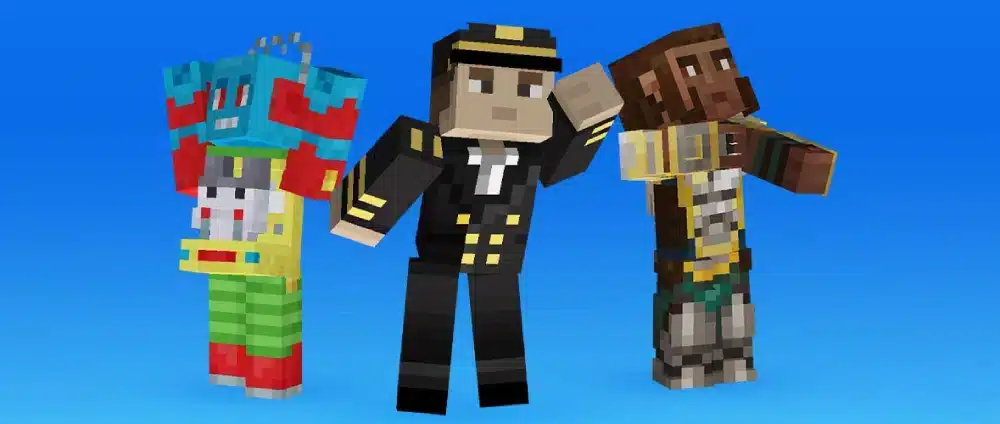
If you want full control, creating custom skins is the best part of using Minecraft with skins. You do not need advanced art skills to start. Even simple edits can create something unique.
The easiest way is to begin with a skin editor and build from a template.
What tools can you use?
You can create character skins using:
- Online skin editor tools (beginner-friendly)
- Image editors like GIMP or Photoshop
- Pixel art tools
- Template-based skin creators
For most players, a web skin editor is enough because it includes previews and layer controls.
Tips for designing better character skins
To make better custom skins, focus on clarity and contrast:
- Use clear color blocks first
- Add shading gradually
- Check front/back symmetry
- Use the outer layer for details (hoods, accessories, sleeves)
- Preview often in 3D
Good character skins usually look simple up close and recognizable from a distance.
Common mistakes when creating skins
Avoid these issues when designing Minecraft with skins:
- Over-detailing tiny pixels
- Using colors with no contrast
- Forgetting the back/side panels
- Exporting the wrong template size
- Mixing classic and slim arm layouts
A quick preview in a skin editor can catch most of these before upload.
What are the best tips for using Minecraft with skins in multiplayer?
Using Minecraft with skins in multiplayer is where customization becomes extra fun. Your skin becomes part of your identity on servers, in roleplay, in mini-games, and in screenshots with friends.
However, some servers or modes may have visual settings or restrictions, so it helps to know what to expect.
How to make your skin stand out on servers
To make Minecraft with skins more visible and memorable in multiplayer:
- Use bold color contrast
- Avoid overly dark all-black designs
- Add a unique silhouette using outer layers
- Match your server theme (fantasy, sci-fi, medieval, etc.)
- Create a signature detail (glasses, cape-like hood, pattern)
This helps your character skins feel recognizable even in crowded hubs.
Can you switch skins anytime?
Yes. One of the best things about Minecraft with skins is flexibility. You can swap skins for:
- Seasons
- Events
- Holidays
- Roleplay characters
- PvP team themes
- Friend group matching
Many players keep a small library of custom skins and skin packs for different moods.
Multiplayer skin troubleshooting tips
If your skin does not appear correctly in multiplayer:
- Recheck your internet/account sync
- Re-equip the skin
- Restart the game
- Confirm file/model type
- Check server settings (some servers may hide cosmetics or delay updates)
Most skin display problems are easy to fix.
How do you choose the right skin style for your Minecraft world?
Not every skin fits every play style. A funny meme skin can be perfect for casual servers, while a more immersive fantasy design may fit survival roleplay better.
When building your experience with Minecraft with skins, style choice matters more than people think.
Best skin styles by play style
If your skin is tied to a specific world theme, using recognizable in-game locations can make the look feel more “real” in screenshots and roleplay. Bastions, for example, have a distinct palette and vibe that pairs well with certain fantasy or Nether-inspired designs. Here’s a quick refresher on Bastion structures in Minecraft.
Here are some ideas for character skins based on how you play:
- Survival / SMP: practical adventurer, ranger, medieval traveler
- Creative mode: artist, builder, futuristic designer
- PvP / minigames: clean, readable, bold contrast
- Roleplay servers: lore-friendly themed custom skins
- Seasonal events: holiday, spooky, summer, festival skins
This is where combining a Minecraft skins download with edits in a skin editor can be very useful.
Should you use realistic or stylized skins?
Both work well in Minecraft with skins, but they create different vibes.
- Stylized skins are easier to read and often look better in motion
- Detailed skins can look amazing in screenshots and roleplay
- Minimal skins are quick to create and easy to modify
Try a few options and keep favorites saved.
Minecraft with skins and ExitLag: does it help?
Skins themselves are cosmetic, so ExitLag does not change how your skin looks or how you install custom skins. However, if you play online multiplayer servers, connection quality still matters for a smooth experience.
This is especially relevant when you use Minecraft with skins in:
- Large multiplayer hubs
- PvP servers
- Roleplay servers
- Minigame servers
- Modded online worlds
Why connection quality matters in Minecraft multiplayer
Even though Minecraft with skins is a cosmetic feature, online gameplay can still be affected by:
- Ping spikes
- Jitter
- Packet loss
- Server route instability
These issues can cause lag, delayed interactions, or poor responsiveness, which affects the overall experience on multiplayer servers.
How ExitLag helps Minecraft online sessions
ExitLag can help in supported scenarios by improving route stability and reducing route-related latency issues. It may help with:
- Smoother multiplayer connections
- Reduced instability in long sessions
- Better responsiveness on some server routes
It does not replace:
- Skin installation steps
- Skin editor tools
- Minecraft skins download sources
- In-game skin settings
Think of ExitLag as a connection support tool for online play while you enjoy Minecraft with skins.
Quick setup checklist for Minecraft with skins
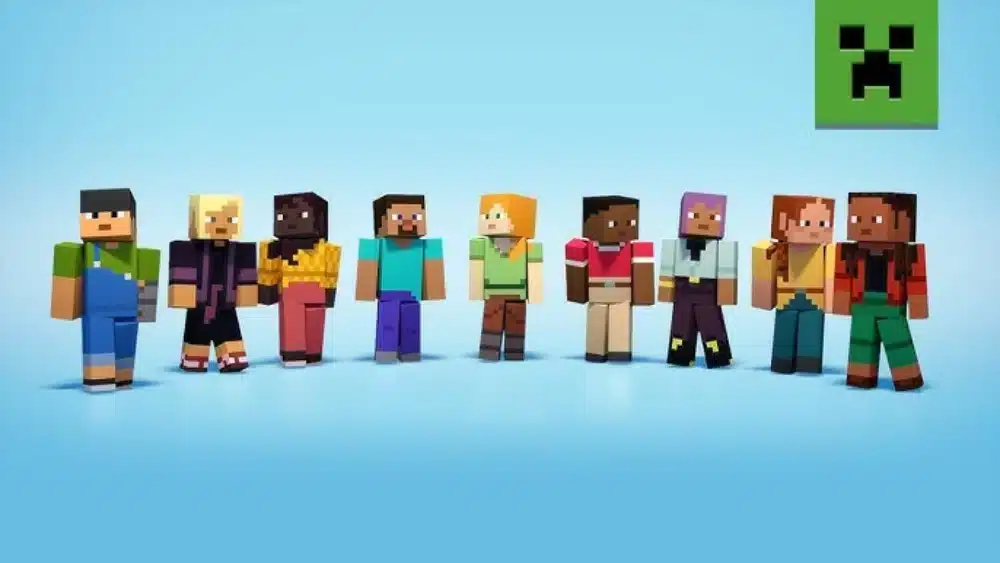
Use this checklist to set up Minecraft with skins quickly and correctly:
For Java Edition
- Choose a Minecraft skins download or create one in a skin editor
- Save file as PNG
- Open Minecraft Launcher
- Upload skin in Skins tab
- Select Classic or Slim model
- Launch and preview
For Bedrock Edition (PC/Mobile)
- Open Profile / Dressing Room
- Import or upload custom skin (if supported)
- Select Classic or Slim model
- Confirm and equip
- Test in-game
For Console Bedrock
- Open Marketplace
- Browse skin packs
- Download/equip selected skin
- Verify profile/account sync
FAQ
How do I download Minecraft skins?
You can use a Minecraft skins download from trusted community sites or official sources, then upload the PNG file in Java Edition or import it on supported Bedrock platforms.
Can I use custom skins in Minecraft Bedrock?
Yes, on many Bedrock platforms (such as mobile and Windows), you can import custom skins manually. On consoles, players often rely more on Marketplace skin packs.
What is the best skin editor for Minecraft?
The best skin editor is the one that gives you easy 3D preview, layer editing, and simple export. Online tools are great for beginners, while image software is better for advanced edits.
Why is my Minecraft skin not showing correctly?
This usually happens because of a model mismatch (Classic vs Slim), a template error, or a sync issue. Re-upload the file and confirm the correct model type.
Are skin packs better than custom skins?
Not always. Skin packs are easier and convenient, especially on Bedrock, but custom skins offer more originality and personalization.
Do skins affect gameplay in Minecraft?
No. Skins are cosmetic only. They change your character’s appearance but do not change stats, abilities, or mechanics.
Final thoughts on Minecraft with skins
Customizing Minecraft with skins is one of the easiest ways to make the game feel more personal, whether you use a quick Minecraft skins download, build your own look with a skin editor, or collect themed skin packs for different worlds and events. With the right setup, custom skins and unique character skins can make every survival run, creative build, and multiplayer session more fun.
If you play online often, pair your skin customization with a stable connection and try ExitLag to help improve route stability in supported multiplayer scenarios while enjoying Minecraft with skins.