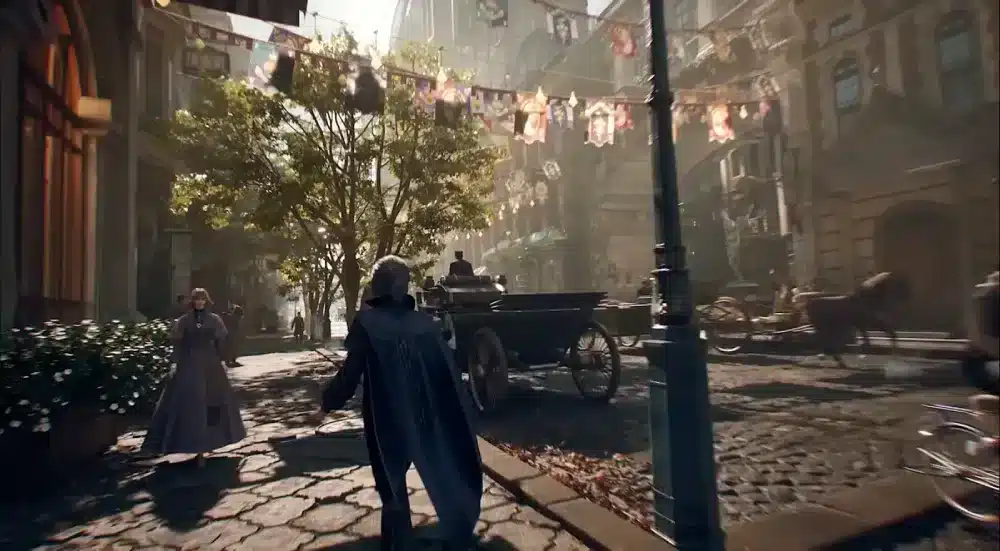
Mistfall Hunter’s Fatal Error is one of the most reported issues since launch on July 29, 2026. The crash appears immediately after pressing Play, during the Unreal Engine startup screen, or mid-session with the message “UE-MistfallHunter Game Has Crashed and Will Close.” Bellring Games has acknowledged the problem and is working on permanent patches, but several player-verified fixes are already resolving it for the majority of affected PCs.
This guide covers every confirmed fix in order from fastest to most comprehensive, including the primary cause that Bellring themselves confirmed in their official Steam response.
What Causes the Mistfall Hunter Fatal Error?
Most startup issues are not caused by failing hardware. In most cases, they are tied to Windows security settings, graphics driver conflicts, shader cache corruption, or Unreal Engine compatibility problems.
The four main causes confirmed by the community and Bellring Games:
- Windows Exploit Protection (Mandatory ASLR) conflicting with the Unreal Engine 5 executable
- NVIDIA Smooth Motion causing GPU-level conflicts during rendering initialization
- Intel AI Boost interfering with game process scheduling
- Shader compilation failure in the Unreal Engine pipeline (PipelineStateCache.cpp crash)
The shader compilation fatal error appears as: “Fatal error: [File:D:\ws\workspace\PST\ST_Engine_CBT3\Engine\Source\Runtime\RHI\Private\PipelineStateCache.cpp] [Line: 611] Shader compilation failures are Fatal.”
Fix 1: Disable Mandatory ASLR in Windows Security (Most Effective)
This is the fix Bellring Games officially recommended in their Steam discussion response and the one that resolves the Fatal Error for the majority of players.
Open Windows Security, click App and browser control, scroll down and click Exploit protection settings. Under System settings, find Force randomization for images (Mandatory ASLR). Change it from the current setting to Off by default. Click Apply and restart your PC. Launch the game again through Steam. This resolves the issue for most players experiencing this exact error.
Step by step:
- Press Windows + S and search for Windows Security, open it
- Click App and browser control
- Scroll down and click Exploit protection settings
- Under System settings, find Force randomization for images (Mandatory ASLR)
- Change the setting to Off by default
- Click Apply
- Restart your PC completely
- Launch Mistfall Hunter through Steam
This setting forces random memory addresses on all executables, which conflicts with how Unreal Engine 5 loads its modules at startup. Disabling it does not leave your system vulnerable in any meaningful way for a gaming PC: it simply removes an aggressive security measure that was added for enterprise environments.
Fix 2: Turn Off NVIDIA Smooth Motion
The developers have identified NVIDIA Smooth Motion as a feature that may conflict with Mistfall Hunter on certain systems.
NVIDIA Smooth Motion is a frame interpolation feature introduced in recent NVIDIA driver versions. It generates intermediate frames between rendered frames, which conflicts with Mistfall Hunter’s rendering initialization.
How to disable NVIDIA Smooth Motion:
- Open NVIDIA Control Panel (right-click desktop, NVIDIA Control Panel)
- Go to Manage 3D Settings
- In the Global Settings tab, find Smooth Motion (or NVIDIA Smooth Motion)
- Set it to Off
- Click Apply
- Alternatively, open GeForce Experience, go to Settings, and disable Smooth Motion there
- Restart Mistfall Hunter
Fix 3: Disable Intel AI Boost
Disable Intel AI Boost under Device Manager.
Intel AI Boost is a feature on recent Intel CPUs (12th gen and later) that dynamically allocates processing resources using AI. It can interfere with game process scheduling in Unreal Engine 5 titles.
How to disable Intel AI Boost:
- Press Windows + X and select Device Manager
- Expand the System devices or Processors section
- Find Intel AI Boost (may also appear as Intel NPU or Intel AI Accelerator)
- Right-click it and select Disable device
- Confirm the prompt
- Restart your PC and launch Mistfall Hunter
Fix 4: Update Your GPU Drivers
Outdated graphics drivers can lead to compatibility issues, especially after a new game launch. Installing the latest drivers from NVIDIA, AMD, or Intel ensures your GPU has the newest optimizations and bug fixes.
For NVIDIA:
- Open GeForce Experience and click Drivers
- Click Check for updates and install if available
- Or download directly from nvidia.com/drivers
For AMD:
- Open AMD Adrenalin Software
- Check for updates in the Home tab
- Or download from amd.com/support
For Intel (integrated graphics or Arc):
- Download from intel.com/content/www/us/en/download-center
Restart your PC after driver installation before launching Mistfall Hunter.
Fix 5: Verify Game File Integrity on Steam
Right-click Mistfall Hunter in your Steam library and select Properties. Go to the Installed Files tab. Click Verify integrity of game files. Wait for the scan to complete, then relaunch the game.
Corrupt or incomplete game files downloaded during the launch-day installation rush can cause Fatal Errors that look like system conflicts but are actually missing files. Steam’s verification replaces any corrupted or missing files automatically.
Fix 6: Clear the Shader Cache
The shader compilation Fatal Error (PipelineStateCache.cpp) is specifically caused by a corrupted or incomplete shader cache. Clearing it forces Mistfall Hunter to recompile shaders from scratch on the next launch.
How to clear the shader cache:
- Close Mistfall Hunter and Steam completely
- Navigate to: C:\Users\[YourUsername]\AppData\Local\MistfallHunter\Saved\
- Delete the ShaderCache folder
- Also clear the DirectX Shader Cache:
- Open Disk Cleanup (search in Start menu)
- Select your C: drive
- Check DirectX Shader Cache and delete it
- Restart your PC and launch Mistfall Hunter (expect a longer loading time on the first launch while shaders recompile)
Fix 7: Install or Repair Visual C++ Redistributables
Mistfall Hunter requires Microsoft Visual C++ Redistributables to run. Missing or corrupted versions cause Fatal Errors that appear as Unreal Engine crashes.
- Visit learn.microsoft.com and search for “Visual C++ Redistributable downloads”
- Download and install the latest Visual C++ 2015-2022 Redistributable (x64)
- Also install the x86 version even on a 64-bit system
- Restart your PC and launch Mistfall Hunter
Fix 8: Run as Administrator
Some anti-cheat and game launcher permission issues prevent Mistfall Hunter from accessing the system resources it needs:
- Right-click Mistfall Hunter in your Steam library
- Select Manage, then Browse local files
- Right-click MistfallHunter.exe and select Properties
- Go to the Compatibility tab
- Check Run this program as an administrator
- Click Apply and OK
- Also right-click the Steam executable and run it as administrator before launching
Fix 9: Disable Antivirus Temporarily
Security software can block the game’s anti-cheat or Unreal Engine modules during launch:
- Temporarily disable your antivirus (Windows Defender or third-party)
- Launch Mistfall Hunter and test
- If it launches, add Mistfall Hunter’s install folder to your antivirus exclusion list
- Re-enable your antivirus
Default install location: C:\Program Files (x86)\Steam\steamapps\common\Mistfall Hunter\
Fix 10: Turn Off CPU and GPU Overclocks
Turn off CPU and GPU overclocks. Overclocked hardware can destabilize Unreal Engine 5 games during shader compilation and startup initialization.
If you have overclocked your CPU or GPU, reset to stock clock speeds in your BIOS or overclocking software (MSI Afterburner, Intel XTU, etc.) before testing. Even a stable overclock for other games can cause Fatal Errors in UE5 titles.
What Bellring Games Is Doing About It
Bellring Games has acknowledged the problem and is working on permanent fixes. While an official patch is in development, the community-verified fixes above address the most common causes affecting the majority of players.
Monitor the official Mistfall Hunter Steam page and the game’s Discord server for patch notes. A driver-level or game-side fix for the Mandatory ASLR conflict is expected in an upcoming update.
Mistfall Hunter Fatal Error: Quick Reference
| Error Type | Most Likely Cause | Primary Fix |
|---|---|---|
| Crash immediately at Play | Mandatory ASLR (Windows Security) | Fix 1: Disable ASLR |
| Black screen then crash | NVIDIA Smooth Motion conflict | Fix 2: Disable Smooth Motion |
| Crash on Intel systems | Intel AI Boost interference | Fix 3: Disable AI Boost |
| Shader compilation fatal error | Corrupted shader cache | Fix 6: Clear shader cache |
| Crash after Windows update | Corrupted game files | Fix 5: Verify integrity |
| Crash with no clear cause | Outdated GPU drivers | Fix 4: Update drivers |
Play Mistfall Hunter with a Stable Connection Using ExitLag
Fixing the Fatal Error gets you into the Gyldenmist. Keeping your connection stable keeps you there. Mistfall Hunter’s PvPvE extraction loop makes connection quality a survival variable: a packet loss spike during combat with a rival Gyldhunter or a latency increase at the extraction point can cost you an entire run’s worth of loot.
ExitLag is a connection optimizer used by over 30 million players across 4,000+ game titles including Mistfall Hunter. It analyzes multiple network routes in real time and selects the fastest, most stable path between your device and Bellring’s servers, replacing your ISP’s default routing with one optimized for gaming performance.
- Real-Time Optimization: Keeps your ping to Mistfall Hunter’s servers stable throughout every extraction session
- Multipath Technology: Eliminates packet loss that would cause skills to miss or extraction attempts to fail at the server
- Traffic Shaper: Prioritizes Mistfall Hunter traffic above every background process so nothing spikes your latency mid-run
Download ExitLag and try it free.
Pro Tips: Preventing the Fatal Error From Coming Back
- After every Windows update, re-check the ASLR setting: Windows updates can reset Exploit Protection settings to their defaults. After any major update, verify that Mandatory ASLR is still set to Off by default.
- Keep GPU drivers updated, but wait 48 hours after a new release: Day-one driver releases occasionally introduce new conflicts with recently launched games. Waiting 48 hours allows the community to identify any new issues before you install.
- Add Mistfall Hunter to your antivirus exclusions permanently: Even if disabling antivirus was not the cause of your original Fatal Error, adding the game folder to exclusions prevents future conflicts as the game updates.
Common Mistakes When Fixing the Mistfall Hunter Fatal Error
- Reinstalling the game before trying the ASLR fix: A full game reinstall takes time and does not fix the Mandatory ASLR conflict. The Windows Security fix is a 60-second process that resolves the crash for the majority of players. Try it first.
- Updating drivers without restarting before launching: Driver updates require a full system restart to take effect. Launching the game immediately after an update without restarting can produce the same Fatal Error as before, making it appear the fix did not work.
- Clearing only the Steam shader cache without clearing the DirectX Shader Cache: The shader compilation error uses two separate caches. Clearing only one leaves the corrupted entries in the other, and the crash can persist. Clear both as described in Fix 6.
Mistfall Hunter and related marks are trademarks of Bellring Games and Skystone Games. Used for informational and educational purposes only.
Got questions or want to connect with other players? Join the conversation at the ExitLag Forum!