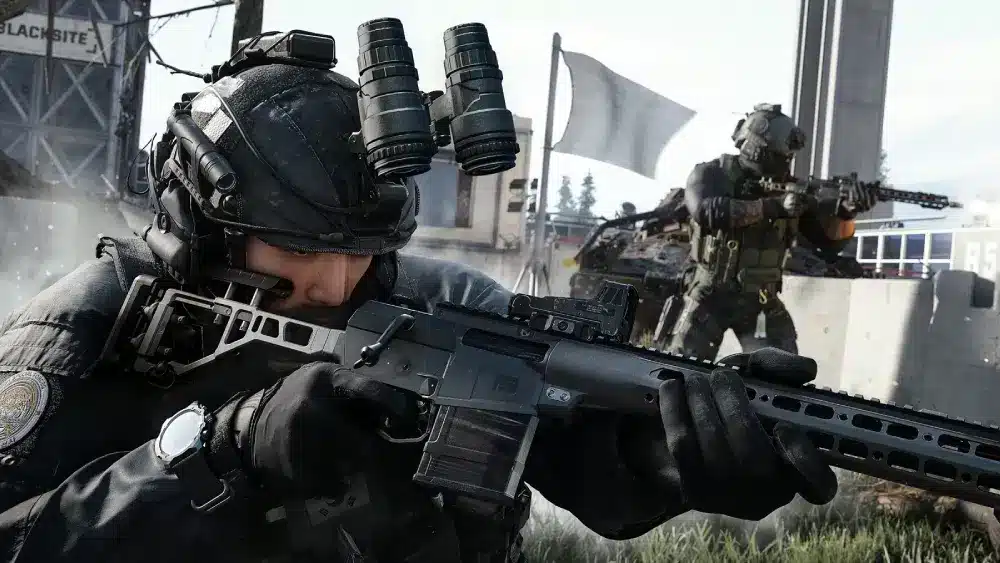
A Modern Warfare 4 server queue can stop you before you even reach Multiplayer or DMZ, leaving you waiting while the game attempts to connect to online services. Queues can become especially frustrating during busy periods when you cannot tell whether your position is progressing, the servers are experiencing problems, or your own connection has stopped responding.
When the Modern Warfare 4 server queue seems frozen, the best response is not to immediately restart the game or search for an unofficial bypass. First, check Activision’s online service status and your platform network. If both are operating normally, you can then troubleshoot your local connection and determine whether reconnecting makes sense. And before we continue, know that to know more about all the relevant content about gaming, you just have to check our blog.
What is the Modern Warfare 4 server queue?

A Modern Warfare 4 server queue is a waiting stage that can appear when players attempt to access MW4 online services but cannot be admitted immediately. Modern Warfare 4 is developed by Infinity Ward and published by Activision, and its online modes rely on functioning Call of Duty services plus a stable connection between the player’s system and the network.
A queue does not automatically mean something is wrong with your PC, console, or internet plan. High player demand, temporary service conditions, platform connectivity, or another online issue can affect access. Activision does not currently document a public formula showing exactly how MW4 calculates queue positions or estimated waiting times.
For that reason, avoid treating an estimated wait as a precise countdown. The more useful approach is to check whether there is a known service problem and whether the queue continues to update.
Why MW4 can put players in a queue
Online games can experience periods where many players attempt to connect at the same time. Beta windows, major updates, launches, and other high-traffic periods can put additional pressure on online services.
However, a visible queue should not automatically be diagnosed as server overload unless Activision confirms a service issue. There are several areas worth checking when access becomes difficult:
- Activision and Call of Duty online services.
- PlayStation, Xbox, Steam, Battle.net, Epic Games, or Nintendo services.
- Your home internet connection.
- Wi-Fi stability or Ethernet connectivity.
- Current game and client updates.
- Other network activity using available bandwidth.
The first two checks are particularly important. If Call of Duty or your platform network is experiencing an outage, changing DNS settings or repeatedly restarting your router is unlikely to solve the underlying issue.
Is the queue a problem with your internet?
Not necessarily. Your connection can be working normally while an online service experiences problems. A fast download speed also cannot increase server capacity or force the game to accept your login ahead of other players.
Still, local connection problems can interfere with the process when services are otherwise operating normally. An unstable Wi-Fi signal, packet loss, temporary router problems, or heavy bandwidth usage can make maintaining a reliable connection more difficult.
Activision recommends wired Ethernet for online connectivity when possible because Wi-Fi reliability can vary. If the MW4 server queue not moving problem happens while other online services are also unstable, testing Ethernet can help determine whether the local network is involved.
MW4 server queue not moving: what should you do?
An MW4 server queue not moving can describe a queue position or connection screen that appears unchanged for an unusually long period. However, Activision does not currently publish a specific number of minutes after which an MW4 queue should officially be considered frozen.
That means players should avoid relying on claims such as “restart after exactly five minutes.” Instead, check service conditions and observe whether the queue is updating before deciding to reconnect.
Check whether the queue is actually frozen
A slow queue and a failed connection are not necessarily the same problem. If the queue occasionally updates, the safest option may be to give the service additional time rather than repeatedly leaving and reconnecting.
Use this troubleshooting order:
- Give the queue some time to update.
- Check official MW4 server status information.
- Check your platform’s network status separately.
- Confirm that your own internet connection remains stable.
- Restart MW4 if services are healthy but the connection appears frozen.
- Troubleshoot the local network if the problem returns.
If Activision confirms an active outage, repeatedly restarting the game provides little value. Monitor the service instead and try again after conditions improve.
There is also no confirmed official method to skip queue Modern Warfare 4 players can rely on. Be cautious with instructions claiming that changing your region, DNS, or another network setting automatically moves your account ahead in a server queue.
Fix local connection problems
If Call of Duty services and your platform are both online, local troubleshooting becomes more relevant. Start with simple changes that do not introduce unnecessary configuration problems.
Pause downloads, streaming, cloud synchronization, and other bandwidth-heavy activity. If you are playing on Wi-Fi, test a wired Ethernet connection where possible. Restarting the router can also help if the home connection itself has become unstable.
Activision’s connectivity guidance recommends checking connection speed and limiting bandwidth-heavy applications when troubleshooting online services. These steps will not bypass the Modern Warfare 4 server queue, but they can help ensure that your connection is not the reason the game fails to communicate reliably with online services.
How to check MW4 server status
Checking MW4 server status should be one of your first actions whenever a queue stops progressing or the game repeatedly fails to connect. Activision provides an official Online Services page where players can review Call of Duty service information before making changes to their network.
This is more reliable than assuming that a queue automatically means the servers are down. If Activision reports normal operation, the next step is checking your platform and connection.
Use Activision Online Services
Activision Online Services provides status information and access to relevant network resources. When a widespread MW4 connectivity problem occurs, this is the appropriate place to check for official service information.
If a service alert is active, wait for updates rather than repeatedly modifying your home network. A server-side disruption cannot be repaired by increasing bandwidth or changing local settings.
Check your platform separately
Call of Duty services can be operational while your platform network experiences its own problem. Therefore, PC and console players should also check the status of the service they use to access MW4.
If both the platform and MW4 server status appear normal but the queue still refuses to progress, the problem becomes more likely to involve the game client or local connection. At that point, restarting MW4 and testing your network is more reasonable than searching for unsupported methods to skip queue Modern Warfare 4, while PC players can also begin investigating whether connection stability or network routing is contributing to the issue.
ExitLag can drastically improve your gameplay for an accessible price. To know more, check our pricing page.
Can you skip queue in Modern Warfare 4?
Players searching for a way to skip queue Modern Warfare 4 may find workarounds involving reconnecting, changing regions, switching DNS servers, or repeatedly restarting the client. However, Activision does not currently document an official setting or method that guarantees players can bypass the queue.
That distinction is important. If a Modern Warfare 4 server queue exists because online services are under pressure, changing a local network setting cannot create additional server capacity. Unsupported tricks can also waste time that could have been spent waiting for the queue to progress normally.
Is there an official MW4 skip queue option?
There is currently no documented MW4 button, setting, or account feature that guarantees priority access through a server queue. Players should be cautious with guides claiming otherwise.
Changing DNS settings may affect how your device resolves network addresses, but it does not provide documented priority in an MW4 queue. Likewise, changing regions or repeatedly reconnecting should not be presented as a confirmed queue bypass.
Instead, determine whether the problem is server-side or local. Check MW4 server status first, then check the network for your platform before changing anything.
Should you restart when the queue is moving?
If the queue is still progressing, restarting the game may simply interrupt a connection process that is already working. Activision has not published detailed MW4 queue-position rules, so there is no basis for promising that reconnecting will improve your position.
Restarting makes more sense when the queue appears completely frozen, official services are operating normally, and your internet connection is stable. Even then, consider it troubleshooting rather than a way to skip the line.
Modern Warfare 4 server queue troubleshooting
Modern Warfare 4 server queue problems become easier to diagnose when you separate service outages from local connectivity. A server-side incident requires a different response from unstable Wi-Fi or an unresponsive game client.
Use the comparison below before making unnecessary network changes.
| Situation | First action | Local troubleshooting useful? | Queue skip available? |
| Activision service issue | Monitor service status | No | No official method |
| Platform network issue | Check platform status | Usually no | No official method |
| Queue progressing slowly | Continue monitoring | Usually unnecessary | No official method |
| Queue appears frozen | Check services, then restart if appropriate | Possibly | No guaranteed method |
| Local connection problem | Test and stabilize network | Yes | Not relevant |
The table also explains why a MW4 server queue not moving does not always require the same fix. Identify where the failure is occurring before restarting hardware or changing network configurations.
Improve your connection before reconnecting
If Activision and your platform report normal operation, test the connection itself. Ethernet is preferable when available, especially if Wi-Fi signal quality changes during online play.
You should also close unnecessary network-heavy applications and pause large downloads. These steps help eliminate local congestion as a possible cause.
Useful checks include:
- Test whether other online services work normally.
- Compare Wi-Fi performance with Ethernet when possible.
- Pause downloads and background updates.
- Restart the router if the entire connection appears unstable.
- Restart MW4 after confirming that services are operational.
None of these actions guarantees a faster queue. Their purpose is to establish a stable connection so a local network problem does not interfere with MW4 online services.
How ExitLag can help with MW4 connectivity
ExitLag can help PC players when inefficient network routing or connection instability contributes to MW4 connectivity problems. Its Real-Time Optimization technology analyzes routes, while Multipath Connection can send packets through multiple simultaneous paths to improve stability when network conditions change.
Traffic Shaper can also help prioritize gaming traffic in supported scenarios. These technologies focus on connection quality, routing, and stability rather than server capacity.
ExitLag cannot bypass a Modern Warfare 4 server queue, create an empty server slot, or resolve an Activision outage. It also cannot provide an official skip queue Modern Warfare 4 feature. ExitLag supports PC and Mobile, not PlayStation, Xbox, or Nintendo consoles.
Modern Warfare 4 server queue: should you wait or reconnect?
When the Modern Warfare 4 server queue appears, the choice between waiting and reconnecting should depend on what the available status information shows. Constantly restarting without checking services can make troubleshooting more confusing.
Start with MW4 server status, then check the relevant platform. If everything is operational, investigate whether the game or local connection has stopped responding.
When waiting makes sense
Waiting makes sense when the queue continues to update or an official service issue is affecting online access. In these situations, local network changes are unlikely to solve the underlying server-side problem.
Avoid assuming that a slowly moving queue is completely frozen. Since Activision does not publish a universal maximum queue time, there is no confirmed countdown that applies to every situation.
When reconnecting makes sense
Consider reconnecting when the queue has stopped responding, official services appear operational, and your local connection remains stable. Restarting MW4 can provide a clean connection attempt when the existing session appears unresponsive.
If the problem repeatedly returns, test Ethernet and reduce network congestion. Persistent connection instability may justify investigating ISP routing and other network conditions instead of repeatedly restarting the game.
Frequently asked questions (FAQ)
A queue can appear when MW4 cannot immediately complete access to online services. High demand, service conditions, platform issues, or connectivity problems may be involved, so check official status information before troubleshooting your network.
An MW4 server queue not moving may indicate a slow service response, an outage, or a connection that has stopped responding. There is no official universal time limit that proves a queue is frozen.
Use Activision’s official Online Services resources and check your platform network separately. This helps determine whether the problem affects Call of Duty services, your platform, or only your connection.
There is no officially documented method that guarantees you can skip the queue. Avoid treating DNS changes, region switching, repeated reconnects, or routing tools as confirmed priority-access methods.
No. ExitLag can optimize routing and connection stability for MW4 on PC when network conditions are involved, but it cannot override Activision’s queue, server capacity, or service availability.
In conclusion
When MW4 puts you in a queue, check Activision and platform service status before changing your network. If services are healthy but the queue remains frozen, test your connection, reduce background traffic, and reconnect when appropriate.
ExitLag can support PC players when routing or connection instability is contributing to online problems, but it is not a queue bypass. Correctly identifying whether the issue is server-side or local is the safest way to respond to a Modern Warfare 4 server queue. Download ExitLag now!
Got questions or want to connect with other players? Join the conversation at the ExitLag Forum!