NBA 2K gives you incredible tools to personalize your gaming experience—but nothing beats customizing your MyPlayer, team, and court visuals with your own uploads. Whether you’re trying to import your own face, team logos, or creative images, this guide to the NBA 2K upload process covers everything you need to know.
From mobile photo uploads to fixing errors when NBA 2K upload not working, we’ve got you covered step-by-step.
Why NBA 2K Uploads Are a Game-Changer
Uploading custom visuals transforms your 2K experience. It lets you:
- Create a personalized MyPlayer with a photo upload
- Represent your squad with unique logo uploads
- Customize arenas, jerseys, and courts with stylish image uploads
This level of customization gives you identity in MyCareer, MyTeam, and online modes. It’s about standing out—and getting it right is essential.
How to Upload Photos in NBA 2K
Uploading your own face to NBA 2K gives you a realistic MyPlayer. Here’s how to do an NBA 2K photo upload the right way.
Step-by-Step for NBA 2K Face Scan Upload:
- Download the MyNBA2K companion app from Google Play or the App Store.
- Sign in using your PlayStation, Xbox, Steam, or Nintendo account.
- Use the app’s Face Scan feature to take your picture.
- Upload directly from the app.
- Launch NBA 2K and head to MyCareer > Scan Your Face.
Tips for a Perfect Face Scan:
- Use even lighting (avoid shadows)
- Stay still and rotate slowly
- Avoid hats, glasses, or bright backgrounds
If your NBA 2K photo upload fails, try re-scanning with better lighting and steadier movement.
Uploading Custom Logos in NBA 2K
For team branding and online league setups, NBA 2K logo upload is key. You can upload logos for MyTeam, Pro-Am, and MyLeague.
Where to Upload Logos:
Use the NBA 2K Upload Portal:
- Visit nba2k.com/upload
- Log in using your platform credentials
- Upload a .jpg or .png image file (1024×1024 recommended)
- Launch the game
- Head to MyTeam > MyTeam Logos or MyLeague > Team Branding to select your upload
Image Requirements:
- Maximum file size: 1 MB
- File type: .jpg or .png
- Dimensions: 512×512 or 1024×1024 pixels
Tip: Use transparent PNGs for a clean look on jerseys and courts.
Best Uses for NBA 2K Image Uploads
You’re not limited to faces and logos. With the NBA 2K image upload tool, players can:
- Add sponsor logos to custom jerseys
- Import court centerpieces or scoreboard branding
- Decorate arenas with fan-made designs
- Create alternate team uniforms
These features are especially powerful in MyTeam, Pro-Am, and online leagues where visual identity matters.
NBA 2K Upload Not Working? Here’s How to Fix It
It’s frustrating when the NBA 2K upload not working message pops up. Let’s troubleshoot the most common upload issues.
1. Check File Format and Size
- Make sure your file is .jpg or .png
- Reduce file size to under 1MB
2. Log In Correctly
- Use the same credentials as your NBA 2K account
- Log out and back in if uploads don’t appear
3. Clear Cache and Cookies
- For browser uploads, clear cache and retry
4. Wait for Server Sync
- Sometimes images take up to 10 minutes to appear in-game
5. Update the Companion App
- Make sure the MyNBA2K app is updated
6. Reinstall the Game or App
- As a last resort, reinstall to reset broken upload connections
If none of these work, contact 2K Support or check player forums for regional server outages.
Expanding Your NBA 2K Upload Arsenal
Best Dimensions and Resolutions for NBA 2K Image Upload
To avoid compression issues or blurry uploads, always stick to optimal dimensions:
- Profile images & logos: 512×512 px (minimum)
- Court designs and background art: 1024×1024 px
- Jersey graphics and sponsors: 256×256 px
Pro Tip: Always use PNGs with transparent backgrounds when possible. This ensures clean integration onto courts and jerseys.
Recommended Tools to Design Your Uploads
Creating professional-quality images doesn’t require expensive software. Here are some excellent tools:
- Canva: For logo and social-style designs
- Pixlr or Photopea: Browser-based alternatives to Photoshop
- Remove.bg: Removes backgrounds from images automatically
- Figma: Great for advanced layer control and prototyping
These tools simplify the creation of clean, effective images that work flawlessly with the NBA 2K image upload portal.
Creative Uses of NBA 2K Logo Upload
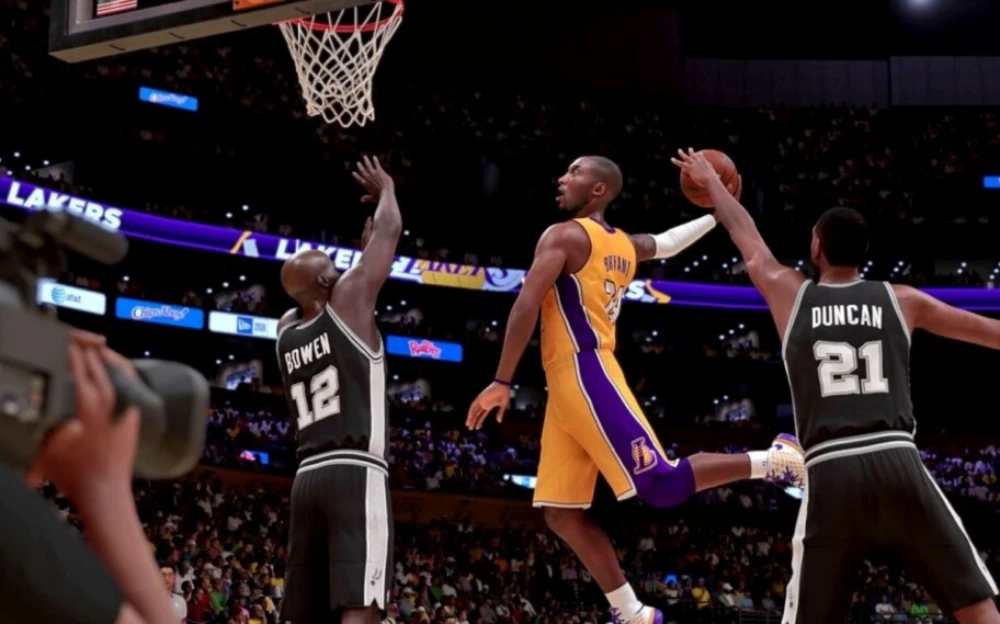
Beyond branding your MyTeam or Pro-Am club, logos can serve:
- Court watermarks
- Rotating jumbotron graphics
- Sponsor simulation (e.g., Adidas, Beats)
- Personalized icons for clans or squads
You can even upload QR codes or links disguised as visual elements for scavenger hunts or clan events. The sky’s the limit.
How to Build a Complete Brand Using NBA 2K Upload Tools
A good team needs more than just a cool logo—it needs identity.
Step 1: Build a Visual Identity
- Create matching jerseys, logos, and court graphics
- Use a consistent color scheme and font style
Step 2: Add Detail Layers
- Upload secondary logos or side sponsors
- Add team motto or clan name via court paint or backdrop
Step 3: Share on Social
- Post your images on TikTok or Instagram Reels
- Tag your uploads using #NBA2KUpload or #2KMyTeamDesign
Fixing Persistent NBA 2K Upload Not Working Errors
If you’re still facing upload issues, go deeper with these advanced fixes.
Change File Signature (For PNG Files)
- Open image in Photopea
- Export as PNG with sRGB color profile
- Save and re-upload
Refresh Sync Between Console and Server
- Log out from MyNBA2K and NBA2K.com
- Clear cookies
- Log back in and upload again
DNS and Network Optimization
- Set DNS to Google (8.8.8.8, 8.8.4.4) or Cloudflare (1.1.1.1)
- Restart router or console
- Use a wired connection if possible
Use ExitLag for Upload Stability
ExitLag isn’t just for gameplay—it also improves sync between your system and NBA 2K’s upload servers:
- Reduces timeouts during large file transfers
- Minimizes upload retries
- Ensures smoother image validation
This is especially useful for high-res or detailed images that might normally fail or glitch.
Start your Exitlag 3 days Trial!
Game Modes Where NBA 2K Upload Makes a Big Impact
MyTeam
- Custom jerseys, logos, arenas, and crowd banners
MyCareer / The Rec
- Personal branding for Pro-Am or Rec teams
MyLeague / MyGM
- Full control over team identity: everything from court visuals to fan merch
Online Matchmaking
- Stand out in ranked or casual matches with visual flex
Upload Troubleshooting Summary Table
| Issue | Possible Cause | Solution |
| Upload not appearing | Server delay or sync error | Log out/in, wait 10 minutes |
| File rejected | Wrong format or size | Use PNG/JPG under 1MB, sRGB export |
| Logo blurry | Low resolution or scaling | Start with 1024×1024, avoid upscaling |
| Game crash on upload | Corrupt file or bug | Re-save in different editor, restart game |
| Upload stuck | Poor internet | Use ExitLag or wired connection |
Final Thoughts: NBA 2K Upload as a Personalization Power Tool
Custom uploads aren’t just aesthetics—they’re your digital identity in NBA 2K. Whether you’re repping a squad, recreating a real NBA team, or building a fictional franchise, uploading gives you creative freedom.
And with tools like ExitLag ensuring smooth performance and connectivity, your creations can finally shine in full resolution.
FAQ: NBA 2K Uploads Advanced
Can I upload animated images to NBA 2K?
No. Only static .jpg or .png images are supported. Animated files will not upload.
Why do my uploaded logos look blurry in-game?
Use 1024×1024 PNGs with minimal compression. Avoid resizing small images larger.
Can I share uploads across accounts?
No. Uploads are tied to your account. Other players can’t access them unless you share the image file.
Why does my upload show in the portal but not in-game?
Wait up to 10 minutes. If still missing, log out and restart NBA 2K.
Can I re-upload and overwrite an old image?
Yes, but clear your browser cache and re-select the image in-game.
Test Exitlag now!
All game images and logos used in this blog belong to Visual Concepts and 2K Games. They are used for informational/educational purposes only and do not imply endorsement or affiliation with the rights holders.
Got questions or want to connect with other players? Join the conversation at the ExitLag Forum!