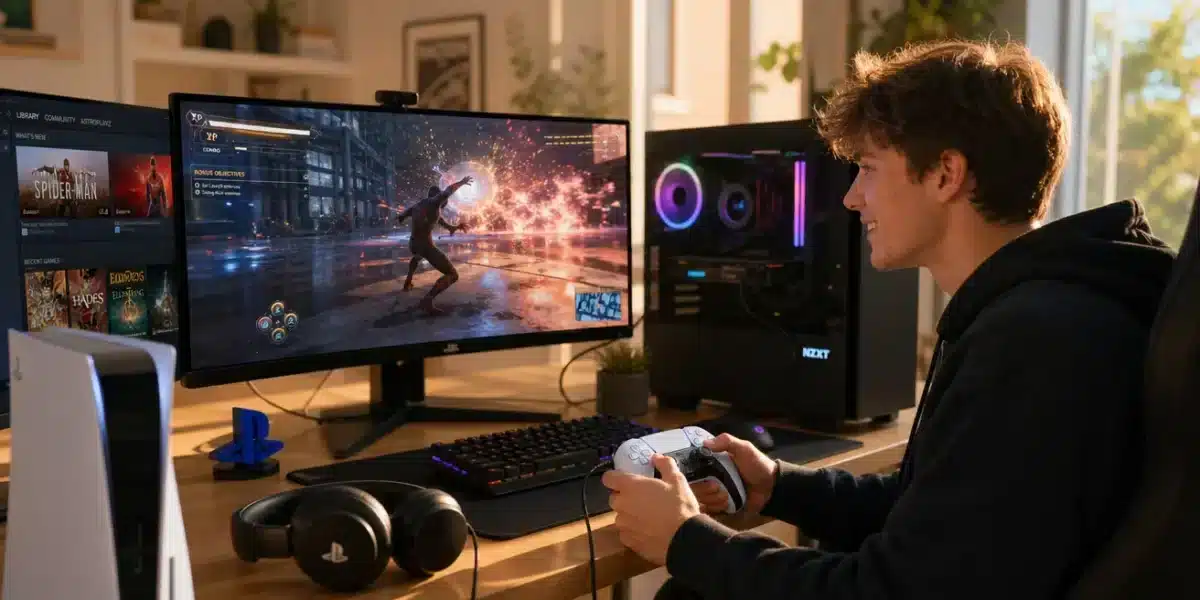
Gaming performance depends on more than just powerful hardware. Even high-end PCs can struggle with stuttering, low FPS, or input lag if the system is poorly configured. Learning how to optimize PC for gaming can dramatically improve your experience, delivering smoother gameplay, faster response times, and better stability during intense matches.
In this guide, we’ll explore 10 practical steps to optimize PC for gaming, helping you boost FPS, reduce lag, and create the best possible gaming environment. These steps apply to both beginner and advanced players, and most of them can be implemented in just a few minutes. And before we continue, know that to know more about all the relevant content about gaming, you just have to check our blog.
Why it’s important to optimize PC for gaming
Before diving into technical tweaks OF optimize PC for gaming, it’s important to understand why system optimization matters. Modern games rely on multiple components working together: CPU, GPU, RAM, storage, and network performance.
If any part of your system is misconfigured or overloaded, it can create performance bottlenecks that affect gameplay.
Common problems caused by poor optimization include:
- Low FPS or unstable frame rates
- High system latency
- Background processes consuming resources
- Slow loading times
- Network instability in online games
Optimizing your PC helps ensure every component works efficiently and prioritizes gaming performance over unnecessary tasks.
10 steps to optimize PC for gaming
1. Update graphics drivers
Your GPU driver is one of the most important factors in gaming performance.
Manufacturers like NVIDIA and AMD frequently release driver updates that improve compatibility and performance for new game releases.
Benefits of updated GPU drivers:
- Improved FPS in modern games
- Bug fixes and stability improvements
- Support for new graphics technologies
- Better compatibility with new game engines
You should always install the latest drivers directly from the manufacturer’s website when thinking on optimize PC for gaming..
2. Enable Windows game mode
Windows includes a built-in feature called Game Mode designed to prioritize system resources for gaming. If you’re trying to optimize PC for gaming, enabling this feature is one of the simplest adjustments you can make.
Game Mode helps your system focus on gameplay instead of background activity.
Game Mode works by:
- Reducing background activity
- Prioritizing CPU and GPU usage for games
- Preventing Windows updates during gameplay
To enable it:
- Open Windows Settings
- Go to Gaming
- Select Game Mode
- Toggle Game Mode ON
This simple change can significantly optimize PC for gaming performance, especially on mid-range systems where resource management matters the most.
3. Close unnecessary background programs
Many applications run in the background without you realizing it. These processes consume CPU, RAM, and disk resources that your games need. If you want to properly optimize PC for gaming, reducing background activity is essential.
Programs like browsers, launchers, update services, and overlays can slow down gaming performance. Examples of resource-heavy background apps include:
- Web browsers with multiple tabs
- File syncing services
- Video recording tools
- Auto-updating applications
Before launching a game, close unnecessary applications using the Task Manager. This ensures your system allocates maximum resources to optimize PC for gaming performance and stability.
4. Optimize power settings
Windows power plans can significantly affect gaming performance. Many PCs default to Balanced Mode, which prioritizes energy efficiency rather than performance.
If you want to optimize PC for gaming, switching to a high-performance power plan allows your CPU to maintain higher clock speeds during gameplay.
Steps to change power mode:
- Open Control Panel
- Go to Power Options
- Select High Performance
This adjustment helps your system maintain consistent performance and improves your overall PC optimization for gaming sessions.
5. Adjust in-game graphics settings
Not every game needs to run at ultra settings to look great. In fact, reducing certain graphics options can dramatically improve FPS.
Balancing visual quality and performance is a key part of learning how to optimize PC for gaming.
Consider adjusting settings such as:
- Shadow quality
- Anti-aliasing
- Post-processing effects
- Motion blur
- View distance
Lowering demanding settings can significantly increase FPS and improve stability, which is essential when trying to optimize PC for gaming performance in modern titles.
6. Optimize storage performance
Game loading times and system responsiveness depend heavily on storage speed.
If you are still using an HDD, upgrading to an SSD is one of the most effective ways to optimize PC for gaming performance.
Benefits of SSD storage include:
- Faster game loading times
- Reduced texture pop-in
- Faster system boot
- Improved game patch installation speeds
Keeping your storage organized also helps maintain performance and ensures your system stays optimized for gaming.
Storage optimization tips:
- Keep at least 20% free disk space
- Remove unused applications
- Regularly clean temporary files
Maintaining fast storage is a key step to optimize PC for gaming and reduce loading delays.
7. Adjust bios performance settings
Advanced users can unlock additional performance by adjusting BIOS settings. This step can further optimize PC for gaming, especially if your system is not fully utilizing its hardware capabilities.
Options such as memory profiles and CPU tuning can improve system efficiency. For example, enabling XMP profiles allows your RAM to run at its rated speed instead of default lower frequencies.
If you want a deeper technical explanation of BIOS optimization, you can explore more according to Hone in their guide. However, BIOS changes should always be done carefully when attempting to optimize PC for gaming hardware performance.
8. Improve cooling and temperature management
Thermal performance directly affects gaming performance. If your system overheats, components will reduce clock speeds to protect themselves.
This process is known as thermal throttling, and it can severely impact your ability to optimize PC for gaming performance.
Signs of thermal throttling include:
- Sudden FPS drops
- Loud fan activity
- High CPU or GPU temperatures
Ways to improve cooling:
- Clean dust from fans and vents
- Improve case airflow
- Replace old thermal paste
- Use a cooling pad for laptops
Maintaining proper temperatures ensures your hardware can sustain peak performance and helps you optimize PC for gaming stability during long sessions.
9. Optimize network performance for online games
For multiplayer games, hardware optimization alone is not enough. Network stability plays a huge role when trying to optimize PC for gaming online performance.
High ping, packet loss, or unstable routing can cause:
- Lag spikes
- Delayed inputs
- Rubberbanding
- Connection drops
Using a network optimization tool like ExitLag can significantly improve online gameplay.
ExitLag helps optimize PC for gaming network routing by automatically selecting the best routes between your PC and game servers.
ExitLag works by:
- Reducing latency through intelligent routing
- Stabilizing connections during peak network traffic
- Preventing packet loss in competitive matches
This ensures smoother gameplay in multiplayer titles where connection quality is critical.
10. Keep your system clean and updated
Routine system maintenance is essential to optimize PC for gaming long-term performance. A well-maintained system prevents slowdowns and ensures your PC continues running games efficiently.
Important maintenance tasks include:
- Running Windows updates
- Removing unused software
- Scanning for malware
- Cleaning temporary system files
You can also use built-in tools like Disk Cleanup and Storage Sense to automate maintenance. A clean and updated system helps maintain consistent FPS and ensures your PC remains fully optimized for gaming performance.
Advanced techniques to optimize PC for gaming performance
If you already followed the basic steps to optimize PC for gaming, there are additional advanced tweaks that can further improve system performance. These techniques focus on deeper system configuration, GPU tuning, and network stability, helping competitive players achieve smoother gameplay and lower latency.
Modern games demand high responsiveness. Even small improvements in frame stability, CPU load, or memory usage can make a noticeable difference during competitive matches.
Below are additional strategies to optimize PC for gaming that go beyond the basic setup.
Manage startup programs to free system resources
Many applications launch automatically when Windows starts. Over time, these programs consume CPU, RAM, and disk resources before you even open a game.
Disabling unnecessary startup programs helps reduce system load and speeds up boot times.
How to manage startup apps:
- Press Ctrl + Shift + Esc to open Task Manager
- Navigate to the Startup tab
- Disable programs that are not essential
Examples of programs you can disable:
- Auto-launching game launchers
- Music applications
- Updater utilities
- Messaging apps
Reducing startup clutter is one of the simplest ways to optimize PC for gaming without installing additional software.
Use GPU control panel optimization
Your graphics card includes software that allows you to customize performance settings for games.
Both NVIDIA Control Panel and AMD Adrenalin offer features designed to improve performance and reduce latency.
Common GPU settings to adjust:
- Low Latency Mode (NVIDIA)
- Radeon Anti-Lag (AMD)
- Texture filtering quality
- Power management mode
- Shader cache optimization
Setting these options to performance-focused modes helps ensure your GPU prioritizes frame rate and responsiveness.
Keep your ram optimized
RAM plays a critical role in modern gaming performance. Large multiplayer maps and open-world environments require a significant amount of memory.
If your system runs out of available RAM, performance issues can occur.
Signs your RAM may be overloaded include:
- Game stuttering
- FPS instability
- Slow alt-tabbing between applications
Ways to improve RAM usage:
- Close memory-heavy applications before gaming
- Increase virtual memory if necessary
- Upgrade RAM capacity if your system has less than 16GB
Many modern games perform best with 16GB or more of RAM, especially when background applications like Discord or streaming software are active.
Use hardware acceleration settings wisely
Some applications use GPU hardware acceleration to improve performance. However, during gaming sessions this can compete with your game for GPU resources.
Programs where you may want to disable hardware acceleration include:
- Web browsers
- Discord
- Streaming software
Turning off unnecessary hardware acceleration ensures your graphics card focuses entirely on your game.
Adjust Windows visual effects
Windows includes visual animations designed for appearance rather than performance.
Disabling these effects can slightly improve system responsiveness and reduce background processing.
Steps to reduce visual effects:
- Open System Properties
- Go to Advanced System Settings
- Select Performance Settings
- Choose Adjust for best performance
This removes unnecessary animations and helps the system prioritize gaming tasks.
Monitor system performance regularly
Monitoring your PC’s performance helps identify bottlenecks before they become major problems.
Important metrics to track include:
- CPU usage
- GPU load
- RAM consumption
- System temperature
Popular monitoring tools include:
- MSI Afterburner
- HWMonitor
- Windows Performance Monitor
Monitoring your hardware ensures your PC remains properly tuned as you continue to optimize PC for gaming.
Quick checklist to optimize PC for gaming
| Optimization step | Impact on performance | Difficulty |
| Update GPU drivers | High | Easy |
| Enable Game Mode | Medium | Easy |
| Adjust graphics settings | High | Easy |
| Close background programs | Medium | Easy |
| Upgrade to SSD | High | Medium |
| Optimize BIOS settings | Medium | Advanced |
| Improve cooling | High | Medium |
| Optimize network routing | High (online games) | Easy |
This checklist helps prioritize the most impactful optimizations.
Common Mistakes When Trying to Optimize PC for Gaming
While optimizing your system, avoid these common mistakes that can reduce performance instead of improving it.
Installing Too Many Optimization Tools
Some players install multiple system optimization programs simultaneously.
This can create conflicts and actually reduce performance.
Overclocking Without Proper Cooling
Overclocking can increase performance, but it must be done carefully.
Without proper cooling, it may lead to instability or hardware damage.
Ignoring Network Performance
Even perfectly optimized hardware cannot compensate for unstable internet connections.
Network optimization should always be part of a complete gaming setup.
Learning how to optimize PC for gaming is essential for achieving smooth gameplay, stable frame rates, and responsive controls.
From adjusting system settings to improving cooling and network performance, these steps help unlock your PC’s full gaming potential.
A fully optimized system provides:
- Higher and more stable FPS
- Faster load times
- Lower latency in multiplayer games
- Reduced system bottlenecks
Combining hardware optimization with network solutions like ExitLag ensures your gaming experience remains smooth, competitive, and frustration-free. Download ExitLag now!
Got questions or want to connect with other players? Join the conversation at the ExitLag Forum!