
Few things are more discouraging than joining a competitive match in Overwatch 2 and feeling every movement delayed due to high ping. Initially, it may appear that your aim is off or your hero is unresponsive, but the true problem lies in the latency between your PC and Blizzard's servers. This guide explains what causes Overwatch 2 high ping, why it impacts gameplay so much, and how to fix it. You can also view all supported games any time through the supported games list.

What is high ping in Overwatch 2?
Ping measures how long it takes for information to travel from your PC to the game servers and back. When this delay rises, actions feel delayed, abilities respond late, and gameplay becomes unstable. Overwatch 2 high ping is not about FPS or hardware; it is strictly a network problem.
Even more, Overwatch 2 high ping means your commands reach the server slowly. That way, every movement, shot, and ability depends on outdated information. In other words, your client and the server fall out of sync, creating a noticeable delay that disrupts timing and precision.
Finally, high ping usually happens because of routing issues, server distance, or connection instability. Understanding these origins helps you take the right steps to stabilize your gameplay.
How high ping affects gameplay in Overwatch 2
High ping deeply changes how Overwatch 2 plays, especially during fast team fights. Below are the most common symptoms players experience:
- Hit registration failure: Shots that should hit do not register.
- Rubberbanding: Your hero teleports back to previous positions.
- Input delay: Skills activate late, ruining combos and defenses.
- Desynced movement: Enemies move erratically, making aim unreliable.
- Ultimate timing issues: Delays make critical abilities fire too late.
- Competitive disadvantage: Opponents react faster with stable latency.
- Ranked penalties: Lost fights and entire matches due to slow responses.
Missed abilities and delayed reactions
When latency spikes, abilities like Fire Strike, Pulse Bomb, or Sleep Dart trigger slower than intended. That’s because the server updates your actions late. For aim-dependent heroes, this becomes a severe disadvantage in duels and skirmishes.
Visual desync and positioning errors
Similarly, enemies may appear to teleport or slide across the map. This happens when your client receives outdated state information. From the same point of view, high ping creates unpredictable movement patterns that destroy consistency and accuracy.
Main causes of high ping in Overwatch 2
High ping can come from multiple factors. Below are the most common causes affecting Overwatch 2 high ping, especially during peak hours.
Server distance
If you are far from your assigned region, packets travel through many routers before reaching the destination. That way, natural distance increases response times, making stable gameplay harder to achieve.
ISP / routing issues
ISPs often choose automatic, inefficient routes full of intermediate hops. Constantly, this leads to indirect paths that increase latency. Even more, some providers have poor peering with game servers, causing Overwatch 2 latency to spike.
Network congestion
When several devices stream, download updates, or use heavy applications at the same time, bandwidth is divided unevenly. In summary, this creates slowdowns and lag Overwatch 2 issues during gameplay.
Outdated hardware
Although ping is a network metric, outdated network drivers or unstable adapters can contribute to poor communication. Like this, even small hardware faults can create delays between your system and the server.
Game-specific factors
During big updates or limited-time events, servers may experience temporary congestion. That’s because player volume increases suddenly, causing unstable response times and evident Overwatch 2 connection issues.
How to check and test your ping in Overwatch 2
You can track your ping directly inside the game. Open the Options menu, go to the “Video” or “Gameplay” tab, and enable network statistics. Soon after, your ping appears on the screen during matches.
You can also test your connection through the operating system. For example, running a command prompt ping test helps determine if the issue is external or inside your home network. This shows whether your latency is stable or spiking irregularly.
As a reference, good ping is typically below 50 ms. Values between 60–90 ms are manageable. Anything above 100 ms begins to affect reactions significantly. When numbers exceed 150 ms, delays become severe.
Ping levels classification
| Ping Range | Classification | Gameplay Impact |
| 0–30 ms | Excellent | Perfect responsiveness |
| 30–60 ms | Good | Smooth gameplay |
| 60–100 ms | Playable | Minor delays |
| 100–150 ms | Poor | Noticeable lag |
| 150+ ms | Critical | Severe delay and desync |
Basic fixes to reduce high ping in Overwatch 2
Optimize local connection
- Use a wired Ethernet cable instead of Wi-Fi to avoid interference.
- Close background apps that consume bandwidth, such as streaming or downloads.
- Restart your router to refresh routing tables.
- Update network drivers to improve stability.
- Disable cloud sync and automatic updates temporarily.
- Test different regions in case the default server is unstable.
Contact your ISP
Sometimes the issue lies outside your home network. Beforehand, check if your ISP is experiencing local outages or congestion.
- Ask for routing verification.
- Request line stability testing.
- Ask about packet loss or regional maintenance.
You can also follow these steps:
- Monitor your ping at different times of the day.
- Compare results with another connection if possible.
- Report irregular routing or sudden latency spikes.
ExitLag: the best solution to fix Overwatch 2 high ping
When basic adjustments are not enough to eliminate Overwatch 2 high ping, the real issue usually lies in the routing between your PC and Blizzard’s servers. Instead of relying on your ISP’s automatic paths, ExitLag offers optimized routes that correct the core of latency problems. In this section, you will understand why it is the most reliable tool to stabilize your connection and improve consistency during competitive matches.
Even more, ExitLag constantly analyzes the internet backbone to deliver a clean, direct route for your packets. That way, your data no longer travels through congested or inefficient nodes, one of the main causes of Overwatch 2 high ping during peak hours.
What is ExitLag?
ExitLag is a connection optimization software built specifically for gamers. Unlike traditional tools, it focuses on delivering stable routes, low latency, and improved responsiveness during fast-paced matches. It operates as a real-time stabilizer, ensuring your packets reach the server with minimal interference.
Above all, the software continuously monitors global routes, identifying traffic spikes or bottlenecks before they affect your match. That way, it prevents sudden ping jumps, loss of responsiveness, or unpredictable game behavior. According to performance data, users notice immediate improvements in packet flow and stability.
You can learn more about its technology in the dedicated technology section.
How ExitLag works?
ExitLag uses advanced mechanisms to reduce Overwatch 2 high ping, focusing heavily on route control and packet flow.
- Real-time route analysis
The system constantly scans global internet paths to detect congestion and latency fluctuations. This ensures your ping remains stable even when conditions change. - Multiple routes simultaneously
Instead of using a single path, ExitLag sends packets through several alternative routes. Soon after, the software selects the fastest return packet, eliminating unnecessary wait time. - Automatic best route selection
ExitLag compares real-time results and automatically switches to the most efficient path. That way, you avoid spikes caused by ISP rerouting. - Hop reduction
The fewer routers your data passes through, the faster it reaches Blizzard’s servers. Reducing hops directly combats Overwatch 2 high ping and improves game responsiveness. - Connection stabilization
The program maintains a uniform packet flow, preventing the micro-interruptions and inconsistencies that lead to lag Overwatch 2 symptoms.
You can see a full explanation of how it operates in the how it works overview.
Advantages for Overwatch 2 players
Stabilized latency
ExitLag keeps your ping consistent and avoids the sudden variations that make Overwatch 2 high ping so disruptive. With stable numbers, your actions sync perfectly with the server.
Reduced rubberbanding and spikes
In many cases, spikes come from poor routing, not your internet speed. ExitLag smooths those fluctuations, preventing rubberbanding and movement desync in fights.
Faster skill responsiveness
With optimized routing, abilities activate with more accuracy. This benefits players using aim-intensive heroes like Cassidy or hitscan roles that depend on timing.
Competitive consistency
In ranked mode, milliseconds matter. Better routing means faster reactions, improved aim tracking, and fewer lost fights due to delayed responses.
Reliability across regions
If your main region is unstable or under maintenance, ExitLag ensures you can play on alternate servers with minimal performance loss.
Simple configuration
Players do not need technical expertise. Everything is automated: select the game, apply routes, and enjoy stable gameplay.
Is ExitLag worth it for Overwatch 2?
Definitely. If you frequently struggle with unstable ping, latency spikes, or delays during fights, ExitLag is a highly effective solution. Players who deal with poor routing, peak-time instability, or distant servers benefit the most. As much as local fixes help, only optimized routing can fully solve network-level instability. You can explore its plans directly on the pricing page.
How to use ExitLag in Overwatch 2
The process is extremely simple:
Step 1 – Access the official ExitLag website and download the application. There’s a free trial period for new users.
Step 2 – Install and open the program. Log in with your account.
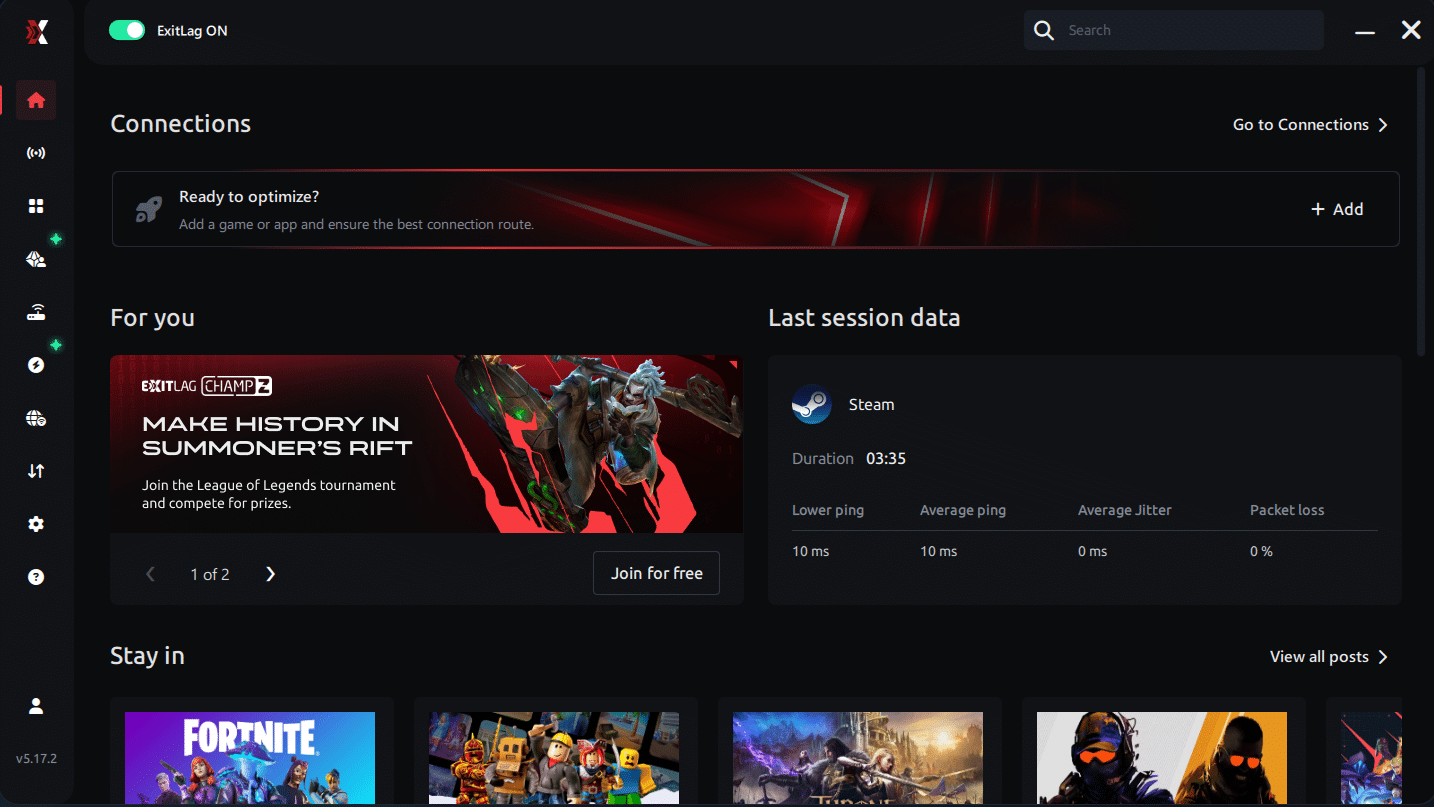
Step 3 – In the search bar, type “Overwatch 2” and select the game from the list.
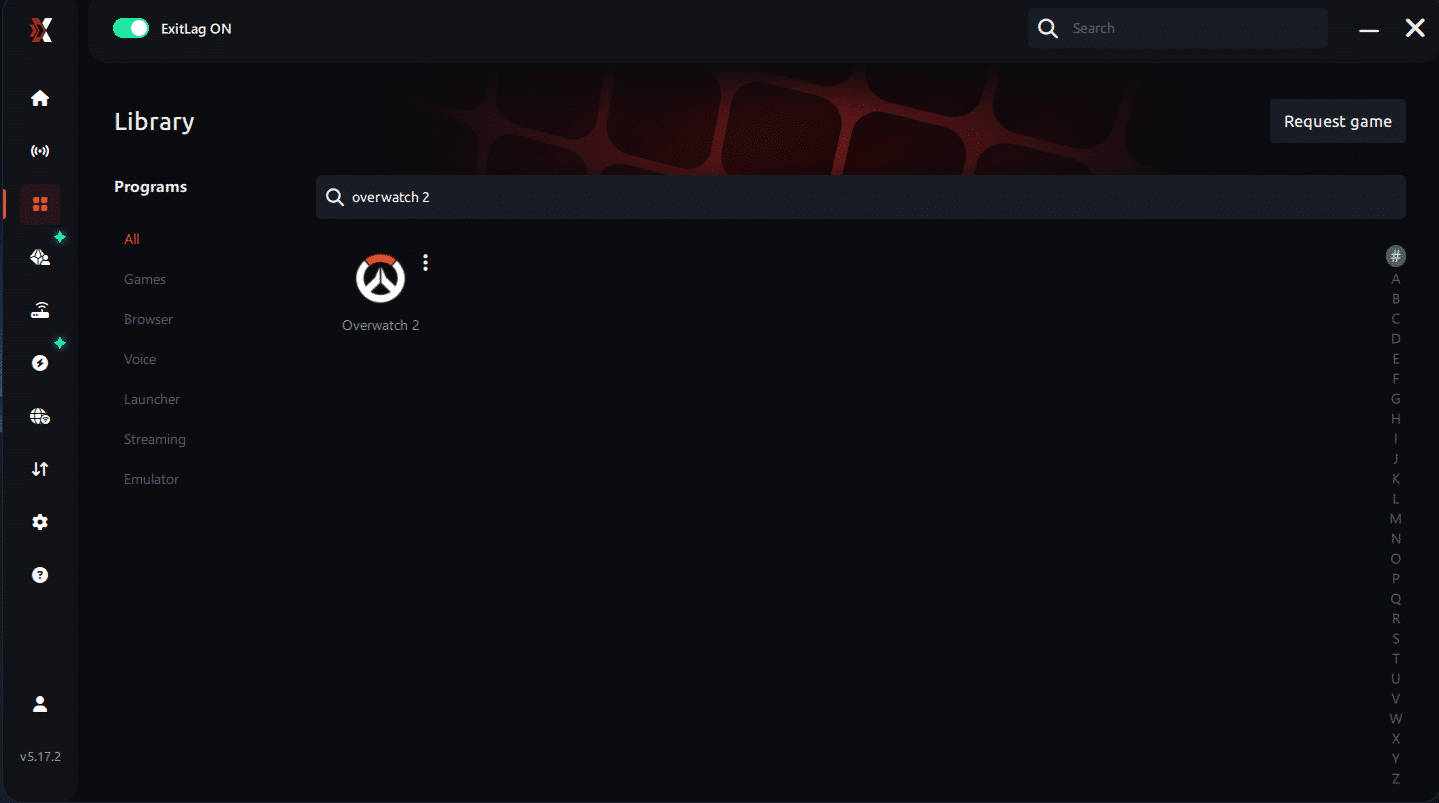
Step 4 – Choose between automated or manual route
Based on the results, you can let ExitLag automatically select the best route or manually choose the server that showed the lowest latency for your connection.
AI-optimized automated route
Based on the results, you can let ExitLag automatically select the best route through AI optimization. The system analyzes multiple connection paths in real time and automatically identifies the most efficient route for your connection, ensuring the lowest possible latency without requiring manual choices.
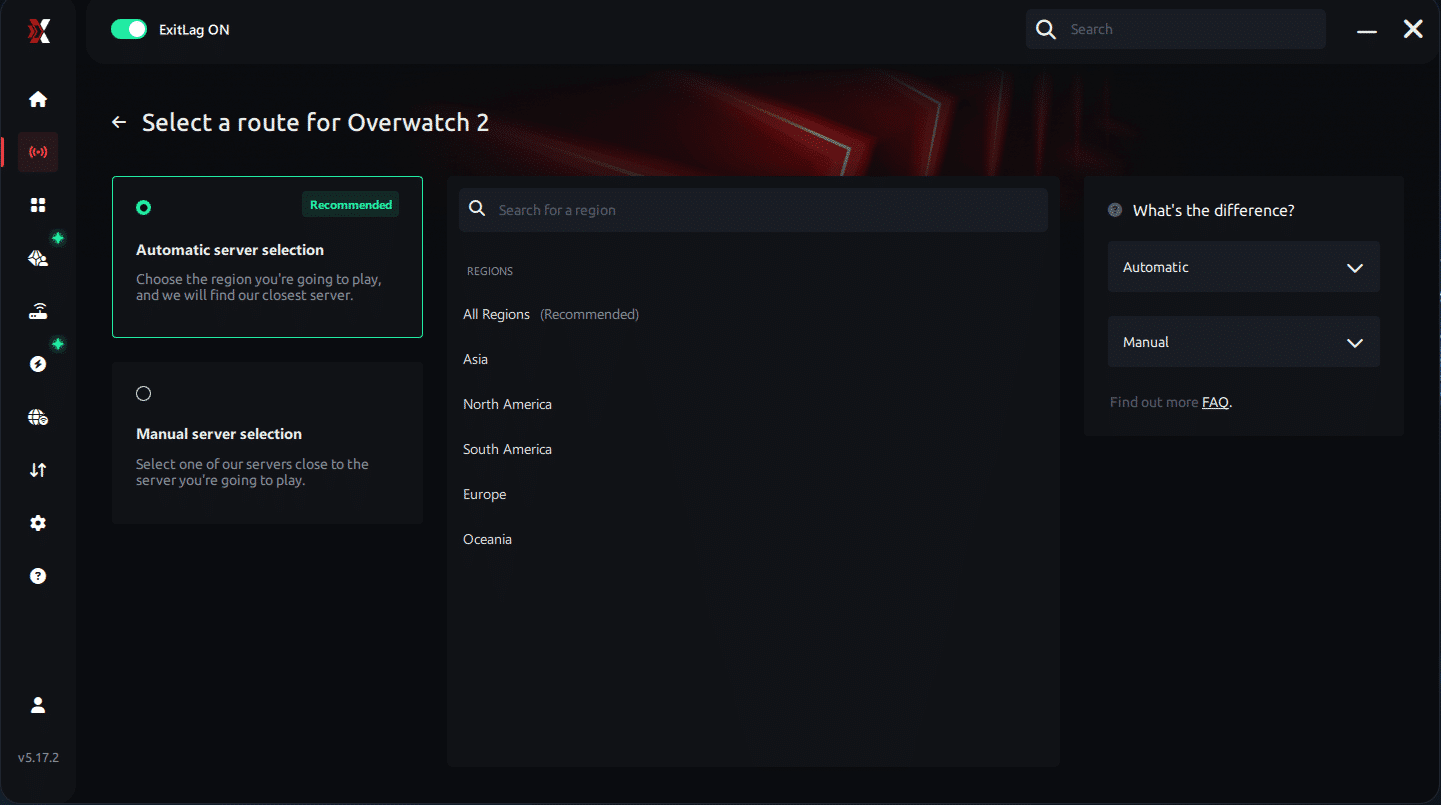
Manual route
If you prefer to have full control over your connection, you can manually choose the server based on the ping test results. Simply select the server that showed the lowest latency or the one that best meets your specific gaming needs, allowing complete customization of your experience.
Step 5 – Click “Overwatch 2” or the play button. ExitLag will begin optimizing your connection automatically.
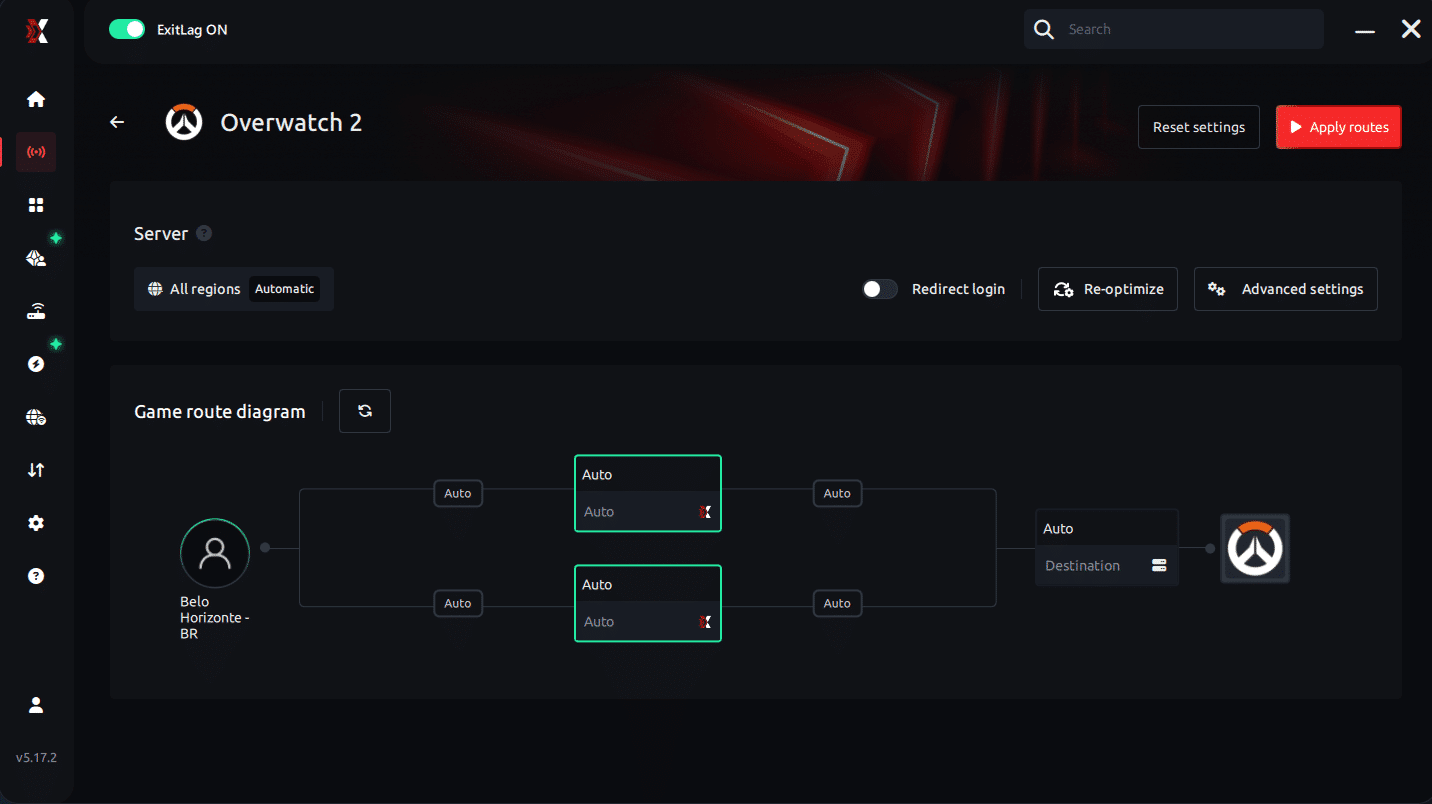
Step 6 – Wait a few seconds until optimization is complete. You’ll see ping indicators in the interface.
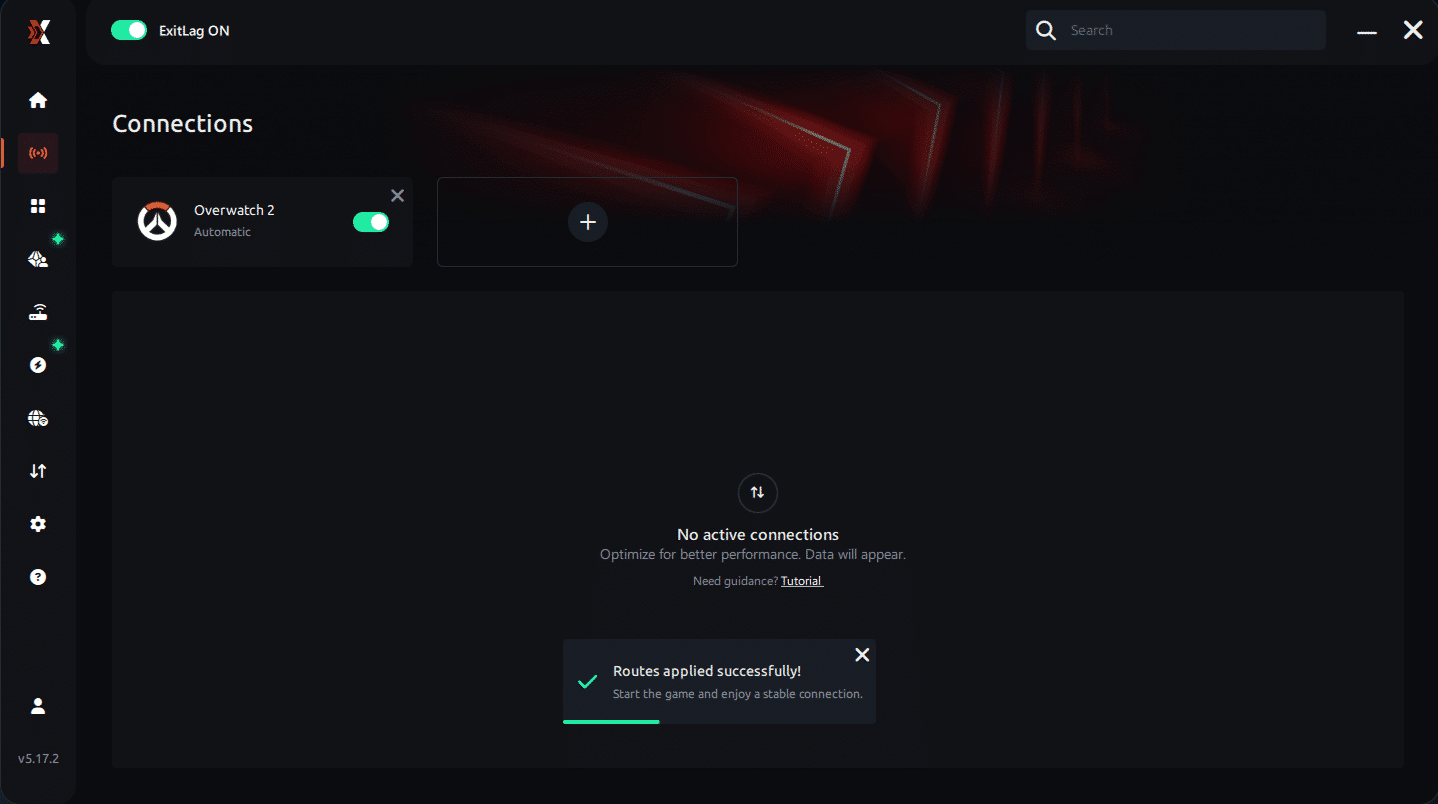
Step 7 – Launch Overwatch 2 normally. The optimization will already be active.
ExitLag runs in the background while you play, constantly adjusting routes to maintain the best possible performance.
FAQ: everything about high ping in Overwatch 2
What causes high ping in Overwatch 2?
High ping usually comes from server distance, ISP routing, shared network congestion, or temporary server instability. Sometimes, even fast internet connections suffer from poor routing. That’s because ISPs choose indirect paths that increase latency.
How do I check my ping in Overwatch 2?
You can enable network stats in the settings menu. This shows real-time values during matches. Additionally, running system-level ping tests helps identify whether instability comes from your ISP or from game servers.
What is good ping for Overwatch 2?
Values under 50 ms are ideal, while 60–90 ms are acceptable. After 100 ms, delays become noticeable. When numbers exceed 150 ms, gameplay suffers heavily and responsiveness declines significantly.
Can high ping get me banned in Overwatch 2?
No. High ping does not cause bans. However, it can indirectly affect your performance, making the game think you are inactive or out of sync. In ranked games, poor connectivity may also contribute to unintentional leaver penalties.
Does ExitLag work for Overwatch 2?
Yes. ExitLag optimizes your route, stabilizes latency, and eliminates spikes. It helps reduce Overwatch 2 high ping by sending your packets through the best available paths. Many players report immediate improvements.
Why does my ping spike only at night?
Nighttime peak hours create network congestion. More users share the same bandwidth, and ISPs reroute traffic due to high regional load. This often results in Overwatch 2 latency spikes until traffic normalizes.
Conclusion
Overwatch 2 relies heavily on precision, timing, and fast reactions. When your connection suffers, your performance drops, and matches feel unpredictable. Fortunately, with the right fixes and optimized routing, you can eliminate delays and restore stable gameplay.
For more insights, tutorials, and tips, visit the official ExitLag blog.
Overwatch 2 high ping no longer needs to ruin your free time. Now that you understand the causes and how to stabilize your connection, you can finally enjoy your gaming smoothly. Start your free trial and see the difference for yourself.



