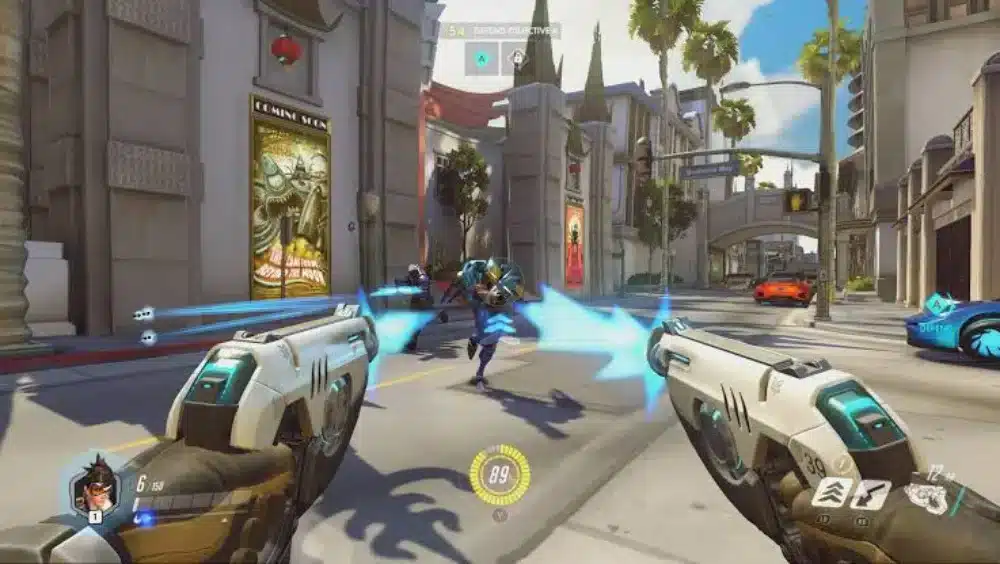
Overwatch lag can make even the most skilled players miss crucial shots, mistime abilities, and lose competitive matches. Since Overwatch 2 is built around fast-paced team fights and precise hero mechanics, even a slight increase in latency can negatively impact your performance. Fortunately, understanding what causes lag is the first step toward solving it.
If you’re dealing with overwatch lag, you’re not alone. Players across all regions occasionally experience high ping, packet loss, rubberbanding, or delayed hit registration. These issues may result from local network problems, internet routing, server conditions, or background applications consuming bandwidth. The good news is that many of these problems can be identified and fixed with a few practical adjustments.
What is overwatch lag? The term refers to delays between your actions and the game’s response during online matches. Lag can appear as high latency, packet loss, unstable connections, or sudden movement corrections that interfere with gameplay. Because Overwatch is highly competitive, maintaining a stable connection is just as important as having accurate aim or strong game sense.
Since its release, Overwatch has remained one of Blizzard Entertainment’s flagship multiplayer games. With dozens of heroes, multiple game modes, and frequent seasonal updates, the game demands responsive networking to ensure fair and balanced matches.
Unlike single-player titles, every action in Overwatch depends on constant communication between your computer and Blizzard’s servers. Your movement, ability usage, ultimate activation, and hit detection all rely on data being transmitted quickly and consistently.
Even players with powerful gaming PCs can experience lag if their internet connection becomes unstable. That’s why understanding the difference between network latency and hardware performance is essential before attempting any fixes.
Fortunately, Blizzard provides several built-in tools that help diagnose network problems, making it easier to determine whether the issue originates from your connection or elsewhere.
What Causes Overwatch Lag?
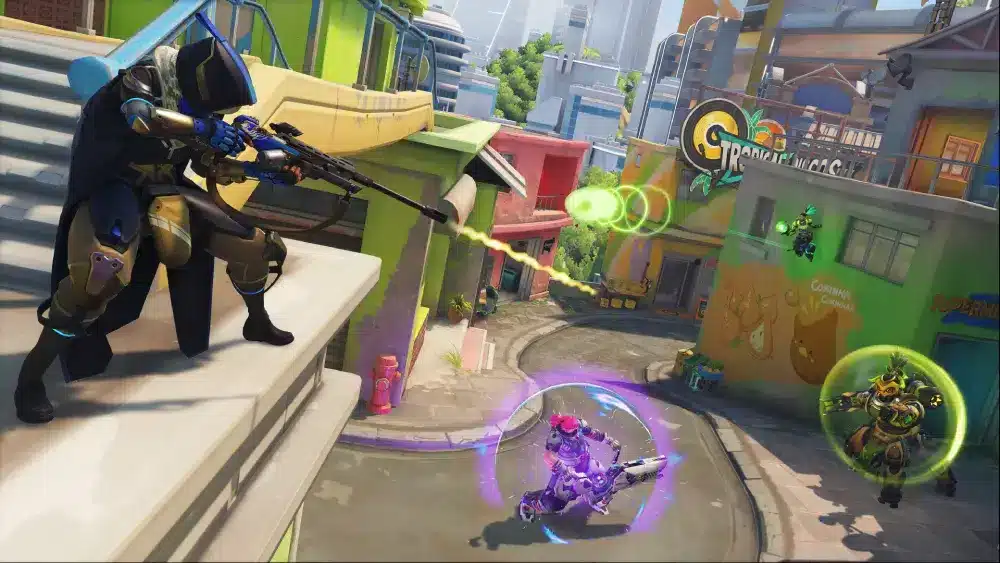
Several factors can contribute to lag during Overwatch matches. Identifying the underlying cause allows you to apply the most effective solution.
High Ping
Ping measures how long it takes for data to travel between your device and Blizzard’s game servers.
Higher ping generally results in:
- Delayed movement
- Slower ability activation
- Noticeable input delay
- Less responsive gameplay
Players located farther from available game servers often experience naturally higher latency, although routing quality also plays an important role.
Packet Loss
Packet loss occurs when some network data never reaches its destination.
In Overwatch, packet loss can cause:
- Teleporting characters
- Missing abilities
- Rubberbanding
- Delayed hit registration
- Frozen gameplay
Unlike consistently high ping, packet loss often produces unpredictable gameplay interruptions.
Network Congestion
Your home network may become overloaded when multiple devices use bandwidth simultaneously.
Examples include:
- Video streaming
- Cloud backups
- File downloads
- Operating system updates
- Other online games
Although download speed may appear sufficient, upload congestion can still affect multiplayer performance.
ISP Routing Problems
Sometimes your internet service provider selects inefficient routes between your location and Blizzard’s servers.
Longer or congested routes may increase:
- Latency
- Packet loss
- Jitter
- Connection instability
These issues often fluctuate throughout the day depending on regional internet traffic.
Common Signs of Overwatch Lag
Not every networking problem appears the same way.
Recognizing the symptoms can help determine whether you’re experiencing latency, packet loss, or another type of connection issue.
Rubberbanding
Rubberbanding causes your character to move forward before suddenly snapping back to a previous position.
This usually indicates:
- Packet loss
- Network instability
- Temporary connection interruptions
It becomes especially noticeable during fast movement abilities.
Delayed Ability Activation
Heroes depend heavily on precise timing.
When lag occurs, you may notice:
- Abilities activating late
- Defensive cooldowns failing to respond
- Delayed ultimate usage
- Slower interaction with objectives
Milliseconds often determine the outcome of team fights.
Hit Registration Issues
Sometimes your crosshair appears perfectly aligned, yet shots fail to register.
This can happen because:
- High latency delays server confirmation.
- Packet loss interrupts communication.
- Temporary desynchronization occurs.
Hit registration problems are particularly frustrating for heroes requiring precise aim.
Teleporting Players
Enemy heroes may suddenly appear in unexpected positions.
This behavior often results from:
- Severe packet loss
- High network jitter
- Temporary server synchronization issues
Although it resembles cheating to some players, teleporting is usually caused by unstable network communication.
How to Diagnose Overwatch Lag
Before attempting advanced fixes, identify exactly what kind of network problem you’re experiencing.
Enable Network Statistics
Overwatch includes built-in network monitoring tools.
These statistics display information such as:
- Current latency
- Packet loss
- Interpolation delay
- Server performance indicators
Monitoring these values during gameplay helps isolate the problem.
Understand Network Metrics
Several network measurements appear in Overwatch.
The most important include:
- Latency: Round-trip communication time with the server.
- Packet Loss: Percentage of lost network packets.
- Interpolation Delay: Additional smoothing used to compensate for unstable connections.
Watching these values over multiple matches provides a clearer picture of connection stability.
Use the Network Graph
The in-game Network Graph visualizes connection quality over time.
Large spikes often indicate:
- Temporary congestion
- Routing instability
- Packet loss
- ISP issues
Consistent values generally reflect a healthy connection.
Basic Fixes for Overwatch Lag
Many network issues can be resolved through simple troubleshooting.
Begin with these basic solutions before making more advanced changes.
Restart Your Network Equipment
Power cycling your modem and router refreshes several network components.
Benefits include:
- Renewed IP assignment
- Cleared routing tables
- Refreshed DNS information
- Improved connection stability
Allow your modem and router several minutes to restart completely.
Use a Wired Connection
Ethernet connections typically provide greater stability than Wi-Fi.
Advantages include:
- Lower latency
- Reduced packet loss
- Fewer interference issues
- More consistent bandwidth
Competitive players generally prefer wired networking whenever possible.
Close Background Downloads
Background traffic competes with Overwatch for bandwidth.
Before playing, pause:
- Game downloads
- Operating system updates
- Cloud synchronization
- Streaming services
- Large file transfers
Reducing unnecessary traffic allows more consistent communication with Blizzard’s servers.
Update Network Drivers
Outdated drivers occasionally contribute to networking issues.
Keeping your network adapter updated improves:
- Compatibility
- Stability
- Performance
- Security
Visit your hardware manufacturer’s website to download the latest drivers.
Why Stable Connections Matter in Competitive Play
Every hero in Overwatch relies on responsive networking.
Whether you’re landing critical Widowmaker headshots, timing Ana’s Biotic Grenade, or protecting teammates with Reinhardt’s Barrier Field, stable latency ensures your actions reach the server as quickly as possible.
Network consistency also improves teamwork by allowing smoother communication between players and reducing unexpected gameplay interruptions during crucial objectives.
Advanced Solutions for Overwatch Lag
If the basic troubleshooting steps didn’t resolve overwatch lag, it’s time to make more advanced adjustments. These optimizations focus on your network configuration, Windows settings, and game setup to deliver a smoother competitive experience.
Optimize Your Router Settings
Your router is responsible for directing all internet traffic between your devices and Blizzard’s servers. Incorrect settings or outdated firmware can increase latency and reduce connection stability.
To optimize your router:
- Restart it regularly to refresh network sessions.
- Install the latest firmware provided by the manufacturer.
- Place the router in an open location to improve Wi-Fi coverage if you’re using wireless.
- Limit the number of devices actively using bandwidth during gaming sessions.
- Enable Quality of Service (QoS) if your router supports it, prioritizing gaming traffic over downloads or streaming.
While every router interface is different, keeping your network hardware updated can prevent many common connection issues.
Use Reliable DNS Servers
Although changing your DNS won’t directly lower ping, it can improve how quickly your PC connects to online services and resolve occasional connection problems.
Popular public DNS providers include:
- Google Public DNS
- Cloudflare DNS
- OpenDNS
If you’re experiencing inconsistent matchmaking or connection delays, switching DNS providers is a quick troubleshooting step worth trying.
Choose the Best Game Region
Overwatch automatically selects a server region based on your location, but there are situations where regional routing may not be optimal.
Connecting to a server farther away generally results in:
- Higher ping
- Increased latency
- More noticeable input delay
Whenever possible, play on the region closest to your physical location for the lowest latency.
Check Firewall and Antivirus Settings
Security software occasionally interferes with online games by inspecting or filtering network traffic.
If Overwatch experiences sudden connection interruptions:
- Ensure Overwatch 2 is allowed through your firewall.
- Verify Blizzard Battle.net has network permissions.
- Temporarily disable third-party antivirus software for testing.
- Avoid running multiple network monitoring applications simultaneously.
Always re-enable your security software after troubleshooting.
Best Settings to Reduce Overwatch Lag
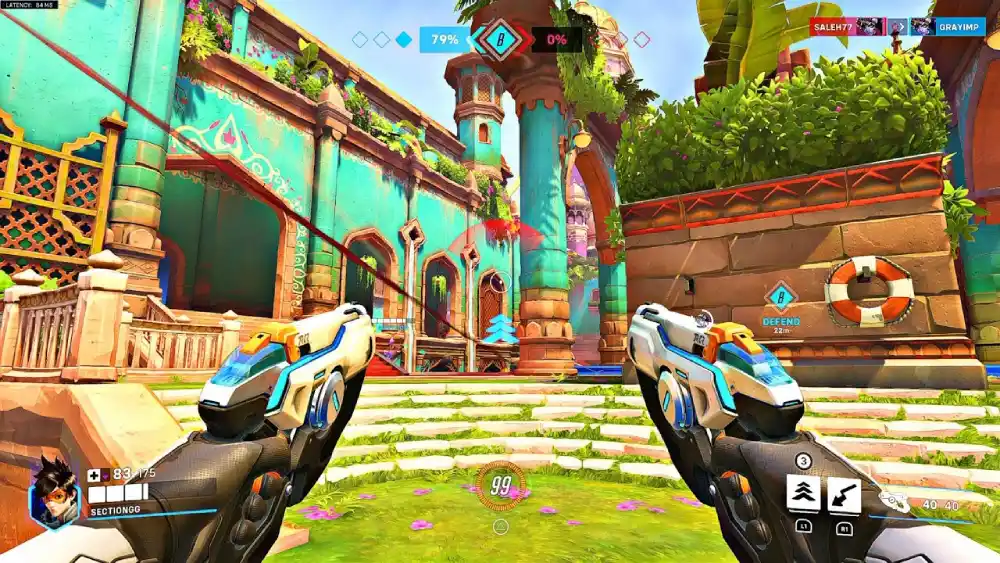
While network quality is essential, stable frame rates also contribute to a more responsive experience.
Optimize Graphics Settings
Lower graphics settings reduce GPU workload, allowing your system to maintain consistent performance during intense team fights.
Recommended adjustments include:
- Lower Shadow Quality
- Reduce Dynamic Reflections
- Disable unnecessary visual effects
- Lower Ambient Occlusion
- Reduce Effects Detail if needed
Competitive players often prioritize smooth performance over maximum visual quality.
Maintain a Stable Frame Rate
Frame rate consistency is more important than chasing the highest possible FPS.
For optimal responsiveness:
- Enable NVIDIA Reflex if supported.
- Set an FPS limit slightly below your monitor’s refresh rate.
- Close unnecessary overlays.
- Avoid running resource-heavy applications in the background.
Reducing frame-time fluctuations creates a smoother gameplay experience.
Manage Background Applications
Many applications continue consuming bandwidth and system resources without obvious signs.
Before launching Overwatch:
- Pause cloud synchronization services.
- Close streaming platforms if not in use.
- Exit web browsers with multiple active tabs.
- Stop game downloads and software updates.
- Disable unnecessary startup programs.
These small adjustments often produce noticeable improvements during competitive matches.
Improve Overwatch Lag with ExitLag
Even with a powerful gaming PC and a fast internet connection, inefficient routing between your ISP and Blizzard’s servers can introduce unnecessary latency, jitter, and packet loss. These routing issues are often outside your direct control, making them difficult to solve through standard troubleshooting alone.
ExitLag is designed specifically to optimize online gaming connections using intelligent routing technology. Instead of relying on a single network path, ExitLag continuously analyzes multiple routes and automatically selects the most stable option in real time.
Its core features include:
- Multipath Connection to improve route stability.
- Real-Time Optimization that adapts to changing network conditions.
- Traffic Shaper to prioritize gaming traffic.
- Worldwide servers that help maintain reliable connections across different regions.
For Overwatch players, these technologies can help reduce common networking problems such as:
- High ping
- Packet loss
- Network jitter
- Connection instability
- Sudden latency spikes
Getting started is simple:
- Create an ExitLag account.
- Download and install the application.
- Select Overwatch from the supported games library.
- Apply the recommended optimization routes.
- Launch Battle.net and start playing.
Because ExitLag supports more than 3,000 games, you can also use it to optimize other competitive titles with the same account.
Common Overwatch Lag Problems
| Problem | Possible Cause | Recommended Fix | Difficulty |
| High ping | Long ISP routing | Optimize routing with ExitLag or contact your ISP | Easy |
| Packet loss | Network congestion | Use a wired connection and reduce background traffic | Easy |
| Rubberbanding | Unstable connection | Restart router and check network stability | Easy |
| Delayed abilities | High latency | Connect to the nearest server region | Easy |
| Hit registration issues | Packet loss or latency spikes | Monitor the Network Graph and stabilize your connection | Medium |
| Random disconnects | Firewall or ISP issues | Verify firewall permissions and restart network equipment | Medium |
| FPS drops mistaken for lag | GPU overload | Lower graphics settings and cap FPS | Easy |
| Network graph spikes | Routing instability | Optimize your connection path with ExitLag | Medium |
Additional Tips for Competitive Players
If you regularly play Competitive mode, maintaining a stable connection should become part of your routine.
Good habits include:
- Playing during periods of lower household internet usage.
- Restarting your router every few weeks.
- Keeping Windows and network drivers updated.
- Monitoring in-game network statistics regularly.
- Using Ethernet whenever possible instead of Wi-Fi.
These practices help reduce unexpected interruptions during ranked matches.
Frequently Asked Questions
High ping is usually caused by long routing paths, network congestion, Wi-Fi interference, or physical distance from Blizzard’s servers.
Packet loss can occur because of ISP routing problems, overloaded home networks, unstable Wi-Fi connections, or temporary internet outages.
FPS and network lag are different issues. Low FPS affects visual smoothness, while network lag delays communication between your PC and the game server. However, both can make gameplay feel less responsive.
A wired Ethernet connection generally provides lower latency, fewer interruptions, and greater stability than Wi-Fi, making it the preferred option for competitive gaming.
ExitLag helps optimize routing between your device and game servers, reducing latency, packet loss, and connection instability caused by inefficient network paths. While it cannot fix hardware limitations or ISP outages, it can significantly improve connection quality when routing is the primary issue.
Stay Competitive with a Stable Connection
Experiencing overwatch lag can be frustrating, especially in a game where every millisecond influences positioning, aim, and ability timing. Fortunately, most connection problems can be improved by combining proper network maintenance, optimized game settings, and reliable routing.
Start by identifying whether you’re dealing with high ping, packet loss, or local hardware limitations. Then apply the appropriate fixes, monitor your in-game network statistics, and minimize unnecessary background activity. For players seeking an extra level of connection stability, ExitLag provides intelligent route optimization that helps maintain smoother, more consistent online matches, allowing you to focus on teamwork and climbing the competitive ladder instead of fighting connection issues.
All game images used in this blog belong to Blizzard Entertainment. They are used for informational/educational purposes only and do not imply endorsement or affiliation with the rights holders.
Got questions or want to connect with other players? Join the conversation at the ExitLag Forum!