Teamspeak3 players know how frustrating it is when your voice cuts out, sentences break midway, or teammates can’t understand a single word during a critical moment. These problems often happen because of packet loss teamspeak3, a connectivity failure that disrupts the flow of voice data in real time. Therefore, if you’re constantly searching how to fix packet loss teamspeak3, you’re definitely not alone, and there is a reliable solution.
However, what makes Teamspeak3 lag so irritating is that these interruptions happen even when everything seems “fine” on your PC. The mixture of delayed voice, robotic audio, and random silences becomes unbearable, especially when you depend on Teamspeak3 for competitive sessions or organized multiplayer interactions. Like this, even minor Teamspeak3 connection issues can compromise coordination and ruin entire matches.
Finally, before jumping into advanced fixes, it’s essential to understand what actually causes packet loss teamspeak3. Once you know where the issue starts, it becomes much easier to apply the right solution and avoid wasting time with trial-and-error settings.

What is packet loss in Teamspeak3?
Packet loss, or packet loss, occurs when the data packets you send and receive during voice communication fail to reach the servers of Teamspeak3. Voice communication relies on constant transmission of data, meaning even small interruptions can degrade sound quality. In simple terms, every word you say is broken into tiny pieces of digital information, and when some of these pieces disappear, your teammates hear gaps, robotic distortion, or nothing at all.
Therefore, imagine trying to deliver several short notes to a friend across a city. If a few of those notes get lost during the trip, your friend receives an incomplete message that makes no sense. The same analogy applies to packet loss teamspeak3, where missing packets break the continuity of your voice communication.
How packet loss affects your gameplay in Teamspeak3
When packet loss Teamspeak3 occurs, the experience becomes unstable and unpredictable. Below are real problems players face:
- Delayed voice commands: your words arrive seconds later to the channel.
- Robotic audio: corrupted packets generate metallic or broken sound.
- Unexpected disconnects: the server drops your session abruptly.
- Cut-off sentences: parts of your speech vanish mid-conversation.
- Echo or repeated sound fragments: the system tries to compensate lost data.
- Difficulty in coordinating raids or ranked matches: instructions fail.
- Voices overlapping: broken timestamps cause audio desynchronization.
Main causes of packet loss in Teamspeak3
Inefficient routing
Routing problems happen when your data travels through too many intermediate routers before reaching the Teamspeak3 server. However, these long, unstable paths increase the chance of packets being dropped or delayed.
Unstable connection
Weak Wi-Fi, damaged cables, ISP instability, or overloaded home networks commonly cause Teamspeak3 connection issues. Therefore, even if your ping seems acceptable, the line may still be losing data.
Server distance
The further the servers are from you, the more “hops” your data must travel. Like this, distant servers naturally increase packet loss chances.
Network congestion
During peak hours, multiple users share the same bandwidth, causing heavy congestion. This results in Teamspeak3 lag, unpredictable audio, and random disconnects.
Faulty hardware
Modems, routers, and network cards with defects generate corrupted packets, leading to frequent packet loss Teamspeak3.
How to identify packet loss in Teamspeak3
Detecting packet loss is simpler than it seems. First, observe your in-app audio behavior: if you notice inconsistent latency, “robotic” voices, or players sounding out of sync, the issue is likely packet loss. Therefore, even if your ping appears stable, listen for sudden quality drops.
However, you can run a basic ping test using the command prompt or terminal. Type ping [server address] -t and analyze the results. Any “Request timed out” or high variability points to clear data loss. Like this, you confirm that the problem is not simply normal lag, but missing packets interrupting communication.
Finally, pay attention to rubberbanding-style audio, where your teammates’ voices jump backward or repeat. This is a classic sign of unstable data flow in voice platforms like Teamspeak3.
Packet loss levels table
| Packet loss % | Severity | Expected experience |
| 0% | Excellent | Perfect audio, no interruptions |
| 1–2% | Mild | Small distortions, barely noticeable |
| 3–5% | Moderate | Noticeable cuts, inconsistent voice |
| 6–10% | High | Frequent cuts, robotic audio |
| 10%+ | Critical | Severe interruptions, unusable voice |
Basic solutions to reduce packet loss in Teamspeak3
Optimize your local connection
- Use a wired connection to ensure stable routing.
- Close background applications that consume bandwidth.
- Update your network drivers to avoid instability.
- Configure QoS in your router to prioritize Teamspeak3.
- Test new Ethernet cables if the current one is damaged.
- Adjust Teamspeak3 codec settings to reduce instability.
Contact your ISP
If none of the local fixes help, you might be dealing with ISP routing problems. Therefore, contact your provider and request a line test, explaining that you’re experiencing packet loss Teamspeak3. They can detect interference, replace equipment, or adjust your connection profile.
ExitLag: the definitive solution to eliminate packet loss in Teamspeak3
What is ExitLag?
ExitLag is a software specialized in connection optimization built exclusively for gamers needing stable routing and zero packet loss. It uses advanced technology to reroute your voice data through the most efficient paths, ensuring crystal-clear communication.
Therefore, unlike generic tools, ExitLag focuses entirely on optimizing connection quality for communication and gameplay, delivering consistent performance every session.
How ExitLag works to reduce packet loss
ExitLag relies on its Multi-Internet technology to eliminate instability.
Its process includes:
- Real-time route analysis
- Multiple simultaneous connections
- Automatic route switching
- Hop optimization
- Continuous stabilization
Advantages of ExitLag for Teamspeak3 players
- Elimination of packet loss: A dramatic reduction through multi-route redundancy.
- Lower ping: More direct routing decreases latency.
- Stable connection: No unpredictable fluctuations during calls.
- Protection against DDoS: Helpful if you manage large gaming communities.
- Easy interface: Beginner-friendly configuration.
- Support for all servers: Works on any public or private Teamspeak3 server.
Each of these advantages ensures your communication remains clear, stable, and synchronized at all times.
Is ExitLag worth using for Teamspeak3?
If you experience regular packet loss Teamspeak3, unstable routing, distant servers, or lag during peak hours, ExitLag is absolutely worth it.
How to use ExitLag in TeamSpeak 3
The process is extremely simple:
Step 1 – Access the official ExitLag website and download the application. There’s a free trial period for new users.
Step 2 – Install and open the program. Log in with your account.
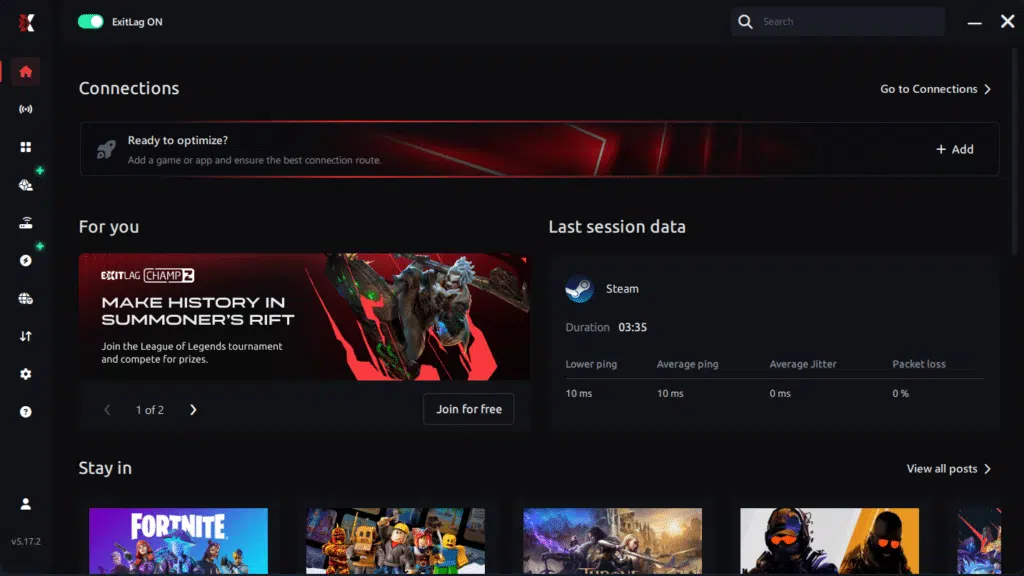
Step 3 – In the search bar, type “TeamSpeak 3” and select the game from the list.

Step 4 – Choose Your Route
You can manually choose the server based on the ping test results.
Simply select the server that showed the lowest latency or the one that best meets your specific needs, allowing full control over your connection.
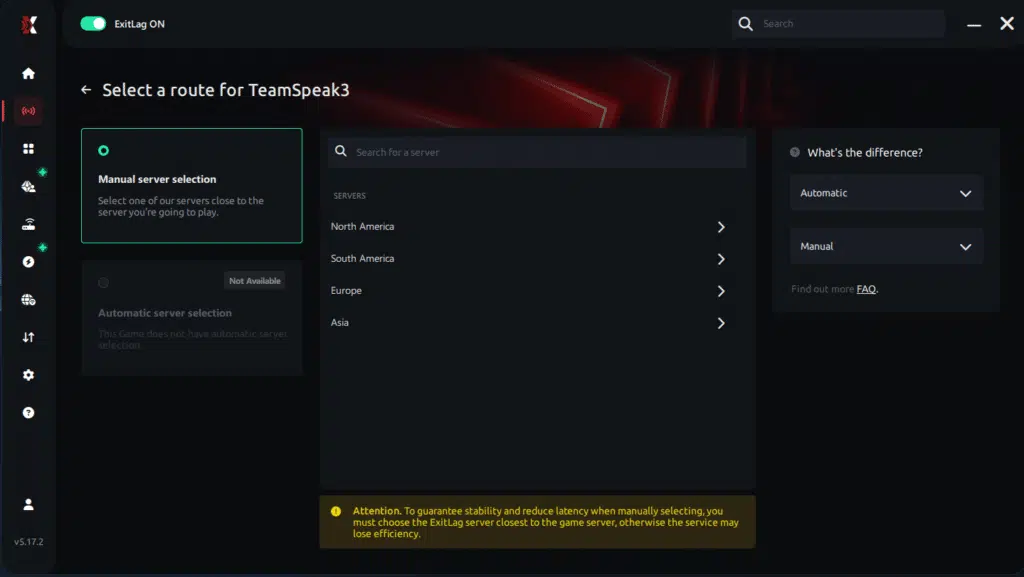
Step 5 – Click “TeamSpeak 3” or the play button. ExitLag will begin optimizing your connection automatically.

Step 6 – Wait a few seconds until optimization is complete. You’ll see ping indicators in the interface.
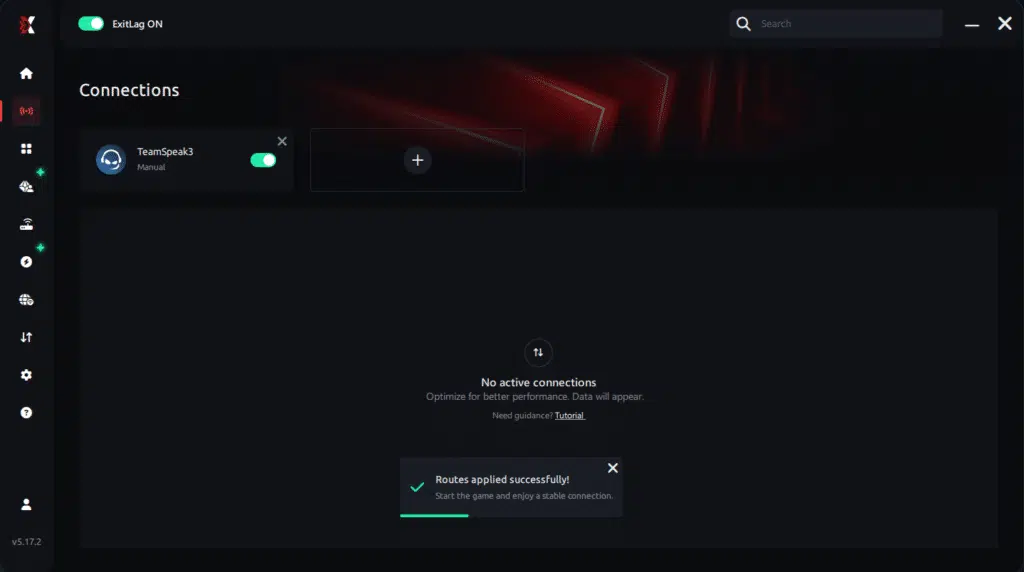
Step 7 – Launch TeamSpeak 3 normally. The optimization will already be active.
ExitLag runs in the background while you play, constantly adjusting routes to maintain the best possible performance.
FAQ about packet loss in Teamspeak3
Is packet loss the same as lag?
No. Lag is high latency, while packet loss is missing data. Therefore, you can have low ping but still suffer communication issues.
Why do I have packet loss only in Teamspeak3?
Different services use different servers, routing paths, and traffic patterns. Like this, a single platform can show instability while others do not.
Can packet loss cause a ban?
Not normally. However, extremely unstable connections can trigger temporary disconnections.
How much packet loss is acceptable for Teamspeak3?
0% is ideal. Up to 1% is manageable for casual use, but anything higher harms communication.
Can my hardware cause packet loss?
Yes. Damaged cables, faulty routers, and poor network cards often contribute.
Does ExitLag work on private Teamspeak3 servers?
Yes, as long as the server address is supported inside the tool.
Why is my voice robotic even with low ping?
This symptom is classic packet loss teamspeak3, not latency.
Eliminate packet loss and play Teamspeak3 without interruptions
Therefore, dealing with packet loss Teamspeak3 doesn’t need to be a never-ending struggle. With the right solutions, you can restore clear voice communication and regain full control of your multiplayer experience.
Finally, upgrading your connection is an investment in gameplay quality, performance, and teamwork. With stable voice communication, you coordinate better, react faster, and enjoy a more immersive gaming experience.
Got questions or want to connect with other players? Join the conversation at the ExitLag Forum!