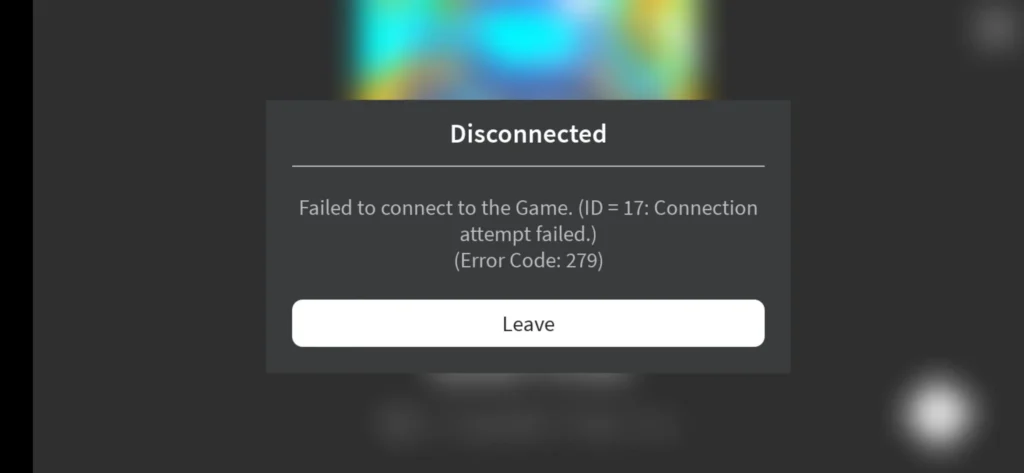
Roblox error 279 appears when the Roblox client has difficulty establishing a network connection with the game server. It is commonly associated with ID 17 and the “Failed to connect to the Game” message, which means the connection is failing before you can properly enter an experience. Roblox officially classifies Error Code 279 and ID 17 together as a connection failure.
Several factors can trigger Roblox error 279, including an unstable internet connection, firewall restrictions, security software, corrupted Roblox files, Wi-Fi issues, or even a problem affecting a particular experience. Because the error can have different causes, immediately reinstalling everything or changing advanced router settings is not always necessary.
In this guide, you'll learn how to fix Roblox error code 279 by starting with the quickest solutions and gradually moving toward more advanced troubleshooting. We'll also explain Roblox error 279 ID 17, how it differs from Error 277, what to do when Roblox fails on every experience, and how network stability can affect your connection.
What Does Roblox Error 279 Mean?
Roblox error code 279 means the Roblox application was unable to establish the network connection required to join an experience. Roblox describes Error 279/ID 17 as a situation where the client application and servers have difficulty establishing a network connection.
The important word here is establishing. Error 279 generally happens while Roblox is attempting to connect you to an experience rather than after you've already been playing normally for some time.
You might see messages containing:
- Error Code: 279;
- ID=17;
- Failed to connect to the Game;
- Could not connect;
- Connection attempt failed.
These messages all point toward communication between the Roblox client and the online experience, but the underlying cause can vary.
Here is a quick way to start diagnosing the problem:
| Symptom | Possible Cause | First Step |
| Error 279 before joining | Connection failure | Restart and retry |
| ID 17 appears | Server connection failed | Check network |
| Only one experience fails | Experience-specific issue | Try another experience |
| Every experience fails | Device/network issue | Test another connection |
| Works on another network | Wi-Fi/router/ISP issue | Troubleshoot network |
| Roblox repeatedly fails | Client or security issue | Check firewall/reinstall |
Instead of changing several settings simultaneously, test one solution at a time. That makes it much easier to identify what is actually causing the Roblox connection error.
What Is Roblox Error 279 ID 17?
Roblox error 279 ID 17 is not a completely separate error. Roblox officially groups the two together under “Error Code 279/ID 17: Failed to connect to the Game.”
In practical terms, the message indicates that Roblox attempted to connect the client to an online experience but could not successfully establish that connection.
This can happen before the experience loads or while Roblox is attempting to communicate with the server required to place your character into the game.
The first question should therefore be whether the problem affects one experience or every experience. If only one specific game refuses to load while others work normally, the problem may be related to that particular experience.
However, if every experience produces the same Roblox failed to connect to the game message, your application, device, network, firewall, or internet connection becomes a more likely cause.
Roblox Error 279 vs. Error 277: What's the Difference?
Error 279 and Error 277 are both related to connectivity, which makes them easy to confuse. However, Roblox officially describes them differently.
Error 279 / ID 17 means Roblox failed to connect to the game. Error 277, meanwhile, is identified as lost connection to the game server, indicating that a server connection was lost rather than failing to establish in the first place.
A simple way to remember the difference is:
| Error | Usually Happens | Meaning |
| Error 279 / ID 17 | While joining | Failed to establish connection |
| Error 277 | After connecting | Connection to server was lost |
The troubleshooting can overlap because both problems may involve your network. However, knowing which error you're actually receiving helps determine where to begin.
If you're seeing Error 279 before entering an experience, continue with the solutions below.
How to Fix Roblox Error Code 279
There is no single universal solution for how to fix Roblox error code 279, because several different problems can interrupt the connection process.
The most efficient approach is to begin with simple tests that eliminate the most common possibilities. Only move toward firewall, router, and installation troubleshooting if the basic solutions fail.
Follow these steps in order:
- Try another Roblox experience;
- Restart Roblox;
- Restart your device;
- Restart your router;
- Test another internet connection;
- Check firewall and security software;
- Check for interfering applications;
- Reinstall Roblox;
- Investigate network stability.
Let's look at each solution more closely.
1. Try Joining Another Roblox Experience
Before changing your computer or network settings, determine whether Roblox error 279 occurs everywhere.
Close the experience that produces the error and try joining several different experiences. Choose unrelated games rather than repeatedly reconnecting to the same server.
If other experiences work normally, your device and internet connection are clearly capable of connecting to Roblox. The original experience may have a temporary server, scripting, or configuration problem.
Roblox's general connection documentation specifically notes that an individual experience can contain problematic scripts or too many objects, preventing it from running correctly. In that situation, only the creator may be able to repair the experience.
If every experience returns Error 279, continue troubleshooting your device and connection.
2. Completely Restart Roblox
Sometimes the simplest solution is enough. Close Roblox completely rather than simply returning to the website or leaving the application running in the background.
Wait a few seconds and launch Roblox again. Then try joining the same experience.
A temporary application or connection state can prevent Roblox from establishing a fresh session. Restarting forces the client to begin the connection process again instead of continuing from the previous failed attempt.
If the error remains, restart your entire device. Roblox recommends rebooting as an early troubleshooting step for desktop problems because temporary software issues can sometimes disappear after a fresh system start.
This takes only a few minutes and should be attempted before changing advanced network settings.
3. Restart Your Router
If Roblox continues failing, restart your router or internet gateway. Network equipment operates continuously and can occasionally develop temporary connectivity problems.
After restarting it, wait until your internet connection is completely restored before launching Roblox again.
Also check whether other online services are behaving normally. If websites, streaming services, downloads, and other online games are all unstable, Roblox error code 279 may be one symptom of a broader connection problem.
However, normal web browsing does not guarantee that your gaming connection is healthy. Browsing can tolerate brief interruptions much more easily than a real-time online game.
Therefore, if Roblox repeatedly fails while everything else appears normal, continue testing instead of immediately assuming the internet connection cannot be responsible.
4. Test Another Internet Connection
Testing another network is one of the most useful diagnostic steps for Roblox error 279 because it can quickly separate a device problem from a network problem.
For example, if Roblox repeatedly fails through your home Wi-Fi but immediately connects through another Wi-Fi network, the original connection deserves closer investigation.
Roblox specifically recommends connecting the device to another internet connection when troubleshooting Error 279. If the problem continues, its support documentation suggests testing with another internet provider as part of network troubleshooting.
The comparison gives you valuable information:
Works on another network → investigate your original network/router/ISP.
Fails on every network → investigate the device, Roblox installation, security software, or a broader service problem.
Mobile users can perform a similar test by comparing Wi-Fi with another available connection where appropriate.
5. Switch From Wi-Fi to Ethernet
An inconsistent wireless connection can contribute to Roblox connectivity problems. Roblox's general troubleshooting documentation specifically identifies inconsistent wireless connectivity as one possible cause of connection failures.
If you're playing on a desktop or laptop and have access to Ethernet, temporarily connect directly to your router.
You do not necessarily need to permanently abandon Wi-Fi. This is primarily a diagnostic test. If Error 279 disappears when using Ethernet, you've discovered that wireless conditions may be contributing to the problem.
Common Wi-Fi problems include:
- Distance from the router;
- Walls and physical obstacles;
- Wireless interference;
- Network congestion;
- Weak signal;
- Too many connected devices.
If Ethernet is unavailable, move closer to your Wi-Fi router and test Roblox again. A significant improvement can indicate that wireless signal quality deserves attention.
6. Check Your Firewall and Antivirus
A firewall can prevent Roblox from communicating correctly with its servers. Roblox identifies firewall restrictions as a frequent source of general connection problems.
Instead of permanently disabling your security software, check whether Roblox has permission to access the internet. Windows users can review firewall application permissions and make sure Roblox is allowed.
Antivirus or antimalware software can create similar problems if it incorrectly identifies Roblox network activity as suspicious. Roblox recommends keeping security software updated and adding Roblox as an allowed application when necessary.
This is particularly worth investigating when:
- Error 279 started after installing security software;
- Your antivirus recently updated;
- Roblox works on another device using the same network;
- Other applications connect normally;
- Every Roblox experience fails.
Avoid making unnecessary permanent security changes. The goal is to allow legitimate Roblox traffic while keeping your normal protection active.
7. Check Browser Extensions and Third-Party Applications
Browser extensions and third-party applications can sometimes interfere with Roblox functionality. Roblox specifically notes that browser add-ons, particularly certain ad blockers, can prevent experiences from fully loading.
If you launch Roblox through a browser, temporarily disable recently installed extensions and test again. Pay particular attention to tools that modify web requests, block content, alter Roblox pages, or change browser security behavior.
Third-party desktop applications can also interfere with the client. Roblox recommends checking for programs that may restrict connection or functionality, including other game launchers and certain utilities.
Again, test methodically. Disable one likely source of interference, retry Roblox, and observe the result.
If the error began immediately after installing a particular extension or application, that software deserves additional attention.
8. Reinstall Roblox
If the previous solutions have not worked, reinstalling Roblox is a useful next step.
Corrupted or incomplete application files can interfere with launching and connecting to experiences. Roblox recommends reinstalling the application as part of its official Error 279 troubleshooting process, noting that a fresh copy removes potentially corrupted data and provides the latest version.
On PC, close Roblox completely before uninstalling it. Restarting your computer after removal can also help ensure that no old Roblox process remains active.
Then install a fresh copy and test an experience before changing any additional settings.
Reinstallation becomes particularly useful if:
- Roblox recently updated;
- The error appeared after an interrupted installation;
- Roblox behaves strangely beyond Error 279;
- Every experience fails;
- Other devices work on the same network.
If a clean installation still produces the same error, the network becomes a stronger area to investigate.
9. Check Date and Time Settings
Incorrect date and time settings can sometimes interfere with communication between applications and online services.
Roblox includes checking the device's date and time among its Error 279 troubleshooting instructions for supported devices. The goal is to ensure that the system remains correctly synchronized with Roblox services.
Open your device settings and make sure the date, time, and time zone are correct. Automatic date and time synchronization is usually the simplest option.
After correcting anything that is wrong, restart Roblox and attempt to connect again.
This is an easy step to overlook because the clock may appear unrelated to gaming. However, online authentication and secure network communication can depend on accurate system time.
10. Should You Open Ports to Fix Roblox Error 279?
Port configuration appears frequently in older Roblox connection error tutorials, but it should not be treated as the first solution.
Roblox explains that its client is not bound to one specific outgoing port. Instead, it scans for an available port, with ports selected dynamically for each experience session.
Current Roblox support documentation identifies the UDP range 49152–65535 in its general connection guidance. However, manually modifying router ports is a more advanced troubleshooting step and is unnecessary for most home users whose routers already allow normal outbound traffic.
Before touching router configuration, try the safer and simpler solutions:
- Restart the network;
- Test Ethernet;
- Try another network;
- Check firewall permissions;
- Reinstall Roblox.
If you are on a managed school, business, or restricted network, blocked network traffic becomes more plausible. In that case, contacting the network administrator is preferable to making changes you are not authorized to perform.
Roblox Error 279 on PC
PC users have several additional variables that can cause Roblox error 279, including Windows firewall settings, antivirus programs, browser extensions, corrupted temporary files, and third-party applications.
Start with the general solutions above. Restart Roblox and Windows, try multiple experiences, test the network, and verify firewall permissions.
If the problem continues, reinstall Roblox. Roblox's desktop troubleshooting guidance identifies corrupted temporary or application files and firewall restrictions among possible causes of desktop problems.
Also consider what changed immediately before Error 279 started. A new antivirus, firewall configuration, browser extension, game launcher, or network utility may provide a clue.
Testing one variable at a time is much more effective than changing multiple Windows and router settings simultaneously.
Roblox Error 279 on Mac
Mac users should begin with the same basic diagnosis: test several experiences, restart Roblox, restart macOS, and compare another internet connection if available.
If every experience continues producing Roblox failed to connect to the game, reinstalling Roblox can help remove corrupted application data and provide a fresh installation.
Network restrictions can also exist independently of Windows. Security tools, network filters, managed networks, and router configuration can affect communication regardless of operating system.
If Roblox works normally on another network but not your regular connection, focus on the network rather than repeatedly reinstalling the application.
Conversely, if another device connects successfully through the same Wi-Fi while your Mac consistently fails, local software or configuration becomes more likely.
Roblox Error 279 on iPhone and Android
Mobile users can also encounter Error 279 because Roblox officially lists the problem across PCs, Macs, and mobile devices.
Begin by completely closing the Roblox app and restarting your phone or tablet. Then check your date and time settings and verify that your operating system and Roblox app are current.
Next, compare available connections. If Roblox fails on Wi-Fi but works through another connection, investigate your Wi-Fi network. If the error appears everywhere, reinstalling the application becomes a reasonable next step.
Mobile users should also ensure that the device is running a supported, official operating system. Roblox notes that modified or unsupported mobile operating systems can create compatibility problems.
Avoid downloading unofficial modified Roblox applications as a supposed Error 279 fix. Stick to official distribution channels.
Can Packet Loss Cause Roblox Error 279?
Yes, network instability can contribute to connection failures. However, packet loss is only one possible cause of Roblox error code 279, so it should not automatically be blamed for every occurrence.
Packet loss happens when data traveling across the network fails to reach its destination. Online games rely on frequent communication, so unstable packet delivery can make establishing or maintaining a reliable connection more difficult.
Three network characteristics are useful when diagnosing gaming connections:
| Metric | What It Measures | Possible Impact |
| Ping | Network response time | Delayed actions |
| Jitter | Variation in latency | Inconsistent responsiveness |
| Packet loss | Missing network data | Connection instability |
A fast download speed does not necessarily guarantee good results in these areas. You can have a high-bandwidth connection while still experiencing unstable routing or packet loss.
This is why testing a different network can reveal information that a simple internet speed test may miss.
How ExitLag Can Help With Roblox Connection Stability
ExitLag is designed to optimize network routes for supported online games. Internet traffic does not always travel through the most efficient path between your device and game infrastructure, and poor routing can contribute to latency variation, packet loss, or unstable connections.
When Roblox error 279 is related to network routing or connection instability, improving the path your traffic takes may help create a more consistent connection.
However, route optimization cannot repair every possible cause of Error 279. It will not fix corrupted Roblox files, an incorrectly configured firewall, an unavailable experience, or a broader Roblox service problem.
For that reason, first work through the basic troubleshooting steps. Once you've confirmed that Roblox itself is installed correctly and your device is allowed to communicate normally, network optimization becomes more relevant if connection instability remains.
FAQ
Here are quick answers to common questions about Roblox error 279 and ID 17.
It means Roblox had difficulty establishing a network connection between the client and the game server. It is officially associated with ID 17.
Restart Roblox and your device, try another experience, test another network, check firewall permissions, and reinstall Roblox if necessary.
ID 17 is associated with Error Code 279 and indicates that Roblox failed to connect to the game.
The cause may involve your network, firewall, security software, Roblox installation, or the specific experience you're attempting to join.
Yes. Slow or inconsistent connections can contribute to Roblox connection problems, although they are not the only possible cause.
Fix Roblox Error 279 and Get Back Into the Game
Roblox error 279 means the client is struggling to establish the connection needed to enter an experience. Start with simple checks such as trying another game, restarting your device and router, and testing another network before moving on to firewall settings or reinstalling Roblox.
If Roblox is working correctly but unstable routing, jitter, or packet loss continues to affect your connection, optimizing the network path may help provide a more consistent experience.
Fix the connection, get back in the game, and try ExitLag for a smoother Roblox experience!