A Roblox picture can be an uploaded image asset, a decal placed on a surface, a texture repeated across a part, a user-interface graphic, an experience thumbnail, or an avatar image generated by the platform. Knowing which type you need matters because each one uses a different workflow inside Roblox and Roblox Studio.
Players who are still setting up the platform can begin with this guide to downloading and using Roblox through Microsoft. It provides useful context before working with a Roblox picture, especially when you are switching between the Microsoft Store version, the standard client, and Studio on Windows.
This Roblox picture guide explains how images, decals, asset IDs, thumbnails, and profile visuals actually work. It also shows how to upload files safely, use them in Studio, avoid copyright problems, and troubleshoot an image that does not appear.
What Is a Roblox Picture?
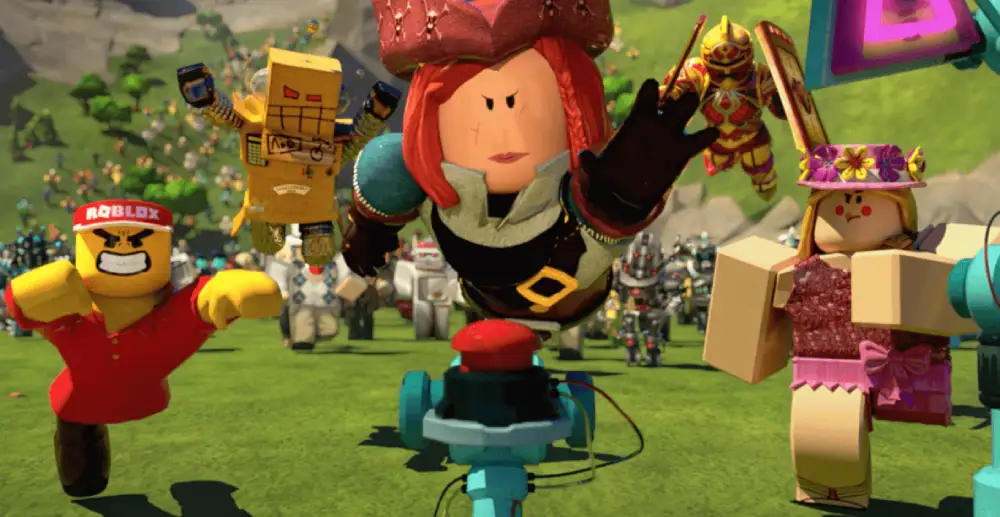
The phrase “Roblox picture” is informal. Roblox officially organizes most visual content as cloud-based assets with unique IDs. Images can then be used as decals, textures, interface elements, mesh textures, material maps, special-effect textures, thumbnails, and other visual resources. Roblox documentation notes that nearly everything on the platform is represented as an asset with an identifying number or URI.
That means a picture is not automatically the same thing as a decal. The uploaded file is the image asset. A Decal object displays an image stretched across one face of a part, while a Texture object repeats an image horizontally and vertically. This distinction is important when creating signs, walls, floors, interfaces, or a custom Roblox character environment.
Images, decals, textures, and thumbnails
The table below separates the most common visual asset types.
| Visual type | What it does | Common use |
| Image asset | Stores an uploaded visual file in Roblox | Source for decals, interfaces, textures, and effects |
| Decal | Stretches one image across a selected face | Signs, posters, screens, logos, and wall art |
| Texture | Repeats an image across a surface | Brick, grass, metal, fabric, and patterns |
| ImageLabel or ImageButton | Displays an image inside a user interface | Menus, inventories, icons, and buttons |
| Experience icon | Represents an experience in search and listings | Main square game icon |
| Experience thumbnail | Shows promotional gameplay or artwork | Experience page previews |
| Avatar thumbnail | Displays a rendered user avatar | Profiles, menus, and player lists |
Creators often use the term Roblox decals for any image placed in a game, but decals are only one application. A repeating floor pattern is better handled as a Texture, while a menu icon belongs in an ImageLabel or ImageButton. Choosing the right object avoids stretching, repetition, and scaling problems.
The same distinction applies to Roblox image IDs. An ID identifies a cloud asset, but the property receiving that ID must support the asset type. A valid number pasted into the wrong field may fail to render even when the asset still exists.
How pictures relate to avatars and characters
A profile image is generally based on the user’s avatar rather than an arbitrary photo uploaded as a profile picture. Roblox Support describes the profile’s “Currently Wearing” section as a picture of the player’s current avatar, with 2D and 3D viewing options. Changing clothing, body parts, accessories, and other avatar elements changes how that visual representation appears.
Therefore, a custom Roblox character look normally comes from avatar customization, not from replacing the profile image with a personal JPG. Developers can also customize playable Roblox characters inside an experience through character models and HumanoidDescription settings, which reference body parts, clothing, accessories, and animations.
Visual identity also varies between experiences. An anime-inspired game, for example, may combine avatar systems, custom interfaces, icons, effects, and environment art. This Peroxide Roblox gameplay and features guide shows how a specific experience builds its identity around characters, progression, combat, and themed presentation. Studying complete experiences can help creators understand how one Roblox picture fits into a wider visual system rather than functioning as isolated decoration.
How Do You Upload a Picture to Roblox?
To upload a Roblox picture, use Roblox Studio’s Asset Manager or Importer, or manage supported assets through the Creator Dashboard. This Roblox picture workflow replaces the simplified paths shown in many older tutorials. Those guides may tell you to open a basic “Create > Decals” page, but Roblox’s current creator tools center asset management inside Studio and the Creator Hub.
Roblox currently documents support for image files including PNG, JPG, GIF, TGA, and BMP in the Asset Manager or Importer. Imported assets enter moderation before they become usable or visible as intended. The exact available interface can change because Roblox continues updating the Asset Manager, including a revamped version described as a beta in its documentation.
Upload an image through Roblox Studio
Follow this general workflow:
- Open Roblox Studio and load the experience you are editing.
- Open Asset Manager from the Home tab or Window menu.
- Select the image section or use the import option.
- Choose a supported file from your computer.
- Confirm the creator or group that should own the asset.
- Add a clear name and any requested information.
- Submit the image and wait for moderation.
- After approval, right-click the asset and choose Copy Asset ID when needed.
The Asset Manager can import images for decals, textures, image labels, mesh textures, custom materials, effects, and other uses. It also lets creators insert assets, preview them, rename them, organize them, and copy IDs.
Before uploading, prepare the file for its actual destination. A transparent PNG works well for interface icons, cutout graphics, and some Roblox decals. A JPG may be appropriate for a photograph-like thumbnail without transparency. Textures should tile cleanly when repeated, while signs should remain legible after being stretched to fit a surface.
Useful preparation checks include:
- Crop unnecessary empty space.
- Use readable text at the final display size.
- Preserve transparency only when it serves a purpose.
- Avoid extremely fine details that disappear in-game.
- Keep a local master file before resizing or compressing.
- Verify that you own the artwork or have permission to use it.
- Test colors under the lighting used in your experience.
A Roblox picture that looks sharp in an editor can still appear blurry when enlarged, compressed, or viewed on a small screen. Test it inside the actual game rather than judging only from the source file.
Wait for moderation and check permissions
Every uploaded Roblox picture must comply with Roblox rules and Terms of Use. Roblox uses moderation systems for uploaded assets, and content can be rejected or removed when it violates safety, intellectual-property, or platform requirements.
Approval does not automatically mean every creator and every experience can use the file. The same permissions can affect portraits, interface art, and images designed around Roblox characters. Roblox’s asset privacy system supports Restricted and Open Use states for images, decals, and meshes. Restricted assets require permission for other creators or experiences, while Open Use assets can be used more broadly. Roblox also warns that switching an asset to Open Use is irreversible.
If an uploaded image appears in your inventory but not in the game, check:
- Whether moderation is complete.
- Whether the correct account or group owns it.
- Whether the experience has permission to use it.
- Whether the asset is Restricted or Open Use.
- Whether the correct ID was copied.
- Whether the destination property accepts an image asset.
- Whether the client or Studio session needs to be refreshed.
Mobile creators and players may also confuse an image-loading problem with general device performance. When the interface, avatar textures, and entire experience load slowly together, use this guide to fixing Roblox lag on a slow phone to check storage, graphics, background apps, heat, and connection quality. That broader diagnosis is more useful than repeatedly re-uploading the same Roblox image IDs when the asset itself is not the cause.
How Do You Use a Roblox Image ID?
A Roblox picture receives an asset ID after upload. Roblox commonly references cloud assets with a URI in this format:
rbxassetid://[ASSET_ID]
Do not include the brackets in a real project. Replace the placeholder with the number copied from the Asset Manager, Creator Store, or asset page. Roblox documentation identifies rbxassetid as a standard scheme for user-uploaded assets and shows it being used by image, effect, mesh, and audio-related properties.
The phrase image ID Roblox is often used in searches, but “asset ID” is the more useful technical term. Not every numeric ID points to an image, and not every image is public or available to your experience.
Add an image ID to a part or interface
To place an image on a 3D part:
- Insert or select a Part in Roblox Studio.
- In Explorer, add a Decal or Texture under the part.
- Select the face where the visual should appear.
- Find the image-content property in Properties.
- Select an uploaded asset or paste its asset ID.
- Adjust color, transparency, scale, or offset when available.
Current Roblox documentation describes the Decal and Texture image property as ColorMapContent. A Decal stretches across the chosen face. A Texture repeats and provides additional controls for tile size and offset.
For a user interface, add an ImageLabel or ImageButton to a ScreenGui and assign the supported image property. The same Roblox picture can be reused in multiple places when permissions allow, but its layout may need different sizing or cropping for each context.
Common uses include:
- Store and inventory icons.
- Quest markers.
- Team emblems.
- Tutorial illustrations.
- Map signs.
- Warning symbols.
- Decorative posters.
- Character portraits.
- Ability and item icons.
When using a portrait of a Roblox character, leave enough space around the head and accessories. Cropping can change across square icons, wide thumbnails, circular masks, and responsive mobile interfaces.
Find and verify Roblox image IDs
The safest places to find Roblox image IDs are your own Asset Manager inventory and the Creator Store. Roblox’s creator documentation directs users to the Creator Store for project assets and the Marketplace for avatar items. Assets may have different privacy, distribution, and permission rules, so finding a number does not guarantee that your experience can load it.
The official Roblox Creator Hub and creation portal is the appropriate starting point for Studio downloads, creator resources, documentation, and asset-management tools. Use it instead of relying on random “ID list” websites that may contain removed, mislabeled, copyrighted, or unsafe content.
Before using a public asset, verify:
- The creator name.
- The asset type.
- The preview and description.
- Whether the asset is still available.
- Whether your experience has permission to use it.
- Whether the content fits Roblox rules.
- Whether you have the legal right to reuse the artwork.
Avoid articles that publish long tables of “popular” IDs without testing them. IDs can be removed, made private, changed in availability, or associated with content different from the description. A list can become inaccurate quickly, and a copied Roblox decals ID may not work in your project at all.
Why Is My Roblox Picture Not Showing?
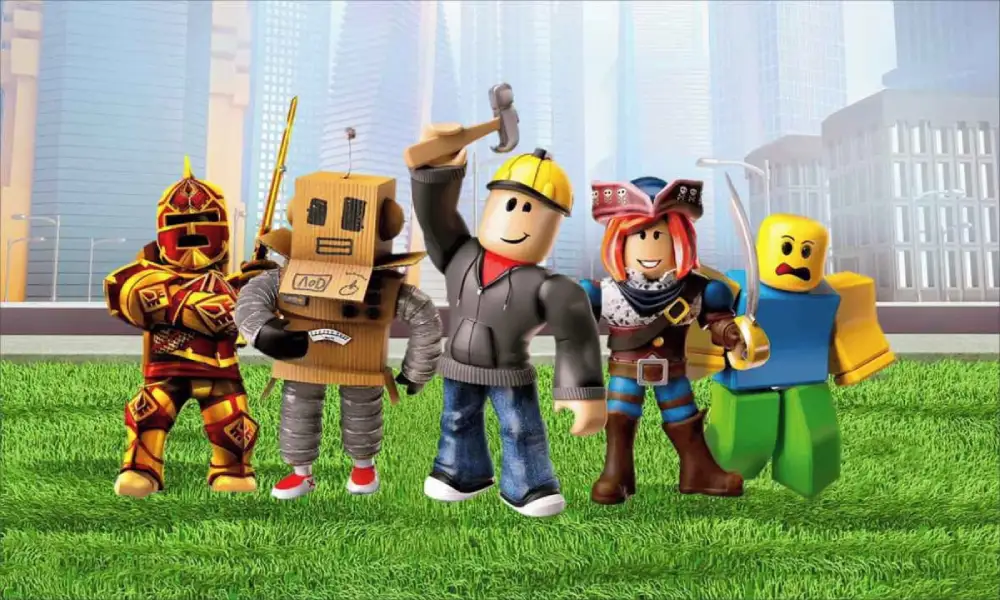
A Roblox picture may fail to display because moderation is pending, the asset is restricted, the wrong ID was entered, the object uses an incompatible property, or the experience has not been granted access. Rendering and connection problems can also delay content, but they should be diagnosed separately from asset configuration.
Start by testing the asset in a blank part or simple interface element. If it works there, the problem is probably in the original object, UI hierarchy, script, or permissions. If it fails everywhere, inspect the asset status and ownership first.
Check the asset, property, and Studio setup
Use this troubleshooting order:
- Confirm that the upload finished and moderation approved it.
- Copy the asset ID again from Asset Manager.
- Make sure you did not copy a user ID, experience ID, place ID, or unrelated asset ID.
- Verify that the image belongs to the correct account or group.
- Check privacy and experience permissions.
- Insert a fresh Decal, Texture, ImageLabel, or ImageButton.
- Paste the ID into the correct image property.
- Confirm that transparency is not set to fully invisible.
- Check the selected face on a part.
- Publish or restart the test session when needed.
For textures, verify tile scale and offset. For decals, confirm the correct face. For UI elements, inspect size, position, visibility, ZIndex, parent containers, and scripts that may replace the image at runtime.
A broken Roblox character portrait may also be a thumbnail issue rather than an uploaded-image issue. Avatar thumbnails use user or outfit data and supported thumbnail formats, while an ordinary decal relies on an image asset. Roblox documents separate rbxthumb thumbnail types for avatars, avatar headshots, game icons, game thumbnails, bundles, and other resources.
Understand removed and copyrighted assets
A previously working Roblox picture can stop appearing when it is moderated, deleted, restricted, or removed following an intellectual-property complaint. This Roblox picture problem can affect both private projects and published experiences. Roblox’s Community Standards prohibit intellectual-property violations, and its moderation policies allow content removal and account-level action depending on severity.
The supplied example of an asset page removed for copyright illustrates why an ID should not be treated as permanent access to an image. Even when a number remains in an old script or tutorial, the underlying asset may no longer be available.
Do not re-upload removed art to bypass moderation. Instead:
- Create original artwork.
- Obtain written permission or a valid license.
- Use authorized Creator Store assets.
- Replace copyrighted logos, characters, screenshots, and promotional art.
- Keep source files and license records.
- Review Roblox’s current rules before publishing.
This is especially important for fan art, Roblox decals, and images of recognizable Roblox characters or third-party game characters. Fan-created content can still infringe copyright or trademarks. Attribution alone does not automatically grant permission.
How Can ExitLag Help With Roblox Image and Studio Problems?
ExitLag cannot approve an image, restore a removed asset, create permissions, or correct a wrong ID. Those are platform, moderation, ownership, or Studio configuration issues. However, ExitLag can help when a Roblox picture problem appears alongside broader connection instability, slow session loading, disconnections, packet loss, or inconsistent routes to online services.
The correct approach is to separate asset problems from network problems. If one image alone is missing, inspect the asset and its Roblox image IDs first. If the entire experience struggles to load textures, avatars, menus, and gameplay data, test the connection and device as well.
When route optimization may help
ExitLag analyzes network routes and can direct supported game traffic through optimized paths. Depending on the player’s connection and route, this may help improve stability or reduce disruptions during online play.
It may be relevant when you notice:
- Experiences taking unusually long to connect.
- Repeated disconnects during Studio tests or gameplay.
- High or unstable latency.
- Packet loss affecting online sessions.
- Assets loading slowly together with the rest of the experience.
- Different performance across networks or times of day.
A routing tool does not guarantee that every image, Roblox decals, or avatar thumbnail will load faster. Roblox asset delivery, device performance, local cache, Studio configuration, and platform status can all affect results.
When ExitLag will not fix the problem
Use Roblox creator tools or support instead when:
- Moderation is still pending.
- The asset was rejected or removed.
- The ID belongs to the wrong asset type.
- The image is restricted.
- Your experience lacks permission.
- A Decal or Texture uses the wrong property.
- A script replaces or hides the image.
- The artwork violates copyright or platform rules.
Diagnosing the category first prevents wasted effort. Network optimization can support a more stable online session, but it cannot replace correct asset management.
Frequently Asked Questions About Roblox Pictures
A Roblox picture workflow becomes easier once you separate uploaded assets, decals, textures, thumbnails, and avatar visuals. It also helps to distinguish uploaded art from rendered Roblox characters and profile thumbnails. The questions below address the most common points of confusion.
An image is the uploaded visual asset stored on Roblox. A Decal is an object that displays an image stretched across one face of a part or union. A Texture also uses an image, but repeats it across the surface and provides tiling controls.
Open the image in Asset Manager and use Copy Asset ID, or view the asset through an official creator interface. The number can then be used in a supported property, often through the rbxassetid://[ASSET_ID] format.
No. Availability depends on moderation, asset type, privacy, ownership, and permissions. Open Use assets are more broadly available, while Restricted assets require access. You must also respect copyright and Roblox rules.
The asset may still be under moderation, restricted, removed, assigned to the wrong creator, or pasted into an incompatible field. The object may also be invisible, facing the wrong direction, hidden by UI settings, or changed by a script.
Roblox profiles generally display a rendered image of the user’s avatar. Customize the avatar’s clothing, accessories, body, and appearance to change that representation. An uploaded decal is not automatically a profile photo.
They can become outdated quickly. Roblox image IDs may point to removed, restricted, renamed, or incorrectly described assets. Verify every ID through official Roblox tools before placing it in a published experience.
Current Asset Manager and Importer documentation lists PNG, JPG, GIF, TGA, and BMP for image imports. Features and limits may change, so check current Creator Hub documentation before preparing a large upload batch.
Use clear silhouettes, readable text, strong contrast, and simple details. Test the interface on multiple screen sizes. Compress files sensibly, but do not rely on compression alone when the device is struggling to load the entire experience.
Create original artwork, upload it through official tools, verify permissions, and test every Roblox picture and set of Roblox decals in its final context before publishing. When connection instability affects the wider experience, try ExitLag to optimize supported routes and improve session consistency—then return to Studio with a safer, clearer Roblox picture workflow.
All game images used in this article belong to their respective owners. They are used for informational and educational purposes only and do not imply endorsement or affiliation with the rights holders.
Got questions or want to connect with other players? Join the conversation at the ExitLag Forum!