Roblox song ID codes are used to identify audio assets on the Roblox platform, including music, sound effects, ambience, UI sounds, and other audio files that creators can use inside experiences. A Roblox song ID is usually copied from an audio asset and inserted into a sound system, boombox, or Roblox Studio object when the experience supports it.
Roblox song ID usage has changed over time because Roblox now treats audio permissions and privacy more carefully. Roblox’s Creator Hub explains that the asset privacy system helps ensure imported audio IDs cannot be accessed by users without proper permissions, which means many older public music codes may no longer work the way players remember.
Roblox song ID searches are still useful, but players and creators should focus on safe, permission-friendly audio sources. The Roblox Creator Store includes free-to-use audio assets, and Roblox documentation says creators can also import audio they are certain they have permission to use, such as audio they made themselves.
In this guide, you will learn how Roblox music codes work, where to find Roblox audio ID codes, how to use a Roblox music ID list safely, what to know about Roblox boombox codes, how the Roblox sound ID catalog works, and how ExitLag can help improve connection stability while playing Roblox experiences.
What is a Roblox song ID?
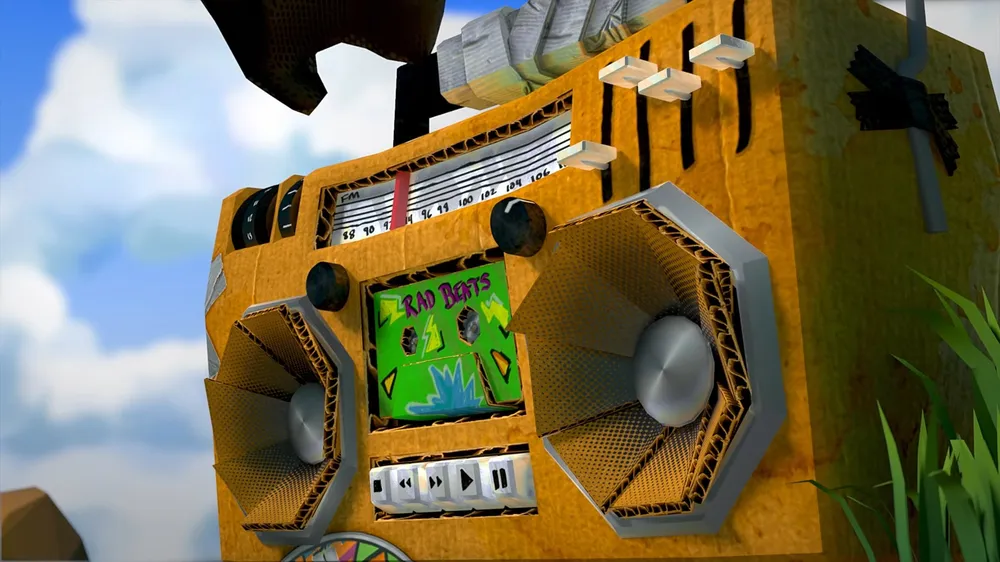
A Roblox song ID is the numeric asset identifier connected to an audio asset on Roblox. In older Roblox culture, players often called these IDs “music codes,” especially when using boomboxes or in-game radio systems. Today, the better term is audio asset ID, because not every audio file is a full song.
The ID can point to different types of audio, including background music, sound effects, short jingles, ambience, narration, or UI feedback. Developers use these IDs inside Roblox Studio to connect audio assets to gameplay systems.
However, not every ID works everywhere. Audio permissions, experience ownership, asset privacy, and creator settings can determine whether a sound plays correctly.
Roblox music codes vs audio ID codes
Roblox music codes and Roblox audio ID codes are often used as if they mean the same thing, but there is a small difference.
| Term | Meaning |
| Roblox song ID | A numeric ID linked to a song or music-like audio asset |
| Roblox music codes | Player-friendly term for song IDs used in radios or boomboxes |
| Roblox audio ID codes | Broader term for any Roblox audio asset ID |
| Roblox sound ID catalog | Searchable audio library or collection of sound assets |
| Roblox boombox codes | IDs used inside experiences that support boombox or radio systems |
For players, the difference may not matter much. For creators, it does. A short click sound, explosion sound, background loop, and licensed music track are all audio assets, but they may have different usage rules.
Roblox’s audio documentation says the Creator Store includes free-to-use audio assets and that creators can import audio they have permission to use. That is why creators should avoid relying only on old third-party code lists.
Why some Roblox song IDs no longer work
Many older Roblox song ID lists are outdated. A code that worked years ago may now fail because the asset was removed, made private, moderated, restricted, or replaced.
Common reasons a Roblox song ID does not work include:
- The audio asset is private.
- The experience does not have permission to use it.
- The audio was removed or moderated.
- The code was copied incorrectly.
- The boombox script no longer supports custom IDs.
- The experience disables external audio.
- The asset is not available in that context.
- The ID points to the wrong asset type.
Roblox’s support page says uploaded audio must meet Roblox Community Standards and links creators to audio configuration and viewing permission guidance. So, a modern Roblox music ID list should be treated as a starting point, not a guarantee.
How do you find Roblox song ID codes?
The safest way to find Roblox song ID codes is through Roblox’s own Creator Store and Creator Hub tools. Roblox’s audio asset documentation explains that creators can find audio in the Creator Store tab of the Toolbox, use filters to narrow results, and right-click an audio asset to copy its asset ID.
This method is better than using random code websites because it gives creators access to assets intended for Roblox development. It also helps avoid broken, private, or risky IDs.
Before using any audio ID, check whether the asset is available, appropriate for your experience, and permitted for your use case.
Using the Roblox Creator Store
The Roblox Creator Store is the best place to start when searching for audio. The Creator Store documentation says it includes many asset types, including sound effects, and its Audio category features music and sound effects that fit different moods and atmospheres.
To find audio in Roblox Studio:
- Open Roblox Studio.
- Open the Toolbox.
- Go to the Creator Store tab.
- Select the Audio category.
- Search by keyword.
- Use filters to narrow results.
- Preview the audio.
- Right-click the asset.
- Select Copy Asset ID.
- Paste the ID into your audio system.
Good search terms include:
- “ambient forest”
- “battle music”
- “victory”
- “button click”
- “explosion”
- “wind”
- “city ambience”
- “horror sting”
- “menu loop”
- “jump sound”
This method helps creators build a safer Roblox sound ID catalog for their own projects.
Finding IDs from asset pages
Many Roblox assets include an ID in the page URL or asset details. However, with audio, permissions matter more than simply copying a number.
A visible number does not always mean your game can use the asset. The asset may be private, restricted, or unavailable outside specific experiences. Roblox’s asset privacy documentation explains that assets can have permission rules, including Open Use assets that can be used freely across experiences without permission checks.
When collecting Roblox audio ID codes, create a simple tracking sheet:
| Audio name | ID | Source | Usage permission | Notes |
| Forest ambience | Paste ID | Creator Store | Open or permitted | Looping background |
| Button click | Paste ID | Creator Store | Open or permitted | UI sound |
| Battle loop | Paste ID | Creator Store | Open or permitted | Combat room |
| Victory sting | Paste ID | Creator Store | Open or permitted | Round win |
This is more reliable than copying random “top 100 Roblox song IDs” from old lists.
How do you use a Roblox song ID in Roblox Studio?
To use a Roblox song ID in Roblox Studio, you need to add an audio object, paste the asset ID in the correct property, and test whether the sound plays in your experience. Roblox’s audio assets documentation says creators can copy an asset ID from the Creator Store and paste it into an AudioPlayer object, while also noting that clicking an audio asset in Studio inserts it as a Sound instance in Explorer.
For many creators, the basic workflow still involves using a Sound object and setting its SoundId property with the rbxassetid:// format. More advanced audio systems may use newer audio objects and routing systems depending on the project.
Basic Sound object setup
Here is a simple Studio setup using a Sound object:
- Open Roblox Studio.
- Open your experience.
- In Explorer, select Workspace, SoundService, or another appropriate container.
- Insert a Sound object.
- Select the Sound object.
- Find the SoundId property.
- Paste the ID in this format: rbxassetid://123456789.
- Adjust Volume, Looped, and PlaybackSpeed if needed.
- Press Play to test.
A simple script can also play a sound:
local sound = Instance.new(“Sound”)
sound.SoundId = “rbxassetid://123456789” — Replace with your permitted audio ID
sound.Volume = 0.5
sound.Looped = true
sound.Parent = workspace
sound:Play()
Use this for background music, ambience, or simple sound testing. For larger projects, use SoundService or organized folders so your audio system stays clean.
Common Studio mistakes
A Roblox song ID may fail in Studio because of setup errors, not only asset restrictions.
Common mistakes include:
- Forgetting rbxassetid://.
- Using a decal or item ID instead of audio ID.
- Pasting extra spaces.
- Setting volume too low.
- Parenting the sound to an object that gets deleted.
- Not calling :Play() through script.
- Using audio without permission.
- Testing only in Studio but not after publishing.
- Assuming every old code list still works.
For better testing, publish your experience and test in a live session. Some issues only appear after the game is running through Roblox servers.
Also, keep your Roblox music codes organized by purpose. Do not place every audio file randomly in Workspace.
Do Roblox boombox codes still work?
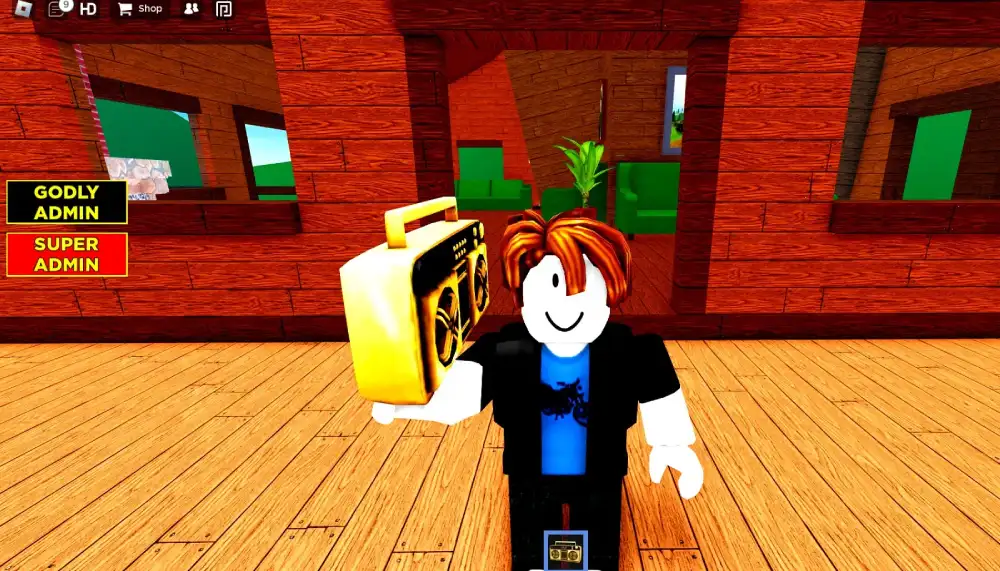
Roblox boombox codes can still work in some experiences, but they depend entirely on how the experience is built. A boombox is not a universal Roblox feature that accepts every audio ID everywhere. It is usually a tool, gamepass feature, gear system, or custom script created by the experience developer.
That means Roblox boombox codes are experience-specific. One game may allow users to paste a song ID. Another may only allow a curated list. Another may remove boombox features entirely.
Because of Roblox’s audio privacy and permission systems, many older boombox code lists are unreliable.
Why boombox support depends on the game
A boombox system needs three things to work:
| Requirement | Why it matters |
| A working boombox tool or radio system | The experience must support user-entered audio |
| A valid audio asset ID | The code must point to an audio asset |
| Permission to play the audio | Roblox must allow the experience to access the asset |
If any of these are missing, the song will not play.
Some developers also disable custom IDs to avoid moderation issues, copyright problems, loud spam, or disruptive behavior. That is especially common in social games where one player’s music affects everyone nearby.
Safer boombox code habits
When using Roblox boombox codes, follow safer habits:
- Use codes from the experience’s official list when available.
- Avoid copyrighted songs unless clearly licensed and permitted.
- Do not spam loud audio in public servers.
- Keep volume respectful.
- Test codes in private servers when possible.
- Do not trust websites promising “all working song IDs.”
- Save codes that work in that specific experience.
- Avoid bypassed or distorted copyrighted audio.
A working boombox setup should improve the game atmosphere, not annoy other players or risk moderation.
What should a Roblox music ID list include?
A useful Roblox music ID list should include audio names, asset IDs, category, mood, length, source, and permission notes. It should not only list random numbers with famous song names.
The problem with many old lists is that they focus on popularity instead of reliability. They may include copyrighted commercial music, removed tracks, private assets, or IDs that no longer play.
A better Roblox music ID list helps creators choose safe audio for specific design needs.
Best categories for a music ID list
Organize your Roblox audio ID codes by use case:
| Category | Examples |
| Background music | Lobby loop, battle theme, shop music |
| Ambience | Forest, rain, city, cave, wind |
| UI sounds | Click, hover, error, reward |
| Combat sounds | Hit, explosion, laser, shield |
| Movement sounds | Jump, dash, footsteps, landing |
| Horror sounds | Sting, whisper, heartbeat, door creak |
| Event sounds | Victory, defeat, countdown, level up |
| Roleplay sounds | Doorbell, phone ring, crowd murmur |
This helps developers build better audio systems. Instead of asking “What song is popular?” ask “What sound does this scene need?”
That approach is safer and more professional.
Why copyrighted music is risky
Using copyrighted music without permission can create problems. Roblox’s support page says uploaded audio must meet Roblox Community Standards, and its audio documentation encourages importing audio only when creators are certain they have permission to use it.
This is why many famous song IDs disappear or stop working. Even when players find a code online, the asset may not be allowed in their experience.
For developers, the safest options are:
- Creator Store audio.
- Original music.
- Licensed music.
- Commissioned audio.
- Public-domain audio with verified rights.
- Sound effects you created yourself.
- Assets with clear usage permission.
A responsible Roblox sound ID catalog protects your experience and your players.
How do Roblox audio permissions work?
Roblox audio permissions control whether an experience can access and play an audio asset. This is one of the most important modern details for anyone using a Roblox song ID.
Roblox’s Creator Hub explains that asset privacy automatically ensures imported audio IDs cannot be accessed by users without proper permissions. That means having the number is not enough.
The platform needs to allow that experience to load the asset.
Open use, private, and permitted audio
Roblox asset privacy can include different access states. The asset privacy documentation explains that Open Use assets can be freely used by every creator and experience without permission checks.
A simplified view:
| Audio status | What it means |
| Open Use | Any creator or experience can use it freely |
| Private | Only the owner or permitted experiences can use it |
| Group-owned | Permissions may depend on group access |
| Moderated or removed | May not play at all |
| Licensed or restricted | May have specific usage rules |
This is why the Creator Store is more dependable than random ID websites. It gives creators a clearer starting point for audio discovery.
How creators should manage audio
Creators should manage audio like any other project asset.
Use these best practices:
- Keep a spreadsheet of audio IDs.
- Note the source of each asset.
- Use Creator Store audio when possible.
- Import only audio you have permission to use.
- Test in Studio and live servers.
- Avoid copyrighted commercial music.
- Keep backup sounds for important systems.
- Organize sounds in folders.
- Use clear naming conventions.
- Review permissions after major updates.
For example, name files like:
- Music_Lobby_Loop
- SFX_Button_Click
- SFX_Player_LevelUp
- Ambience_Cave_Wind
- Music_BossBattle_01
That keeps your Roblox audio ID codes easy to maintain.
How can ExitLag improve Roblox audio and gameplay sessions?
ExitLag does not unlock private audio, bypass Roblox permissions, make broken Roblox song IDs work, or change how the Roblox sound system functions. A Roblox song ID still needs to be valid, permitted, and supported by the experience.
However, ExitLag can improve the connection side of Roblox gameplay. That matters when you are playing experiences with boomboxes, live events, music-based minigames, roleplay servers, or creator showcases where stable gameplay makes the experience more enjoyable.
Why connection stability matters in Roblox
Roblox experiences depend on stable online communication. Lag can affect movement, interactions, loading, and multiplayer timing. In audio-heavy or social experiences, connection issues can make sessions feel worse even when the audio asset itself is working.
Connection problems can cause:
- Slow server joins.
- Delayed interactions.
- Rubber-banding.
- Disconnections.
- Choppy gameplay.
- Delayed UI responses.
- Poor event timing.
- Frustration in music-based games.
- Interruptions during roleplay or social sessions.
If you are testing Roblox music codes in a live experience, unstable connection can also make troubleshooting harder. You need to know whether the issue is the code, the script, the asset permission, or your connection.
Using ExitLag for smoother Roblox sessions
ExitLag helps optimize the route between your device and game servers. It can reduce route instability, packet loss, and lag spikes when your default internet path is poor.
ExitLag can help players who:
- Join Roblox servers in other regions.
- Experience random lag spikes.
- Play music or rhythm-based experiences.
- Use social games with boombox systems.
- Test Roblox Studio projects online.
- Deal with packet loss.
- Want smoother multiplayer sessions.
For better results, combine ExitLag with good local habits:
- Use wired internet when possible.
- Close downloads before playing.
- Avoid heavy streaming during Roblox sessions.
- Restart your router before testing.
- Keep Roblox updated.
- Test audio in a private server when possible.
ExitLag improves connection stability. Roblox permissions still control whether audio plays.

FAQ
A Roblox song ID is a numeric asset ID connected to an audio file on Roblox. Players often use the phrase for music codes, while developers may use it for any audio asset, including songs, sound effects, ambience, and UI sounds.
You can find safer Roblox music codes through the Roblox Creator Store in Studio. Roblox’s audio documentation says creators can use the Creator Store tab in the Toolbox, select Audio, filter results, and copy an asset ID from an audio asset.
Third-party lists may be outdated, broken, or risky, so verify every code before using it.
Your Roblox audio ID codes may not work because the audio is private, removed, moderated, restricted, copied incorrectly, or not permitted for that experience.
Roblox’s audio asset privacy system limits access to imported audio IDs when users do not have proper permissions.
No. Roblox boombox codes only work when the experience supports custom audio IDs and the asset is available to that experience.
Many games restrict boombox audio to avoid spam, copyright problems, moderation issues, or broken assets.
A good Roblox music ID list should include the audio name, asset ID, source, category, mood, usage notes, and permission status.
Avoid lists that only include famous song names and random numbers. Those codes often stop working.
The safest Roblox sound ID catalog is the Creator Store or your own organized list of permitted assets. Roblox’s Creator Store documentation says its Audio category includes music and sound effects for game moods and atmospheres.
Always confirm that an asset works in your experience before publishing.
Use Roblox song IDs safely and build better audio experiences
A Roblox song ID can make an experience feel more alive, whether you are adding lobby music, battle themes, menu sounds, ambience, or boombox functionality. Audio helps shape mood, pacing, and identity inside Roblox games.
The key is using IDs responsibly. Modern Roblox audio is shaped by asset privacy, permissions, and creator rights. That means old code lists may not work, and famous song IDs are often unreliable or unsafe.
For the best results:
- Use the Creator Store first.
- Copy audio IDs from trusted Roblox tools.
- Avoid copyrighted music without permission.
- Test every ID in Studio and live servers.
- Organize your audio by category.
- Track source and permission notes.
- Use boombox codes only where supported.
- Keep backup sounds for important gameplay moments.
Roblox song ID codes are still useful, but they work best when you treat them as creator assets, not random numbers from outdated lists. Combine safe audio choices with ExitLag to reduce lag, improve connection stability, and enjoy smoother Roblox sessions while testing, playing, or building audio-rich experiences.
Got questions or want to connect with other players? Join the conversation at the ExitLag Forum!