
If you've encountered the Sea of Thieves Lavenderbeard error, you're not alone. This notorious issue has plagued players on Steam, Xbox, and PC, disrupting voyages and leaving crews stranded at port. In this ultimate guide, we dive deep into what causes the Lavenderbeard Sea of Thieves error, why it persists, and how to eliminate it for good in 2025.
Whether you’re a fresh deckhand or a seasoned pirate, solving the Sea of Thieves error Lavenderbeard is key to keeping your adventures smooth and lag-free.
What Is the Lavenderbeard Error in Sea of Thieves?
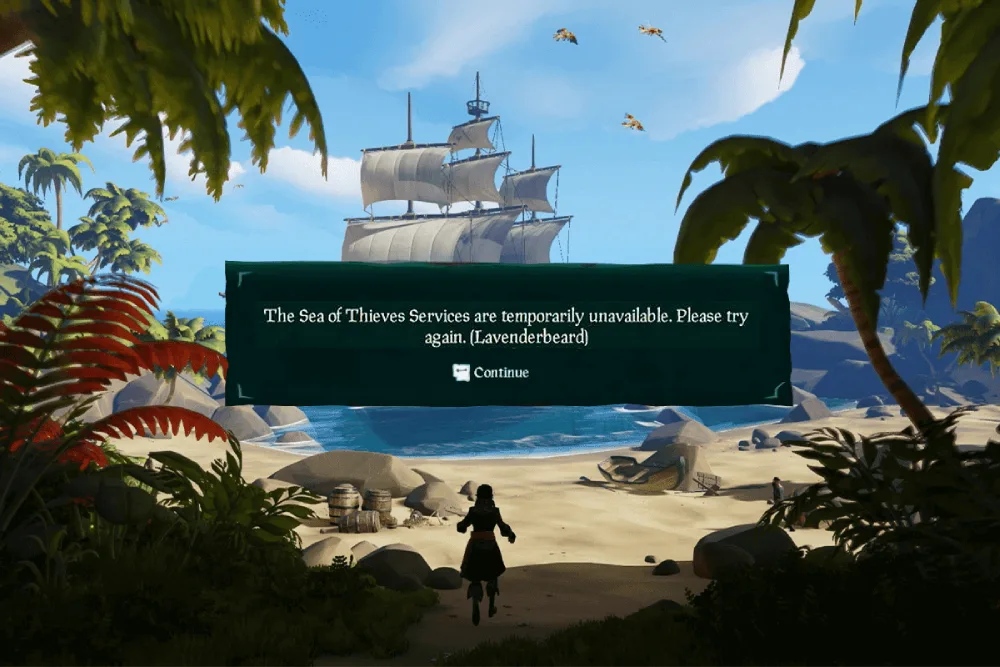
The Lavenderbeard error in Sea of Thieves is a connection issue that typically signals a disruption between your device and Rare’s game servers. It often manifests when:
- Launching the game via Steam
- Attempting to connect to online services
- Accessing your Xbox Live account on PC
Where does it happen?
This issue commonly affects:
- PC players using either Xbox Game Pass or Steam
- Steam users with outdated or misconfigured network setups
- Users with firewall or antivirus conflicts
Who is impacted?
Anyone playing Sea of Thieves across PC platforms, especially during server updates, DNS issues, or outdated client-side settings. The error can hit mid-session or even before you log in.
Common Causes of the Lavenderbeard Sea of Thieves Error
Understanding the root causes will help in applying the right fix. Here are the most frequent triggers:
1. Xbox Live Services Are Down
Sea of Thieves relies on Xbox Live, even on PC and Steam. If Xbox services are under maintenance, you’ll often see the Sea of Thieves error Lavenderbeard message.
2. Steam Account Not Linked to Xbox Live
Players on Steam must link their Xbox account to avoid Lavenderbeard.
3. Network Configuration Issues
Incorrect DNS settings, NAT types, or restricted ports can block communication with the game servers.
4. Antivirus/Firewall Blocking the Game
Security tools may block Sea of Thieves or its related services. This is common on PC setups using aggressive antivirus software.
5. Outdated Game Version or Corrupted Cache
An outdated client or damaged game files may trigger the Lavenderbeard error, particularly after an update.
How to Fix the Lavenderbeard Error on Sea of Thieves (2025 Edition)
Now let’s fix it. Here’s a step-by-step list tailored for each platform and issue:
Fix 1: Check Xbox Live Server Status
- Go to the Xbox Status page.
- Look for any outages or ongoing maintenance under “Account & Profile” or “Multiplayer Gaming.”
- If services are down, wait until they’re back before retrying.
Fix 2: Link Steam to Your Xbox Account
- Launch Sea of Thieves via Steam.
- Sign in with your Xbox account when prompted.
- If not prompted, unlink and relink via Xbox Account Settings.
Pro Tip: Always use the same Xbox account across sessions to avoid conflict.
Fix 3: Adjust Firewall and Antivirus Settings
- Open Windows Security > Firewall & Network Protection.
- Click “Allow an App through Firewall.”
- Add Sea of Thieves and its launcher (Steam or Xbox) as exceptions.
- Do the same with your antivirus software.
Fix 4: Reset Network Settings on PC
- Press Win + I > Network & Internet > Advanced network settings.
- Select “Network reset.”
- Restart your PC and relaunch Sea of Thieves.
Bonus Tip: Use a wired connection for more stable gameplay.
Fix 5: Use ExitLag for Seamless Sea of Thieves Gameplay
If you're still facing the lavenderbeard Sea of Thieves error, ExitLag might be your solution. ExitLag reroutes your connection through optimized gaming paths, reducing packet loss and connection drops.
How ExitLag Helps:
- Reduces latency and ping spikes
- Stabilizes your connection to Rare servers
- Works with Steam and Xbox PC platforms
Want smooth seas and lag-free sails? Try ExitLag today and keep the Lavenderbeard at bay.
Advanced Troubleshooting (PC & Steam Specific)
If the above didn’t work, dive deeper with these PC-specific tactics:
Flush DNS Cache
- Open Command Prompt as Admin
- Type: ipconfig /flushdns
- Press Enter and reboot your PC
Change DNS to Google or Cloudflare
- Go to Control Panel > Network and Sharing > Adapter Settings
- Right-click your active network > Properties
- Select IPv4 > Properties
- Set DNS to:
- Preferred: 8.8.8.8
- Alternate: 8.8.4.4
Reinstall Sea of Thieves
If nothing works:
- Backup game data (optional)
- Uninstall the game via Steam or Xbox app
- Delete remaining folders in %AppData% and C:\Program Files\Steam\steamapps\common
- Reinstall a fresh copy
Xbox-Specific Fixes for the Lavenderbeard Error
The Lavenderbeard Sea of Thieves error affects not only PC and Steam users but also those playing on Xbox consoles. Players on Xbox frequently encounter this error due to network misconfigurations, outdated system software, or Xbox Live service issues. Below are robust solutions tailored specifically for Xbox users in 2025.
Fix 1: Check for Xbox System Updates
- Press the Xbox button > Profile & system > Settings.
- Select System > Updates.
- Install any pending updates and restart the console.
Fix 2: Power Cycle Your Xbox Console
- Hold the power button on your Xbox for 10 seconds to perform a full shutdown.
- Unplug the power cable for at least 30 seconds.
- Reconnect and power on your console.
- Reopen Sea of Thieves.
Fix 3: Clear the Alternate MAC Address
- Navigate to Settings > Network > Advanced settings.
- Select "Alternate MAC Address" > Clear.
- Restart your console.
Fix 4: Reinstall Sea of Thieves
- Go to My Games & Apps > Sea of Thieves > Uninstall.
- Restart your Xbox.
- Reinstall Sea of Thieves from the Microsoft Store.
Fix 5: Optimize Your Network Connection
- Use a wired Ethernet connection for improved stability.
- If Ethernet isn't available, test with a mobile hotspot to isolate router-related issues.
Community-Reported Fixes That Actually Work
Beyond standard fixes, the Sea of Thieves community has discovered several unconventional yet highly effective methods to resolve the Sea of Thieves Lavenderbeard error PC and Xbox-wide.
Log In Using a Secondary Xbox Profile
- Create or add a new user profile to your console.
- Launch Sea of Thieves under this profile.
- Once in-game, switch back to your primary account.
Disable IPv6 on Your Router
- Access your router settings through a browser.
- Locate and disable the IPv6 protocol.
- Save changes, reboot your router, and retry the game.
Port Forwarding Configuration
For Xbox Live and Sea of Thieves, open the following ports in your router settings:
| Service | Port Numbers | Protocol |
| Xbox Live | 88, 3074, 53, 80 | UDP/TCP |
| Sea of Thieves | 30000-30015 | UDP |
Delete Saved Game Cache
On PC:
- Navigate to %localappdata%\Packages\Microsoft.SeaofThieves...\LocalState.
- Delete all contents (Cloud save data will resync).
On Xbox:
- Go to My Games & Apps > Sea of Thieves > More Options > Manage Game > Saved Data.
- Delete the profile-specific save file.
Start your Exitlag 3 days Trial!
Frequently Asked Questions (FAQ)
What causes the Lavenderbeard error in Sea of Thieves?
Primarily connection problems with Xbox Live, or incorrect network or DNS settings.
Is the Lavenderbeard error a permanent issue?
No. It usually resolves with basic troubleshooting or server-side updates.
Will this error erase my Sea of Thieves progress?
Not unless it occurs during a save. Most progress is cloud-based and safe.
Can antivirus software on PC block Sea of Thieves?
Yes. Firewalls and antivirus tools can mistakenly block connections, leading to Lavenderbeard.
Is ExitLag useful for Sea of Thieves?
Definitely. It reduces ping, improves routing, and helps avoid connectivity issues.
Does Lavenderbeard appear during cloud gaming or on mobile?
Yes, especially when using unstable or low-bandwidth internet sources.
Final Thoughts
The Sea of Thieves Lavenderbeard error code doesn't need to be the end of your pirating journey. Whether you sail on Xbox, PC, or Steam, there are working fixes that can restore your access and get you back to looting and battling in no time.
If you want a consistent, smooth connection, use ExitLag. It re-routes your internet through optimized paths to reduce latency and eliminate lag spikes—perfect for Sea of Thieves.
Stop letting connection issues sink your voyage—optimize your gameplay with ExitLag and stay in the fight.
All game images used in this blog belong to Rare Ltd. They are used for informational/educational purposes only and do not imply endorsement or affiliation with the rights holders.



