Sea of Thieves PC is more popular than ever in 2025. With consistent updates and a thriving player base, it’s the perfect time to dive into this pirate adventure. Whether you’re a seasoned sailor or a landlubber setting out for the first time, this complete guide will help you make the most of your voyage on PC.
From mastering controls and understanding key mechanics to addressing technical issues and playing with friends across platforms, this article covers everything PC players need to thrive.
Why Play Sea of Thieves on PC?
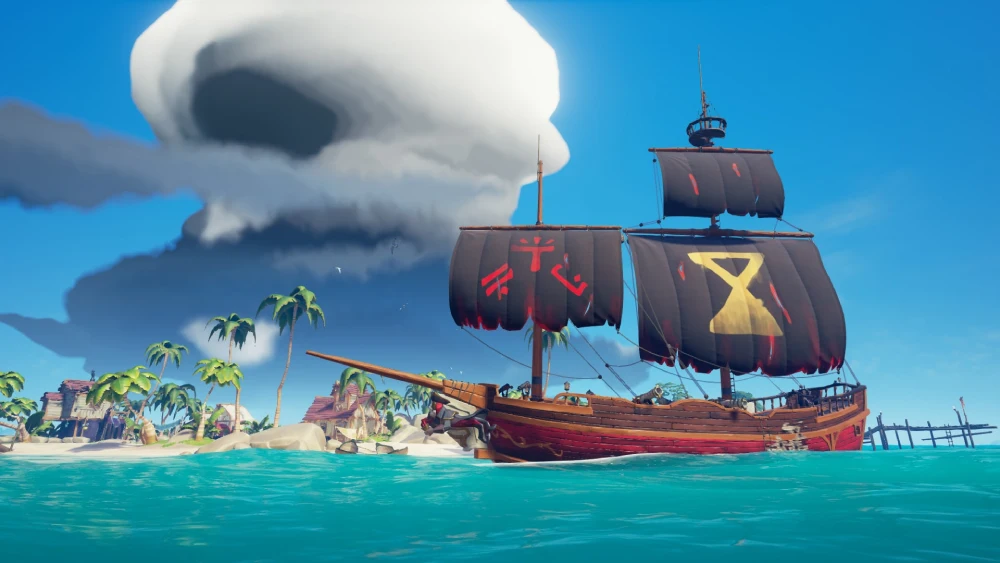
Sea of Thieves on PC offers enhanced visuals, smoother performance, and full control customization. It allows for more precise navigation, combat, and teamwork compared to console versions.
Bold colors, expansive seas, and reactive environments come to life in high resolution. Pair that with a keyboard and mouse setup, and you gain a tactical edge in battles and treasure hunts.
The PC version also supports advanced graphical settings, high refresh rates, and full controller compatibility. Whether you’re docked at an island or dodging skeleton ships in open water, the visual fidelity and performance are exceptional.
Can You Add PS5 Players in Sea of Thieves PC?
Yes, absolutely! Sea of Thieves supports full crossplay between PC, Xbox, and PS5 players. While originally an Xbox and Windows exclusive, updates in recent years have expanded the multiplayer experience.
To add PS5 players in Sea of Thieves PC:
- Open your Xbox app or in-game Friends List.
- Search for their Xbox Gamertag.
- Add them and invite them to your crew from the in-game menu.
Once you’re connected, you can team up and sail together, regardless of platform.
This seamless integration means your pirate crew can include players from different systems, making it easier than ever to raid forts, complete Tall Tales, and tackle world events together.
Benefits of Crossplay
- Larger, more diverse matchmaking pool
- Cooperative missions across systems
- More consistent event participation
- Competitive balance and communication features
Sea of Thieves for PC: Setup and Launch Tips
Installing Sea of Thieves for PC is simple:
- Available via Steam, Xbox Game Pass for PC, or the Microsoft Store
- Requires a free Xbox Live account for multiplayer
Minimum and Recommended Specs (2025 Update)
| Component | Minimum Specs | Recommended Specs |
| OS | Windows 10 (64-bit) | Windows 11 (64-bit) |
| CPU | Intel i5-4690 / AMD FX-8150 | Intel i5-10600K / Ryzen 5 5600X |
| RAM | 8 GB RAM | 16 GB RAM |
| GPU | GTX 770 / Radeon R9 380 | RTX 2060 / RX 6700 XT |
| Storage | 75 GB HDD | 75 GB SSD |
Using ExitLag here can help reduce ping, avoid packet loss, and ensure stable matchmaking. This is crucial during high-stakes naval battles where every second counts.
How to Look in Third Person: Sea of Thieves PC Controls
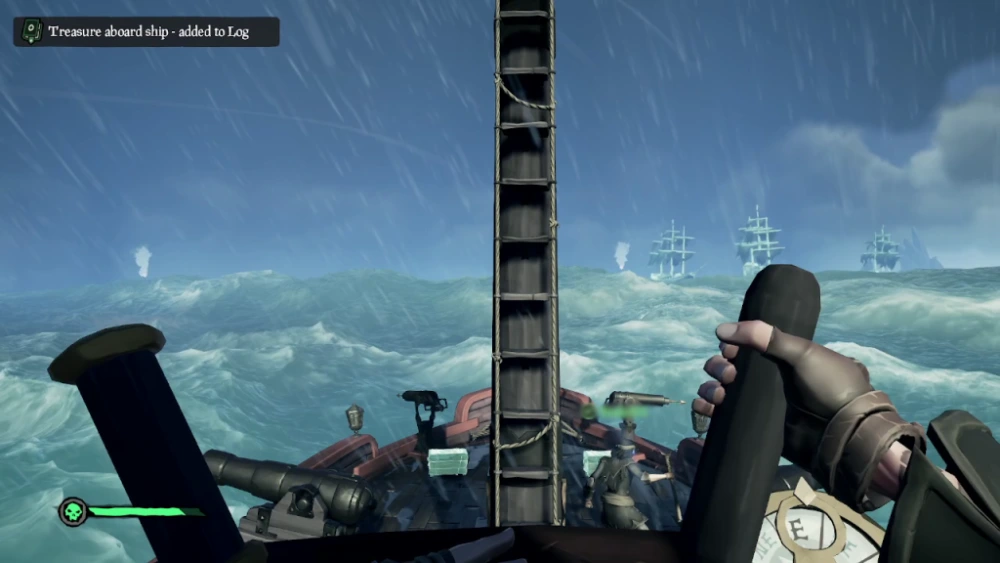
One of the most common questions is: How do you look in third person in Sea of Thieves PC?
Sea of Thieves uses a first-person perspective by default for immersive gameplay. However, your character becomes visible during certain actions:
Ways to View in Third Person
- Using Emotes: Press Z to open the emote wheel, choose an emote. This pulls the camera into third person.
- Sitting or Sleeping: Sit on stools, sleep in bed. The game automatically shifts to a third-person camera.
- Pirate Emporium Previews: Trying on outfits, equipment, or pets gives a third-person view.
- Photo Mode or Screenshot Tools: Use Xbox Game Bar or NVIDIA Ansel for external third-person captures.
Currently, there is no dedicated third-person gameplay mode. Rare has kept the focus on immersion and realism.
How to Read the Log Book in Sea of Thieves PC
Your Quest Log or Log Book in Sea of Thieves tracks Tall Tale progress and valuable lore. It’s essential for story-driven missions.
Accessing the Log Book
- Press E to open your equipment radial.
- Navigate to the Quest Item or Tall Tale Journal section.
- Select your journal with your mouse or directional keys.
- Left-click (or RT with controller) to flip pages.
Log Books include maps, riddles, and historical entries that guide your quest. Some contain hidden clues for treasure or achievements.
Tips for Efficient Reading
- Use in-game lighting (lanterns, torches) to see clearly.
- Read while docked or safe to avoid interruptions.
- Screenshot pages to reference later without flipping.
Understanding your Log Book is crucial for completing advanced voyages.
Sea of Thieves Can’t Hear Voice Chat on PC
Running into voice chat issues? You’re not alone. “Sea of Thieves can’t hear voice chat on PC” is a frequent search—thankfully, it’s fixable.
Voice Chat Fix Checklist:
- Check Input/Output Devices
- Go to Windows Sound Settings > Confirm correct mic/speaker
- In-Game Settings
- Open Settings > Audio > Set VOIP Input/Output to your devices
- Ensure Push-to-Talk is ON or OFF based on your preference
- Privacy Permissions
- Windows Settings > Privacy > Microphone > Allow apps to access mic
- Firewall or Antivirus
- Whitelist Sea of Thieves and Xbox services
- Try Xbox Game Bar Chat
- Sometimes this works even if in-game VOIP fails
- Restart the Game and App Services
- Reboot the Xbox app and game launcher
When All Else Fails
- Reinstall Sea of Thieves
- Use Discord as a temporary voice workaround
Stable voice communication is key for coordinating with your crew during ship battles or enemy encounters.
Optimizing Combat and Ship Control on PC

Combat in Sea of Thieves for PC is fast-paced and strategic. Knowing how to use your weapons and sail effectively is the difference between looting and losing.
Essential Combat Controls
- Sword: Left-click to slash, hold for lunge
- Gun: Aim with right-click, shoot with left-click
- Quick Switch: Scroll wheel or number keys (1-4)
When playing Sea of Thieves on PC, your mouse sensitivity and keybinds matter more than ever. Customize them via Settings > Keyboard & Mouse for the fastest reaction times.
Ship Mastery
Each ship has a different handling style:
- Sloop: Fast and maneuverable, great for solo or duo play
- Brigantine: Balanced speed and firepower, ideal for three-person crews
- Galleon: Most firepower, but slower to turn and anchor
Optimize ship control with these tips:
- Always keep cannonballs, planks, and food stocked
- Designate roles: helm, repairs, cannon
- Use the spyglass often to monitor threats and opportunities
Unlocking Cosmetics and Progression
Customization is at the heart of Sea of Thieves for PC. From your pirate’s look to your ship’s style, personalizing your journey is part of the fun.
Types of Unlockables
- Pirate cosmetics: outfits, hairstyles, emotes
- Weapons: visual skins only, no damage buffs
- Ships: sails, hulls, figureheads, cannons
These are earned through:
- Completing voyages
- Reputation ranks in trading companies
- Commendations (in-game achievements)
- Pirate Emporium purchases (premium)
Tip: Always check the Outpost shops after leveling up for new unlocks.
Earning Gold Efficiently
- Focus on Gold Hoarders for treasure maps
- Stack voyages with friends to maximize time
- Hit Fortresses for high-reward loot piles
- Sell loot immediately to avoid PvP risk
Playing with Friends Across Platforms
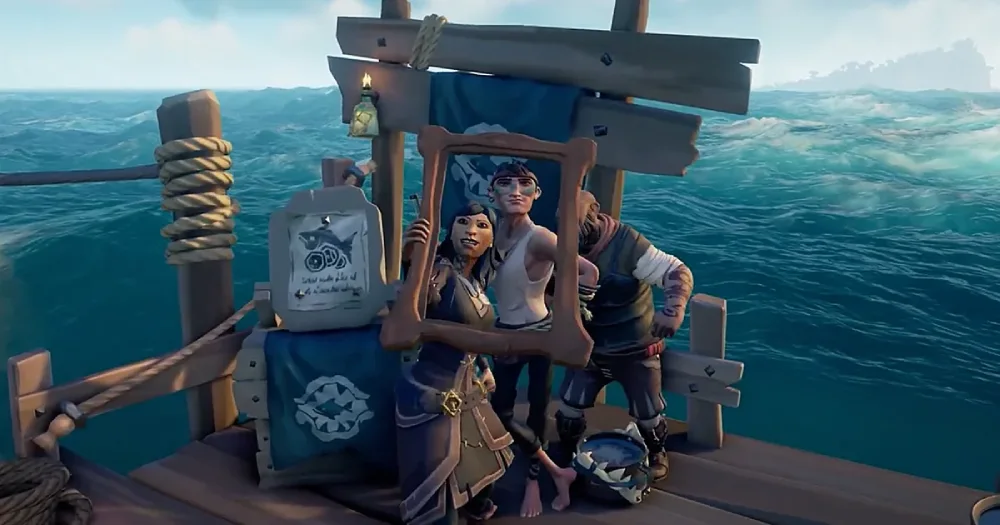
If you’re wondering how to add PS5 players Sea of Thieves PC, cross-platform play is smooth and intuitive.
Use the in-game Friends tab or Xbox Game Bar to:
- Search for their Xbox Live Gamertag
- Add and invite them to your crew
Once invited, players join your ship regardless of platform. Communication is available through in-game voice or Xbox Party Chat.
This enables a seamless multiplayer experience across PC, Xbox, and PS5—even in mixed-platform crews.
Community Tips and Advanced Tricks
Explore these lesser-known tricks to level up your PC pirate performance:
Best Community Tools
- Sea of Thieves Map (interactive, shows world events)
- Rare Thief (guides and walkthroughs)
- SoT Companion App (Android/iOS navigation tool)
Advanced Tactics
- Use the harpoon to pull loot from the water faster
- Drop anchor turn to spin quickly in battle
- Cook meat for healing boosts
- Hide loot in the crows nest or below decks to avoid detection
Fixing Additional PC-Specific Issues
Beyond voice chat, here are other problems you may face—and their solutions:
Game Not Launching or Crashing
- Update graphics drivers
- Run as admin
- Disable overlays (e.g. Discord, Xbox Game Bar)
- Clear Microsoft Store cache (wsreset)
Stuttering or Lag
- Lower shadows and water detail
- Cap FPS at 60 if overheating
- Switch to borderless fullscreen
Mouse or Input Lag
- Turn off V-Sync
- Check polling rate (recommend 1000Hz for mice)
Why ExitLag is a Must for PC Players
If you’re serious about playing PC Sea of Thieves, ExitLag becomes a critical tool. Sea battles and PvP moments often rely on millisecond decisions—any lag can spell disaster.
ExitLag Benefits for Sea of Thieves PC
- Routes your connection via optimized paths
- Eliminates lag spikes and reduces jitter
- Prevents packet loss in large-scale ship battles
- Offers multi-route redundancy for stable sessions
Start your Exitlag 3 days Trial!
Real-World Example
A player sailing into a Skeleton Fort often has FPS drops and ping spikes. With ExitLag enabled, these performance issues are smoothed out, ensuring stable frames and better aiming during cannon fire.
Download ExitLag today to reduce latency and level up your pirating precision.
Frequently Asked Questions (FAQ)
Can you play Sea of Thieves PC with PS5 players?
Yes. Use Xbox Gamertags to invite cross-platform friends to your crew.
Is there a third-person mode in Sea of Thieves PC?
No full third-person mode exists, but you can use emotes, sleep, or sit to trigger temporary third-person views.
How do I fix Sea of Thieves voice chat not working on PC?
Check your input/output settings in both Windows and the game. Also verify permissions and restart the game.
How do I view my quest log or journal?
Press E, navigate to the Quest radial, and select your journal to read through Tall Tales and clues.
Does ExitLag work with Sea of Thieves?
Yes. It improves stability, lowers ping, and optimizes your route to game servers—perfect for PvP.
Final Thoughts
Sea of Thieves for PC is a thrilling, ever-evolving sandbox with a rich community and endless replayability. Whether you’re exploring solo or crewing up with friends from PS5 or Xbox, the crossplay support ensures everyone can enjoy the seas together.
From learning how to look in third person, to fixing voice chat, and leveraging ExitLag to stay competitive, mastering the technical side of the game empowers you to focus on what matters—adventure.
So hoist your sails, load the cannons, and raise a grog to smoother seas. See you on the waves, Captain!
All game images used in this blog belong to Rare Ltd. They are used for informational/educational purposes only and do not imply endorsement or affiliation with the rights holders.
Got questions or want to connect with other players? Join the conversation at the ExitLag Forum!