A seed for minecraft pc can completely change the way you start a new adventure. Instead of leaving world generation entirely to chance, you can enter a specific seed and explore terrain generated from that value, making it easier to share interesting worlds with friends or recreate discoveries.
Using a seed for minecraft pc is especially useful when you want a particular starting experience. Players share seeds for unusual terrain, useful biomes, interesting landscapes, survival challenges, and countless other world-generation possibilities.
So, what exactly is a seed? A seed for minecraft pc is the value Minecraft uses as an input when generating a world. Entering a particular seed lets the game reproduce world generation based on that value, although the edition and game version can affect what you encounter.
Whether you play Minecraft Java Edition or Bedrock Edition, understanding seeds is only one part of getting the most from Minecraft on a computer. Installation, controls, skins, mods, maps, and multiplayer settings can all shape your experience.
This guide covers those essentials while explaining important differences between Minecraft's two PC editions using current information from official Minecraft resources.
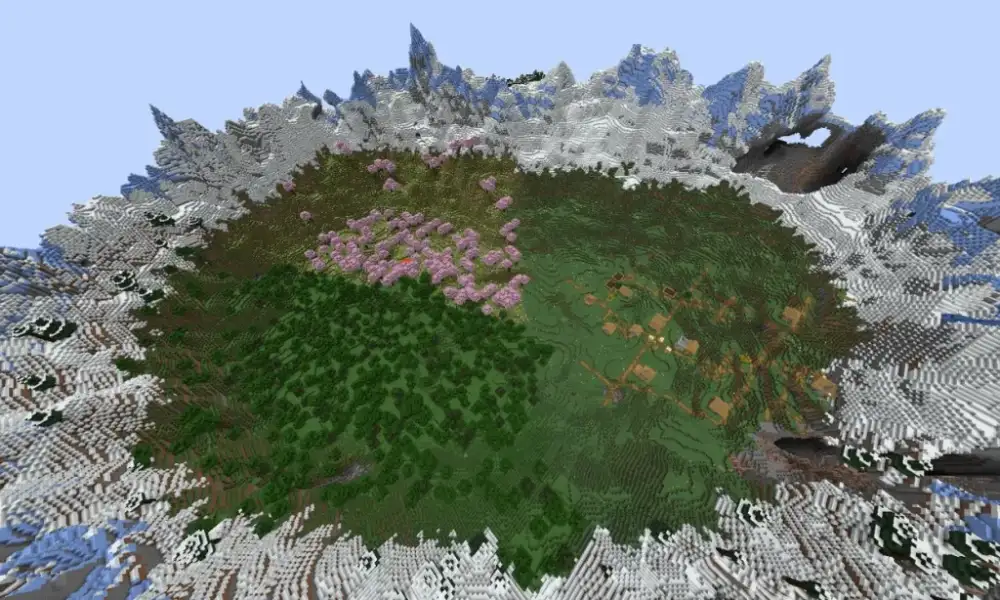 Every new Minecraft world needs instructions for generating its terrain. The seed acts as part of that process, allowing Minecraft to generate a world consistently from a particular value.
That makes seeds especially useful for players who discover interesting worlds and want to share them. Instead of describing where every mountain, cave, or biome is located, they can share the seed.
Every new Minecraft world needs instructions for generating its terrain. The seed acts as part of that process, allowing Minecraft to generate a world consistently from a particular value.
That makes seeds especially useful for players who discover interesting worlds and want to share them. Instead of describing where every mountain, cave, or biome is located, they can share the seed.
Official Minecraft information also notes that Java does not currently offer native controller support, whereas Bedrock supports controllers.
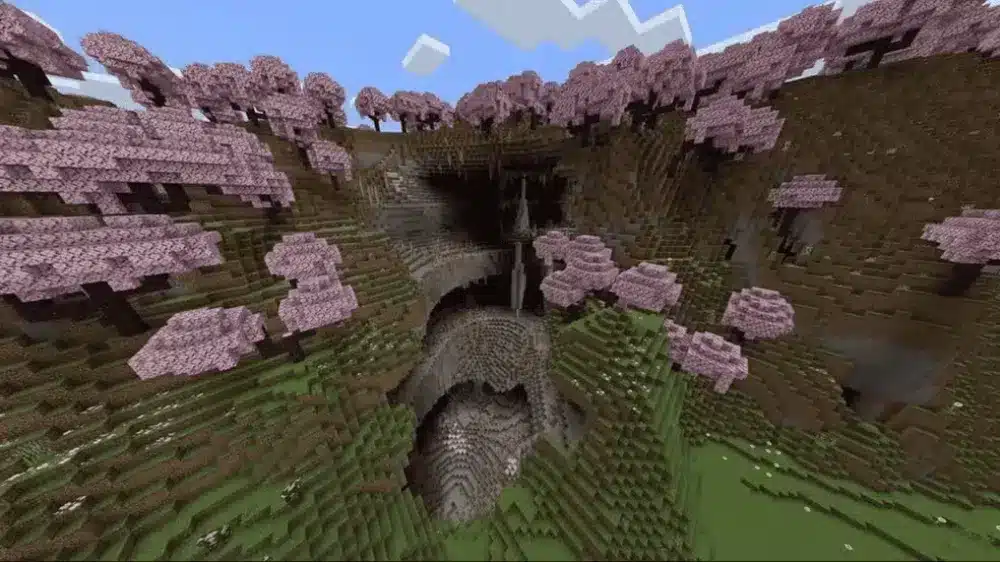 Parkour maps for minecraft pc turn Minecraft's movement mechanics into dedicated challenges.
Instead of focusing primarily on mining or survival, these maps may require precise jumps, sprint timing, ladders, obstacles, checkpoints, and increasingly difficult courses.
Parkour maps for minecraft pc turn Minecraft's movement mechanics into dedicated challenges.
Instead of focusing primarily on mining or survival, these maps may require precise jumps, sprint timing, ladders, obstacles, checkpoints, and increasingly difficult courses.
How does a seed for Minecraft PC work?
Every new Minecraft world needs instructions for generating its terrain. The seed acts as part of that process, allowing Minecraft to generate a world consistently from a particular value.
That makes seeds especially useful for players who discover interesting worlds and want to share them. Instead of describing where every mountain, cave, or biome is located, they can share the seed.
What Minecraft seeds change when generating a world
When creating a new world, you can enter a seed rather than relying on the value automatically selected by Minecraft. The resulting terrain can contain different landscapes, biomes, and structures depending on the world-generation rules used by your edition and version. Seeds are useful for several reasons:- Recreating interesting Minecraft worlds.
- Sharing world generation with other players.
- Starting survival challenges in specific environments.
- Finding terrain suited to large building projects.
- Creating multiplayer worlds around a known landscape.
Can the same seed work on Java and Bedrock?
The answer has become more interesting over time. With Minecraft Bedrock 1.18.30, Mojang introduced 64-bit seeds and stated that those seeds could be used between Bedrock and Java to produce the same world. Non-numeric seed inputs in Bedrock were also changed to generate the same seeds as Java. Still, that does not mean every detail will necessarily be identical across every edition, feature, or historical Minecraft version. When following a seed guide, matching the specified game version remains the safest approach.Minecraft Java Edition for PC vs. Minecraft Bedrock Edition for PC
Choosing an edition affects much more than your seed for minecraft pc. It influences multiplayer compatibility, mods, controllers, community servers, and customization. On Windows 10 and 11, Minecraft currently bundles Java and Bedrock together. Players can switch between the editions through the unified Minecraft Launcher.Minecraft Java Edition for PC
Minecraft Java Edition for PC remains particularly attractive to players interested in community customization. Java runs on Windows, macOS, and Linux. It is also the edition Minecraft highlights for community-made mods and its large ecosystem of online servers and communities. Java multiplayer works between Java players on Windows, macOS, and Linux. It does not provide native cross-play with Bedrock players on consoles or mobile devices.Minecraft Bedrock Edition for PC
Minecraft Bedrock Edition for PC is available on Windows and places greater emphasis on cross-platform compatibility. Bedrock players can play online across supported Bedrock platforms, including Windows, Xbox, Nintendo Switch, PlayStation, and mobile. Java and Bedrock nevertheless use different multiplayer systems, so Java players cannot simply join Bedrock servers through the standard cross-play system. Here is a quick comparison:| Feature | Java Edition | Bedrock Edition |
| Windows PC | Yes | Yes |
| macOS | Yes | No |
| Linux | Yes | No |
| Community mods | Extensive support | Add-Ons/Marketplace ecosystem |
| Native controller support | No | Yes |
| Cross-play | Windows, Mac, Linux Java players | Supported Bedrock platforms |
| Marketplace | No | Yes |
| Custom/community servers | Yes | Yes |
How to get Minecraft on PC
If you are wondering how to get minecraft on pc, the safest route is the official Minecraft Launcher and Microsoft account ecosystem. Avoid websites offering modified installers or unofficial copies. Besides copyright concerns, unknown executables can introduce significant security risks.Installing Minecraft on Windows
The process is straightforward:- Get the official Minecraft Launcher.
- Install and open the launcher.
- Sign in with your Microsoft account.
- Purchase Minecraft if you do not already own it, or access an eligible trial.
- Select the edition you want to install.
- Download the required game files.
- Launch Minecraft and create your first world.
How to get Minecraft Bedrock on PC
For players specifically searching how to get minecraft bedrock on pc, Windows is the key platform. Minecraft for Windows is Bedrock Edition, while Windows users can also access Java Edition. The current Java & Bedrock PC package gives eligible Windows players both editions. That makes experimenting with seeds particularly convenient. You can explore Java's community ecosystem while still having Bedrock available for cross-platform multiplayer with friends on supported devices.How to get Minecraft for free on PC legally
Searches such as how to get minecraft for free on pc are extremely common. Fortunately, there is an official way to test the game without relying on cracked launchers or questionable downloads. Minecraft provides free trials for supported devices.Using the official Minecraft free trial
Players searching how to get minecraft on pc free can start with Minecraft's official trial. Bedrock's trial supports Windows 10/11, while the Java trial supports Windows, macOS, and Linux. According to Minecraft's current trial information, both editions provide approximately 100 minutes of in-game trial time, although the exact duration can vary by device. The trial includes core Survival gameplay such as crafting, exploration, and combat. Online multiplayer servers are disabled during the trial, although Minecraft says LAN multiplayer is available.How to get full Minecraft on PC for free
Players searching how to get full minecraft on pc for free or how to get minecraft for free on a pc should distinguish a legitimate free trial from unauthorized copies. The official trial lets you experience Minecraft before purchasing it, but it is time-limited. Minecraft also states that players who already own the PC game can sign into the appropriate Microsoft account and download their purchased game again on a new PC. In addition, first-time eligible users can access a 30-day Minecraft Realms trial, although Realms is a subscription service rather than a free permanent copy of Minecraft. Therefore, websites promising a permanently unlocked "full Minecraft" executable should not be confused with Mojang's official trial or legitimate account access.Minecraft for PC controls every beginner should know
Learning minecraft for pc controls is essential before tackling dangerous caves, parkour challenges, or competitive multiplayer servers. Fortunately, Java and Bedrock share many fundamental mouse-and-keyboard concepts. Minecraft's official control guide states that their basic controls are largely the same and that players can customize them through the options menu.Essential keyboard and mouse controls
Common PC inputs include movement keys, mouse movement for looking around, jumping, inventory management, attacking, mining, and interacting with blocks. For a new player, the most important habits are simple:- Learn movement before entering combat.
- Become comfortable switching hotbar items quickly.
- Practice sprinting and jumping together.
- Customize uncomfortable keybinds.
- Learn inventory shortcuts as you progress.
Java vs. Bedrock controller support
There is an important difference for controller users. Minecraft currently states that Java Edition does not include native controller support. Bedrock Edition does provide controller support. If controller gameplay is essential to your PC setup, that difference may influence which edition you launch most often.Skin maker for Minecraft PC and custom characters
A skin maker for minecraft pc lets players design a character appearance rather than sticking to a default look. Customization is especially popular in multiplayer, where your character becomes part of your identity on servers and shared worlds.Creating your own Minecraft skin
Skin creators typically provide a pixel-based character template that can be edited before exporting the completed skin. Java is particularly flexible here. Minecraft's official PC comparison says Java players can download a skin or create one and upload it for use in the game. When using an external skin editor, avoid programs that ask you to install unnecessary executables. A simple skin image should not require giving an unknown application broad access to your computer.How to download skins for Minecraft PC free
Players searching download skins for minecraft pc free can find an enormous community around character customization. Before downloading anything, check whether the resource is actually an image file intended for Minecraft. Be cautious when a supposedly simple skin requires unrelated software, browser extensions, or suspicious installers. Bedrock takes a somewhat different approach. It includes character customization and has an integrated Marketplace containing skin packs and other content. That means the best customization workflow depends partly on your edition.How to get a cape for Minecraft PC
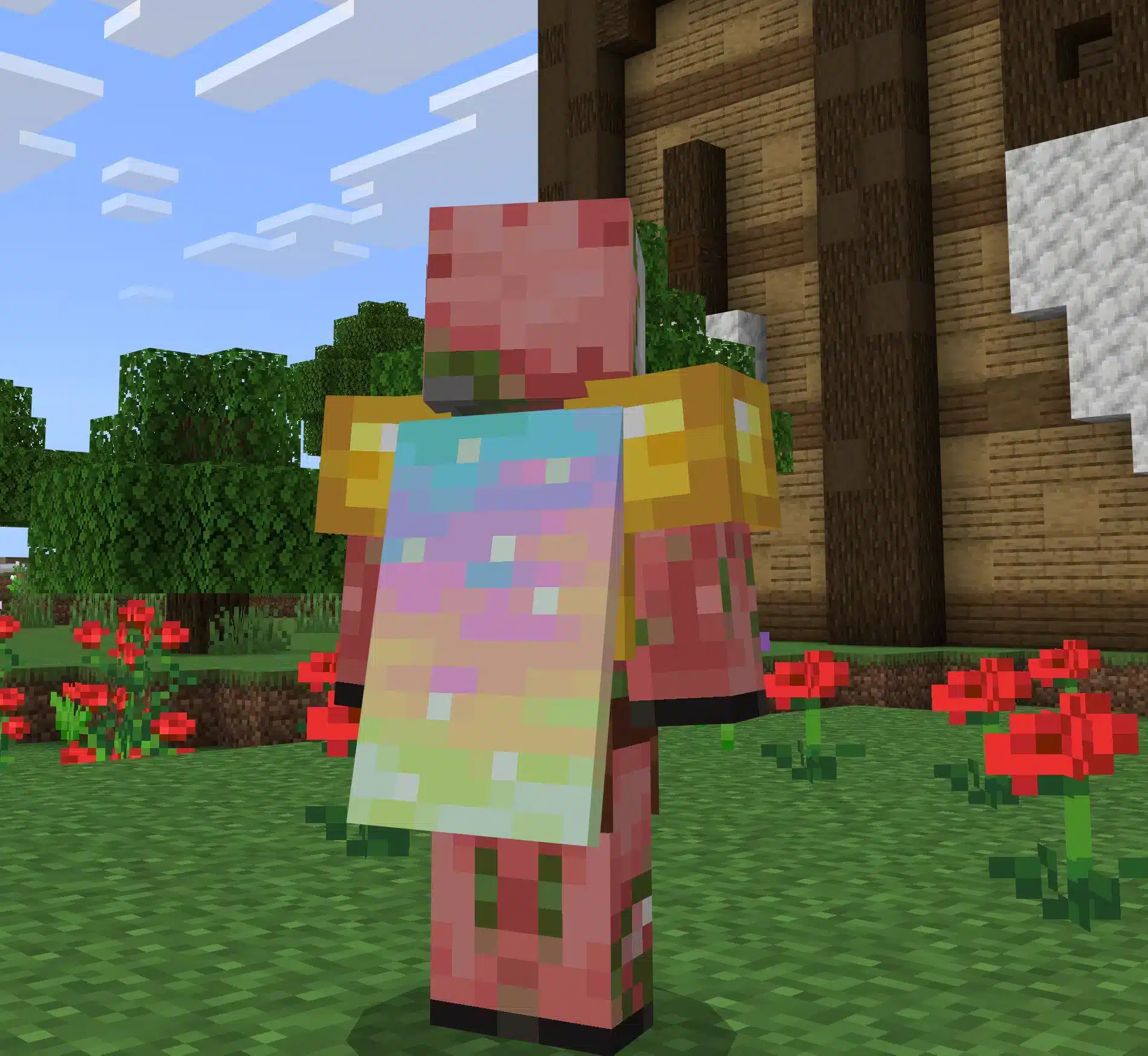
Learning how to get a cape for minecraft pc is different from downloading an ordinary skin. Official capes have historically been associated with specific events, account milestones, promotions, or other eligibility conditions. Therefore, you should not assume a random "cape download" will grant your account an official Mojang cape.Official capes and account eligibility
If Minecraft runs an official cape promotion, follow the published eligibility and redemption instructions associated with that campaign. Be particularly cautious with websites asking for Microsoft account passwords in exchange for a rare cape. Never hand account credentials to an unofficial third party simply because it promises a cosmetic.Equipping your available cosmetics
If an eligible cape is already attached to your account, use the relevant official Minecraft customization interface to manage it. This distinction matters: obtaining a normal custom skin file and receiving an account-linked official cape are not necessarily the same process.How to get mods on Minecraft PC
Understanding how to get mods on minecraft pc opens one of the largest areas of Minecraft customization. Mods can introduce mechanics, visual changes, new content, technical tools, and radically different ways to play. Java Edition is particularly associated with community-created modifications; Minecraft itself describes Java as the PC edition suited to community-made mods.Why Java Edition is popular for mods
Java's long-established community has produced a huge ecosystem of modifications and custom servers. This means you can transform a familiar seed for minecraft pc into a dramatically different adventure after adding compatible modifications. However, compatibility matters. A mod designed for one Minecraft release or mod-loading environment may not work correctly with another.Staying safe while installing mods
Before modifying Minecraft:- Back up important worlds.
- Check the exact Minecraft version required.
- Verify dependencies.
- Prefer well-established community sources.
- Scan unfamiliar downloads.
- Avoid packages advertising cracked accounts or bypassed authentication.
- Do not assume every mod works with an existing world.
Parkour maps for Minecraft PC and custom worlds
Parkour maps for minecraft pc turn Minecraft's movement mechanics into dedicated challenges.
Instead of focusing primarily on mining or survival, these maps may require precise jumps, sprint timing, ladders, obstacles, checkpoints, and increasingly difficult courses.
How custom Minecraft maps work
A custom map is generally a prepared Minecraft world built by another creator. Before installing one, check:- Required Minecraft edition.
- Required game version.
- Single-player or multiplayer support.
- Whether additional resource packs are needed.
- Installation instructions from the creator.
- Whether mods are required.