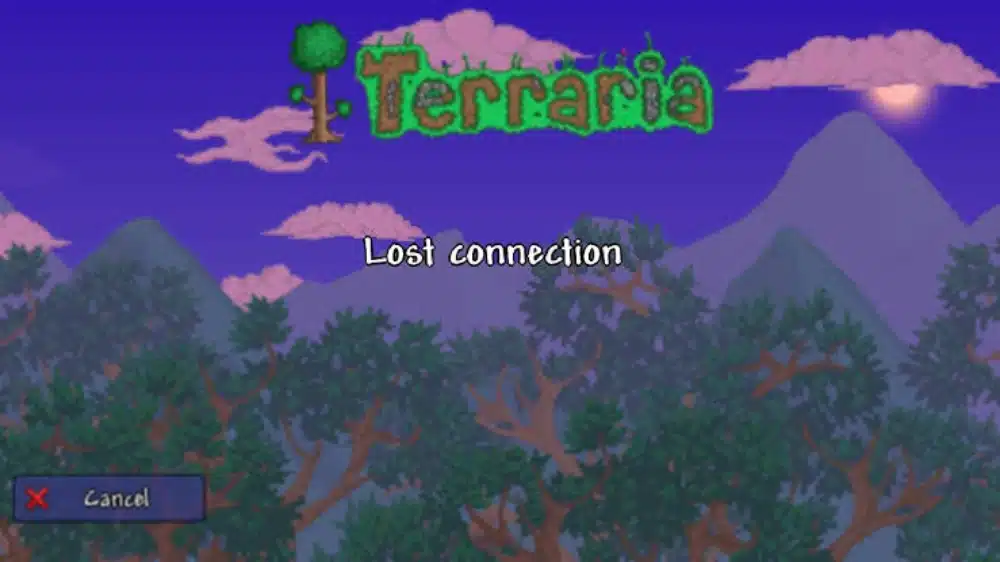
The Lost Connection Terraria error is one of the most frustrating issues multiplayer players encounter. Whether you’re joining a friend’s world through Steam, connecting to a dedicated server, or hosting your own adventure, being disconnected unexpectedly can interrupt boss fights, exploration, and cooperative building sessions.
Many players experiencing Lost Connection Terraria assume the problem is caused by the game’s servers. However, Terraria uses peer-to-peer or dedicated server connections rather than centralized matchmaking for most multiplayer sessions. This means the issue can originate from your internet connection, the host’s network, Steam connectivity, firewall settings, or even mismatched game versions.
So, what does “Lost Connection” mean in Terraria? Simply put, it indicates that communication between your game client and the multiplayer server has been interrupted. The interruption may last only a few seconds or immediately disconnect you from the world, depending on the underlying cause.
Fortunately, most connection problems can be resolved with a few practical troubleshooting steps. From verifying your Steam installation to optimizing your network settings, understanding why the error occurs makes it much easier to enjoy uninterrupted multiplayer sessions.
Whether you’re exploring massive modded worlds or fighting the Moon Lord with friends, maintaining a stable network connection is essential for smooth Terraria gameplay.
What Causes Lost Connection Terraria?
Several different factors can trigger the Lost Connection Terraria message. Because multiplayer depends on continuous communication between players and the server, even small interruptions may disconnect the session.
Server-Side Problems
Sometimes the issue originates from the server itself.
Common server-related causes include:
- Server crashes
- Scheduled maintenance
- Overloaded hosting hardware
- Incorrect server configuration
- Unstable internet connection for the host
If multiple players disconnect simultaneously, the problem is usually on the server rather than with individual clients.
Dedicated servers generally provide more stable multiplayer sessions than player-hosted worlds, especially for larger groups.
Client-Side Connection Issues
Many connection errors occur on the player’s own network.
Examples include:
- Weak Wi-Fi signals
- Temporary ISP interruptions
- High packet loss
- Router instability
- Network congestion
Even brief interruptions lasting less than a second may cause Terraria to lose synchronization with the server.
Version Mismatches
Terraria requires every player to use the same game version.
If the server updates before clients—or vice versa—players may receive connection errors immediately after attempting to join.
This issue also affects:
- Beta branches
- Experimental builds
- Modded versions
- Outdated dedicated servers
Always verify that everyone is running the same Terraria version before troubleshooting more advanced networking issues.
Common Reasons for Terraria Multiplayer Disconnects
The Lost Connection Terraria error often results from networking conditions outside the game itself.
Internet Instability
A connection doesn’t need to disconnect completely to create multiplayer problems.
Small issues such as:
- Packet loss
- High latency
- Jitter
- Temporary signal drops
can interrupt communication long enough for Terraria to terminate the session.
Stable internet generally matters more than maximum download speed.
Firewall and Antivirus Software
Security software occasionally blocks Terraria’s network traffic.
Windows Firewall or third-party antivirus programs may mistakenly restrict:
- Terraria.exe
- TerrariaServer.exe
- Steam networking services
If network permissions were recently changed or new security software was installed, reviewing firewall settings is a good first troubleshooting step.
NAT and Router Configuration
Strict NAT configurations sometimes interfere with peer-to-peer multiplayer.
Although Terraria generally works without advanced router configuration, restrictive NAT types may prevent successful connections between players.
Restarting your router or enabling UPnP often resolves minor connectivity problems.
Terraria Lost Connection Steam
Many players specifically experience terraria lost connection steam while joining friends through Steam’s multiplayer features.
Fortunately, several Steam-specific solutions can resolve these issues.
Verify Game Files
Corrupted or missing files occasionally interfere with multiplayer.
To verify Terraria through Steam:
- Open your Steam Library.
- Right-click Terraria.
- Select Properties.
- Open Installed Files.
- Click Verify integrity of game files.
Steam automatically replaces damaged files without affecting your saved worlds or characters.
Steam Networking Issues
Steam’s networking services occasionally experience temporary outages or maintenance.
If multiple online features stop working simultaneously, check Steam’s service status before changing local settings.
Temporary Steam interruptions usually resolve without requiring additional troubleshooting.
Steam Cloud Synchronization
Cloud synchronization issues rarely cause multiplayer disconnects directly but may create problems if character or world files become temporarily unavailable.
If synchronization appears stuck:
- Allow Steam to finish syncing.
- Restart Steam.
- Launch Terraria again.
- Verify that your saves are available.
Avoid closing Steam while Cloud synchronization is still in progress.
Basic Fixes for Lost Connection Terraria
Before modifying advanced network settings, try several simple solutions.
Many multiplayer issues disappear after basic troubleshooting.
Restart Terraria and Steam
Closing both applications refreshes multiplayer connections.
Recommended steps:
- Exit Terraria completely.
- Close Steam.
- Wait a few seconds.
- Restart Steam.
- Launch Terraria again.
This simple process often resolves temporary networking glitches.
Update Terraria
Running outdated versions can prevent successful multiplayer connections.
Always ensure:
- Terraria is fully updated.
- Steam has completed all downloads.
- Mods are compatible with the installed version.
Keeping everyone on the same version significantly reduces multiplayer problems.
Restart Your Network
Networking hardware occasionally develops temporary routing issues.
Restart the following devices:
- Modem
- Router
- Network switches (if applicable)
Wait approximately one minute before reconnecting.
This refreshes your internet connection and often improves stability.
Best Practices Before Joining Multiplayer
Preparing your system beforehand helps avoid unexpected disconnects.
Consider these recommendations:
- Close unnecessary background applications.
- Pause large downloads.
- Disable bandwidth-heavy cloud backups.
- Connect through Ethernet whenever possible.
- Ensure Terraria is fully updated.
- Verify Steam is online.
Taking these precautions minimizes common causes of multiplayer interruptions.
Why Stable Connections Matter in Terraria
Unlike many competitive games, Terraria doesn’t require lightning-fast reflexes.
However, stable communication remains essential.
Connection interruptions may result in:
- Desynchronized enemies
- Delayed player actions
- Item pickup issues
- Teleporting players
- Unexpected disconnects
Reliable networking creates a smoother cooperative experience for everyone in the world.
How ExitLag Helps Terraria Multiplayer
Although Terraria doesn’t demand extremely low latency like competitive shooters, stable routing plays an important role during multiplayer sessions.
ExitLag helps optimize network traffic for Terraria on PC by selecting more efficient routes between your computer and multiplayer hosts. Instead of relying entirely on your internet provider’s default routing, ExitLag continuously analyzes available paths to reduce instability and improve connection consistency.
Its proprietary technologies—including Multipath Connection, Real-Time Optimization, Traffic Shaper, and Multi-Internet—help minimize packet loss and maintain smoother online sessions. This can reduce unexpected disconnects caused by unstable routing and improve the overall multiplayer experience, especially when connecting to distant dedicated servers or playing with friends in other regions.
For Terraria players who frequently join multiplayer worlds, optimizing your network alongside good local troubleshooting practices provides the best chance of avoiding frustrating connection interruptions.
Advanced Solutions for Lost Connection Terraria
If the basic troubleshooting steps didn’t resolve the issue, it’s time to investigate more advanced networking settings. Many persistent Lost Connection Terraria errors are caused by router configuration, dedicated server settings, or software conflicts rather than the game itself.
These solutions require a little more effort but can permanently eliminate recurring disconnects.
Configure Port Forwarding
If you’re hosting a Terraria world, your router must allow incoming connections on the appropriate port.
By default, Terraria uses:
- TCP Port 7777
Forwarding this port to the computer hosting the server can improve connectivity for players joining from outside your local network.
Before enabling port forwarding:
- Assign your hosting PC a static local IP address.
- Access your router’s administration panel.
- Create a forwarding rule for TCP port 7777.
- Restart the router after saving the changes.
If you’re joining someone else’s server, you generally don’t need to configure port forwarding.
Check Dedicated Server Configuration
Dedicated servers usually provide a more stable multiplayer experience than hosting directly from the game.
However, incorrect configuration can still produce connection problems.
Verify that:
- The server is running the latest Terraria version.
- Maximum player limits aren’t exceeded.
- The server has enough available RAM.
- The hosting machine has a stable internet connection.
- Firewall rules allow TerrariaServer.exe.
Server administrators should also monitor system resources during gameplay, as overloaded hardware can lead to unexpected disconnects.
Verify tModLoader Compatibility
Many multiplayer worlds use tModLoader to add custom content.
Mods greatly expand Terraria but also introduce additional compatibility requirements.
Before joining a modded server:
- Install identical mods.
- Match mod versions exactly.
- Update tModLoader to the required release.
- Disable outdated or incompatible mods.
Even a single mismatched mod can prevent successful connections or trigger the Lost Connection Terraria error during loading.
How to Prevent Terraria Disconnects
Preventing connection problems is easier than troubleshooting them after they occur.
A few simple habits can significantly improve multiplayer stability.
Maintain a Stable Internet Connection
Consistency matters more than raw bandwidth.
For the best experience:
- Use Ethernet whenever possible.
- Avoid downloading large files while playing.
- Restart your router periodically.
- Keep networking equipment updated.
- Reduce Wi-Fi interference.
Stable latency and low packet loss are far more important than extremely high download speeds.
Choose Reliable Multiplayer Hosts
Not every server delivers the same performance.
When selecting public servers, consider:
- Geographic proximity
- Server uptime
- Player capacity
- Community reputation
- Hosting hardware
Joining servers located closer to your region usually provides a smoother experience.
Private dedicated servers also tend to outperform player-hosted worlds during longer gaming sessions.
Common Multiplayer Networking Mistakes
Several overlooked issues frequently cause multiplayer instability.
Mixed Terraria Versions
Every player must use the same version of Terraria.
Problems commonly occur when:
- One player hasn’t installed the latest update.
- The server is running an older release.
- Someone is using a beta branch.
- Mods require different game versions.
Always verify versions before troubleshooting network settings.
VPN Conflicts
VPN services sometimes interfere with multiplayer connections.
While VPNs can improve privacy, they may also:
- Increase latency
- Block peer-to-peer communication
- Create routing inconsistencies
- Trigger unexpected disconnects
If you’re using a VPN, temporarily disable it to determine whether it’s contributing to the problem.
Overloaded Home Networks
Household internet connections often serve multiple users simultaneously.
Heavy network usage from activities such as:
- 4K streaming
- Cloud synchronization
- Video conferencing
- Large game downloads
can increase latency and packet loss, making multiplayer sessions less stable.
Scheduling downloads outside gaming sessions often improves connection quality.
Common Problems and Solutions
| Problem | Possible Cause | Recommended Solution |
| Lost Connection during loading | Version mismatch | Update Terraria and verify game versions |
| Random disconnects | Unstable internet | Restart router and use Ethernet |
| Unable to join Steam friends | Steam networking issue | Restart Steam and verify game files |
| Disconnects on modded servers | Mod incompatibility | Match all installed mods and versions |
| Players cannot join hosted world | Router configuration | Configure port forwarding and firewall exceptions |
Signs the Issue Is on Your Network
The problem is likely local if you notice:
- Frequent disconnects across multiple online games.
- High latency during internet speed tests.
- Packet loss when pinging servers.
- Other household devices losing connectivity.
- Better performance after restarting your router.
These symptoms usually indicate networking issues rather than Terraria itself.
Signs the Server Is Causing the Problem
The server may be responsible if:
- Every player disconnects simultaneously.
- The server frequently crashes.
- Only one specific server causes problems.
- Other multiplayer worlds work normally.
- Administrators report maintenance or technical issues.
Checking community forums or contacting the server administrator can confirm whether the issue is server-side.
Step-by-Step Troubleshooting Checklist
If you’re still seeing the Lost Connection Terraria message, follow this sequence:
- Confirm that Terraria is fully updated.
- Verify the integrity of your game files through Steam.
- Restart Terraria and Steam.
- Reboot your modem and router.
- Connect using Ethernet instead of Wi-Fi if possible.
- Disable VPN software temporarily.
- Check firewall and antivirus permissions.
- Verify that all players are using the same Terraria version.
- Confirm mod compatibility if using tModLoader.
- Try connecting to another multiplayer server.
Working through these steps systematically often identifies the root cause without requiring complex network changes.
Frequently Asked Questions
The message appears when communication between your game client and the multiplayer server is interrupted. Common causes include unstable internet connections, server outages, version mismatches, firewall restrictions, or Steam networking issues.
To resolve terraria lost connection steam, restart Steam, verify the integrity of your Terraria files, ensure Steam is fully online, update the game, and confirm that both players are using the same Terraria version.
Yes. Incompatible mods, different mod versions, or outdated tModLoader installations frequently prevent successful multiplayer connections or cause disconnects shortly after joining.
It can. Windows Firewall or third-party antivirus software may block Terraria or TerrariaServer from communicating over the network. Adding both applications to your firewall’s exceptions list often resolves the issue.
Yes. ExitLag helps improve Terraria multiplayer on PC by optimizing network routing, reducing packet loss, and stabilizing connections through technologies such as Multipath Connection, Real-Time Optimization, Traffic Shaper, and Multi-Internet. While it cannot fix server-side outages or version mismatches, it can improve overall connection quality for supported multiplayer sessions.
Final Thoughts
Experiencing the Lost Connection Terraria error doesn’t necessarily mean something is wrong with the game itself. In most cases, the problem stems from network instability, Steam connectivity, router configuration, firewall restrictions, or version mismatches between players.
By following the troubleshooting steps outlined in this guide—from verifying game files and updating Terraria to configuring your router and checking mod compatibility—you can resolve the vast majority of multiplayer connection issues and enjoy longer, more stable gaming sessions.
For PC players who regularly explore multiplayer worlds, ExitLag provides an additional layer of connection optimization. Its intelligent routing technology helps reduce packet loss, improve route stability, and maintain smoother online gameplay, allowing you to focus on building, exploring, and defeating Terraria’s toughest bosses without worrying about unnecessary disconnects.
Disclaimer: All game images used in this blog belong to Re-Logic. They are used for informational and educational purposes only and do not imply endorsement or affiliation with the rights holders.
Got questions or want to connect with other players? Join the conversation at the ExitLag Forum!