If you are searching how to unpair my apple watch, the process is straightforward when you still have the iPhone that is paired with it. Unpairing removes the connection between both devices, erases the watch, and, when completed through the paired iPhone, removes Activation Lock. Therefore, it is the recommended method when you are switching phones, selling your watch, or giving it to someone else.
Before starting, however, it is worth understanding what unpairing actually does. If you are also moving to a new phone, completing the process correctly can help avoid pairing problems later. For gamers, keeping your iPhone setup organized is useful too, especially when your mobile device is part of your everyday gaming ecosystem. If you want to learn more about connection optimization, check our guide on how ExitLag works.
So, how to unpair my apple watch? In simple terms, open the Apple Watch app on the paired iPhone, access All Watches, select the information button beside your watch, and choose Unpair Apple Watch. You will then confirm the action and enter your Apple Account password when requested. This process erases the watch and removes Activation Lock.
how to unpair my apple watch from an iPhone
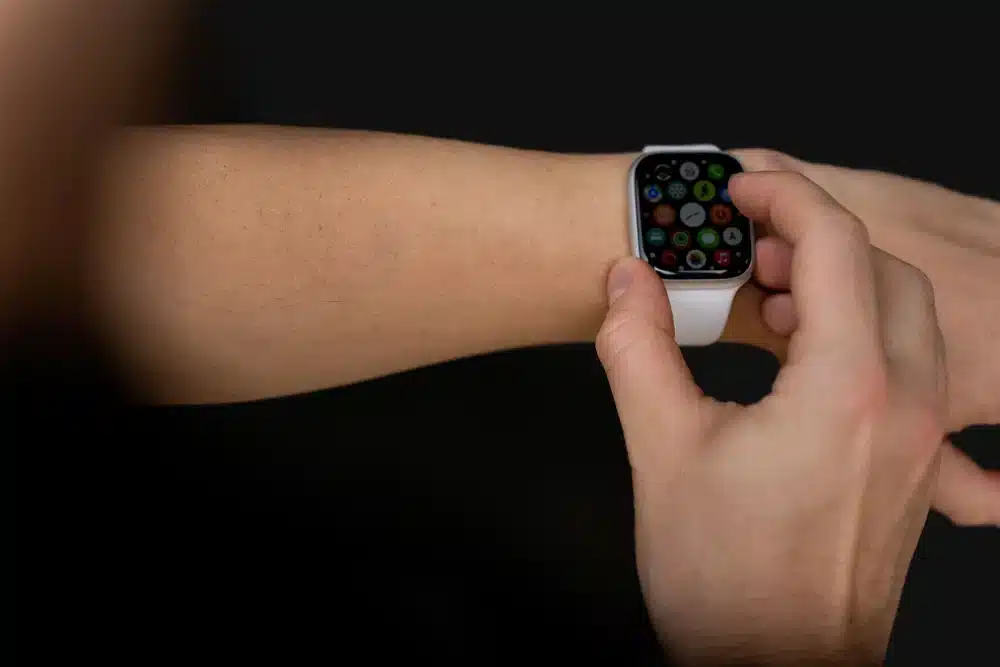
The safest approach is to use the iPhone currently paired with your Apple Watch. This method allows Apple to complete the unpairing process properly while also preparing the watch for another setup.
What happens when you unpair
Unpairing is more than simply disconnecting Bluetooth. According to Apple, the process erases the Apple Watch, restores it to factory settings, and removes Activation Lock. Consequently, the watch can be paired again with another iPhone.
Before you begin, make sure you know your Apple Account password and your Apple Watch passcode. Also, keep the iPhone and watch close together during the process.
There are several situations where unpairing makes sense:
- You are upgrading to a new iPhone.
- You are selling or giving away the Apple Watch.
- You want to troubleshoot pairing problems.
- You want to set up the watch from scratch.
Step-by-step unpairing process
Once everything is ready, follow these steps:
- Keep your Apple Watch and paired iPhone close together.
- Open the Apple Watch app on your iPhone.
- Tap My Watch, then select All Watches.
- Tap the information button beside the Apple Watch you want to remove.
- Select Unpair Apple Watch.
- Confirm the watch you want to unpair.
- If your watch has cellular service, choose whether to keep or remove the mobile plan.
- Enter your Apple Account password to disable Activation Lock.
- Confirm the unpairing process and wait for it to finish.
Apple states that the iPhone may create a backup of the Apple Watch during the unpairing process. This can be useful if you plan to set up another Apple Watch later.
how to unpair my apple watch from my old phone
Knowing how to unpair my apple watch from my old phone becomes especially important when upgrading to a new iPhone. Ideally, complete the unpairing before permanently erasing or giving away the old phone.
Moving your Apple Watch to a new iPhone
If your old iPhone is still available, unpair the watch from that device first. Then, set up your new iPhone and sign in with the same Apple Account.
Afterward, open the Apple Watch app on the new iPhone and follow the pairing instructions. If a backup is available, Apple allows you to restore the watch from that backup during setup.
This process can preserve the overall setup experience while transferring your watch to the new device. However, keeping your devices updated can also matter because an outdated iPhone or Apple Watch may affect which backups are available during setup.
What if I already erased my old iPhone?
If you erased the old iPhone before unpairing the watch, the process is different. You can erase the Apple Watch directly, but Apple notes that this does not remove Activation Lock. You will still need the Apple Account and password originally associated with the watch.
Therefore, if the old phone is still accessible, use it to unpair the watch before wiping the phone. This is particularly important if you plan to sell or give away the watch.
| Situation | Recommended action | Activation Lock |
| You have the paired iPhone | Unpair through Apple Watch app | Removed |
| You have no paired iPhone | Erase Apple Watch | Remains |
| Selling the watch | Unpair and remove cellular plan | Removed |
| Moving to a new iPhone | Unpair, then pair with new iPhone | Removed |
| Forgot Apple Account password | Recover account access first | May remain |
what to do before unpairing your Apple Watch
Although the actual process only takes a few steps, preparation can prevent unnecessary problems. Therefore, take a moment to check your account, backup, and cellular information before confirming the reset.
Check your Apple Account and backup
Your Apple Account password is important because Apple uses it to disable Activation Lock during the standard unpairing process. Without the appropriate account credentials, the watch may remain associated with your account.
Also, consider whether you need the information stored on the watch. Unpairing erases its contents, so make sure you understand what you are resetting before continuing.
For example, you may want to verify:
- Your Apple Account password works.
- Your iPhone is signed into the correct Apple Account.
- Your Apple Watch is close to the iPhone.
- Your watch passcode is available.
- You understand whether you need to keep cellular service.
Decide what to do with cellular service
Apple Watch models with cellular connectivity require an additional decision during unpairing. If you plan to pair the watch with your iPhone again, Apple says you can keep the cellular plan. If you are selling or giving away the watch, remove the plan instead.
However, removing the watch from the device does not necessarily cancel your cellular subscription. Depending on your carrier, you may need to contact the provider separately to cancel the service.
erase Apple Watch without the old iPhone
Sometimes the original iPhone is unavailable. Perhaps it was lost, replaced, damaged, or already erased. Fortunately, you can still erase the Apple Watch, although there is an important difference.
Erase the watch directly
Without the paired iPhone, Apple provides an option to erase the watch from its own Settings app:
- Open Settings on the Apple Watch.
- Tap General.
- Select Reset.
- Tap Erase All Content and Settings.
- Enter the watch passcode if requested.
- Choose whether to keep or remove a cellular plan.
- Tap Erase All to confirm.
This restores the watch to factory settings. However, it does not remove Activation Lock. You will need the Apple Account and password associated with the watch when setting it up again.
Why Activation Lock matters
Activation Lock is designed to prevent another person from activating a device that remains linked to the owner’s Apple Account. Therefore, simply erasing the watch is not the same as fully preparing it for another owner.
If you are selling or giving away the watch, Apple recommends using the paired iPhone whenever possible because that process removes Activation Lock.
This distinction is also important when purchasing a used Apple Watch. If setup asks for the previous owner’s Apple Account password, the device is still associated with that account.
Apple Watch not pairing after unpairing
After learning how to unpair my apple watch, some users immediately encounter another problem: the watch will not pair with the new iPhone.
Check the basic connection
First, keep the Apple Watch and new iPhone close together. Make sure both devices have sufficient battery and that the iPhone is signed into the intended Apple Account.
If the watch displays a normal watch face when you try to pair it, Apple indicates that it may still be paired with an iPhone. In that situation, the watch needs to be erased and reset before another pairing attempt.
Also, if the automatic pairing animation does not appear, Apple provides an option to pair the Apple Watch manually from the pairing screen.
Troubleshoot a failed pairing attempt
If pairing continues to fail, work through these steps:
- Restart both the iPhone and Apple Watch.
- Confirm that the watch has been completely erased.
- Make sure you are using the correct Apple Account.
- Check that both devices are updated.
- Start the pairing process again.
- If a backup appears, select the most recent compatible backup.
Apple specifically recommends checking device software versions when a watch backup does not appear during the transfer process.
how unpairing affects your gaming setup
At first glance, Apple Watch management may seem unrelated to gaming. However, modern gaming setups frequently involve multiple connected devices, accounts, notifications, and network-dependent services.
Keep device management separate from network optimization
Unpairing an Apple Watch does not improve your game ping or directly change your internet connection. It is a device-management action, while gaming latency is primarily related to the connection between your gaming device and the game server.
Therefore, if you are troubleshooting lag after changing your iPhone or other devices, do not assume that resetting the Apple Watch will solve a network problem.
ExitLag approaches that problem differently. Its technology focuses on optimizing the network route between your gaming device and supported game servers rather than changing Apple Watch settings.
When connection stability matters
For online games, connection stability can influence how quickly game data travels between your device and the server. Issues such as high latency, packet loss, and unstable routes can make gameplay feel inconsistent.
ExitLag is designed specifically for gaming traffic and uses route optimization rather than functioning as a traditional VPN.
For that reason, device troubleshooting and network troubleshooting should be treated as separate tasks. First, make sure your Apple Watch and iPhone are correctly configured. Then, if an online game continues to experience connection problems, investigate the gaming network separately.
common mistakes when unpairing an Apple Watch
Even though the process is relatively simple, a few mistakes can create unnecessary complications.
Forgetting Activation Lock
One of the biggest mistakes is assuming that erasing the watch automatically removes its association with the previous owner. It does not.
When the paired iPhone is unavailable, Apple says Activation Lock remains after the watch is erased. Consequently, you may still need the original Apple Account credentials during setup.
Another common mistake is removing a cellular plan without considering whether you want to use the same watch again. Think about your next step before selecting the option.
Erasing before creating a backup
Another mistake is rushing through the process without considering your stored information. If you plan to continue using an Apple Watch, check whether you have a suitable backup before completing the reset.
Additionally, do not confuse unpairing with simply turning Bluetooth off. Turning off Bluetooth temporarily disconnects devices, but it does not erase the Apple Watch or remove Activation Lock.
how to prepare an Apple Watch for someone else
If you are selling, trading in, or giving away your Apple Watch, the goal is slightly different from simply resetting it.
Remove your information completely
Apple states that erasing the watch removes its local content and settings, including information such as Apple Pay cards, photos, contacts, music, and apps. Your information stored in iCloud is not deleted simply because you erase the watch.
For a clean handoff, use the paired iPhone whenever possible. The process both erases the watch and removes Activation Lock.
Final checklist before handing it over
Use this quick checklist before giving the device to another person:
- Unpair the Apple Watch from the paired iPhone.
- Confirm Activation Lock has been removed.
- Remove the cellular plan if applicable.
- Confirm the watch no longer appears as an active personal device.
- Leave the watch at its setup screen for the next owner.
Apple also provides instructions for removing Activation Lock if the watch has already been given away, including using Find My through iCloud.com.
how to unpair my apple watch: final steps
If you are still wondering how to unpair my apple watch, remember the key difference between unpairing and erasing. When you have the paired iPhone, use the Apple Watch app and select Unpair Apple Watch. This erases the watch and removes Activation Lock. When the old iPhone is unavailable, you can erase the watch directly, but Activation Lock remains until the associated Apple Account is used.
Afterward, you can pair the watch with another iPhone and restore an available backup. If your reason for resetting the device is connected to gaming, keep in mind that Apple Watch configuration and gaming latency are separate issues. For online gaming, tools such as ExitLag focus on network routing and connection stability rather than device pairing.
Finally, whether you are upgrading your phone, selling your watch, or simply starting fresh, following the correct sequence prevents most setup problems. Complete the unpairing through the paired iPhone when possible, handle your cellular plan carefully, and verify Activation Lock has been removed before transferring ownership. That is the simplest answer to how to unpair my apple watch while keeping the transition clean and ready for your next device.
Got questions or want to connect with other players? Join the conversation at the ExitLag Forum!