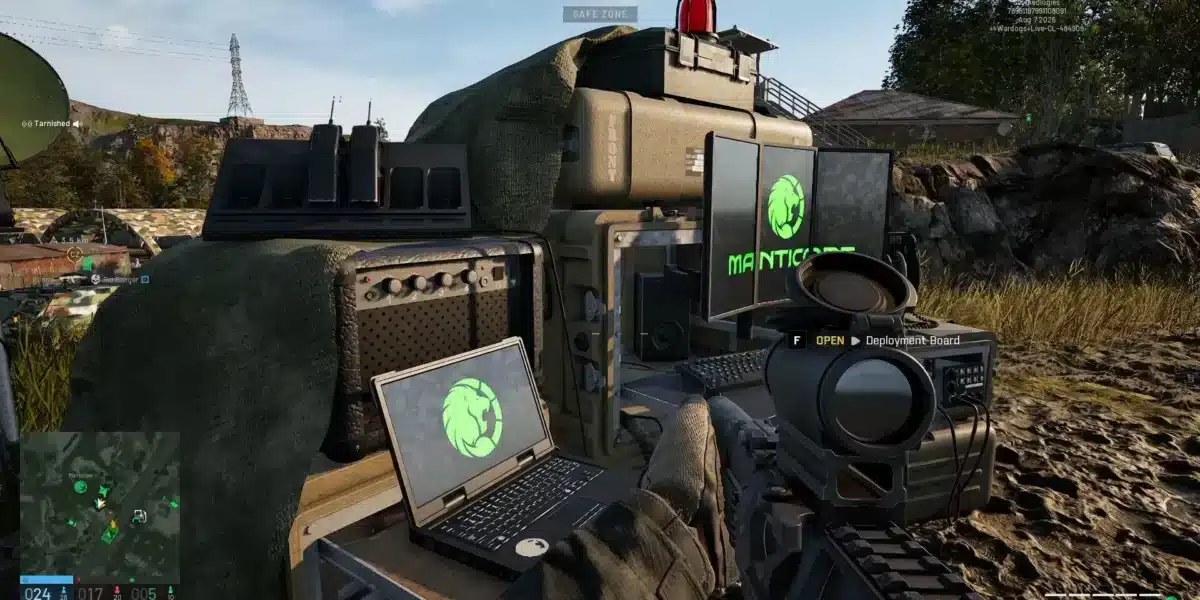
Few things break immersion faster than your frame rate collapsing right as a massive firefight kicks off. If that sounds familiar, you are dealing with a classic WARDOGS FPS drop problem.
With up to 100 players, vehicles, and destruction happening on screen at once, WARDOGS pushes hardware harder than most shooters. Fortunately, most frame rate issues have clear, fixable causes.
So why does your FPS tank specifically during big fights? Usually it comes down to GPU load spiking beyond what your settings allow, or background processes eating resources at the worst possible moment.
This guide walks through diagnosing WARDOGS FPS drops and applying the right fix, whether the issue is your settings, your hardware, or something running in the background.

WARDOGS FPS Drop: Understanding The Real Cause
Not every FPS drop has the same root cause, so treating them all the same way rarely works. The first step is figuring out what kind of drop you are actually experiencing.
Consequently, distinguishing between a graphics-related drop and a stutter caused by asset loading changes your entire troubleshooting approach.
Two Different Types Of Performance Problems
Here is how to tell them apart before choosing a fix:
- Gradual FPS decline during big fights: Usually a GPU or CPU load issue tied to your graphics settings.
- Sudden freeze when entering a new area: Often shader compilation or asset streaming, not raw performance.
- Random drops with no clear pattern: Frequently caused by background applications or thermal throttling.
Why 100-Player Battles Hit Performance Harder
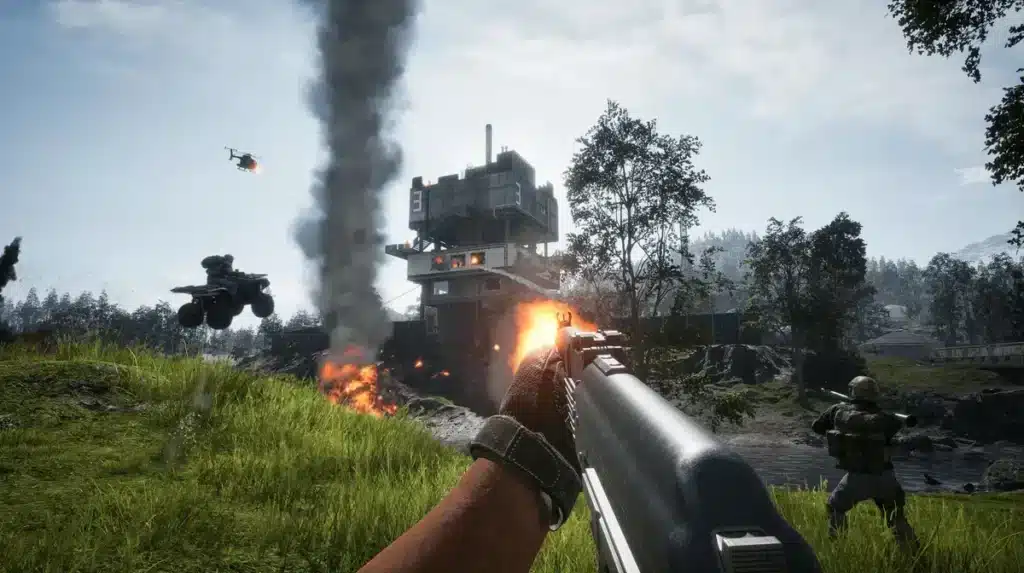
Large-scale WARDOGS matches render far more players, vehicles, and destruction effects simultaneously than a typical shooter. As a result, your GPU has significantly more work to do exactly when the action gets most intense.
Best WARDOGS Settings To Fix FPS Drops
Before touching hardware, adjusting in-game settings is the fastest way to stabilize your frame rate.
Settings To Prioritize First
Start with these adjustments, since they offer the biggest performance gains with minimal visual trade-off:
- Run native resolution with VSync turned off
- Enable NVIDIA Reflex if your GPU supports it
- Set upscaling to DLSS, FSR, or DLAA on Quality mode
- Reduce Global Illumination before touching other settings
- Lower Shadows next if performance still struggles
Settings Comparison Table
Use this table to prioritize which settings to adjust first when you are still hunting for FPS:
| Setting | Performance Impact | Visual Impact |
|---|---|---|
| Global Illumination | High | Moderate |
| Shadows | High | Low to Moderate |
| Reflections | Moderate | Low |
| Texture Quality | Low | High if lowered too much |
| Effects Density | Moderate | Low |
Is Your Hardware Causing WARDOGS FPS Drops?
Sometimes settings alone will not fix a persistent drop, especially if your hardware sits right at the minimum requirement threshold. Confirm your PC actually meets recommended specs before assuming it is purely a software problem.
Checking For Thermal Throttling
Thermal throttling can look identical to a random FPS drop, since your clocks fall after several minutes of sustained load. Monitor your CPU and GPU temperatures during a long play session to rule this out.
- Use monitoring software to track temperatures in real time
- Watch for FPS drops that appear only after 20+ minutes of play
- Clean dust from fans and vents if temperatures run high
- Consider repasting thermal paste on older systems
Is It A GPU Or CPU Bottleneck?
If your GPU usage sits near 100% while FPS drops, the issue is graphics-bound and settings adjustments will help most. If GPU usage is low but FPS still drops, your CPU is more likely the bottleneck, especially during 100-player scenes with heavy AI and physics calculations.
Why Do Background Apps Cause WARDOGS FPS Drops?
Background applications quietly consume CPU cycles, RAM, and sometimes GPU resources, all of which compete directly with WARDOGS for the same hardware.
Apps Worth Closing Before You Play
Clearing out unnecessary background processes is one of the easiest fixes available:
- Overlay software like RivaTuner or RGB lighting utilities
- Discord and Steam overlays running simultaneously
- Browser tabs with video or heavy animations open
- Cloud sync or backup applications running in the background
Clearing Shader Cache And Verifying Files
If stutters happen every few seconds rather than during specific moments, clearing your shader cache and restarting your PC can resolve compilation-related hitching. Verifying game files through Steam is also worth doing if the stutter persists after a clean restart.
Pro Tips: WARDOGS FPS Drop
- Install on an SSD: Asset streaming stutters are far more common on traditional hard drives than solid-state storage.
- Cap your frame rate slightly below your average: A stable capped frame rate often feels smoother than an uncapped one that swings wildly.
- Keep textures high, cut shadows first: Texture quality has a lower performance cost relative to its visual impact compared to shadows and lighting.
- Test one setting change at a time: This makes it far easier to identify which specific setting was actually causing your FPS drop.
How Do You Know If It Is A CPU Or GPU Bottleneck?
Figuring out which component is holding you back saves a lot of wasted time adjusting the wrong settings. Fortunately, the diagnosis process is fairly straightforward with the right tools.
Using Monitoring Tools To Diagnose Bottlenecks
Run an overlay tool that tracks both CPU and GPU usage in real time while playing a large WARDOGS match.
- Open your monitoring overlay before launching WARDOGS
- Watch GPU usage during a large 100-player fight
- Watch CPU usage during the same fight for comparison
- Note which component consistently sits near 100% first
- Adjust settings tied to whichever component is the bottleneck
Common Mistakes WARDOGS Players Make With FPS Drops
- Lowering resolution before anything else: Many players assume resolution is the biggest FPS factor. Fix: reduce Global Illumination and Shadows first, since they typically cost more performance.
- Ignoring background applications: Overlays and RGB software quietly eat resources. Fix: close unnecessary background apps before launching WARDOGS.
- Never checking temperatures: Thermal throttling is often mistaken for a settings problem. Fix: monitor temperatures during long sessions to rule out overheating.
Do Drivers And Windows Settings Affect WARDOGS FPS?
Yes, and this step gets skipped more often than it should. Outdated GPU drivers and unoptimized Windows power settings can quietly cap your performance well below what your hardware is actually capable of.
Keeping Drivers And Windows Updated
Run through this quick checklist before assuming your hardware is simply not strong enough:
- Update your GPU drivers directly from NVIDIA, AMD, or Intel
- Set your Windows power plan to High Performance or Balanced
- Enable Windows Game Mode for reduced background interference
- Update your motherboard chipset drivers if they are outdated
Why A Clean Baseline Matters
Starting from a clean baseline, meeting the system requirements, installing on an SSD, and using a sensible frame cap, makes every other fix more effective. Skipping this step often means chasing symptoms instead of the actual cause.
Keep Your Connection Stable While You Optimize FPS
Fixing your WARDOGS FPS drop issues is only half the battle if your connection is also unstable during those same intense fights. Network hiccups can compound frame rate problems, making chaotic firefights feel even worse.
ExitLag is not a VPN: it is a game connection optimizer that scans multiple network paths in real time and automatically selects the fastest, most stable route to the server.
Why Connection Stability Matters Alongside FPS
During the exact moments your FPS drops most, whether in a huge 100-player fight, your network is also under the heaviest load. A stable connection means fewer compounding issues when performance already feels shaky.
- Reduced packet loss during graphically intense firefights
- More consistent hit registration even during frame dips
- Fewer disconnects during peak server congestion
- General connection stability across all your online games
Setting Up ExitLag Alongside Your FPS Fixes
ExitLag supports over 4,000 games and is trusted by more than 30 million users running 18 million optimizations every week. It does not modify game files, inject code, or interact with anti-cheat systems, so it runs safely alongside WARDOGS.
Once your settings and hardware are dialed in, grab the ExitLag Download to make sure your connection is not the last remaining weak link during big battles. Combining a clean performance baseline with a stable route gives you the smoothest possible WARDOGS experience overall.
All game images used in this blog post belong to Bulkhead and Team17. They are used for informational and educational purposes only and do not imply endorsement or affiliation with the rights holders.
Got questions or want to connect with other players? Join the conversation at the ExitLag Forum!