Helicopters are one of the biggest advantages you can have in Wardogs, but only if your Wardogs Helicopter Settings are dialed in first. A good pilot can ferry teammates across the map, flank a Control Zone, or pull off a clean extraction under fire.
However, most new players crash within seconds because their Wardogs Helicopter Settings are still on default values. That is not a skill problem, it is a configuration problem.
The best Wardogs Helicopter Settings usually mean pitch and roll sensitivity around 50 to 65 percent, Rotary Vehicle Mouse Control enabled, air vehicle inversion set to your own preference, and Stability Assist left on until your landings become consistent. Once those basics are locked in, flying stops feeling random.
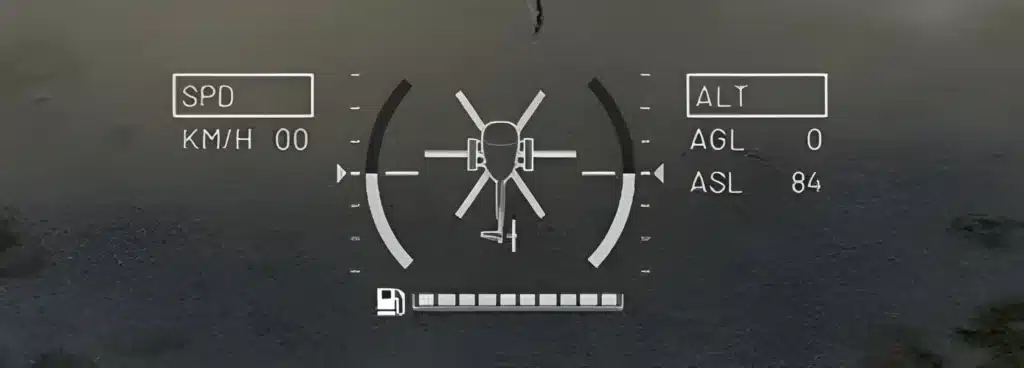
This guide walks through every menu you need for a solid flight setup, from mouse and keyboard tuning to full HOTAS setups. It also covers the flight assists, the common crashes, and the settings that experienced pilots actually use in ranked Control Zone matches.
Wardogs itself is a tactical, all-out warfare shooter developed by Bulkhead and published by Team17. In fact, up to 100 players split across three teams fight over a shifting Control Zone on a destructible, 2×2 kilometer battlefield.
Helicopters exist to move troops and supplies quickly across that huge map. Therefore, getting these controls right is not optional if you want to be useful in a match.
Wardogs Helicopter Settings: Where to Start
Before touching any sliders, you need to know where the actual menu lives. Wardogs splits helicopter tuning across two separate screens, and missing one of them is the most common setup mistake for new pilots.
Finding the Controls Menu
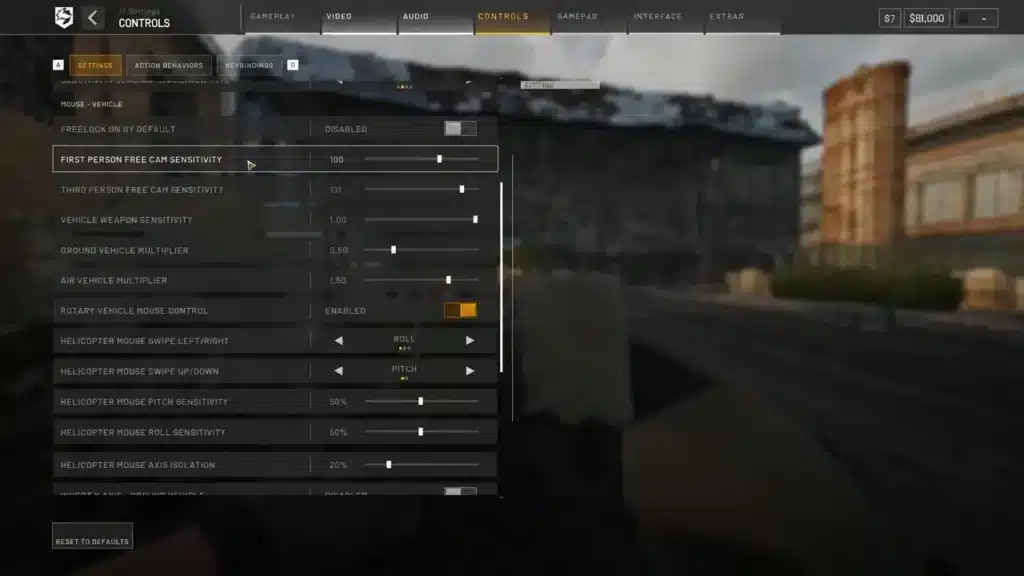
All helicopter tuning lives under Settings > Controls > Keybindings for button mapping and Settings > Controls > Settings for sensitivity, inversion, and flight assists. Open both tabs before your first flight.
Here is what each tab controls:
- Keybindings: Collective up and down, yaw left and right, weapon fire, and camera toggles.
- Controls Settings: Mouse sensitivity for pitch and roll, inversion, and the Flight Assists submenu.
- Gamepad tab: Controller stick mapping and the separate HOTAS sub-tab.
Choosing Mouse or HOTAS Mode
Wardogs supports three main input styles for helicopters: mouse and keyboard, standard controller, and a dedicated HOTAS mode for joystick and throttle hardware. Each one needs its own sensitivity approach.
Most players start with mouse and keyboard simply because it requires no extra hardware. However, if you already own a flight stick, HOTAS gives you noticeably finer pitch and roll control once it is configured correctly.
Wardogs Heli Settings for Mouse and Keyboard
Mouse flying in Wardogs depends entirely on one toggle: Rotary Vehicle Mouse Control. In practice, without it enabled, your mouse only moves the camera and the helicopter barely responds to input.
Best Sensitivity Values for Pitch and Roll
Once Rotary Vehicle Mouse Control is on, mouse swipes map directly to flight axes. Meanwhile, a left or right swipe controls roll, while an up or down swipe controls pitch.
Start low and build up from there. Follow this quick setup order:
- Enable Rotary Vehicle Mouse Control in the Controls Settings tab.
- Set pitch and roll sensitivity to 50 percent as a baseline.
- Fly a few laps in the Firing Range and note any overcorrection.
- Raise sensitivity in small 5 percent increments toward the 60 to 65 percent range.
- Stop increasing once turns feel snappy but landings stay controllable.
These Wardogs Heli Settings work well for most mouse players, although heavier gunships may feel better a little lower than a light transport helicopter.
Setting Up Inversion Correctly
Wardogs gives you two separate inversion toggles, which is easy to miss. Invert Y Axis: Air Vehicle only affects helicopter pitch, while a second option handles infantry aiming.
As a result, you can fly with inverted pitch while keeping your normal aiming untouched on foot. Many former flight sim players prefer this exact combination for their flight setup.
Wardogs Flying Settings: Flight Assists Explained
Wardogs Flying Settings are not just about sensitivity. Flight assists sit inside Settings > Controls > Settings > Flight Assists, and they quietly do most of the heavy lifting for new pilots.
Stability Assist vs Auto-Hover Assist
Stability Assist automatically levels the helicopter when you release the controls, preventing the slow drift into a crash that catches most beginners. Auto-Hover Assist, meanwhile, holds altitude and position when the collective sits near neutral.
Both work together but serve different moments:
- Stability Assist helps mid-flight, correcting unwanted roll or pitch after a hard turn.
- Auto-Hover Assist helps during troop drops, letting you focus on the door gunner or passengers.
- Both disabled removes almost all correction, which only experienced pilots should attempt.
When to Turn Flight Assists Off
Once you can complete three clean landings in a row without assists, you are ready to experiment with turning them off. Disabling them increases maneuverability significantly, which matters in close air-to-air fights.
Nevertheless, keep at least Stability Assist on during transport runs. Losing a helicopter full of teammates because you wanted a flashier turn is rarely worth it.
Wardogs Hotas Settings for Joystick Pilots
A dedicated flight stick changes how helicopters feel in Wardogs almost completely. Enable HOTAS support in Settings > Gamepad > HOTAS, and the game automatically switches to stick control the moment you sit in a helicopter seat.
Binding Your Axes Correctly
Bind roll, pitch, yaw, and collective one axis at a time rather than relying on auto-detection, since overlapping axes cause erratic input. Follow this order for clean Wardogs Hotas Settings:
- Open the HOTAS sub-tab and enable joystick support.
- Bind the stick’s X axis to roll and the Y axis to pitch.
- Bind the twist axis, or a spare axis, to yaw.
- Bind your throttle lever to collective.
- Map engine start, flares, weapon fire, and camera toggles to spare stick buttons.
In fact, that last step matters more than it sounds. Several in-seat functions are not reachable from the main menu at all, so unmapped buttons leave you stuck mid-flight.
Deadzone and Sensitivity Tuning
Wardogs treats stick deflection like a held key, so the helicopter keeps turning in that direction until you physically recenter the stick. Consequently, deadzones only need to be large enough to stop sensor noise.
- Roll deadzone: Around 0.02 is usually enough.
- Pitch deadzone: Around 0.03 prevents drift without dulling response.
- Sensitivity: Leave pitch and roll near 1.0, since lowering it reduces top rotation speed rather than softening the center.
For collective, calibrate the throttle so its full physical travel matches the complete in-game gauge. Then, hover in place and run the lever end to end to confirm the mapping feels linear.
These Wardogs Hotas Settings take longer to dial in than mouse settings, but they reward the extra effort with far more precise combat maneuvering.
Is Mouse or HOTAS Better for Wardogs Helicopters?
There is no single correct answer here. Instead, it depends heavily on the hardware you already own and how much practice time you can put into your flight setup.
Mouse Control Advantages
Mouse flying needs zero extra hardware and shares muscle memory with your infantry aiming. Moreover, it is faster to set up, which matters if you are jumping into a match right now.
HOTAS Control Advantages
A joystick and throttle combo offers independent, analog control over every axis at once. As a result, this makes fine hovering, precision landings, and rapid direction changes noticeably smoother once bindings are dialed in.
How Do You Stop a Helicopter From Drifting in Wardogs?
Unwanted drift almost always traces back to one of two causes: a deadzone set too tight, or Stability Assist turned off too early. Fortunately, both are simple to fix once you know where to look in the control menu.
Checking Your Deadzones
If your helicopter creeps sideways even with hands off the stick, raise the roll and pitch deadzones slightly above the 0.02 and 0.03 baseline. Notably, worn or older joysticks often need a touch more buffer than newer hardware.
Recentering Your Stick or Mouse
Because stick deflection behaves like a held key in Wardogs, forgetting to fully recenter causes a slow, constant rotation that looks like drift. Therefore, always glance at your stick position, not just the screen, when troubleshooting.
Wardogs Best Helicopter Settings by Playstyle
Not every pilot needs the same setup. For example, a transport run and a combat gunship engagement call for different priorities within your flight setup.
| Playstyle | Input Method | Pitch/Roll Sensitivity | Flight Assists | Best For |
|---|---|---|---|---|
| Transport Pilot | Mouse | 50 to 55 percent | Stability and Auto-Hover ON | Safe troop and supply runs |
| Combat Gunship | Mouse | 60 to 65 percent | Stability ON, Auto-Hover OFF | Fast repositioning under fire |
| HOTAS Purist | Joystick and throttle | Near 1.0 native | Stability OFF | Precision, aerobatic control |
| New Pilot | Mouse or controller | 50 percent | Both ON | Learning basics in the Firing Range |
These Wardogs Best Helicopter Settings are a starting point rather than a rulebook. Still, adjust them once you understand how your specific helicopter, like the Z20 Lakota, handles at different weights.
Pro Tips: Wardogs Flying Settings
- Test in the Firing Range first: Every sensitivity or deadzone change should be tested away from live matches, since a bad setting there only costs practice time instead of a lost round.
- Separate your inversion settings: Keep Air Vehicle inversion independent from infantry aiming, so switching between flying and shooting on foot never feels jarring.
- Save HOTAS profiles outside the game: Bindings currently do not always persist between sessions, so storing a backup profile in your stick’s own software saves time before every play session.
- Match sensitivity to your role: Lower sensitivity for transport runs keeps passengers safer, while higher sensitivity suits solo gunship pilots dodging fire.
- Watch for input damping updates: Recent balance passes made helicopter input damping apply the same way across mouse, controller, and HOTAS, so revisit these settings after major updates.
Common Mistakes Wardogs Helicopter Players Make
- Maxing sensitivity immediately: Jumping straight to 100 percent pitch and roll sensitivity causes constant overcorrection. Fix: start at 50 percent and raise it in 5 percent steps.
- Turning off Flight Assists too soon: Disabling Stability Assist before landings feel consistent leads to avoidable crashes. Fix: keep it on until three clean landings happen in a row.
- Ignoring HOTAS deadzones: Leaving deadzones at zero on older sticks causes constant drift from sensor noise. Fix: apply the 0.02 roll and 0.03 pitch baseline, then adjust from there.
- Descending too late: Waiting until the last moment to reduce collective causes hard, skid-breaking landings. Fix: begin your descent roughly 800 to 1,000 meters from the landing zone.
Why Wardogs Players Also Use ExitLag
Dialing in your Wardogs Helicopter Settings only solves half the problem. If your connection to the server is unstable, even perfect sensitivity values will not stop input lag from ruining a smooth landing.
How ExitLag Helps In Control Zone Fights
ExitLag is a game connection optimizer, not a VPN. Instead, it analyzes multiple network paths in real time and automatically picks the fastest, most stable route to the game server you are connecting to.
For a 100-player mode built around fast helicopter repositioning and tight Control Zone fights, that stability matters. As a result, consistent routing reduces the packet loss and rubber-banding that can turn a clean cyclic input into a wall crash.
Getting Started With ExitLag
ExitLag’s Multipath technology sends your traffic through several routes at once, so a single failing path will not drop your connection mid-flight. In addition, the Traffic Shaper feature keeps background downloads or updates from stealing bandwidth during a match.
It supports thousands of titles across PC and mobile, with servers spread across more than 190 countries, and it does not modify game files or interact with anti-cheat systems in any way.
If you want your carefully tuned Wardogs Helicopter Settings to actually translate into smooth, lag-free flying, grab the ExitLag Download and run the optimizer before your next Control Zone match.
Locking In Your Wardogs Helicopter Settings For Good
At this point you should have a clear picture of every menu, sensitivity range, and assist toggle that affects helicopter flight. Finally, the last step is simply committing to one profile and sticking with it.
Quick Reference Recap
Before your next match, confirm these basics are set in your control menu:
- Rotary Vehicle Mouse Control enabled, or HOTAS support enabled if using a stick.
- Pitch and roll sensitivity somewhere between 50 and 65 percent, or near 1.0 for HOTAS.
- Air Vehicle inversion configured separately from infantry aiming.
- Stability Assist on until landings feel consistent.
Testing Before You Deploy
Finally, always test a new configuration in the Firing Range before taking a helicopter into a live Control Zone fight. A few practice laps cost nothing, while a bad landing during a real match can cost your whole squad.
Good Wardogs Helicopter Settings are less about finding one magic number and more about matching your input method, your role, and your hardware. Get those three things aligned, and flying stops being the hardest part of Wardogs.
All game images used in this blog post belong to Bulkhead and Team17. They are used for informational and educational purposes only and do not imply endorsement or affiliation with the rights holders.
Got questions or want to connect with other players? Join the conversation at the ExitLag Forum!